- Semiconductor BusinessHOME
- Products and Services of Macnica,Inc.
-
technical information

-
Events and Seminars
- Handling Manufacturer
- Support
- Inquiry
- Click here to purchase products
- Semiconductor business e-mail magazine registration


 Narrow down by specifying conditions
現在2201件がヒットしています。check

A license file is required to use the paid Quartus® Prime design software, paid IP, and paid Questa* - Altera FPGA Edition.
[Reference] How to get a new license for Quartus® Prime, IP and Questa* - Altera® FPGA Edition
After obtaining the license file, set the license file on the computer according to the license type.
| License type |
FIXED license |
FLOAT license |
| feature | Standalone license | network license |
| Supported OS | Windows and Linux | Windows and Linux |
| Work content |
✔ Save license file to local PC ✔ Local PC licensing |
✔ Save and edit license files on license server ✔ FLEXlm setup for license server ✔ Client PC license settings |
Here, we will show you how to set up a FLOAT license.
[Notes]
See here for how to set up a FIXED license.
See here for an overview of FIXED and FLOAT licenses.
If you would like to manage your FLOAT licenses separately for "Quartus® Prime Development Software and IP" and "Questa* - Altera® FPGA Edition", please see here.
1. Save and edit the license file on the license server computer
(1) Save the NIC ID obtained from the license center to the local drive of the license server computer that owns the NIC ID linked when applying for the license.
Save your license file.
[Save Rule]
・The file name is arbitrary (only single-byte alphanumeric characters can be used. The extension is .dat)
・Double-byte characters and spaces cannot be used in the folder path to be saved.
Example) C:\alteraFPGA\license\altera_lic.dat
② Edit the license file. The contents of the edit are the following three points.
- SERVER line: The computer name of the license server
- SERVER line: TCP/IP port number
- VENDOR line: change mgcld to saltd
- VENDOR line: The path of each vendor daemon
The beginning of the license file (excluding commented out lines) contains the SERVER, VENDOR, and USE_SERVER lines.
The format of each line is as follows.
SERVER <hostname> 012345abcdef <port number>
VENDOR alterad <path to daemon executable>
VENDOR mgcld <path to daemon executable>
USE_SERVER
However, the third line, VENDOR mgcld <path to daemon executable>, is only listed for users who have purchased a license for Questa* - Altera® FPGA Edition.
[Notes]
The SW-ONE-QUARTUS license also includes a Questa* - Altera® FPGA Edition license.
Unnecessary lines can be commented out by inserting a # at the beginning of the line (see below).
SERVER <hostname> 012345abcdef <port number>
VENDOR alterad <path to daemon executable>
#VENDOR mgcld <path to daemon executable>
USE_SERVER
| License file line |
Edit item |
Presence or absence of editing |
Edited contents |
| SERVER | <hostname> |
✔ |
Change to the computer name of the license server |
| 012345abcdef |
unnecessary |
Check if it matches the NIC ID of the license server computer | |
| <port number> |
✔ |
Change to the TCP/IP port number used by FLEXlm on the license server computer (Check with your network administrator for available port numbers.) |
|
| VENDOR | <path to daemon executable> |
✔ |
Change the save path for the vendor daemon (alterad or saltd program) you are running. * You can also edit this after installing Flexlm in step 2. |
| mgcld |
✔ |
Change to saltd | |
| USE_SERVER | ー |
unnecessary |
ー |
Below is a sample after editing the license file in Windows OS.
 SERVER MAC01 012345abcdef 1800
 VENDOR alterad C:\FLEXlm\alterad.exe
 VENDOR saltd C:\FLEXlm\saltd.exe
 USE_SERVER
2. Setup FLEXlm on the license server computer
FLOAT licenses are operated by installing and setting up a management tool called FLEXlm software (※) on the license server computer.
When operating FLEXlm, please use an account with administrator privileges.
[Notes]
FLEXlm is a license management tool that is standardly adopted by various companies in the EDA (Electronic Design Automation) field.
The Quartus® Prime FLOAT license also uses this tool.
① Obtain the latest FLEXlm from the download center below.
Flexlm License Daemons for FPGA Software
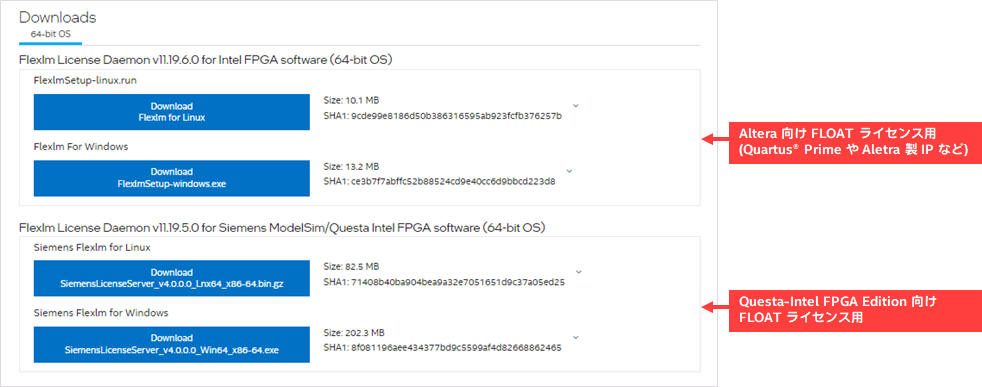
After downloading the Flexlm License Daemon, install it. There are no restrictions on the installation folder path, but full-width characters and spaces cannot be used.
Example) C:\FLEXlm
To operate Questa* - Altera® FPGA Edition or Questa* - Altera® FPGA Starter Edition provided by Altera® with a FLOAT license,
If you are installing Siemens Flexlm, please see the following content:
✔ Install the Siemens License Server (for Questa* - Altera® FPGA Edition)
The following files required for FLEXlm operation will be extracted to the specified folder. (Windows files have the extension .exe.)
| file name |
Overview |
| lmutil | A utility for managing the license server using the command line. |
|
lmtools |
Windows only file. Utility for license server administration using a GUI (Graphical User Interface) for Windows. |
| lmgrd |
License manager daemon. Prompts to start and stop the vendor daemons of each manufacturer, and manages and issues licenses. Only one lmgrd can run on one computer. |
| alterad※ |
Vendor daemon for Altera® FPGA development tools. Manage and issue usage rights such as Quartus ® Prime Standard Edition, Pro Edition, and IP (Intellectual Property) for client computers. Only one alterad can run on one computer. |
| saltd※ |
Questa* - Vendor daemon for Altera® FPGA Edition. Manage and issue Questa* -Altera® FPGA Edition usage rights to client computers. Only one saltd can run on one computer. |
[Notes]
alterad is only present if you have installed the Flexlm License Daemon for FPGA software.
saltd is only present if you have installed the Flexlm License Daemon for Siemens ModelSim/Questa FPGA software.
If you are already using FLEXlm to operate a network license from another manufacturer, you can continue to use lmutil, lmtools, and lmgrd. However, if the version of lmgrd is old, you may experience problems starting Quartus® Prime or Questa*-Altera® FPGA Edition. If necessary, please update lmgrd and the vendor daemons to the latest versions.
② Set up FLEXlm.
Here, I will introduce the setup method using lmtools for Windows.
In addition, Linux uses the lmutil utility to set up with commands. Please refer to the following document for details.
Upgrading the FLEXlm License Manager Server Software
(From "Altera FPGA Software Installation and Licensing")
②-1. Double-click lmtools.exe to start it.
②-2. Select Configuration using Services on the [Service/License File] tab and switch to the [Config Services] tab.
②-3. Set each item.
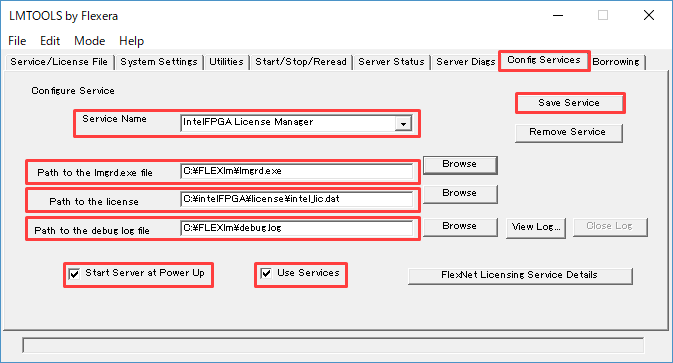
| item name | What to set |
| Service Name | Quartus ® Create a name for your license service, Prime or IP. The name can be anything you like. Example: Altera FPGA License Manager |
| Path to the lmgrd.exe file |
Specify the path of the license manager daemon lmgrd.exe used on the computer for the license server Example) C:\FLEXlm\lmgrd.exe |
| Path to the license file |
Specify the path of the saved license file Example) C:\alteraFPGA\license\altera_lic.dat |
| Path to the debug log file | Specify the output destination folder and file name of the license service log file. File name is free |
| Use Services |
* Arbitrary setting On : License Server service runs as a Windows service Off : Operates as a FLEXlm license service |
| Start Server at Power Up |
* Arbitrary setting On : This service starts automatically when the Windows OS starts. Off : service starts only with lmtools |
②-4. Click the Save Service button to save the settings.
③ After selecting the license server service to start on the [Service/License File] tab, switch to the [Start/Stop/Reread] tab,
Click the [Start Server] button to start the service.
When stopping the service for license file maintenance, etc., stop the target license server service on the [Service/License File] tab.
After selecting from the list, switch to the [Start/Stop/Reread] tab and click the [Stop Server] button.
④ Refer to the log file set in Path to the debug log file in ②-3 above, and confirm that the service has started successfully.
3. Set the license on the client computer
The PC that actually uses Quartus® Prime and Questa*-Altera® FPGA Edition is called the client.
There are two ways to set the license on the client computer.
Please select one of the setting methods according to your preference.
|
Setting type |
feature |
|
Multiple versions and editions of Quartus® If you have Prime installed, you can find the version or edition by You can change the license to be referenced. If you are not using Questa* - Altera® FPGA Edition, click here. |
|
|
or |
Multiple versions and editions of Quartus® If you have installed Prime, you can configure the license settings for all environments. Can be set in bulk If you are using Questa* - Altera® FPGA Edition, use this method. |
a. Setting on the Quartus® Prime menu
① Quartus® When you start Prime, the License Setup Required dialog Box appears.
Uncheck the box for Alternatively, acquire no-cost licenses for the products below and select License Setup specify license location ] button.
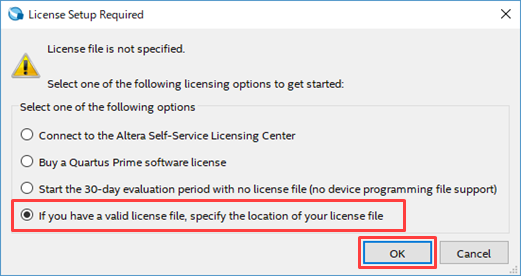
② In the License file field of the Options > License Setup dialog Box that opens automatically, check the port number specified in the license file on the license server.
Enter “TCP port number@license server computer name (or IP address)”.
Example: 1800@MAC01
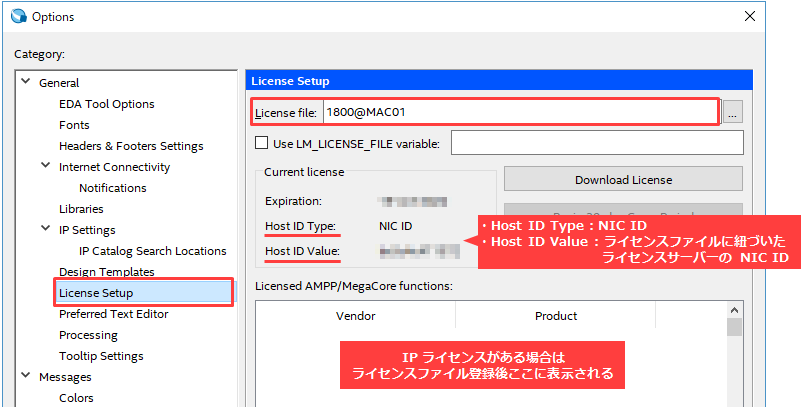
Once the license is set, the information will be loaded and displayed in the Current license and Licensed AMPP/MegaCore functions fields.
Please check that these are correct.
| Current license | Expiration | Maintenance Expiration Date |
| Host ID Type | NIC | |
| Host ID Value | License Server NIC ID (Includes the NIC ID associated with the license) |
|
| Licensed AMPP/MegaCore functions | Purchased paid IP registered in the license | |
[Note]
- The license used is only an IP license (Quartus® If you are using a current license (without a Prime license), "Not found" will be displayed in the Current license box.
Quartus® The IP Base Suite license lineup, which can be used free of charge by users who purchase a Prime license (SW-ONE-QUARTUS), includes NCO/FFT/FIR Compiler II.
(3) Close the dialog Box with the OK button.
This completes the license setup.
Get Quartus ® Prime.
b. Set it in the OS environment variables
The environment variable names and values to be set are as follows:
|
Quartus® Prime |
Questa* - Altera® FPGA Edition |
|
| Variable name | LM_LICENSE_FILE | SALT_LICENSE_SERVER ※ |
| variable value | TCP port number@license server computer name (or IP address) | TCP port number@license server computer name (or IP address) |
* For older versions of Questa* - Altera® FPGA Edition, use the variable name LM_LICENSE_FILE.
Here we will use Windows 11 as an example.
For Linux, edit the environment variable file according to each distribution. Refer to the table in 3b. (3) for the variable name and variable value at that time.
① Right-click the Windows Start button and select System.
② In the system version information that appears, select Advanced system settings from Related Links at the bottom of Device Specifications.

③ In System Properties, click the [Advanced] tab and then click the [Environment Variables] button.
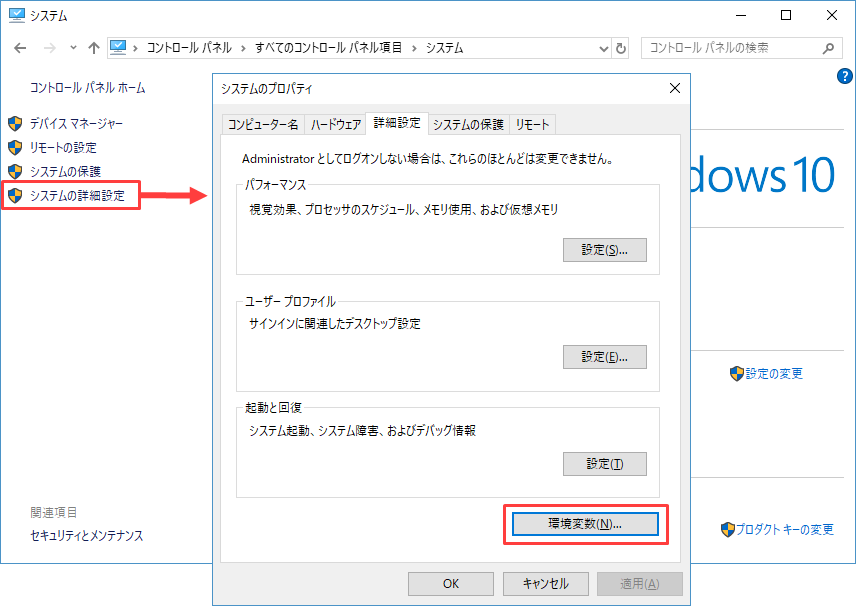
In the Variables field
LM_LICENSE_FILE / SALT_LICESE_SERVER is missing ⇒ Go to step ④.
If LM_LICENSE_FILE / SALT_LICESE_SERVER exists, proceed to step ⑤.
④ Click the [New] button and register the following variable name and variable value.
We recommend using the Browse Files button to avoid typos in variable values.
(Whether to set the user environment variable or the system environment variable is optional. Please consult with your computer administrator.)
| variable name |
Quartus®For Prime |
LM_LICENSE_FILE |
| Questa* - Altera® FPGA Edition |
SALT_LICESE_SERVER |
|
| variable value |
Enter the TCP port number@license server computer name (or IP address) specified in the license file on the license server. Example) 1800@MAX01 |
|
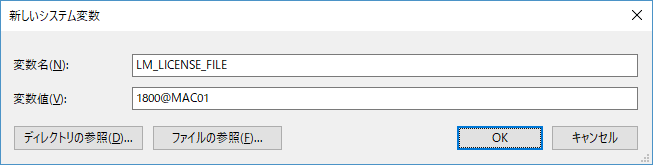
Close all dialog Box with the OK button.
This completes the license setup. Proceed to step ⑥.
⑤ Select the LM_LICENSE_FILE and SALT_LICENSE_SERVER lines and click the [Edit] button.
Add "TCP port number@license server computer name (or IP address)" to the contents already registered in the variable names LM_LICENSE_FILE and SALT_LICENSE_SERVER.
add or change.
If you want to set multiple variable values, separate them with a semicolon (;) on Windows OS, or a colon (:) on Linux OS.
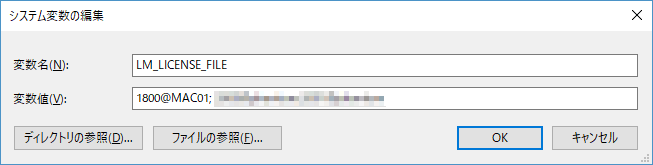
Close all dialog Box with the OK button.
This completes the license setup. Proceed to step ⑥.
⑥ Launch the tool and check if the license you set is correctly authenticated.
Quartus® Launch Prime.
Once the license authentication is complete, the GUI will start.
Quartus® In the Tools menu > License Setup > License file field on Prime, you can confirm that the contents you set in the environment variables earlier are registered.
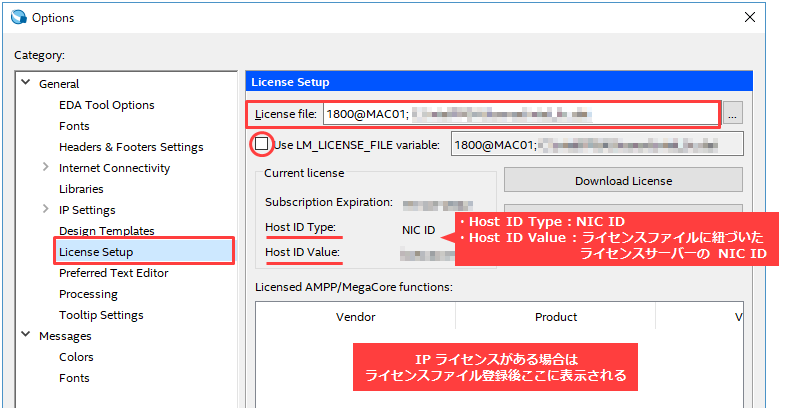
The license information you set will be loaded and displayed in the Current license and Licensed AMPP/MegaCore functions fields.
Please check that these are correct.
| Current license | Expiration | Maintenance Expiration Date |
| Host ID Type | NIC | |
| Host ID Value | License Server NIC ID (Includes the NIC ID associated with the license) |
|
| Licensed AMPP/MegaCore functions | Purchased paid IP registered in the license | |
The “Use LM_LICENSE_FILE variable” option allows you to switch between using the “License Setup menu” and the “OS environment variable”.
[Note]
- The license used is only an IP license (Quartus® If you are using a current license (without a Prime license), "Not found" will be displayed in the Current license box.
Quartus® The IP Base Suite license lineup is available free of charge to users who purchase Prime Pro and Standard Edition.
External memory controller IP such as the DDR3 SDRAM High-Performance Controller supporting UniPHY does not appear in the Licensed AMPP/MegaCore functions.
(For details on the FPGA IP functions in the IP Base Suite, please see here.)
Close the Options dialog Box with the OK button.
This completes the check. Get Prime.
Next,
⑥-2. Start Questa* -Altera® FPGA Edition. Once license authentication is complete, the GUI will start.
To close the IMPORTANT Information window, click the Close button at the bottom right.
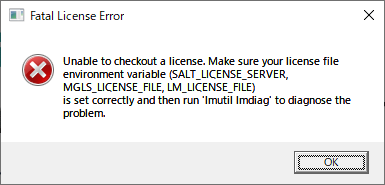
If the license is not set correctly, the following error message will be displayed and the GUI will not start.
Check the environment variable settings of your OS and make sure the variable value for the variable name SALT_LICENSE_SERVER is correct.
~ FAQs related to startup errors ~
FlexNet version of vendor daemon is too old.
Cannot checkout an uncounted license within a Windows Terminal Services guest session.
This completes the verification. Please use the Questa*-Altera® FPGA Edition.
Click here for recommended articles/materials
How to obtain new licenses for Quartus® Prime, IP, and Questa* - Altera® FPGA Edition
How to obtain Quartus® Prime, IP, and Questa* - Altera® FPGA Edition licenses during maintenance renewal
How to reissue an existing Quartus® Prime, IP, and Questa* - Altera® FPGA Edition license file
How to change the NIC ID (Host ID) associated with Quartus® Prime, IP, and Questa* - Altera® FPGA Edition licenses
How to obtain and set up a Questa* - Altera® FPGA Starter Edition license file