- Semiconductor BusinessHOME
- Products and Services of Macnica,Inc.
-
technical information

-
Events and Seminars
- Handling Manufacturer
- Support
- Inquiry
- Click here to purchase products
- Semiconductor business e-mail magazine registration


 Narrow down by specifying conditions
現在2247件がヒットしています。check

If you use the paid Quartus® Prime design software or paid intellectual property (IP) in your Altera FPGA development, you must purchase a license (right to use) for that product and then obtain a license file.
With a FLOAT type license, you cannot use Quartus ® Prime unless the client computer is in a network environment where it can access the license server.
In such cases, we recommend using a check-outlicense.
[Notes]
FIXED license users, please see how to obtain a companion license.
This section introduces how to obtain a checkout license that allows you to temporarily use the paid Quartus ® Prime or floating IP license outside the network.
This procedure must be carried out by the license administrator.
What is a checkout license?
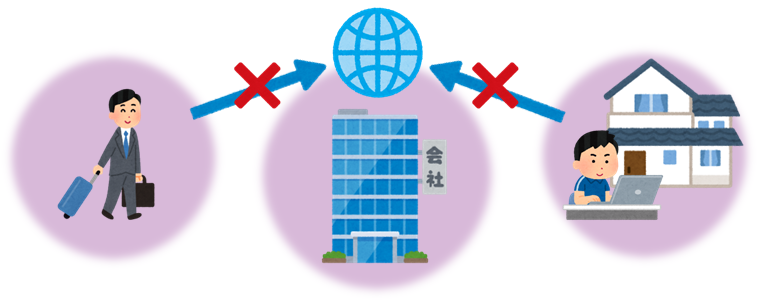
A check-out license is a license that allows you to temporarily use the functions of your FLOAT license even when you are not connected to the company network.
For example, users who are on business trips or working from home can use the same licensed products on their laptops even when they are not connected to the company network.
A 2 week FIXED license can be issued.
Important points to note when applying for a checkout license
When applying for a checkout license, please note the following:
- A NIC ID that is already registered as a FLOAT in the License Center cannot be registered as a check-out license.
All licenses assigned to one host are issued as check-out licenses.
You cannot assign different checkout NIC IDs to different licenses.
Sign in to the Licensing Center
Click the link below to go to the License Center sign-in page.
Intel® FPGA Self-Service Licensing Center
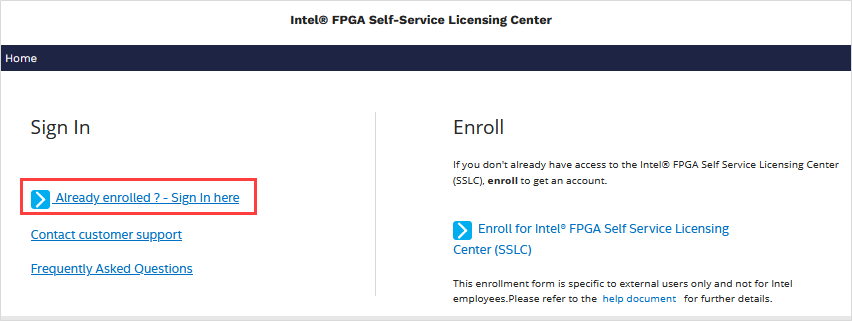
A sign-in page for the License Center appears.
Click [Already enrolled ? -Sign In here] on the left side of the screen to sign in.
[Notes]
If you are signing in to the License Center for the first time, please see how to sign up for the Intel FPGA Self-Service License Center.
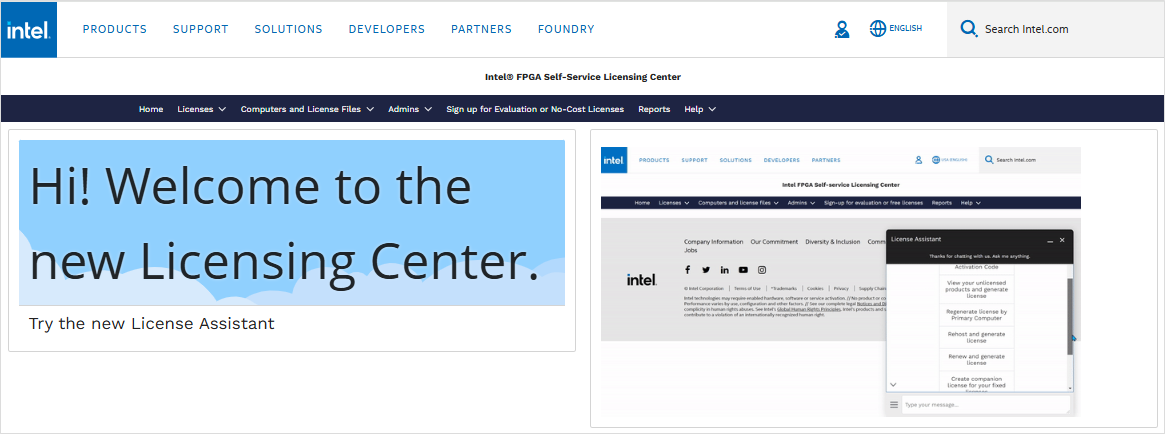
Once you have completed the multi-factor authentication and the License Center homepage is displayed, your access is complete.
Requesting and issuing a checkout license
1. To register the NIC ID for the check-out license to the existing computer information, select [Computers and License Files] menu > [Active Computers].
② From the list, find the computer information for which you want to register the checkout and click [Primary Computer ID].
③ Click [Edit] in the upper right corner of the screen and enter the NIC ID for which you want to issue a check-out license into "Temporary NIC ID".
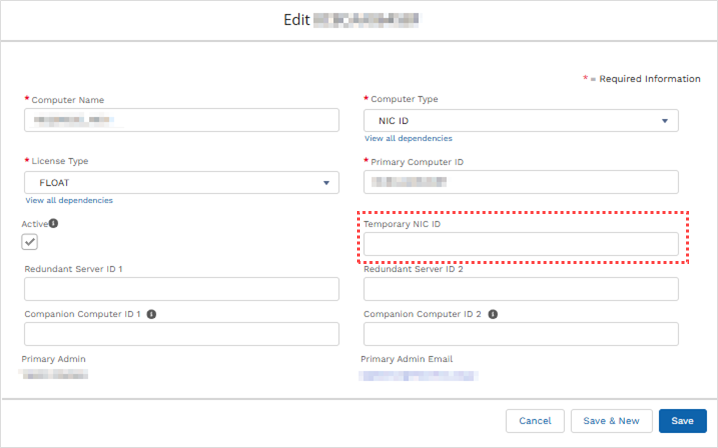
③ Click the [Save] button.
④ Click [Generate Temporary Checkout License] on the top right of the host information page. A license file will be sent to your registered email address.

Saving and Setting the Checkout License File
You will receive an email from the manufacturer with the subject "Your Intel FPGA Software and IP License".
Save the attached dat file to the computer that uses the license.
This dat file is a FIXED license file for the computer that has the NIC ID for which you just applied for the checkout license.
The checkout license file is set up in the same way as a FIXED license file for Quartus® Prime.
If you are unsure, please see the content below.
How to setup FIXED licenses for Quartus® Prime, IP and Questa*-Intel® FPGA Edition
Click here for recommended articles/materials
How to sign up for an Intel Account
How to obtain new licenses for Quartus® Prime, IP and Questa*-Intel® FPGA Edition
How to Obtain Quartus® Prime, IP and Questa*-Intel® FPGA Edition Licenses for Maintenance Renewal
How to obtain a companion license for Quartus® Prime
How to obtain a license for an Altera FPGA development kit