- Semiconductor BusinessHOME
- Products and Services of Macnica,Inc.
-
technical information

-
Events and Seminars
- Handling Manufacturer
- Support
- Inquiry
- Click here to purchase products
- Semiconductor business e-mail magazine registration


 Narrow down by specifying conditions
現在2240件がヒットしています。check

This article explains how to reissue a license file for paid Quartus® Prime design software, paid Intellectual Property (IP), or Questa*- Altera® FPGA Edition that you previously obtained from the FPGA Self-Service License Center.
This procedure must be carried out by the license administrator.
There are two tasks to complete:
Sign in to the FPGA Self-Service License Center
Click the link below to go to the License Center sign-in page.
FPGA Self-Service Licensing Center
A sign-in page for the License Center appears.
Click [Already enrolled ? -Sign In here] on the left side of the screen to sign in.
[Notes]
If you are signing in to the Licensing Center for the first time, see How to Register for an Intel Account and How to Register for the FPGA Self-Service Licensing Center.
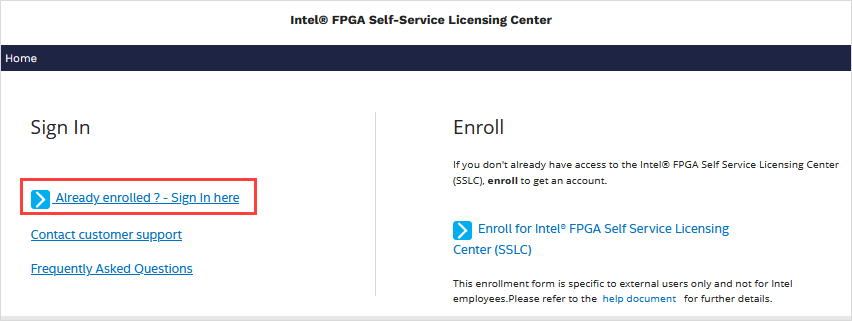
Sign-in is completed through the authentication system of Microsoft Azure AD.
If you have trouble signing in, visit Customer Support Please contact us.
[Notes]
If the email address of your existing sign-in account is a shared address (group address), you cannot currently use it.
It is necessary to change the administrator's e-mail address to an e-mail address that can be used to sign in, so please contact the person in charge at our company.
If the FPGA Self-Service License Center top page appears, your access is complete.
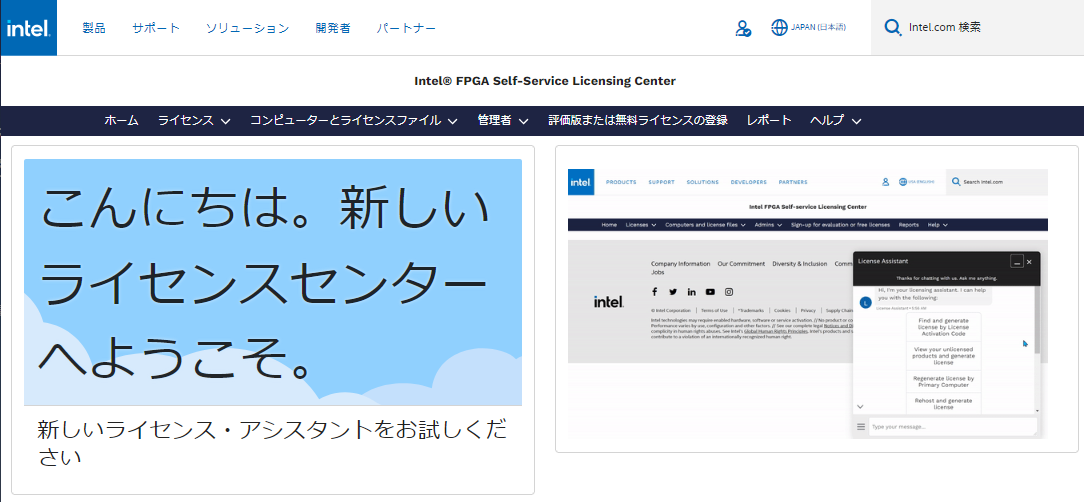
Reissue License File
There are two ways to reissue a license file that has already been obtained.
✔ Reissue via License Assistant
✔ Republish from the menu bar
Please reissue the license file using your preferred flow.
Reissue from License Assistant
1. Click the License Assistant banner in the bottom right corner of your web browser.
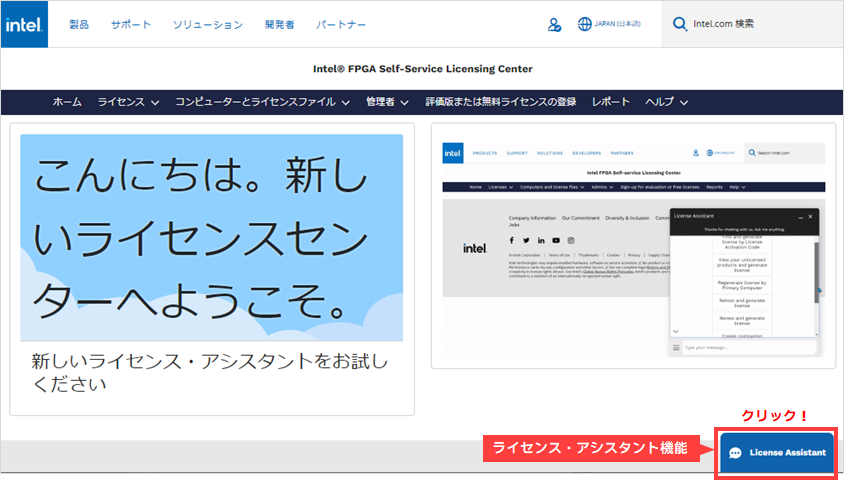
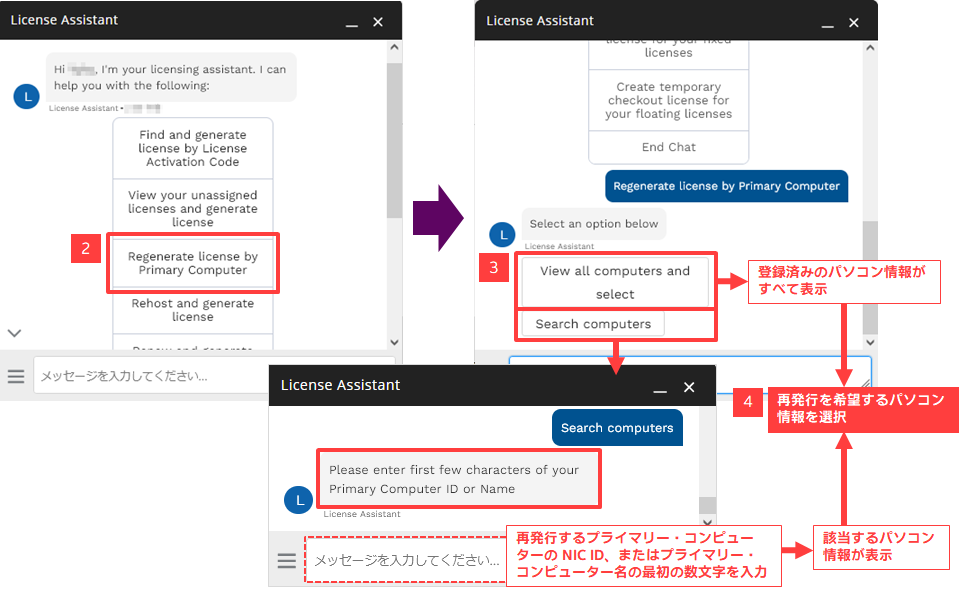
2. Select"I want to download/regenerate license" from the options displayed.
3. After that, please respond to any questions from the assistant.
Once you specify the NIC ID information to be reissued, a license file will be sent to your registered email address.
(You can also obtain the license file by clicking "View computer and license files.")
4. Select [No] to the question "Do you want me to help you with anything else?"
Quit the License Assistant.
5. Save the license file attached to the email to the computer on which you want to use the license.
It is recommended to save the file with the extension.dat.
When changing the file name, do not use double-byte characters or spaces.
This completes the operation of reissuing a license file from License Assistant.
Publish from the menu bar
1. Click the Computer and License Files menu and select Active Computers.
(The registered computer information is displayed.)

2. From the displayed list of active computers, click the "Primary Computer ID" for which you want to reissue a license file.
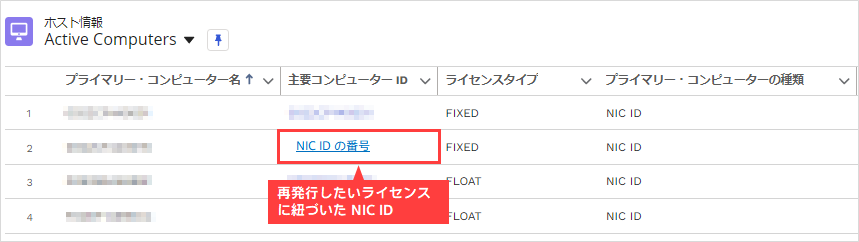
3. Host information for the specified NIC ID is displayed. Click the Related tab to see the license information associated with the NIC ID.
To reissue the license file, click Issue License from the upper right action bar.
You will receive an email from the manufacturer titled "Your Intel FPGA Software and IP License."
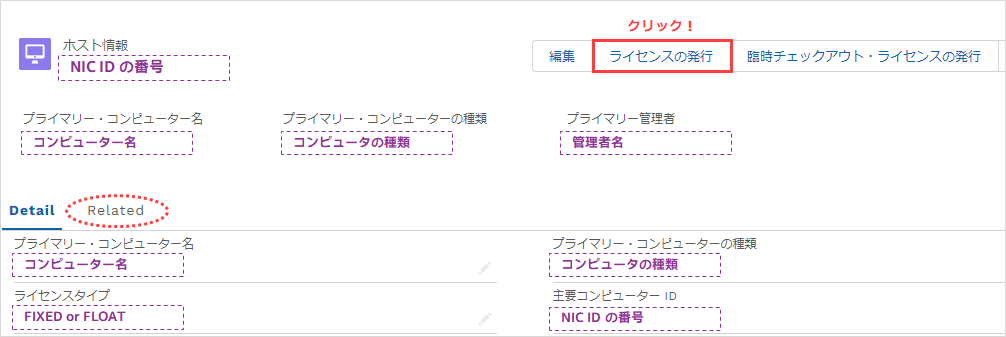
[Notes]
To download a license file issued in the past, click the Related tab and select
Select the appropriate one and click on the file column to obtain it.
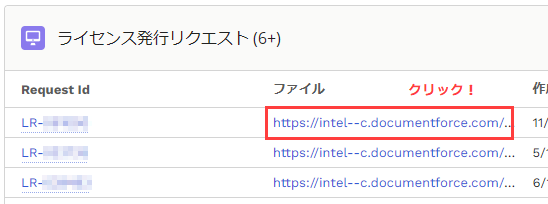
4. Save the license file attached to the e-mail or downloaded to the computer where you will use the license.
File extension is.dat It is recommended to save with .
When changing the file name, do not use double-byte characters or spaces.
This completes the operation to reissue the license file from the menu bar.
Click here for recommended articles/materials
How to sign up for an Intel account
How to obtain new licenses for Quartus® Prime, IP and Questa* - Altera® FPGA Edition
How to obtain Quartus® Prime, IP and Questa* - Altera® FPGA Edition licenses for maintenance renewal
How to obtain a companion license for Quartus® Prime
How to obtain a checkout license for Quartus® Prime
How to Obtain a License for an Altera® FPGA Development Kit
How to Manage Network Licenses for Quartus Prime and Third Party Software on the Same Server Machine