- Semiconductor BusinessHOME
- Products and Services of Macnica,Inc.
-
technical information

-
Events and Seminars
- Handling Manufacturer
- Support
- Inquiry
- Click here to purchase products
- Semiconductor business e-mail magazine registration


 Narrow down by specifying conditions
現在2247件がヒットしています。check

To install the Altera® FPGA development software (tools), you can basically just follow the wizard. However, if it's your first time installing, you might be confused because all the messages are in English.
If you are using the Nios® II embedded processor, you also need the Nios® II Software Build Tools (Nios® II SBT), which is installed automatically when you install the Quartus® Prime software.
This document also covers the installation of ModelSim® - Altera® FPGA Edition for use in RTL simulation.
install
Preparing for installation
Have you downloaded the installation file?
If you haven't already downloaded it, please first download the installation file (installer) for the tool you want to install.
How to download Altera® FPGA tools
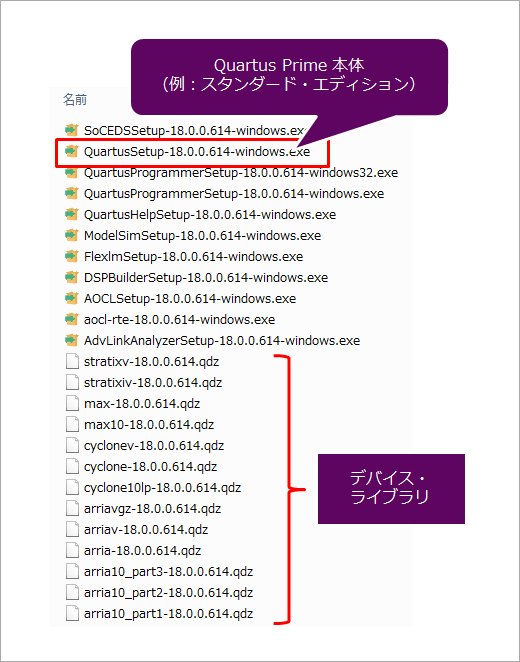
To install the Quartus® Prime software, you need the Quartus® Prime software itself (EXE file) and the device library (QDZ file).
- Quartus® Prime development software (only the edition to be installed is sufficient)
- Pro Edition
- Standard Edition
- Lite Edition
Pro and Standard editions require a paid license. After the installation is complete, set the license. Also, the lite edition is free to install and use, but it supports limited devices and functions. For supported OS and devices, see Quartus® Prime Supported Windows® OS Matrix and Quartus® Prime Supported Device Matrix.
- Device library (just the device you want to use)
- Stratix® 10 devices
- Stratix® V devices
- Stratix® IV devices
- Arria® 10 devices
- Arria® V device (separate files for GZ and GT/GX/St/SX)
- Arria® II devices
- Cyclone® 10 device (separate files for GX and LP)
- Cyclone® V devices
- Cyclone® IV device
- MAX® 10 devices
- MAX® V/MAX® II devices
We recommend that you also download and save the ModelSim® - Altera® FPGA Edition file (EXE file) in the same directory.
- ModelSim® - Altera® FPGA Edition
It's a good idea to keep these files in the same directory, like this:
Run the installation
Once you have all the necessary files, it's time to install. Double-click the Quartus® Prime software executable to launch the wizard. Follow the instructions to proceed with the installation. This time, we will use the Standard Edition as an example.
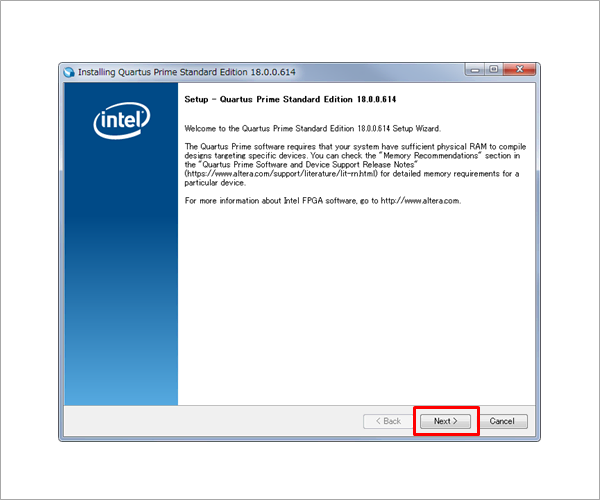
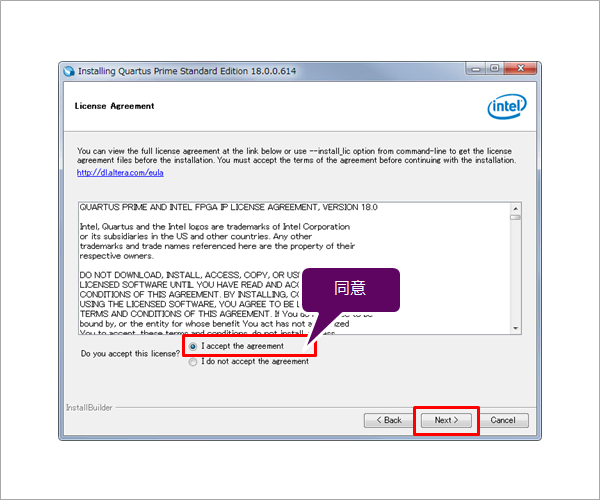
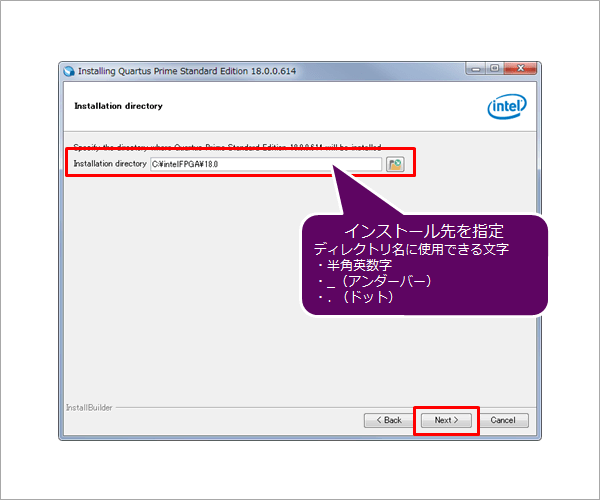
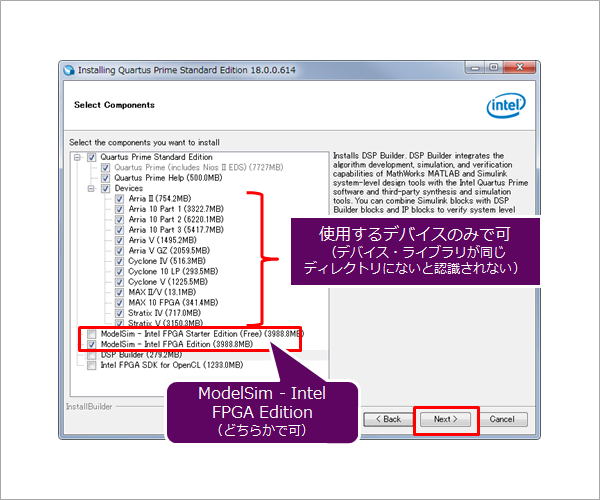
Next, decide which tools and devices you want to install. If you save the installer in the same directory as the Quartus® Prime software installer, other tools and device libraries will be automatically recognized, eliminating the need to install them all at once.
If you save it in a different directory, it will not be recognized here and you will need to install the device libraries and other tools separately after completing the installation of the Quartus® Prime software.
There are two simulator editions: ModelSim® - Altera® FPGA Edition (paid license required) and ModelSim® - Altera® FPGA Starter Edition (free). Please select which edition you would like to install. See below for the differences between the editions.
ModelSim® - Altera® FPGA Edition introduction page
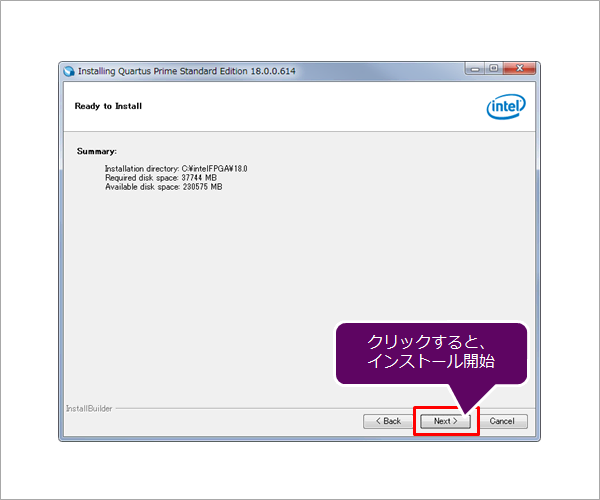
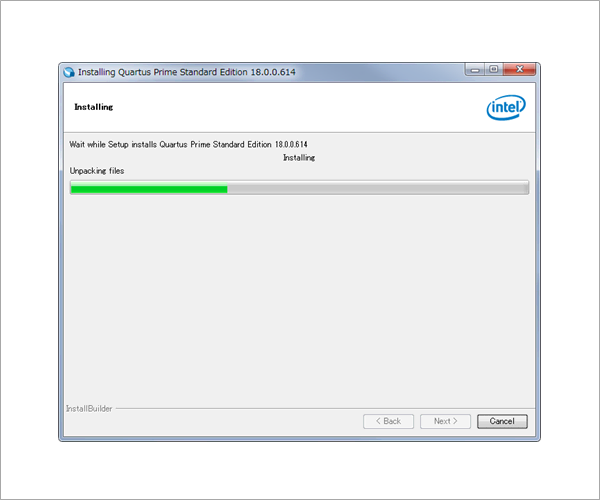
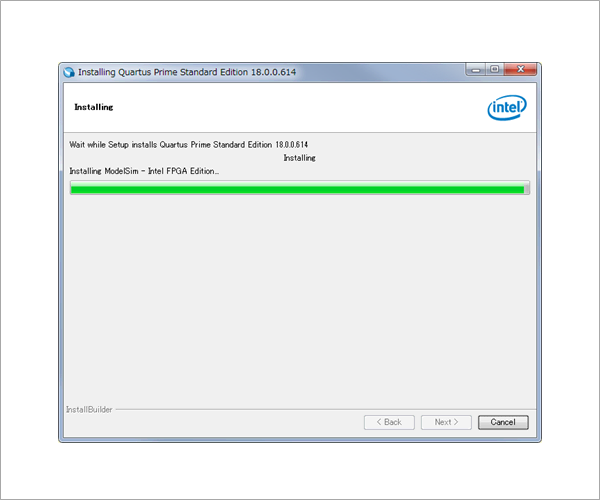
Once the Quartus® Prime software installation is complete, the ModelSim® - Altera® FPGA Edition installation will begin.
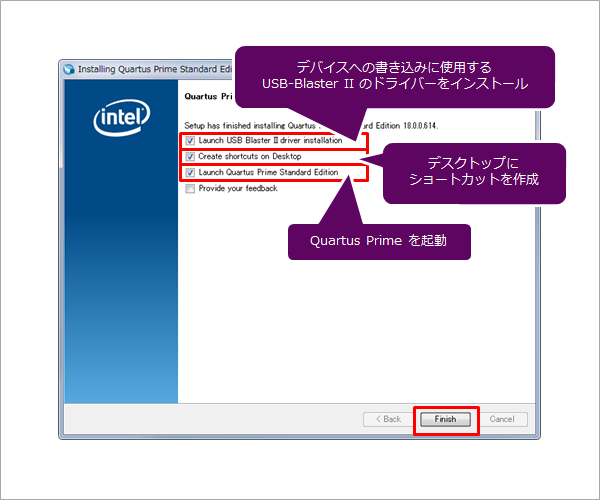
When the installation of the tool is completed, the following screen will be displayed. Check where you need it and click Finish.
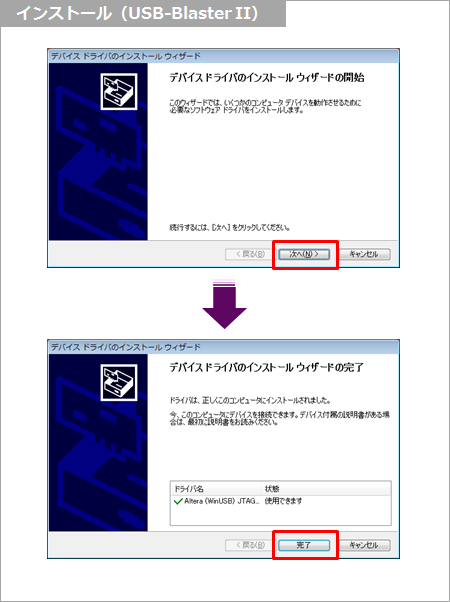
Installing the USB-Blaster™ II driver
Next, let's install the driver for the Altera® FPGA Download Cable (USB-Blaster™ II). The USB-Blaster™ II is a download cable used to write data to and debug FPGAs/CPLDs.
License settings
After the installation is complete, set the license. As mentioned above, the Pro and Standard editions require a license. (The lite edition can be used just by installing it.)
By the way, do you have the license file?
See here for license settings.
Click here for how to install older versions
Quartus® Prime & ModelSim® Installation Instructions (v17.1)
Quartus® Prime & ModelSim® Installation Instructions (v17.0)
Quartus® Prime & ModelSim® Installation Instructions (v16.1)
Quartus® Prime & ModelSim® Installation Instructions (v16.0)
Click here for recommended articles/materials
Quartus® Prime related articles and resources
Altera® FPGA Development Flow / FPGA Top Page