- Semiconductor BusinessHOME
- Products and Services of Macnica,Inc.
-
technical information

-
Events and Seminars
- Handling Manufacturer
- Support
- Inquiry
- Click here to purchase products
- Semiconductor business e-mail magazine registration


 Narrow down by specifying conditions
現在2247件がヒットしています。check

*June 2021: An article for version 20.1 has been published. Please refer to the following page for the latest information.
"How to Install SoC FPGA Embedded Development Suite (SoC EDS) ver.20.1"
--------------------------------
[Important] Added on 2020.12.10
The installation method for the SoC FPGA Embedded Development Suite (SoC EDS) has changed in version 20.1.
For instructions on how to install SoC EDS version 20.1, please refer to the following page:
"How to install the SoC FPGA Embedded Development Suite (SoC EDS) ver.20.1"
For SoC EDS 20.1 and earlier versions, please follow the installation steps on this page.
--------------------------------
The SoC FPGA Embedded Development Suite (SoC EDS) is a tool suite for embedded software development for Altera® SoC FPGAs.
The SoC EDS is available in two editions: Pro Edition and Standard Edition, each of which has a paid version and a free version.
This section explains how to install the SoC EDS.
Please follow the flow below to install.
[news]
We recommend using Google Chrome as your web browser for downloading.
(We have confirmed that Internet Explorer is unable to download various files required for development software.)
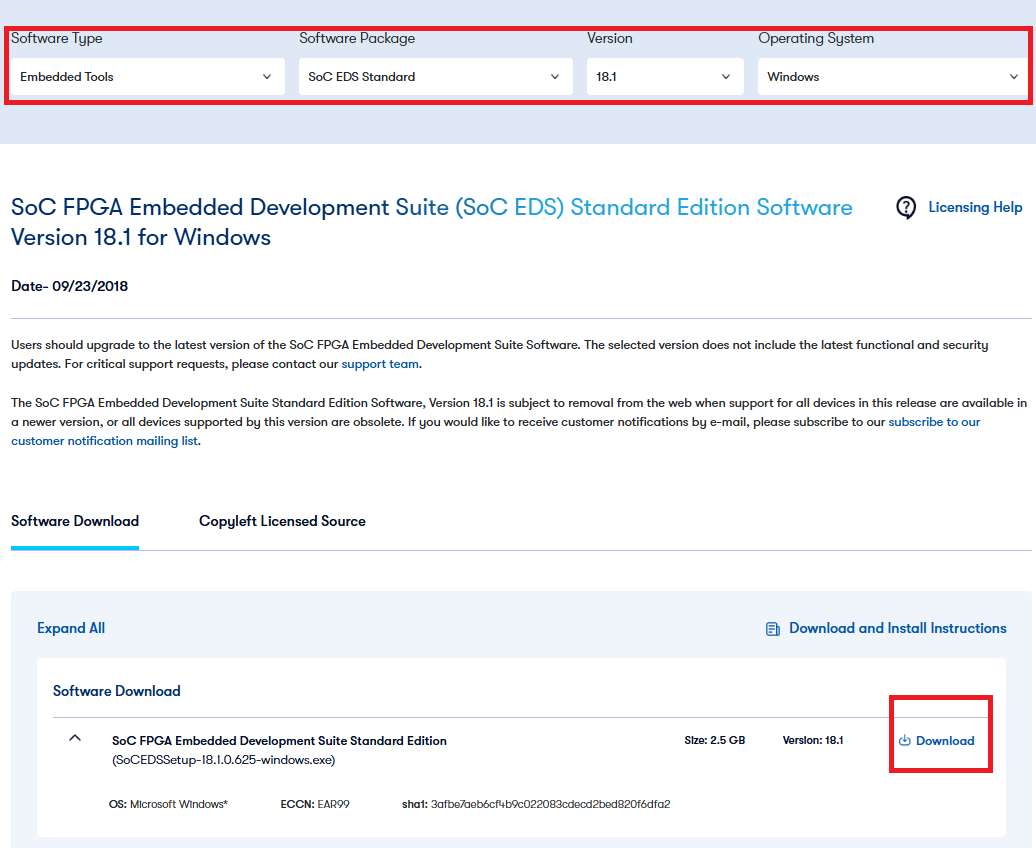
download
Visit the Altera® Download Center to download the software.
Here,
Software Type : Embedded Tools
Software Pakage : SoC EDS Standard
Version : 18.1
Operating System : Windows
Choose.
install
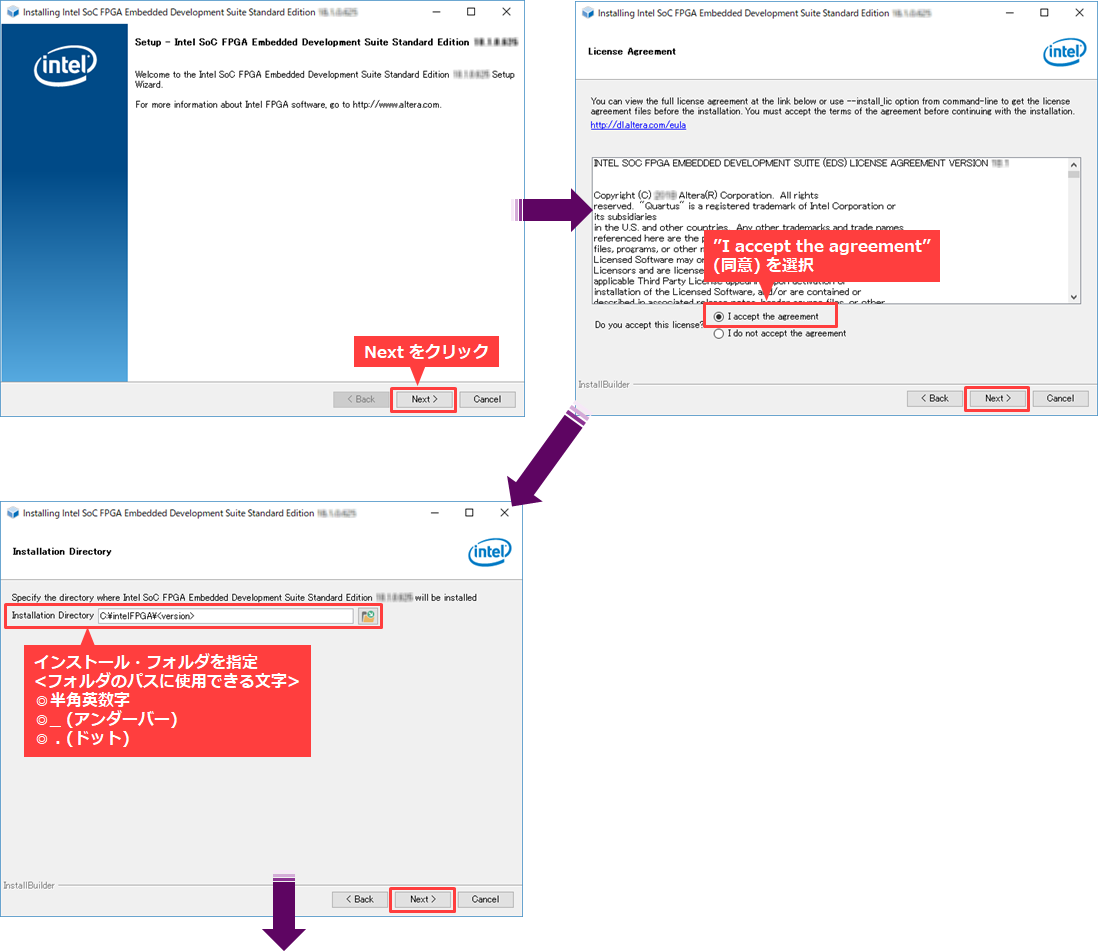
Execute the following file obtained from the download center.
|
SoC EDS pro edition |
・Windows: SoCEDSProSetup-<version>-windows.exe ・ Linux : SoCEDSProSetup-<version>-linux.run |
|
SoC EDS Standard edition |
・Windows: SoCEDSSetup-<version>-windows.exe ・ Linux : SoCEDSSetup-<version>-linux.run |
A wizard will start. Follow the instructions to proceed with the installation.
If you have already installed Quartus Prime Programmer and Tools, uncheck Quartus Prime Programmer and Tools.
Also, if you have already installed Quartus Prime and want to use the Programmer by launching it from Quartus Prime, you can uncheck it.
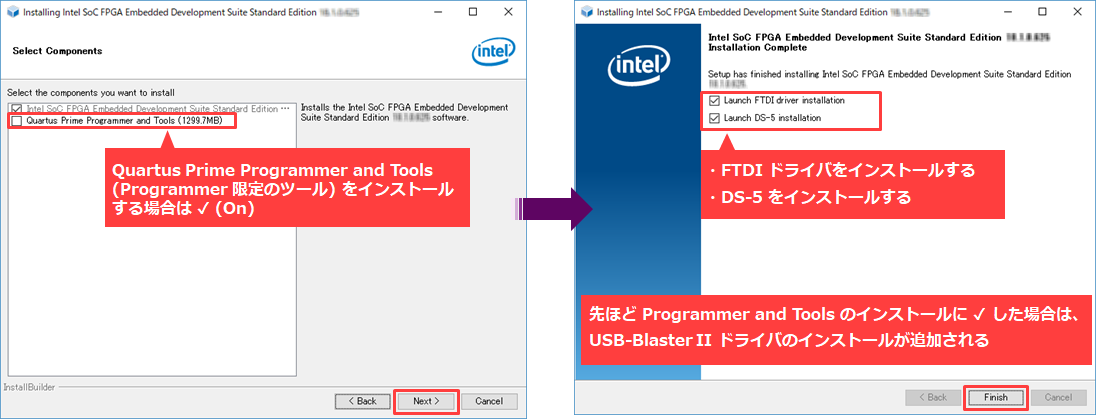
Then install the FTDI drivers.
(If you select the Quartus Prime Programmer and Tools in Select Components, the driver for the Altera® FPGA Download Cable II (formerly USB-Blaster™ II) will be installed first.)
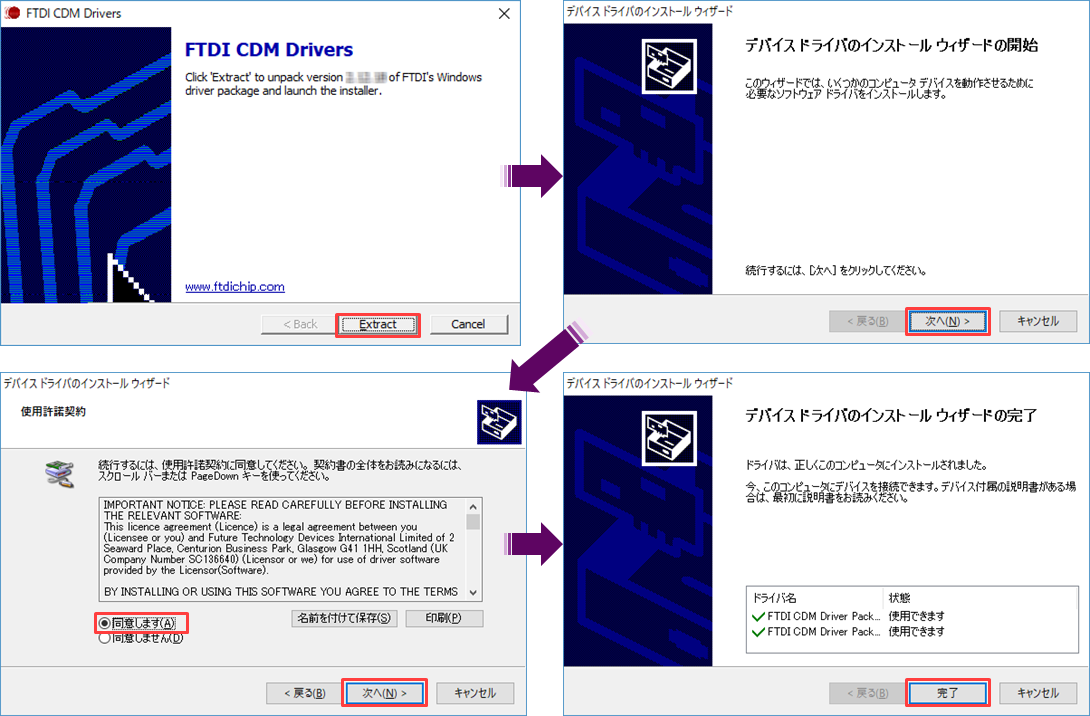
Next, install Arm® DS-5™- SoC FPGA Edition by following the wizard.
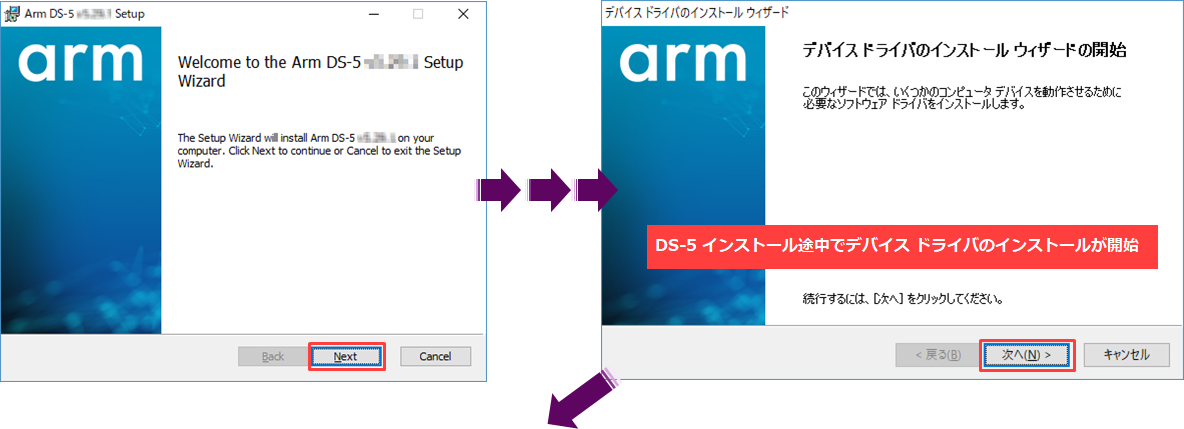
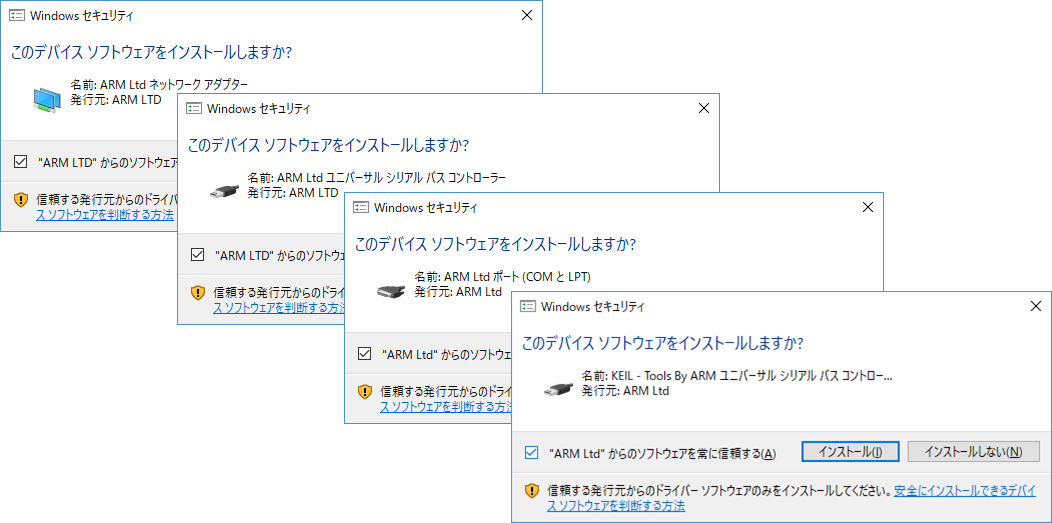
After completing the installation of each driver, click the Finish button on the DS-5 installation wizard.
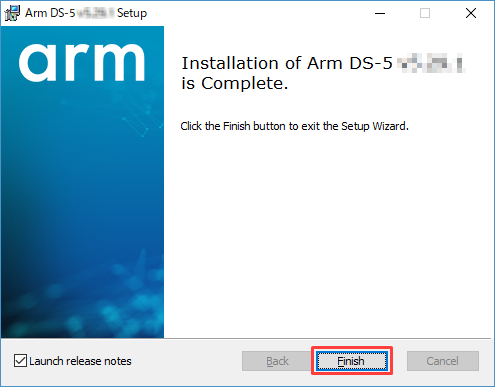
All installations are now complete.
License settings
After the installation is complete, set the license.
Both paid and free versions require a license file.
For more information, please see the content below.
Click here for how to install older versions
How to Install Altera® SoC FPGA Embedded Development Suite (v17.1)
How to Install Altera® SoC FPGA Embedded Development Suite (v17.0)
How to Install Altera® SoC FPGA Embedded Design Suite (v16.1)
How to Install Altera® SoC FPGA Embedded Design Suite (v16.0)
Click here for recommended articles/materials
SoC FPGA related articles and documents
Altera® FPGA Development Flow / FPGA Top Page