Site Search

This article is a series on the dot commands available in SPICE. In this fifth article, we will explain Fourier analysis (the .four command), which can be used for noise suppression and other purposes.


If you answer the final survey, you will be able to download supplementary materials for the Fourier analysis (.four) command in LTspice Help. The Help materials are netlist-based, but if you would like to obtain explanatory materials that run simulations including the contents of the FFT menu, as in this article, please help us by answering the survey.

Fourier analysis ( .four command)

Fourier analysis using the .four command can be used to analyze signal frequency components and harmonic distortion (TDH), as well as check filter performance.


Normally, when configuring analysis settings, you would set the analysis mode using the GUI on LTspice, but for Fourier analysis, you need to write it in the form of a dot command using Spice directives.
There are two types of LTspice​ ​syntax. < > is a required item when setting. [ ] is optional.

Fourier analysis syntax

This section explains the netlist notation for normal Fourier analysis. The LTspice syntax is as follows. < > is a required field when setting up. [ ] is optional. By entering this command, you can check the analysis results by selecting View → SPICE Output Log after running transient analysis.
 
.four <frequency> [Nharmonics] [Nperiods] <data trace1> [<data trace2> ...]

Item

content

frequency

The fundamental frequency for which successive harmonics are evaluated.

Nharmonics

This sets the order of the harmonics you want to know, including the fundamental wave. If omitted, it will be set to 9.

Nperiods

If an integer Nperiods is specified, the Fourier analysis is performed over that number of periods.

data trace

Specify the node you want to analyze (e.g., V(OUT)).

If Nperiods is specified as -1, the Fourier analysis is performed for the entire range of the simulation data. If omitted, the analysis is performed for the period from the final time Tend to one period before Tend.

Improved accuracy of Fourier analysis

LTspice compresses data to speed up the analysis, but disabling this data compression will improve the accuracy of the Fourier analysis results.

① Set .option plotwinsize=0

This optional command allows you to run a simulation with compression turned off, which improves accuracy. However, please note that running a simulation with compression turned off for complex circuits will result in larger .raw files and longer analysis times.


② Maximum Timestep setting for transient analysis

Increasing the number of steps in the transient analysis and the number of data will improve the accuracy of the simulation. The time setting should be 1/10000 or less of the period of the signal to be analyzed. In this case, the .raw file will become larger and the analysis time will increase.
Please be aware that this will be a long post.

③ Set .options numdgt=15

LTspice is set to single precision calculations. You can set the .options numdgt command to 6 (default) or higher to use double precision calculations. Usually, you set .options numdgt=15.


Reference URL: https://ez.analog.com/jp/ez-blogs/b/ez-spotlight/posts/can_2d00_ltspice_2d00_break_2d00_physics

Fourier analysis example

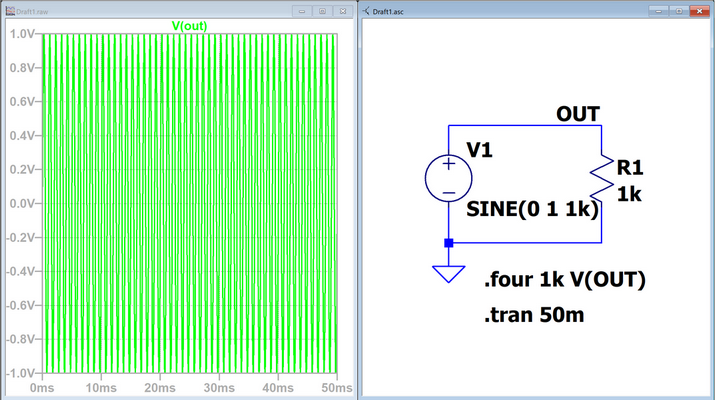
In this example, we will create the following circuit to perform Fourier and FFT analysis.
For V1, select a sine waveform with a DC offset of 0V, Amplitude of 1V, and Freq of 1KHz.


The Fourier command is set to analyze the OUT node with a fundamental frequency of 1KHz.

A transient analysis is performed with a time setting of 50 ms.

図1:1KHz SINE波のシミュレーション実行
Figure 1: Simulation of 1KHz SINE wave

Fourier analysis results

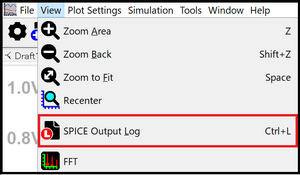
Select View → SPICE Output Log from the toolbar to check the Fourier analysis results.

Figure 2: Output Log Menu

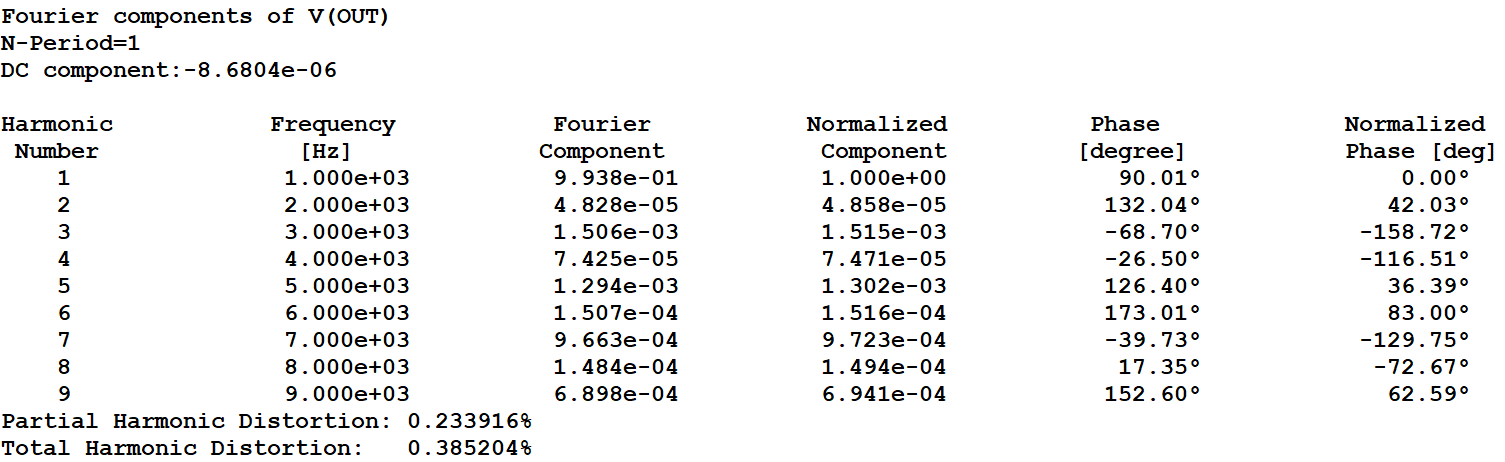
The analysis results are as follows. Harmonic Number 1 is the value of the fundamental wave at 1 kHz, and the Fourier Component is 0.9938 V. Ideally, it would be 1, but since this is an analysis result of a compressed data state, there is an error.

Figure 3: Fourier analysis results

FFT analysis

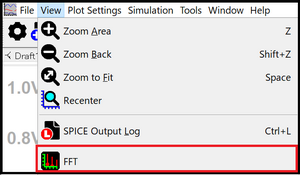
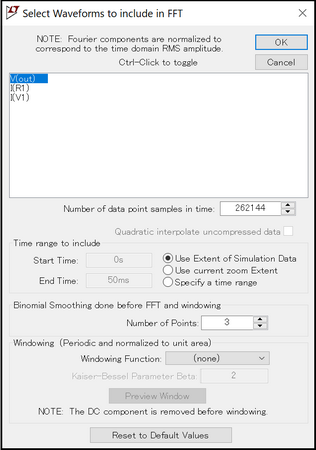
LTspice has a menu for FFT (Fast Fourier Transform) analysis. Select View → FFT from the toolbar. This will open Figure 6: Select waveforms to include in FFT.

Figure 5: FFT analysis menu
Figure 6: Select waveforms to include in the FFT settings menu

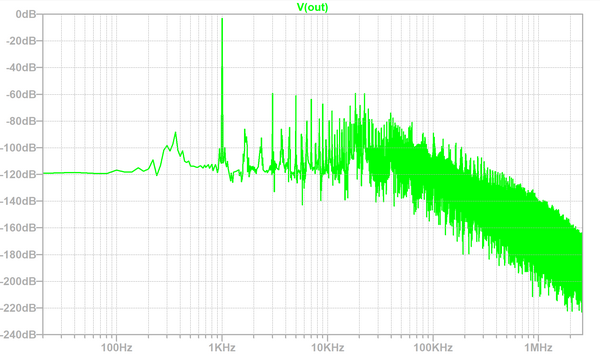
Make the desired settings and click OK to obtain the results of the FFT analysis (Figure 7).

Figure 7: FFT analysis results

Other analysis examples

The Help explanatory materials provided by Macnica include the following Fourier analysis examples. If you would like to receive explanatory materials that include the differences in analysis results between uncompressed and compressed data, please help us by answering the survey.


Fourier analysis example

1. Analysis of 1KHz sine wave (data compressed)
2. Analysis of 1KHz sine wave using the .option command
3. Checking THD of Wien-bridge oscillator circuit


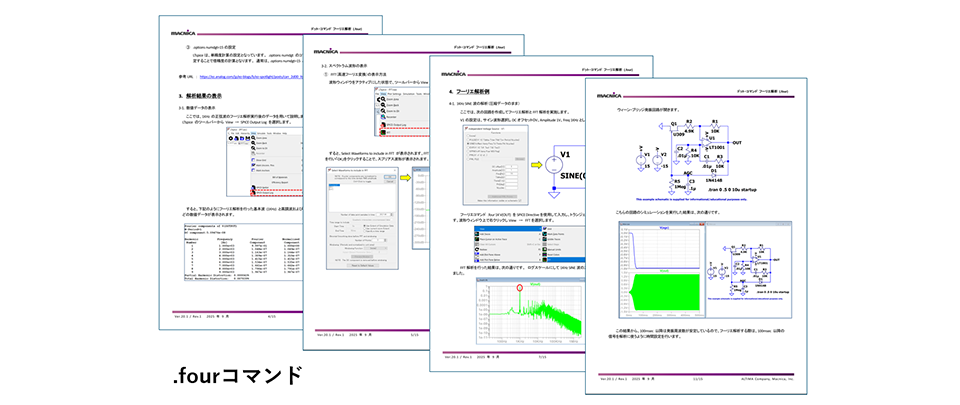
Download supplementary materials for the Fourier analysis (.four) command

You can download the explanatory materials for the Fourier analysis (.four) command in the LTspice Help. After filling out the questionnaire, we will send you a URL to download the supplementary materials by email.

フーリエ解析 (.four) コマンドの補足資料


If you have any requests, such as what kind of seminars you would like us to hold in the future or what kind of technical materials you would like us to provide, please write your opinions in the free-form section of the survey. We would like to use your opinions to hold seminars and provide technical materials that will be useful to you.

At the end

If you have not used LTspice yet, please download it from the link below!
Please try once.
Click here to download LTspice


If you are just starting LTspice, we recommend that you look at the "Basic Edition" from the list below.
Click here for the list of Let's try using LTspice series


Also, if you would like to see a video on how to write a basic circuit and how to execute it, there is an on-demand seminar that does not require you to enter personal information. Detailed information about the seminar is also provided to those who fill in the questionnaire.
LTspice On-Demand Seminar - Function check with RC circuit -


We also regularly hold LTspice seminars for beginners. We hope you will join us as you will be able to learn the basic operations of LTspice.
Click here for information on LTspice seminar

Click here for recommended articles/materials

List of articles: Let's use LTspice Series

LTspice FAQ:  FAQ list

List of technical articles:  technical articles

Manufacturer introduction page:  Analog Devices, Inc.  

Click here for recommended seminars/workshops

Analog Circuit Technology Seminar information is here

Inquiry

If you have any questions regarding this article, please contact us below.

Analog Devices Manufacturer Information Top

Analog Devices Manufacturer Information If you would like to return to the top page, please click below.