- Semiconductor BusinessHOME
- Products and Services of Macnica,Inc.
-
technical information

-
Events and Seminars
- Handling Manufacturer
- Support
- Inquiry
- Click here to purchase products
- Semiconductor business e-mail magazine registration


 Narrow down by specifying conditions
現在2237件がヒットしています。check

This article is the third in a series of articles about the dot commands available in SPICE. In this article, we will explain the most commonly used transient analysis (.tran command).
If you answer the last questionnaire, you can download the supplementary material for the Transient Analysis (.tran) command in LTspice Help. The Help material is a netlist-based material, but if you would like to obtain an explanatory material that actually performs a simulation with the GUI like this article, please help us by answering the questionnaire.
Transient analysis ( .tran command)
Transient analysis using the .tran command is useful for confirming electrical characteristics such as those measured with an oscilloscope, such as checking the operation of a switching regulator.
Normally, when performing a transient analysis, you would set the analysis mode on LTspice using the GUI, but here we will explain how to write the netlist after setting it up. There are two types of LTspice syntax. < > is a required item when setting it up. [ ] is optional.
① .TRAN <Tstep> <Tstop> [Tstart [dTmax]] [modifiers]
|
Item |
content |
|
Tstep |
Used to specify the step size of the waveform. Since LTspice uses waveform compression, this parameter is meaningless and can be omitted or set to zero. |
|
Tstop |
Sets the end time of the simulation. |
|
Tstart |
The transient analysis starts at time zero, unless Tstart is specified, in which case the analysis will run from zero to Tstart. The waveform data during this period is not saved. The Tstar setting allows you to ignore the start-up transients, It is possible to reduce the file size. If you use Tstart, you must set Tstep. |
|
dTmax |
You can set the maximum time step when integrating the circuit equations. If you use dTmax, you must specify Tstep. |
|
modifiers |
You can add UIC , steady , nodiscard , step , etc. |
② .TRAN <Tstop> [modifiers]
|
Item |
content |
|
Tstop |
Sets the end time of the simulation. |
|
modifiers |
You can add UIC , steady , nodiscard , step , etc. |
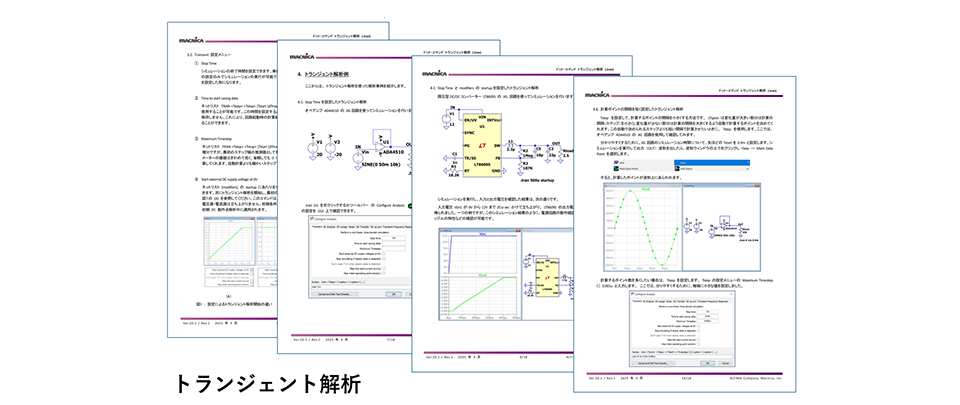
For details on modifiers, please refer to the LTspice Help. The Help documentation provided by Macnica includes explanations of modifiers as well as examples of transient analysis such as the following. If you would like to receive the documentation, please fill out the questionnaire.
Transient analysis example
1. Transient analysis with Stop Time set
2. Transient analysis with Stop Time and startup of modifiers set
3. Transient analysis to confirm the efficiency of a step-down DC/DC converter
4. How to save the entire simulation result when checking efficiency
5. Save less data for transient analysis to speed up simulation
6. Transient analysis with closely spaced calculation points
Performing a Transient Analysis
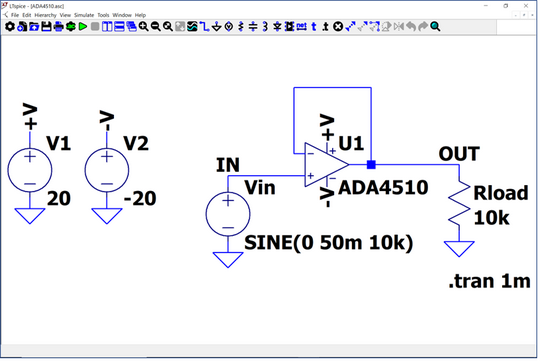
Here, we will introduce "Transient analysis with Stop Time set" from the explanatory materials. Simulation will be performed using the JIG circuit of the op amp ADA4510. After clicking New Schematics, open the component on the toolbar. Enter ADA4510 in Search and click the Open Example Circuit button to open the JIG circuit.
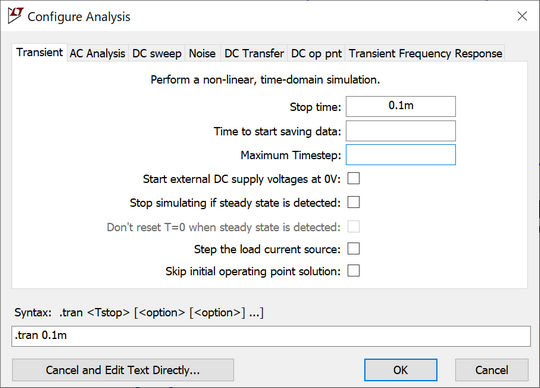
Check the settings of the .tran command. Click to open the Configure Analysis menu. The tran Analysis tab opens, and you can check the analysis command on the GUI. The Stop Time is already set to 1msec. Here, change it to 0.1m and run the simulation.
On the toolbar Click RUN to run the simulation.
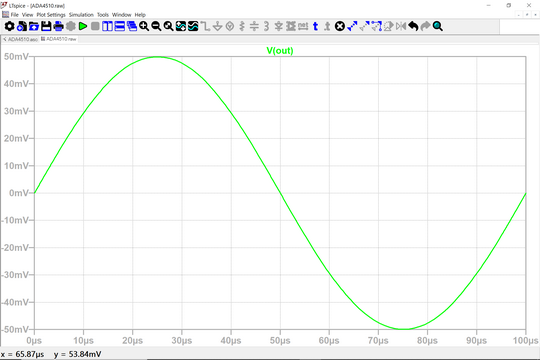
When we checked the voltage of the OUT node, the result was as shown below, and one period of the output waveform was confirmed.
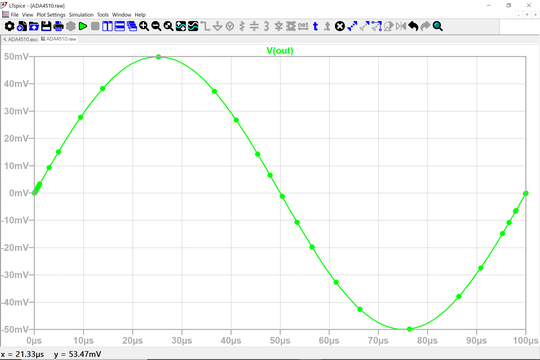
Right-click on the waveform window and select View → Mark Data Points to plot the points calculated in the simulation. This allows you to see that there are many calculation points in areas with large changes and few calculation points in areas with small changes.

If you want to increase the number of points in the plot below, you can set it in Maximum Timestep. For details, please refer to the Help documentation.
Download supplementary material for Transient Analysis (.tran) command
The explanation of the Transient Analysis (.tran) command in the LTspice Help is based on a netlist, but if you fill out a questionnaire, you can download a GUI-based explanation document similar to this article. After filling out the questionnaire, we will send you a URL to download the supplementary document by email.
If you have any requests, such as what kind of seminars you would like us to hold in the future or what kind of technical materials you would like us to provide, please write your opinions in the free-form section of the survey. We would like to use your opinions to hold seminars and provide technical materials that will be useful to you.
At the end
If you have not used LTspice yet, please download it from the link below!
Please try once.
Click here to download LTspice
If you are just starting LTspice, we recommend that you look at the "Basic Edition" from the list below.
Click here for the list of Let's try using LTspice series
Also, if you would like to see a video on how to write a basic circuit and how to execute it, there is an on-demand seminar that does not require you to enter personal information. Detailed information about the seminar is also provided to those who fill in the questionnaire.
LTspice On-Demand Seminar - Function check with RC circuit -
We also regularly hold LTspice seminars for beginners. We hope you will join us as you will be able to learn the basic operations of LTspice.
Click here for information on LTspice seminar
Click here for recommended articles/materials
List of articles: Let's use LTspice Series
LTspice FAQ: FAQ list
List of technical articles: technical articles
Manufacturer introduction page: Analog Devices, Inc.
Click here for recommended seminars/workshops
Inquiry
If you have any questions regarding this article, please contact us below.
Analog Devices Manufacturer Information Top
If you want to go back to Analog Devices Manufacturer Information Top, please click below.