- Semiconductor BusinessHOME
- Products and Services of Macnica,Inc.
-
technical information

-
Events and Seminars
- Handling Manufacturer
- Support
- Inquiry
- Click here to purchase products
- Semiconductor business e-mail magazine registration


 Narrow down by specifying conditions
現在2236件がヒットしています。check

Hello everyone.
To use each Siemens EDA tool, you must configure the license after installing the tool.
This page explains how to set up the license. For information on how to download and install the tool, please see here.
▶ How to download Siemens EDA tools
▶ How to install Questa Core/Prime / ModelSim
▶ How to install Questa CDC/Formal
▶ How to Install HDL Designer
▶ How to install HyperLynx
▶ How to Install PADS
If you would like to evaluate before purchasing, please contact us here with the name of the tool you would like to evaluate and your request for an evaluation license.
▶ inquiry
Obtaining license files
There are two main ways to obtain a license file:
a) Sent by email when purchasing a new product or renewing maintenance
b) Download from the Siemens EDA Support Center
If you already have a license file, please proceed to the next section, "License Type."
① Sign in to the Support Center.
To download the tool, you need to sign in to the Siemens EDA Support Center Web site. You can access the Siemens EDA Support Center from the following link:
▶ Siemens EDA Support Center (Siemens EDA website)
First, log in to the Support Center.
If you do not have an account, please register a new account. To register, enter your name, email address, password, company name, country, etc. After entering the required information and completing the registration process with Siemens EDA, you will be able to sign in to the Support Center. (It may take several hours to several days for registration to be completed.)
Siemens EDA also provides documentation on registering a new account, so please refer to it.
▶ Support Center Web How to use the main functions (Siemens EDA site)
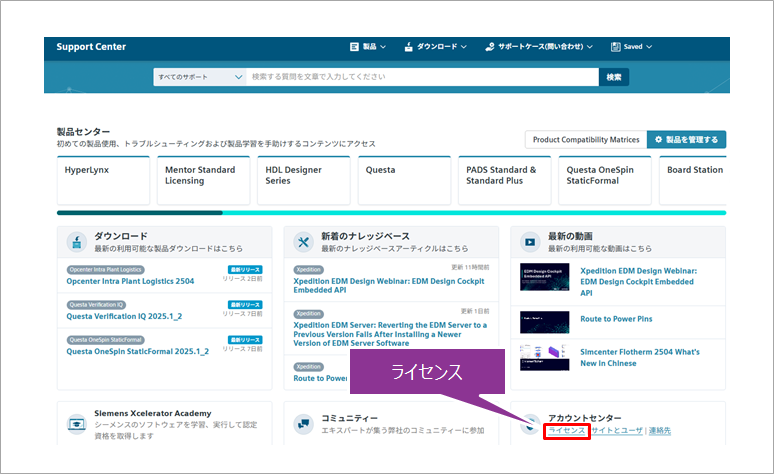
② Click License in the Account Center.
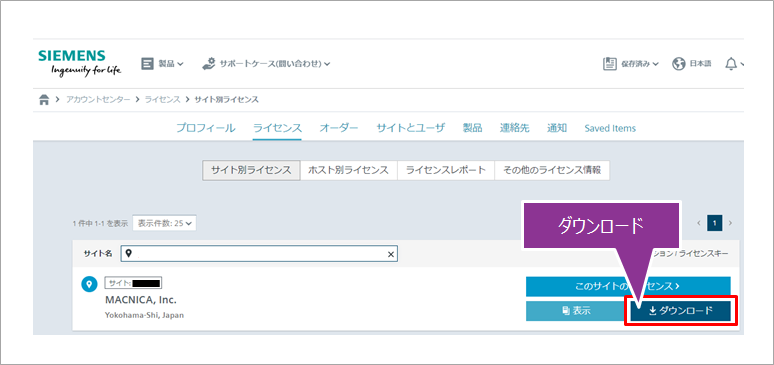
③ When your company or organization is displayed, click “Download” on the right.
(If your company or organization is not displayed, it is possible that registration has not been completed or that it has not been registered correctly. Please contact us.)
License type
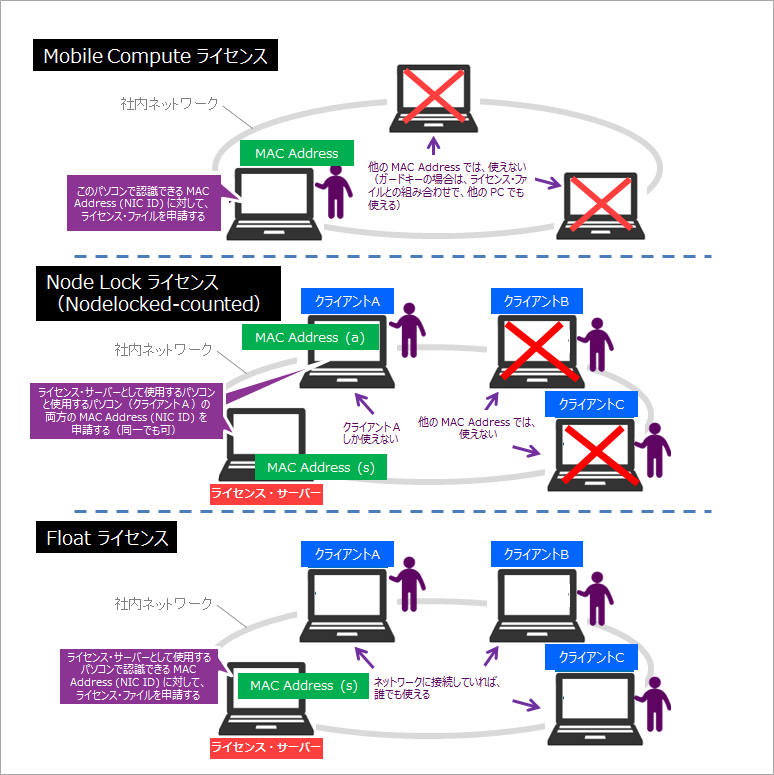
The license type is
a) Mobile Compute License
b) Node Lock License (Nodelocked-counted)
c) Float License
It is necessary to consider or confirm in advance which license you will use.
▶ License Types (External site)
Mobile Compute License
A Mobile Compute license is issued in association with a MAC Address (NIC ID) or dongle (USB guard key), and the tool can be activated and used only in an environment where the MAC Address (NIC ID) or dongle is recognized. increase. This page introduces how to set environment variables in Windows.
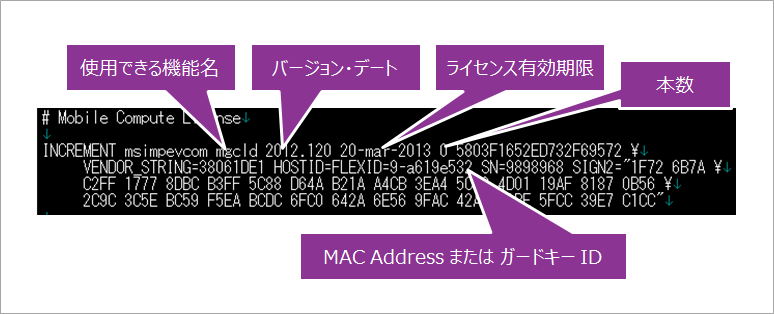
The Mobile Compute license is a block-by-block description starting from INCREMENT for each function, and includes the following information.
|
Functions that can be used |
The available functions are written in abbreviations. |
| version date | You can use any version of the tools released during the stated period. (Example: 2021.060 = June 2021) |
| License expiration date | It cannot be used after the stated expiry date. |
| Number | For Mobile Compute licenses, it is written as 0. |
| MAC Address (NIC ID) or Guard Key ID |
An ID will be provided. |
1. Store the license file in a folder of your choice.
(There is no problem in changing the license file name to any name you like, but we recommend that the folder name and file name do not contain full-width characters.)
Example: C:\License\Mentor_License.txt (The extension is generally .txt or .dat)
② Open the Windows environment variable settings screen.
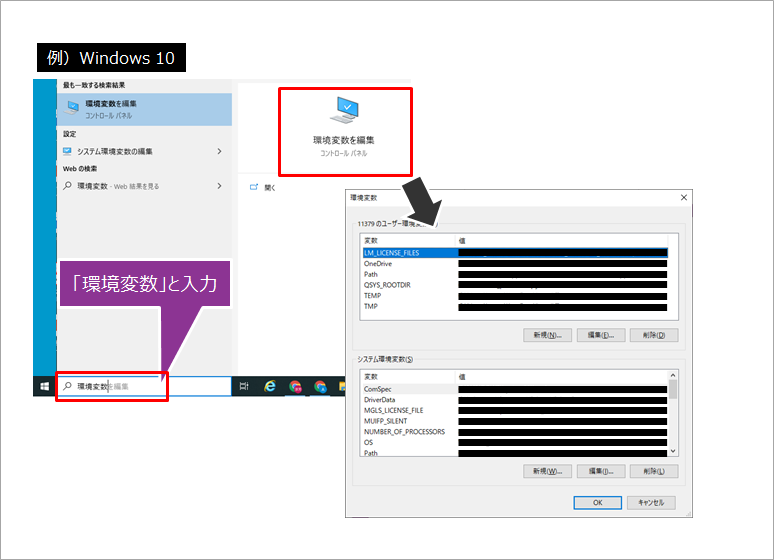
The names of the variables in the environment variable depend on the tool and its version you are using.
If you have both the old and new versions installed on the same PC, you will need to configure both separately.
★ FPGA tools (Questa/ModelSim series, HDL Designer/Author, etc.)
・ Version ~2023.4:LM_LICENSE_FILE Need to set
・ Version From January 2024:SALT_LICENSE_SERVER Need to set
★ Board-related tools (HyperLynx series, PADS series, etc.)
・ Version ~VX2.9 :LM_LICENSE_FILE Need to set
・ Version VX2.10~, 2409~:SALT_LICENSE_SERVER Need to set
Once you have confirmed the tools and versions you will be using, check the Windows environment variable settings screen.
already
LM_LICENSE_FILE or SALT_LICENSE_SERVER If not, proceed to step 3.
LM_LICENSE_FILE or SALT_LICENSE_SERVER ⇒ Go to step ④.
③ Click the [New (W)] button and register the following variables.
(Whether to set it as a user environment variable or a system environment variable is up to you. Consult with your computer administrator.)
Example) C:\License\Mentor_License.txt
If you want to set multiple variable values, separate them with a semicolon (;).
Example) C:\License\Mentor_License.txt;C:\License\IntelFPGA_License.txt;1800@License_Server
※ The figure below is LM_LICENSE_FILE This is an example of configuration.
SALT_LICENSE_SERVER If you want to configure LM_LICENSE_FILE Apart from SALT_LICENSE_SERVER Please set up the following.
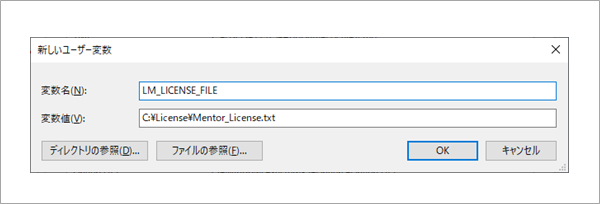
Close all dialog Box with the OK button.
Proceed to step 5.
④ Select the LM_LICENSE_FILE or SALT_LICENSE_SERVER line and click the [Edit (I)] button.
Add (click [New]) or change (click [Edit]) the absolute path of the saved license file as the variable value to the contents already registered in the variable name LM_LICENSE_FILE or SALT_LICENSE_SERVER.
If you want to set multiple variable values in [Edit Text], please register them separated by a semicolon (;).
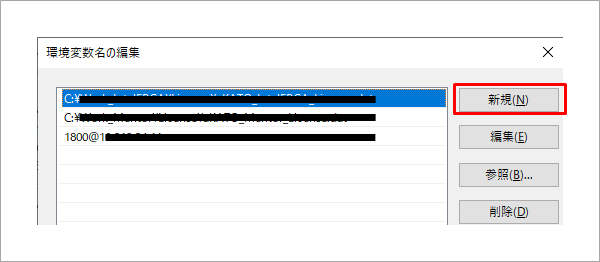
⑤ Close all dialog Box with the OK button.
This completes the setting of the license file.
Try launching the tools you use.
Node Lock (Nodelocked-counted) and Float License
Node Lock (Nodelocked-counted) and Float licenses are configured on a license server and recognized by each client PC over the network.
Node Lock License (Nodelocked-counted)
It is issued in association with the MAC Address (NIC ID) of the client PC being used, and can only be used by clients that recognize that MAC Address.
Float license
It is issued in association with the server's MAC Address (NIC ID), and an environment can only be built with a server that recognizes the server's MAC Address (NIC ID).
This page introduces how to set up Windows environment variables.
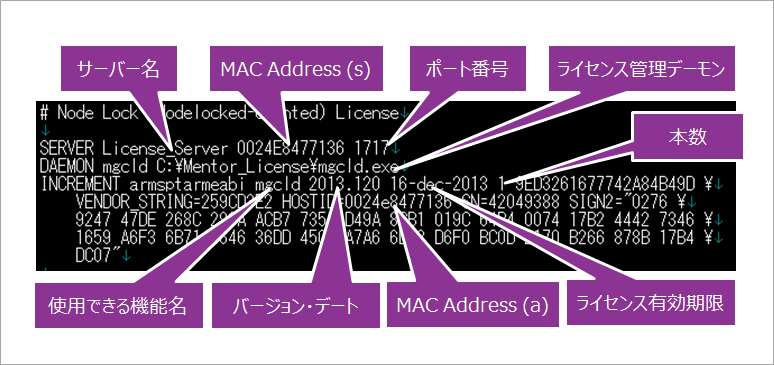
Note that a Float license is written in blocks starting from INCREMENT for each SERVER line, DEMON line, and function, and contains the following information.
SERVER line: Enter the machine name or port number of the license server.
DEMON line: Enter the path of the license management daemon:
INCREMENT
|
license server name |
Describes the license server name in your environment. (User edits.) |
|
License Server MAC Address (NIC ID) |
Contains the MAC Address (NIC ID) of the license server in your environment. |
|
port number |
Describes the license server port number in your environment. |
|
license management daemon |
Describes the license management daemon in the user's environment. (User writes the path to mgcld.exe and saltd.exe files.) |
|
Functions that can be used |
The available functions are written in abbreviations. |
| version date | You can use any version of the tools released during the stated period. (Example: 2021.060 = June 2021) |
| License expiration date | It cannot be used after the stated expiry date. |
| Number | The number of possessions is displayed. |
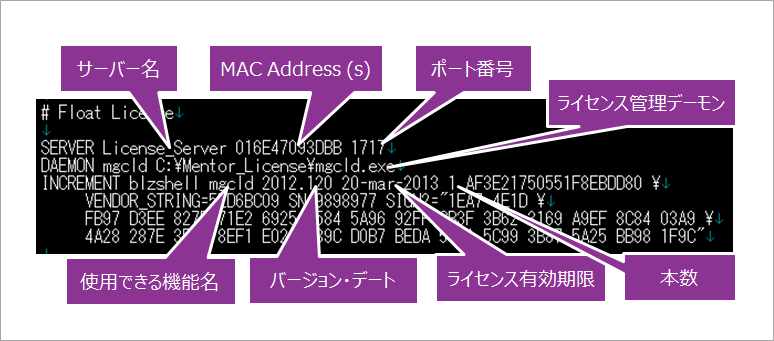
Settings are required on both the license server side and on each client PC that will operate the tool.
■ License server settings
① Store the edited license file in any folder on the license server. We recommend that you do not use full-width characters in the folder or file name.
② You need to prepare software to manage the licenses. Siemens EDA products use FLEXnet (license management software). The required software is as follows:
(There is no need to install tools such as ModelSim or HyperLynx on the license server.)
| lmgrd | License server manager. Start the vendor daemon. |
| mgcld | Vendor license daemon for Siemens EDA. Manages license files. Track the number of licenses checked out, users, and more. |
| lmutil | Manage license servers. (FLEXnet) You can start and stop the license server, check the license status, etc. LMLOOTS is a GUI license management utility for Windows. |
③ (If you do not have the license management software) After accepting the software agreement from the Siemens EDA Support Center, download the license server file for your OS.
Then run setup.bat etc. to install.
If you cannot obtain it from the Siemens EDA support center, please contact us.
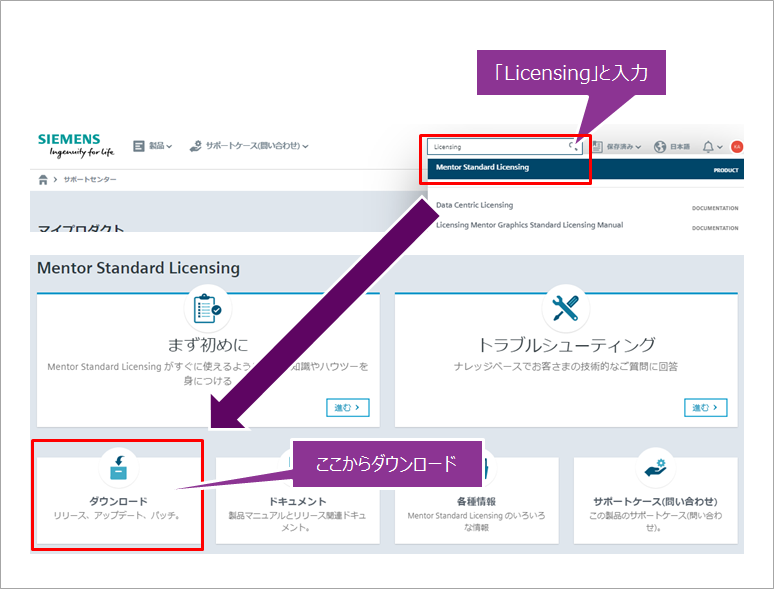
(4) Start LMTOOLS (for Windows, from the Windows Start menu, etc.) to set up the server machine and start the license server.
⑤ Select the [Service/License File] tab and check Configuration using Service.
⑥ Select the [Config Service] tab and press the Save Service button after setting each item. A pop-up window will appear, click Yes to save the settings.
| Service Name | any setting name |
| Path to the lmgrd.exe file | lmgrd.exe file path (storage folder) |
| Path to the license file | License file path (storage folder) |
| Path to the Debug log file | License server log file path (Although it is not required, it is recommended to be set as it is useful for debugging.) |
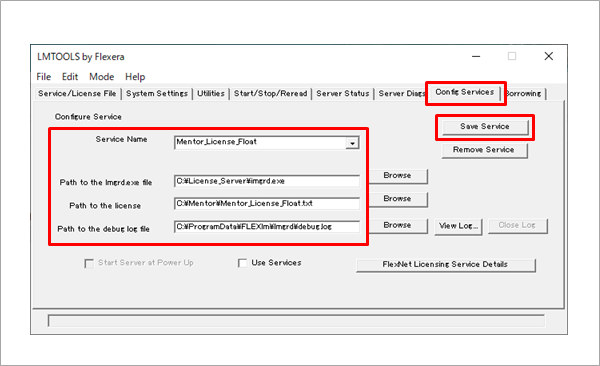
⑦ Select the [Start/Stop/Reread] tab, verify that the service name you set in ⑥ is displayed, and click Start Server.
Once the server has started, you will see "Server Start Successful" in the bottom left corner of the screen.
■ Client PC settings
To refer to the license server from a client PC, specify the license server name and port number. To specify the license server information, set the following system variables.
① Open the Windows environment variable setting screen.
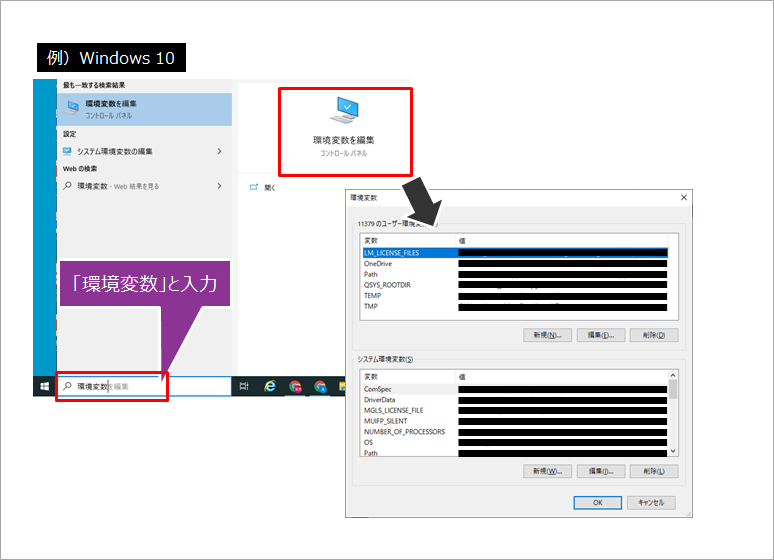
The names of the variables in the environment variable depend on the tool and its version you are using.
If you have both the old and new versions installed on the same PC, you will need to configure both separately.
★ FPGA tools (Questa/ModelSim series, HDL Designer/Author, etc.)
・ Version ~2023.4:LM_LICENSE_FILE Need to set
・ Version From January 2024:SALT_LICENSE_SERVER Need to set
★ Board-related tools (HyperLynx series, PADS series, etc.)
・ Version ~VX2.9 :LM_LICENSE_FILE Need to set
・ Version VX2.10~, 2409~:SALT_LICENSE_SERVER Need to set
Once you have confirmed the tools and versions you will be using, check the Windows environment variable settings screen.
already
LM_LICENSE_FILE or SALT_LICENSE_SERVER If not, proceed to step 2.
LM_LICENSE_FILE or SALT_LICENSE_SERVER ⇒ Go to step 3.
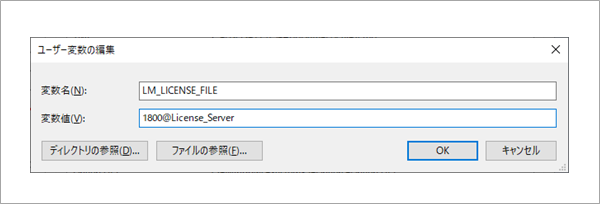
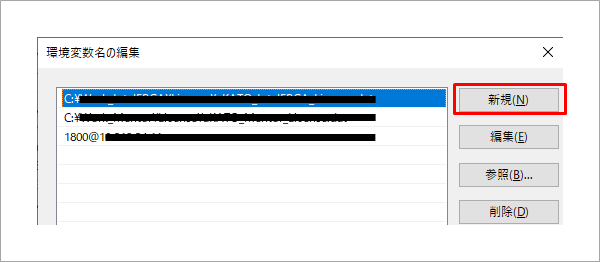
② Click the [New (W)] button and register the following variables.
(Whether to set it as a user environment variable or a system environment variable is up to you. Consult with your computer administrator.)
Example: 1800@License_Server
If you want to set multiple variable values, separate them with a semicolon (;).
Example) C:\License\Mentor_License.txt;C:\License\IntelFPGA_License.txt;1800@License_Server
※ The figure below is LM_LICENSE_FILE This is an example of configuration.
SALT_LICENSE_SERVER If you want to configure LM_LICENSE_FILE Apart from SALT_LICENSE_SERVER Please set up the following.
| system variable name | LM_LICENSE_FILE(SALT_LICENSE_SERVER) or MGLS_LICENSE_FILE (If MGLS_LICENSE_FILE exists, set MGLS_LICENSE_FILE to the path of the license file.) |
| variable value | port number@license server name or port number@license server IP address Example) 1800@License_Server |
Close all dialog Box with the OK button.
Proceed to step ④.
③ Select the LM_LICENSE_FILE or SALT_LICENSE_SERVER line and click the [Edit (I)] button.
Add (click [New]) or change (click [Edit]) the absolute path of the saved license file as the variable value to the contents already registered in the variable name LM_LICENSE_FILE or SALT_LICENSE_SERVER.
If you want to set multiple variable values in [Edit Text], please register them separated by a semicolon (;).
④ Close all dialog Box with the OK button.
This completes the setting of the license file.
Try launching the tools you use.
Related Information
▶ How to download the Siemens EDA tool
▶ How to install Questa Core/Prime/ModelSim
▶ How to install Questa CDC/Formal
▶ How to install HDL Designer
▶ How to install HyperLynx
▶ How to install PADS
▶ How to license Siemens EDA tools
Inquiry
If you have any questions regarding this content, please contact us below.
Manufacturer information Top
If you would like to return to the manufacturer information top page, please click below.
Trademarks and registered trademarks owned by Siemens: here