- Semiconductor BusinessHOME
- Products and Services of Macnica,Inc.
-
technical information

-
Events and Seminars
- Handling Manufacturer
- Support
- Inquiry
- Click here to purchase products
- Semiconductor business e-mail magazine registration


 Narrow down by specifying conditions
現在2153件がヒットしています。check

*This article is based on information as of September 2025.
Introduction
This article uses the same equipment/environment introduced in the article linked below to run Qwen-VL, which is a VLM (Vision Language Model) rather than an LLM (Large Language Model).
[Trial] Running local LLM (Qwen) on an embedded device with Hailo-10H
VLM is a model that integrates images and text, allowing you to ask questions about images in text and receive answers. Image information is large in volume, and sending it to the cloud poses challenges in terms of bandwidth and cost, so VLM is expected to be implemented on the edge. This article introduces the results of our tests on an embedded device equipped with Hailo-10H.
For information on how to set up the Hailo-10H environment, please refer to the "Hailo-10H Setup" section of the article linked above.
VLM model operation preparation
This time, we will build it based on the C++ sample code provided by Hailo.
The C++ sample code is available on Github at:
https://github.com/hailo-ai/hailort/tree/v5.0.0/hailort/libhailort/examples/genai/vlm_example
The version of HailoRT that was previously installed was 5.0.0, so this time we will use the sample code for 5.0.0.
Select any folder and run the "git clone" command with the branch specified.
$ git clone https://github.com/hailo-ai/hailort.git -b v5.0.0
This will copy everything locally, so navigate to the folder containing the sample code.
$ cd hailort/hailort/libhailort/examples/genai/vlm_example/
CMakeLists.txt is also prepared, so we will use cmake to set up the build environment and compile.
$ cmake -S. -Bbuild -DCMAKE_BUILD_TYPE=Release
$ cmake --build build --config release
This will create an executable file so it's ready to run, but the sample code provided by Hailo receives images as binary files which makes it less user-friendly, so we'll edit the C++ source code and CMakeLists.txt so that it receives JPEG files. We'll publish the source code in the next section so please refer to it.
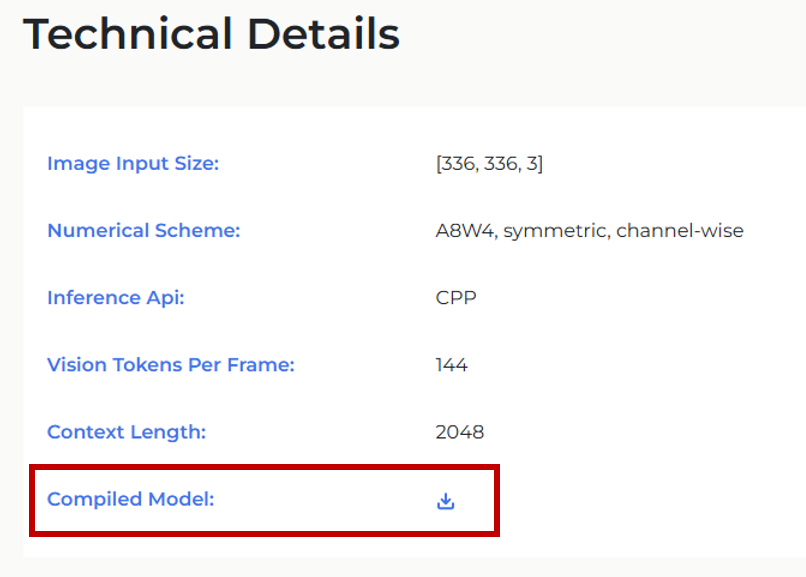
Next, download the hef file (the binary file to be loaded into the Hailo-10H). This time, we will use the Qwen2-VL 2B model.
Download the "Compiled Model" from the link below and place it in a suitable folder.
(In this case, I created a resources folder in the working folder and placed the downloaded Qwen2-VL-2B-Instruct.hef file there.)
https://hailo.ai/products/hailo-software/model-explorer/generative-ai/qwen2-vl-2b/
Editing C++ source code/CMakeLists.txt
As mentioned briefly in the previous section, we will use OpenCV to improve the usability.
Replace the C++ source code (vlm_example.cpp) to import/preprocess JPEG files and pass them to Hailo-10H.
The general flow is as follows:
①Loading the VLM model into Hailo-10H
② Execute preprocessing such as resizing/binarizing the JPEG file specified by the path
③ Throw the specified prompt (question) to the VLM model
④Get answers from the VLM model
becomes.
Please note that this code is only a sample and is not guaranteed to work.
/** * Copyright (c) 2019-2025 Hailo Technologies Ltd. All rights reserved. * Distributed under the MIT license (https://opensource.org/licenses/MIT) **/ /** * @file vlm_example.cpp **/ #include "hailo/genai/vlm/vlm.hpp" #include <iostream> #include <fstream> #include <vector> #include <opencv2/opencv.hpp> // OpenCVのヘッダーをインクルード // stb_image.h を使用するためのインクルード #define STB_IMAGE_IMPLEMENTATION #include "stb_image.h" // ヘルパー関数:ユーザー入力の取得 std::string get_user_prompt() { std::cout << ">>> "; std::string prompt; getline(std::cin, prompt); return prompt; } // 入力フレームをJPEG形式から336x336x3サイズに変換してバッファに格納 void get_input_frame(const std::string &frame_path, hailort::Buffer &input_frame_buffer) { int width, height, channels; // req_compに3を指定して、RGB形式で画像を読み込む unsigned char *data = stbi_load(frame_path.c_str(), &width, &height, &channels, 3); if (!data) { throw hailort::hailort_error(HAILO_FILE_OPERATION_FAILURE, "Failed to load image file: " + frame_path); } // OpenCVを用いて画像をリサイズ cv::Mat img = cv::Mat(height, width, CV_8UC3, data); cv::Mat resized_img; // 336x336にリサイズ cv::resize(img, resized_img, cv::Size(336, 336)); // 336x336のRGBデータをinput_frame_bufferにコピー std::memcpy(input_frame_buffer.data(), resized_img.data, 336 * 336 * 3); stbi_image_free(data); // メモリ解放 } int main(int argc, char **argv) { try { if (2 != argc) { throw hailort::hailort_error(HAILO_INVALID_ARGUMENT, "Missing HEF file path!
Usage: example <hef_path>"); } const std::string vlm_hef_path = argv[1]; std::cout << "Starting VLM...
"; auto vdevice = hailort::VDevice::create_shared().expect("Failed to create VDevice"); auto vlm_params = hailort::genai::VLMParams(); vlm_params.set_model(vlm_hef_path); auto vlm = hailort::genai::VLM::create(vdevice, vlm_params).expect("Failed to create VLM"); auto input_frame_size = vlm.input_frame_size(); std::string prompt_prefix = "<|im_start|>system
You are a helpful assistant.<|im_end|>
<|im_start|>user
"; const std::string prompt_suffix = "<|im_end|>
<|im_start|>assistant
"; const std::string vision_prompt = "<|vision_start|><|vision_pad|><|vision_end|>"; auto input_frame_buffer = hailort::Buffer::create(input_frame_size).expect("Failed to allocate input frame buffer"); auto generator_params = vlm.create_generator_params().expect("Failed to create generator params"); auto generator = vlm.create_generator(generator_params).expect("Failed to create generator"); while (true) { auto local_prompt_prefix = prompt_prefix; std::vector<hailort::MemoryView> input_frames; std::cout << "Enter frame path. for not using a frame, pass 'NONE' (use Ctrl+C to exit)
"; std::string frame_path = get_user_prompt(); if (frame_path != "NONE") { // JPEG画像を読み込んでフレームに変換 get_input_frame(frame_path, input_frame_buffer); input_frames.push_back(hailort::MemoryView(input_frame_buffer)); local_prompt_prefix = local_prompt_prefix + vision_prompt; } std::cout << "Enter input prompt
"; auto input_prompt = get_user_prompt(); // ジェネレーターを呼び出して結果を取得 auto generator_completion = generator.generate(local_prompt_prefix + input_prompt + prompt_suffix, input_frames).expect("Failed to generate"); while (hailort::genai::LLMGeneratorCompletion::Status::GENERATING == generator_completion.generation_status()) { auto output = generator_completion.read().expect("read failed!"); std::cout << output << std::flush; } std::cout << std::endl; // モデルの状態をリセット(必要に応じて) prompt_prefix = "<|im_start|>user
"; } } catch (const hailort::hailort_error &exception) { std::cout << "Failed to run vlm example. status=" << exception.status() << ", error message: " << exception.what() << std::endl; return -1; } return 0; }
*The "\n" in the code appears as a line break. If there is an unnatural line break, please add "\n".
Since we are using OpenCV, we will also replace CMakeLists.txt with the following.
cmake_minimum_required(VERSION 3.5.0)
find_package(HailoRT 5.0.0 EXACT REQUIRED)
find_package(OpenCV REQUIRED)
include_directories(${OpenCV_INCLUDE_DIRS})
add_executable(vlm_example vlm_example.cpp)
target_link_libraries(vlm_example PRIVATE HailoRT::libhailort ${OpenCV_LIBS})
if(WIN32)
    target_compile_options(vlm_example PRIVATE
        /DWIN32_LEAN_AND_MEAN
        /DNOMINMAX                  # NOMINMAX is required in order to play nice with std::min/std::max (otherwise Windows.h defines it's own)
        /wd4201 /wd4251
    )
endif()
set_target_properties(vlm_example PROPERTIES CXX_STANDARD 14)
Finally, compile and you're done.
$ cmake --build build --config release
operation check
Run the following command:
$ ./build/vlm_example ./resources/Qwen2-VL-2B-Instruct.hef
The execution result is as follows. By the way, Japanese was not supported, so the communication was in English.
① The VLM model will be loaded automatically (you will have to wait about 20 seconds here)
② Specify any JPEG file
③ Throw any prompt
④ The results are written
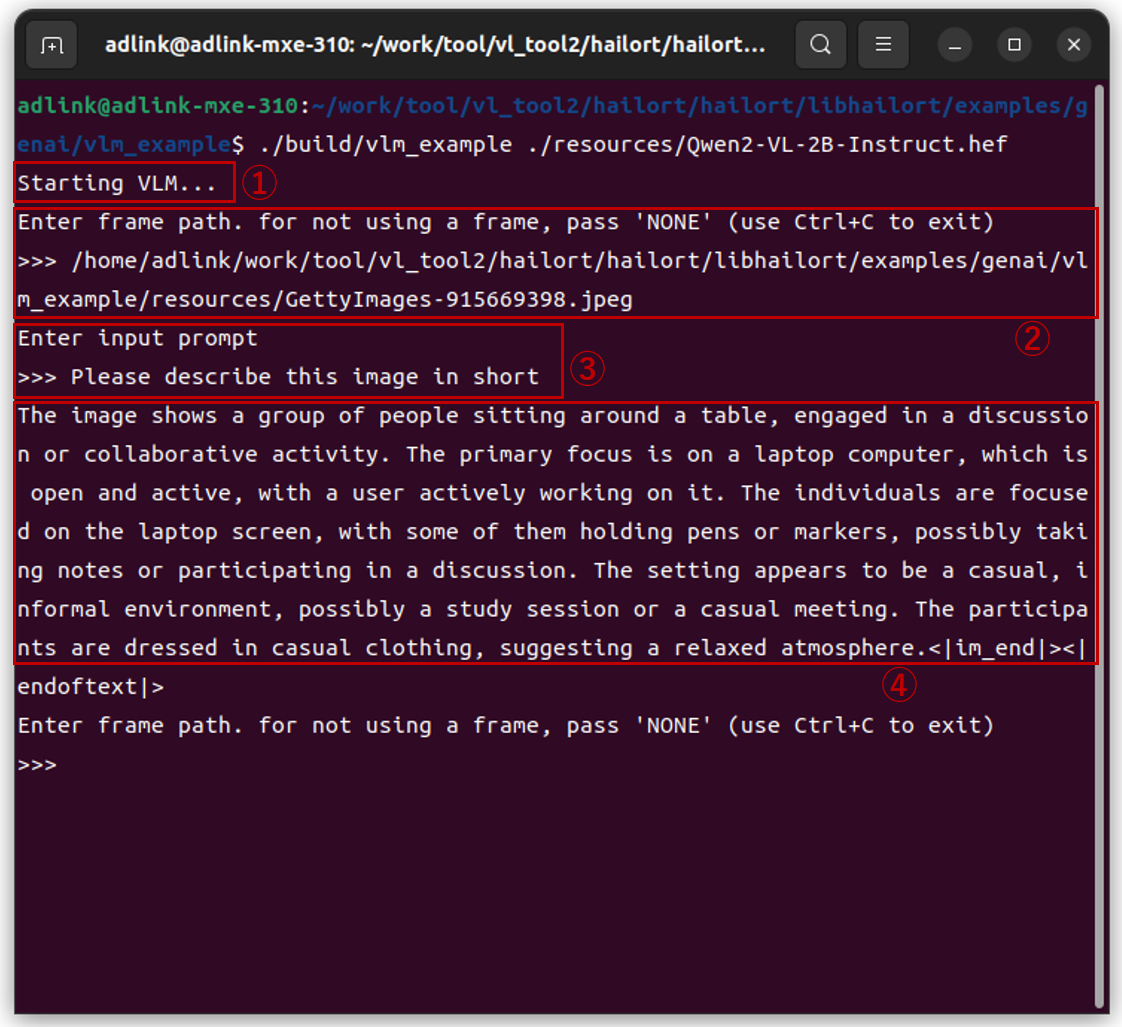
The initial load time takes about 20 seconds, but after that it seemed to respond quickly.
The specified JPEG file is shown below, but the response to the question "Please describe this image in short" is as follows, which I think explains the situation reasonably well.
Response from VLM
===
(Original text)
The image shows a group of people sitting around a table, engaged in a discussion or collaborative activity. The primary focus is on a laptop computer, which is open and active, with a user actively working on it. The individuals are focused on the laptop screen, with some of them holding pens or markers, possibly taking notes or participating in a discussion. The setting appears to be a casual, informal environment, possibly a study session or a casual meeting. The participants are dressed in casual clothing, suggesting a relaxed atmosphere.
(Japanese translation)
This image shows a group of people sitting around a table discussing and collaborating. The primary focus is on the open, active laptops, with users actively working. Individuals are focused on their laptop screens, while some hold pens or markers to take notes or participate in the discussion. The setting appears to be a casual, informal environment, perhaps a study group or casual meeting. Participants are casually dressed, suggesting a relaxed atmosphere.
===

Summary
I tried running the VLM model (Qwen2-VL-2B) on an embedded device (ADLINK MXE-310 + Hailo-10H). Once the model was loaded, it returned a reasonable response, and I felt that it might be practical, including its content. There are many requests to not send images/videos to the cloud for communication and privacy reasons, so being able to run the VLM model locally opens up many possibilities and I'm looking forward to seeing what the future holds. I'm looking forward to seeing how it performs in actual use cases.
If you would like to actually evaluate something, please contact us using the inquiry form below.
Inquiry
If you have any questions about this article, please contact us using the form below.
Hailo manufacturer information Top
If you would like to return to the Hailo manufacturer information top page, please click below.