- Semiconductor BusinessHOME
- Products and Services of Macnica,Inc.
-
technical information

-
Events and Seminars
- Handling Manufacturer
- Support
- Inquiry
- Click here to purchase products
- Semiconductor business e-mail magazine registration
Let's set up Palette Neat.
With advancements in generative AI and image recognition technologies, there is a growing need to run AI not only in the cloud, but also at the edge, such as on cameras, robots, and industrial equipment.
SiMa.ai is a physical AI For MLSoC™ "Modalix"(Hereafter, Modalix) and, software development environment "Palette Neat" We offer this.
Modalix is an MLSoC targeting a wide range of AI workloads, including CNNs, ViTs, and LLMs. SiMa.ai is deploying Modalix as a physical AI platform with 50 TOPS and under 10W of power consumption.
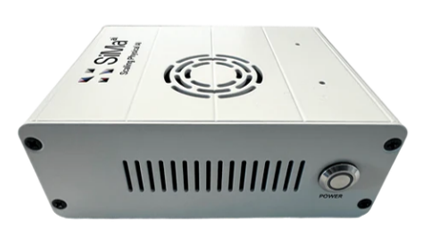
In this article, Modalix It can be evaluated on actual hardware. Modalix SoM DevKit(Hereafter, Modalix DevKit) and, that development environment Palette Neat This section introduces the basic setup method for using the service.
This time, we will use a host PC running Ubuntu.
*Specifications and setup procedures for Palette Neat may change with version upgrades. Please contact our FAE for the latest compatibility information and procedures.
1. Prepare the host PC.
The Neat SDK supports Ubuntu 22.04 /24.04 and runs as a container on Docker Engine.
The minimum host PC requirements for the Neat SDK, as indicated by SiMa.ai, are as follows:
|
item |
Minimum requirements |
|
OS |
Ubuntu 22.04 / 24.04 |
|
CPU |
4 cores |
|
RAM |
16GB |
|
Free storage |
100GB |
Note that compiling the GenAI model itself using LLiMa requires more resources than the standard Neat SDK.
SiMa.ai recommends 128GB of RAM and 512GB of disk space for compiling GenAI models.
2. Check your access rights to the SiMa Developer Portal.
An account on the SiMa Developer Portal is required to obtain the Neat SDK, models, and related software.
Authentication to the Developer Portal is also used to retrieve SDKs, models, and other resources via sima-cli.
Modalix SoM DevKitFor customers who have purchased this item, SiMa.ai from Developer Portal You will be granted access to [the specified location].
The assigned account will be used in the subsequent sima-cli login.
3. Install sima-cli
To set up Palette Neat, we use sima-cli, provided by SiMa.ai.
On the host PC, perform the following:
curl -fsSL https://artifacts.neat.sima.ai/sima-cli/linux-mac.sh | bash
After installation, open a new terminal,
sima-cli --version
Run this command to verify that sima-cli is available.
sima-cli is a common command-line interface (CLI) for using SiMa.ai development tools, including not only the Neat SDK but also Model Zoo and DevKit-related features.
4. Log in to the SiMa Developer Portal
Authenticate using the Developer Portal account you were provided with.
sima-cli login
This authentication is used to retrieve SDK images, models, and other resources.
5. Verify network connectivity with Modalix DevKit.
When pairing Neat SDK with Modalix DevKit, ensure that the Host PC and DevKit can communicate over the network.
If you know the IP address of DevKit,
ping <DevKit's IP address>
Then we will check the communication.
If you don't know the IP address of your DevKit, you can also use the Device Discovery function of sima-cli to find SiMa.ai devices on your local network.
sima-cli device discover
6. Install the Neat SDK.
On the host PC, perform the following:
sima-cli neat install sdk@release-2.1
This will download the Neat SDK container image and begin the SDK setup.
During setup,
- Pair with Modalix DevKit
- Install Model Compiler
You can select this option.
If you want to quantize and compile your own ONNX models, install the Model Compiler.
If you only use pre-compiled models, you can omit the Model Compiler.
7. Access the Neat SDK
Once the installation is complete, do the following:
sima-cli sdk neat
This will allow you to enter the shell within the Neat SDK container.
Within the Neat SDK, you can use various development tools such as the Model Compiler for application development and building.
8. Launch Neat Insight.
Within the Neat SDK,
neat
Execute the following:
The URL to access Neat Insight will be displayed. For a local host PC, this is usually the case.
https://localhost:9900
You can access it from here.
By opening Neat Insight in your browser, you can prepare media sources, generate RTSP streams, and check the output of AI applications.
This completes the basic setup of the Neat SDK environment.
Try using Claude Code/Codex
handle Neat SDK So, SDK It can be accessed from a browser. Code UI It is available.
After installing the Neat SDK, you can access the codeUI URL displayed in your browser to manipulate the SDK 's /workspace from a VS Code-based UI.
Code UI in Neat SDK 2.1.2.3 and later comes pre-installed with extensions for Codex and Claude Code.
By utilizing the skills provided in the Neat SDK for Codex/Claude and the Neat source context, you can develop for Modalix using AI agents.
Pairing with DevKit can be done later.
Even if you didn't pair the Neat SDK with Modalix DevKit during installation, you can configure it later.
From the host PC,
sima-cli sdk setup --devkit <DevKit IP address>
Execute the following:
The setup includes configuring the SDK container's network, workspace sharing, and ports for Insight. If you are integrating with DevKit, DevKit Sync will also be configured.
First, let's try moving the models in Model Zoo.
After setting up the Neat environment, you don't need to immediately start compiling your own models.
At SiMa.ai, Modalix Available A collection of compiled and quantized models Model Zoo We offer this.
Using Model Zoo, you can do the following:
- Evaluate the accuracy and performance of your models on Modalix.
- Starting application development with quantized and compiled models
- Use model artifacts provided for Modalix.
The available models are:
sima-cli modelzoo list
You can check it there.
To check the model information,
sima-cli modelzoo describe <model name>
To obtain the model,
sima-cli modelzoo get <model name>
Use the.
Therefore, when evaluating Modalix SoM DevKit for the first time,
Neat SDKSet up
↓
Model Zoo Get the compiled model from
↓
NeatLib Run a sample application using this method.
↓
Neat Insight Check the results
Starting from this point makes it easier to understand the development flow of Palette Neat and Modalix.
The SiMa.ai Developer Center also offers "Hello Neat!", various tutorials, and sample applications such as Object Detection.
For GenAI models such as LLM and VLM, a separate development flow is available from Model Zoo, allowing you to obtain models provided by SiMa.ai on Hugging Face via LLiMa CLI.
Summary
This article introduced the basic setup method for Palette Neat to get started with AI development using Modalix SoM DevKit.
Palette Neat allows you to perform everything from model evaluation on Modalix to AI application development within a single development environment by utilizing tools such as Neat SDK, Neat Insight, and Model Zoo.
Furthermore, there's no need to compile your own model from scratch; you can easily try out Modalix's operation and the development flow using Palette Neat by using the pre-compiled and quantized models and sample applications provided by Model Zoo.
Furthermore, development environments utilizing AI agents such as Codex and Claude Code are available, enabling more efficient edge AI development.
If you are considering implementing the Modalix SoM DevKit (evaluation board), you can request a quote using the link below. Please feel free to contact us with any questions regarding Modalix or Palette Neat, or for advice on evaluation methods.
For those who want to actually try using Palette Neat
This article covered the process from basic Palette Neat setup to starting AI development with Modalix SoM DevKit using Model Zoo.
For those who want to not only set up Palette Neat but also actually operate it and create applications, or who want to experience development using AI agents and VLM on a real device, we will be holding a hands-on Palette Neat seminar in Osaka on Friday, October 30, 2026.
On the day of the event, you will be able to experience the entire development flow by actually working with the software, from basic Palette Neat operations to creating object detection applications, developing CV applications using AI agents, and developing generative AI applications using VLM.
If you're interested in evaluating Modalix or Palette Neat, or if you'd like to take the content of this article a step further and experience AI development on actual hardware, please join us.
<Event Overview>
[Osaka Event] Palette Neat Hands-on Seminar: "Create and Run" Edge AI Apps
~Experiencing Object Detection, VLM, and Actual Implementation with AI Agents~
Date and time: October 30, 2026 (Friday) 13:00-17:00
Venue: Macnica Osaka Office | Capacity: 10 companies | Participation is free
Quotation/Inquiry
For product details, technical questions, checking the latest supported versions and development environments, sample requests, price quotes, and more, please feel free to contact us.