- Semiconductor BusinessHOME
- Products and Services of Macnica,Inc.
-
technical information

-
Events and Seminars
- Handling Manufacturer
- Support
- Inquiry
- Click here to purchase products
- Semiconductor business e-mail magazine registration


 Narrow down by specifying conditions
現在2144件がヒットしています。check


hello.
My name is Intel F. Hanako and I provide technical support for Intel® FPGA products at Macnica.
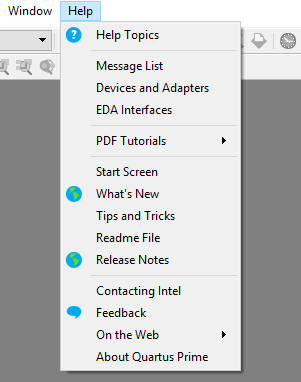
Have you ever used the Quartus ® Prime help facility (Help menu)?
You're most likely using the help primarily to find out more about error messages that occur during compilation.
There are actually two types of launching the help function in Quartus Prime.
Type to launch with online help and
It is a type that is linked to the installed help file and started.
I will tell you about that later...
This time, I will introduce how to change the web browser that is launched when using the help.
Most items in the Help menu are displayed using the web browser you have installed on your computer.
For Windows OS, the default web browser that is started with help is the one specified as the program that starts the htm file in "Default Program Settings".
By the way, how to change
1. Start the Windows OS Control Panel.
2. Enter the keyword "default programs" in the Search Control Panel Box on the right side of the screen.
3. Click Default Programs.
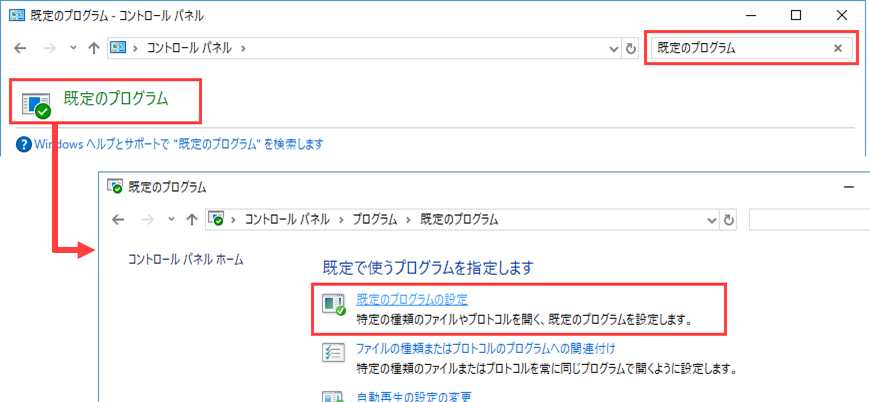
4. Click Set Default Programs, scroll down the Default Apps screen, and select Choose default apps by file type.
5. Find [ .htm ] among the extensions and click the application specified on the right side.Select the desired web browser from Choose an app.
This completes the change.
How to change the web browser for Quartus Prime Help
Recently, there are many users who install multiple web browsers on one computer and use them according to their purpose.
In such a case, set the web browser you normally use to view web pages in the [Default Programs] of the OS,
To display the Quartus Prime help in a different web browser, set in the following menu.
1. Tools menu > Options > Internet Connectivity (in the General category)
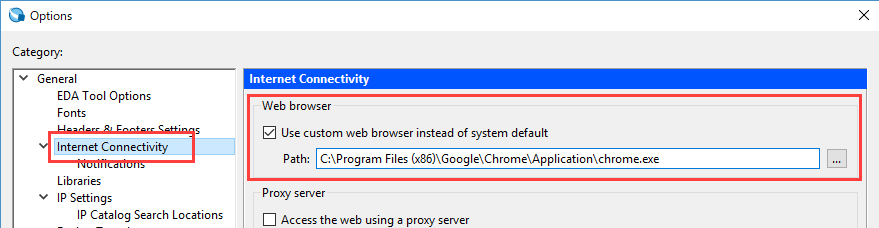
2. in the Web browser section
Set Use custom web browser instead of system default = On and set Path to the path of the web browser launcher.
3. Now just click the OK button in the Options dialog Box!
This completes changing the web browser that launches with help.
However, depending on which version of Quartus Prime (or rather Quartus II) you are using, the Internet Connectivity category does not have a Web browser section.
If you want to specify the web browser separately from the OS in that environment, define it directly in the INI file.
1. If Quartus Prime is running, exit the tool.
2. Open quartus2.ini in a text editor.
The quartus2.ini file is stored in:
[For Windows OS] Under the C:\Users\ <user_name> folder
[For Linux OS] Under \home\altera.quartus folder
(under the \home folder if the altera.quartus folder does not exist)
3. Change the WEB_BROWSER value set in the [Internet Connectivity "version"] section in the INI file to the desired web browser.
Change it to the absolute path of your startup file. If this Variable Name does not exist, create a new one.
(Example) [Internet Connectivity 13.1]
WEB_BROWSER = C:\Program Files (x86)\Google\Chrome\Application\chrome.exe
4. Overwrite and save the INI file.
5. Then when you start Quartus II, quartus2.ini will be read automatically and the settings will be reflected.
There are two types of help functions in Quartus Prime
As I mentioned at the beginning, there are actually two types of launching the help function in Quartus Prime.
There are two types: "type that starts with online help" and "type that starts with link to installed help file".
During the Quartus Prime installation,
If you have not installed Quartus Prime Help, the online help will automatically launch.
If you have Quartus Prime Help installed, it launches the locally installed help files.
The advantage of online help is that it does not consume the storage of the installation destination, but it also has the disadvantage that it cannot be viewed unless connected to the Internet environment.
Also, the online help will always be the help information that comes with the latest version of the tool and you will not be able to view the help for the version you are using.
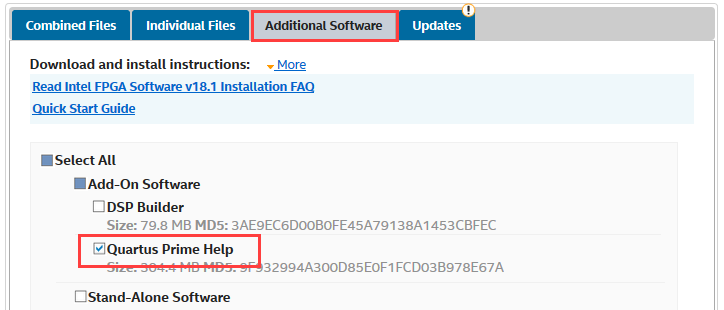
Quartus Prime Help is available as a separate download and as an additional install.
Available from the manufacturer's download center by visiting the respective edition and version page and selecting the Additional Software (individual files) tab.
Please select the type according to your environment and preferences, and use the help function of Quartus Prime.