- Semiconductor BusinessHOME
- Products and Services of Macnica,Inc.
-
technical information

-
Events and Seminars
- Handling Manufacturer
- Support
- Inquiry
- Click here to purchase products
- Semiconductor business e-mail magazine registration


 Narrow down by specifying conditions
現在2230件がヒットしています。check


Some Altera® FPGA development kits come with a Development Kit Edition (DKE) license for the Quartus® Prime design software.
To obtain a license for DKE, please purchase the development kit. Altera® FPGA Development Kit Purchasers (Registered Customers) Please access the Self-Servece License Center and complete the procedure to link the purchased license with the NIC ID (Network Interface Card ID) of the computer on which you will use the development software.
This article describes how to obtain a license file for the Altera® FPGA development kit.
There are four tasks below.
|
1 |
2 |
3 |
4 |
The license maintenance period and usage period for Quartus® Prime forDKE is one year from the date of purchase.
Please note that delaying obtaining a license file in the License Center does not extend the maintenance period and usage period.
Notes:
If you purchase an Altera® FPGA development kit from Macnica Mouser, please be sure to read the FAQ below as it is sold in a different format than normal.
[FAQ] The license for the Altera® FPGA development kit I purchased from Macnica-Mouse is not displayed in the My Licenses & Users tab of the Licensing Center.
Sign in to your Intel account
Go to the "Altera® FPGA and Programmable Devices" homepage and click the human icon in the upper right corner of the screen.
A sign-in screen will appear, so enterthe email addressyou registered when creating your account and click [Next].
[Notes]
Don't have an account? Learn how to sign up for an Intel Account.

Sign-in is completed through the authentication system of Microsoft Azure AD.
If you have trouble signing in, visit Customer Support Please contact us.
[Notes]
If the email address of the existing sign-in account is a shared address, it is not currently available.
It is necessary to change the administrator's e-mail address to an e-mail address that can be used to sign in, so please contact the person in charge at our company.
Visit License Center
After signing in, click the person icon in the upper right corner of the screen to display the menu.
From here, select "Intel® FPGA Self-Service Licensing Center."
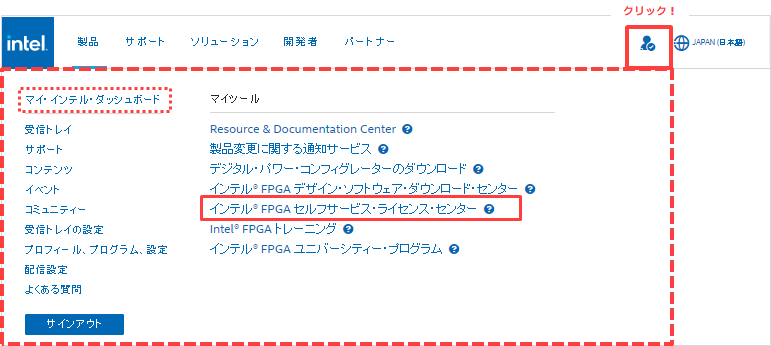

Ifyou do not see the Intel FPGA Self-Service Licensing Center in the menu,
Click the link below to go to the License Center sign-in page.
Intel® FPGA Self-Service Licensing Center
A sign-in page for the License Center appears.
Click [Already enrolled ? -Sign In here] on the left side of the screen to sign in.
[Notes]
If you are signing in to the Licensing Center for the first time, please see How to Register for the Altera® FPGA Self-Service Licensing Center.

Access is completed when the top page of the license center is displayed.
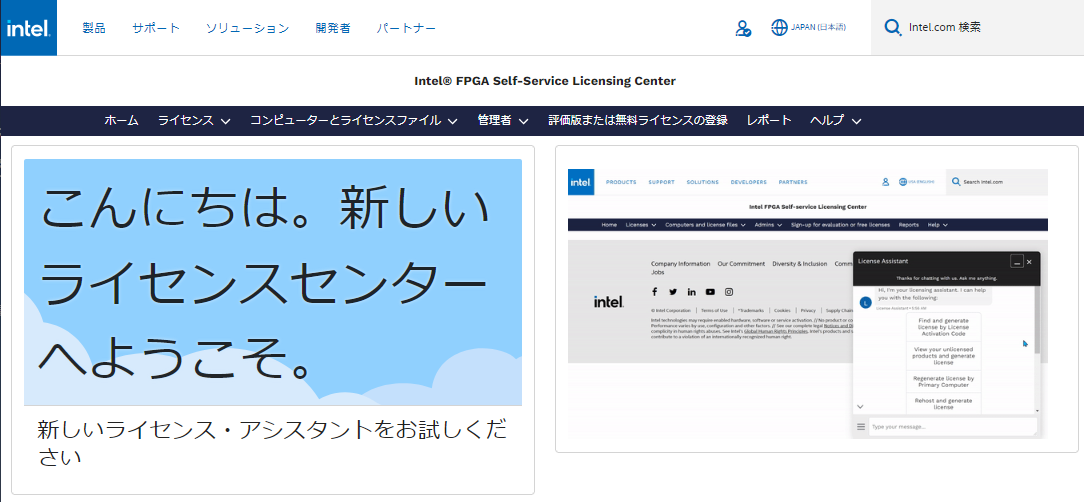
Register a new computer
Register new information about the computer to which the license file will be issued.
If you are linking a new license to a computer that is already registered with the Licensing Center, skip this step and proceed to Linking the Altera® FPGA Development Kit License to a Computer.
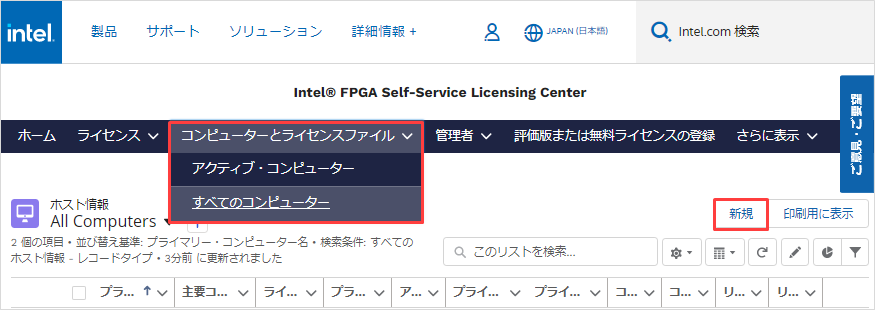
1. Click the Computers and License File menu and select All Computers.
(The registered computer information is displayed.)
2. Click New in the upper right corner of the screen.
※ Note! Since there is no "delete computer" function, once registered computer information cannot be deleted.
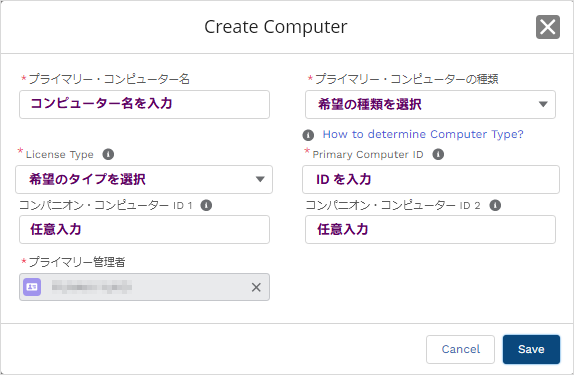
3. Enter the information of the computer to be registered.
| item | explanation |
| Primary computer name | Enter the identification name of the computer to be registered on the license center. The primary computer name can be changed after registration. |
| Primary computer type |
Select a NIC ID.
|
| License Type | Please select FIXED. [Notes] ・ The license for the development kit supports only FIXED. |
| Primary Computer ID | Enter the NIC ID of the computer using Quartus® Prime. |
|
Companion Computer ID 1 / 2 |
Input is optional. [Notes] |
4. Click the [Save] button.
5. If you can confirm that the registered computer information is displayed in the [Computers and license files] menu, registration is complete.
Linking the Altera® FPGA Development Kit license to your computer
Link the license for the development kit to a registered computer.
1. Click the License menu and select Unassigned Licenses.
Registered (purchased) licenses that are not linked to a computer are displayed.
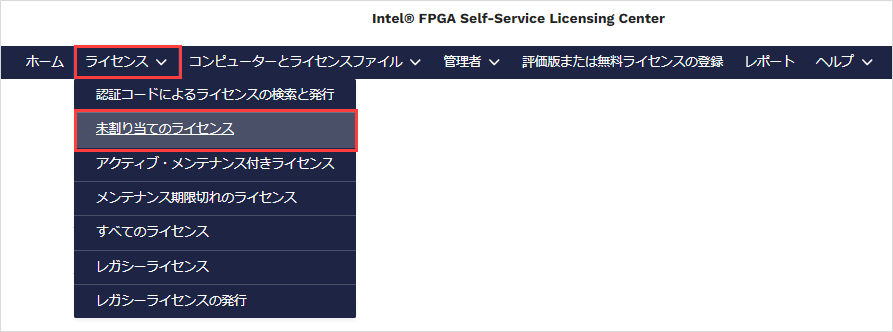
2. Click on the license name for the appropriate development kit license to go to the linked page.
3. Click the Issue License button on the top right of the page.
4. The Issue License window will appear.
Double-click "Searching for host information" in the [Assign an existing computer] column, or click a registered computer name or
Enter the NIC ID to search and select the computer to assign the license to.
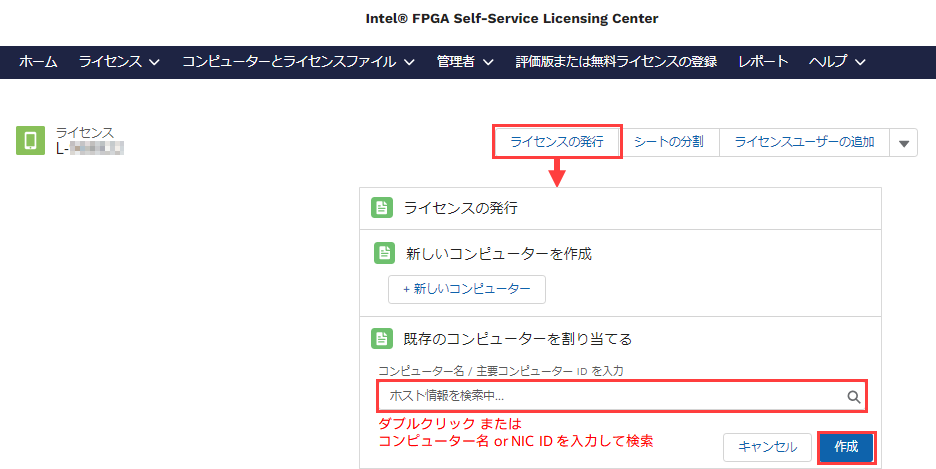
5. Click the Create button.
A license file will be sent to your registered e-mail address.
Now you can get the license file.
Save the license file attached to the e-mail to the PC where Quartus® Prime will be used. Do not use double-byte characters or spaces in the folder path to save.
The file extension is.dat It is recommended to save in . Do not use double-byte characters or spaces when renaming the file.
After that, set the FIXED license file and use Quartus® Prime.
The DKE license is valid for one year, after which you cannot use Quartus® Prime. To continue using Quartus® Prime, purchase a Quartus® Prime paid license or use Quartus® Prime Lite Edition.
[Notes]
Quartus® Prime Lite Edition has limited FPGA support.
See the Intel® Quartus® Development Software - Supported Devices Matrix for more information.
Click here for recommended articles/materials
How to sign up for an Intel Account
How to obtain new licenses for Quartus® Prime, IP and Questa* - Altera® FPGA Edition
How to obtain Quartus® Prime, IP and Questa* - Altera® FPGA Edition licenses for maintenance renewal
How to obtain a companion license for Quartus® Prime
How to obtain a checkout license for Quartus® Prime
How to Manage Network Licenses for Quartus Prime and Third Party Software on the Same Server Machine