- Semiconductor BusinessHOME
- Products and Services of Macnica,Inc.
-
technical information

-
Events and Seminars
- Handling Manufacturer
- Support
- Inquiry
- Click here to purchase products
- Semiconductor business e-mail magazine registration


 Narrow down by specifying conditions
現在2168件がヒットしています。check

ModelSim* - Altera® FPGA Edition, which was used as an OEM simulator during the development of Altera® FPGAs, has been replaced by Questa* - Altera® FPGA Edition since Quartus® Prime Pro Edition 21.3 and Quartus® Prime Standard and Lite Editions 21.1, and is now available as Questa* - Altera® FPGA Edition.
One of these, Questa* - Altera® FPGA Starter Edition, is available free of charge butrequires a separate license.
Either FIXED or FLOAT can be selected for the license type. For license types, please refer to this content.
The license maintenance period is one year.
[Notes]
The Questa* - Altera® FPGA Starter Edition FIXED license does not support remote operation such as remote desktop.
If you are using Questa* - Aletra® FPGA Starter Edition remotely, please use the FLOAT license.
This page describes how to apply for and set up a Questa* - Altera® FPGA Starter Edition license file.
There are four operation menus:
|
3 Assigning a Questa* - Altera® FPGA Starter Edition license to your PC (License Issue) |
Sign in to License Center
Click the link below to go to the License Center sign-in page.
Self Service Licensing Center (SSLC)
A sign-in page for the License Center appears.
Click [Sign In] located on the left side of the screen to sign in.
[Notes]
To use the Licensing Center, you need an Altera account and registration for the Self Service Licensing Center.
If you don't have an account yet, please see how to sign up for an Altera account.
• Customers signing in to the License Center for the first time must register an Altera account and then register to use the Self Service Licensing Center.

After entering your username, a verification code will be sent to your registered email address. Please enter the code in the form and click the [Verify] button.

Access is completed when the top page of the license center is displayed.

[Notes]
If the email address of the existing sign-in account is a shared address, it is not currently available.
It is necessary to change the administrator's e-mail address to an e-mail address that can be used to sign in, so please contact the person in charge at our company.
Register a new computer
Register the information of the computer to which you want to issue a Questa* - Altera® FPGA Starter Edition license.
If you want to link a Questa* - Altera® FPGA Starter Edition license to a computer that has been registered with the license center,
Skip this step and proceed to Binding the Questa* - Altera® FPGA Starter Edition License to Your Computer.
1. Clicking the [Computers and License Files] menu will display the [All Computers] view. (This will show information about your registered computers.)
2. Click [New] in the top right corner of the screen.
*Note! There is no "Delete Computer" function, so you cannot delete information about a computer once it has been registered.

3. Enter the information of the computer to be registered.
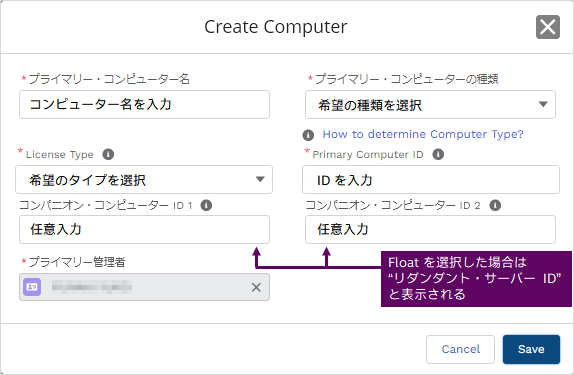
| item | explanation |
| Computer Name | Enter the name that identifies the computer you want to register on the license center. (It does not have to be the computer's host name.) The Computer Name can be changed after registration. |
| Computer Type | Select the NIC ID. |
| License Type |
Specifies the license type for using Questa* - Altera® FPGA Starter Edition. Choose from FIXED or FLOAT.
[Notes] ・The Questa* - Altera® FPGA Starter Edition FIXED license does not support remote operation such as remote desktop. - If you are using Questa* - Aletra® FPGA Starter Edition remotely, please use the FLOAT license. |
| Primary Computer ID |
If you are using FIXED, enter the NIC ID of the computer that uses Questa* - Altera® FPGA Starter Edition. When using FLOAT, enter the NIC ID or HOST ID of the computer used for the license server. |
|
Companion Computer ID 1 / 2 or Redundant Server ID 1 / 2 |
Input is optional. For companion licenses, see How to Get a Companion License. A redundant license is registered when operating three FLOAT license servers. [Notes] - You can change the NIC ID after registration, but you cannot leave it blank. ・If you register or change these NIC IDs after linking the license, the number of IDs that can be changed (up to 3 times) during the maintenance contract period will be reduced. |
4. Click the [Save] button. A message is displayed indicating that registration is complete.
5. Once you confirm that the registered computer information is displayed in the [Computers and License Files] menu, registration is complete.
Assigning a Questa* - Altera® FPGA Starter Edition License to a PC
Bind the Questa* - Altera® FPGA Starter Edition license to a registered computer.
1. Click the [Sign up for Evaluation or No-Cost Licenses] menu.
2. Select"Questa*- FPGA Starter Edition (License: SW-QUESTA)" from the product list.
<Notes> Depending on when you use the License Center, the order of publication may differ from the image.
3. Enter the number of licenses for the NIC ID you are applying for in the number of seats column located at the bottom left.
For FIXED, enter 1; for FLOAT, enter the number to operate.
4. Click the Next button.

5. From the "Choose an Existing Computer" list, select the registered computer information to which you want to assign the Questa* - Altera® FPGA Starter Edition license.
6. Check the content regarding usage consent and feedback listed at the bottom, and mark ✔ if you agree.
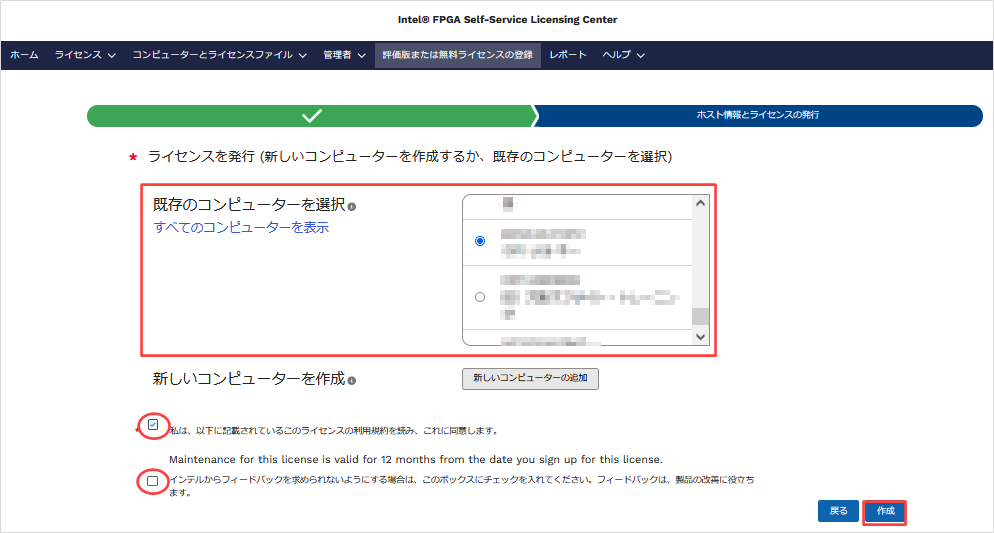
7. Click the Generate button.
A license file will be sent to your registered e-mail address.
Please save the attached license file according to the license type (FIXED or FLOAT) by referring to the following.
・ FIXED ⇒ Save the Questa* - Altera® FPGA Starter Edition to your computer.
・ FLOAT ⇒ Save on the license server computer
It is recommended to save the file with the extension.dat.
Also, when changing the file name or the folder path where you save it, do not use double-byte characters or spaces.
How to set up a license file
Set up the acquired Questa* - Altera® FPGA Starter Edition license file.
The setting method varies depending on the license type (FIXED/FLOAT).
FIXED Set the license file
1. Save the license file sent to you by email to the computer where Questa* - Altera® FPGA Starter Edition is installed.
The file name and save location are arbitrary, but please use a file name and path that do not contain full-width characters or spaces.
2. Set the OS environment variables.
| Variable name |
SALT_LICENSE_SERVER [Notes] If you are using an older version of Questa* - Altera® FPGA Starter Edition,please use the following variable names: LM_LICENSE_FILE |
| variable value |
Specify the absolute path of the FIXED license file (.dat) you have obtained. Example) C:\altera\license\LR-123456_License.dat |
This completes the setup of the Questa* - Altera® FPGA Starter Edition FIXED license file.
Please start Questa* - Altera® FPGA Starter Edition and use it.
Configure the FLOAT license file
1. Save the license file sent by email to the computer that will be used as the license server.
The file name and save location are arbitrary, but please use a file name and path that do not contain full-width characters or spaces.
2. Edit your license file.
The beginning of the license file (excluding commented out lines) contains the SERVER, VENDOR, and USE_SERVER lines.
 SERVER <hostname> 012345abcdef <port number>
 VENDOR mgcld <path to daemon executable>
 USE_SERVER
The edits consist of the following four points:
・ <hostname> on the SERVER line
・ <port number> on the SERVER line
- mgcld on the VENDOR line
- <path to daemon executable> on the VENDOR line
The license file can be commented out by using # at the beginning of the line.
|
Edit item |
Presence or absence of editing |
Edited contents |
|
| SERVER line | <hostname> |
✔ |
Change to the computer name of the license server |
| 012345abcdef |
unnecessary |
Check if it matches the NIC ID of the license server computer | |
| <port number> |
✔ |
Change to the TCP/IP port number used by FLEXlm on the license server computer (Ask the administrator of the license server computer for an available port number.) |
|
| VENDOR line | mgcld |
✔ (Only if the daemon used is version 11.19.15.0 or later) |
Change to saltd |
| <path to daemon executable> |
✔ |
Change to the save path of the vendor daemon saltd to be run (*Users who use mgcld on the VENDOR line must specify the path where mgcld is saved.) |
|
| USE_SERVER line | ー |
unnecessary |
ー |
3. Set up FLEXlm on the computer for the license server.
For details, see "2. Setting up FLEXlm on the license server computer" in the following content.
How to setup FLOAT licensing for Quartus® Prime, IP and Questa* - Altera® FPGA Edition
Installing the Siemens License Server (for Questa* - Altera® FPGA Edition)
[Notes]
When using Questa*-Altera®FPGAEdition with FLOAT, please use the latest versions of the daemons.
Flexlm License Daemons for FPGA Software page
4. Set the OS environment variables to configure the license on the client computer.
| Variable name |
SALT_LICENSE_SERVER [Notes] If the version of Questa* - Altera® FPGA Starter Edition used on the client PC is older,please use the following variable names. LM_LICENSE_FILE |
| variable value |
Set the port number specified in the license file operated on the license server and the host name (or IP address) of the license server. |
This completes the setup of the FLOAT license file for Questa* - Altera® FPGA Starter Edition.
Please start Questa* - Altera® FPGA Starter Edition and use it.
License-related content
Please refer to the following content for how to obtain apaid type Questa* - Altera® FPGA Edition license.
How to get a new license for Quartus® Prime, IP and Questa* - Altera® FPGA Edition
How to obtain Quartus® Prime, IP and Questa* - Altera® FPGA Edition licenses for maintenance renewal
Please refer to the following content for how to set up the paid type Questa* - Altera® FPGA Edition license.
How to set up FIXED licenses for Quartus® Prime, IP and Questa* - Altera® FPGA Edition
⇒ Set it with the OS environment variable.
How to set up FLOAT licenses for Quartus® Prime, IP and Questa* - Altera® FPGA Edition
⇒ Set the OS environment variables on the client computer.
Click here for recommended articles/materials
How to create a new Altera account
How to register for the Self Service Licensing Center
How to obtain a companion license for Quartus® Prime
How to obtain a checkout license for Quartus® Prime
How to obtain a license for an Altera® FPGA development kit
Quartus® Prime Licensing
How to manage FLOAT licenses for Quartus® Prime and third-party software on the same server PC
Altera® FPGA Development Flow
Click here for recommended FAQ
I have registered multiple NIC IDs as license servers and am using them for redundancy. In this case, do I need to start all the registered license servers?
Altera® FPGA FAQs