- Semiconductor BusinessHOME
- Products and Services of Macnica,Inc.
-
technical information

-
Events and Seminars
- Handling Manufacturer
- Support
- Inquiry
- Click here to purchase products
- Semiconductor business e-mail magazine registration


 Narrow down by specifying conditions
現在2179件がヒットしています。check


The license and maintenance contract period for paid Quartus® Prime (including the bundled Questa* - Altera® FPGA Edition) or paid IP (Intellectual Property) used in Altera® FPGA development is one year.
If your maintenance contract expires, you can continue to use the development environment up to the version released during that period indefinitely (excluding the bundled Questa* - Altera® FPGA Edition), but you will not be able to use newer versions of the development environment released after the maintenance contract expires.
Therefore, to use the latest and best development environment, please renew (purchase) your license maintenance agreement and have your license file reissued.
When renewing a license maintenance agreement, select"renewal" rather than "new purchase". Please purchase it as such. (For instructions on how to issue a newly purchased license, please refer to this content.)
- For SW-ONE-QUARTUS (Quartus® Prime licenses), there is no distinction between new and renewal orders as they have the same product name. Please contact our sales representative when placing your order.
Please indicate that you are purchasing a renewal when making your purchase.
For IP licenses, please purchase products that begin with "IPR-".
After purchasing the renewal license, you must perform the "application process" to assign the renewal license to the main license on the manufacturer's website, "Self Service Licensing Center (SSLC)".
Please do so.
This section explains how to obtain a license for maintenance renewal throughthe Self Service Licensing Center.
Please note that this procedure is performed by the licensee.
The work menu is as follows:
| 1. Sign in to the Self Service Licensing Center (SSLC). | ||
After the update application process is complete, the maintenance contract period for the main license will be extended by one year.
Even if you perform the renewal process within the main license maintenance period, the maintenance period will be "main license maintenance period + 1 year," so there is no problem with performing the renewal process early.
[Notes]
- For Quartus® Prime licenses (SW-ONE-QUARTUS), if the purchase is made by the same subscriber (license administrator) and with the same number of licenses (seats) as the previous purchase,
The manufacturer may initiate the renewal process, in which case the license file will be automatically sent.
In that case,
- The update application process is complete, so please check the Self Service Licensing Center to confirm that the maintenance expiration date has been updated.
- If you plan to assign a different NIC ID, even if the license administrator is the same, please clearly inform our representative that this is a "new purchase" when placing your order.
• IP licenses are not automatically renewed, even if the license administrator and number of seats remain the same. Please follow the flow outlined in this content to complete the renewal process.
1. Sign in to the Self Service Licensing Center (SSLC).
Click the link below to go to the License Center sign-in page.
Self Service Licensing Center (SSLC)
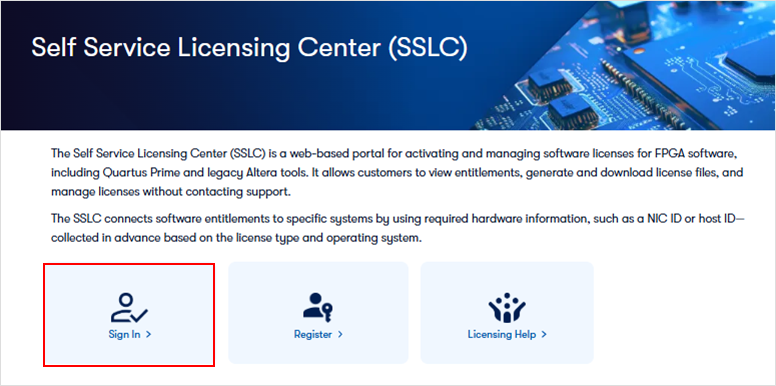
A sign-in page for the License Center appears.
Click [Sign In] located on the left side of the screen to sign in.
[Notes]
To use the License Center, you need an <Altera account> and <Registration with the Self Service Licensing Center > is required.
If you don't have an account yet, please see how to sign up for an Altera account.
• Customers signing in to the License Center for the first time should register for an Altera account and then register to use the Self Service Licensing Center.
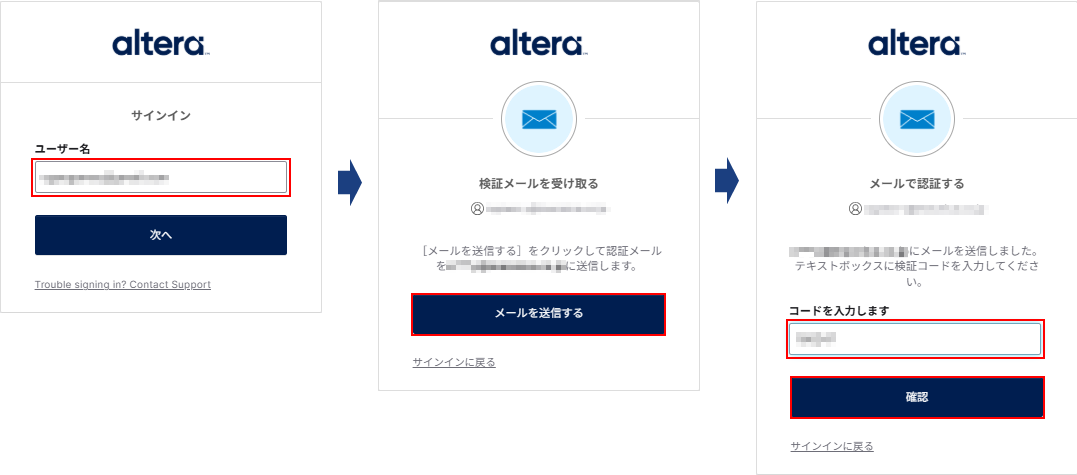
After entering your username, a verification code will be sent to your registered email address. Please enter the code in the form and click the [Verify] button.
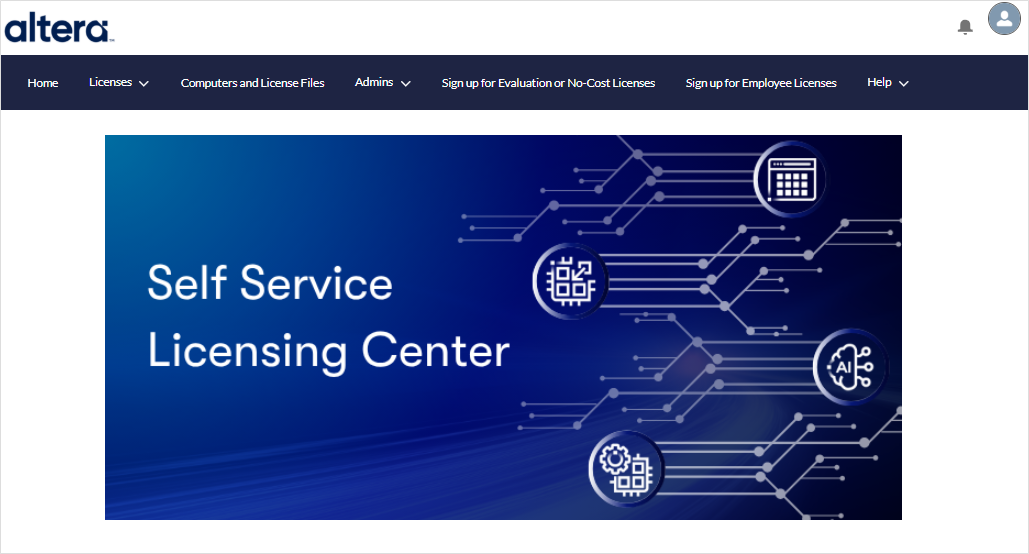
If the Self Service Licensing Center homepage is displayed, your access is complete.
2. Apply the renewal license and issue the license file.
The new license purchased through renewal (renewal) will be applied to the existing license.
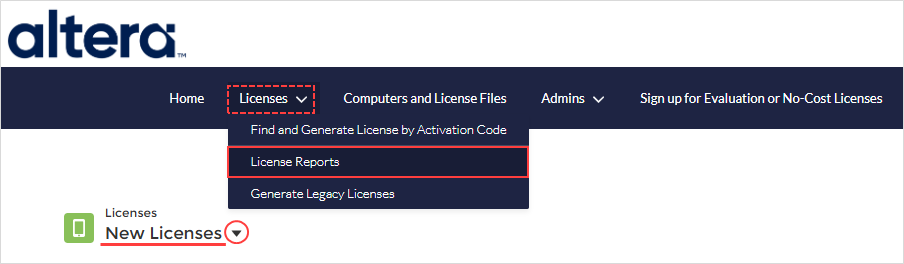
1. Select [License Reports] from the [Licenses] menu and switch the view list to [New Licenses].
This displays registered (purchased) licenses that are not currently assigned to a computer.
2. Click on the License Name (L-) of the applicable renewal license to go to the linked page.

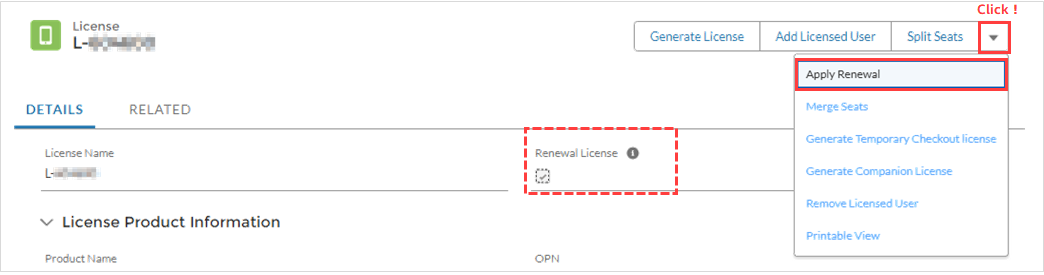
3. To apply for renewal of the selected license, click the ▼ button in the action bar at the top right of the page.
Select Apply Renewal from the menu.
[Notes]
Licenses registered as renewal licenses will have a checkmark (✔) in the Renewal License section (indicated by the red dotted line in the image below).
4. The Apply Renewal window will appear.
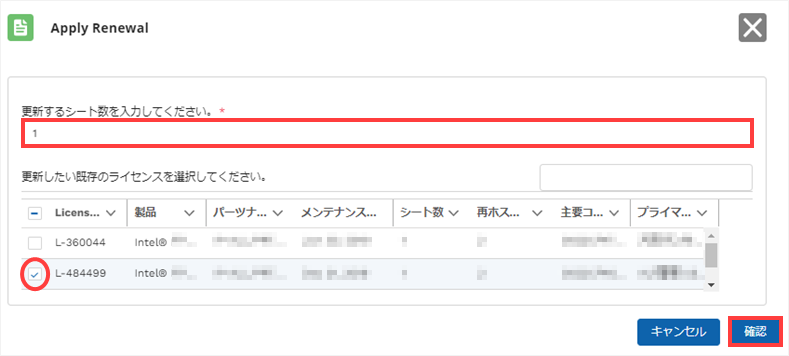
Enter the number of seats (licenses) to renew, check the existing licenses to be renewed from the list below, and click the [Confirm] button.
<Notes>
If you have purchased multiple renewal licenses, you should either divide the number of seats beforehand and then apply the renewal license,
Alternatively, when applying for license renewal, please enter only the number of seats you wish to renew.
If you enter a number less than the number of seats you purchased, the license will be divided into the number of seats you applied for and the number of seats you entered after the renewal process is complete.
It will remain under New Licenses.
5. A license file will be issued.
An email containing the license file will be sent to your registered email address. Please save the license file to the computer you will be using.
We recommend saving the file with the.dat extension. (Full-width characters and spaces cannot be used in the folder path or file name.)
This concludes the license renewal process.
After that, please configure the license settings according to your license type.
Click here for recommended articles/materials
How to register for an Altera account
How to register for the Self Service Licensing Center (SSLC)
How to setup FIXED license for Quartus® Prime, IP and Questa* - Altera® FPGA Edition
How to setup FLOAT licensing for Quartus® Prime, IP and Questa* - Altera® FPGA Edition
How to issue new licenses for Quartus® Prime, IP, and Questa* - Altera® FPGA Edition
How to reissue license files for issued Quartus® Prime, IP, and Questa* - Altera® FPGA Edition licenses.
How to change the NIC ID (Host ID) associated with Quartus® Prime, IP, and Questa* - Altera® FPGA Edition licenses.
Obtain a companion license for Quartus® Prime
How to obtain a checkout license for Quartus® Prime
How to Obtain a License for an Altera® FPGA Development Kit
How to manage network licenses for Quartus® Prime and third-party software on the same server machine
Altera® FPGA Development Flow