- Semiconductor BusinessHOME
- Products and Services of Macnica,Inc.
-
technical information

-
Events and Seminars
- Handling Manufacturer
- Support
- Inquiry
- Click here to purchase products
- Semiconductor business e-mail magazine registration


 Narrow down by specifying conditions
現在2249件がヒットしています。check
[#1], [#2], followed by creating a control operation in HDL design (state machine circuit) that automatically switches multiple configuration data stored in EPCQ/EPCQA/EPCS by FPGA. How to, this time its [#3].
Please see the article below for the contents so far.
How to switch FPGA configuration data HDL edition [#1/3]
How to switch FPGA configuration data HDL edition [#2/3]
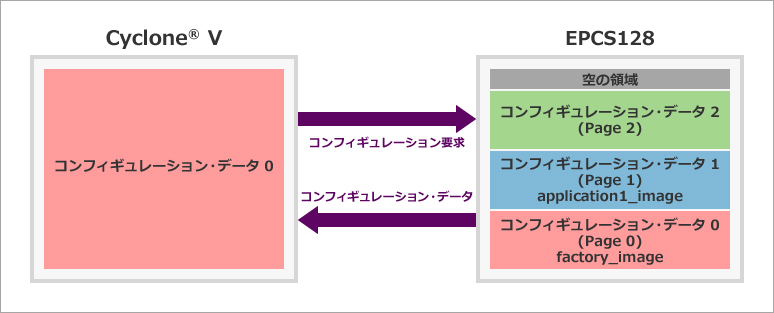
Step 2: Create Design for Page 1
Create and compile the design of application1_image (stored in Page 1), which is the destination of factory_image, and generate the sof file.
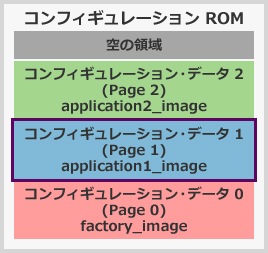
Switch the Project Navigator window to the Files view and select application1_image.v from the list. Right-click > Set as Top-Level Entity and change the top-level module of the project to application1_image.
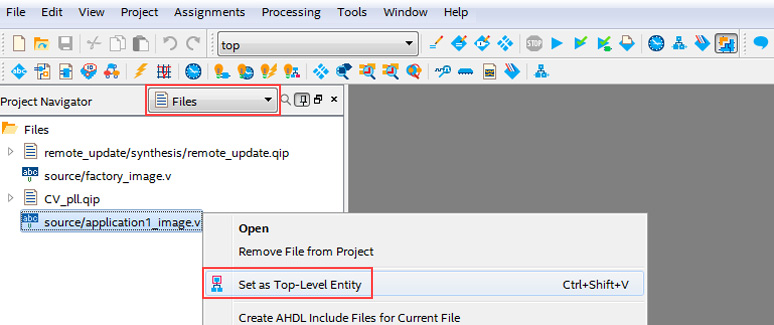
Open the application1_image.v file and make the following modifications.
- Change bus width of data_in of remote_update module to 24bit
This time, we are working on the three top layer modules, factory_image, application1_image, and application2_image, while sharing the project (*). This means that pin layout constraints are common. So launch the Pin Planner and additionally set the Reserved Pin option for the following pins that are not used in the application1_image design but have pin assignments in this project: Select the setting value according to the evaluation board to be used. Below are the contents according to the Beryll board.
- Set the Reserved term of dip_sw to as input tri-stated
- Set the Reserved term of led[3] to as output driving vcc
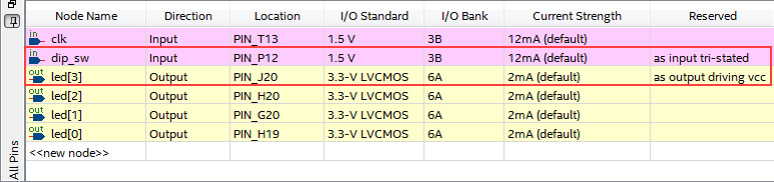
Go to Processing menu > Start Compilation to compile application1_image. Perform timing verification to confirm that the required specifications are met. Then rename the generated top.sof file as app1_image.sof.
Write app1_image.sof to FPGA with Programmer and check the operation.
Now you have built the configuration data 1 to be written to Page 1 of the configuration ROM!

[Hanako's tweet 3. About the structure of the project]
Since factory_image and application1_image and application2_image are different designs, you usually prepare a Quartus® Prime project for each and work on them. Since the input/output pin configuration (pin name, layout, etc.) is taken, constraints (option related) for the project can be shared.
Therefore, the style of this sample is to compile and generate a programming file (*.sof) while resetting only the top layer module within the same project without creating individual projects. If you want to switch the configuration data using Altera Remote Update IP in your own work, please create a project for each Page individually according to the specifications of the board and running application.
Step 3: Create Design for Page 2
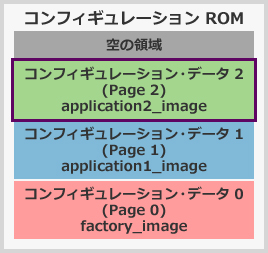
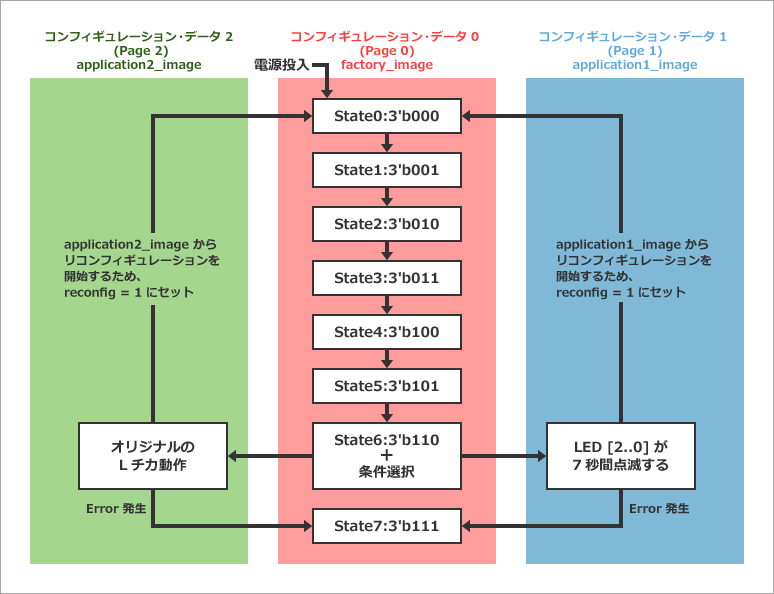
Create the design of application2_image (stored in Page 2), which is another transition destination of factory_image, compile, verify the actual device, and rename the sof file.
I'll leave it up to you to decide how application2_image works, but in order to return to the Page 0 image (that is, reconfigure it) while application2_image is running, I asked Altera Remote Update IP Make it issue reconfig = 1 . (*Please refer to application1_image.v.)
After creating the design, add it to the project using Project menu > Add/Remove Files in Project.
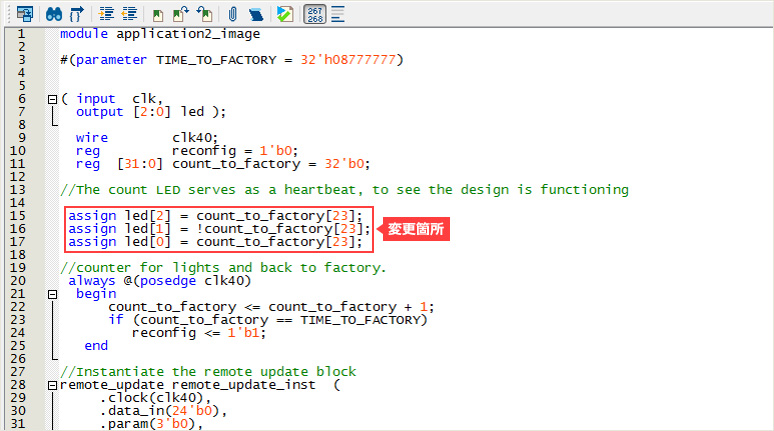
This time, I remade application1_image.v a little bit, changed the lighting specifications of the L blinking, and created application2_image.v.
For example: (See diagram below)
(* I just changed the led[2:0] lighting pattern in application1_image.v.)
Switch the Project Navigator window to the Files view and select application2_image.v from the list.
Right-click > Set as Top-Level Entity and change the top-level module of the project to application2_image.
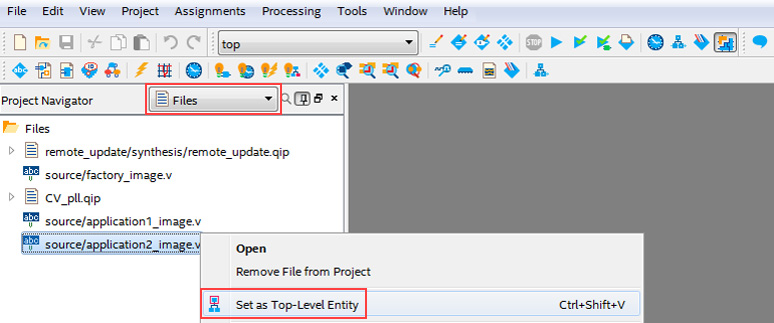
Go to Processing menu > Start Compilation to compile application2_image.
Perform timing verification to confirm that the required specifications are met.
Then rename the generated top.sof file as app2_image.sof.
Write app1_image.sof to FPGA with Programmer and check the operation.
Now you have built the configuration data 2 to be written to Page 2 of the configuration ROM!
Step 4: Create Programming File for Configuration ROM
Mix the three configuration data to create a programming file for the target configuration ROM.
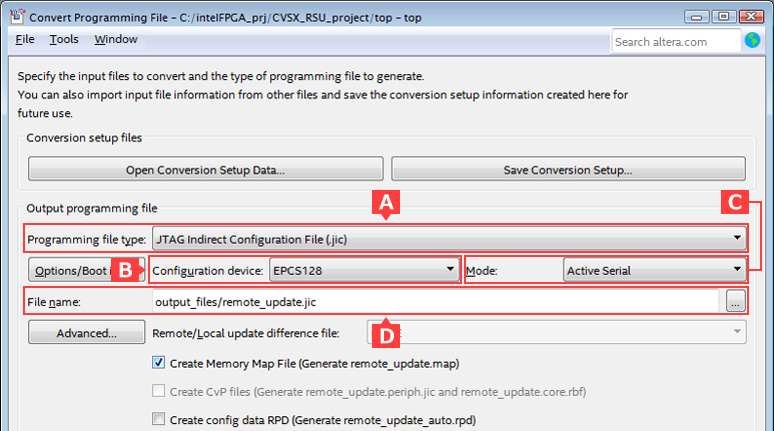
Choose File menu > Convert Programming Files to launch a dialog Box.
In the Output programming file section, set the contents of the generated file.
[A] Programming file type: Select the configuration ROM programming file format (.pof or .jic) according to the connection configuration of the board used.
[B] Configuration device: Configuration ROM for programming
[C] Mode: Select the mode according to the connection configuration of the board used
[D] File name: Specify the save folder and file name of the programming file to be generated.
The evaluation board Beryll used this time has JTAG Indirect Configuration as the programming specification for the configuration ROM, so set as follows.
[A] Programming file type: JTAG Indirect Configuration File (.jic)
[B] Configuration device: EPCS128
[C] Mode: Active Serial
[D] File name: output_file/remote_update.jic (*Folder path and file name are free.)
For the Create Memory Map File option, see [Hanako's Tweet #5] on the same page.
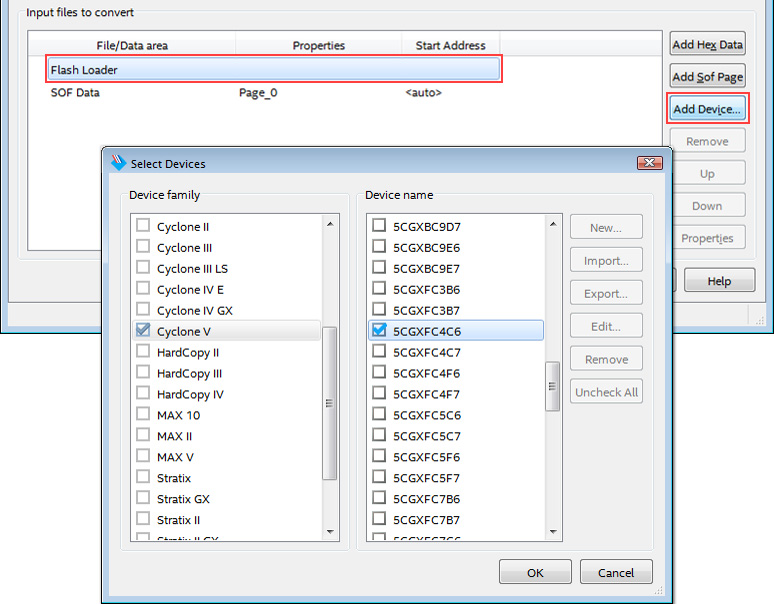
Next, in Input files to convert, set Flash Loader and SOF file of original data. (*If the generated format is .pof, there is no Flash Loader line.)
After selecting the Flash Loader line, click the Add Device button and select the FPGA model number.
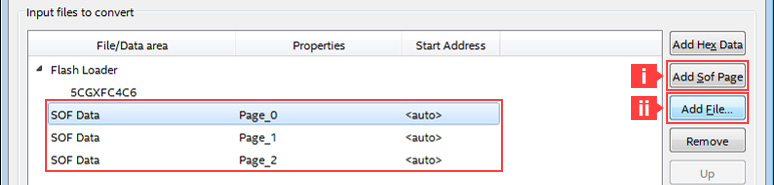
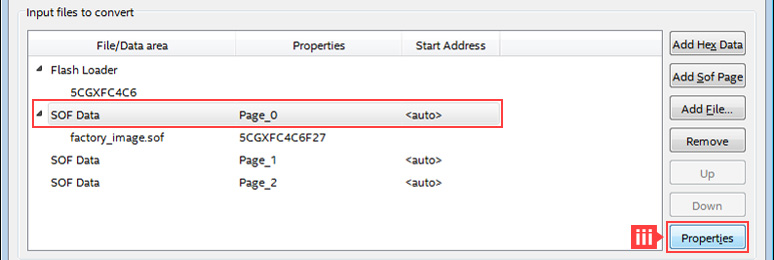
Click the Add Sof Page button to add a SOF Data row. ( i in the figure below) This time, we will prepare three pages.
Next, select the SOF Data row of Page_0, click the Add file button (ii below), and set factory_image.sof to store.
Select the SOF Data row of Page_0 and click the Properties button. (iii in the figure below)
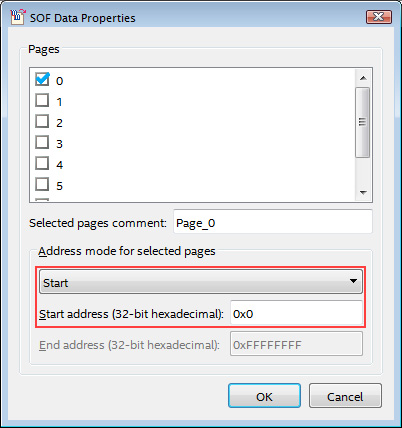
Specify the Start address of Page 0 in the SOF Data properties dialog Box.
- Address mode for selected pages : Start
- Start address : 0x00000000
If you also want to specify the End address here, set Address mode to Block and enter the Start address and End address.
[Hanako's tweet 4. Compressing sof files]
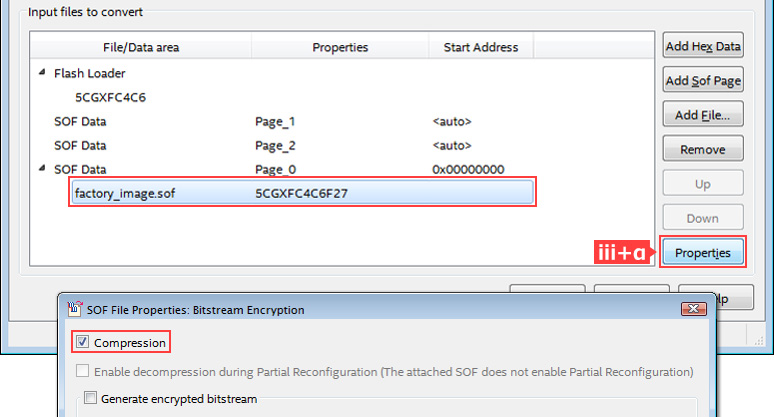
Each sof file set in "SOF Data" can be compressed to generate a programming file. Select the filename and click the Properties button. (iii+α in the figure below) If necessary, enable the Compression option on the property screen.
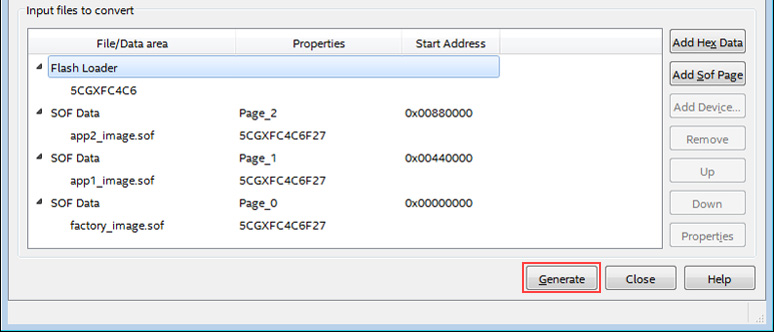
Similarly, set app1_image.sof for Page_1, app2_image.sof for Page_2, and set the Start address defined in factory_image.v.
Click the Generate button and when the message Successfully appears, the file has been generated!
[Hanako's tweet 5. Memory address map file]
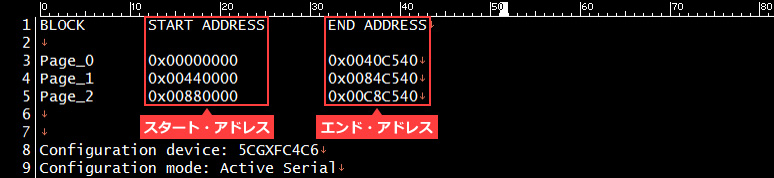
When you generate a programming file with the Create Memory map File option enabled, a memory address map file (.map) is generated at the same time. The map file can be opened with a text editor.
The data start and end addresses for each page specified when the programming file was created are recorded here.
The figure below shows the map file when only the start address is specified (Address mode for selected pages : Start). In this case, END ADDRESS displays the end address of the address used for the stored data.
Step 5: Program the Configuration ROM
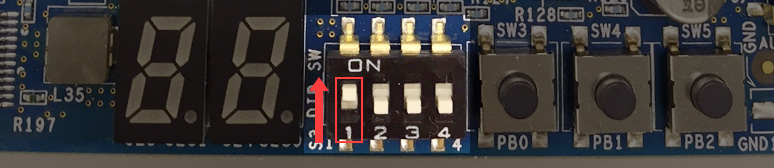
Check the direction of the DIP switch on the Beryll board in advance so that application1_image is selected as the transition destination of the initial image.
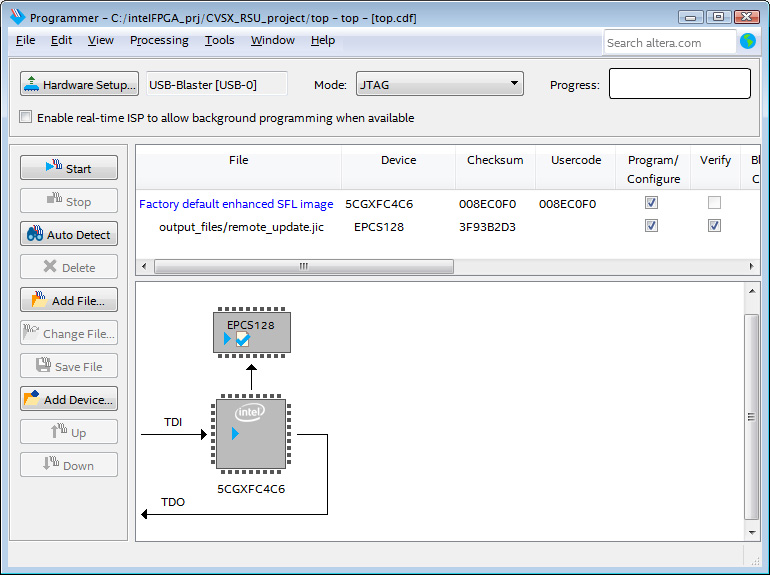
Start the Programmer (Tools menu), make necessary settings (Hardware Setup, Mode selection, programming file setting, etc.), and execute programming from the Start button.
Step 6: Check operation on actual device
The Beryll board has resistor pull-ups on the nCONFIG, nSTATUS, CONF_DONE, and INIT_DONE pins, as well as an LED connection so you can easily see the configuration status. I will check the operation there as well.
A schematic for the Beryll board is available here.
Beryll - Cyclone® V GX Basic Board
Power up your Beryll board!
Factory_image stored in Page 0 works first.
After that, when the reconfiguration instruction to the Altera Remote Update IP is reached, the LED connected to the user I/O turns off, and at the same time, the LEDs connected to CONF_DONE and INIT_CONF turn off once.
Then, reconfiguration is automatically performed, the CONF_DONE and INIT_CONF LEDs light up again, and you can confirm that the application1_image stored in Page 1 has moved to the operation.
When the application1_image runs and reaches the reconfiguration instruction to the Altera Remote Update IP, the CONF_DONE, INIT_CONF, and user I/O LEDs turn off as before, and reconfiguration is automatically performed, CONF_DONE, INIT_CONF LED lights up again. You can confirm that you have transitioned to factory_image.
Now flip the DIP switch to change the destination to application2_image.
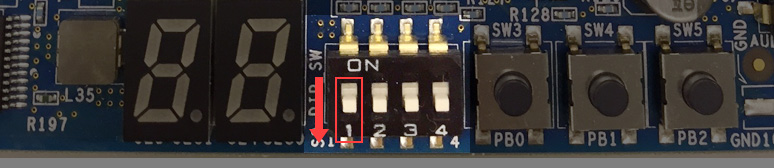
Then, reconfiguration is performed from the operation of factory_image, and it shifts to the operation of application2_image stored in Page 2, and when it comes to the reconfiguration instruction to Altera Remote Update IP, you can confirm that it has transitioned to factory_image.
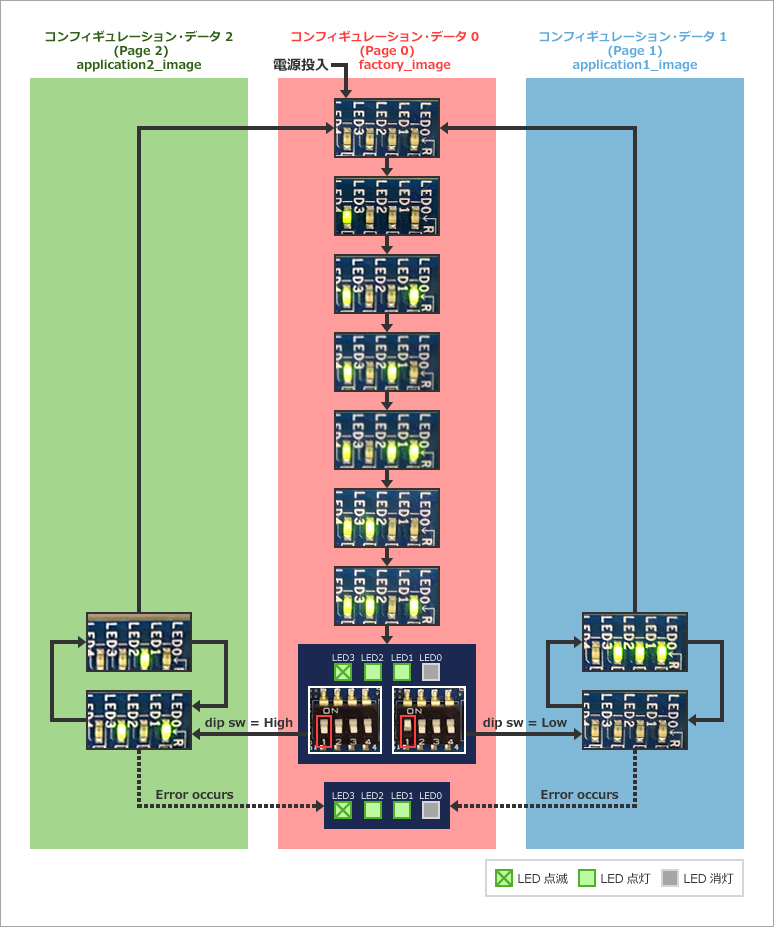
I made it! Success!
In addition, this time, since it was a simple operation of about L blinking, no error state occurred and there was no LED lighting to indicate an error.
In addition, the LED lighting indicating State 6 was at the same time as the reconfiguration command to Altera Remote Update, so it was not visible and could not be photographed. I was able to confirm that.
At the end
In this way, if you refer to the sample design and incorporate and control the Altera Remote Update IP, you can easily configure the specifications for switching the configuration data.
Everyone please try it.
Click here for recommended articles/materials
How to switch FPGA configuration data HDL edition [#1/3]
How to switch FPGA configuration data HDL edition [#2/3]
How to switch FPGA configuration data HDL edition [#3/3]
General development flow for FPGA / CPLD