- Semiconductor BusinessHOME
- Products and Services of Macnica,Inc.
-
technical information

-
Events and Seminars
- Handling Manufacturer
- Support
- Inquiry
- Click here to purchase products
- Semiconductor business e-mail magazine registration


 Narrow down by specifying conditions
現在2249件がヒットしています。check
Continuing from [#1], how to create a control operation in which the FPGA automatically switches between multiple configuration data stored in EPCQ/EPCQA/EPCS using an HDL design (state machine circuit). That [#2].
Please see the article below for the contents so far.
How to switch FPGA configuration data HDL edition [#1/3]
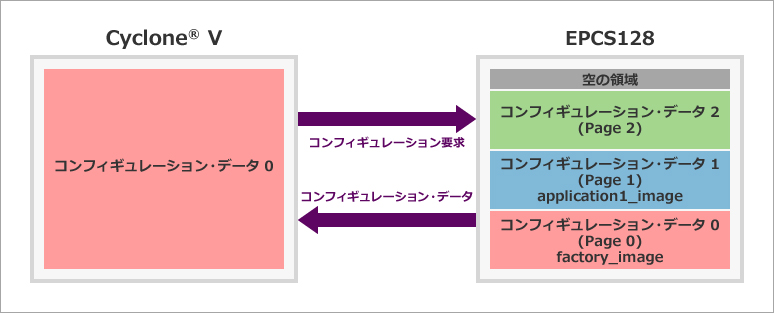
Step 1: Create Design for Page 0
Create a design to write to Page 0, compile, test on the actual device, and rename the sof file.
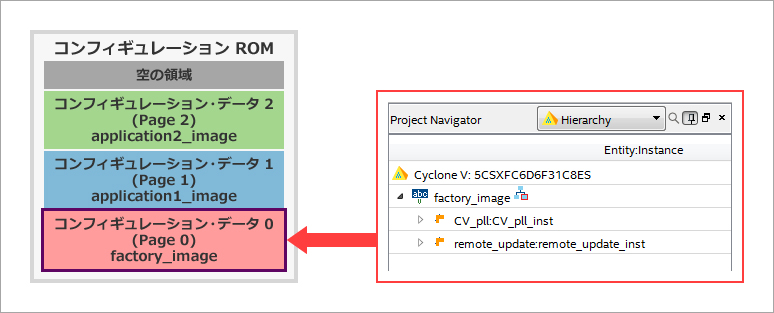
Make sure the top-level design of the example project currently set in the Project Navigator window is factory_image.
1. Edit the sample project settings according to the evaluation board
I am using Cyclone® V (5CGXFC4C6F27C7) and Mpression Beryll board with EPCS128.
The example design project is configured for the Cyclone® V SoC Development Kit (5CSXFC6D6F31C6N with EPCQ256), so we will make some minor modifications to the constraint settings to accommodate the Beryll board.
1-1. Change the model number of the device
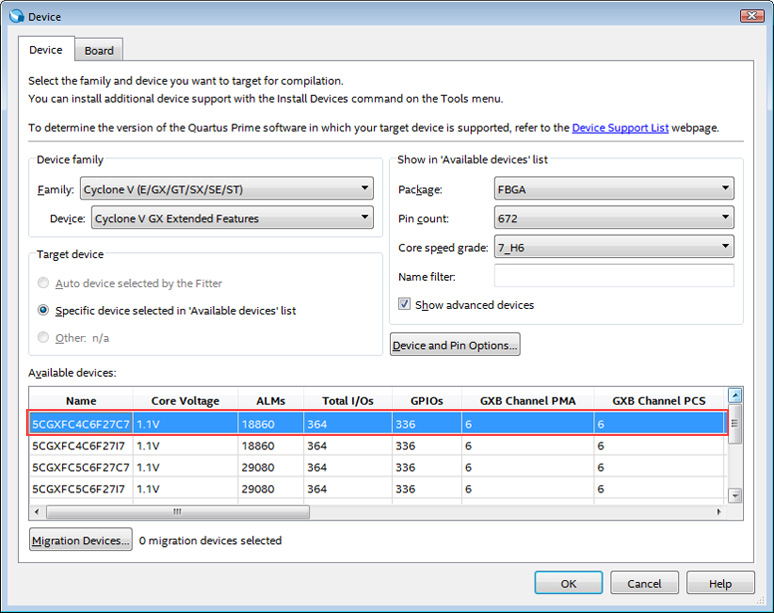
Change to 5CGXFC4C6F27C7 in Assignments menu > Device. At that time, you will be asked if you want to delete the pin layout information, but since the evaluation board is different this time, the pin layout will also be changed, so select Yes (delete the assignment information).
1-2. Setting the configuration mode
Click the Device and Pin Options button in the Device dialog Box, select Configuration scheme in the Configuration category, and set Configuration mode to Remote. For the EPCS128 used this time, select Active Serial x1 (can use configuration Device) for Configuration scheme.
Also, there is no need to set the Configuration device field. The programming files required this time are created separately using the Convert Programming Files function to mix multiple configuration data.
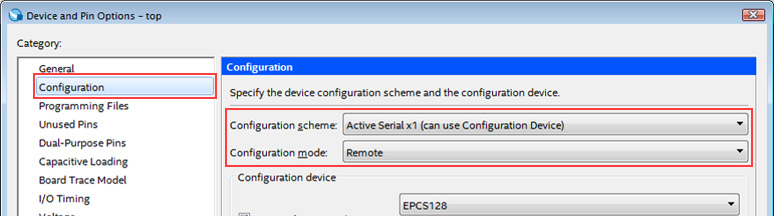
* In addition, change options such as Unused Pins and Voltage category according to the specifications of the evaluation board used.
2. Edit the sample design
This project consists of 2 IP cores (CV_pll, remote_update) and 3 files in the top layer (factory_image) (see figure below). Edit each design file to adapt to the evaluation board and configuration ROM configuration used.
2-1. Change the parameters of the PLL circuit (CV_pll)
Double-click the CV_pll module in the Project Navigator window to display the parameter setting window.
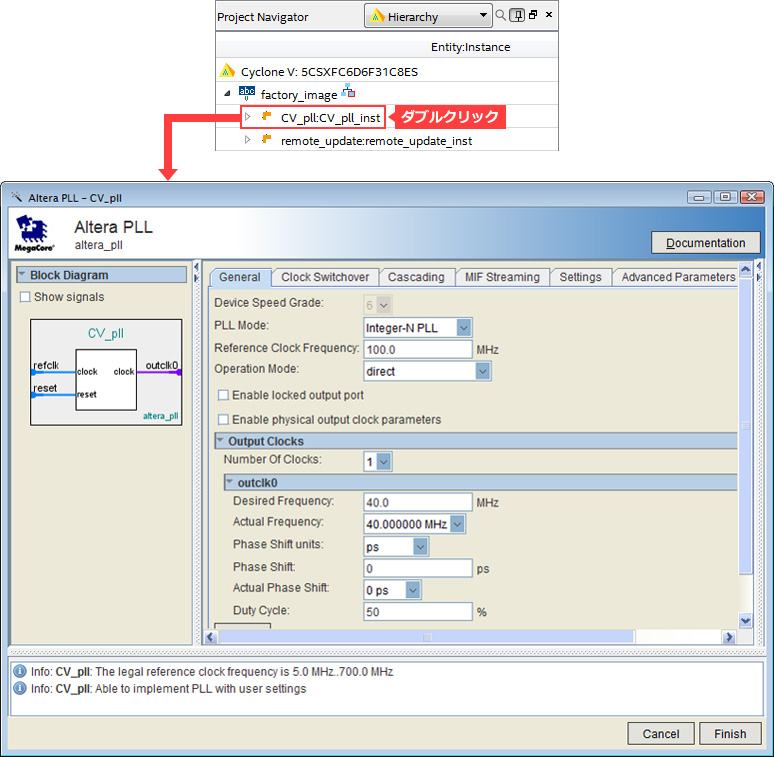
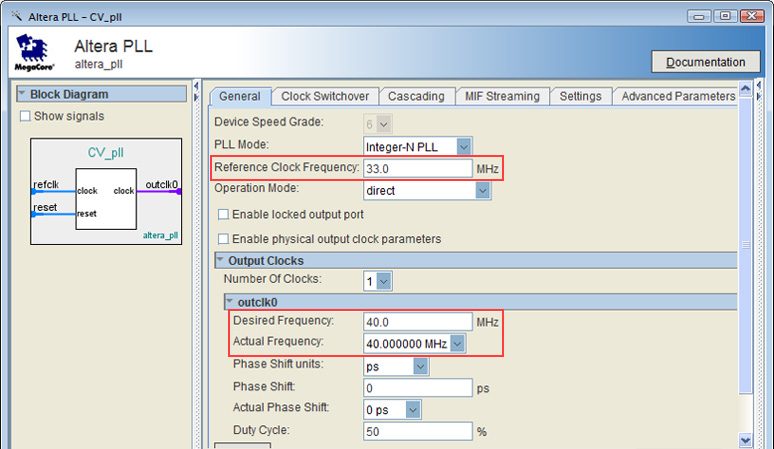
On the evaluation board, enter the frequency of the clock input from the oscillator to the FPGA in Reference Clock Frequency. In the case of the Beryll board used this time, four oscillators with different frequencies are connected to the FPGA.
Leave the output clock frequency of the PLL at 40MHz to match the sample.
Click the Finish button to update your design. Even if there are no parameter changes, use the Finish button to update the design files to apply to the version of Quartus® Prime you are using.
When Generation Successful is displayed, close the window with the Exit button.
2-2. Updating Altera Remote Update IP (remote_update)
The Altera Remote Update IP used in the example project is an obsolete IP called the "ALTREMOTE_UPDATE megafunction". I could update the ALTREMOTE_UPDATE parameter to use it, but this time I will update to the new Altera Remote Update IP (for future use in new projects).
In other words, this time, we will correspond by overwriting the name of the Altera Remote Update IP to be created by generating it with the same name as the existing ALTREMOTE_UPDATE.
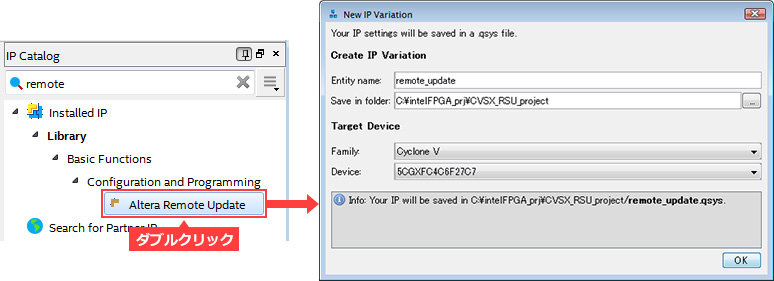
From Tools menu > IP Catalog, search for Altera Remote Update and double-click it.
In the New IP Variation window, specify the name of the IP you are about to create and the path to the folder where it will be saved. Here, enter remote_update as the Entity name to replace the existing remote_update.v.
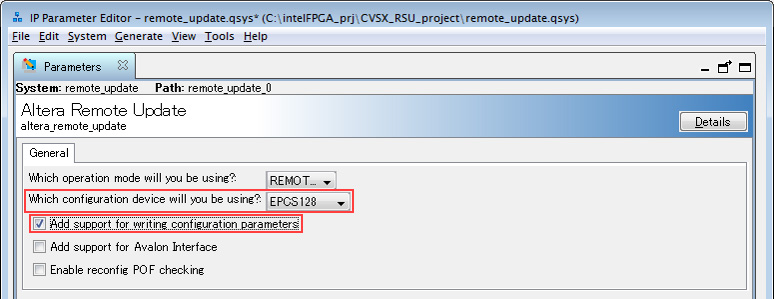
Under Which configuration device will you be using?, specify the configuration ROM to use with the evaluation board. This time, select EPCS128.
At the same time, enable (On) the Add Support for writing configuration parameters option.
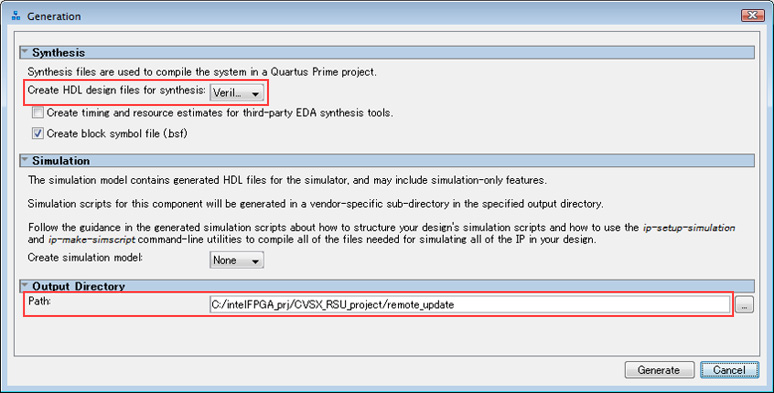
Click the Generate HDL button and in the Generate dialog Box that appears, set Verilog as the language specified in the Synthesis section. (Quartus® Prime supports mixed languages, so generating in VHDL is no problem.)
Leave the default for Path in the Output Directory section.
Click the Generate button to generate the design files. After the file generation is complete, click the Finish button to close the window.
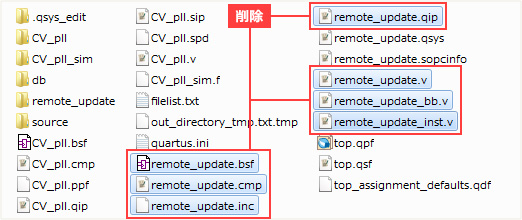
Now organize your working folder and Quartus® Prime settings so that there is no conflict between the existing remote_update file and the remote_update file you just created.
Open your working folder in explorer and look for a file named remote_update. (Here, the remote_update folder in the working folder is out of scope.)
Delete the remote_update files except the .qsys, .sopcinfo files.
Then select Quartus® Prime Project menu > Add/Remove Files in Project.
First, delete the existing remote_update.qip (remote_update.v).
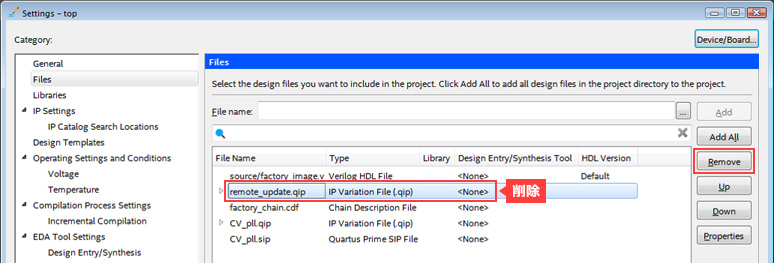
Next, click the browse button on the right side of the File name field and select remote_update.qip in the working folder > remote_update folder > synthesis folder to register the newly generated remote_update.
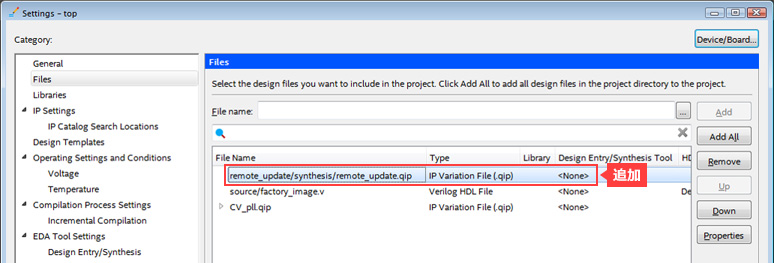
Close the Settings window with the OK button.
2-3. Edit the control circuit of Altera Remote Update IP
Edit factory_image.v stored in Page 0 to match the sample design to our specifications.
3 edit points!
Point 1. Change the start address of each image to be stored in the configuration ROM according to this specification
Point 2. Since the configuration ROM is different from the sample, correct the bus width of the data connected to Altera Remote Update IP
Point 3. Add an action to select the configuration image to transition to
Below are three examples of these edits.
[Point 1] Change the start address of each image to be stored in the configuration ROM according to this specification.
Change the start address of the configuration ROM where the configuration data transitioning from the Page 0 image is stored for the Beryll board.
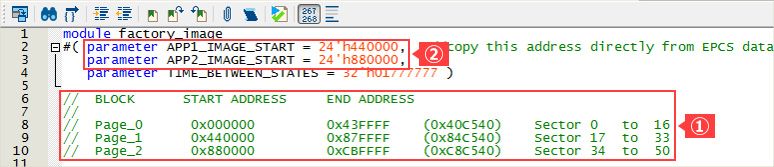
The uncompressed raw binary file (.rbf) size of the configuration data for the 5CGXFC4C6F27C7 (Cyclone® V) used this time is 33,958,560 bits. Therefore, factory_image configuration data (uncompressed) uses EPCS128 sectors 0 to 16 (H'000000 to H'43FFFF). Similarly, the configuration data of application1_image and application2_image can be converted to ① below.
Next, rename the parameter declaration on the second line to APP1_IMAGE_START for application1_image, and add APP2_IMAGE_START as a parameter declaration for application2_image on the third line, as shown in Figure 2 below.
Additionally, edit each parameter value to the starting address of each Page. Since EPCS128 is used this time, change the address width from 32 bits to 24 bits. (* After this, change the data input data_in of Altera Remote Update to 24 bits.)
[Reference material]
EPCS device
Serial Configuration (EPCS) Devices Datasheet
EPCQ device
Quad-Serial Configuration (EPCQ) Devices Datasheet
EPCQA device
EPCQ-A Serial Configuration Device Datasheet
[Point 2] Correct the bus width of data connected to Altera Remote Update IP
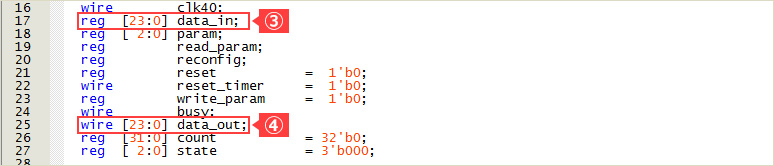
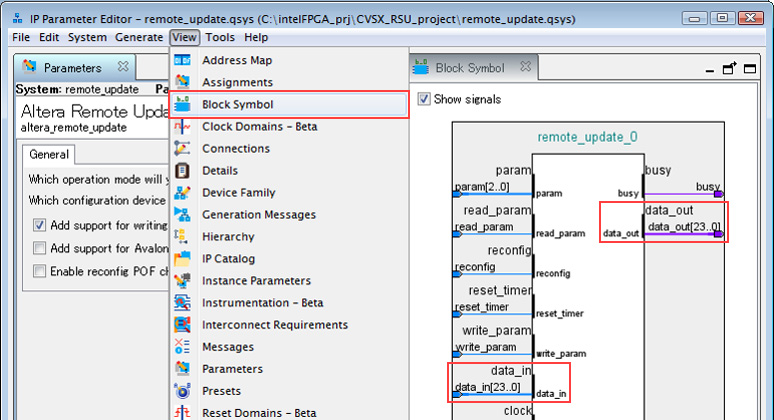
The data input data_in and data output data_out of the Altera Remote Update IP (remote_update) are 24 bits because of the 3-byte addressing mode when using EPCS128. (EPCQ256 was targeted in the sample project, so it was 32 bits in 4-byte addressing mode.)
Change the bus width of data_in and data_out in the reg and wire declarations to 24 bits, as shown in Figures 3 and 4 below.
For a simple way to check the data bus width, please see [Hanako's Tweet Part 2] on the same page.
[Point 3] Add an action to select a configuration image to transition to
As a condition to decide whether to transition from factory_image to application1_image or application2_image, we will use the DIP switch on the Beryll board this time.
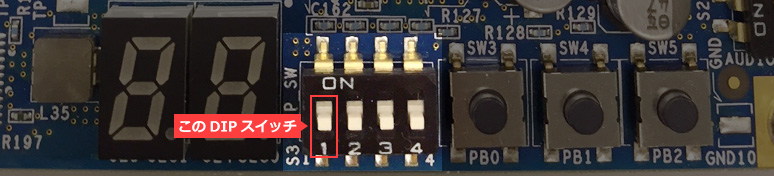
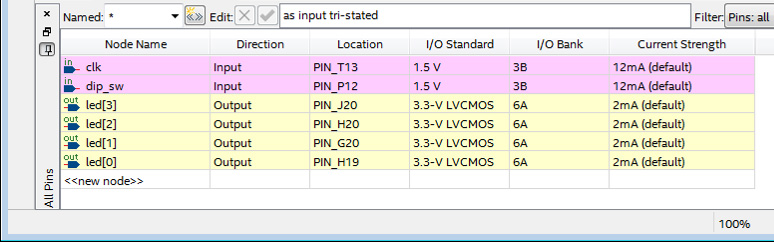
So add an input pin. (Refer to ⑤ below)

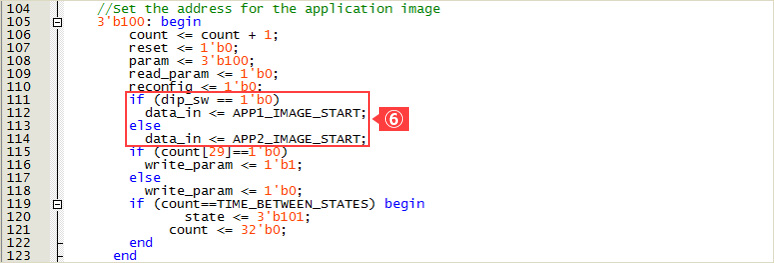
Also, add a conditional statement for transition. For example: (Refer to ⑥ below)
(*When dip_sw is 0, data_in is assigned APP1_IMAGE_START (ie 24'h440000), and when dip_sw is 1, APP2_IMAGE_START (ie 24'h880000) is assigned to data_in.)
2-4. Change pin layout
Change the pin layout in the Pin Planner to match the evaluation board and edited design. At the same time, change the I/O standard according to the board. Below is an example using a Beryll board. (In the case of this editing example, an input pin has been added, so perform Analysis & Elaboration in advance.)
3. Compile, rename sof file
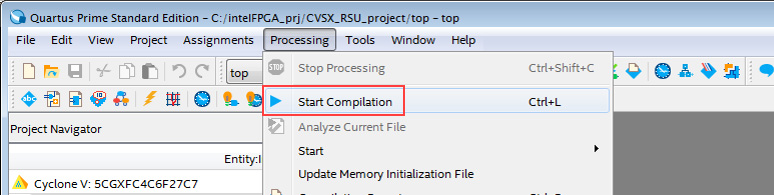
Execute Processing menu > Start Compilation to compile factory_image.
Perform timing verification to confirm that the required specifications are met.
Then rename the generated top.sof file as factory_image.sof.
Write factory_image.sof to FPGA with Programmer and check the operation.

[Hanako's tweet 2. How to check the data width of Altera Remote Update IP]
It is a little troublesome to check the bit width of data input data_in and data output data_out of Altera Remote Update IP from the datasheet of the reference material introduced earlier. Here's how to check it easily.
When creating the Altera Remote Update IP in the IP Catalog, specify the configuration ROM to be used in Which configuration device will you be using? At that time, you can display the image by selecting View menu > Block Symbol. Check the bus width of that data_in and data_out.
Next build the transition destination design
You have now built configuration data 0 to write to Page 0 of the configuration ROM!
Next, let's create configuration data to write to Page 1 and Page 2. (Continued in #3 below)
How to switch FPGA configuration data HDL edition [#3/3]
Click here for recommended articles/materials
How to switch FPGA configuration data HDL edition [#1/3]
How to switch FPGA configuration data HDL edition [#2/3]
How to switch FPGA configuration data HDL edition [#3/3]
General development flow for FPGA / CPLD