- Semiconductor BusinessHOME
- Products and Services of Macnica,Inc.
-
technical information

-
Events and Seminars
- Handling Manufacturer
- Support
- Inquiry
- Click here to purchase products
- Semiconductor business e-mail magazine registration


 Narrow down by specifying conditions
現在2249件がヒットしています。check

hello.
My name is Hanako Altera and I provide technical support for Altera® FPGA products at Macnica.
This time, I will introduce how to create a control operation in which the FPGA automatically switches between multiple configuration data stored in EPCQ/EPCQA/EPCS using an HDL design (state machine circuit).
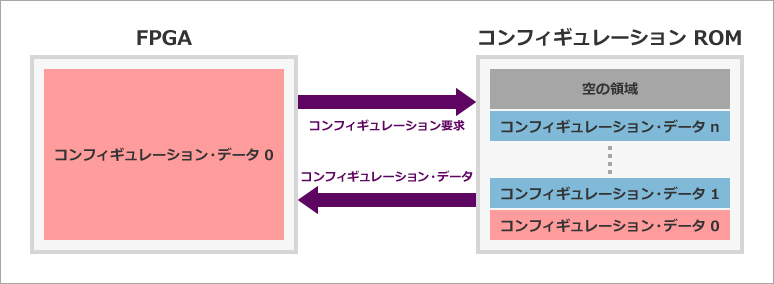
An FPGA works only when it receives configuration data from the outside.
To exchange that configuration data on the board, it is necessary to implement a ROM that stores that data.
While there are various configuration schemes depending on the FPGA family and ROM used, the simplest method is an Active Serial (AS) configuration using Altera® FPGA-specific configuration ROMs (EPCQ, EPCQA, EPCS).
[Reference materials]
Table of Configuration Schemes Supported by Each FPGA Family
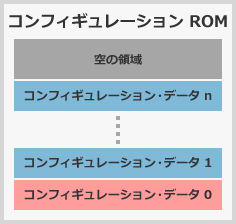
An EPCQ, EPCQA, or EPCS typically stores one configuration data for the opposing FPGA, but can store more than one. Using the EPCQ/EPCQA/EPCS area in this way has the following advantages.
- Efficient use of free space in EPCQ/EPCQA/EPCS
- ボードごとに別々のコンフィグレーション・イメージを書き込む必要がなくなり工数を削減できる
- FPGA operation can be switched according to board conditions
Manufacturers call this kind of specification "remote system update function".
This article has simplified the flow of basic operation of Quartus® Prime, so please refer to the various documents on the following pages as necessary.
General development flow for FPGA / CPLD
Target device family
- FPGAs: Cyclone® V, Cyclone® IV, Arria® V, Arria® II, Startix® V, Stratix® IV
- Configuration ROMs: EPCQ, EPCQA, EPCS
Configuration data switching specification
After power-up, the target FPGA first configures the data stored in Page0 of EPCQ/EPCQA/EPCS (starting address location 0x000000). Then, if necessary, access data stored in another Page and perform configuration again.
If configuration fails during this time, the FPGA automatically configures and restores the Page0 data.
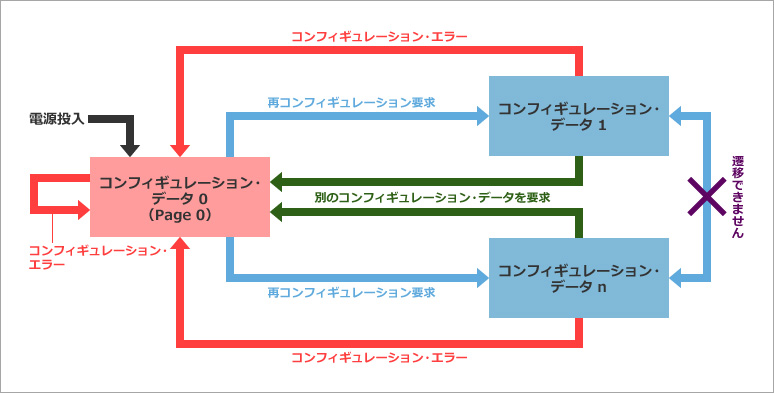
Note that the target FPGA cannot transition between configuration data other than the configuration data stored in Page 0. For example, when making a transition from an application with configuration data 1 to an application with configuration data n, it is necessary to make a transition to an application with configuration data 0 on Page 0 once.
To force the FPGA to perform this configuration data switching behavior, use the Altera Remote Update IP. This IP is a freely available function and is also available in Quartus Prime Lite Edition.
[Reference material]
Altera Remote Update IP Core User Guide
FPGA and evaluation board used this time
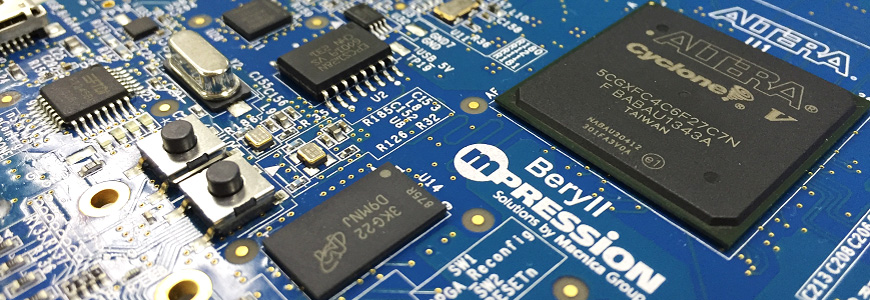
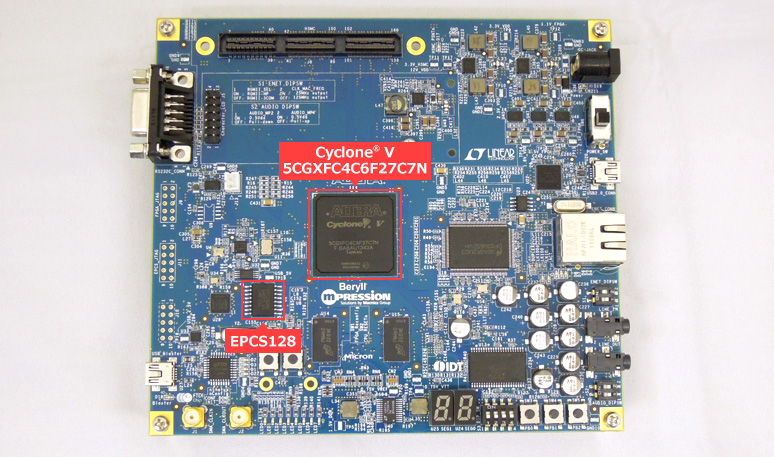
Any board equipped with the target FPGA and configuration ROM can be supported. This time, we will use Cyclone V (5CGXFC4C6F27C7) and Mpression Beryl with EPCS128.
Download a sample design
From here, I will provide a simplified explanation using a sample design.
Sample designs are available from Altera's Design Store.
[How to obtain sample designs]
Get free FPGA sample designs.
[Downloadable sample design]
Remote System Upgrade (RSU) Design Example (for Cyclone V SoC Development Kit)
* This sample design is created for the Cyclone® V SoC. The parameters of each IP included in the design (AlteraPLL, Altera Remote Update) are also configured for Cyclone® V. Therefore, if you intend to use this project with a different family, it is recommended that you recreate the IP.
[Hanako's tweet 1. For users who want to use the default project]
This time, I modified this sample design a little and explained how it can be used for FPGAs and configuration ROMs other than the target device of the sample design.
If you would like to continue using the example design (compatible with the Cyclone® V SoC Development Kit), please refer to the document "Remote System Upgrade Design Example User Guide" available on the example design page on the Design Store.
Set example design project in Quartus® Prime
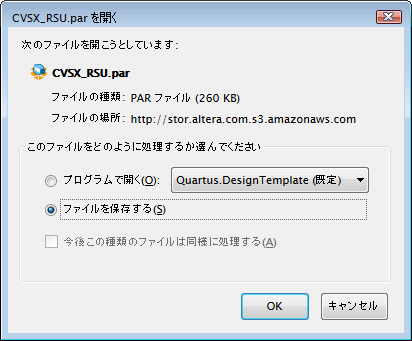
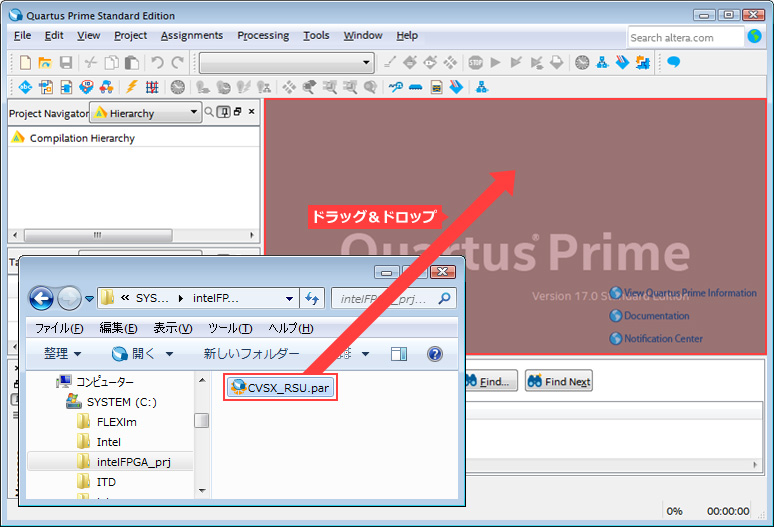
Unzip the par file downloaded from the Design Store. Please refer to the following TIPS for the deployment method.
How to unpack the FPGA example design .par file
(It's easy if you use Hanako's deployment method, which is introduced in the second half.)
Overview of the example design
Run Analysis & Elaboration to get an overview of the sample design.
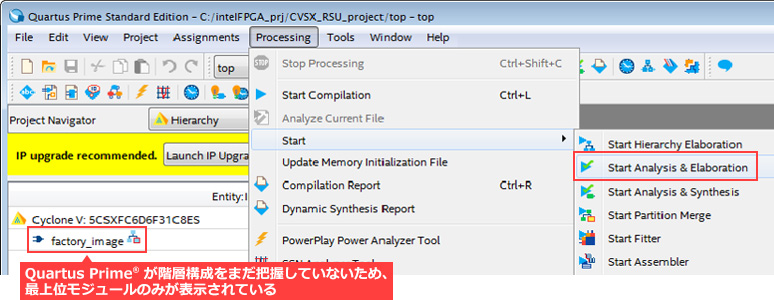
If you then look at the Project Navigator, you will see that CV_pll and remote_update exist under the factory_image module. An overview of each module is provided below.
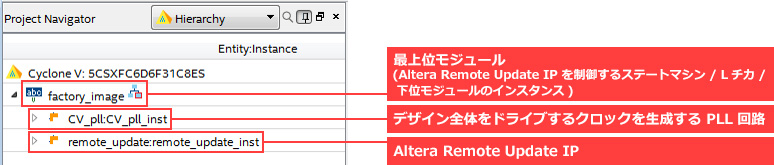
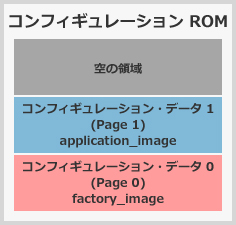
In addition, factory_image.v, which is currently set as the highest hierarchical module, and application_image.v, which is another highest hierarchical module of the configuration data, are saved in the source folder in the working folder of the project. increase.
Looking at each source, you can see that the data of factory_image is stored in Page 0 of the configuration ROM, the data of application_image is stored in Page 1, and switched.
The operation specifications of the sample design are shown below.
For more information, see the document Remote System Upgrade Design Example User Guide available on the example design page on the Design Store.
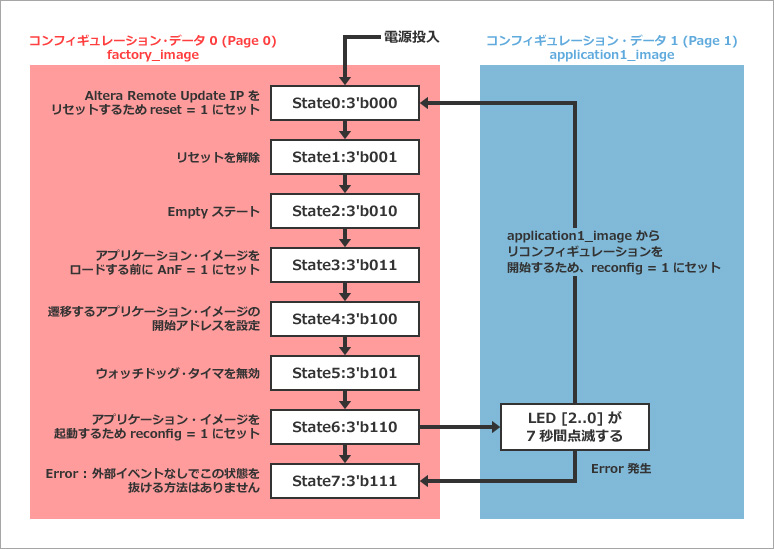
factory_image.v contains a state machine to control the Altera Remote Update IP (remote_update) and transition to application_image.v. The flow at that time is 7 steps from State 0 to State 6 in the above figure, and State 7 has a state that indicates an error.
State 0 (set reset = 1 to reset the Altera Remote Update IP)
→ State 1 (release reset)
→ State 2 (Empty state)
→ State 3 (set AnF = 1 before loading the application image)
→ State 4 (set the start address of the transitioning application image)
→ State 5 (disable watchdog timer)
→ State 6 (set reconfig=1 to boot the application image)
AnF in State 3 stands for Application not Factory and the AnF bit must be set to 1'b1 before doing a reconfiguration trigger for the application image. Then specify the starting address in memory where the data for the application image is stored.
To set the AnF bit, have the user logic issue param = 3'b101, data_in = 24'h000001 and write_param = 1'b1 to the Altera Remote Update IP.
application_image.v consists of blinking LED[2:0] simultaneously for 7 seconds and jumping to Page 0 configuration image.
The LED display status for each design is shown below.
|
LED lighting design for each design |
||||||
|
State # (LED[2..0]) |
Functions |
LED 3 |
LED 2 |
LED 1 |
LED 0 |
Image Status |
| State 0 (3'b000) |
reset =1, reset RSU IP |
|
|
|
|
factory_Image |
| State 1 (3'b001) |
release reset |
|
|
|
|
|
| State 2 (3'b010) |
empty state |
|
|
|
|
|
| State 3 (3'b011) |
AnF=1 |
|
|
|
|
|
| State 4 (3'b100) |
Set application_image start address |
|
|
|
|
|
| State 5 (3'b101) |
disable watchdog |
|
|
|
|
|
| State 6 (3'b110) |
reconfig=1, boot application Image |
|
|
|
|
application_image |
|
LED[2…0] blink for 7 seconds |
|
|
|
|
||
| State 7 (default) |
Hold |
|
|
|
|
Error |
 Flashing LED /
 LED lighting /
 LED off
Change the switching specification of the sample project
In the sample, two images of 5CSXFC6D6ES (Cyclone® V) configuration data are stored in EPCQ256.
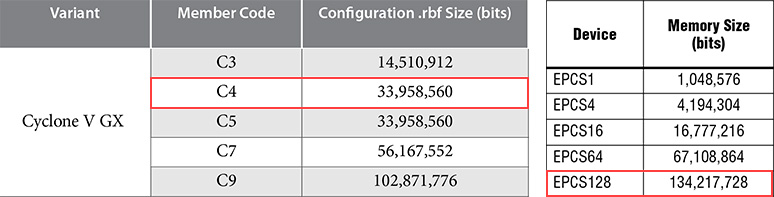
This evaluation board Beryll has 5CGXFC4C6F27C7 and EPCS128. The uncompressed raw binary file (.rbf) size of configuration data for 5CGXFC4C6F27C7 is 33,958,560 bits. The EPCS128, on the other hand, has a capacity of 134,217,728 bits.
[Reference material]
Cyclone® V Device Datasheet (see Configuration Specifications > Configuration Files)
Serial Configuration (EPCS) Devices Datasheet
In other words, it is a calculation that can store three uncompressed configuration data. This time, change the configuration of the configuration ROM in the sample project as shown below.
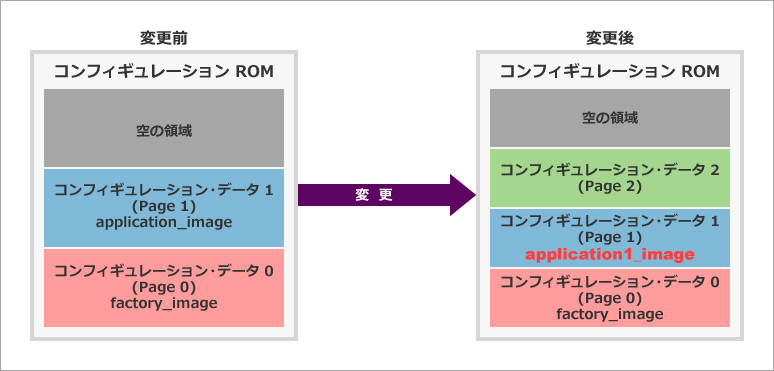
To apply this configuration, rename the existing application_image.v file to application1_image.v and edit the module name from application_image to application1_image.
Additionally, in the Project menu > Add/Remove Files in Project, add the source/application1_image.v file and remove the source/application_image.v file.
In addition, the design of newly added configuration data 2 will be created by the original later.
Future work flow
Follow the 6 steps below.
Step 1: Create Design for Page 0
Step 2: Create Design for Page 1
Step 3: Create Design for Page 2
Step 4: Create Programming File for Configuration ROM
Step 5: Program the Configuration ROM
Step 6: Check operation on actual device
Let's start with step 1.
Create a design to write to Page 0, compile, test on the actual device, and rename the sof file. (Continued in #2 below)
How to switch FPGA configuration data HDL edition [#2/3]
Click here for recommended articles/materials
How to switch FPGA configuration data HDL edition [#1/3]
How to switch FPGA configuration data HDL edition [#2/3]
How to switch FPGA configuration data HDL edition [#3/3]
General development flow for FPGA / CPLD