- Semiconductor BusinessHOME
- Products and Services of Macnica,Inc.
-
technical information

-
Events and Seminars
- Handling Manufacturer
- Support
- Inquiry
- Click here to purchase products
- Semiconductor business e-mail magazine registration


 Narrow down by specifying conditions
現在2240件がヒットしています。check
Introduction
Technologies such as building 3D virtual spaces using the NVIDIA Omniverse™ platform and AI robot simulation using NVIDIA Isaac Sim™ are attracting attention.
Isaac Sim is a simulation platform for robot development provided by NVIDIA, enabling the execution of robot simulations in a photorealistic 3D virtual environment. Furthermore, by utilizing NVIDIA Isaac™ ROS, a set of sample packages for robot development provided by NVIDIA for ROS2, it is possible to realize advanced robot control programs with added AI processing.
This article will introduce the setup procedures required to use Isaac Sim / Isaac ROS, and will also show you how to run the Isaac ROS sample (Nvblox) for autonomous driving simulation of a two-wheeled robot as a way to verify that the setup is working.
Isaac Sim / Isaac ROS Use Cases
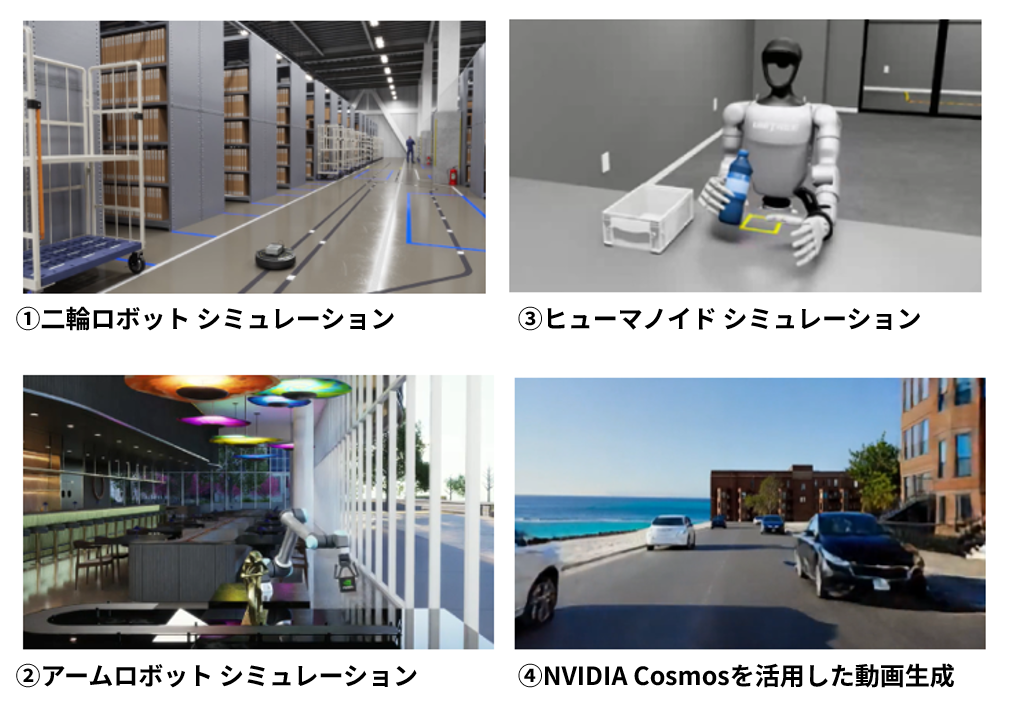
Isaac Sim and Isaac ROS can be used in a variety of scenarios, such as the following:
① Two-wheeled robot simulation (controlling a two-wheeled robot using a ROS2 program)
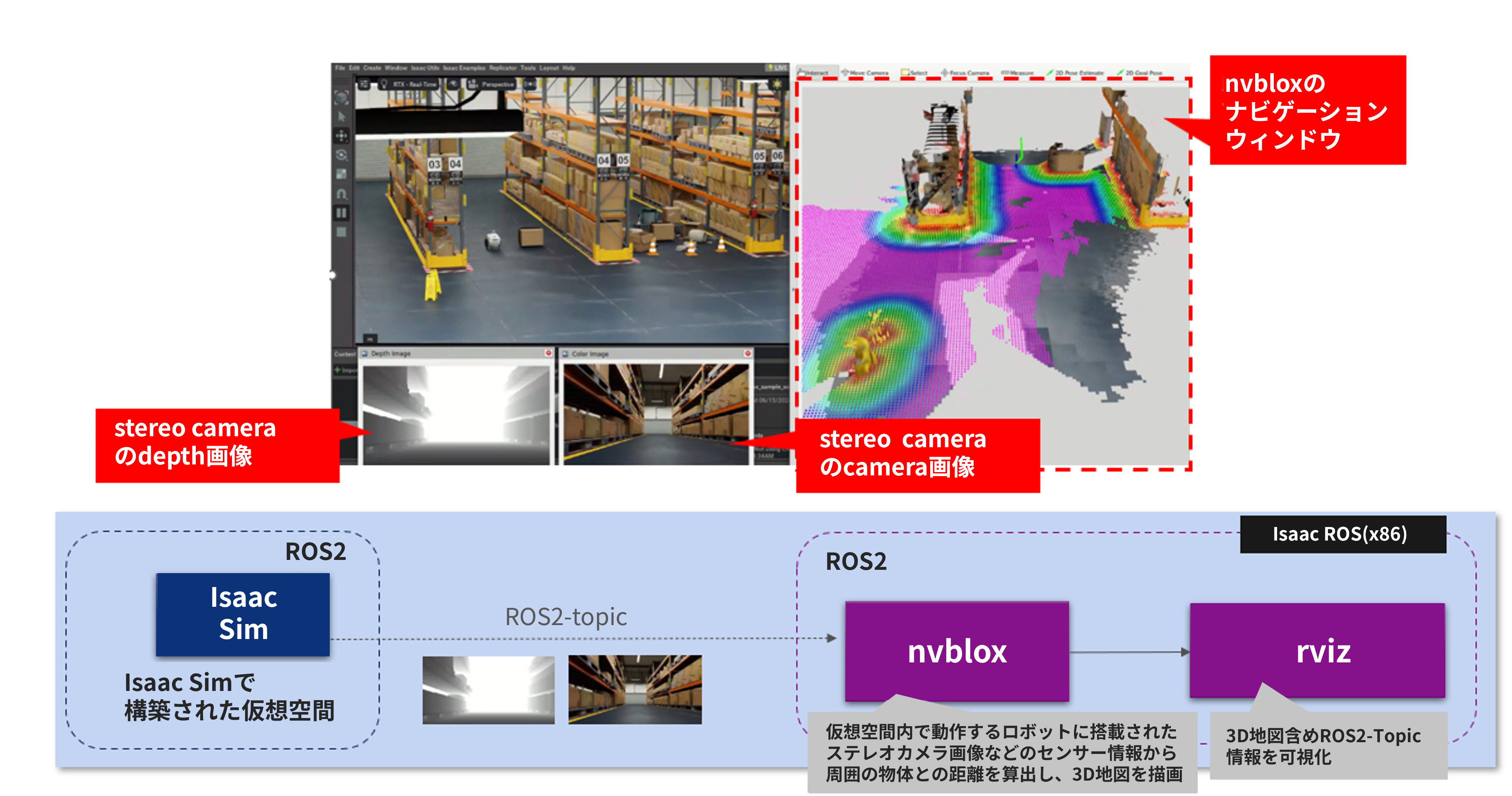
Isaac ROS also provides sample code for autonomous driving simulations that utilize stereo cameras.
② Arm robot simulation (controlling the arm robot using ROS2/MoveIt 2)
- Before introducing the actual robotic arm, we confirmed the operation of the robotic arm's Pick & Place control using MoveIt 2 through Isaac Sim simulation.
③ Humanoid simulation (creation of datasets using NVIDIA Isaac Lab)
In addition to creating datasets using actual humanoid robots, we also generate variation datasets in the Isaac Sim simulation environment.
④ Video generation using NVIDIA Cosmos™ (Inputting videos generated from Isaac Sim's robot simulation into Cosmos to generate variation videos)
- Isaac Sim can automatically generate RGB videos and segmentation videos based on the results of physical simulations it reproduces.
・By utilizing NVIDIA Cosmos, it is possible to automatically generate realistic variation videos by following prompt instructions.
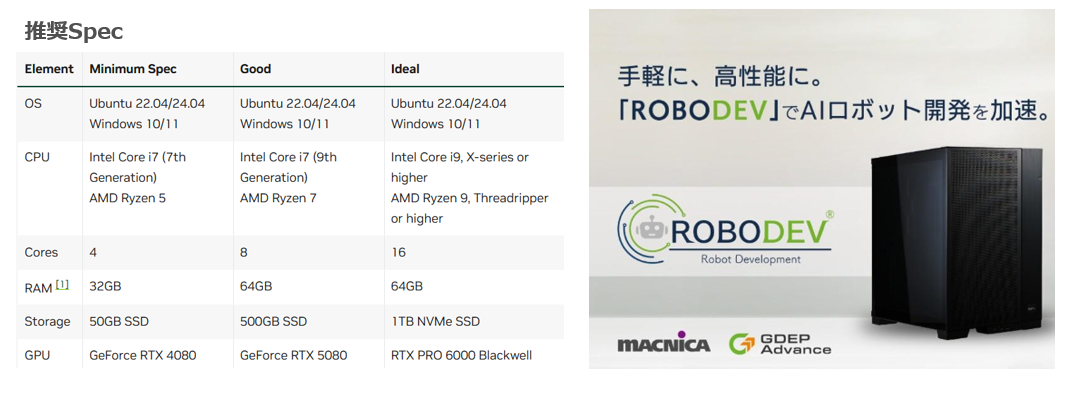
Operating environment
This time, we confirmed operation on a workstation (ROBODEV) equipped with an NVIDIA RTX PRO™ 6000 Blackwell Max-Q 96GB, which corresponds to the recommended specifications (Ideal) listed on the official website.
・Linux-PC(Ubuntu24.04)
・CUDA 13.0
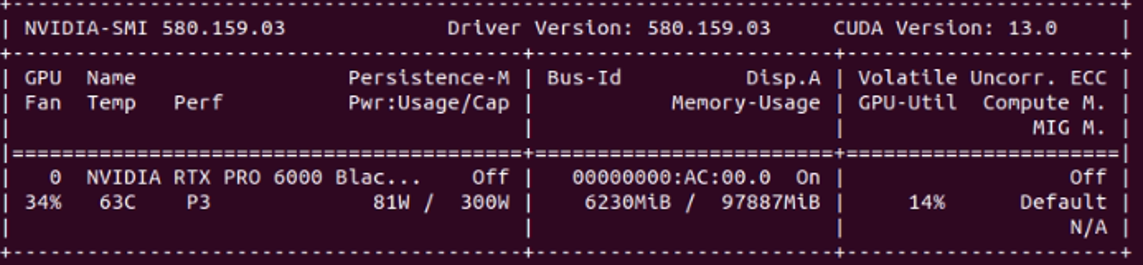
Checking the GPU driver
You can check the GPU driver and NVIDIA CUDA® versions using the following command.
$ nvidia-smiYou can check this using the following display. (The displayed version may vary depending on your operating environment.)
Install Isaac Sim
Download Isaac Sim
Official Site Download Isaac Sim from [website/platform name]. (For this example, we will select Isaac Sim 5.1.0.)

Install Isaac Sim
Install Isaac Sim by running the following command:
(It is recommended to deactivate conda and exit it before performing the installation.)
$ conda deactivate
$ mkdir ~/isaac-sim-5.1.0
$ cd ~/Downloads
$ unzip isaac-sim-standalone_xxx.zip -d ~/isaac-sim-5.1.0
$ cd ~/isaac-sim-5.1.0
$ ./post_install.sh
Docker-related setup
We will perform the Docker-related setup for using Isaac ROS, following the instructions on the official website (below).
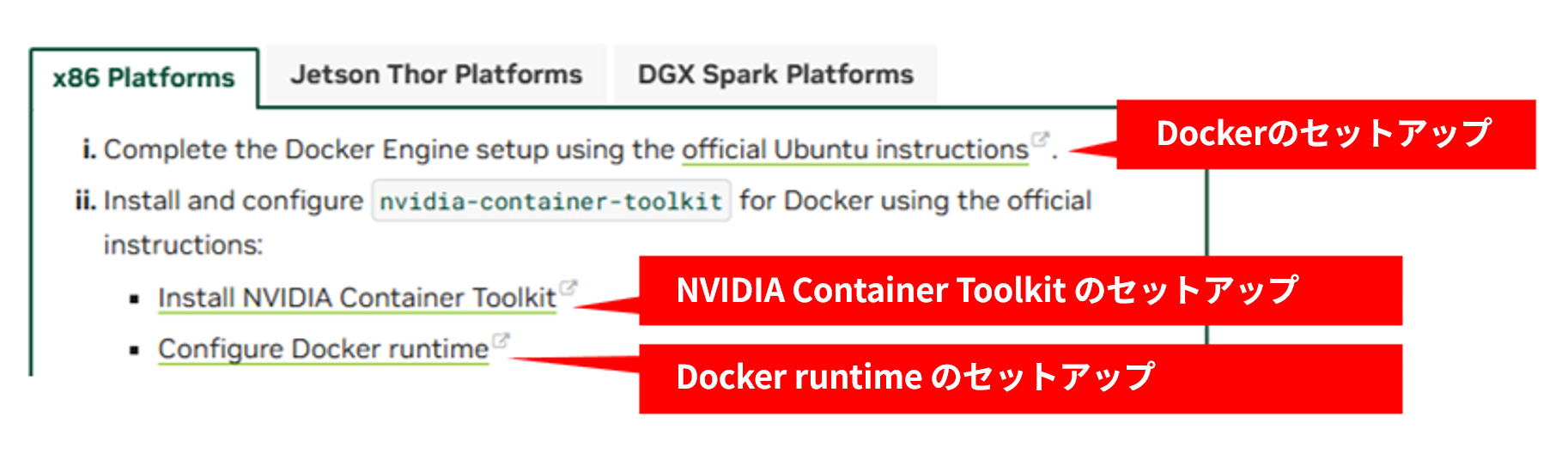
Docker setup
Follow the instructions on the official website to set up Docker. (The following is an example; please refer to the official website for details.)
<execution example>
$ sudo apt update
$ sudo apt install ca-certificates curl
$ sudo install -m 0755 -d /etc/apt/keyrings
$ sudo curl -fsSL https://download.docker.com/linux/ubuntu/gpg -o /etc/apt/keyrings/docker.asc
$ sudo chmod a+r /etc/apt/keyrings/docker.asc
# Add the repository to Apt sources:
$ sudo tee /etc/apt/sources.list.d/docker.sources <<EOF
Types: deb
URIs: https://download.docker.com/linux/ubuntu
Suites: $(. /etc/os-release && echo "${UBUNTU_CODENAME:-$VERSION_CODENAME}")
Components: stable
Signed-By: /etc/apt/keyrings/docker.asc
EOF
$ sudo apt update
$ sudo apt install docker-ce docker-ce-cli containerd.io docker-buildx-plugin docker-compose-plugin
# Add your user to the docker group
$ sudo groupadd docker
$ sudo usermod -aG docker $USER
Restarting to configure Docker
Restart Linux with the following command.
$ sudo reboot
Basic operation check of Docker
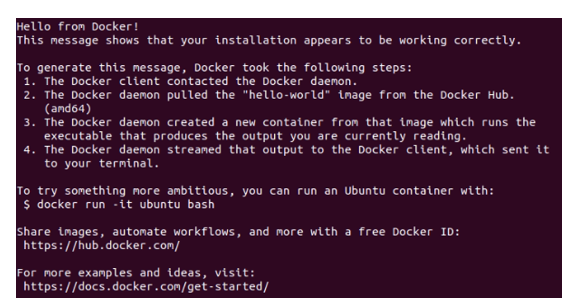
Use the following command to verify the basic operation of Docker. (This will confirm that the hello-world Docker sample runs without sudo.)
$ docker run hello-world
You should see the following execution screen.
Setting up the NVIDIA Container Toolkit
Follow the instructions on the official website to set up the NVIDIA Container Toolkit. (The following is an example; please refer to the official website for details.)
<execution example>
$ sudo apt-get update && sudo apt-get install -y --no-install-recommends ca-certificates curl gnupg2
$ curl -fsSL https://nvidia.github.io/libnvidia-container/gpgkey | sudo gpg --dearmor -o /usr/share/keyrings/nvidia-container-toolkit-keyring.gpg \
  && curl -s -L https://nvidia.github.io/libnvidia-container/stable/deb/nvidia-container-toolkit.list | \
    sed 's#deb https://#deb [signed-by=/usr/share/keyrings/nvidia-container-toolkit-keyring.gpg] https://#g' | \
    sudo tee /etc/apt/sources.list.d/nvidia-container-toolkit.list
$ sudo sed -i -e '/experimental/ s/^#//g' /etc/apt/sources.list.d/nvidia-container-toolkit.list
# Install
$ sudo apt-get update
$ export NVIDIA_CONTAINER_TOOLKIT_VERSION=1.19.0-1
$ sudo apt-get install -y \
      nvidia-container-toolkit=${NVIDIA_CONTAINER_TOOLKIT_VERSION} \
      nvidia-container-toolkit-base=${NVIDIA_CONTAINER_TOOLKIT_VERSION} \
      libnvidia-container-tools=${NVIDIA_CONTAINER_TOOLKIT_VERSION} \
      libnvidia-container1=${NVIDIA_CONTAINER_TOOLKIT_VERSION}
Docker runtime setup
Follow the instructions on the official website to set up the Docker runtime. (The following is an example; please refer to the official website for details.)
<execution example>
$ sudo nvidia-ctk runtime configure --runtime=docker
$ sudo systemctl restart docker
$ nvidia-ctk runtime configure --runtime=docker --config=$HOME/.config/docker/daemon.json
$ sudo systemctl restart docker
$ sudo nvidia-ctk config --set nvidia-container-cli.no-cgroups --in-place
$ sudo systemctl restart docker
Verifying the operation of NVIDIA Container Toolkit
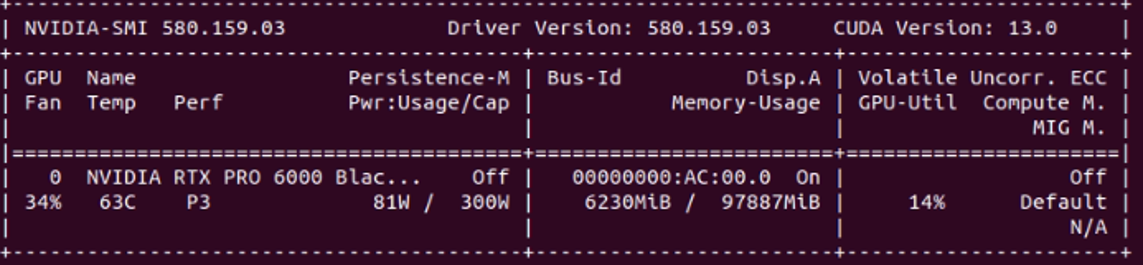
Execute the following command to verify that the NVIDIA Container Toolkit is working correctly.
$ docker run --rm --runtime=nvidia --gpus all ubuntu nvidia-smi
The same information as what you see with "nvidia-smi" can be seen in Docker, as shown below. (The displayed version may vary depending on your operating environment.)
Isaac ROS Setup
We will set up Isaac ROS using the instructions on the official website. (This guide will use Isaac ROS (Rev4.4).)
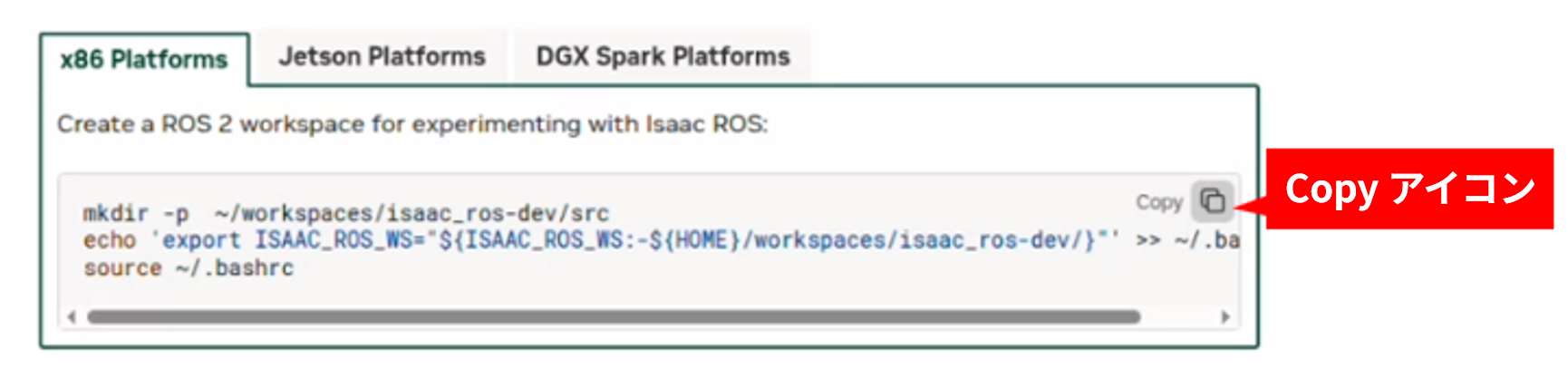
This site provides examples of command execution, but basically, you can obtain the commands by clicking the Copy icon on the Official site, as shown below.
Create a ROS2 workspace
Execute the following command to create a ROS2 workspace.
$ mkdir -p  ~/workspaces/isaac_ros-dev/src
$ echo 'export ISAAC_ROS_WS="${ISAAC_ROS_WS:-${HOME}/workspaces/isaac_ros-dev/}"' >> ~/.bashrc
$ source ~/.bashrc
Isaac ROS Repository Setup
Execute the following commandto configure the Isaac ROS Repository.
$ locale  # check for UTF-8
$ sudo apt update && sudo apt install locales
$ sudo locale-gen en_US en_US.UTF-8
$ sudo update-locale LC_ALL=en_US.UTF-8 LANG=en_US.UTF-8
$ export LANG=en_US.UTF-8
$ locale  # verify settings
$ sudo apt update && sudo apt install curl gnupg
$ sudo apt install software-properties-common
$ sudo add-apt-repository universe
Isaac ROS Setup
The following command will set up Isaac ROS (Rev4.4).
$ k="/usr/share/keyrings/nvidia-isaac-ros.gpg"
$ curl -fsSL https://isaac.download.nvidia.com/isaac-ros/repos.key | sudo gpg --dearmor | sudo tee -a $k > /dev/null
$ f="/etc/apt/sources.list.d/nvidia-isaac-ros.list"
$ sudo touch $f
$ s="deb [signed-by=$k] https://isaac.download.nvidia.com/isaac-ros/release-4.4 noble main"
$ grep -qxF "$s" $f || echo "$s" | sudo tee -a $f
$ sudo apt-get update
Isaac ROS CLI Installation
The following command will install the CLI tools needed to use Isaac ROS.
$ sudo apt-get install isaac-ros-cli
$ sudo systemctl daemon-reload && sudo systemctl restart docker
$ docker info | grep -E "Runtimes|Default Runtime"
$ docker run --rm hello-world
$ docker run --rm --gpus all ubuntu:24.04 bash -lc 'echo "NVIDIA runtime OK"'
$ sudo isaac-ros init docker
An example of running an autonomous driving simulation for a two-wheeled robot using Isaac ROS.
Following the instructions on the official website, I have configured Isaac ROS. Now, let's run the Isaac ROS sample package to verify that it is working.
This time, we will show you how to run an autonomous driving simulation of a two-wheeled robot using Nvblox as a sample package.
Nvblox Setup
Follow the instructions on the official website and execute the following commands to proceed with setting up Nvblox.
$ sudo apt-get install -y curl jq tarFollow the instructions on the official website to obtain the necessary files for execution (you can get the command using the copy icon).
$ NGC_ORG="nvidia"
$ NGC_TEAM="isaac"
$ PACKAGE_NAME="isaac_ros_nvblox"
$ NGC_RESOURCE="isaac_ros_nvblox_assets"
$ NGC_FILENAME="quickstart.tar.gz"
$ MAJOR_VERSION=4
$ MINOR_VERSION=4
$ VERSION_REQ_URL="https://catalog.ngc.nvidia.com/api/resources/versions?orgName=$NGC_ORG&teamName=$NGC_TEAM&name=$NGC_RESOURCE&isPublic=true&pageNumber=0&pageSize=100&sortOrder=CREATED_DATE_DESC"
AVAILABLE_VERSIONS=$(curl -s -H "Accept: application/json" "$VERSION_REQ_URL")
$ LATEST_VERSION_ID=$(echo $AVAILABLE_VERSIONS | jq -r "
    .recipeVersions[]
    | .versionId as \$v
    | \$v | select(test(\"^\\\\d+\\\\.\\\\d+\\\\.\\\\d+$\"))
    | split(\".\") | {major: .[0]|tonumber, minor: .[1]|tonumber, patch: .[2]|tonumber}
    | select(.major == $MAJOR_VERSION and .minor <= $MINOR_VERSION)
    | \$v
    " | sort -V | tail -n 1
)
$ if [ -z "$LATEST_VERSION_ID" ]; then
    echo "No corresponding version found for Isaac ROS $MAJOR_VERSION.$MINOR_VERSION"
    echo "Found versions:"
    echo $AVAILABLE_VERSIONS | jq -r '.recipeVersions[].versionId'
else
    mkdir -p ${ISAAC_ROS_WS}/isaac_ros_assets && \
    FILE_REQ_URL="https://api.ngc.nvidia.com/v2/resources/$NGC_ORG/$NGC_TEAM/$NGC_RESOURCE/\
versions/$LATEST_VERSION_ID/files/$NGC_FILENAME" && \
    curl -LO --request GET "${FILE_REQ_URL}" && \
    tar -xf ${NGC_FILENAME} -C ${ISAAC_ROS_WS}/isaac_ros_assets && \
    rm ${NGC_FILENAME}
fi
Install Nvblox following the instructions on the official website.
$ isaac-ros activate
$ sudo apt-get update
$ sudo apt update && sudo apt-get install -y ros-jazzy-isaac-ros-nvblox
$ sudo apt-get install -y ros-jazzy-rviz2
$ source /opt/ros/jazzy/setup.bash
$ sudo apt-get install -y ros-jazzy-nav2-bringup ros-jazzy-nav2-route
$ sudo apt-get install -y ros-jazzy-rmw-cyclonedds-cpp
$ export RMW_IMPLEMENTATION=rmw_cyclonedds_cpp
Navigate the robot in the virtual world of Isaac Sim.
After installing Nvblox, run the following command to launch Isaac Sim and run the robot simulation.
$ ~/isaac-sim-5.1.0/isaac-sim.selector.sh
When the following window appears, select "jazzy" and click START.
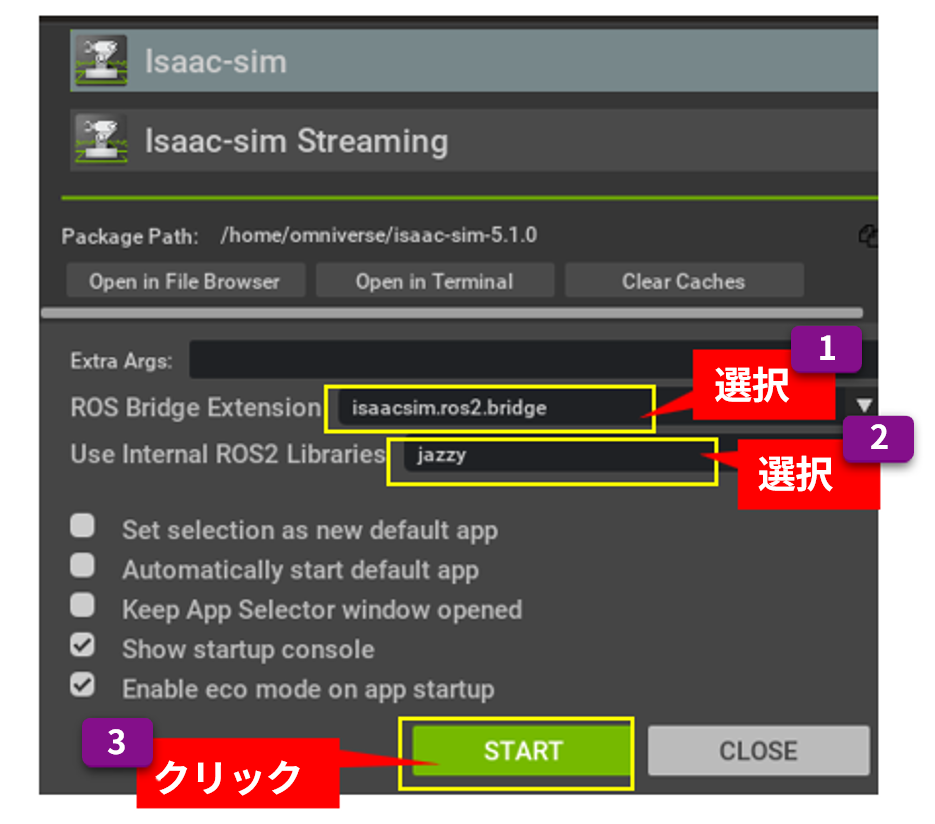
Follow these steps to load the sample virtual space and prepare the virtual space for running the robot simulation.
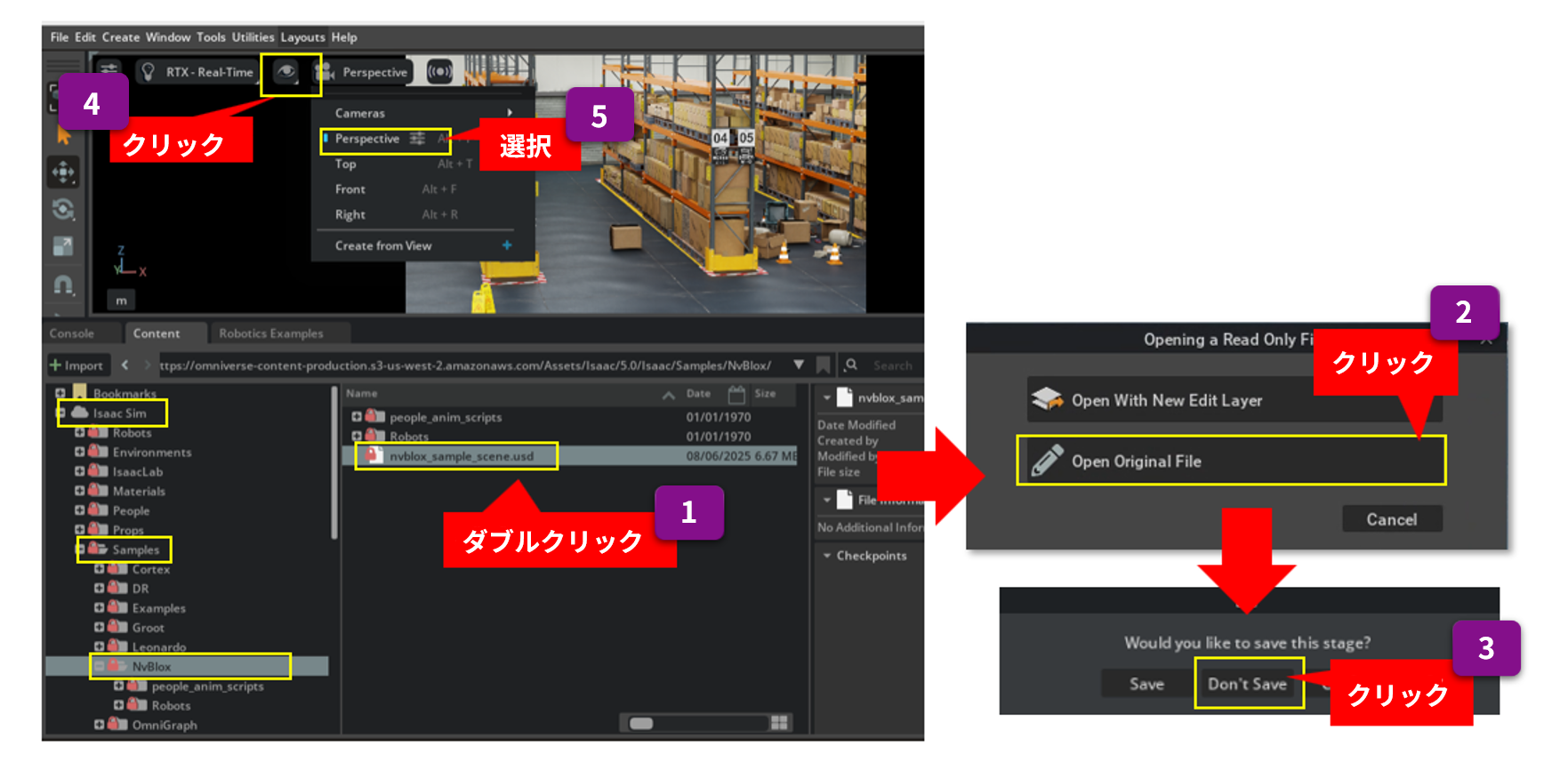
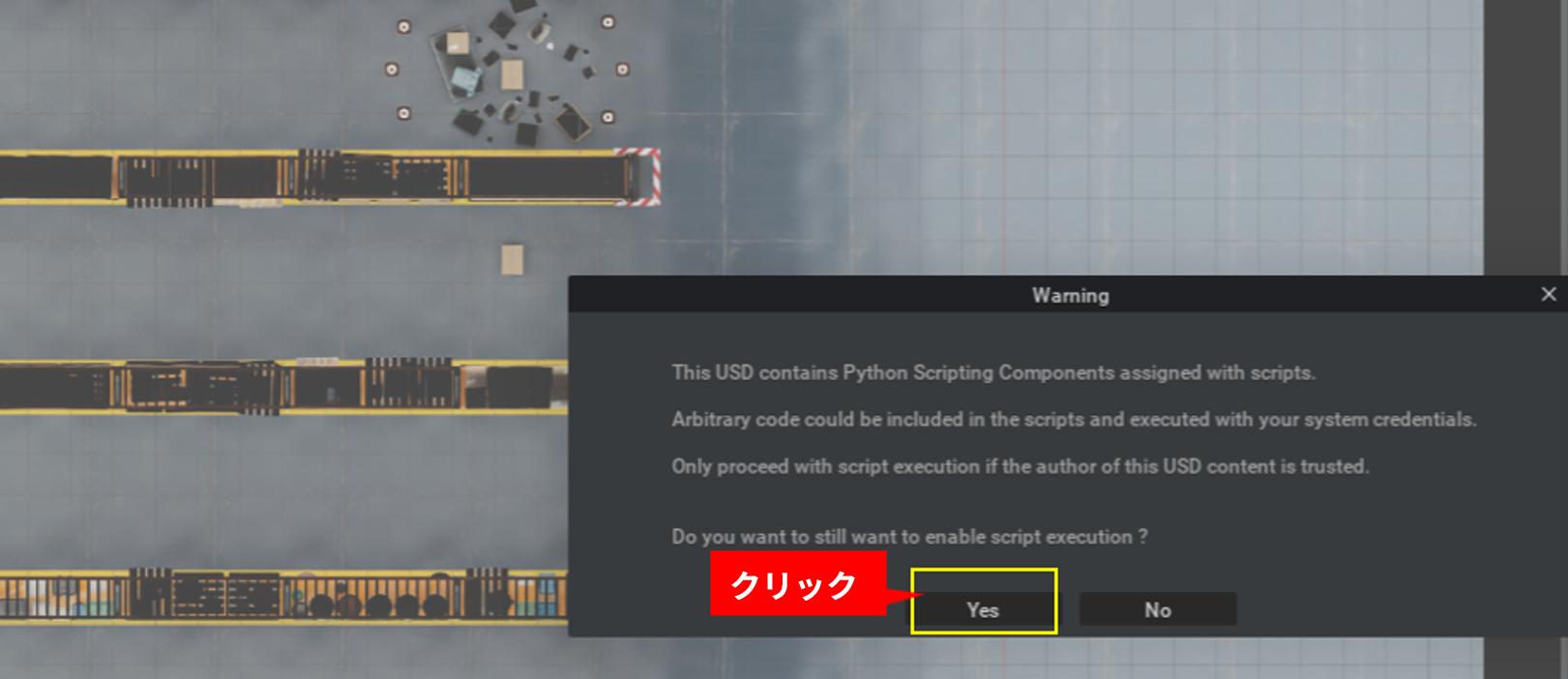
If the following window appears, click "yes".
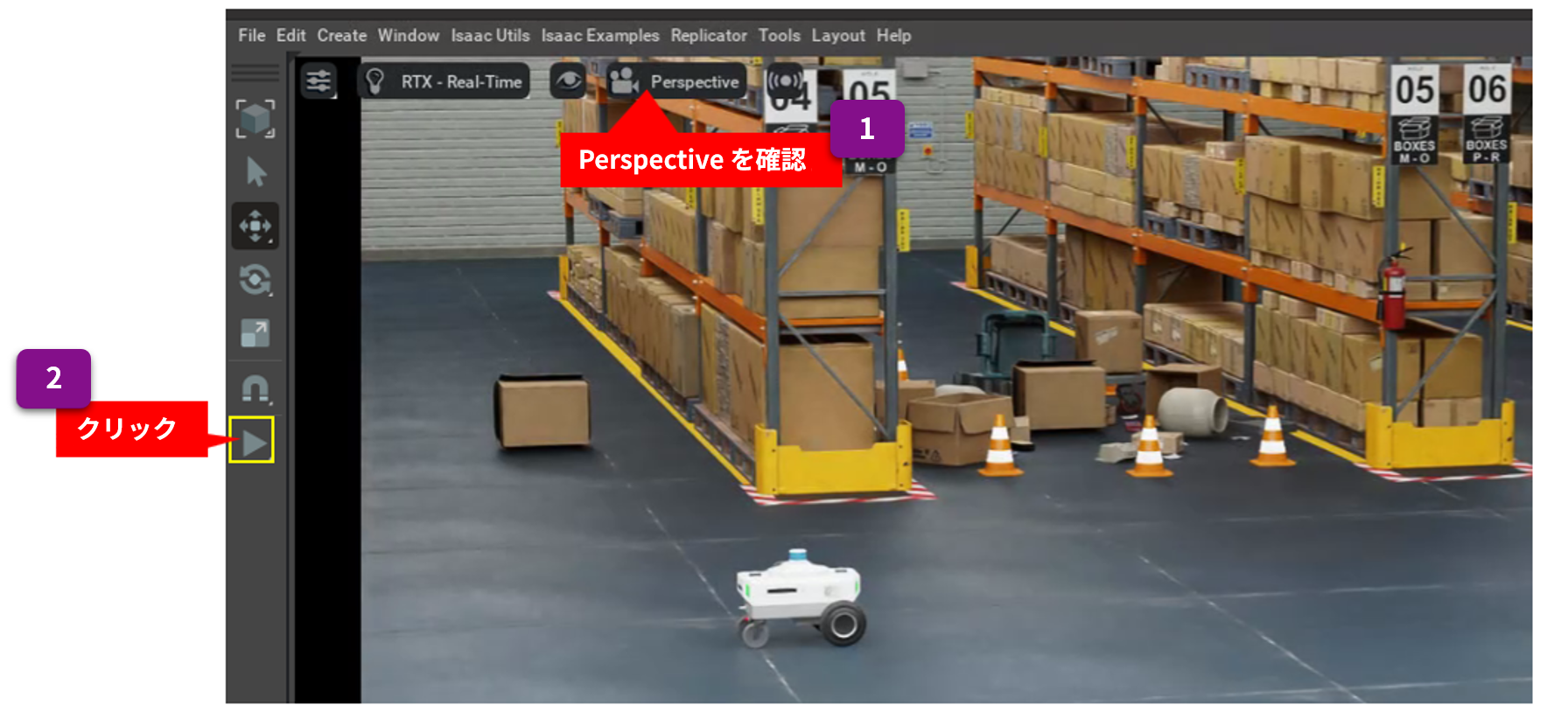
Once the virtual space is ready, click the Play icon to start the Isaac Sim simulation.
Now that the simulation has run in ISSAC Sim, execute the following command to run the Nvblox autonomous driving program.
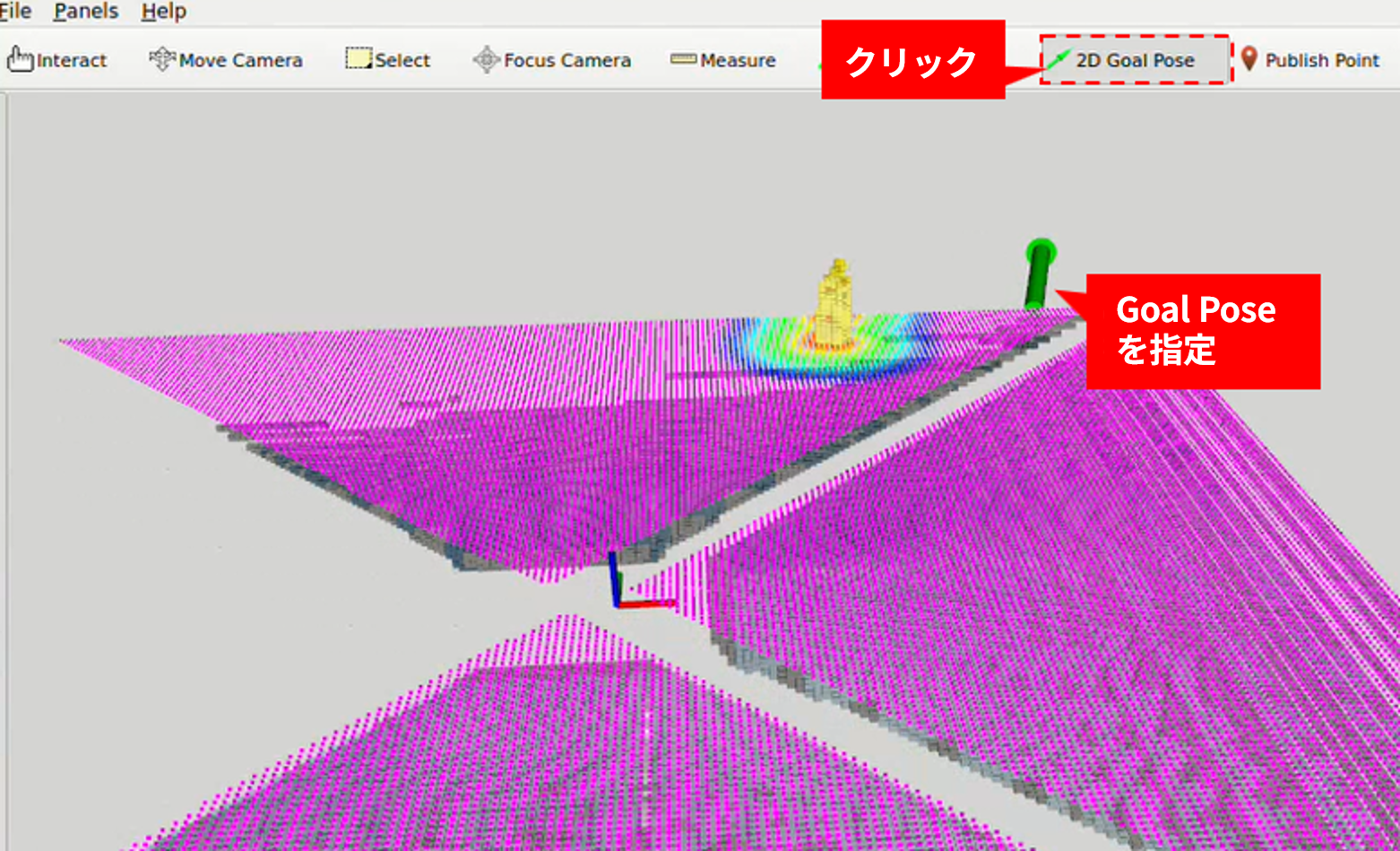
$ ros2 launch nvblox_examples_bringup isaac_sim_example.launch.pyThe Nvblox window will appear as shown below. Click on "2D Goal Pose," then use the left mouse button to specify the Goal Pose, and the robot will automatically move towards that Goal Pose.
Summary
The Isaac ROS sample package (Nvblox) introduced here extracts RGB and depth images from a camera mounted on a robot placed in the 3D virtual space of Isaac Sim as ROS2-Topics, passes them to an autonomous driving program in Nvblox in ROS2, and generates an autonomous driving route that avoids obstacles while creating a 3D-MAP in Nvblox.
Nvblox generates ROS2-Topics for controlling two-wheeled vehicles according to the generated automated driving route and passes them to Isaac Sim. This enables 3D rendering of the robot as it moves on Isaac Sim, thereby realizing a robot driving simulation in a 3D virtual space.
This article has covered a series of steps, from the setup procedures required to use Isaac Sim/Isaac ROS to verifying the operation of a representative Isaac ROS sample (Nvblox) for autonomous driving simulation of a two-wheeled robot.
We hope this information will be helpful when you use Isaac Sim / Isaac ROS.
Contact Us


Related page