- Semiconductor BusinessHOME
- Products and Services of Macnica,Inc.
-
technical information

-
Events and Seminars
- Handling Manufacturer
- Support
- Inquiry
- Click here to purchase products
- Semiconductor business e-mail magazine registration


 Narrow down by specifying conditions
現在2240件がヒットしています。check


hello.
I'm Hanako Altera, and I provide technical support for Altera® FPGA products at Macnica.
Quartus ® When using Prime Standard Edition or Lite Edition, FPGA functional simulation is Easy to do with NativeLink and recommended I informed you before.
In that case, some users may find it a little cumbersome to operate the iteration every time from the Quartus Prime menu.
In such a case,
Using only scripts for NativeLink simulation, Questa Sim(※) Why don't you try running it from there?
*Includes Questa* – Altera® FPGA Edition, Questa* – Altera® FPGA Starter Edition
This time, we'll show you how to generate a script file for simulation and how to use it with Questa Sim.
Hanako's recommended points♪
This method automatically generates a script that combines all user design files used in the design process and the IP simulation library.
Unlike NativeLink, Questa Sim does not automatically start and run; only a script file is generated.
This eliminates the need for users to manually cut and paste separate generated simulation scripts for each IP.
This prevents the simulation tool from missing source code and libraries that it needs to load.
Target environment
| Quartus Prime |
Quartus Prime Standard Edition Quartus Prime Lite Edition (* For Quartus Prime Pro Edition, see this content.) |
| Simulation tool (Note 1) |
Questa Sim Questa* - Altera® FPGA Edition (including Starter Edition) |
Note 1: For the supported version of each tool, please check the release notes of the version of Quartus Prime you are using.
Note 2: All schematic designs (.bdf) must be converted to HDL.
<Reference FAQ> Q: I want to simulate a design including a circuit diagram using Questa Sim, but it's not working.
Advance preparation
1) EDA tool environment settings
① Click EDA Tool Options under Tools menu ➤ Options ➤ General in Quartus Prime.
② Click the browser button on the right side of the line of the simulation tool name to be used, and select where the execution program of the simulation tool is saved.
Specify the absolute path of the folder.
For example, in the case of Questa* - Altera® FPGA Edition (for Windows), specify the win64 folder where questasim.exe is saved.

2) Generating a simulation model for the IP
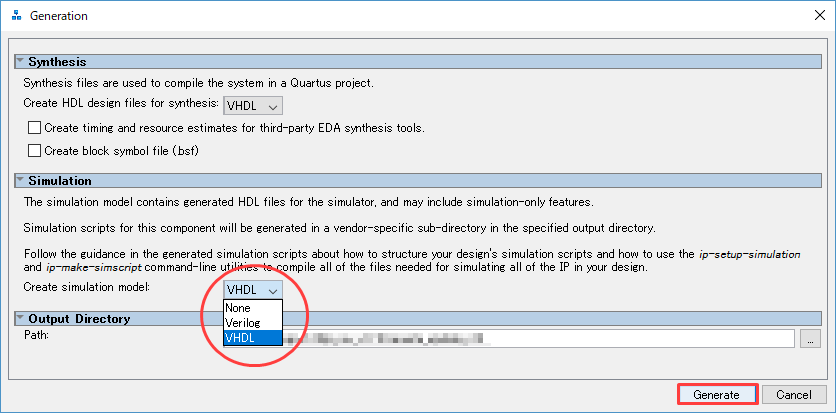
If the module created by Platform Designer in the design or the IP called by IP Catalog is "activated based on Platform Designer", select the language from "Simulation model generation option" when generating. Then run Generate. (If not selected, the related files for simulation will not be generated and the simulation cannot be executed.)
3) Register all design files in the project
Register all the designs (user designs, IP designs) required for compiling with Quartus Prime in the project using the menu below.
Project menu ➤ Add/Remove Files in Project
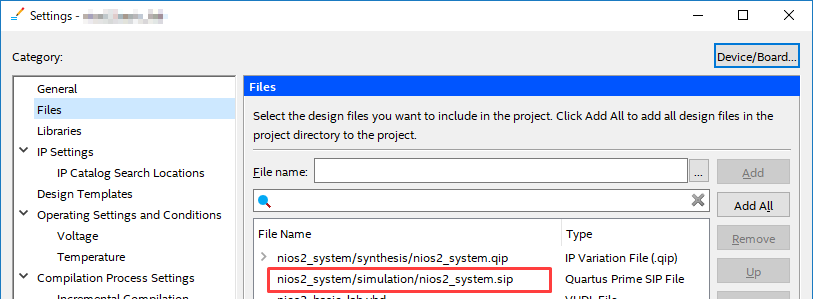
If your design contains other IP or modules created with Platform Designer, be sure to register the <ip_name>.sip file as well as the <ip_name>.qip in the generated folder.
<Related FAQ> What kind of file is a .sip file?
Where the .sip file is generated depends on whether you created the module in IP Catalog / Platform Designer.
Note that some IPs created with the IP Catalog do not generate their own simulation models or .sips (for example, ALTLVDS_RX/TX, ALTPLL, RAM: 2-PORT, etc.). In that case, register only the design files for logic synthesis in the project.
4) Execute Analysis & Elaboration
To generate the script file (because it is one step of NativeLink execution), you must run Analysis & Elaboration or Analysis & Synthesis.
As a result, the lineup and location (save path) of the set of design files including the IP modules required in the Quartus Prime project are taken up as information and reflected in the script file later.
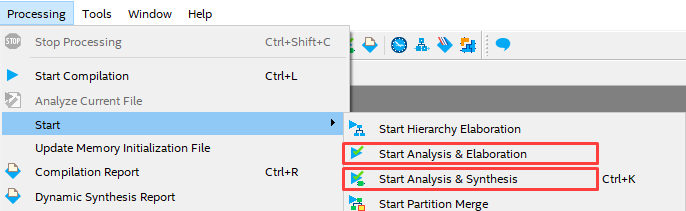
Processing menu ➤ Start ➤ Start Analysis & Elaboration (or Start Analysis & Synthesis)
5) EDA tool settings and testbench registration
Configure EDA Tools Settings and NativeLink Settings.
(1) Select Assignments ➤ Settings ➤ EDA Tool Settings ➤ Simulation, and select the name of the tool used for simulation in Tool name.
* For Questa - Altera FPGA Edition, please select Questa - Altera.
(2) Set the following in the EDA Netlist Writer settings frame.
・ Format for output netlist : Verilog HDL (See Hanako's point♪)
• Output directory: simulation/questa (default)


Hanako's point♪
Even if the simulation model and testbench when creating the IP are in VHDL, it is recommended to select Verilog HDL for this option.
This choice of language affects the vsim -L command in the NativeLink executable script.
In recent IP, even if VHDL is specified for the language selection of the simulation model, the lower model is often configured with SystemVeriog.
Inevitably, a Verilog simulation library will be required. In that case, use the vsim -L command to ensure that all Verilog libraries are installed.
Since it needs to be specified, even if you generate the model in VHDL, please use Verilog HDL for the Format for output netlist.
Note that the simulation library for VHDL is declared directly in the source code generated when the IP is created, so you can use the vsim -L command.
Even if it is not specified, it will be handled.
③ Register the testbench in the NativeLink settings frame.
Select Compile test bench and click the Test Benches button. Then click the New button in the Test Benches window.
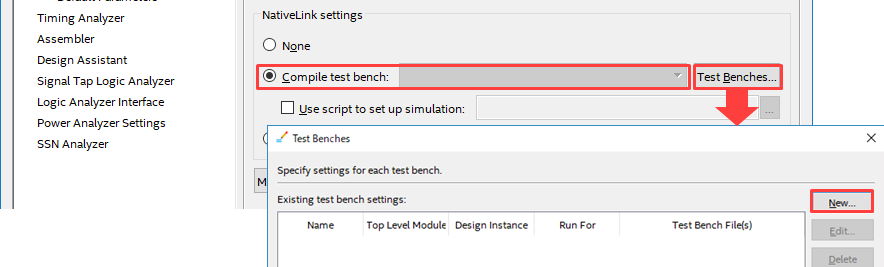
Set the following items in the New Test Benches Settings dialog Box.
・ Test bench name: Enter the module name of the test bench (enter the Top Level module in test bench column at the same time)
・ Simulation period : Set the end time of simulation execution
・ File name : Click the browse button and select the testbench file. Register with the Add button.
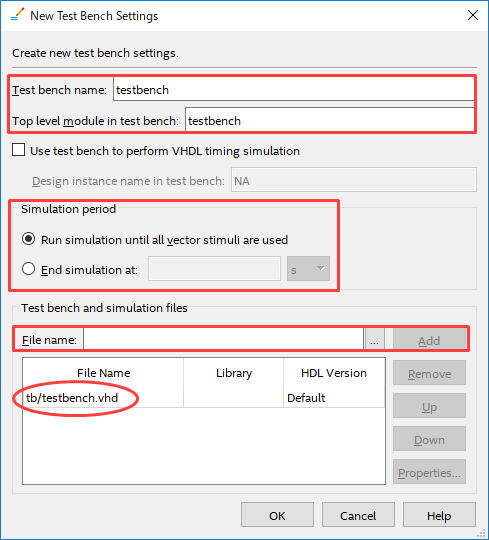
Close each window with OK to return to the Settings window.
(*Do not close the Setting screen and proceed to the next operation.)
Generate script file
This will generate a simulation script file for Questa Sim using Quartus Prime.
① Click the More NativeLink Settings button and enable the option to run NativeLink without tool launch (script generation only).
Generate third-party EDA tool command scripts without running the EDA tool = On
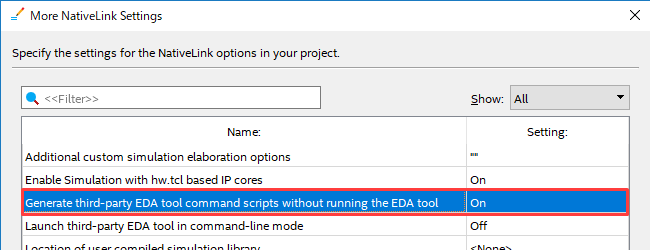
② Generate a script file.
Click Tools menu ➤ Run Simulation Tool ➤ RTL Simulation.

After execution, the following Information message is displayed in the System tab of the Messages window.
ID: 22036
For messages from NativeLink execution see the NativeLink log file <path to working folder>/<project name>_nativelink_simulation.rpt

Open the <project name>_nativelink_simulation.rpt file indicated in the message with a text editor and add the following to the end of the log:
If you can see the message below, you're good to go!
Info: NativeLink simulation flow was successful
One of the following do files is generated according to the contents specified in EDA Tool Settings ➤ Simulation.
| Language specified in Format for output netlist | Script file generated in Output directory |
| Verilog HDL | <project_name>_run_msim_rtl_verilog.do |
| VHDL | <project_name>_run_msim_rtl_vhdl.do |
[Note]
Although the filename contains the language name, it is irrelevant to the content of the script.
Depending on the language format of the FPGAdesign file and testbench file,QuestaSim - IFEcommands are automatically applied.
For example,in a project with mixedVHDLandVerilog designs, compile the VHDLsource using the vcom command,
VerilogCompiling the sourcevlogThe script is automatically configured to run on command. (He's smart~♪)
The script file is now complete! !
Run the script file in Questa Sim.
① Start Questa Sim and go to the File menu ➤ Change Directory (or use the cd command),
Navigate to the folder where the script file was generated.

(2) Select and execute the script file from Tools menu ➤ Tcl > Execute Macro….
If you use the Transcript window to execute a command, it is a “do command”.
Example do <project_name>_run_msim_rtl_verilog.do

(3) The simulation is automatically executed.
By the command described in the script,
- Compile and run source code, libraries, and simulation models (vcom/vlog command)
・Load execution (vsim command)
・Add the signal to be observed to the Wave window (add command)
・Simulation execution (run command)
etc. will be executed.
④ Verify the waveform displayed in the Wave window.

Script file description
Quartus Prime generated by RTL Simulation (Tools menu ➤ Run Simulation Tool)
Here are some of the commands used in the <project_name>_run_ msim_rtl_verilog.do / <project_name>_run_ msim_rtl_vhdl.do files.
|
command |
Overview and example |
| vlib |
Create a library 例: vlib rtl_work |
| vmap |
Map logical library names to the paths of libraries on the file system. 例: vmap work rtl_work |
| vlog |
Compile Verilog and SystemVerilog files into libraries. Example: vlog -work work ./sample.v |
| vcom |
Compile VHDL files into libraries For example: vcom -work work ./sample.vhd |
| vsim |
load the design Example: vsim work.sample_tb |
| add wave |
Add Selected Signals to Wave Window Example: add wave * |
| view |
display the specified window Example: view structure |
| run |
run the simulation Example: run 500ms |
You can also add or edit commands in the generated script file and use it.
Add # at the beginning of the line to comment out.
For details on commands and command options, refer to the Questa Sim Command Reference Manual.