- Semiconductor BusinessHOME
- Products and Services of Macnica,Inc.
-
technical information

-
Events and Seminars
- Handling Manufacturer
- Support
- Inquiry
- Click here to purchase products
- Semiconductor business e-mail magazine registration


 Narrow down by specifying conditions
現在2149件がヒットしています。check


The Quartus® Prime design software and Questa* - Altera® FPGA Edition software required for Altera® FPGA development
We will show you how to download.
Follow the flow below to execute the download.
[Notes]
1. We recommend using Google Chrome as the web browser for downloading.
2. Starting with Quartus® Prime Standard and Lite Edition 21.1 and Quartus® Prime Pro Edition 21.3, ModelSim*-Altera® FPGA Edition
Replaced by Questa*-Altera® FPGA Edition.
For details, please refer to the document below.
ADV 2122 - Replacement of ModelSim*-IAltera® FPGA Edition Software
Download
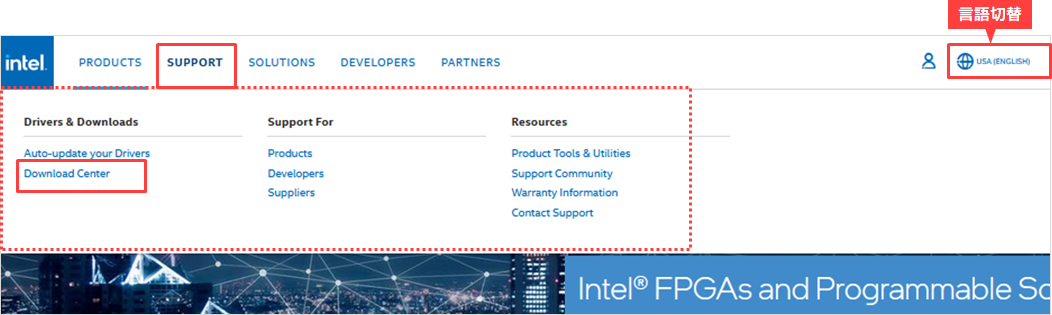
1. Access the Download Center
Go to Altera® Download Center.
2. Select Edition/Version/OS
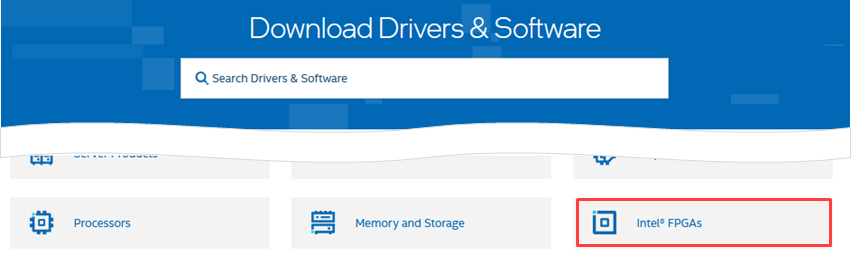
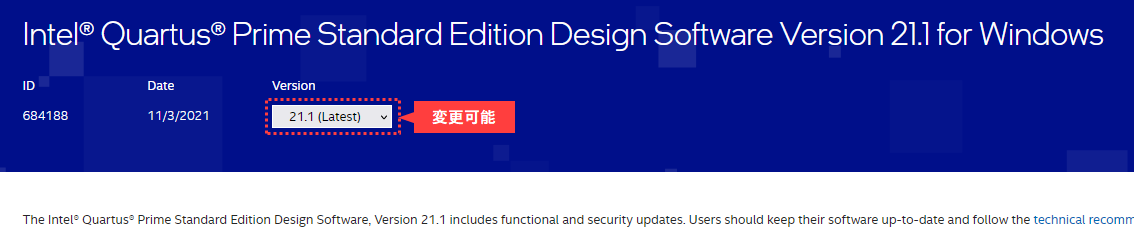
After going to the “Download Center”, select the edition, version, and OS from the drop-down lists at the top of the screen, and go to the desired Quartus® Prime page.
3. Get the installer
There are two types of files provided, which can be selected based on the user's preferences, such as download time and design requirements.
・ Installer (Recommended) …… Installer
・ Individual Files …… Individual files
From here, we will show you how to download using the "Installer (Recommended)".
Click "Download" on the far right of "Installer (Recommended)" to get the installer (qinst-<edition>-windows-<version-build>.exe/.run).

4. Select the file and download it
1) Run the downloaded installer file to start the installer GUI.
Windows : qinst-<edition(※)>-windows-<version-build>.exe
Linux : qinst-<edition(※)>-linux-<version-build>.run
[Notes] The Pro Edition file name does not include the <edition>.
② At the top of the installer, select (✔) the items you want to download.
③ In the Download to field at the bottom of the installer, specify the folder where you want to save the various files you want to download. (The path is arbitrary, but please specify a path that does not contain full-width characters, Japanese characters, or spaces.)
This time, we will be installing the software after downloading it, so turn off the Auto install after download option.
④ Click the Download button to start downloading.

⑤ After the download is complete, click the Close button to close the installer.
Check SHA1 hash value
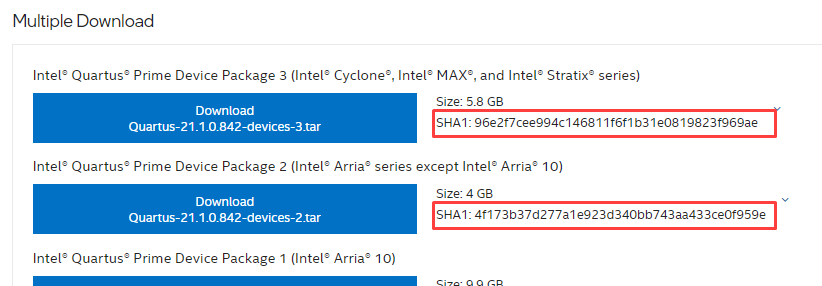
After the download is complete, we recommend that you check the SHA1 hash value of each file to make sure the files are not corrupted.
You can view the SHA1 hash value of each file by clicking the [Individual Files] tab in the Download Center and then clicking the V icon to the left of each download item.

You can check the SHA1 hash value by the following method.
<For Windows>
Use the certutil command.
certutil -hashfile <ファイルパス> [ハッシュアルゴリズム] 例) certutil -hashfile C:\altera\installer\QuartusProSetup-25.3.1.100-windows.exe SHA1<For Linux>
Use the sha1sum command.
sha1sum <ファイルパス> 例) sha1sum /home/usr1/temp/altera_installer/QuartusProSetup-25.3.1.100-linux.run
That's all for download.
After downloading each file, let's install it.
See below for how to install.
How to install Quartus® Prime and Questa* - Altera® FPGA Edition
Click here for recommended articles/materials
How to sign up for an Intel account
Altera® FPGA Development Flow
Altera FPGA Software Installation and Licensing (manufacturer website)