- Semiconductor BusinessHOME
- Products and Services of Macnica,Inc.
-
technical information

-
Events and Seminars
- Handling Manufacturer
- Support
- Inquiry
- Click here to purchase products
- Semiconductor business e-mail magazine registration


 Narrow down by specifying conditions
現在2247件がヒットしています。check

**************************************************** *****************************
【important】
*1.For older versions of SoC EDS, seethis page Please install according to the flow described in.
(Ver.20.1 has a different setup method due to changes in the debugger and compiler configurations.)
*2. SoC EDS will no longer be provided as an installer after ver.20.1.When using in combination with Quartus® Prime ver.20.1 or newer this page See also
**************************************************** *****************************
Introduction
● SoC FPGA Embedded Development Suite (hereinafter referred to as SoC EDS) is a development suite for Altera® SoC FPGAs.
A tool suite for embedded software development.
The most important changes in SoC EDS ver.20.1 are:
The following components are no longer included in the SoC EDS package:
- Software integrated development environment tool: Arm® Development Studio SoC FPGA Edition (previous version: Arm® DS-5)
Bare-metal GCC compiler: Linaro bare-metal toolchain
(Previous version: Mentor® Sourcery™ CodeBench Lite ARM Altera EABI)
・ Cygwin
○ Users must separately download and install Arm® Development Studio SoC FPGA Edition (hereinafter referred to as Arm® DS)
Arm® DS is the successor to the previous product, Arm® Development Studio 5 SoC FPGA Edition (hereafter referred to as Arm® DS-5).
It provides similar functionality.
○ You will also need to download and install the bare metal GCC compiler and Cygwin separately.
● This section describes how to install SoC EDS. Installation consists of the following steps:
○ Download and install SoC EDS
○ Download and install Arm® DS
○ Download and install the Linaro bare-metal toolchain
● In addition to the above, the Windows machine must have the following installed:
○ Cygwin - Provides a Linux-like environment on Windows and is required to use the Embedded Command Shell.
o MinGW - as a platform for building Newlib libraries used in the Linaro bare-metal toolchain
will be used.
【news】
・We recommend using Google Chrome as the web browser for downloading. (We have confirmed that Internet Explorer is unable to download various files required for development software.)
・Since ver.20.3 Pro, the components provided as SoC EDS will be changed to the format provided by GitHub and Rocketboards.org, but the final version of the SoC EDS package will be ver.20.1 Pro or ver.20.1 Standard. is recommended to be installed.
1. Download SoC EDS
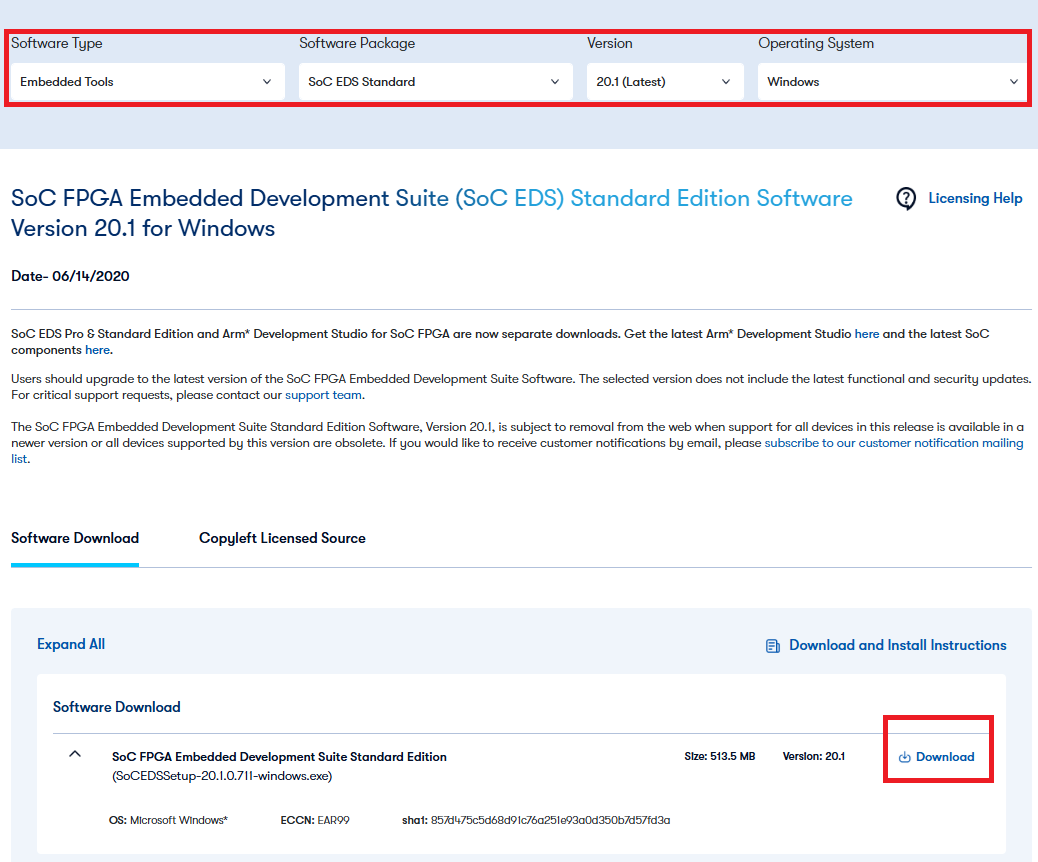
● Visit the Altera® Download Center to download the software.
The screen below is
Software Type : Embedded Tools
Software Pakage : SoC EDS Standard
Version : 20.1
Operating System : Windows
is selected.
2. Installing SoC EDS
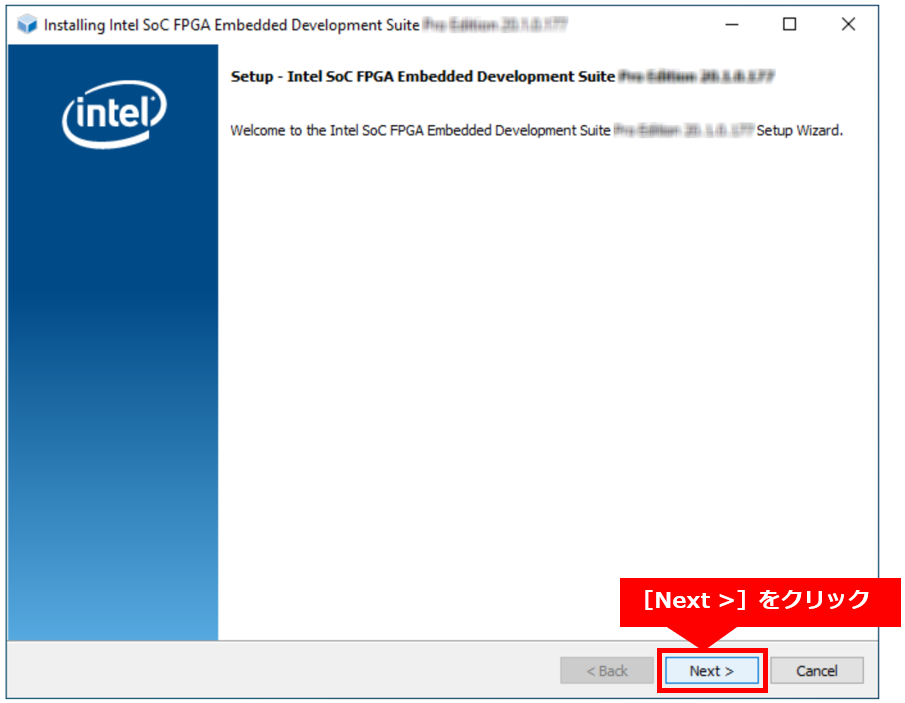
● Execute the following file obtained from the Download Center.

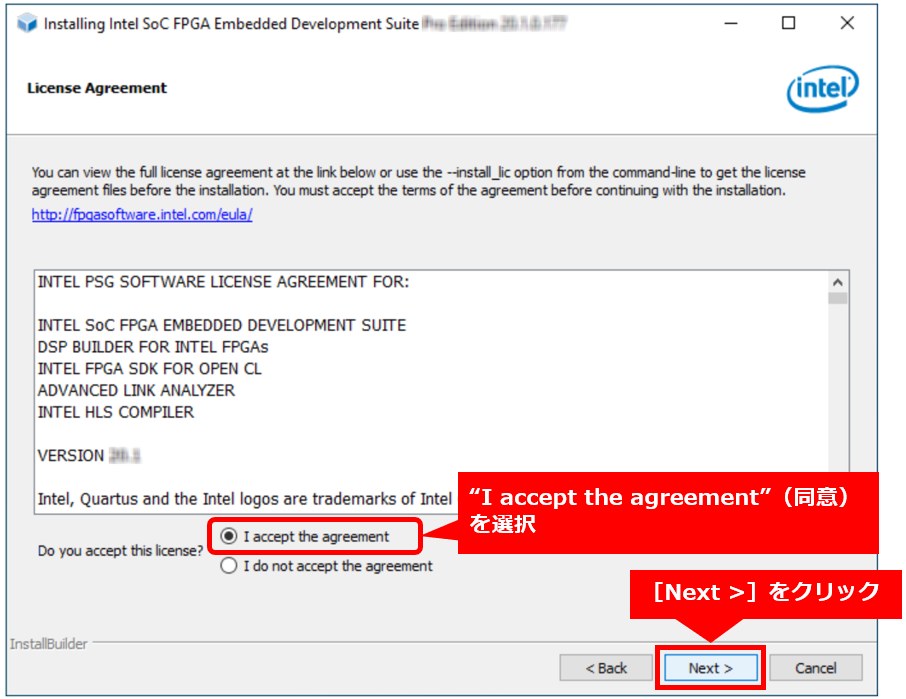
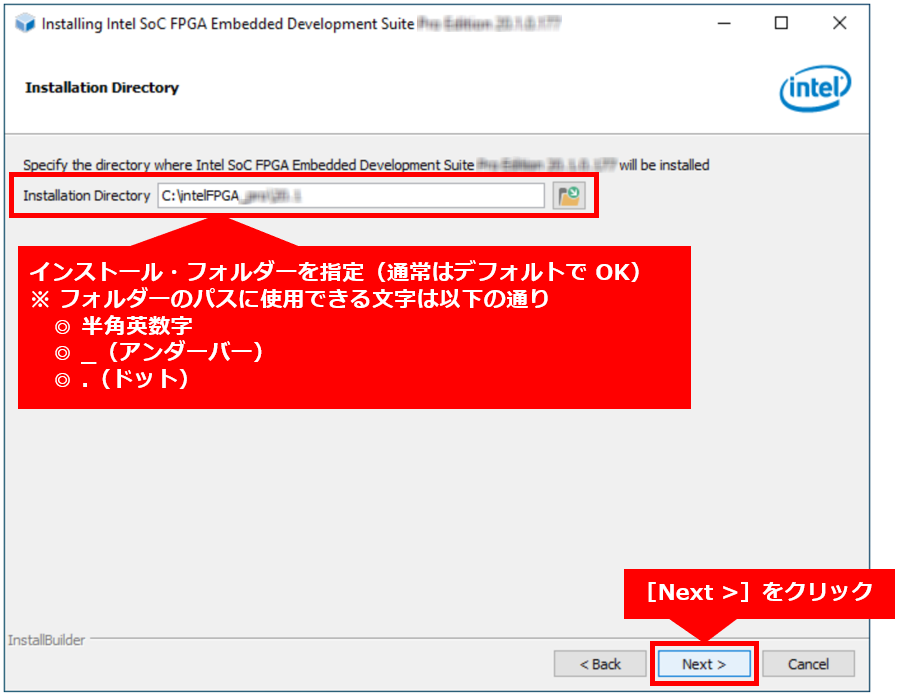
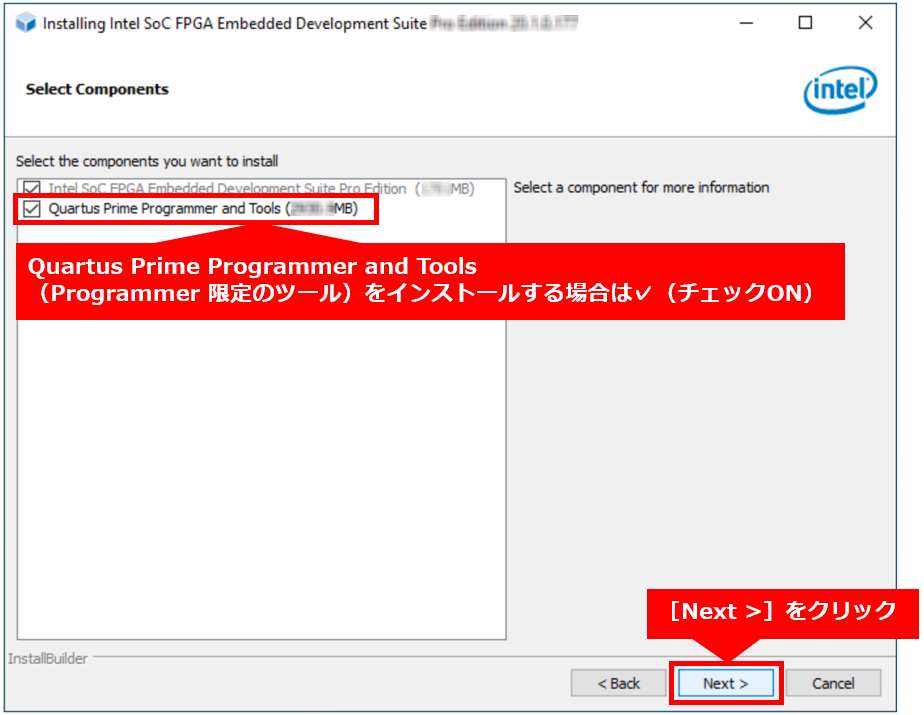
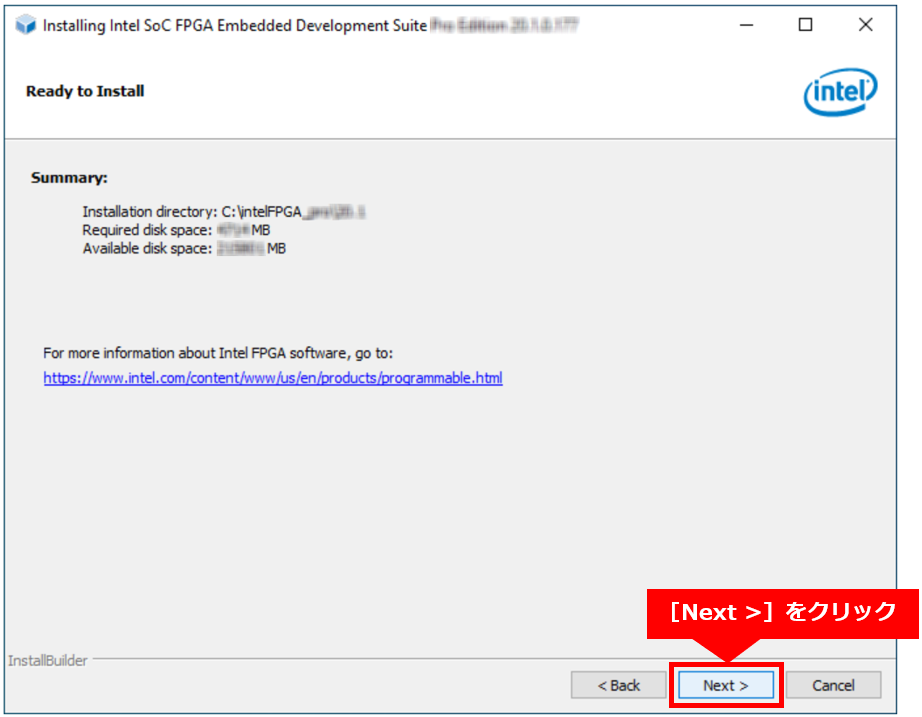
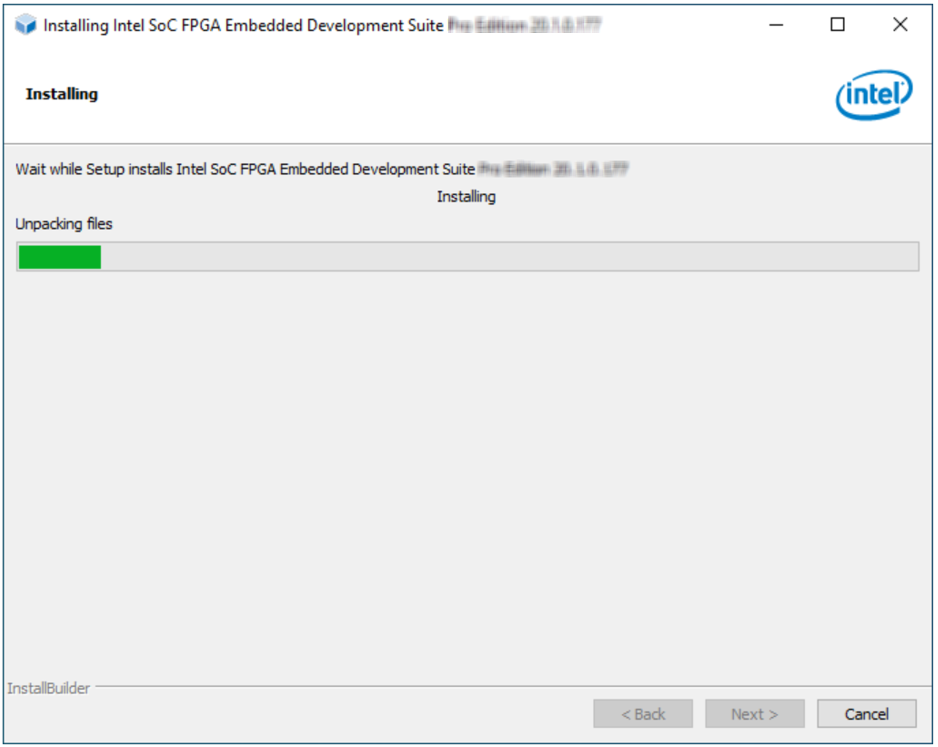
● A wizard starts. Follow the instructions to proceed with the installation.
● If you have already installed the Quartus Prime Programmer and Tools, install the Quartus Prime Programmer and Tools
Uncheck.
● Also, if you have already installed Quartus® Prime and want to use the Programmer by launching it from Quartus® Prime,
You can uncheck it.
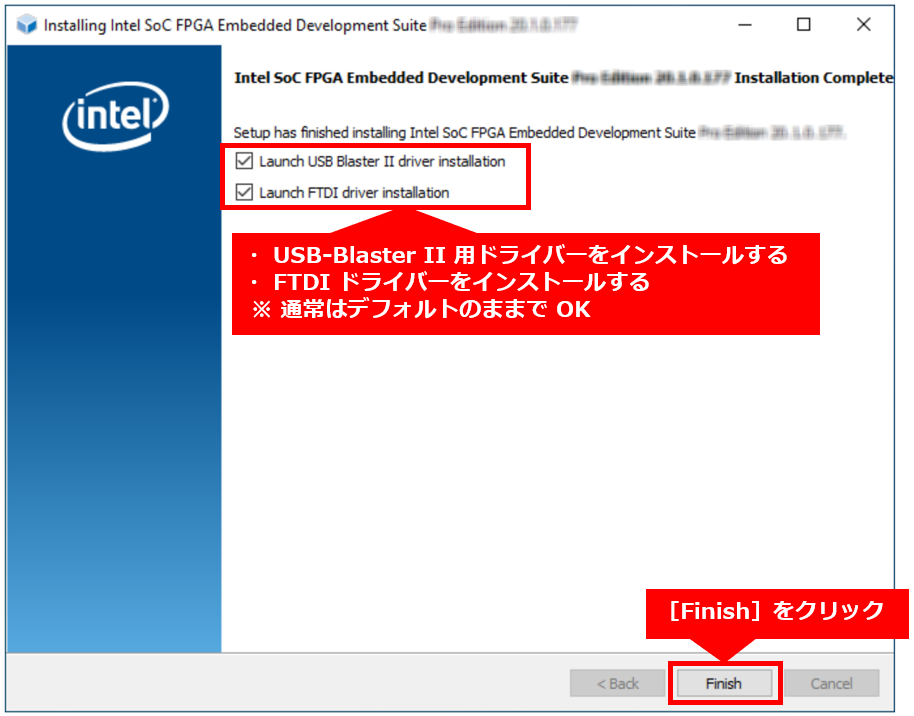
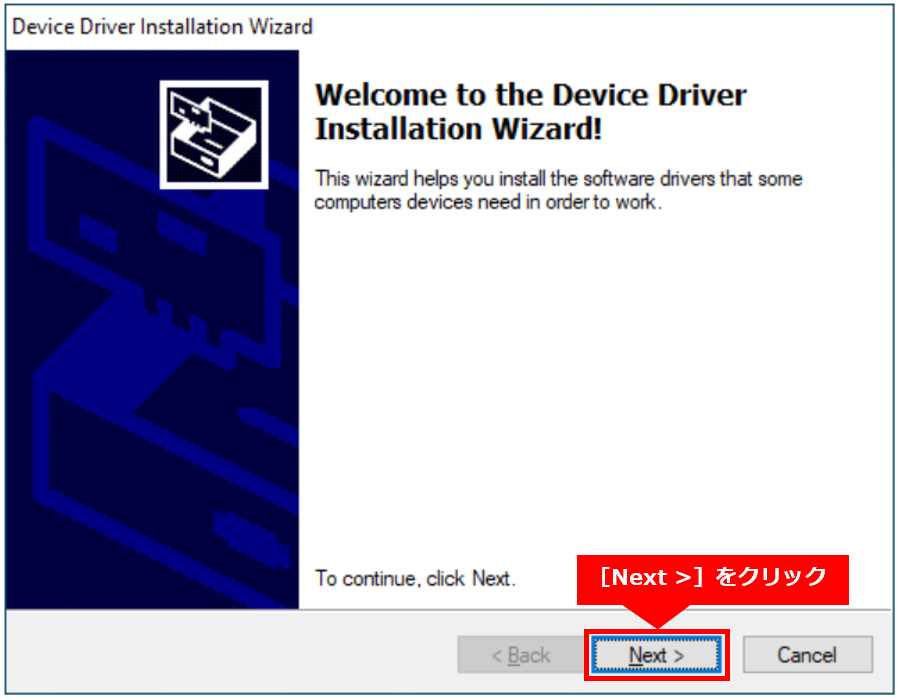
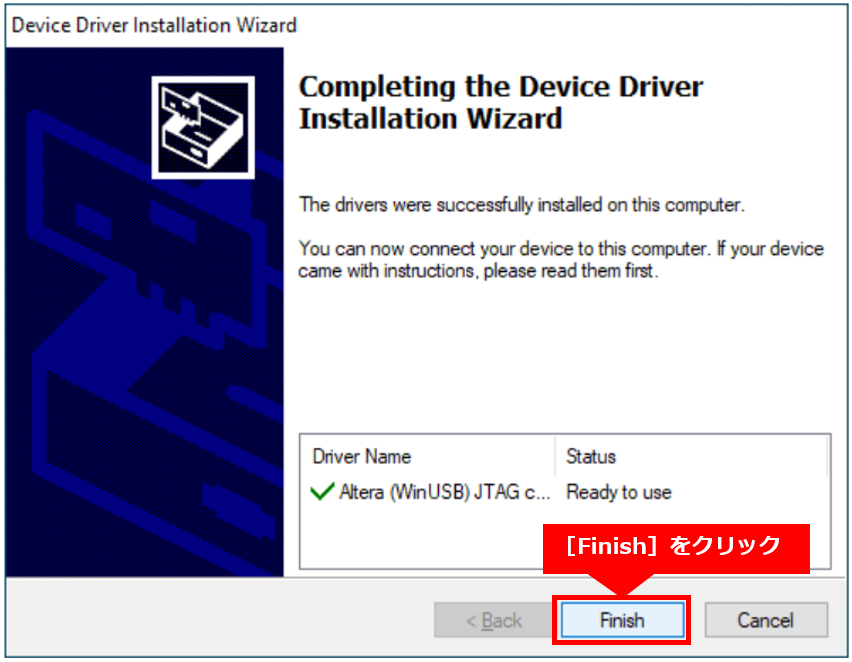
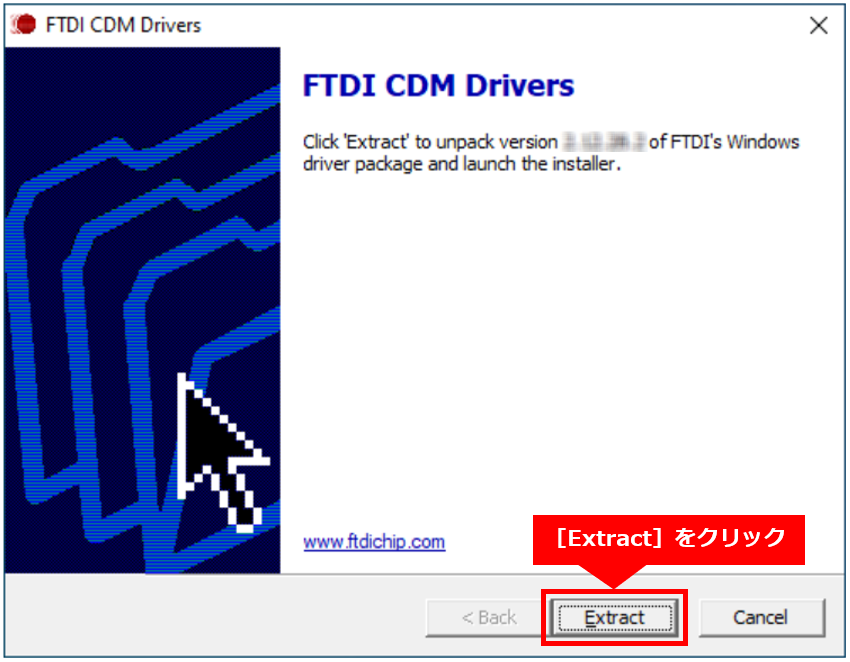
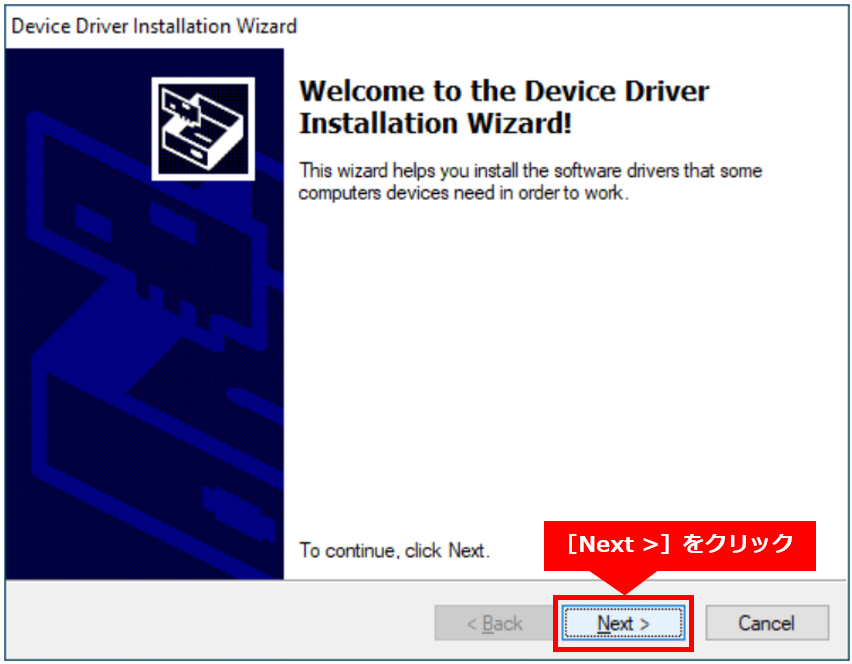
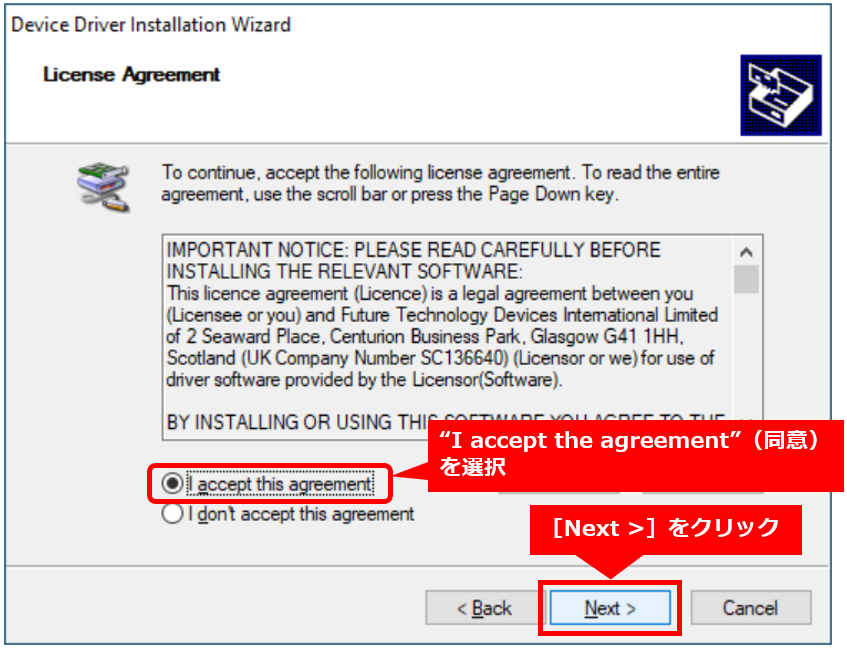
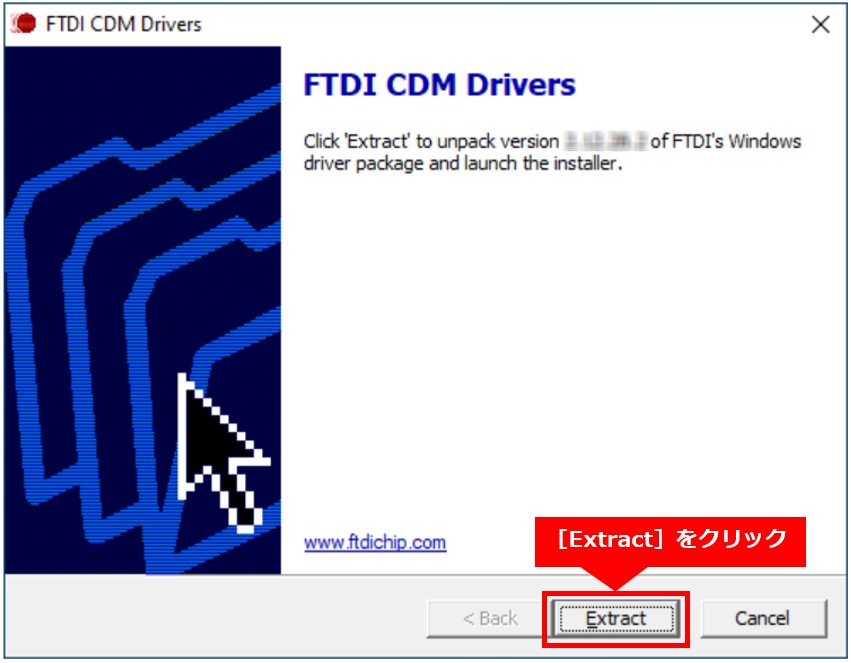
● This completes the installation of SoC EDS.
● If you are using it in combination with a version other than Quartus® Prime ver.20.1, please also check the following information.
[Reference] "Setting up the environment to use a different version of the Quartus® Prime development software than the SoC EDS"
● For SoC EDS ver.20.1 and later, Arm® DS is not automatically installed in SoC EDS.
Users must download and install Arm® DS separately.
3. Arm® DS Installation
3-1. Arm® DS system requirements
● Make sure that the Arm® DS system requirements are met in advance.
[Reference] "Arm® Development Studio Getting Started Guide - Hardware and host platform requirements"
● The OS environments supported by Arm® DS v2020.1 are as follows. Both require a 64-bit OS environment.
○Windows 10
○ Red Hat Enterprise Linux 7 Workstation (or CentOS 7)
○ Ubuntu Desktop Edition 16.04 LTS
○ Ubuntu Desktop Edition 18.04 LTS
* Please note that Windows 7 and Red Hat Enterprise Linux 6 (CentOS 6.x) are not supported.
3-2. Downloading Arm® DS
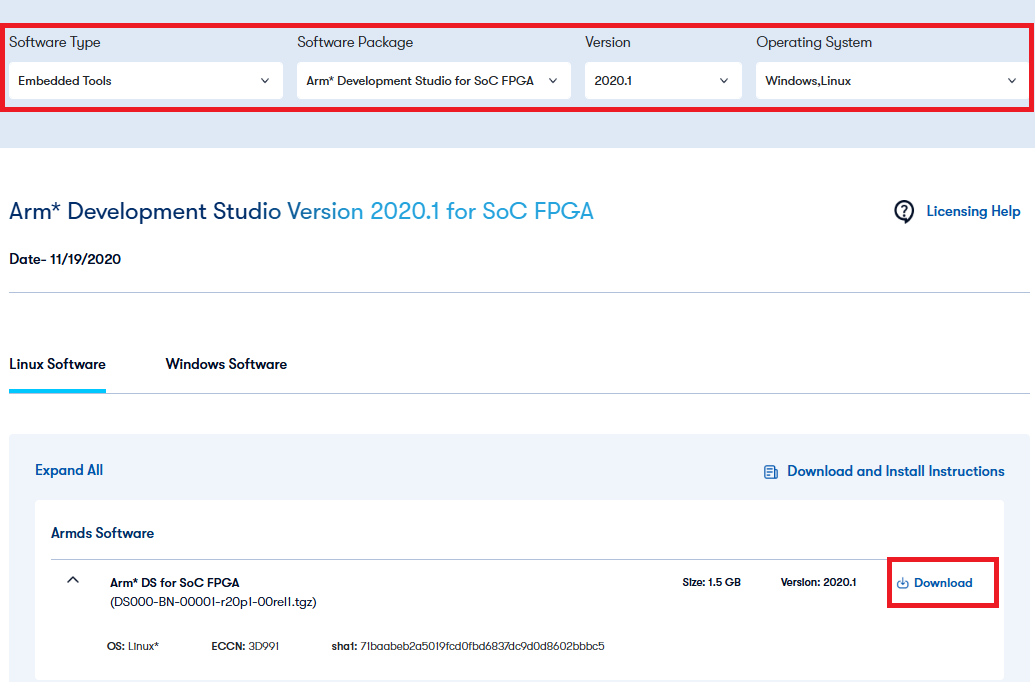
● Visit the Altera® Download Center to download Arm* Development Studio.
*Bugs may have been fixed, so we recommend installing the latest version at that time.
3-3. Installing Arm® DS (for Linux OS)
① Unzip the installer archive (.tgz) and extract the installer file (example for v2020.1).
$ tar xf DS000-BN-00001-r20p1-00rel1.tgz② Run the installer as root.
$ cd DS000-BN-00001-r20p1-00rel1/ $ sudo ./armds-2020.1.sh(3) Display the terms of the license to the end and enter "yes" after confirming that you can accept the contents of the license.
Press Enter (you can page down to view the license terms by pressing the spacebar).
Please answer with one of: 'yes' or 'no/quit' Do you agree to the above terms and conditions? yes④ Press Enter to run the platform requirements check.
Please answer with one of: 'yes/y' or 'no/n' Run installation platform requirement checks? [default: yes] — Running installation platform requirement checks Running dependency check [succeeded]⑤ Leave the default installation path as is (unless you want to change it) and press Enter.
Where would you like to install to? [default: /opt/arm/developmentstudio-2020.1]⑥ Press Enter to allow the new folder to be created:
Please answer with one of: 'yes/y' or 'no/n'
'/opt/arm/developmentstudio-2020.1' does not exist, create? [default: yes]
— Installing to '/opt/arm/developmentstudio-2020.1' (This may take a while…)
⑦ Press Enter to allow the desktop menu to be added.
Please answer with one of: 'yes/y' or 'no/n' Install desktop menu item additions? [default: yes] — Installing menu entries⑧ Press Enter to allow the driver to be installed.
Post install stage provides the following functions: - Installation of USB drivers for RealView ICE and DSTREAM hardware units Please answer with one of: 'yes/y' or 'no/n' Run post install setup scripts? [default: yes] — Running post install setup scripts⑨ インストールが成功すると、次のメッセージが表示されます:
-----------------------------------
Installation completed successfully
-----------------------------------
To start using Arm Development Studio 2020.1 either:
- Create a suite sub-shell using /opt/arm/developmentstudio-2020.1/bin/suite_exec
- Launch GUI tools via their desktop menu entries
The Release notes for the product can be found here: file:///opt/arm/developmentstudio-2020.1/sw/info/readme.html
3-4. Installing Arm® DS (for Windows OS)
(1) Unzip the archive and double-click the installer file (.exe) to execute it.
(2) Click [Next (N)] on the welcome screen.
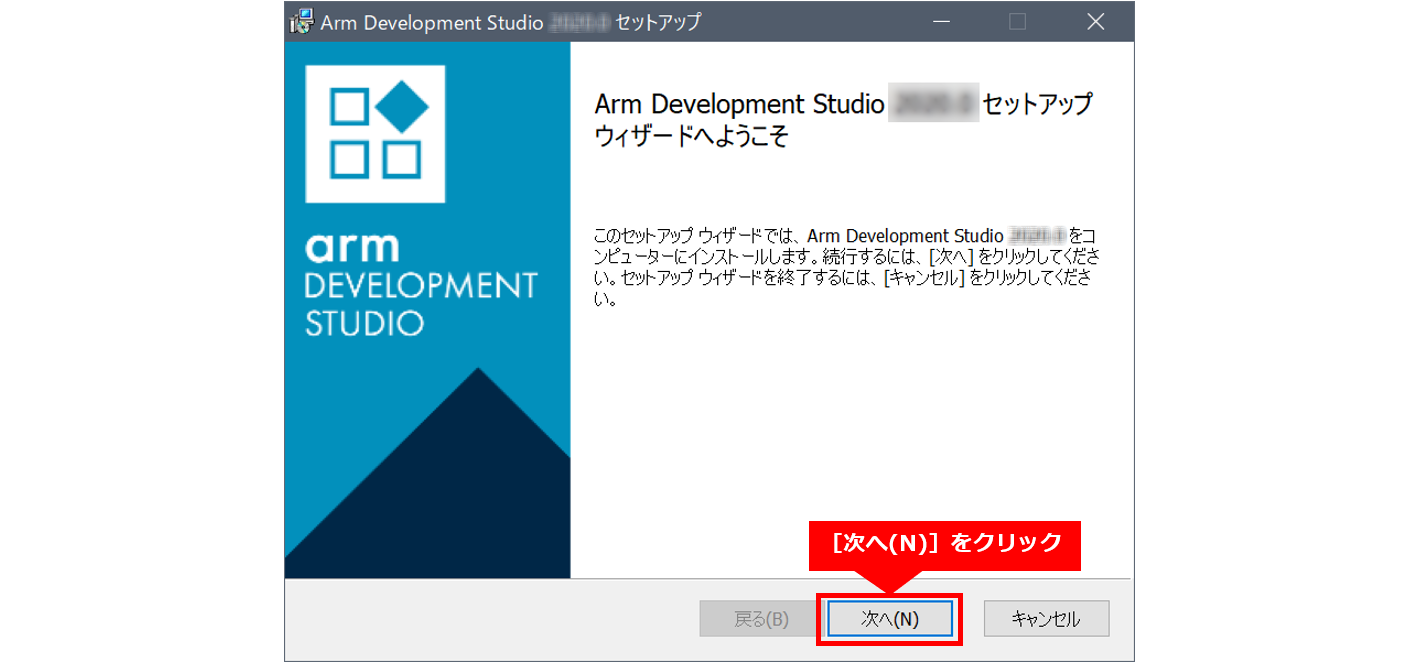
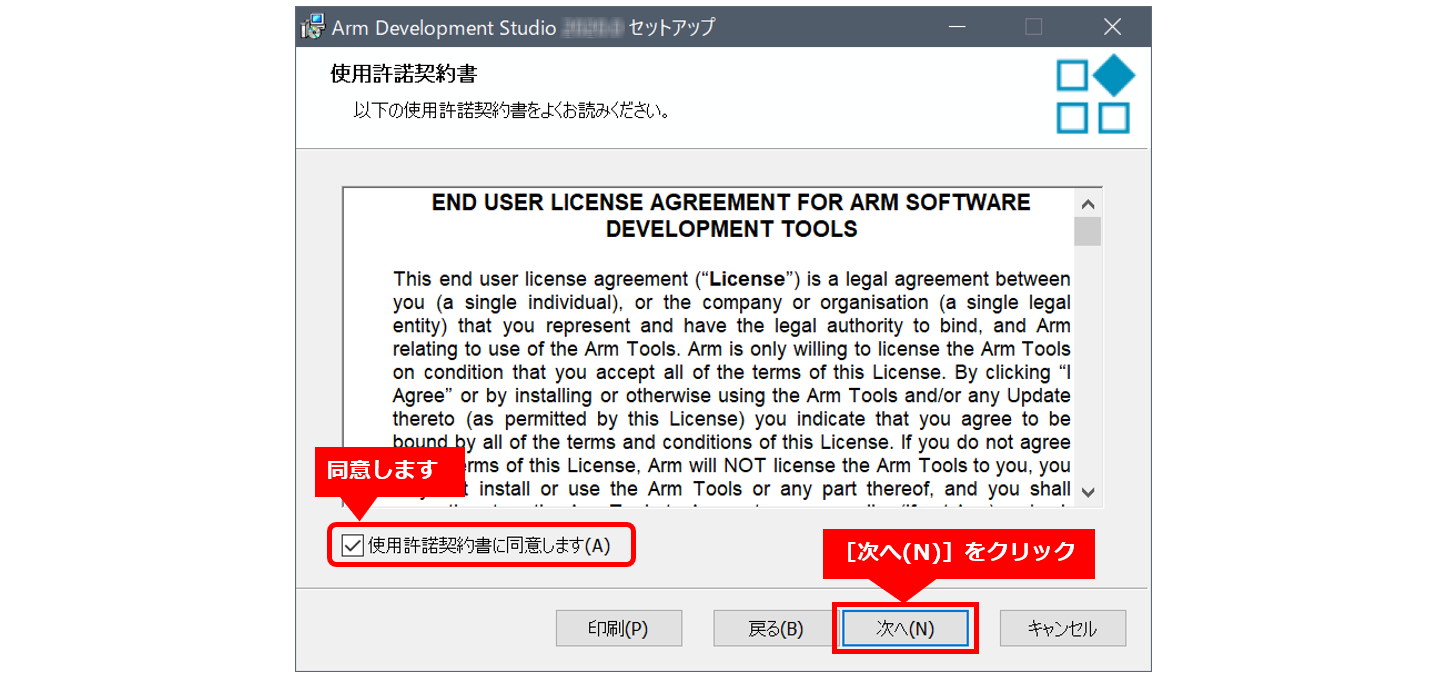
(3) Confirm that you agree to the terms of the license agreement and click [Next (N)].
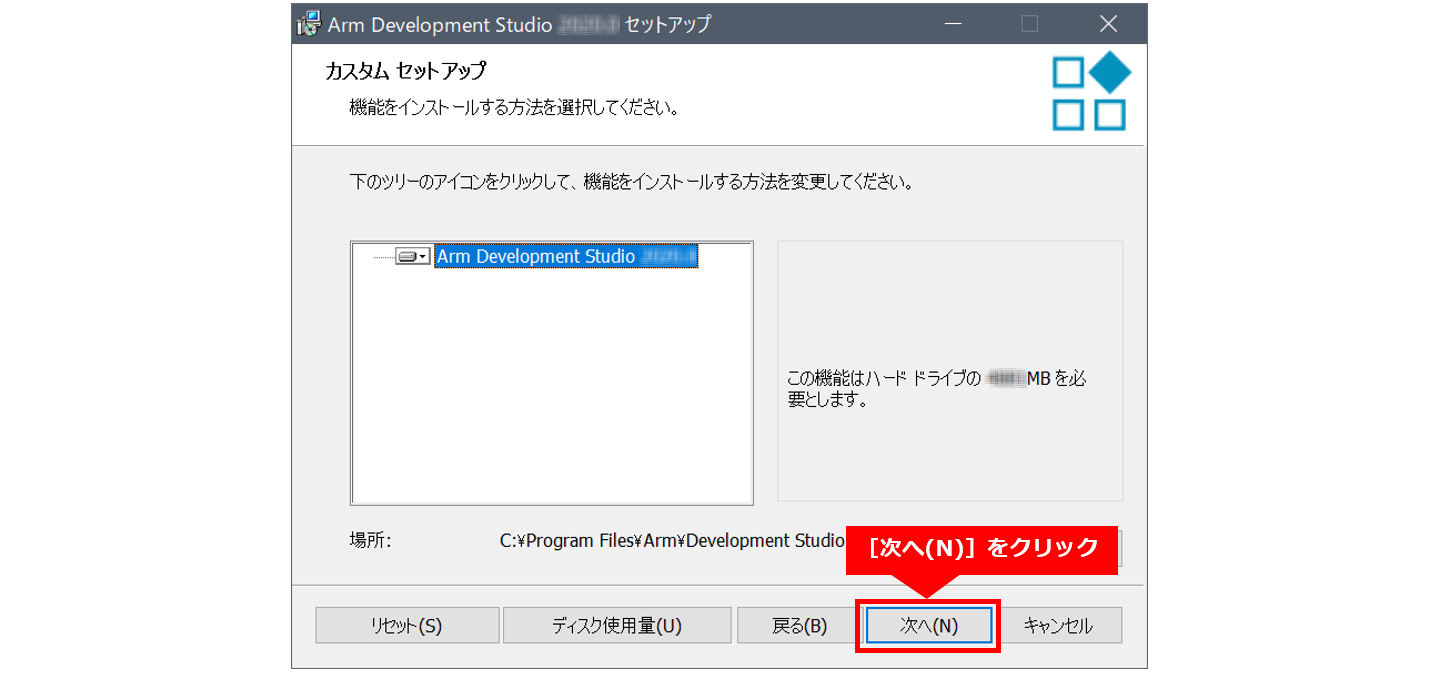
(4) Leave the default installation location as is (or change it if necessary) and click [Next].
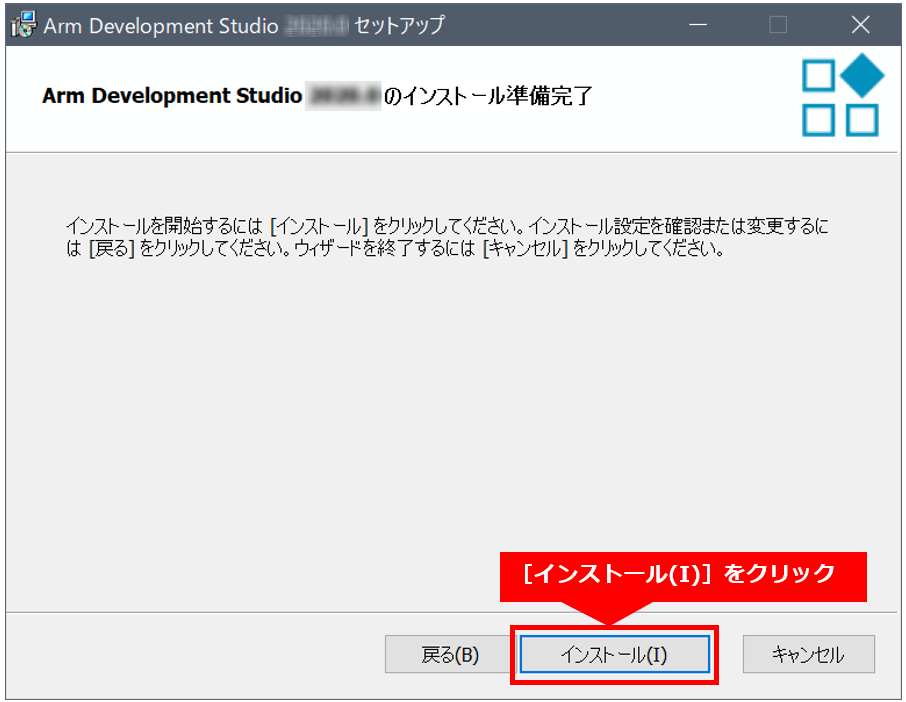
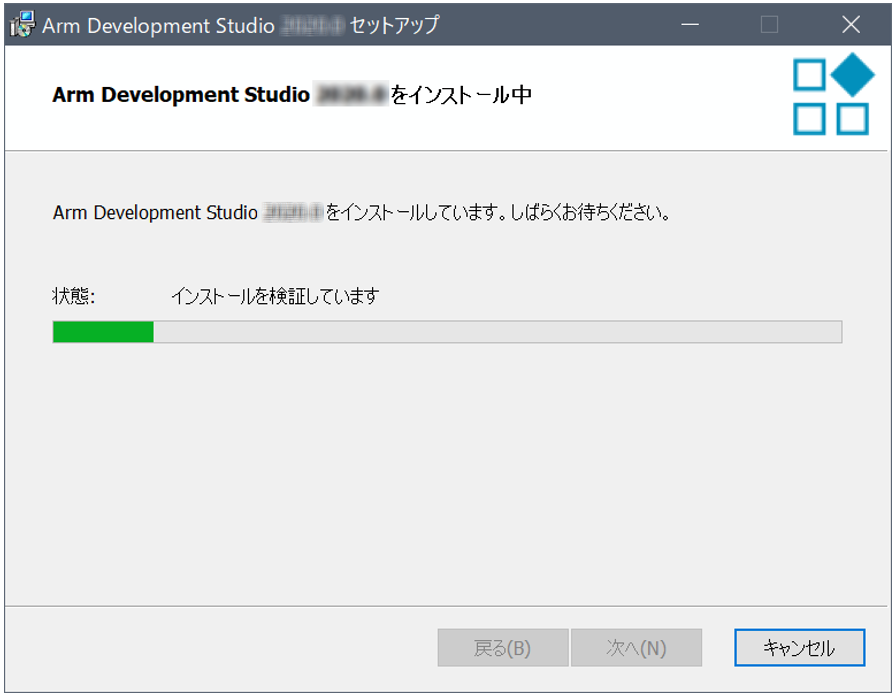
⑤ Click [Install (I)] to continue the installation. Tools are installed.
⑥ Click [Next (N)] on the driver installation start screen.
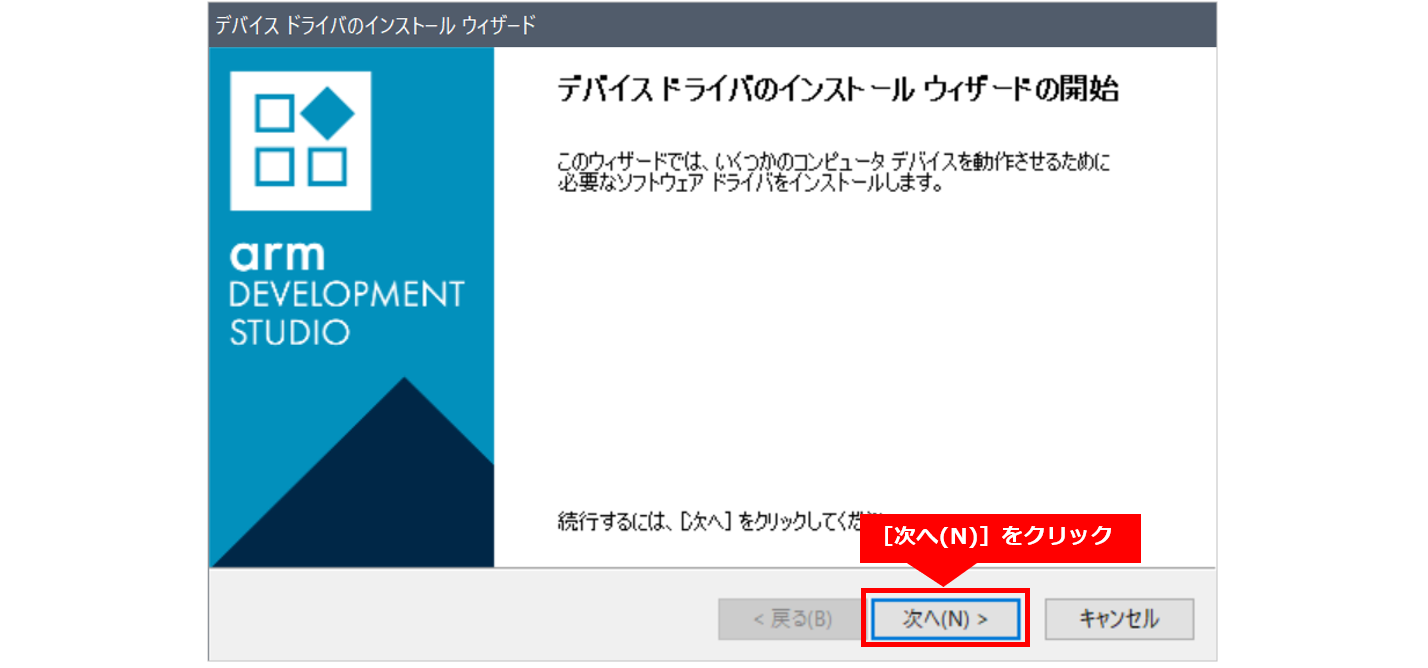
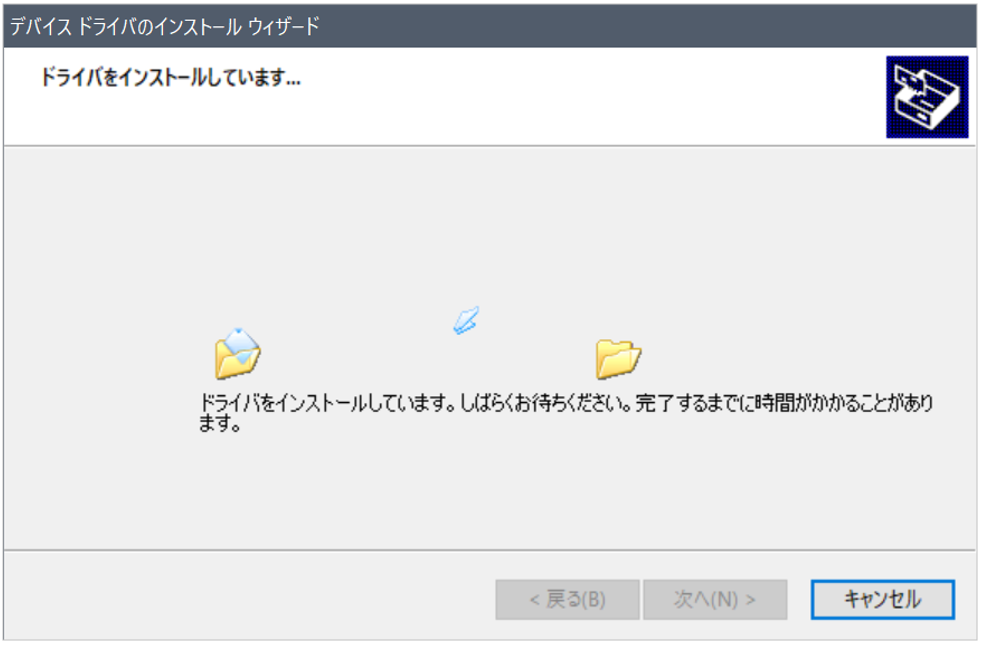
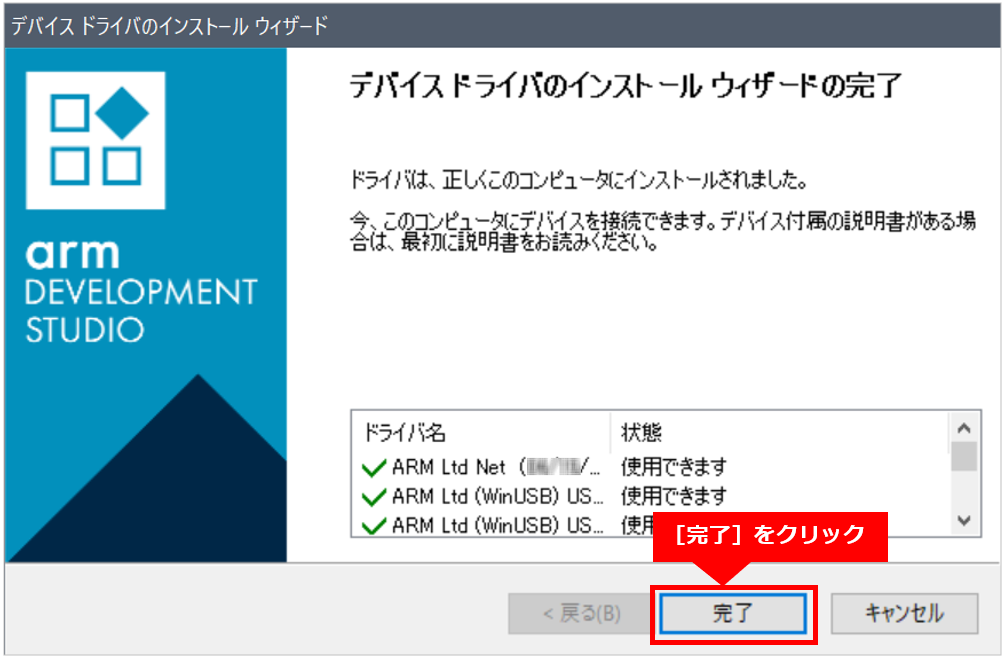
⑦ Accept all default options for driver installation.
Click [Finish] when the driver installation is complete.
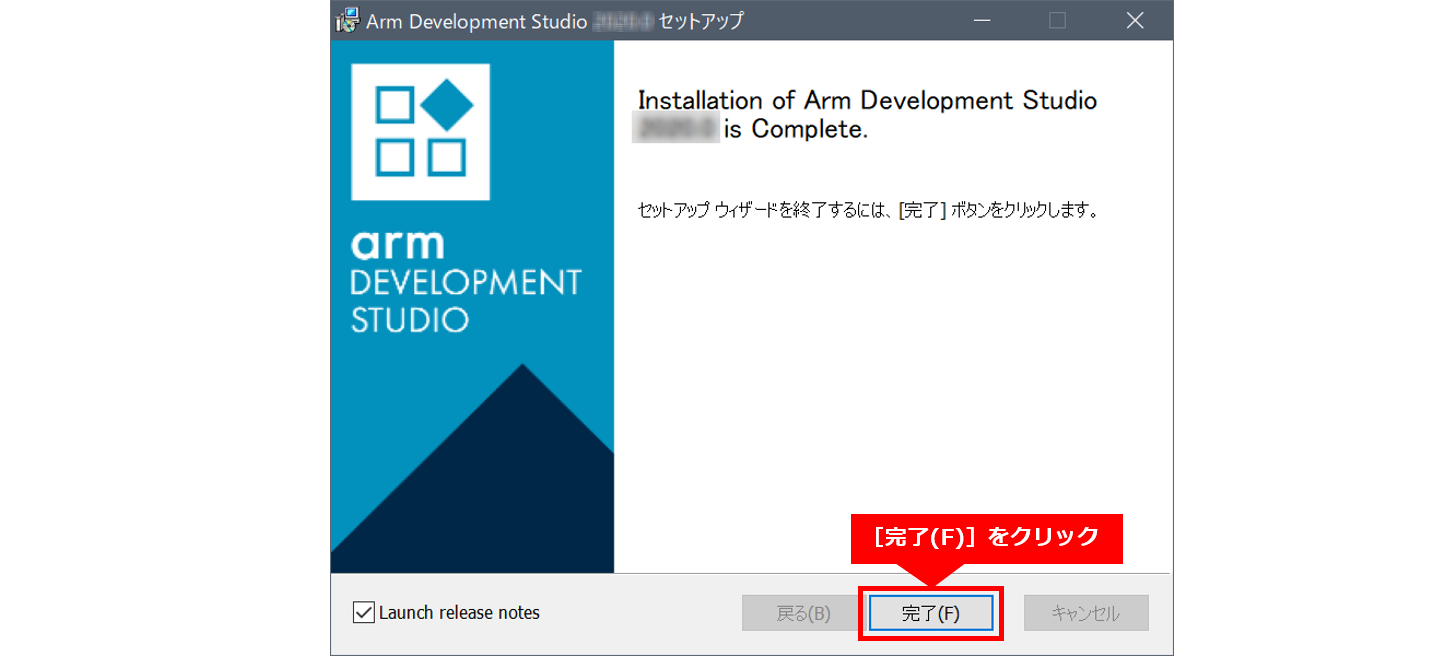
⑧ Installation is complete. Click [Finish].
4. Install Cygwin (Windows OS only)
● SoC EDS ver.20.1 or later requires Cygwin to be installed on a Windows machine.
● Cygwin provides a Linux-like environment on Windows and is required by the Embedded Command Shell.
① https://cygwin.com/ Go to the installer (https://cygwin.com/setup-x86_64.exe) to the computer
Download.
② as administrator Start a command prompt.
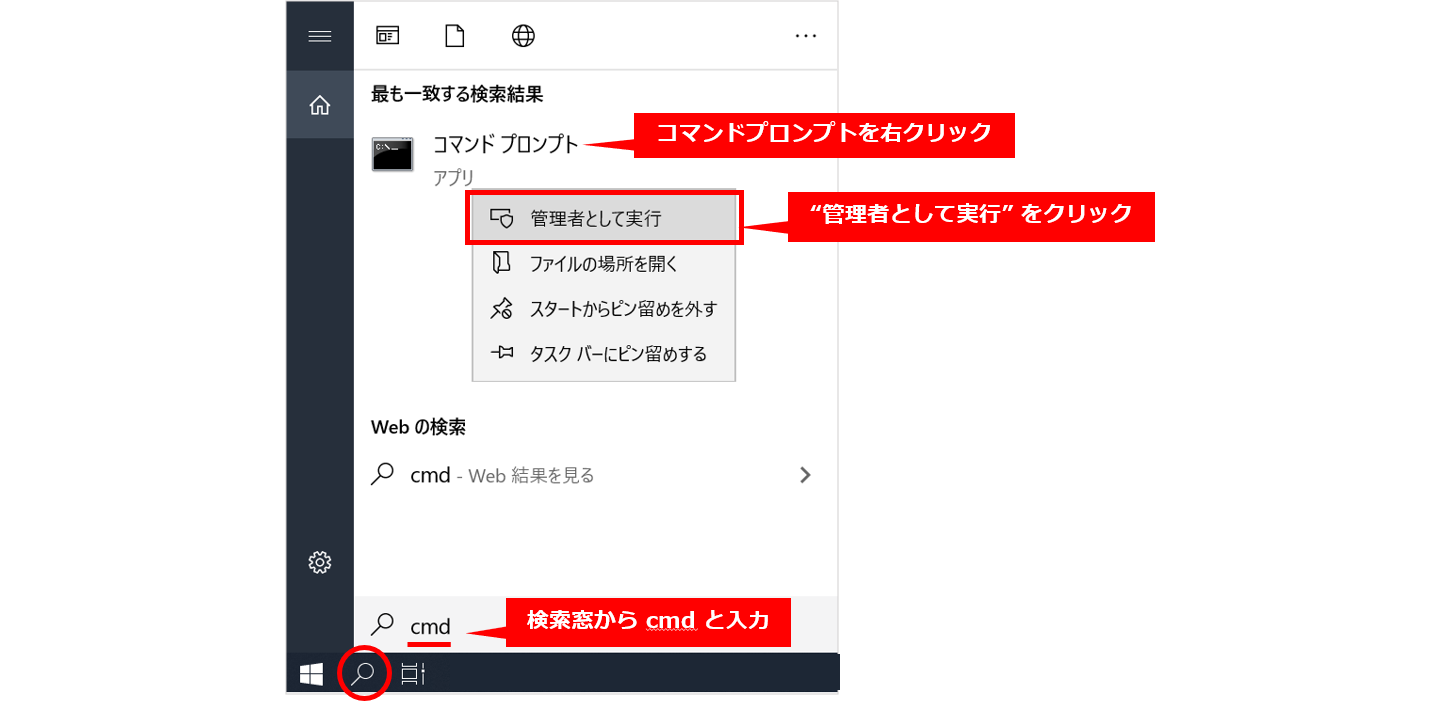
③ Change the current directory to cygwin_setup.
○ For ver.20.1 Pro:
> cd c:\intelFPGA_pro\20.1\embedded\cygwin_setup\○ For ver.20.1 Std:
> cd c:\intelFPGA\20.1\embedded\cygwin_setup\④ Run the soceds-cygwin-setup.bat executable and navigate to the location where you downloaded the setup-x86_64.exe installer.
Pass the full path (in the example below it was downloaded to the user's "Downloads" folder).
> soceds-cygwin-setup.bat %USERPROFILE%\Downloads\setup-x86_64.exeor,
> soceds-cygwin-setup.bat C:\Users\<ユーザー名>\Downloads\setup-x86_64.exe⑤ The installer application will start.
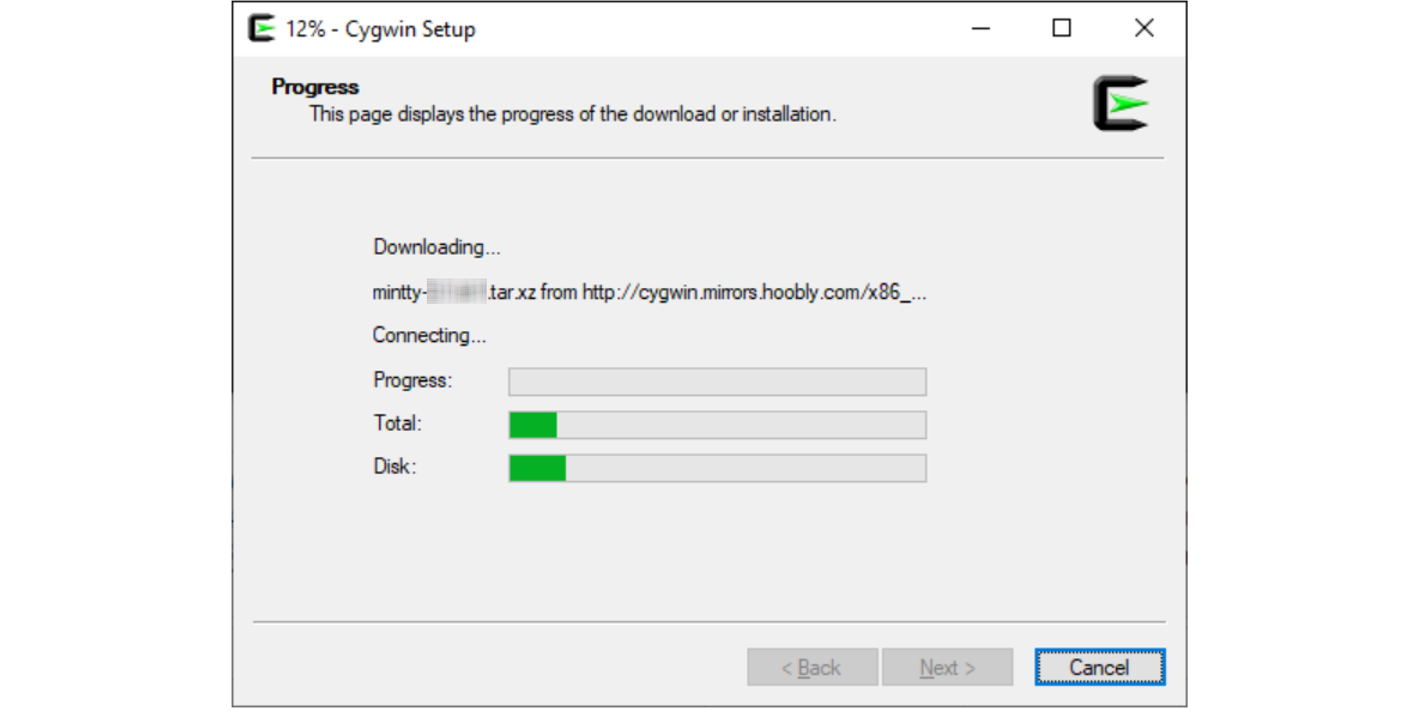
⑥ The installer application will complete.
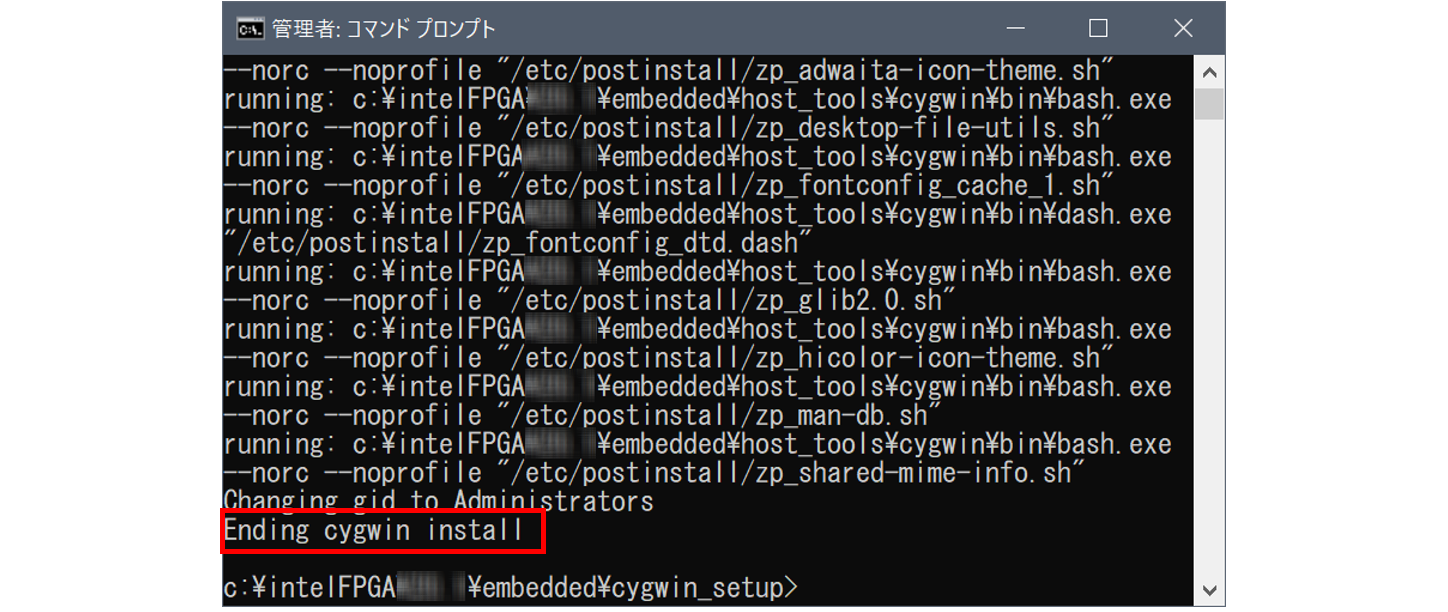
⑦ This completes the installation of Cygwin. Please also check the following information if necessary.
[Reference] "Supplementary Information on Cygwin Setup for SoC EDS"
5. Install MinGW (Windows OS only)
● SoC EDS ver.20.1 or later requires MinGW to be installed on a Windows machine.
● MinGW as a platform for building Newlib libraries used in the Linaro bare-metal toolchain
will be used.
① Access http://www.mingw.org/wiki/Getting_Started,
Download the https://osdn.net/projects/mingw/downloads/68260/mingw-get-setup.exe installer and
Run as administrator.
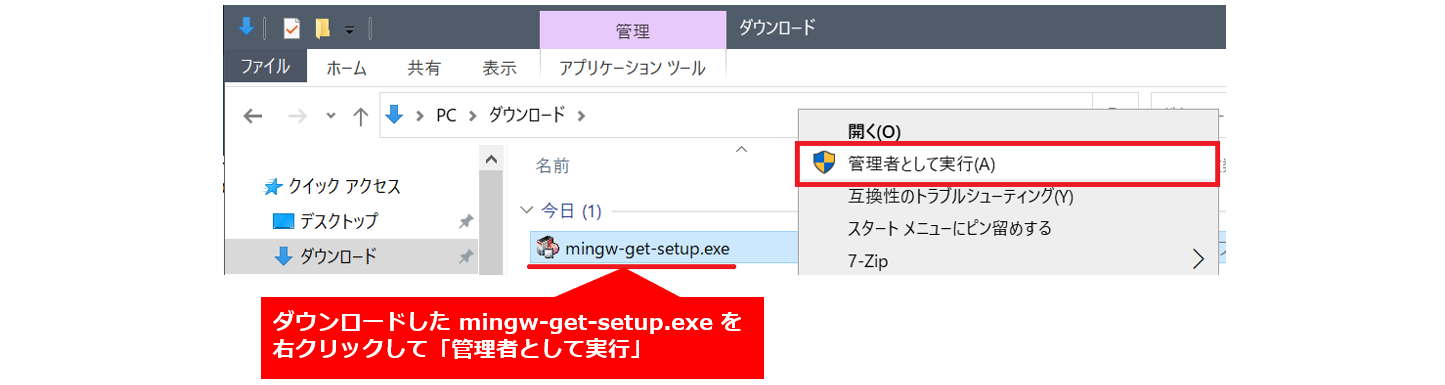
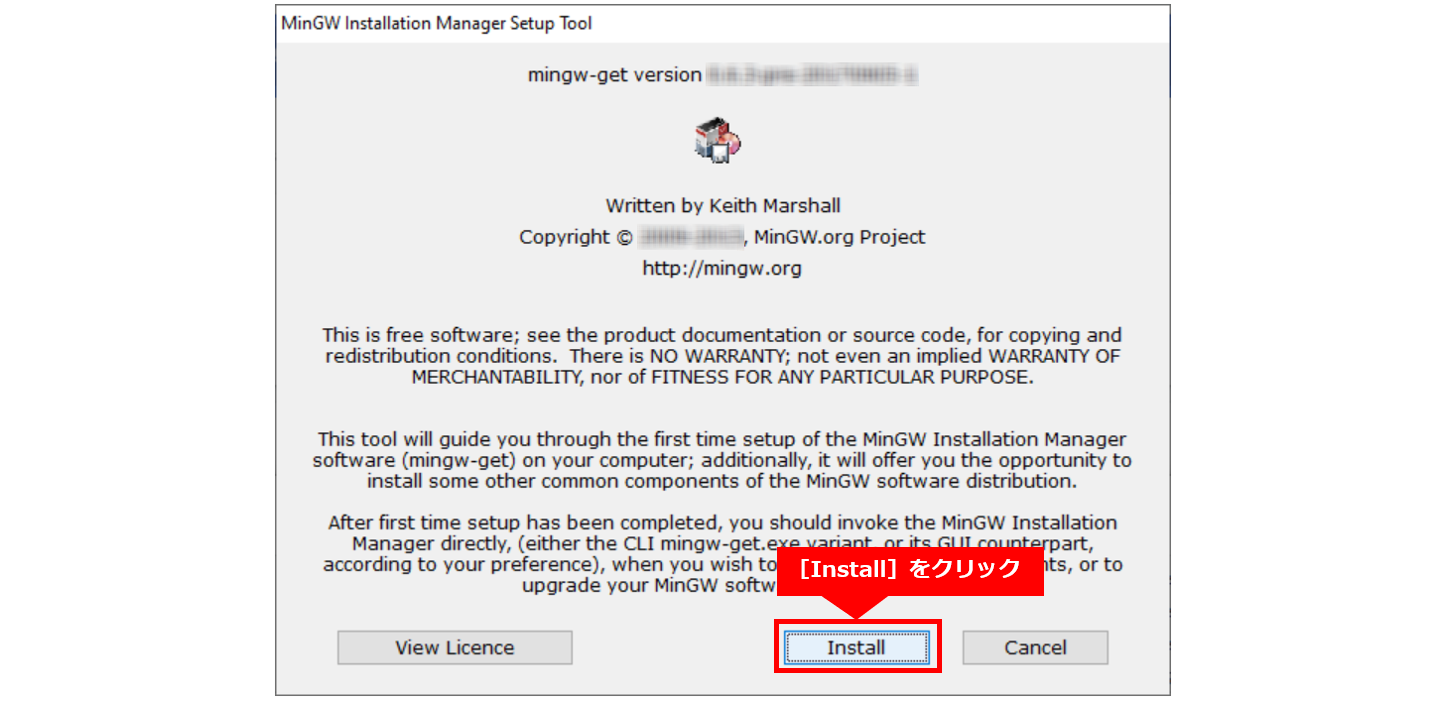
(2) The installer application will start, so click [Install].
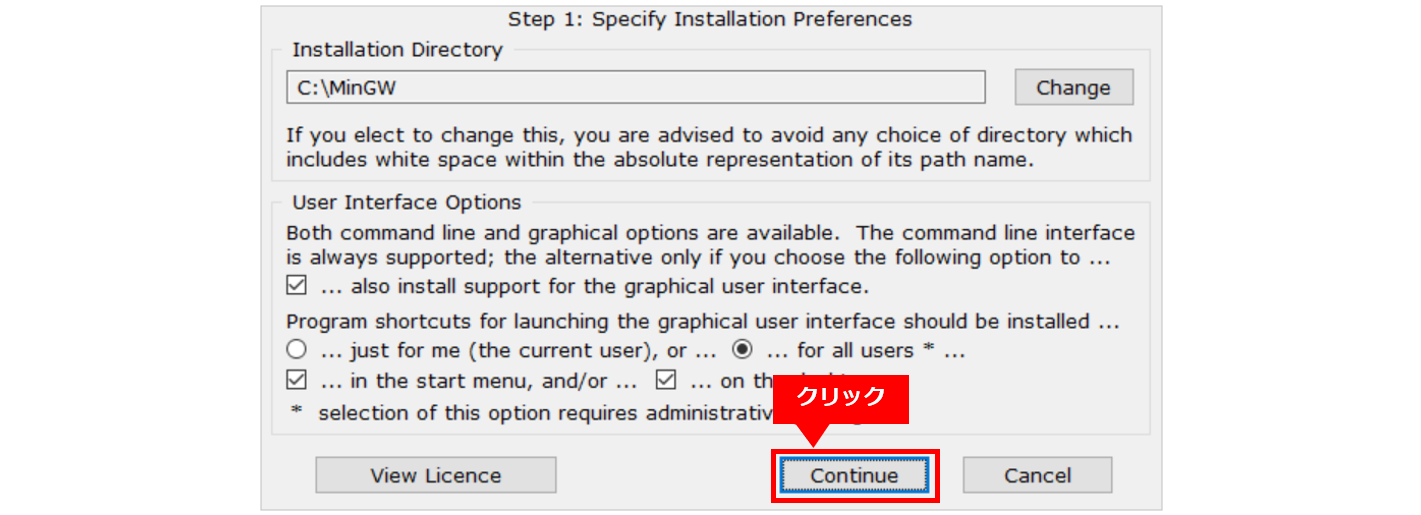
③ Keep the default settings and click [Continue].
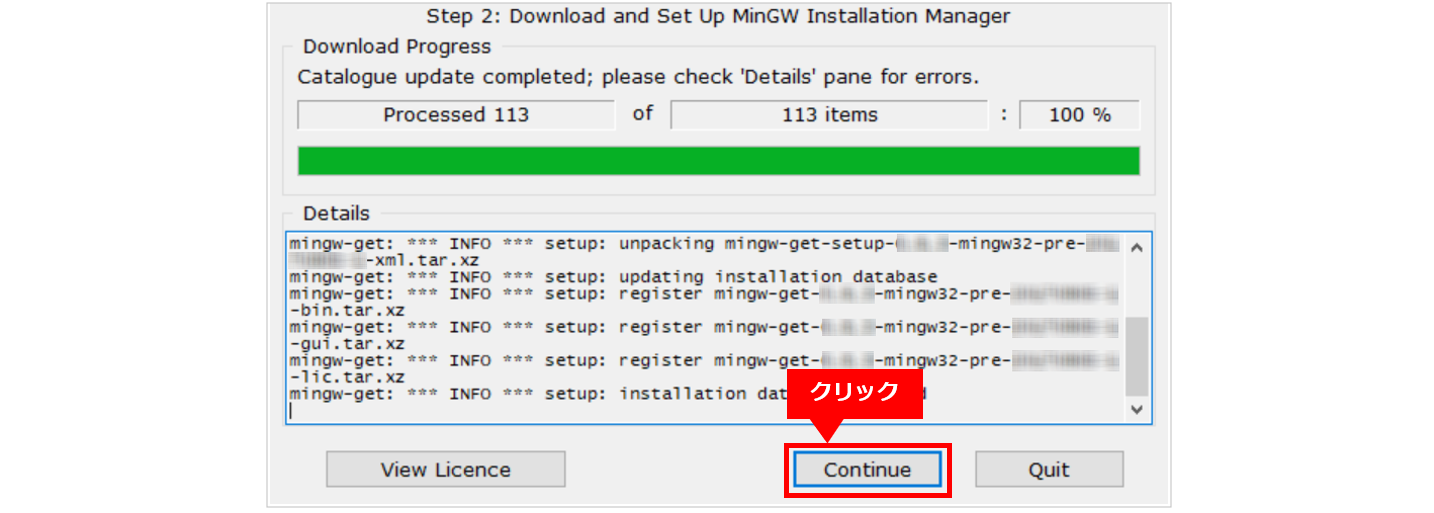
④ Click [Continue] again to continue.
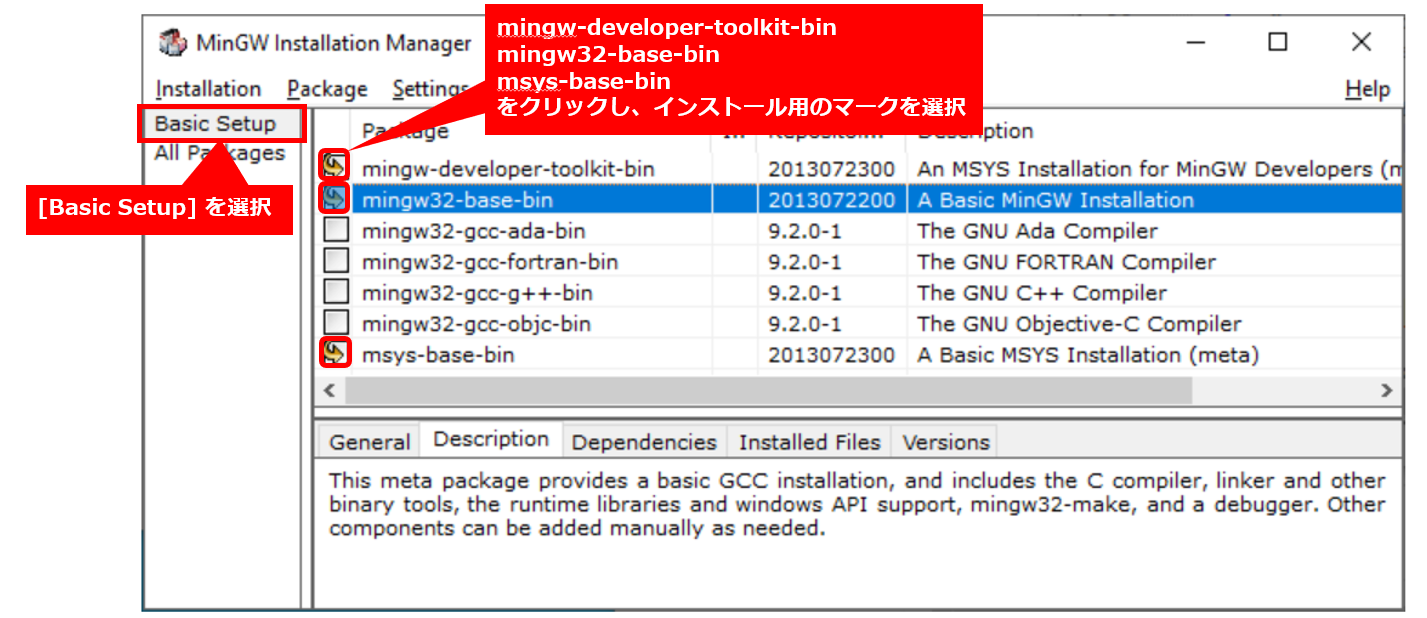
⑤ In the [Basic Setup] view, click mingw-developer-toolkit-bin, mingw32-base-bin and msys-base-bin, and
Select the mark for installation.
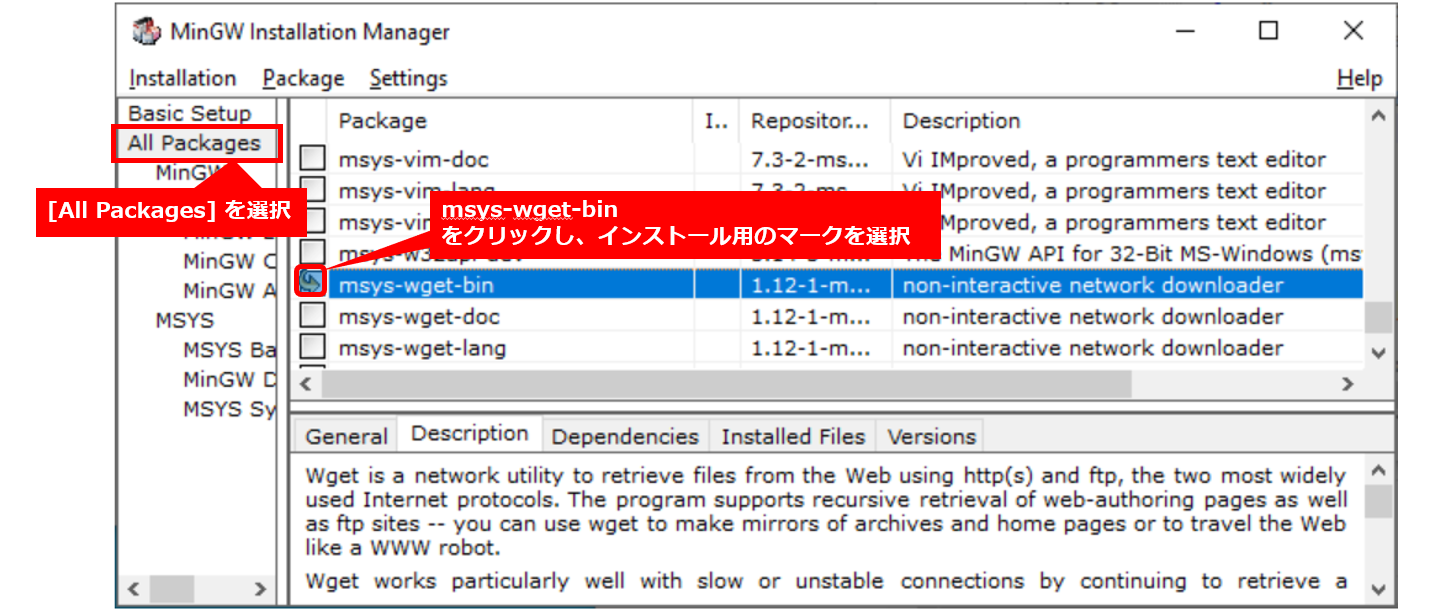
⑥ In the All Packages view, click msys-wget-bin and select Mark for installation.
⑦ Select [Installation] → [Apply Changes] from the top menu. Click Apply to continue.
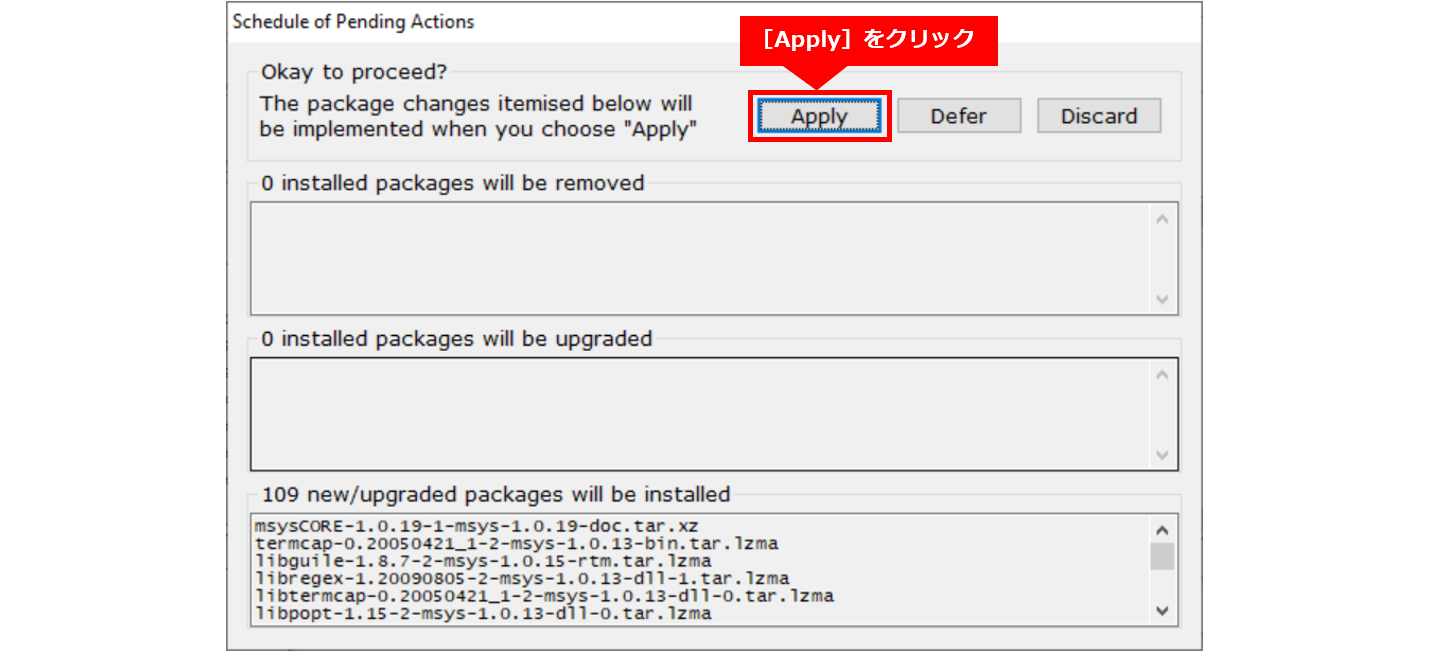
⑧ The installer will download all required packages.

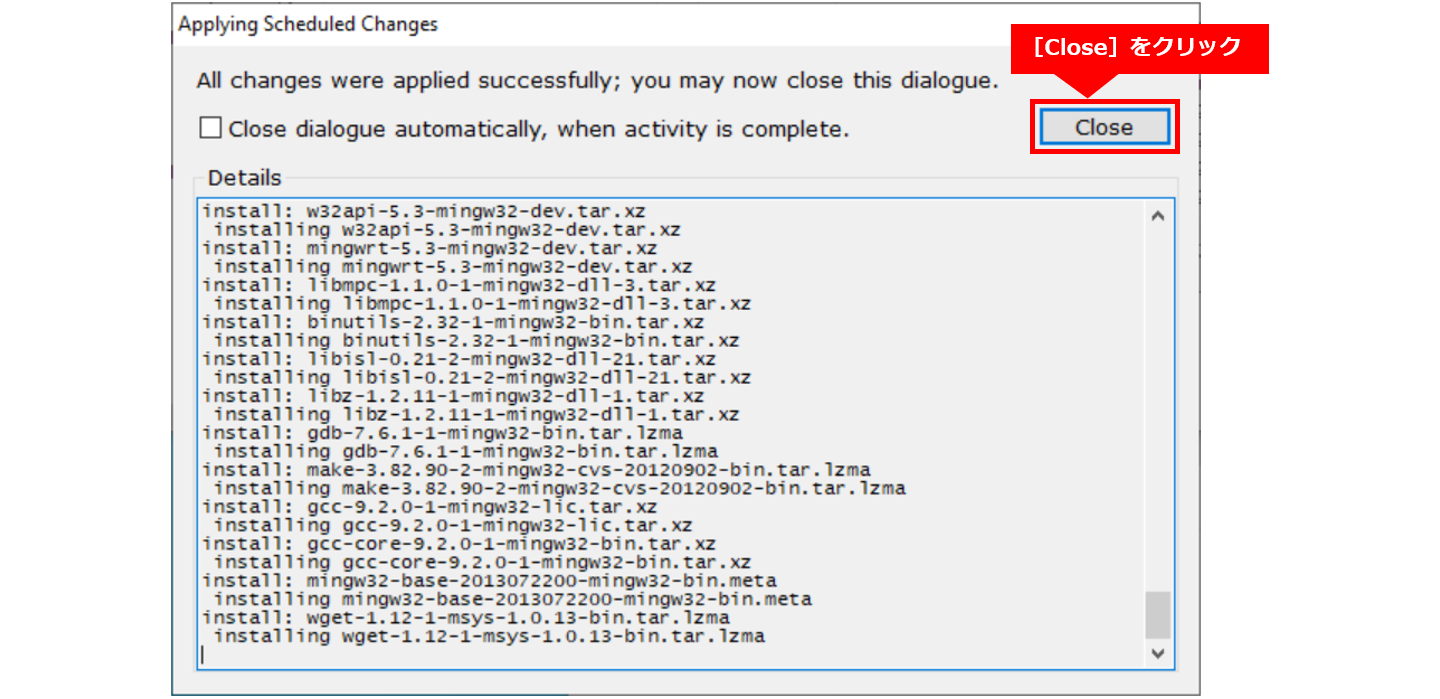
⑨ After the installer applies all changes, click [Close].
(10) Select [Installation] → [Quit] from the top menu.
6. Installing the Linaro Baremetal Toolchain
● Demonstrates how to install the Linaro bare-metal toolchain for Cortex-A9.
● It helps you compile bare-metal programs for Cyclone® V SoC, Arria® V SoC, and Arria® 10 SoC devices.
6-1. Installing Linaro Baremetal Toolchain (for Linux OS)
(1) Start Embedded Command Shell.
○ For ver.20.1 Pro:
$ ~/intelFPGA_pro/20.1/embedded/embedded_command_shell.sh○ For ver.20.1 Std:
$ ~/intelFPGA/20.1/embedded/embedded_command_shell.sh② Change the current folder to linaro and run the install script.
* The install_linaro.sh script file is only intended for the Linaro bare-metal toolchain for ARMv7 (ARMv8 is
not supported).
$ cd $SOCEDS_DEST_ROOT/host_tools/linaro/
$ ./install_linaro.sh
③ After successful completion, the following will be installed in the $SOCEDS_DEST_ROOT/host_tools/linaro/ folder.
○ gcc - the GCC compiler
○ newlib—Newlib library
6-2. Installing Linaro Baremetal Toolchain (for Windows OS)
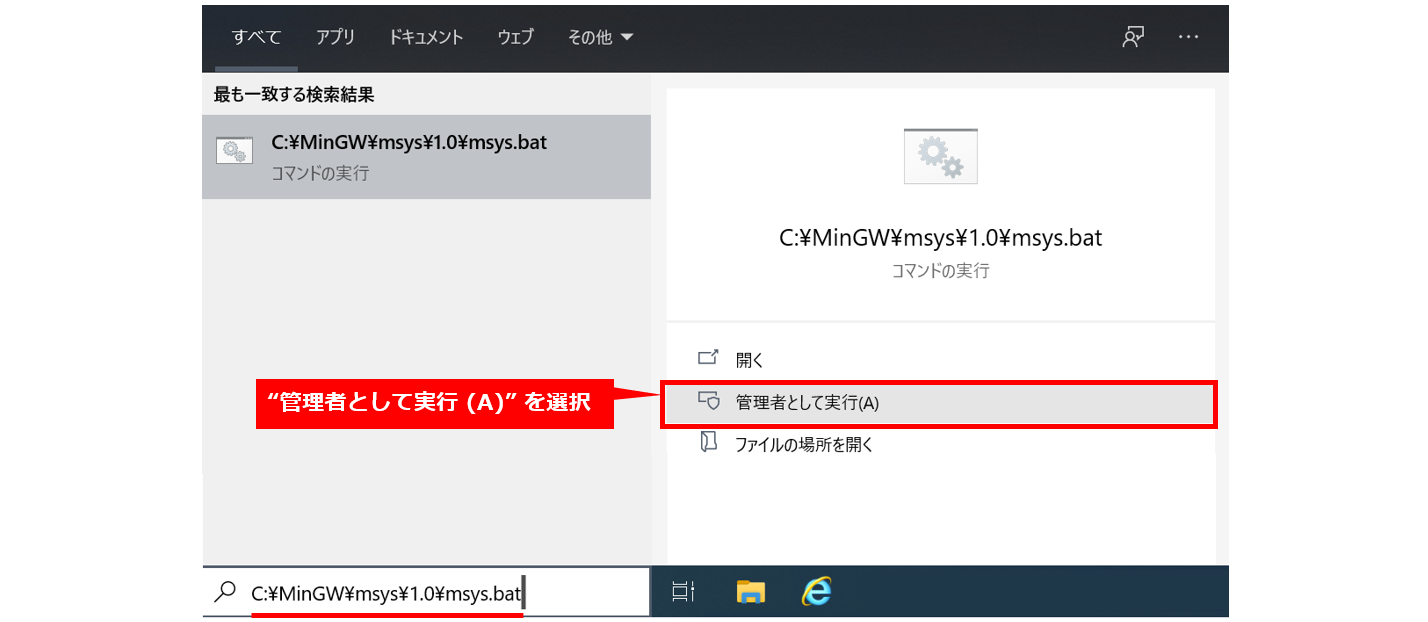
① Run C:\MinGW\msys\1.0\msys.bat as administrator.
② The Msys console opens.

③ 社内ネットワークなどでプロキシがある場合、Msys コンソールから次のようなプロキシの設定が必要です。
$ export http_proxy="http://your.proxy.address:proxy.port"
$ export https_proxy="https://your.proxy.address:proxy.port"
* In the proxy settings above, your.proxy.address means the proxy address and proxy.port means the proxy port number.
④ Go to the linaro folder in the Msys console.
○ For ver.20.1 Pro:
$ cd c:/intelFPGA_pro/20.1/embedded/host_tools/linaro○ For ver.20.1 Std:
$ cd c:/intelFPGA/20.1/embedded/host_tools/linaro⑤ Run the installer.
* The install_linaro.sh script file is only intended for the Linaro bare-metal toolchain for ARMv7 (ARMv8 is
not supported).
$ ./install_linaro.sh⑥ The Linaro toolchain is downloaded, the newlib library is downloaded and compiled.
Once complete, the following will be installed in your linaro folder:
○ gcc - the GNU compiler
○ newlib—Newlib library
7. Installing the Linaro Linux Toolchain
7-1. Starting Arm® DS and setting the license file
● To specify the path to the Linaro Linux toolchain to Arm® DS, you must start Arm® DS.
● In addition, to use Arm® DS, you must first configure the license.
● For details, see "How to set up the Arm® Development Studio for SoC FPGA Edition license Please refer to the following chapter in "
5. Starting Arm® DS SoC FPGA Edition
6. Setting up the license file
7-2. Configuring the Linaro Linux Toolchain
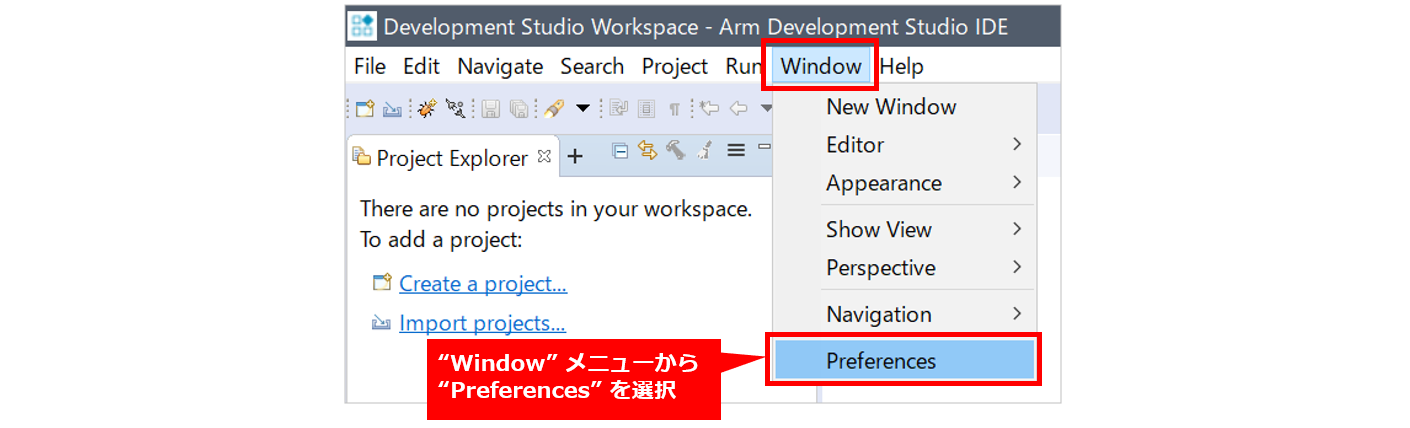
① Select "Preferences" from the "Window" menu of Arm® DS.
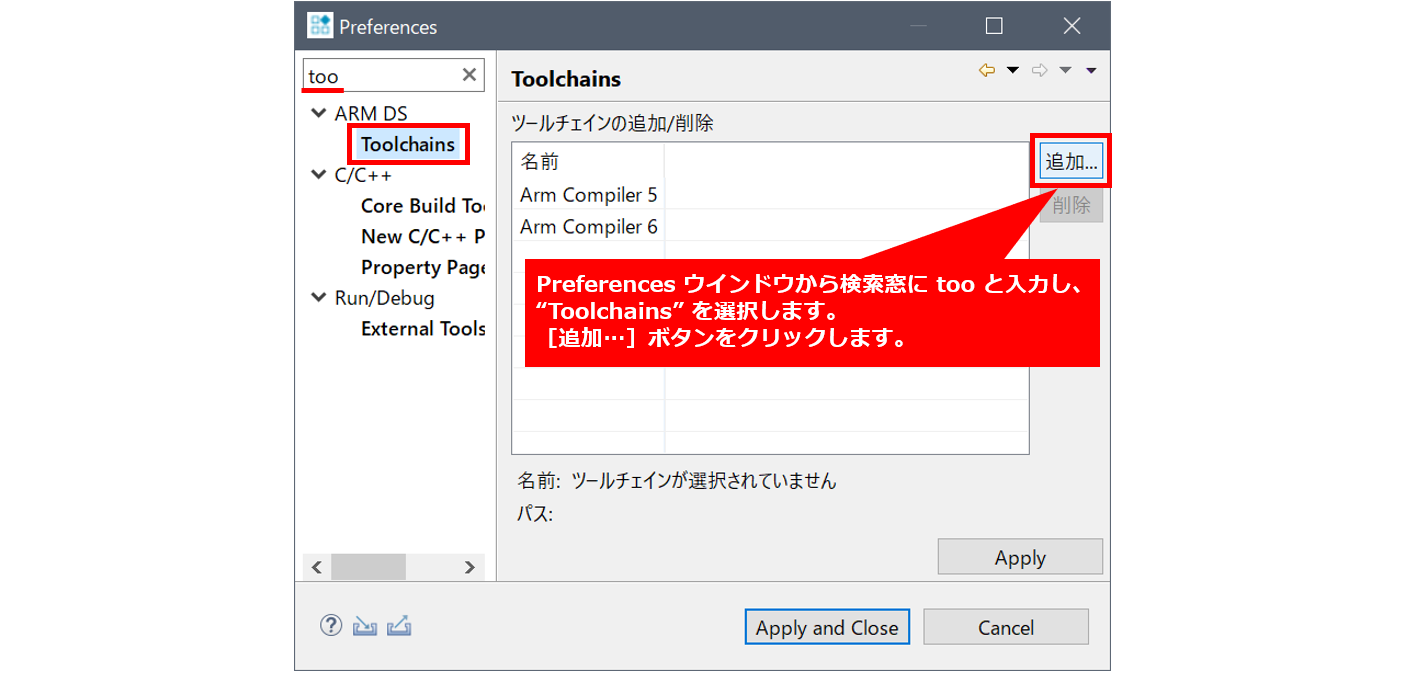
② From the Preferences window, enter too in the search window and select "Toolchains". Click the [Add…] button.
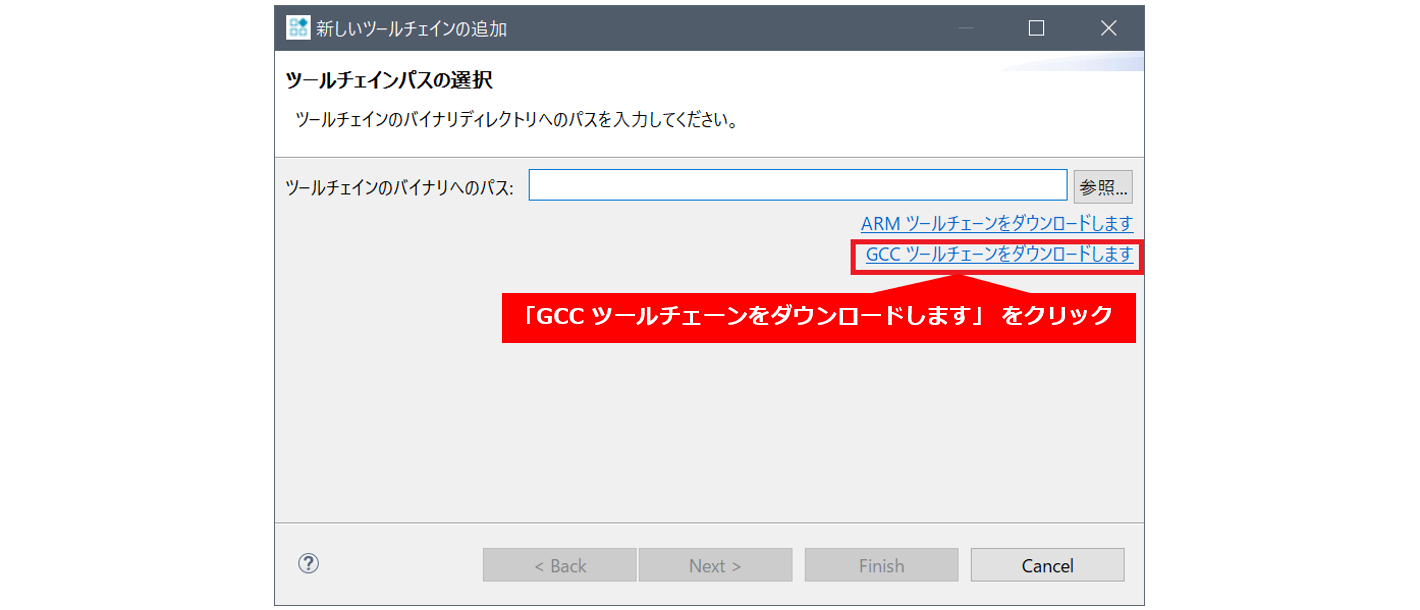
③ Click “Download GCC toolchain”.
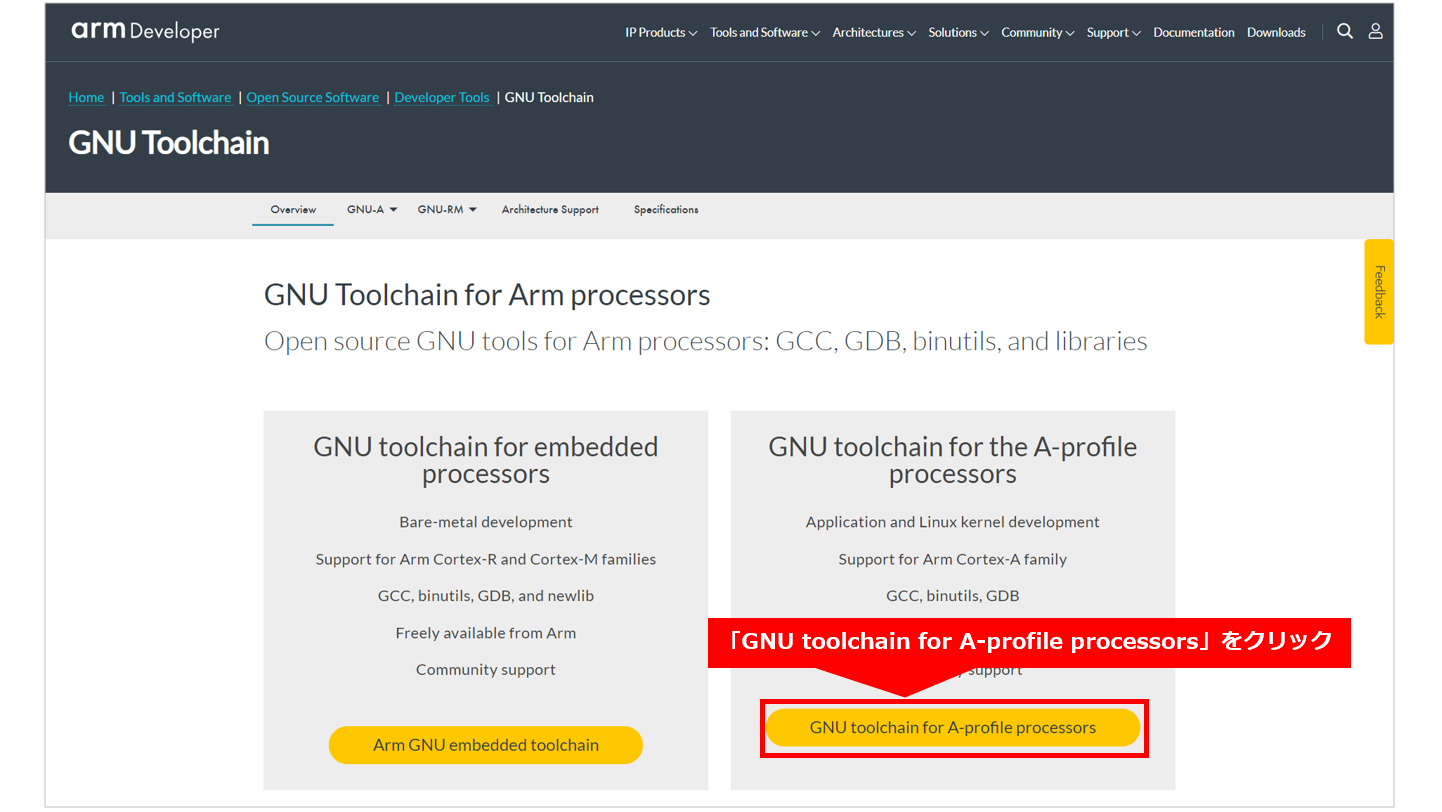
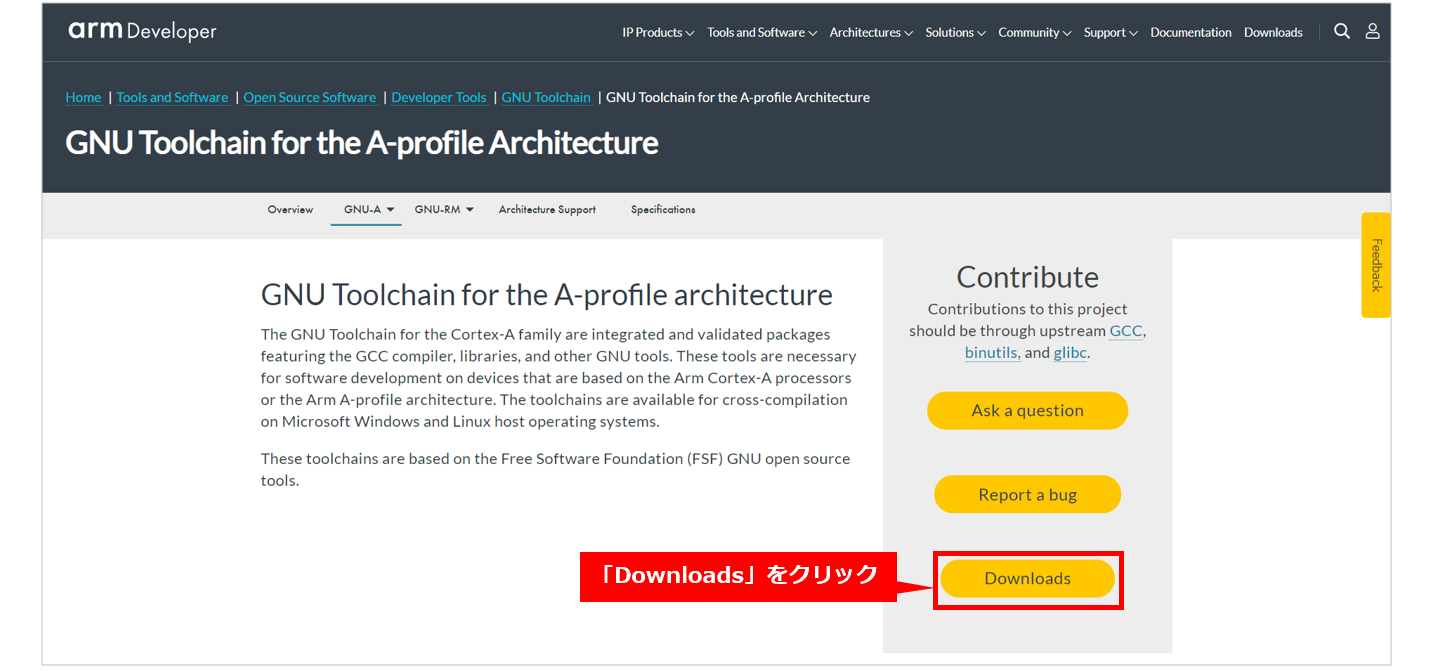
④ When the GNU Toolchain page of Arm Developer is displayed, click "GNU toolchain for A-profile processors".
⑤ Click Downloads.
⑥ Click the desired toolchain to download it.
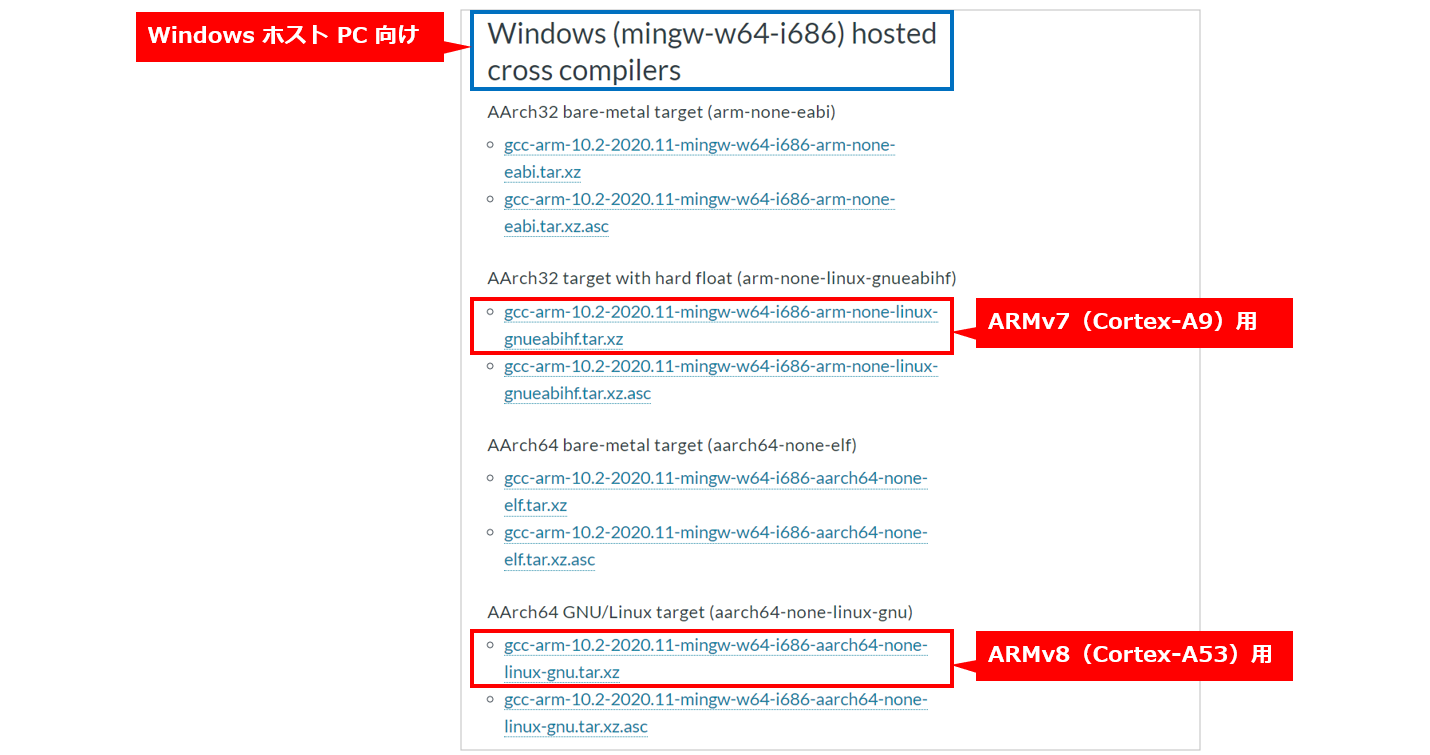
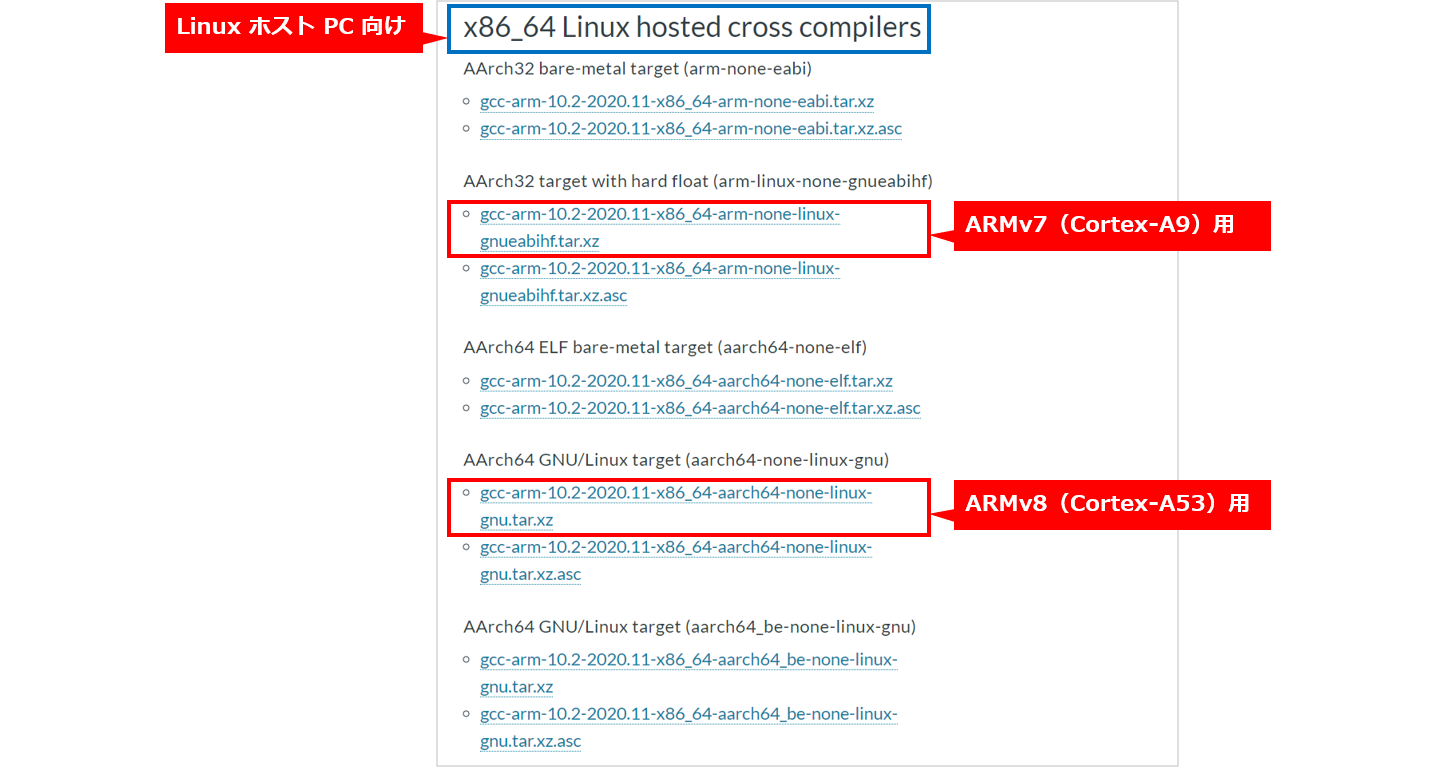
⑦ When the download is complete, unzip it (you can unzip it with the following command from Embedded Command Shell).
In this example, we downloaded and unzipped gcc-arm-10.2-2020.11-mingw-w64-i686-arm-none-linux-gnueabihf.tar.xz.
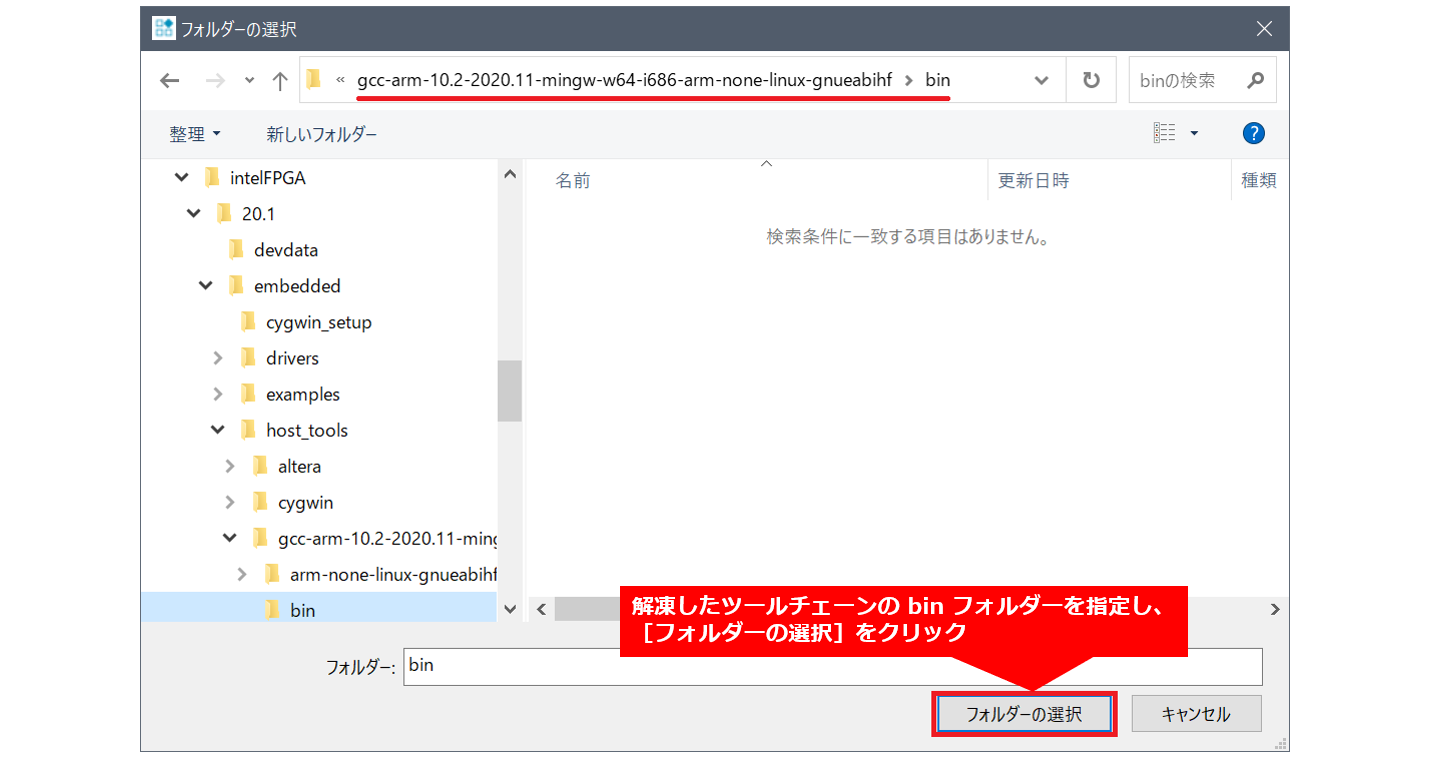
$ tar –Jxvf gcc-arm-10.2-2020.11-mingw-w64-i686-arm-none-linux-gnueabihf.tar.xz(8) Click [Browse].
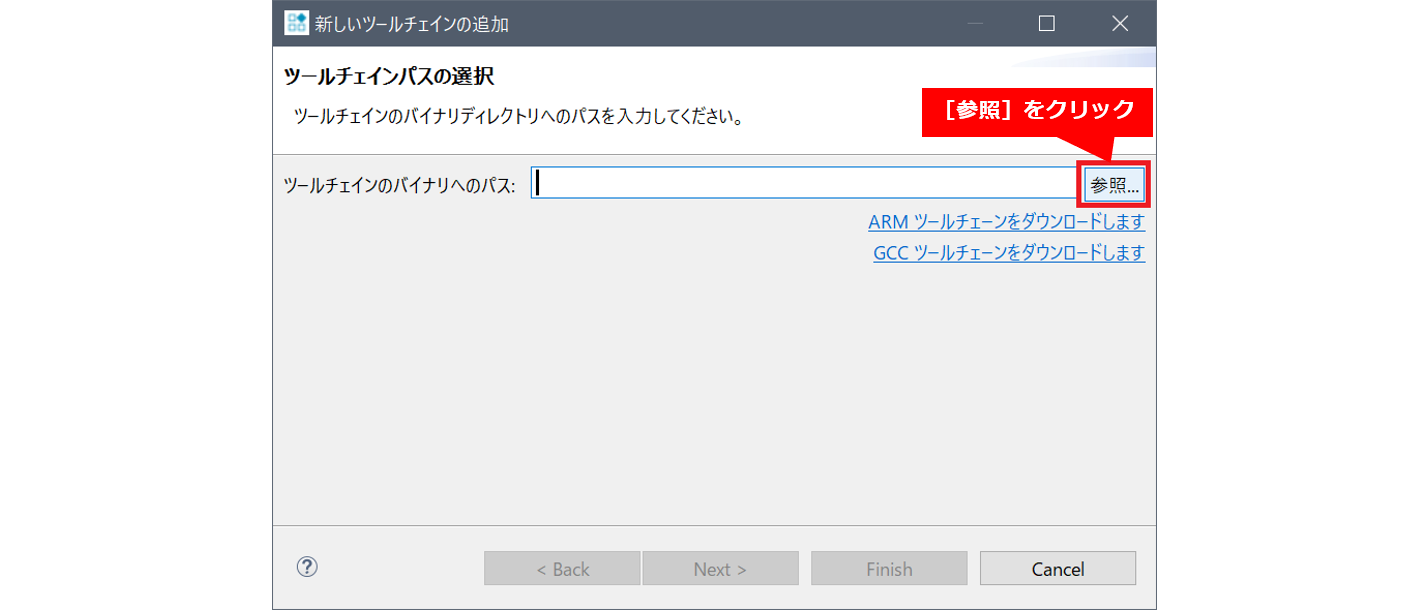
(9) Specify the bin folder of the unzipped toolchain and click [Select Folder].
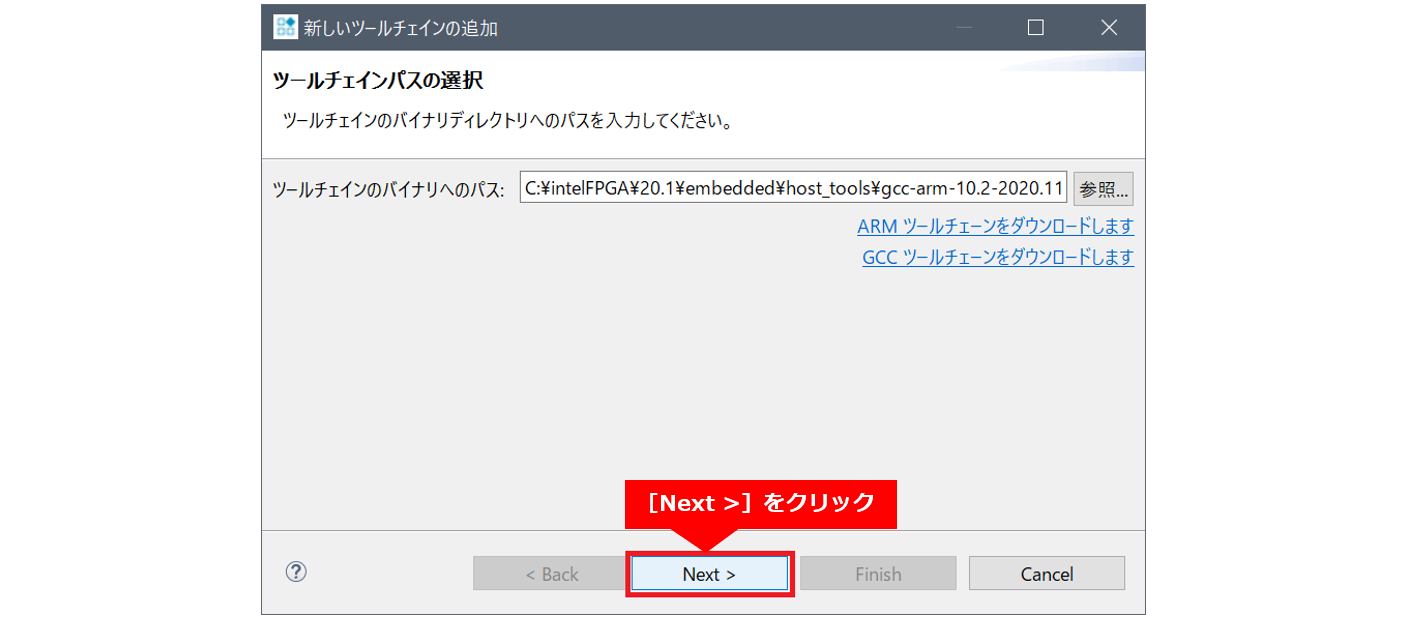
(10) Click [Next >].
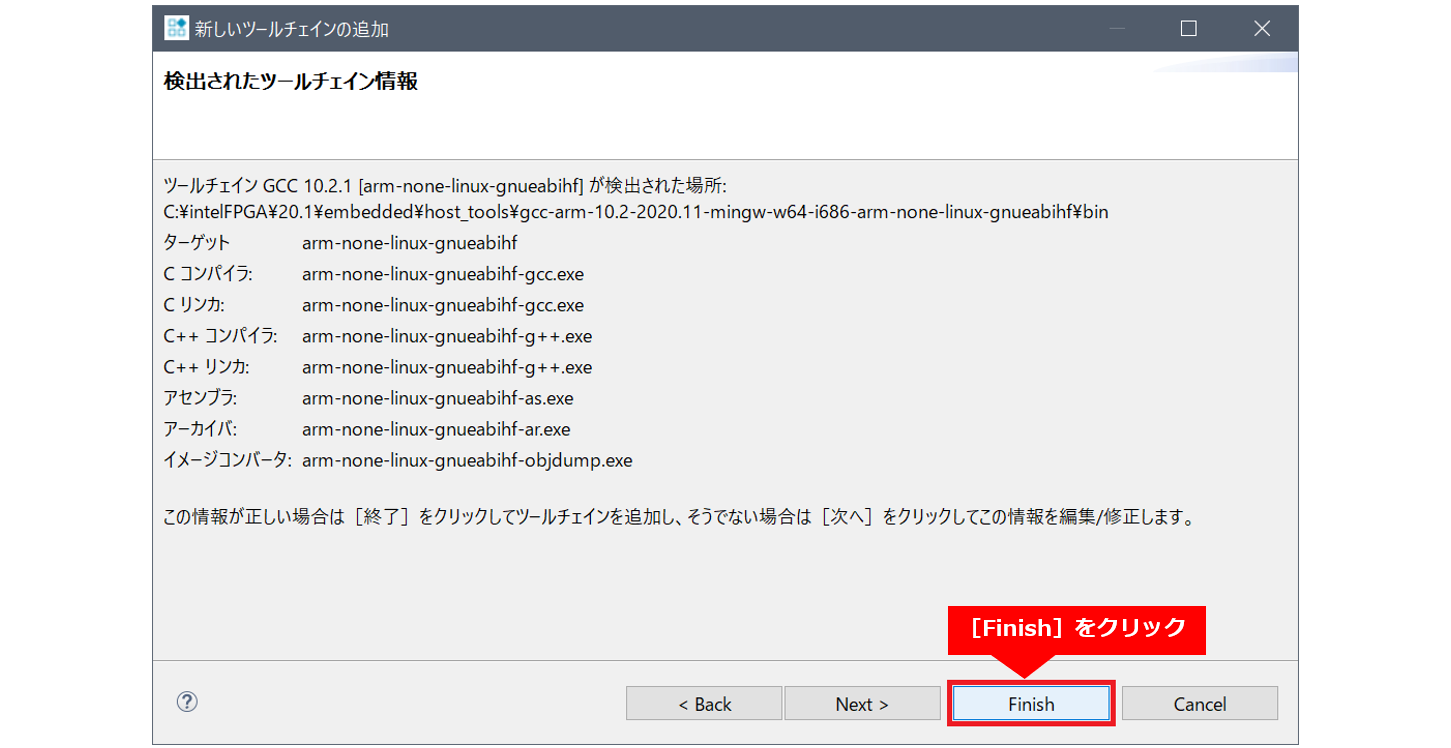
(11) When the toolchain is detected, click [Finish].
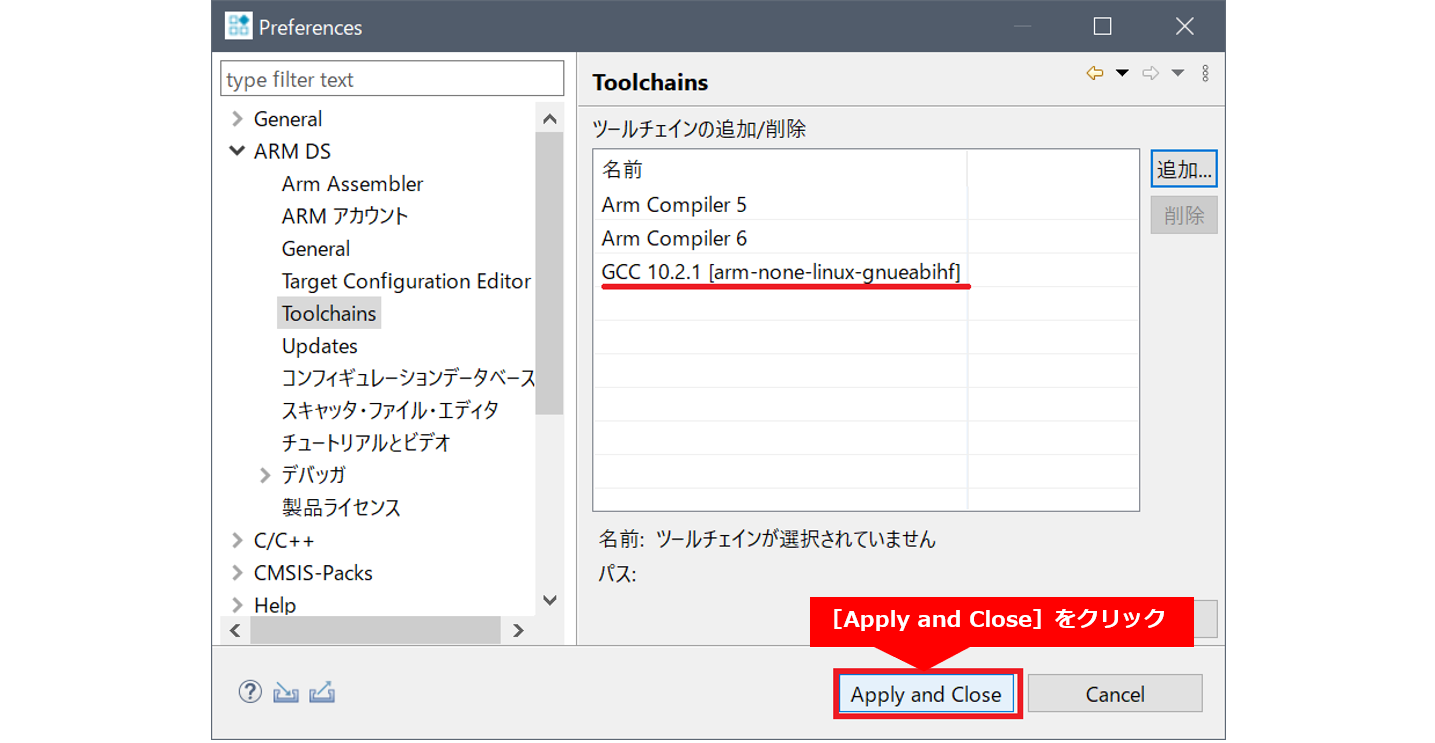
(12) Confirm that the toolchain has been added, and click [Apply and Close].
(13) Click [Restart] to restart Arm® DS.

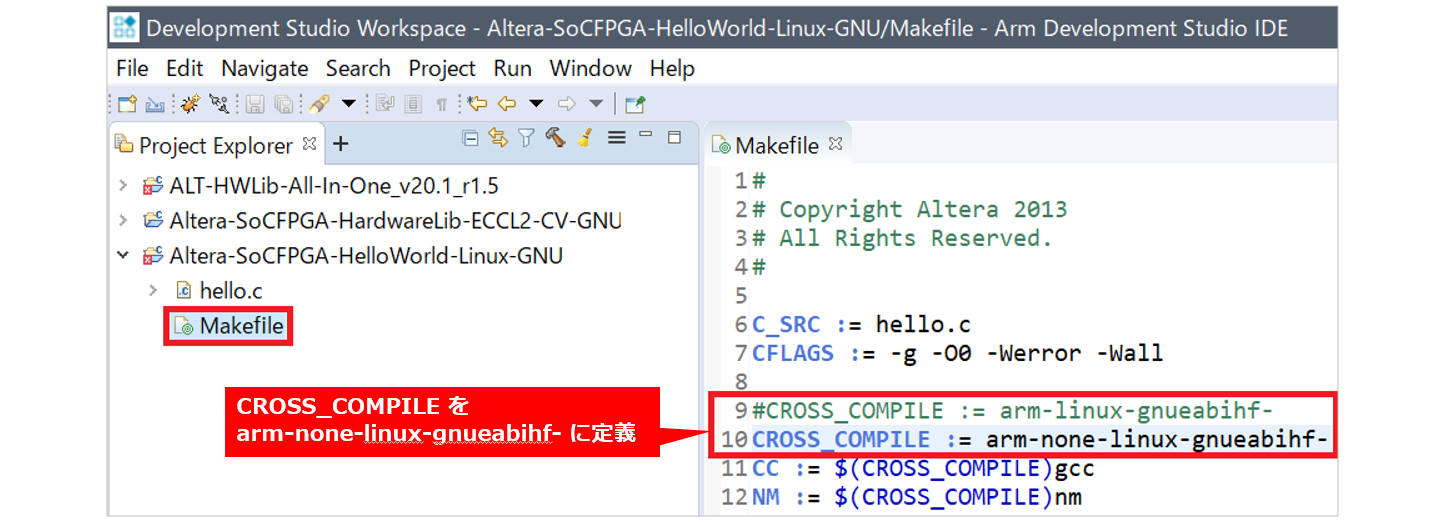
⑭ After Arm® DS restarts, open the Makefile of the Linux project (Altera-SoCFPGA-HelloWorld-Linux-GNU in this example),
Define CROSS_COMPILE to arm-none-linux-gnueabihf- (original definition commented out).
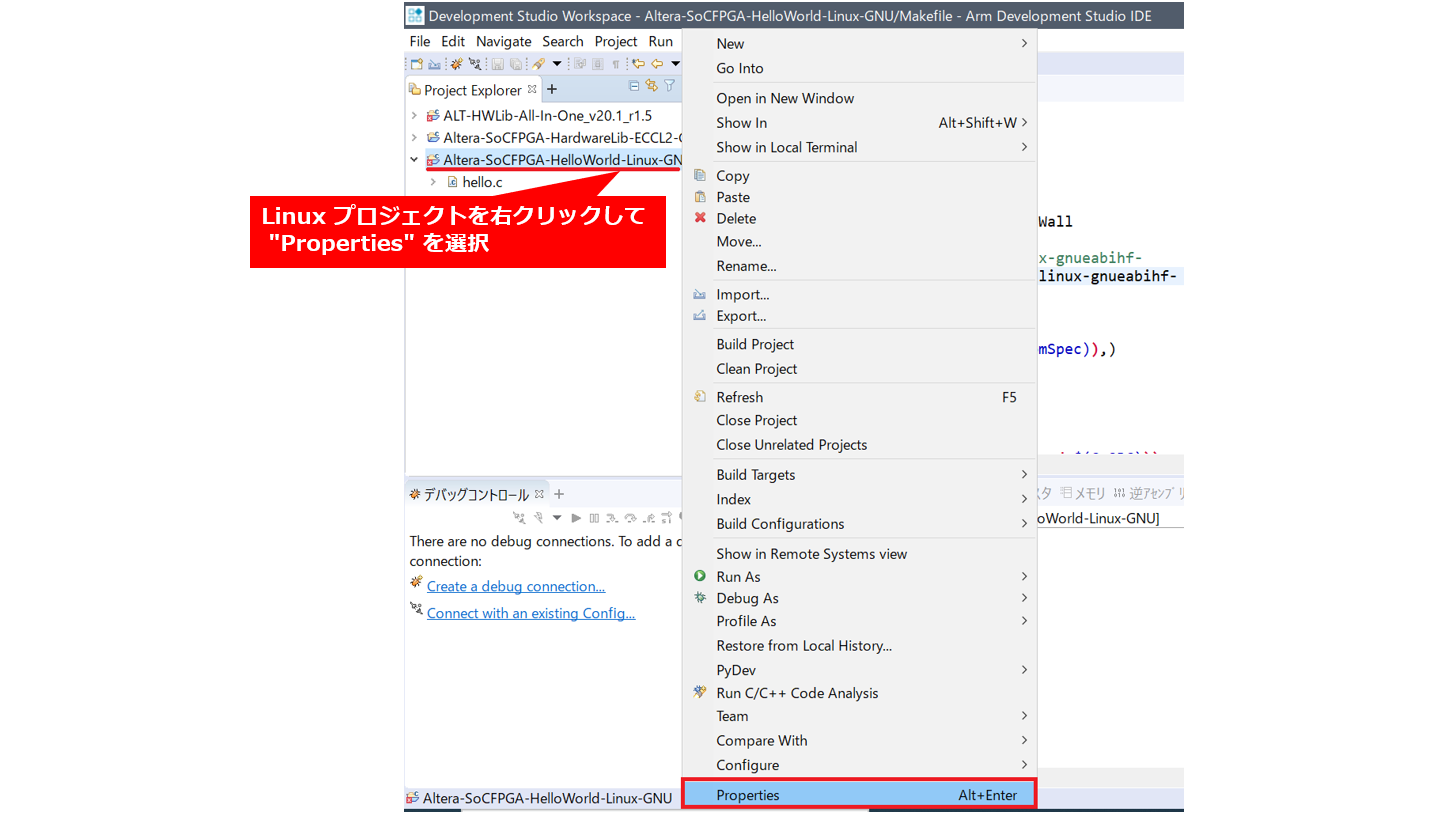
⑮ Right-click the Linux project and select "Properties".
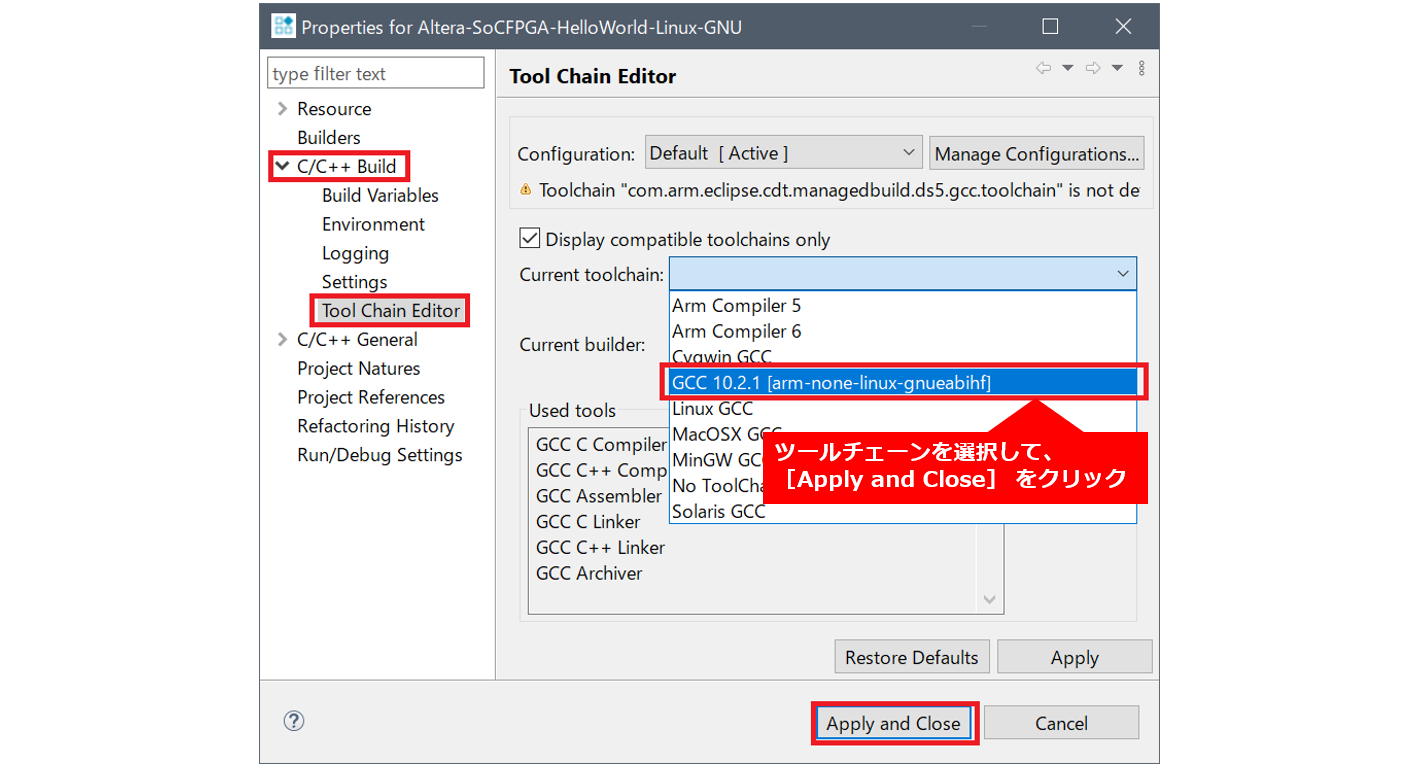
⑯ Select "C/C++ Build" ⇒ "Tool Chain Editor", select the tool chain you want to use, and click [Apply and Close].
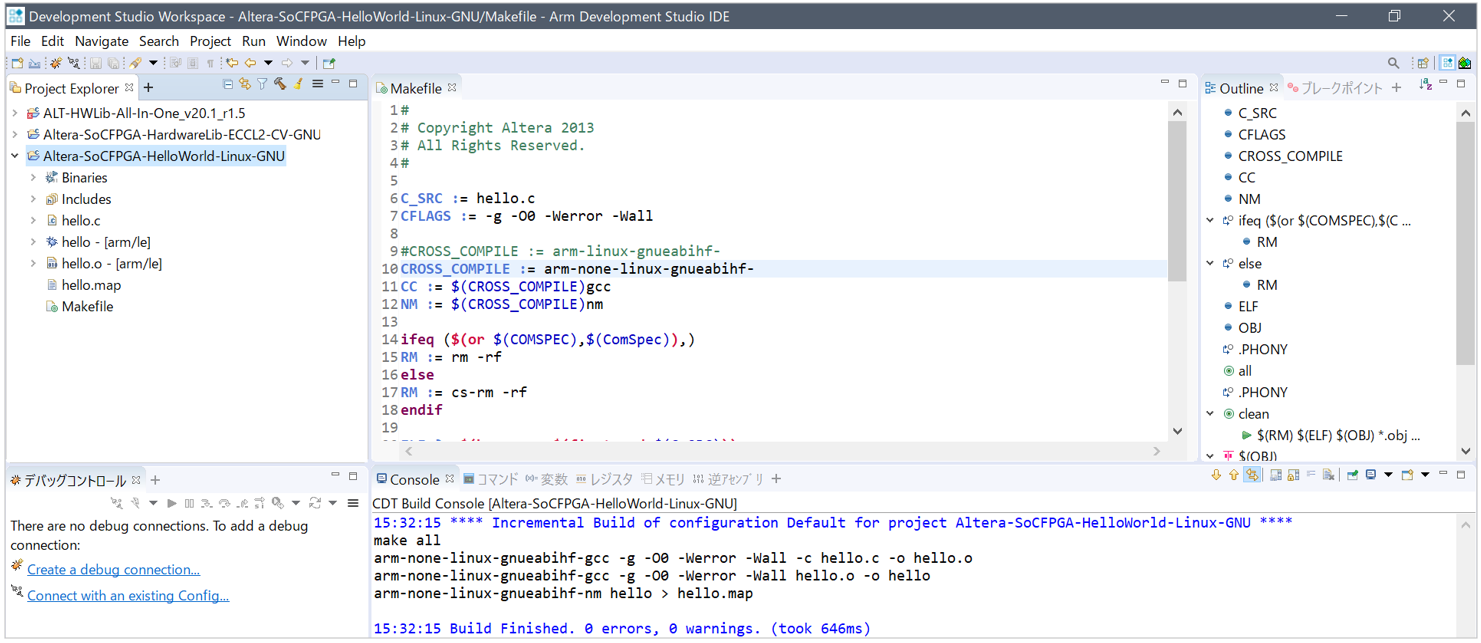
⑰ Run "Build Project" on the Linux project to make sure it can be built.
Click here for how to install older versions
How to install the SoC FPGA Embedded Development Suite (SoC EDS) (versions prior to ver.20.1)
Click here for recommended articles/materials
SoC FPGA related articles and documents
Altera® FPGA Development Flow / FPGA Top Page