- Semiconductor BusinessHOME
- Products and Services of Macnica,Inc.
-
technical information

-
Events and Seminars
- Handling Manufacturer
- Support
- Inquiry
- Click here to purchase products
- Semiconductor business e-mail magazine registration


 Narrow down by specifying conditions
現在2191件がヒットしています。check


hello.
My name is Hanako Altera and I provide technical support for Altera® FPGA products at Macnica.

This time, regarding the paid license type FLOAT license of Quartus® Prime,
Part 2 introduces how to coexist with the licenses of software developed by other manufacturers and how to manage them.
See below for the first part.
■ How to integrate and separate license files
Complete the basic editing of the FLOAT license file for Quartus® Prime (server name/port number/vendor daemon path specification) in advance.
Please refer to “Edit License File” on the following page.
How to setup FLOAT licensing for Quartus® Prime, IP and Questa* - Altera® FPGA Edition
Edit the third-party license file in the same way.
Here, we will guide you on how to separate the edited license files of each company or when managing them individually.
[A] Integration method when managing license files as one
Consolidate the license files of each company into one.
Follow the steps below to combine them into a single file.
1. Open a new text editor, name the integration license file to be created (extension is .dat),
Save it in any folder path on the license server PC.
(Caution! Do not use double-byte characters and spaces in the folder path and file name to be saved.)
Here, as an example, the storage path for the integration license is C:\FLEXlm\mix_lic.dat.
2. Copy all lines from the license file for Quartus® Prime and paste them into the mix_lic.dat file.
3. Open Company B's license file, copy the edited VENDOR line (or DAEMON line),
Paste it on the line following the VENDOR line (the last line) in the mix_lic.dat file.
At that time, if the line indicating the path of the vendor daemon in the license file for company B is DAEMON,
Please edit to VENDOR and keep it unified.
Also, if the company B that integrates the license file is Siemens, the license file for Quartus® Prime
This is not necessary as the VENDOR mgcld line already exists.
4. Copy all the lines after theUSE_SERVER line (FEATURE line and INCREMENT line) in the license file for Company B,
Paste into the mix_lic.dat file. (Depending on the manufacturer, the USE_SERVER line may not exist.)
The paste position should be the next line after the line of license file for Quartus® Prime pasted in 2 above.
After that, overwrite mix_lic.dat and save it.
This completes the integration of license files.
With this method, the port number in the SERVER line of the license file is the same for each company, so
The variable value for the environment variable name LM_LICENSE_FILE on the client PC is also common for each company, and is specified with the same port number.
Example) “variable value for LM_LICENSE_FILE variable name”: 1717@server_name
Next is how to set up lmtools in method [A].
[B] Separation method when managing license files separately for each manufacturer
When managing license files for each manufacturer (for each vendor daemon), use the license file edited by each company as is, but be sure to specify a different port number in theSERVER line.
Here, as an example, the storage path for each license is as follows.
・ License file for Quartus® Prime ⇒ C:\FLEXlm\qp_lic.dat
- License file for Company B's software ⇒ C:\FLEXlm\bsw_lic.dat
That's it for now.
With this method, each company has its own port number in the SERVER line of the license file, so the variable value for the environment variable name LM_LICENSE_FILE on the client PC must be specified individually for each software manufacturer. When specifying multiple variable values, register them with a semicolon (;).
Example) “variable value for LM_LICENSE_FILE variable name” : 1717@server_name;1818@server_name
Next is how to set up lmtools in Method [B].
If Company B is Siemens,
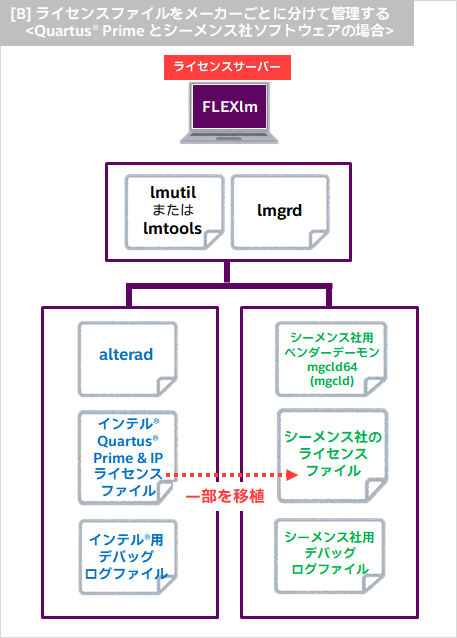
If Company B is Siemens, please transfer part of the license file for Quartus® Prime to the license file for Siemens.
[Notes]
In addition to the alterad vendor daemon, the license file for Quartus® Prime includes
Since the mgcld vendor daemon is also included (*), licenses can be operated in parallel.
If company B is Siemens (vendor daemon is saltd (mgcld)),
Only include features (INCREMENT lines) managed by mgcld from the license file.
You will need to cut and move it to your Siemens license file.
* For AXI BFM IP functions in the IP Base Suite, and for Questa*– Altera® FPGA Edition
Licensing is managed by the saltd (mgcld) vendor daemon.
Follow the steps below to prepare your license file.
1. Open the license file for Quartus® Prime and add the VENDOR mgcld line.
(or comment it out with a sharp # at the beginning of the line).
2. In the INCREMENT line of the license file for Quartus® Prime,
Copy all the licenses (see below) operated by mgcld.
Open the Siemens corporate license file and enter the contents you just copied.
Paste it into the line following the INCREMENT line (the last line) and save it.
Example) License line for AXI BFM IP (by IP Base Suite) function
INCREMENT mgcvipae mgcld 20xx.xx xx-xx-20xx …
INCREMENT mgcvipaeaxi4 mgcld 20xx.xx xx-xx-20xx …
Example: Questa* – Altera® FPGA Edition license
INCREMENT intelqsim mgcld 20xx.xx xx-xx-20xx …
Simenes' vendor daemon is currently being migrated from mgcld to saltd.
Therefore, please edit and change the vendor daemon on the DAEMON line in the Siemens license file to saltd before using it.
(Please use mgcld in the INCREMENT line as is without editing it.)
3. Delete all the INCREMENT lines copied in 2 above in the license file for Quartus® Prime (or add a sharp #
comment out) and overwrite save.
This completes the maintenance of the license file.
■ How to set LMTOOLS
License management is done using lmutil or lmtools.
Here we will show you how to do it in the GUI using the LMTOOLS utility.
[A] How to configure lmtools when managing license files collectively
1. Double-click the previously saved lmtools.exe to start LMTOOLS.
2. On the Service/License File tab, select Configuration using Services and switch to the Config Services tab.
3. Set each item.
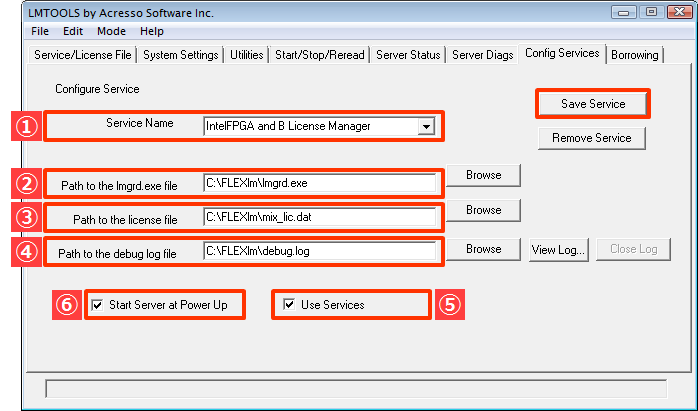
-
① Type the name of the service to be defined. Name is free.
-
② Click the Browse button and specify the license manager daemon lmgrd.exe to be used on this license server PC.
-
(3) Click the Browse button and specify the license file that was created in advance using the method of “managing all services as one”.
-
④ Click the Browse button and specify the output destination (folder, file name) of the log file. File name is free.
-
(5) When set to On, this license operating environment runs as a Windows service. (Off means FLEXlm licensing service.)
*Setting is optional.
-
⑥ When set to On, this service will automatically start when the Windows OS starts. *Setting is optional.
4. Click the Save Service button to save your settings.
After that, switch to the [Start/Stop/Reread] tab and click the [Start Server] button to start operating the FLOAT license.
[B] How to configure lmtools when managing license files separately for each manufacturer
1. Double-click the previously saved lmtools.exe to start LMTOOLS.
2. On the Service/License File tab, select Configuration using Services and switch to the Config Services tab.
3. Set each item.
3-1. Set the license service for Quartus® Prime.
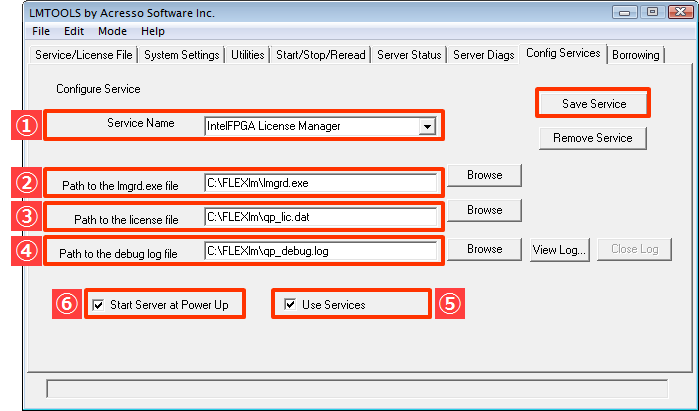
-
① Type the name of the license service for Quartus® Prime you are defining. Name is free.
-
② Click the Browse button and specify the license manager daemon lmgrd.exe to be used on this license server PC.
-
(3) Click the Browse button and specify the license file for Quartus® Prime.
-
(4) Click the Browse button and specify the output destination (folder, file name) of the license service log file for Quartus® Prime.
File name is free.
-
(5) When set to On, this license operating environment runs as a Windows service. (Off means FLEXlm licensing service.)
*Setting is optional.
-
⑥ When set to On, this service will automatically start when the Windows OS starts. *Setting is optional.
-
⑦ Click the Save Service button to save the settings.
3-2. Set up the license service for Company B.
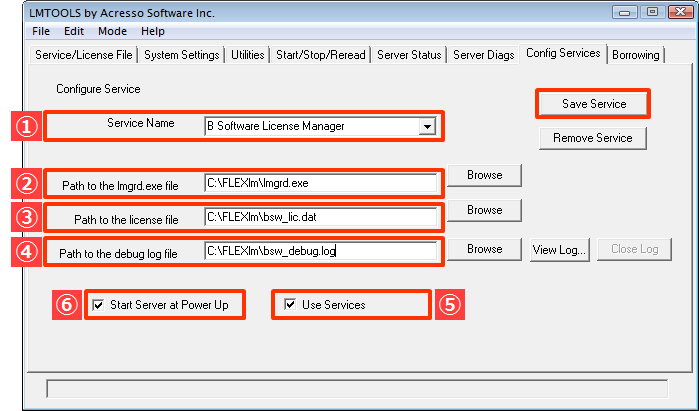
-
① Type in the name of the license service for Company B that you want to define. Name is free.
-
② Click the Browse button and specify the license manager daemon lmgrd.exe to use on this license server PC machine.
-
③ Click the Browse button and specify the license file for Company B.
-
(4) Click the Browse button and specify the output destination (folder, file name) of the log file for the license service for Company B.
File name is free.
-
(5) When set to On, this license operating environment runs as a Windows service. (Off means FLEXlm licensing service.)
*Setting is optional.
-
⑥ When set to On, this service will automatically start when the Windows OS starts. *Setting is optional.
-
⑦ Click the Save Service button to save the settings.
4. After selecting the license server service to start on the [Service/License File] tab, switch to the [Start/Stop/Reread] tab,
Click the [Start Server] button to start operating the FLOAT license.
5. When stopping only one company's service for license file maintenance, etc., select the target on the [Service/License File] tab.
Select the license server service from the pull-down list, switch to the Start/Stop/Reread tab, and click the Stop Server button.
Please click.
This completes the work.
Please refer to these and select the method according to your environment and manage the license.