- Semiconductor BusinessHOME
- Products and Services of Macnica,Inc.
-
technical information

-
Events and Seminars
- Handling Manufacturer
- Support
- Inquiry
- Click here to purchase products
- Semiconductor business e-mail magazine registration


 Narrow down by specifying conditions
現在2221件がヒットしています。check

Welcome to the FPGA world!
In recent years, FPGAs have been attracting attention as a key device in product development. With the number of low-cost products increasing, they have become easier and more familiar. Furthermore, the software that is essential for FPGA development has also become more automated and has become an intuitive GUI.
Now is the time to try out FPGAs.
This time, we will use the example of FPGA development by Altera®, a major FPGA manufacturer, and focus on the first steps to start development. This is a must-read for those who want to use FPGAs in the future, those who want to get back to basics, or those who are working with FPGAs for the first time in x years.
Note:
Intel's Programmable Solutions Group became Altera®, an Intel company, in January 2024.
This introduction will be explained in the following five parts.
Part 1. Creating an environment to start FPGA development
Part 2. Things to prepare to start FPGA development
Part 3. Knowledge needed to start FPGA development
Part 4. FPGA development flow
Part 5. Introducing useful content

Hello. I'm Hanako Altera, who provides technical support for Altera® FPGA products at Macnica.
In the first installment, "Part 1," we will talk about the "computer environment," which is essential for FPGA development.
To develop Altera® FPGAs
You will need software (mostly referred to as tools) called Quartus® Prime and Questa* - Altera® FPGA Edition. First, install these tools on your computer.

Starting with version 15.1, Quartus® II has been redesigned and renamed Quartus® Prime. Although the naming has been changed and the performance has been improved, the UI (User Interface) such as tool operability and menu names is almost unchanged, so please use the Quartus® II documentation as well.
See the table below for the correspondence between edition names for each tool.
| [New] Quartus® Prime | Quartus® II | |
| version | 15.1 and later | 15.0 and earlier |
| Paid type | Quartus® Prime Standard Edition Quartus® Prime Pro Edition |
Quartus® II Subscription Edition |
| Free type | Quartus® Prime Lite Edition | Quartus® II Web Edition |

Now let's install it...but before that,
Prepare the computer environment necessary for installation and subsequent operations.
(Since Quartus® Prime requires significantly more free drive space and larger installed memory capacity compared to Questa* - Altera® FPGA Edition, we will use Quartus® Prime as the benchmark for this comparison.)
The following five points are key to a good computer environment:
✔ Free space on your computer's drive
✔ Installed memory capacity
✔ CPU
✔ OS (Operating System)
✔ USB port
Let's look at them one by one.
free drive space
The drive or partition on your computer where you install Quartus® Prime requires a minimum amount of free space. There are three editions of Quartus® Prime: the paid Pro Edition and Standard Edition, and the free Lite Edition.
You can check the differences between each edition on the page below.
Comparison of Lite, Standard, and Pro Edition (manufacturer site)
The required free space varies depending on each edition.
Please check the “Minimum Disk Space for Altera® FPGA Software” section on the download page for each edition beforehand.
✔ Click here to see Quartus® Prime Pro Edition.
✔ Click here to see Quartus® Prime Standard Edition.
✔ Click here to see the Quartus® Prime Lite Edition.
Implemented memory (physical memory)
It provides the recommended amount of implemented memory needed to develop with Quartus® Prime.
This varies by device family and model number, so please check the “Memory Recommendations” in the Release Notes in advance and increase memory if necessary. It is also recommended to set virtual memory equivalent to the amount of installed memory.
✔ Check out Quartus® Prime Pro Edition here.
✔ Check out Quartus® Prime Standard Edition here.
✔ Check out Quartus® Prime Lite Edition here.
CPU
There are no restrictions on the CPU manufacturer or performance (clock speed, number of cores, etc.), but it must be a 64-bit type.
Quartus® Prime supports multiprocessors, so if your computer's CPU has multiple cores such as dual-core or quad-core and has a high clock speed, processing will be faster and smoother without stress. You can proceed with your work. Of course, you can develop with a single core, but it may be frustrating for some users.
OS (operating system)
Supported OS are Windows and Linux.
Check here for Windows OS editions and Linux OS distributions.
As you will see, a 64-bit platform is currently required to use the latest version of Quartus® Prime. Please note that it cannot be installed on 32bit systems.
(Quartus® Prime Programmer and Tools supports both 32-bit and 64-bit only on Windows 7 SP1 with a limited version. Separate installers are also available for each.)
USB port
When downloading data designed with Quartus® Prime directly to Altera® FPGA, one USB port is required as an interface on the PC side.
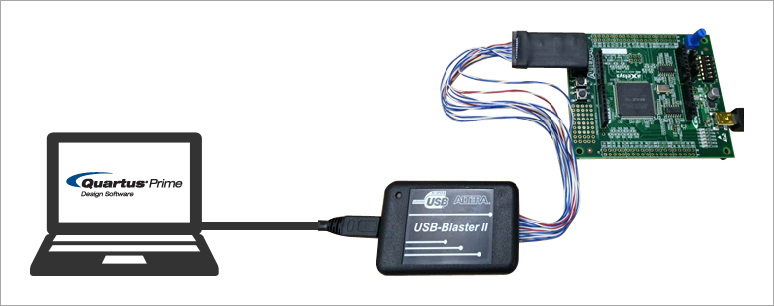
Your computer environment is now ready to install Quartus® Prime and Questa* - Altera® FPGA Edition.
Next, let's check the items (things to prepare) required to develop an FPGA.
Notes:
In this article, the Japanese page of the manufacturer's website is shown for the convenience of readers, but please be sure to check the English page as well. Please note that the Japanese page may be delayed in updating information. Language switching within the site can be done using REGION at the bottom of the page. Please note that even if you switch languages, not all pages will be in Japanese.
Click here for recommended articles
Real real introduction part 1. Creating an environment to start FPGA development
Honno Honno Introduction Part 2. What to prepare to start FPGA development
The real introduction 3. Necessary knowledge to start FPGA development
The real introduction part 4. Flow of FPGA development
The real introduction Part 5. Introduction of useful content