- Semiconductor BusinessHOME
- Products and Services of Macnica,Inc.
-
technical information

-
Events and Seminars
- Handling Manufacturer
- Support
- Inquiry
- Click here to purchase products
- Semiconductor business e-mail magazine registration


 Narrow down by specifying conditions
現在2225件がヒットしています。check

Introduction
This article explains how to create an embedded GUI using the Zephyr RTOS, a real-time OS that is gaining attention in the embedded field, and the LVGL, an open-source, highly functional GUI library. It also provides a step-by-step demo using a Renesas evaluation kit, making it easy to understand even for first-time users.
Chapter 1: What is Zephyr RTOS?
Zephyr RTOS is an open-source real-time OS designed for embedded devices. It provides a foundation for reliable operation of microcontroller applications that handle sensors, small displays, and communications.
Key features of the Zephyr RTOS include:
· lightweight:
It operates stably even in limited memory environments and is designed to be optimal for microcontrollers.
・ Standardized functional configuration:
It has all the functions required for an RTOS, such as task (thread) management, timers, memory management, drivers, and file systems.
・ Broad ecosystem:
Drivers for a wide variety of boards, sensors, and displays are available and can be used as "plug-ins." They can be easily integrated with GUI libraries such as LVGL.
・ Easy-to-use development environment:
It uses a set of specialized configuration management tools, such as west for building and dependency management, Kconfig for enabling/disabling features, and DeviceTree for describing hardware configuration, which makes it easy to organize and understand the configuration.
Chapter 2: What is LVGL?
LVGL (Light and Versatile Graphics Library) is an open source GUI library for embedded systems.
Key features of LVGL include:
· lightweight:
LVGL runs on 16/32/64-bit MCUs and processors with a recommended clock speed of 16MHz or higher. Flash/ROM of 64KB or more (180KB or more recommended) and RAM of 4KB or more (48KB or more recommended, depending on the UI size) are required.
・ A wide variety of widgets:
It comes standard with a variety of UI components such as buttons, sliders, charts, and text areas.
・ High customizability:
It supports themes, animations, touch input, and various display drivers, making it suitable for a wide range of embedded applications.
Chapter 3: Demo Overview
In this article, we will show you how to use the Zephyr RTOS and LVGL to display a modern smartphone-like GUI on the Renesas Electronics EK-RA8D1 evaluation board.
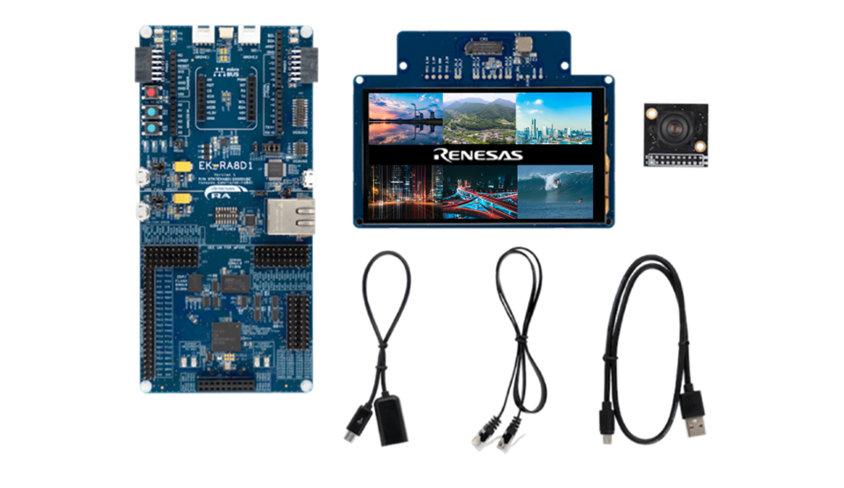
Figure 1: EK-RA8D1
This demo consists of three elements: drawing, display output, and touch input.
① Drawing
The LVGL graphics library runs on the Zephyr RTOS and draws the user interface.
②Display output
The Zephyr RTOS display driver works with the EK-RA8D1's LCD controller to send graphics to the LCD panel via the MIPI-DSI interface.
③Touch input
LVGL uses the Zephyr RTOS input driver to capture touch events from the EK-RA8D1 capacitive touch panel and map them to on-screen widgets such as buttons and sliders.
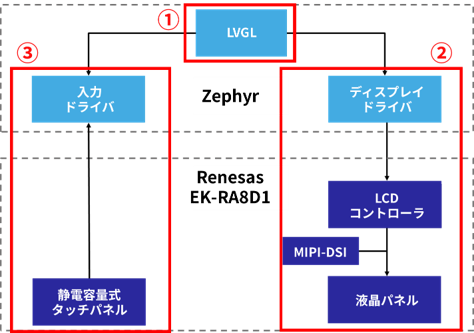
Figure 2: System configuration for this demonstration
Chapter 4: Demo Implementation Steps
Here are the steps to implement the demo. In this procedure, the PC OS is Windows 11.
*If you are using Zephyr RTOS for the first time, please refer to "First Time with Zephyr: From Installation to Hello World" before proceeding with this procedure.
STEP 1: Hardware setup
1. Connect the EK-RA8D1 board to the included MIPI graphics expansion board.
2. Connect the PC and the EK-RA8D1 board using a Micro-B USB cable.
3. Make sure that DIP switch SW1 #7 is set to ON (SDRAM is used in this demo).
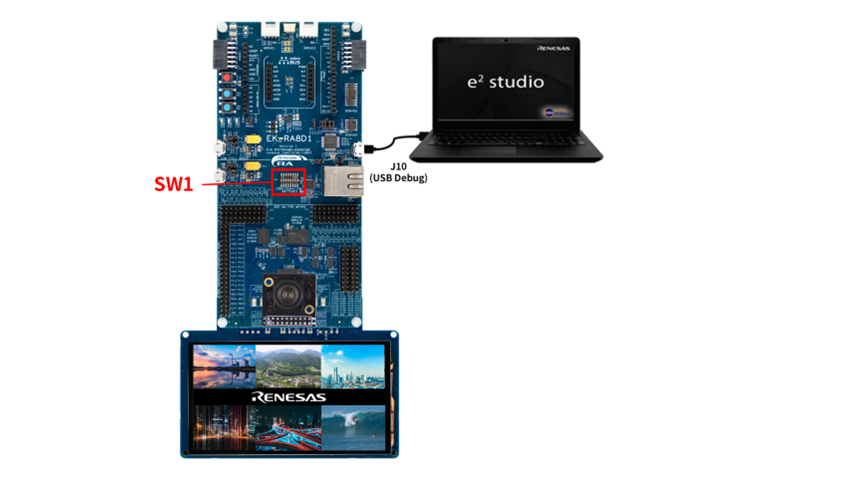
Figure 3: EK-RA8D1 setup
*If necessary, please check the jumper settings from the link below.
EK-RA8D1 Hardware Configuration (GitHub)
STEP 2: Software Setup
1. Open PowerShell with normal user privileges.
2. Run the following command to navigate to the working folder where you saved your Zephyr project. (In this example, select the "C:\Zephyr" folder.)
cd C:\Zephyr
3. Run the following command to activate the virtual environment and then navigate to the Zephyr RTOS source code folder.
zephyrproject\.venv\Scripts\Activate.ps1
cd C:\Zephyr\zephyrproject\zephyr

Figure 4: Navigating to the Zephyr RTOS source code folder
4. Run the following command to switch to the main branch and update to the latest version:
git checkout main
git pull origin main

Figure 5: Switching to the main branch and updating
5. Run the following command to move to the upper folder and update the Zephyr RTOS module.
cd C:\Zephyr\zephyrproject
west update
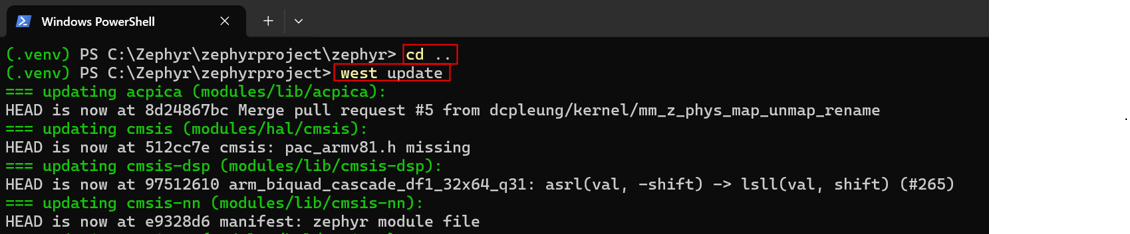
Figure 6: Zephyr module update
6. Open the folder "C:\Zephyr\zephyrproject\zephyr\samples\modules\lvgl\demos\boards" and create the file "ek_ra8d1.conf".
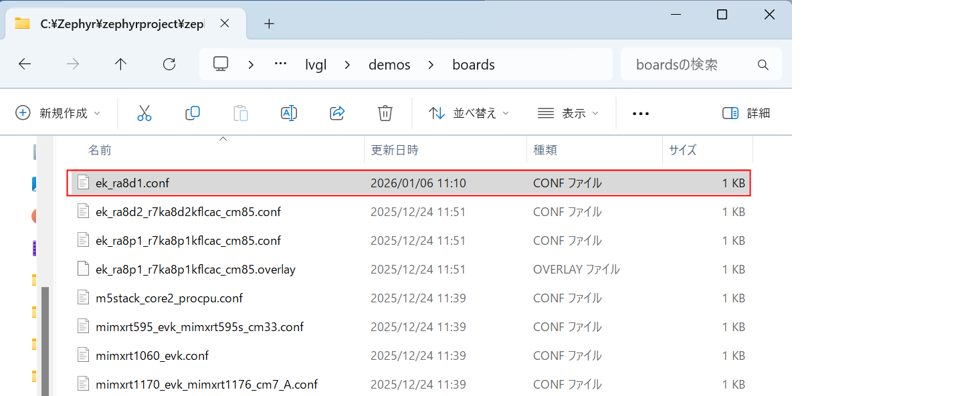
Figure 7: Creating the file "ek_ra8d1.conf" (1/2)
7. Open the file "ek_ra8d1.conf" in any editor, enter the following settings, and save it.
CONFIG_LV_Z_MEM_POOL_SIZE=98304
CONFIG_MAIN_STACK_SIZE=16384
*Please save the target file so that the character encoding is "UTF-8".
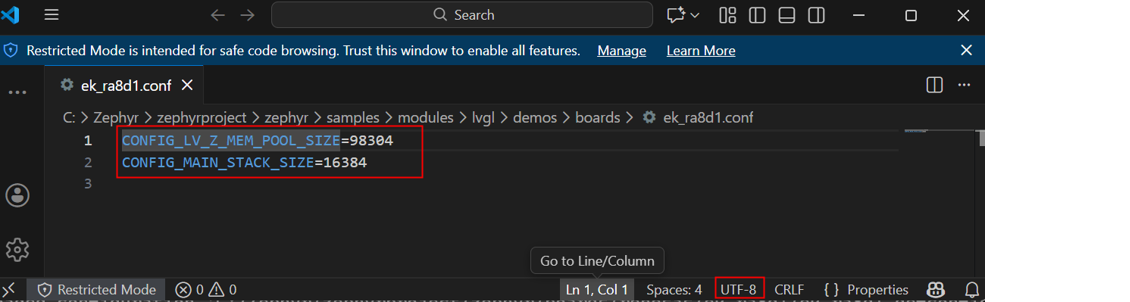
Figure 8: Creating the file "ek_ra8d1.conf" (2/2)
Supplementary information: CONFIG_LV_Z_MEM_POOL_SIZE secures the memory pool for LVGL drawing.
CONFIG_MAIN_STACK_SIZE is a setting to reserve the stack space required for GUI processing.
If either of these is insufficient, errors or crashes will occur during drawing or thread execution, so recommended values are specified.
8. Execute the following command to return to the Zephyr RTOS source folder and run the build.
cd C:\Zephyr\zephyrproject\zephyr
west build -p always -b ek_ra8d1 --shield rtkmipilcdb00000be samples/modules/lvgl/demos
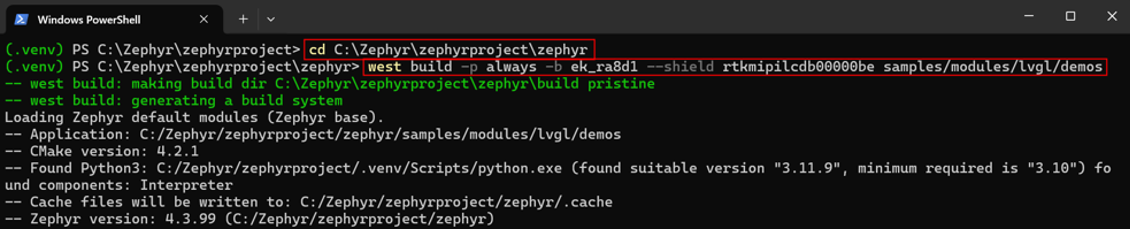
Figure 9: Running the build
*If jsonschema is not installed, the following error may be displayed when building.
ModuleNotFoundError: No module named 'jsonschema'
Here's what you can do:
STEP 1: With the virtual environment activated, go to the zephyrproject folder and install the dependent packages.
cd C:\Zephyr\zephyrproject
python -m pip install --upgrade pip setuptools wheel
python -m pip install -r zephyr\scripts\requirements.txt
STEP 2: Sync the Zephyr module and set the environment variables.
west update
west zephyr-export
Build again.
9. Once the build is complete, run the following command to write to the board.
west flash

Figure 10: Writing to the board
*When running west flash, if the J-Link installation folder is not added to the PATH, the following error may be displayed.
FATAL ERROR: required program JLink.exe not found; install it or add its location to PATH
Here's how to fix it:
①If J-Link is not installed, please download it from the SEGGER official website.
https://www.segger.com/downloads/jlink/
②If it is already installed, run the following command on PowerShell and add it to your PATH.
$env:Path = "Path of the folder where JLink.exe is stored;" + $env:Path
Example: $env:Path = "C:\Program Files\SEGGER\JLink_V896;" + $env:Path
*This time we are using J-Link V8.96.
10. Once burning is complete, the music player UI will appear on the LCD panel, allowing you to play, stop, or skip to the next song.
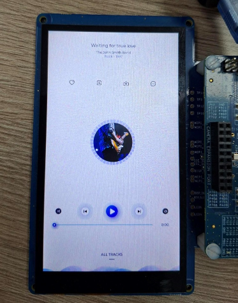
Figure 11: Demo screen
Summary
In this example, we ran LVGL on the Zephyr RTOS and achieved LCD display and touch operation on the EK-RA8D1 evaluation board. By applying this procedure, you can easily build a variety of GUI demos using LVGL in the Zephyr RTOS environment, and you can also design your own UI and connect with other sensors and devices.
Related Links
Getting Started with LVGL Using Renesas Zephyr RTOS | Renesas
Contact Us