- Semiconductor BusinessHOME
- Products and Services of Macnica,Inc.
-
technical information

-
Events and Seminars
- Handling Manufacturer
- Support
- Inquiry
- Click here to purchase products
- Semiconductor business e-mail magazine registration


 Narrow down by specifying conditions
現在2240件がヒットしています。check
Chapter 1: What is Zephyr?
1. Zephyr Overview
Zephyr is an open source RTOS (real-time operating system) designed for embedded devices. Developed with the support of the Linux Foundation, it primarily targets resource-constrained embedded devices such as IoT, industrial equipment, and wearable devices.
While typical operating systems (Linux and Windows) consume large amounts of memory and storage, Zephyr's ultra-lightweight design allows it to operate with only a few kilobytes of memory, enabling advanced functionality even with sensors and small microcontrollers.
2. History and Background
The Zephyr Project was first released under the umbrella of the Linux Foundation in 2016. The background to this was the rapid spread of IoT devices and the accompanying demand for safety and reliability.
While RTOS such as FreeRTOS and Eclipse ThreadX (formerly Azure RTOS) are widely used,
・Open source with a license suitable for commercial use
・RTOS with built-in security and network functions
The demand grew, and Zephyr was born.
Currently, semiconductor manufacturers such as Renesas, Intel, Nordic, and NXP are participating in the development, and it has grown into a huge ecosystem supporting over 900 boards.
3. Zephyr's design philosophy and differences from Linux
Zephyr aims to be a "scalable and modular RTOS." Because it allows you to select and incorporate only the functions you need, it can operate with less than 8KB of flash and less than 5KB of RAM. It also uses a DeviceTree structure, making it easy to port to different hardware. It also uses a set of dedicated configuration management tools, such as west for building and dependency management, Kconfig for enabling/disabling functions, and DeviceTree for describing the hardware configuration. These make it easy to understand the configuration contents in a systematic way.
Compared to Linux, Zephyr is much lighter, has excellent real-time capabilities, and is optimized for small devices and sensors. Linux is designed for large-scale systems, while Zephyr is designed for ultra-low-resource environments.
Chapter 2: Zephyr RTOS Implementation Steps
In this chapter, we will introduce the specific steps to get started with Zephyr RTOS on MCUs such as the Renesas RA series, following the official guide (Getting Started Guide).
By following the six steps below, you can complete everything from setting up the environment to checking sample operation.
STEP 1. Overview and preparation
STEP 2. Install dependencies
STEP 3. Setting up a virtual environment
STEP 4. Get the Zephyr source code
STEP 5. Install Zephyr SDK
STEP 6. Build and write the sample project
STEP 1. Overview and preparation
This time we will use Windows OS.
*If you are using other OS such as Ubuntu or macOS, please refer to the official guide (Getting Started Guide).
Recommended PC system requirements
・OS: Windows 10 or later
・CPU: Intel Core i5 @3.6GHz equivalent
・Memory: 16GB
・Storage: 50GB or more of free space
STEP 2. Install dependencies
First, install the tools and libraries required for your development environment. We will introduce the steps to install the following two items.
・Chocolatey (a package management tool for Windows)
・Zephyr dependent packages
[procedure]
1. Right-click PowerShell and select "Run as administrator" to launch it with administrator privileges.
2. To install Chocolatey, run the following command:
Set-ExecutionPolicy AllSigned
3. Press "Y" to accept.

Figure 1: Installing Chocolatey (1/2)
4. Run the following command to install Chocolatey:
Set-ExecutionPolicy Bypass -Scope Process -Force;
[System.Net.ServicePointManager]::SecurityProtocol =
[System.Net.ServicePointManager]::SecurityProtocol -bor 3072; iex
((New-Object
System.Net.WebClient).DownloadString('https://community.chocolatey.org/install.ps1'))
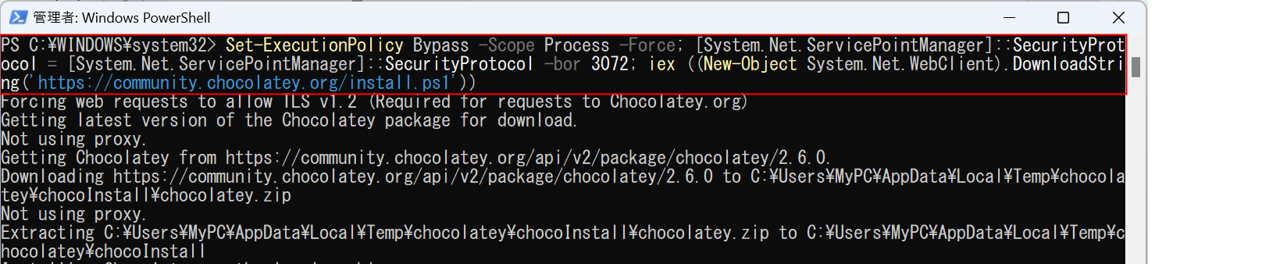
Figure 2: Installing Chocolatey (2/2)
You can also copy this command from the Chocolatey website:
Chocolatey Software | Installing Chocolatey
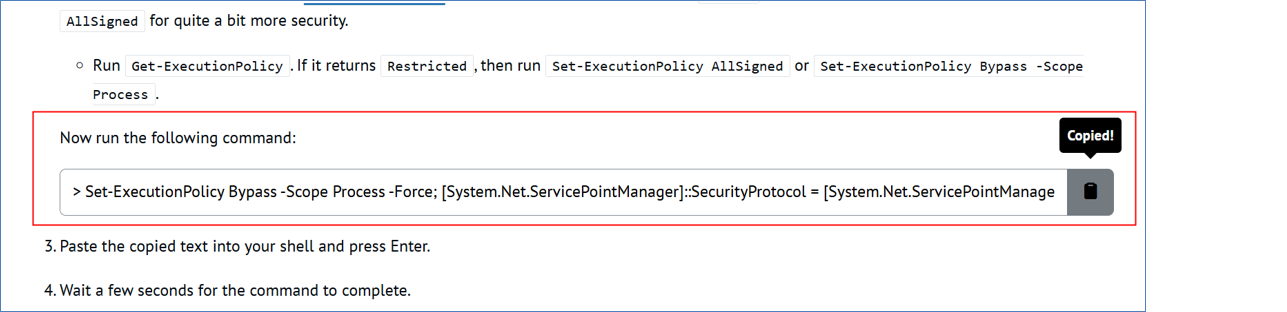
Figure 3: Chocolatey website
5. Run the following command to install the Zephyr dependency packages:
choco feature enable -n allowGlobalConfirmation
choco install cmake --installargs 'ADD_CMAKE_TO_PATH=System'
choco install ninja gperf python311 git dtc-msys2 wget 7zip strawberryperl
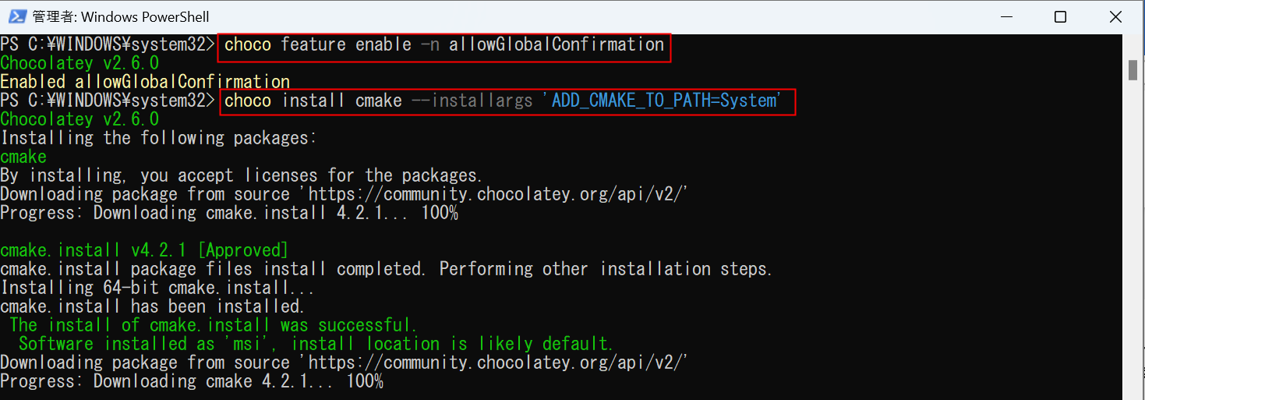

Figure 4: Installing Zephyr dependencies
STEP 3. Setting up a virtual environment
Create a Python virtual environment and install the Zephyr project management tool "West."
[procedure]
1. After installing the Zephyr dependency package, start PowerShell with normal user privileges.
2. Run the following command to navigate to the working folder where you want to save your Zephyr project. (In this example, we will select the previously created "C:\Zephyr" folder.)
cd C:\Zephyr
3. Run the following commands to create and activate the virtual environment:
python -m venv zephyrproject\.venv
zephyrproject\.venv\Scripts\Activate.ps1
Once activated, the prompt will start with "(.venv)" to indicate that the virtual environment is active.
When operating Zephyr RTOS, please activate this virtual environment every time. The virtual environment is required to execute West commands.

Figure 5: Virtual environment setup
4. Run the following command to install West:
pip install west

Figure 6: Installing West
If the installation is successful, the following message will be displayed:

Figure 7: West installation complete
STEP 4. Get the Zephyr source code
Get the Zephyr RTOS source code from the official repository.
This code base includes the kernel, various drivers, architecture-specific code, board configurations, subsystems, build systems, and sample applications.
We will proceed as follows:
①Get the Zephyr source code
②Exporting a CMake package
③Installing required Python dependencies
[procedure]
1. Initialize the West workspace by running the following command:
west init zephyrproject
Once the execution is complete, a green message will appear guiding you to the next step.
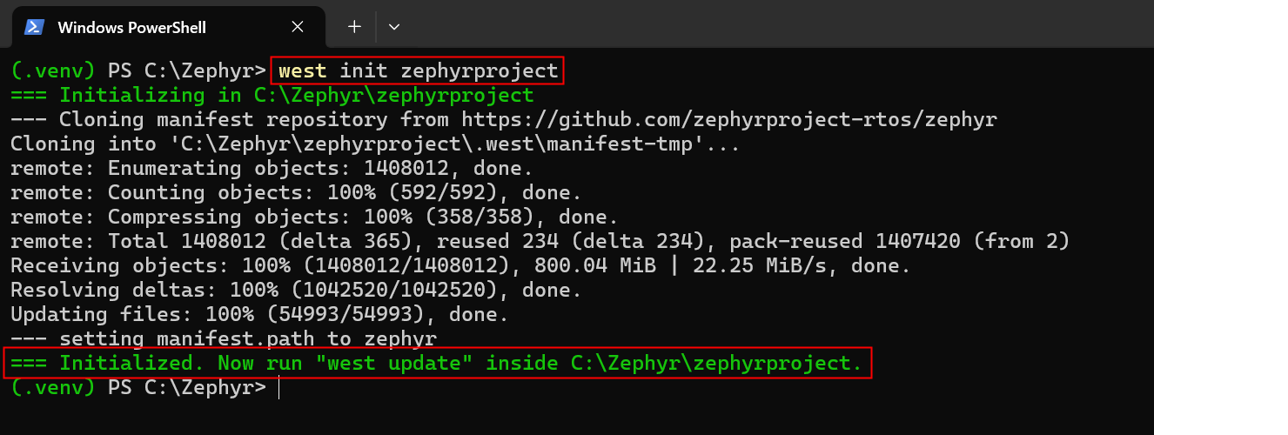
Figure 8: Initializing the West workspace
2. This demo uses Zephyr RTOS v4.3.0. Run the following commands to change to the source code directory and switch to v4.3.0:
cd zephyrproject\zephyr
git checkout v4.3.0
The latest version of Zephyr RTOS can be found at this link: Releases — Zephyr Project Documentation

Figure 9: Switching to Zephyr RTOS v4.3.0
3. Run the following command to return to the zephyrproject folder and download all the modules that the Zephyr RTOS depends on:
cd C:\Zephyr\zephyrproject
west update
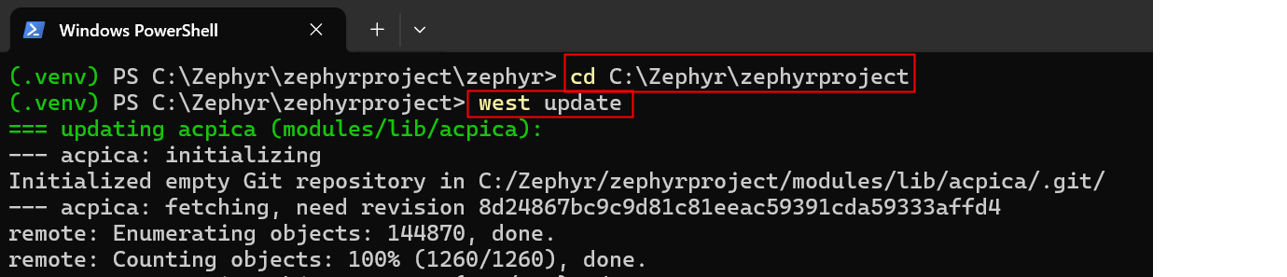
Figure 10: Downloading the Zephyr module
4. Finally, run the following commands to export the Zephyr RTOS CMake package and install the required Python dependencies:
west zephyr-export
west packages pip --install
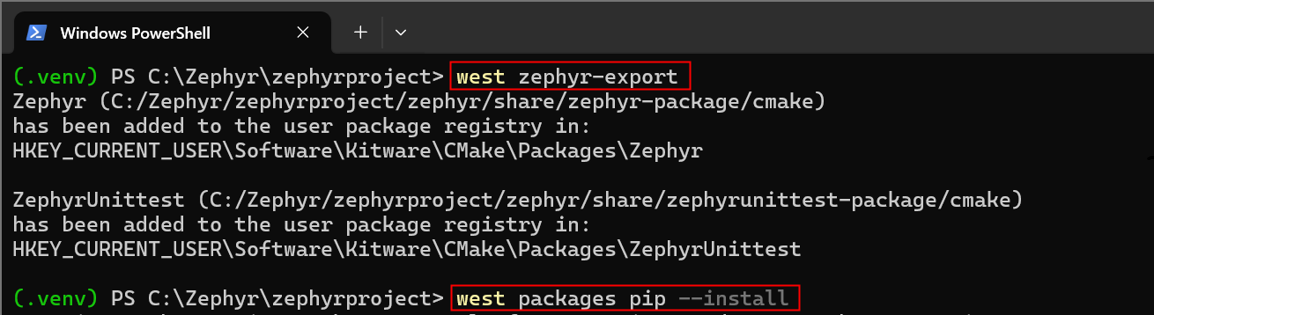
Figure 11: Exporting a CMake package and installing required Python dependencies
STEP 5. Install Zephyr SDK
This article explains how to install the "Zephyr SDK," which includes the toolchain, compiler, and various tools required for developing the Zephyr RTOS.
[procedure]
1. Go to the West workspace folder "zephyrproject".
cd C:\Zephyr\zephyrproject
2. Run the following command to navigate to the Zephyr source code folder in your workspace:
cd zephyr
3. Install the Zephyr SDK to a location of your choice. Here, run the following command to install it to C:\Zephyr:
west sdk install --install-base C:\Zephyr
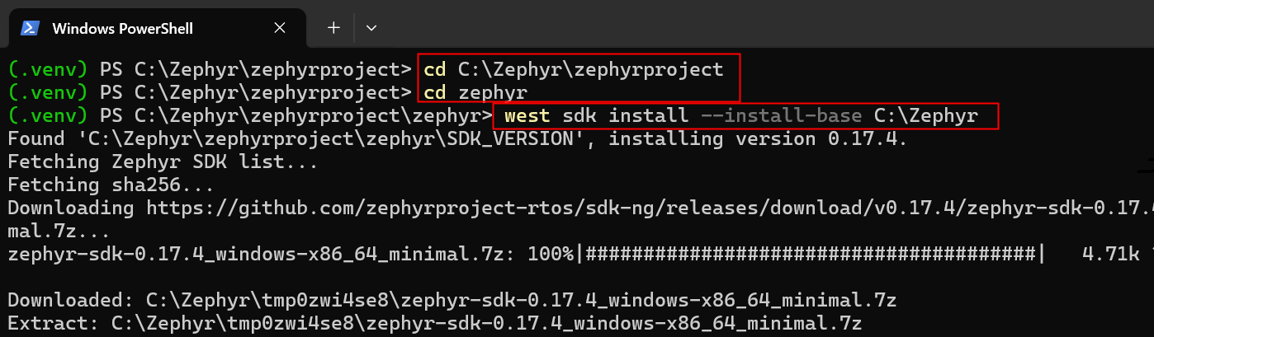
Figure 12: Installing the Zephyr SDK
*Depending on your environment, the following error may be displayed:
ERROR: Toolchain download failed
By executing this command, the Zephyr SDK will be downloaded and installed via the internet.
Therefore, it may fail depending on the network environment or the state of the PC. If this happens, please check and do the following:
- Try again after a while, or try again in a different network environment.
- Make sure there is enough free storage space on your PC.
STEP 6. Build and write the sample project
This explains the process from setting up the hardware to building and writing the sample program and checking its operation.
For information on Zephyr RTOS compatibility with Renesas Electronics MCUs/MPUs, please refer to Home · renesas/zephyr Wiki · GitHub.
For details about the EK-RA8D1 evaluation board, see EK-RA8D1 | Renesas.
[procedure]
1. Hardware Setup
Connect the Micro-B USB Debugging port (J10) on the EK-RA8D1 board to a Windows PC.
・For detailed connection instructions, please refer to the Wiki page "EK-RA8D1 Sample and Demo Hardware configuration · renesas/zephyr Wiki".
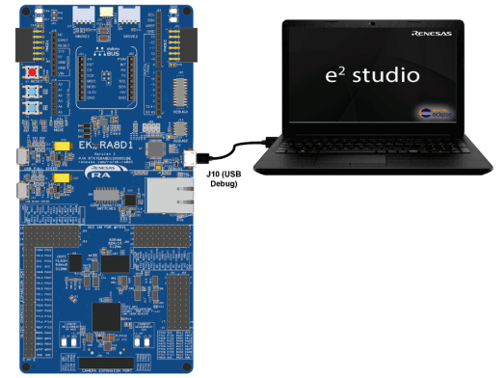
Figure 13: Hardware setup
2. Preparing for serial communication
Use Tera Term to communicate with the board via serial. First, open the Windows Device Manager and expand Ports (COM & LPT).
Look for "USB Serial Port" and check the COM port number assigned to it.
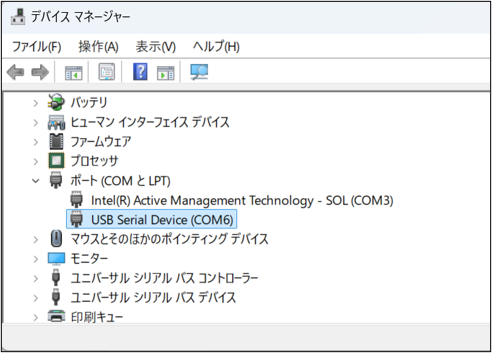
Figure 14: Checking the port number in Device Manager
- Start Tera Term, select "Serial" in the "New Connection" window, select the COM port you checked earlier, and click "OK."
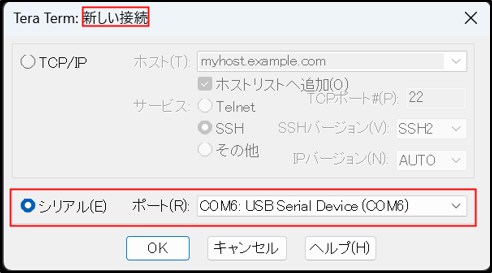
Figure 15: Starting Tera Term
- After connecting, select "Settings" → "Serial Port" and set the speed (baud rate) to "115200bps", leaving the other settings as default.
・Click "OK" to save.
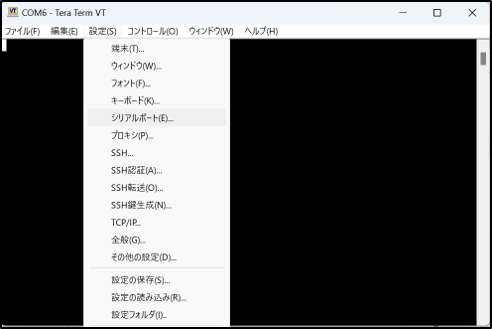
Figure 16: Tera Term settings (1/2)
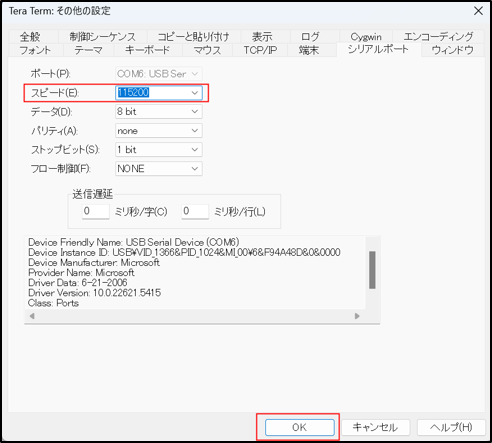
Figure 17: Tera Term settings (2/2)
3. Building the sample program
- Open PowerShell again as a normal user and run the following command to change to the parent directory of the West workspace (C:\Zephyr in this case).
*The workspace path will differ depending on your environment.
cd C:\Zephyr
・Execute the following command to activate the virtual environment.
zephyrproject\.venv\Scripts\Activate.ps1
Navigate to the Zephyr source code folder and run the build command.
cd zephyrproject\zephyr
west build -p always -b ek_ra8d1 samples\hello_world
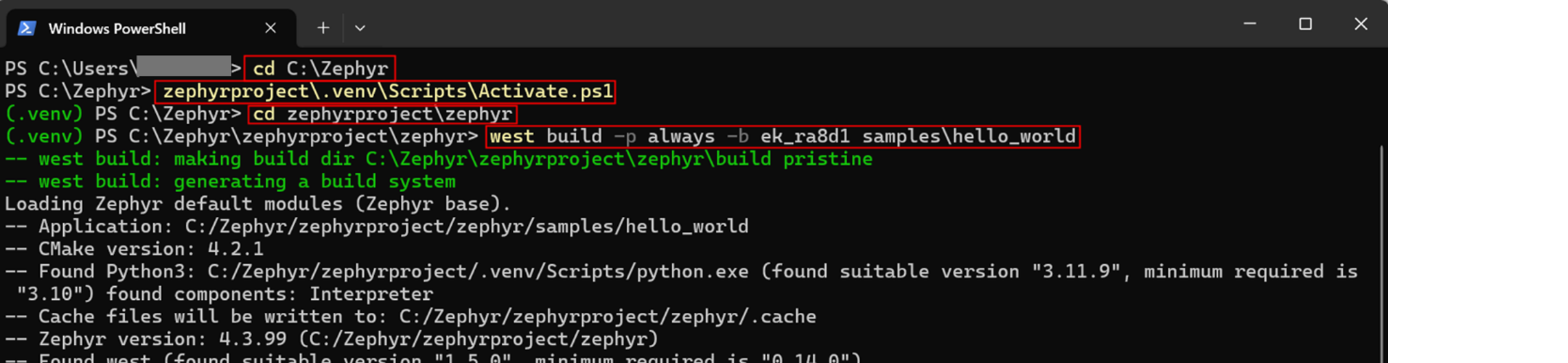
Figure 18: Building the sample program
4. Writing on the board
Execute the following command to write the sample program to the board.
West Flash
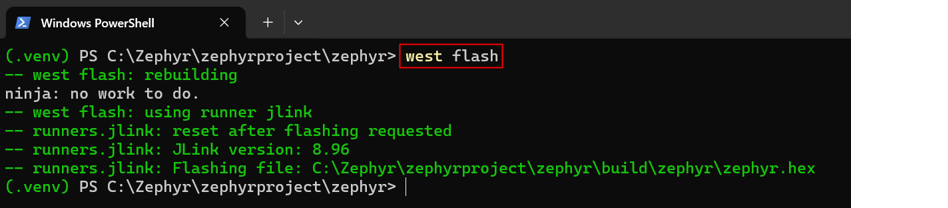
Figure 19: Writing to the board
* When running west flash, if the J-Link installation folder is not added to the PATH, the following error may be displayed.
FATAL ERROR: required program JLink.exe not found; install it or add its location to PATH
Here's how to fix it:
①If J-Link is not installed, download it from the SEGGER official website.
https://www.segger.com/downloads/jlink/
②If it is already installed, run the following command in PowerShell and add it to your PATH.
$env:Path = "Path of the folder where JLink.exe is stored;" + $env:Path
Example: $env:Path = "C:\Program Files\SEGGER\JLink_V896;" + $env:Path
※This time J-Link V8.96 I am using.
5. Operation check
After writing the sample, the following appears on the Tera Term serial screen:
*** Booting Zephyr OS build v4.3.0 ***
Hello World! ek_ra8d1/r7fa8d1bhecbd
If this is displayed, it is a success.

Figure 20: Hello World!
By following these steps, even first-time users can quickly run Zephyr RTOS on an MCU.
Chapter 3: Zephyr usage examples
Zephyr is not just an RTOS, but a platform that accelerates the development of IoT and industrial equipment. Here, we will introduce how Zephyr is being used through specific examples.
1. Smartwatches and wearable devices
Zephyr's ultra-lightweight and power-efficient design makes it popular in wearable devices such as smartwatches and fitness trackers.
It supports Bluetooth Low Energy and various sensor controls, so it can easily connect to a smartphone while reducing battery consumption.
2. Industrial Gateway
Industrial gateways used in factories and plants need to integrate multiple sensors and networks and support environments that require real-time performance.
Zephyr supports communication protocols such as Ethernet, CAN, and Modbus as standard, making it suitable for building systems that send sensor information to the cloud.
In fact, Zephyr is used in many industrial microcontroller-equipped gateways.
3. Medical Devices
In the medical field, device reliability and security are particularly important, and Zephyr is an RTOS that is easily applicable to medical devices because it comes with secure boot and encryption functions as standard.
For example, Zephyr is used in heart rate sensors and blood glucose monitoring devices, and is also useful for building systems that transmit data to smartphone apps via Bluetooth.
4. Smart Home Devices
Zephyr is also used in smart home products such as smart lights, temperature sensors, and door locks. It supports communication protocols such as Wi-Fi, Bluetooth, and Thread as standard, making it highly compatible with smart home standards and easy to link with a variety of devices. In fact, smart lighting systems using Zephyr use MQTT to connect to the cloud and can even be controlled from voice assistants.
Chapter 4: Zephyr's Community and Future
1. Current status and features of the Zephyr community
The Zephyr Project is a community where developers and product engineers from around the world work together to solve real-time operating system (RTOS) challenges in an open and collaborative environment. Active communication takes place through a variety of channels, including Slack, Discord, mailing lists, and official events, providing a wealth of knowledge-sharing and technical support for developers. The community guidelines emphasize mutual respect, compliance with laws and regulations, and open discussion, fostering an atmosphere where everyone can participate with peace of mind.
Link: Community - Zephyr ProjectIn Japan, the "Zephyr RTOS User Group - Japan" and local meetups (Tokyo, Osaka, Sapporo, etc.) are held regularly, where IoT and embedded developers exchange the latest case studies and know-how.In 2025, there will be an increase in Zephyr-related sessions at large-scale events such as OSS Summit Japan, and interest from companies and engineers both in Japan and overseas is growing.
Links: Zephyr RTOS User Group - Japan - connpass, [qiita.com]
2. Future Technology Roadmap and Outlook
Zephyr RTOS supports over 900 boards and a variety of communication standards, including Bluetooth 5.0, Wi-Fi, Ethernet, CANbus, and IoT protocols (CoAP, MQTT, OpenThread, etc.). With the support of major semiconductor vendors and the Linux Foundation, Zephyr RTOS will continue to expand its board driver and security features, and strengthen its integration with third-party libraries. Particular attention is being paid to obtaining certification for automotive and industrial applications (ISO 26262, IEC 60730, etc.) and integrating GUI/HMI solutions (LVGL, etc.).
Summary
Zephyr is expected to be adopted and evolve in a wider range of fields through collaboration with the global community, open technological innovation, and response to diverse market needs.
I would like to reiterate here that the Renesas RA family supports the Zephyr RTOS, from the entry-level RA2 to the high-performance RA8. This covers a wide performance range, allowing for flexible selection based on the application and development scale. Furthermore, in addition to the RA family, Renesas also supports the Zephyr RTOS in the RX family and RZ family, allowing it to be used across a diverse product lineup, from microcontrollers to MPU-class devices.
Additionally, this article provides detailed instructions on how to implement a GUI demo using LVGL, which is attracting attention as the latest trend in embedded graphics. "Embedded GUI realized with Zephyr RTOS x LVGL""
This development example, which utilizes the lightweight and highly expressive LVGL using the RA8D1 evaluation board, and the graphics performance of the RA8D1, is perfect for anyone looking to try their hand at embedded GUI development.
Contact Us