- Semiconductor BusinessHOME
- Products and Services of Macnica,Inc.
-
technical information

-
Events and Seminars
- Handling Manufacturer
- Support
- Inquiry
- Click here to purchase products
- Semiconductor business e-mail magazine registration


 Narrow down by specifying conditions
現在2178件がヒットしています。check
Introduction
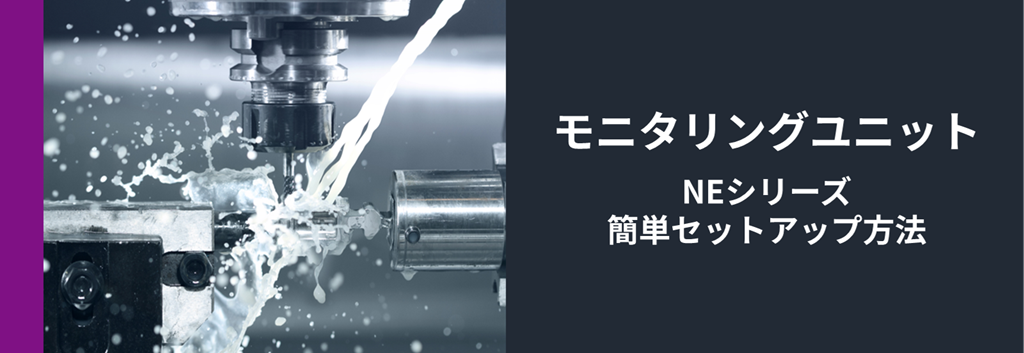
This article discusses production facilities that are subjected to harsh environments, Semiconductor strain sensor STREAL It can perform data measurement, visualization, and analysis. Monitoring unit NE series This section provides a brief overview of the product and setup instructions. NE For more detailed information about the series, please see the video. link We also have other items available, so please take a look.
Target audience and goals of this article
Target audience: Developers who are new to the NE series, and those considering migrating from previous evaluation kits.
Goal: To understand the overview and setup method of the NE series, and to try strain monitoring in the set-up environment.
1. What is the STREAL Monitoring Unit NE Series?
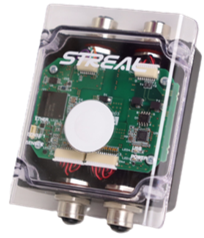
This monitoring unit is designed for industrial use, even in harsh environments where coolant and chips are scattered. Its robust IP67-compliant body and high noise immunity ensure stable strain measurement in production facilities.
The STREAL connection cable supports lengths up to 10m, increasing installation flexibility. A measurement application is included as standard, allowing for immediate data acquisition and visualization using just one PC after wiring. It is suitable for initial evaluation and PoC (Proof of Concept) applications.
*This product is intended for evaluation and testing purposes. Please contact us separately for mass production applications.
2. Things to prepare in advance
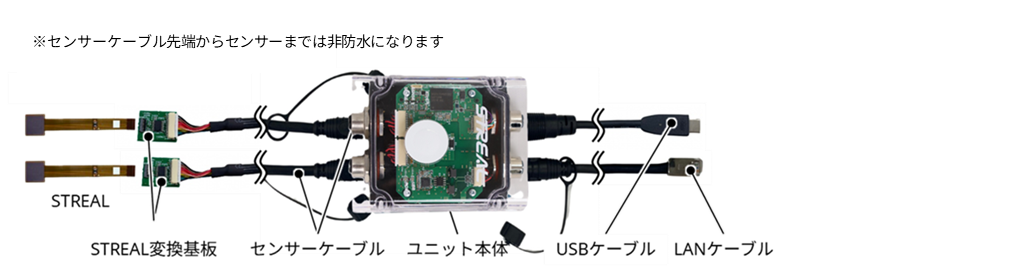
• Semiconductor strain sensor STREAL (SR300 series or SR500 series)
・ STREAL Conversion board
・ NE Dedicated sensor cable for this series
・ NE Series Unit Body
・ NE Series Exclusive USB cable or LAN cable (For connecting to host devices)
• Measurement application (included with purchase)
・ PC (Windows / Mac / Linux any OS)
3. Setup Instructions
The NE series allows for easy data acquisition using the following procedure.
(1) Hardware connection
(2) Connecting and launching the PC application
(3) Start of data acquisition
Details for each item are provided below.
(1) Hardware connection
Connect the STREAL conversion board and the sensor cable (①).
Next, connect the STREAL and the STREAL conversion board. Push up the tab on the sensor connector (②) and insert the sensor into the connector (③). The connector has an upper contact, so please pay attention to the orientation of the sensor. After inserting the sensor all the way in, push down the tab on the sensor connector (④).

Next, connect the sensor cable to the unit body. Align the protrusions and recesses of the connector and insert it (⑤), then rotate it clockwise to secure it (⑥).
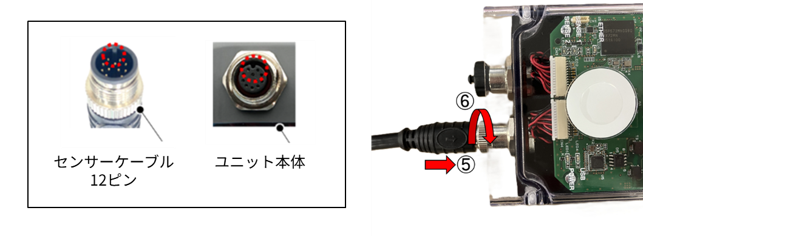
Finally, connect the USB cable or LAN cable using your preferred communication method.
The communication methods are described below.
Communication method ①: USB communication
Connect the USB cable to the unit body. Align the protrusions and indentations of the connector and insert it (⑦), then rotate it clockwise to secure it (⑧).
When you connect the other end of the cable to your PC, the POWER and USB LEDs on the unit will light up green. After completing these connections, please launch the PC application.
*Please ensure at least one sensor is connected.

Communication method ②: Ethernet communication
Connect the LAN cable to the unit. After inserting the cable (⑨), rotate it clockwise to secure it (⑩). For Ethernet communication, press and hold the white membrane switch in the center of the unit while turning on the power to recognize USB communication.
When the other end of the cable is connected to a PoE hub, the POWER and ETHER LEDs on the unit will light up green. (The USB LED will not light up when using Ethernet communication.)
After completing the connection steps up to this point, please launch the PC application.
*Please ensure at least one sensor is connected.

(2) Connecting and launching the PC application
As mentioned above, after connecting the hardware, please launch the measurement application on your PC.
When you start measuring with this application, the LEDs will light up according to the connection you have set.
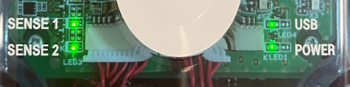
LED status at startup (USB communication, 2-channel connection)
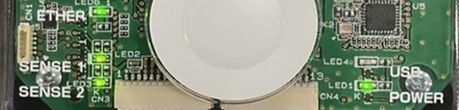
LED status at startup (Ethernet communication, 2-channel connection)
(3) Start of data acquisition
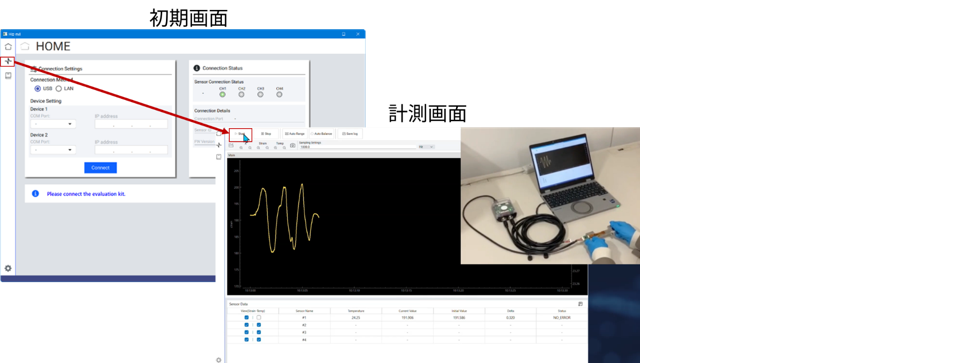
From the launched application screen, you can switch to the measurement screen and press the measurement start button to acquire data from the connected sensor.
For those who want more detailed information
We have prepared a video that clearly explains STREAL's overview, case studies, and details of the monitoring unit. You can also watch a demo video of the monitoring unit and measurement application in operation, so please click the banner below to sign up.
Contact Us