- Semiconductor BusinessHOME
- Products and Services of Macnica,Inc.
-
technical information

-
Events and Seminars
- Handling Manufacturer
- Support
- Inquiry
- Click here to purchase products
- Semiconductor business e-mail magazine registration


 Narrow down by specifying conditions
現在2191件がヒットしています。check


 こんにちは。
Macnica and Altera I'm Hanako from Altera, and I provide technical support for FPGA products.
When performing RTL-level functional simulation of Altera FPGA designs, since NativeLink simulation is not supported in Quartus® Prime Pro Edition, we have introduced the flow for generating and editing scripts for RTL simulation.
but!
For Quartus® Prime Pro Edition 24.1 and later versions
The new Run Simulation feature is now supported, making the process even simpler than before!
This page is for Quartus® Prime Pro Edition users.
This article introduces how to run RTL-level functional simulation using the Run Simulation feature.
This flow is very useful because it can be done regardless of whether your design includes IP or not.
For this guide, we will be using Questa* - Altera® FPGA Edition (hereinafter referred to as Questa - AFE, including the Starter Edition) as the simulator.
Necessary advance preparations
Add your design to the project
In a Quartus® Prime project, you register the design files that Quartus® Prime needs during compilation.
IP designs register *.ip files.
Project menu > Add/Remove Files in Project
Generate simulation models for your IP
[Notes] This should only be done if your design contains IP.
To RTL simulate an IP, you must generate a simulation model for the IP.
When creating an IP in IP Catalog or Platform Designer, in the Generation dialog Box that pops up when you run Generate HDL, you specify the language in the "Create simulation model option". Also, select the corresponding tool to generate the script for running the simulation.

Then click the Generate (or Generate HDL) button to generate functional simulation models and script files for your simulation tool.
Setting the path for the executable program of the EDA tool
① Click Tools menu > Options > EDA Tool Options.
② Click the [...] button on the far right of the Questa Altera FPGA row, and specify the folder where the Questa-Altera FPGA Edition executable program is saved.
Register it in the Directory Containing Tool Executable field.
For example, if you are using Windows OS, specify the win64 folder where questasim.exe is saved.

Board and IP Settings
① Select Assignments menu > Settings > Board and IP Settings.
② Set the following options.
・ Generate IP simulation model when generating IP option = On
- Select the simulator (QuetaSim in this example)

Simulator specification / Language specification
In Assignments menu > Settings > EDA Tool Settings > Simulation, select the following items:
• Tool name: The simulator tool to use (In this example, Questa Altera FPGA is selected)
・ Format for output netlist: Select the language you want to use.
・ Output directory : simulation/questa (recommended to keep the default)

Registering a test bench
Assignments menu > Settings > EDA Tool Settings > Simulation > Testbench specification field. Click the [New] button to the right of the field.
In the New Test Benches Settings dialog Box, register the test bench file to be used for simulation.

・ Test bench name
Enter the test bench module name
・ Simulation period
Set the end time of the simulation run
・ File name
Click the [...] button on the right and select the testbench file. Click the Add button to register it.
Simulation Flow Settings
① Click the [Simulation Flow Settings] button on the right side of the Format for output netlist field in Assignments menu > Settings > EDA Tool Settings > Simulation.
Click
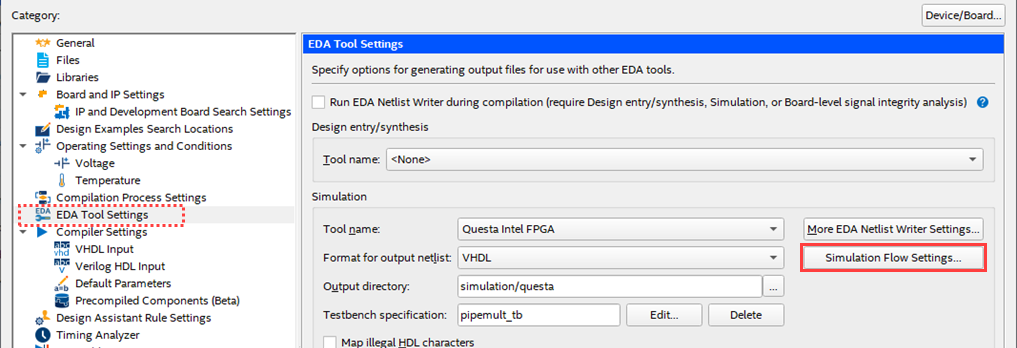
② Set the following two options and click the [OK] button.
・Command-line/batch mode = OFF
・Simulation scripts generation only = OFF

Method of operation
① Perform Analysis & Elaboration.
② Select Tools menu > Run Simulation > RTL Simulation and run it.

[Notes]
If your version is ver.24.3 or earlier, the Run Simulation option will not be available in the Tools menu; please run it via command line.
Open the View menu > Tcl Console window, and enter and execute the following command.
execute_flow -simulation

The Quetsa-Altera FPGA Edition GUI will automatically launch, and the compilation of source code and simulation models, as well as library creation, will be performed.
The simulation is then run and the waveform is displayed in the Wave window.
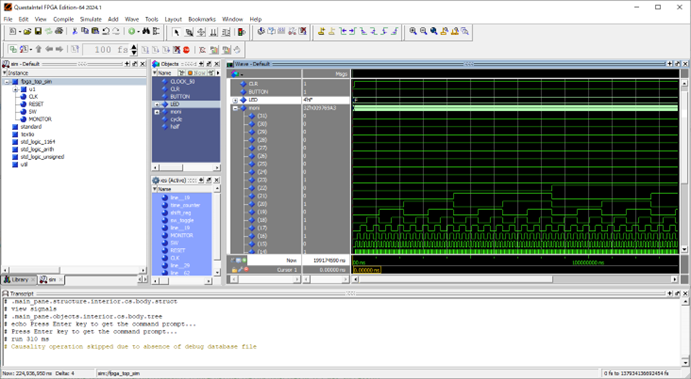
We encourage you to try running a function simulation using the Run Simulation feature with the latest version of the Pro Edition.
Supplementary matter
The Run Simulation function does not show the Quartus® Prime status as Done unless you close the simulator GUI.
Even if the simulation run itself is "Done", the Quartus® Prime Processes (running Synthesis, Fitter, etc.) are grayed out and cannot be run.
To terminate the process, close the simulator GUI or select Stop Processing from the Processing menu in Quartus® Prime.
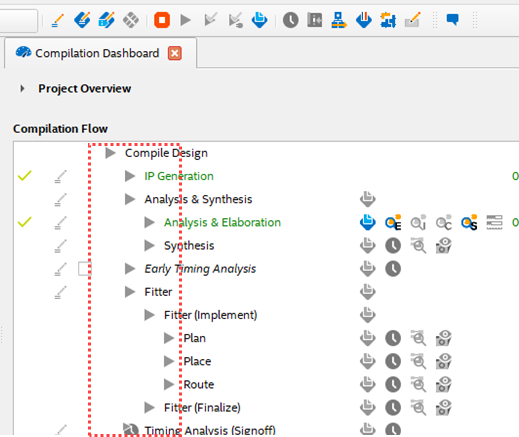
If you do not want to include launching and running the simulator in the flow of Quartus® Prime process execution,
You can generate only the script by turning on the following option introduced in the Simulation Flow Settings above.
・ Simulation scripts generation only = ON
This will generate the execute_flow –simulation post-run script or batch file and terminate the Quartus® Prime process.

After that, use the generated do file in a separate simulator, or use a batch file (.bat) / shell script (.sh) to start and run the simulator.