- Semiconductor BusinessHOME
- Products and Services of Macnica,Inc.
-
technical information

-
Events and Seminars
- Handling Manufacturer
- Support
- Inquiry
- Click here to purchase products
- Semiconductor business e-mail magazine registration


 Narrow down by specifying conditions
現在2189件がヒットしています。check

This article explains the license settings for Arm® Development Studio (DS) for Altera® SoC FPGA Edition (hereafter referred to as Arm® DS Altera® SoC FPGA Edition), a software development tool for Altera® SoC FPGA devices.
1. Introduction
2. User registration with Arm
3. Preparing the Ethernet MAC Address (Host ID)
4. How to obtain a license file from the Arm website
5. Booting the Arm® DS Altera® SoC FPGA Edition
6. Setting up the license file
7. How to Rehost Arm® DS Altera® SoC FPGA Edition
1.First of all
1-1. SoC EDS License
The only component in the Altera® SoC FPGA Embedded Development Suite (hereinafter referred to as SoC EDS) that requires a license is the Arm® DS Altera® SoC FPGA Edition.
● Starting with Altera® Quartus® Prime design software (hereinafter referred to as Quartus® Prime) v20.1, the standard software integrated development environment adopted by SoC EDS has been transitioned to Arm® DS Altera® SoC FPGA Edition.
The legacy Arm® DS-5™ software can be used with Quartus® Prime v19.4 and earlier versions, but please note the following:
◦ New sales of Arm® DS-5™ Altera® SoC FPGA Edition licenses have ended (please use Arm® DS for new adoption).
◦ Due to Arm's policy, there are no plans to update Arm® DS-5™ in the future (we recommend migrating to Arm® DS whenever possible).
● For licensing information, please refer to the Arm® DS Altera® SoC FPGA Edition Toolkit page.
◦ A paid license is required to use the Arm® DS Altera® SoC FPGA Edition.
◦ You can purchase a standalone Arm® DS Altera® SoC FPGA Edition license or use the license included with select Altera® SoC FPGA development kits.
◦ Paid licenses include support and maintenance from Altera® for one or three years from the date of purchase or renewal. The license periods are as follows:

◦ For information on obtaining and setting up a 30-day trial evaluation license, see section 6-2, "Obtaining and Setting Up a Trial Evaluation License."
◦ The evaluation license is for the Arm® DS Gold Edition, which is supported by Arm, and not the Altera® SoC FPGA Edition, but there is no difference in functionality (it can be used to evaluate the Altera® SoC FPGA Edition).
1-2. License acquisition
● If you purchase a standalone license for some Altera® SoC FPGA development kits or Arm® DS Altera® SoC FPGA Edition, you will be issued and notified of a separate Arm license serial number.
● This is a 15-digit alphanumeric string containing two dashes (-). □□□□□-□□□□□-□□□□□
◦ Use this Arm license serial number to obtain a license file to activate Arm® DS Altera® SoC FPGA Edition.
◦ The Arm license serial number will be sent to you (the person placing the order) by email from Altera®.
1-3. Related information
● Please refer to the following page for SoC EDS information (as of December 2020).
◦ SoC EDS product introduction page
◦ SoC EDS download page
● For details on Arm® DS license management, please see the following page (as of December 2020).
◦ Licensing Arm Development Studio
2. User registration with Arm
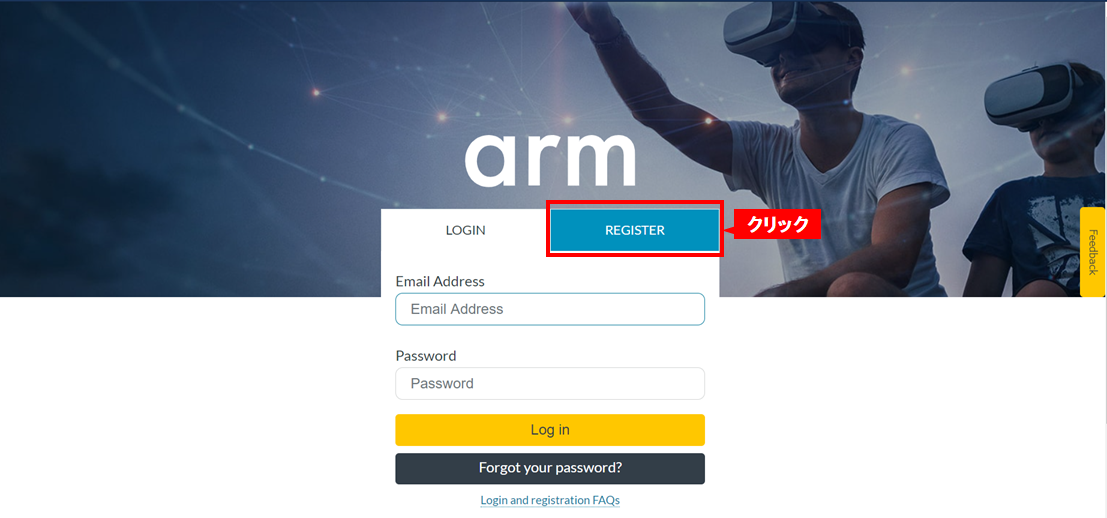
● You will be asked to register user information during license registration. Please register in advance from the following page of Arm, and make a note of the registered email address and password.
① Click the “REGISTER” tab on the Arm page.
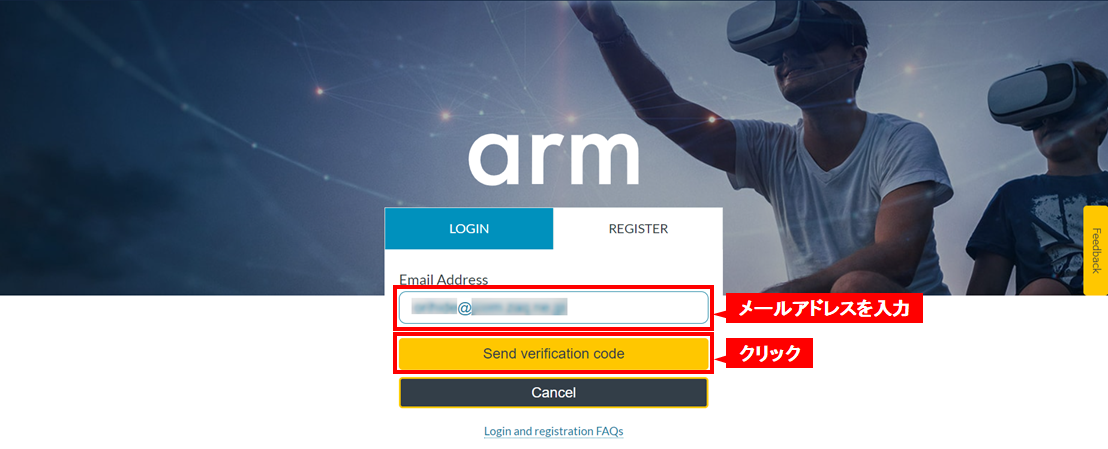
② Enter “Email Address” and click [Send verification code].
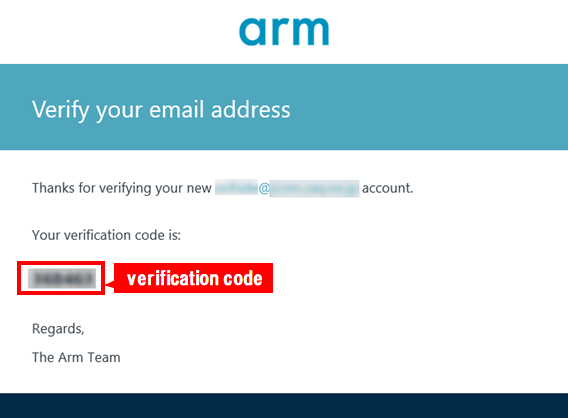
③ A verification code will be sent by E-mail from Arm.
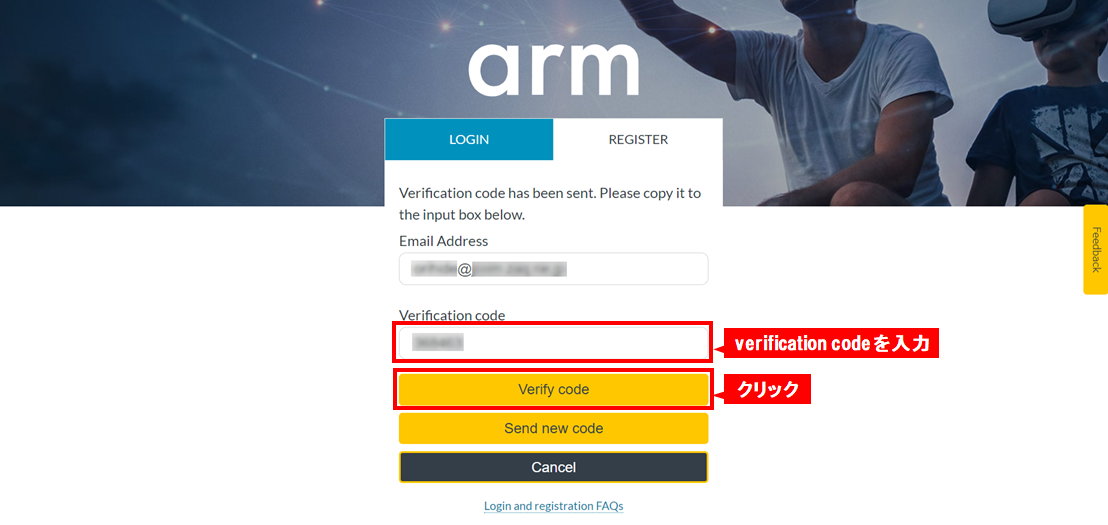
④ Enter the verification code sent to you and click [Verify code].
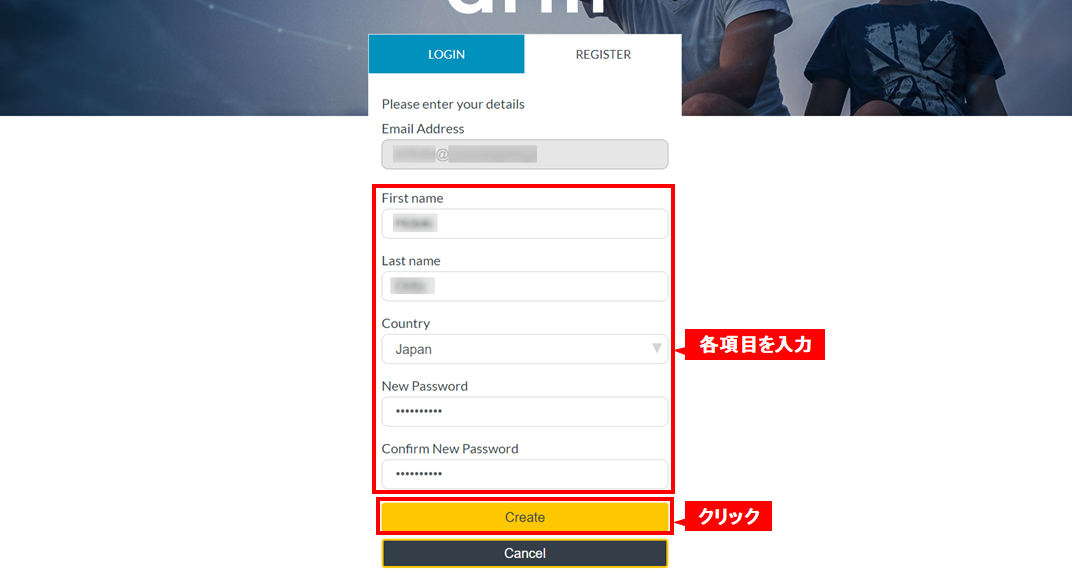
⑤ Enter “First name”, “Last name”, “Country”, “Password” and “Confirm password” and click [Create].
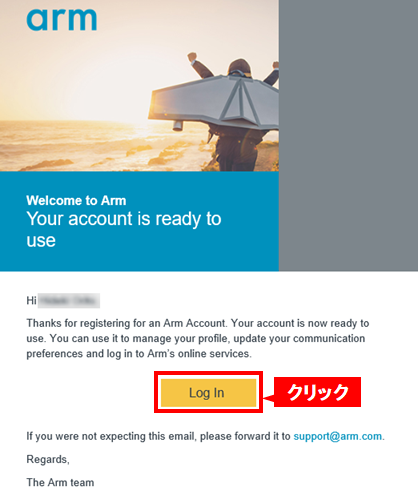
⑥ You will receive an e-mail confirming that your account registration has been completed. Click [Log in] to confirm that you can log in.
3. Preparing the Ethernet MAC Address (Host ID)
● To install and use the Arm® DS Altera® SoC FPGA Edition, you will need to register your Ethernet MAC address as the host ID that will be linked to the license.
● The host ID uses the MAC address of the Ethernet device built into the PC, but in this case the Arm® DS Altera® SoC FPGA Edition will be used on that PC.
● You can also register a license using a USB-connected Ethernet adapter. In this case, you can use the Arm® DS Altera® SoC FPGA Edition on multiple computers by simply switching adapters, which is convenient in terms of portability (Arm® DS Altera® SoC FPGA Edition cannot be used on multiple computers at the same time. It can only be used on one computer whose host ID is recognized via USB connection).
● You can check the Ethernet MAC address (physical address) by entering the following command at the command prompt on your computer.
◦ Windows environment: ipconfig /all
◦ Linux environment: ifconfig or ip a
● To move (rehost) an Arm® DS Altera® SoC FPGA Edition license from the host ID (Ethernet MAC address) that generated the license to another host ID, you must obtain a new license file with the new host ID from Arm. For rehosting procedures, see "7. How to rehost Arm® DS Altera® SoC FPGA Edition."
4. How to obtain a license file from the Arm website
● If you have your serial number (15 digits) and Ethernet MAC address, you can generate and download a license file directly from the Arm Software Licensing page.
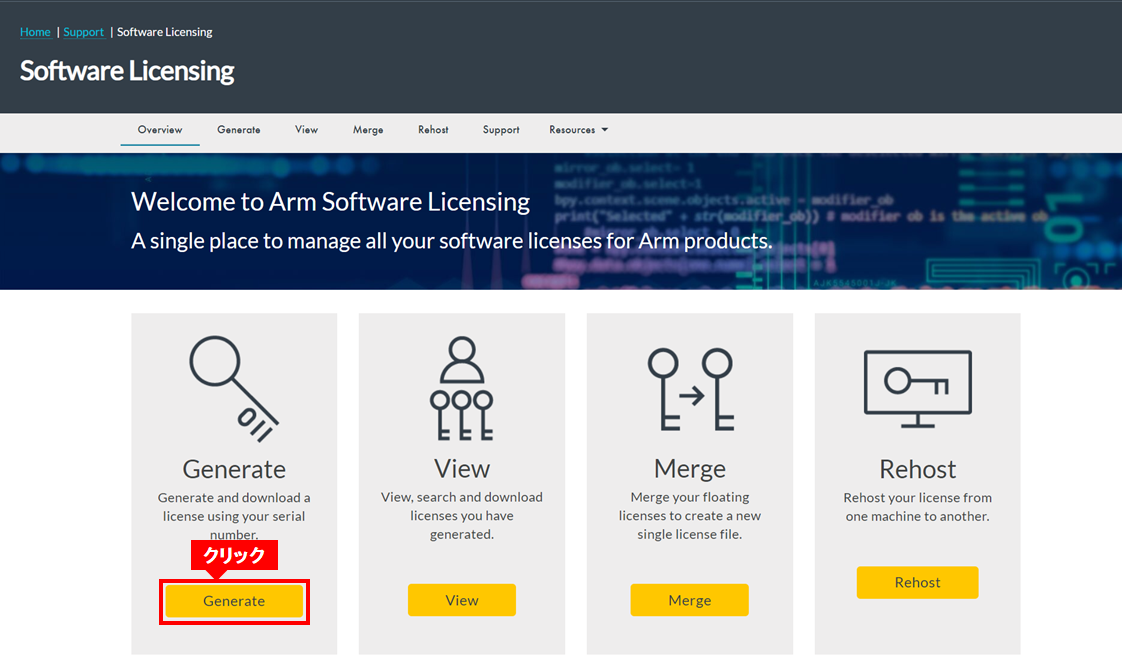
① Go to the "Software Licensing Page". Click Generate.
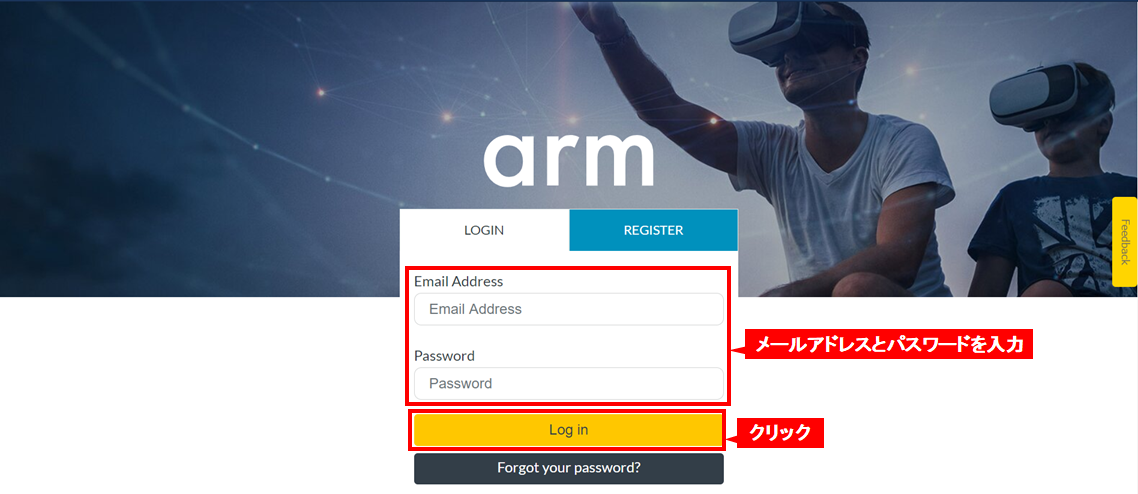
② If the LOGIN screen shown below appears, enter your email address and password and click [Log in].
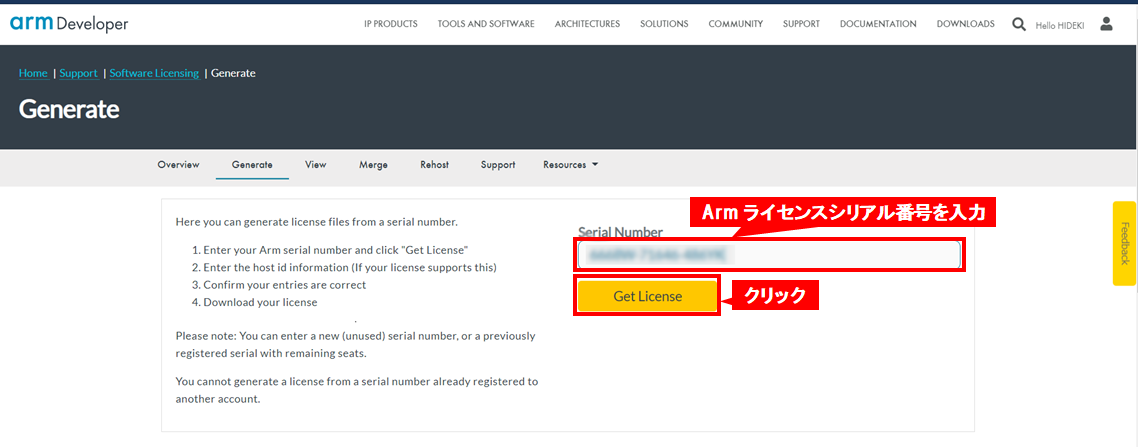
③ The Generate screen as shown below appears. Enter the serial number (15 digits) including two dashes (-) and click [Get License].
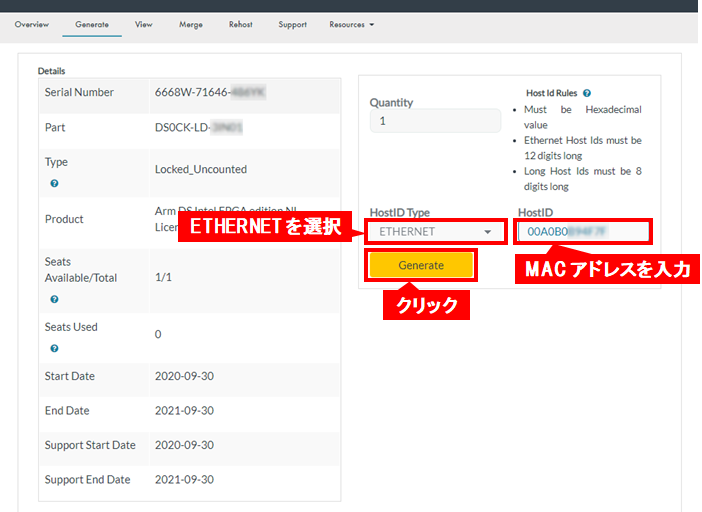
④ Select ETHERNET for “HostID Type”, enter the Ethernet MAC address for “HostID”, and click [Generate].
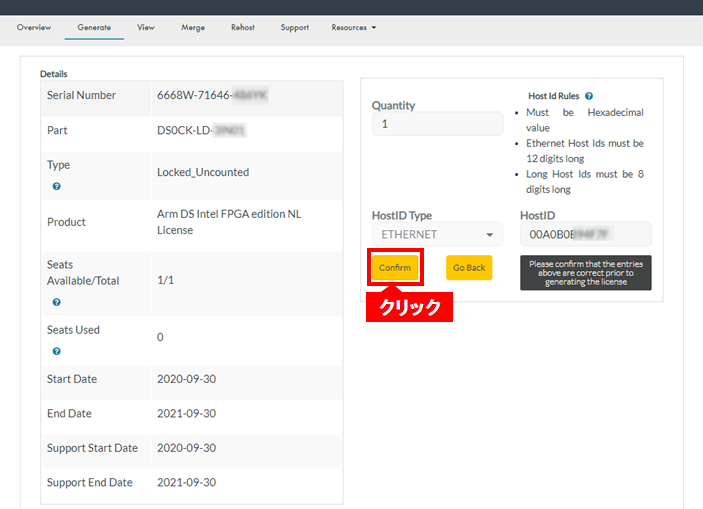
⑤ Click [Confirm].
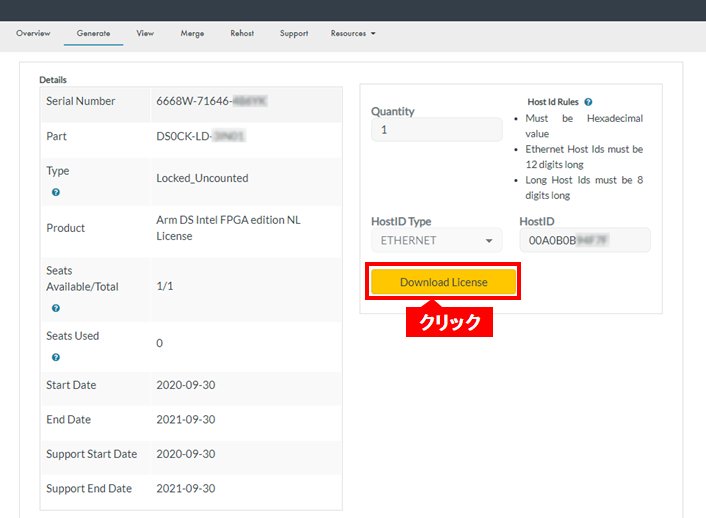
⑥ Click [Download License].
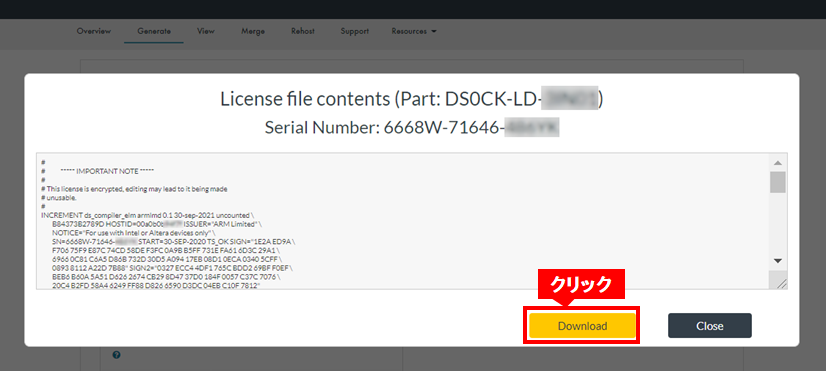
⑦ Click [Download] to download the generated license file.
5. Booting the Arm® DS Altera® SoC FPGA Edition
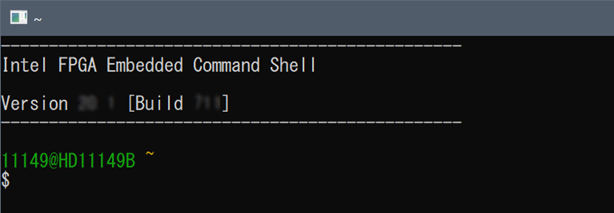
5-1. Starting Embedded Command Shell
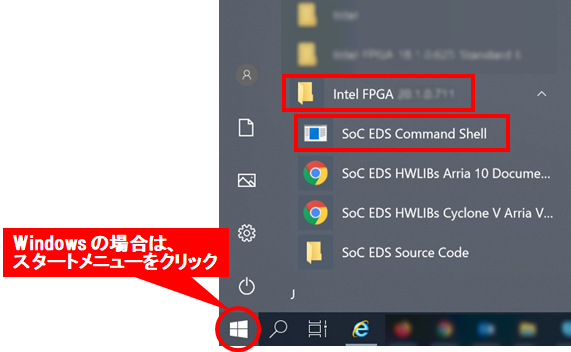
● You can start the Embedded Command Shell from the Windows Start menu:
◦ For 20.1 Pro: Start menu → Intel FPGA 20.1 Pro Edition → SoC EDS Command Shell
◦ For 20.1 Std: Start Menu → Intel FPGA 20.1 → SoC EDS Command Shell
● For Linux, run embedded_comand_shell.sh in the terminal.
◦ For 20.1 Pro: ~/intelFPGA_pro/20.1/embedded/embedded_command_shell.sh
◦ For 20.1 Std: ~/intelFPGA/20.1/embedded/embedded_command_shell.sh
5-2. Launching the Arm® DS shell
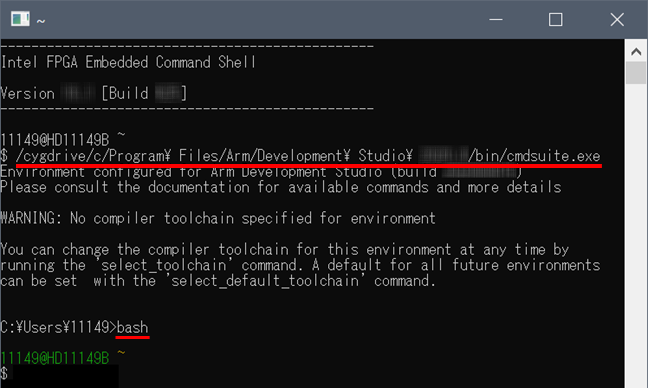
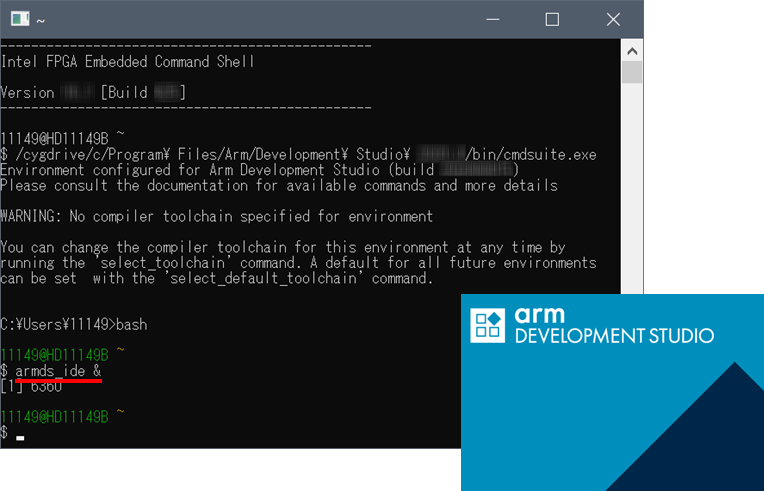
① Run the cmdsuite program (suite_exe) from the Embedded Command Shell (example for Arm® DS version 2020.1).
◦ cmdsuite is the Arm® DS command prompt, an internal batch job for licensing and database configuration.
・ Windows environment: /cygdrive/c/Program\ Files/Arm/Development\ Studio\ 2020.1/bin/cmdsuite.exe
・ Linux environment: /opt/arm/developmentstudio-2020.1/bin/suite_exec -t "Arm Compiler 5" bash
(2) After executing the bash program, the prompt color of the Embedded Command Shell returns.
◦ By executing bash, the PATH to the Quartus® Prime tools is passed (in Linux environment, bash is already specified when suite_exe is executed)
bash
5-3. Launching Arm® DS Eclipse
(1) Execute the armds_ide command from Embedded Command Shell.
armds_ide &
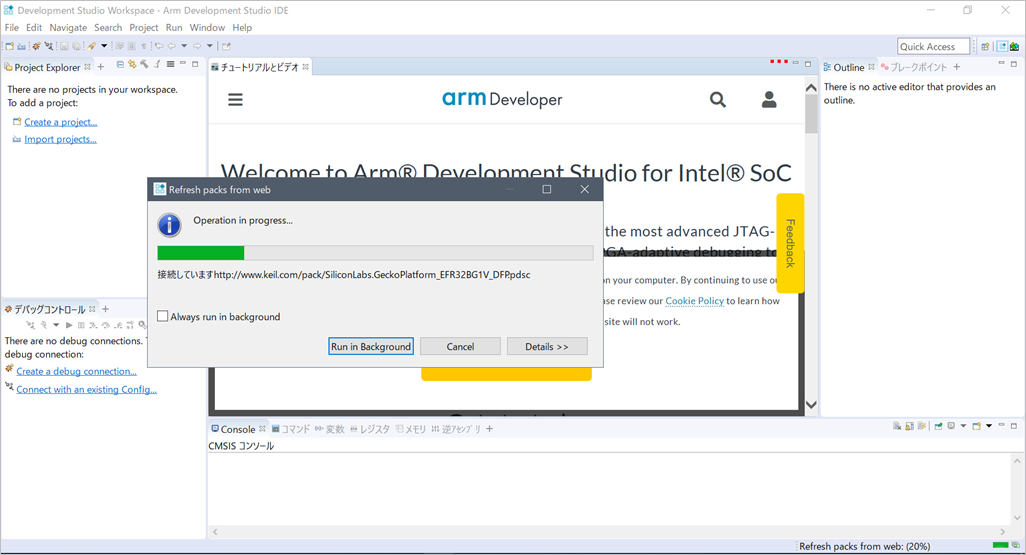
(2) Arm® DS Eclipse opens. Updates may be made from the web for the first time.
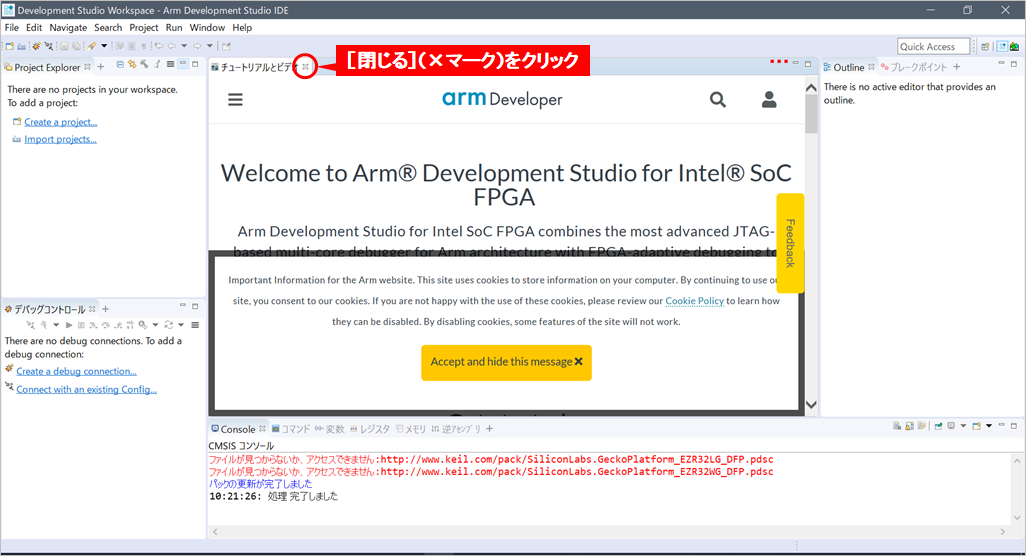
③ The Welcome screen of Arm® DS will be displayed. This can be used to access documentation, tutorials and videos. If not necessary, click [Close] (X mark).
6. Setting up the license file
6-1. Add Product License
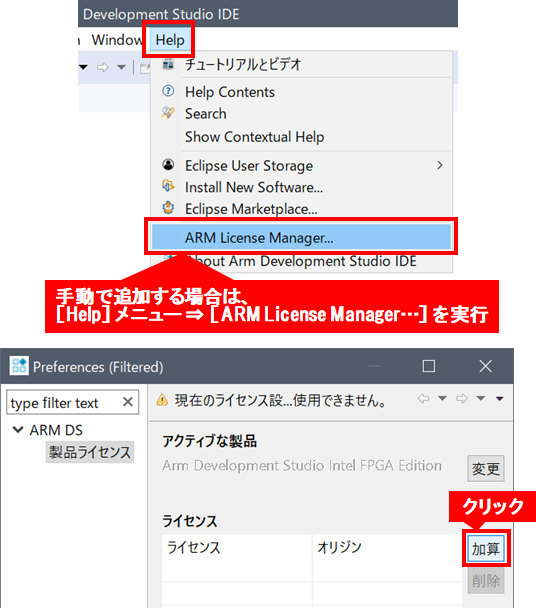
① When you run Arm® DS Altera® SoC FPGA Edition for the first time, the "Add License" Box will open and prompt you to add a product license.
Select Add Product License and click Next >.
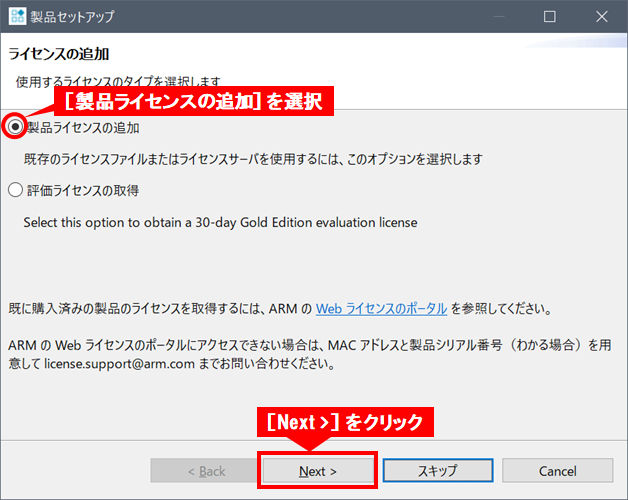
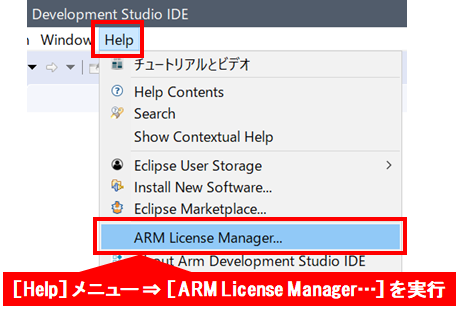
* To add a license from the menu, execute [Help] menu ⇒ [ARM License Manager…].
② Click the [Add] button to open the [Add License] Box.
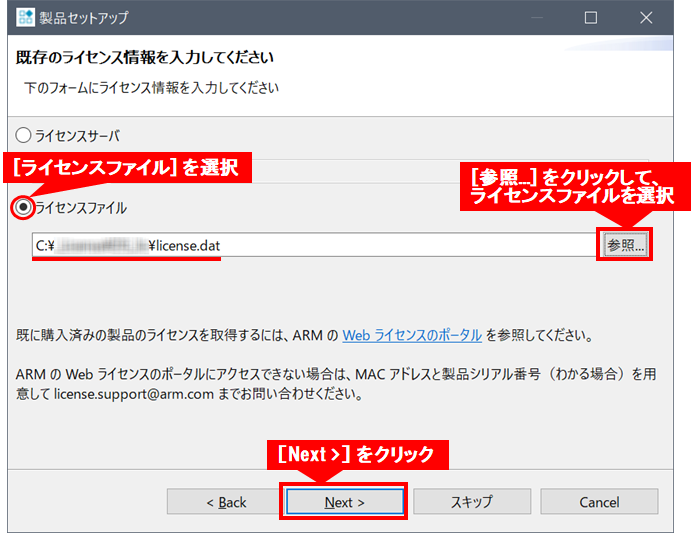
(3) Select [License File] and then [Browse...], and select the license file that you downloaded earlier from the Arm website.
Then click Next >.
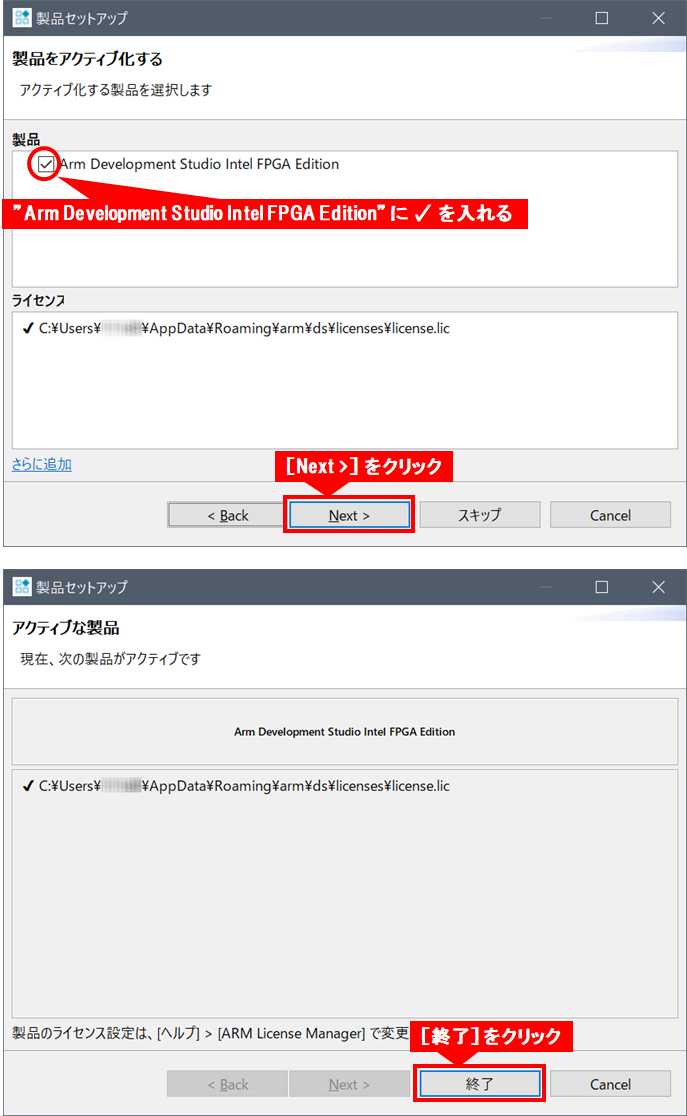
④ Select the product to activate. Check "Arm Development Studio Altera® FPGA Edition" and click [Next >].
⑤ Click [Finish].
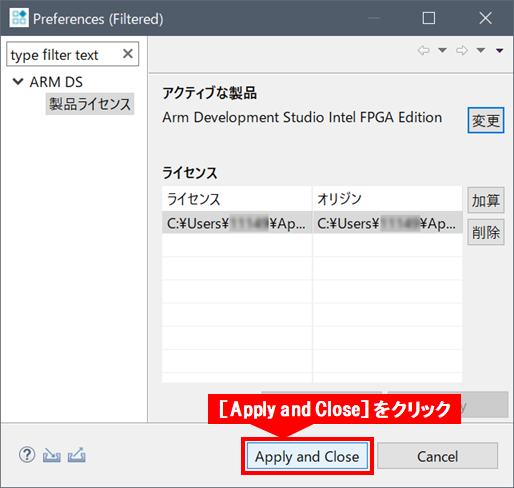
⑥ Click [Apply and Close].
6-2. Obtaining and setting a trial evaluation license
① From the Arm® DS Altera® SoC FPGA Edition [Help] menu, select [ARM License Manager…].
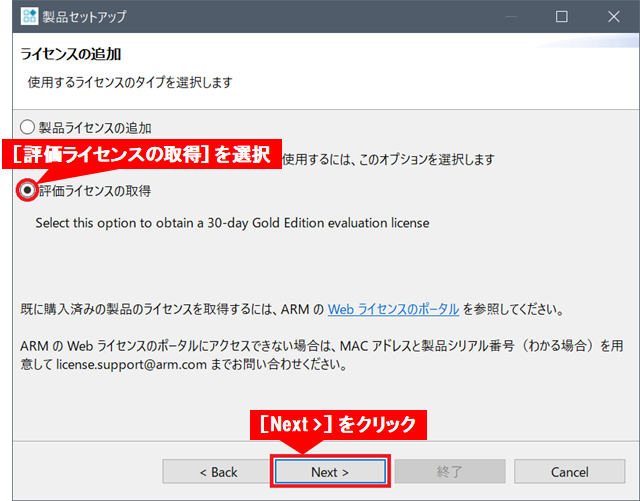
(2) When the “Add license” Box opens, select [Get evaluation license] and click [Next >].
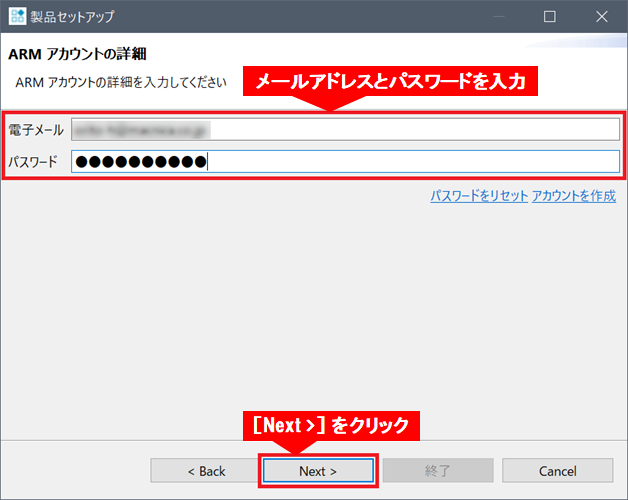
③ When the “ARM account details” Box opens, enter the email address and password you registered in chapter “2.
Click Next>.
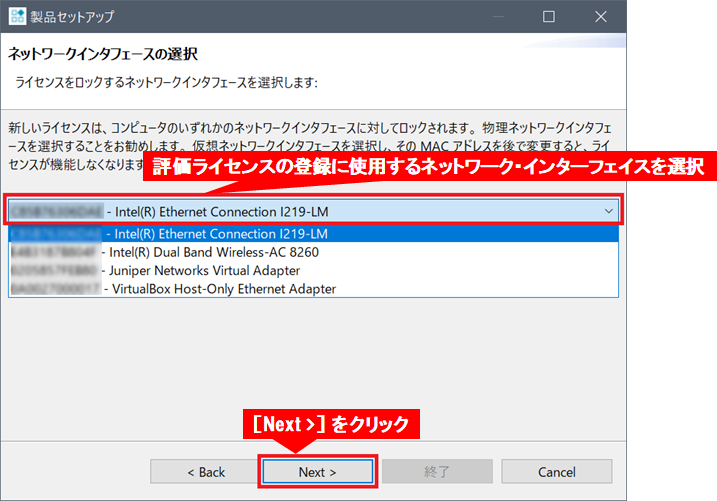
(4) Select the network interface that will be used to register the evaluation license, and click [Next >].
⑤ Select the product to activate. Check "Arm Development Studio Altera® FPGA Edition" and click [Next >].
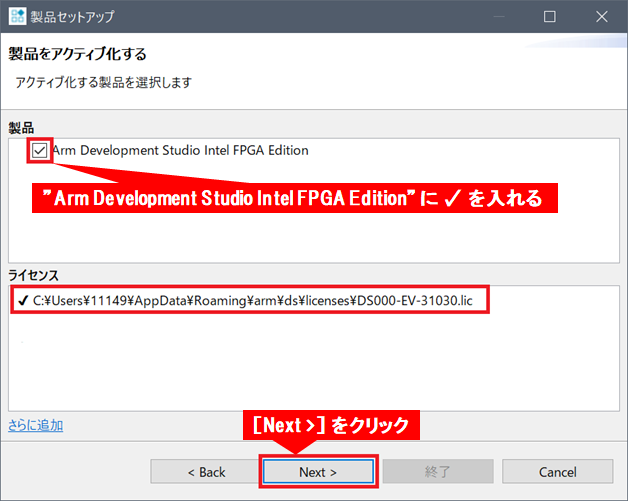
⑥ Click [Finish].
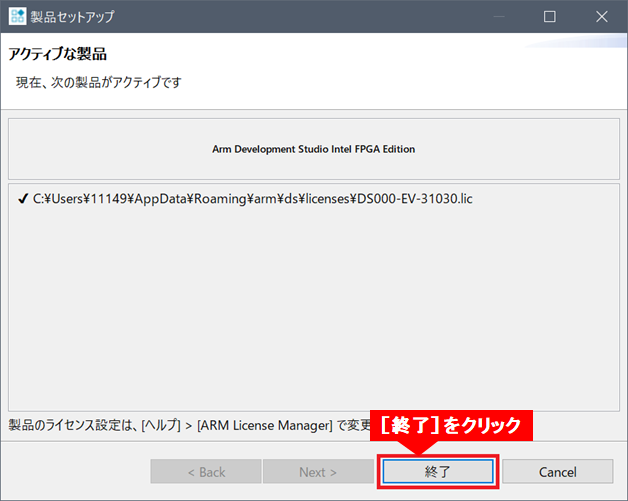
⑦ Click Apply and Close to complete the trial evaluation license configuration.
7. How to Rehost Arm® DS Altera® SoC FPGA Edition
● To move an Arm® DS Altera® SoC FPGA Edition license from the PC on which it was generated to another PC within your company, you must obtain a new license file with a new host ID from Arm.
● The host ID is generated from the Ethernet MAC address, and licenses must be transferred between PCs within the same legal entity.
● Rehosting can be applied for through the Arm Software Licensing page.
① Go to the Software Licensing page and click Rehost.
* If the LOGIN screen appears, enter your email address and password and click [Login].
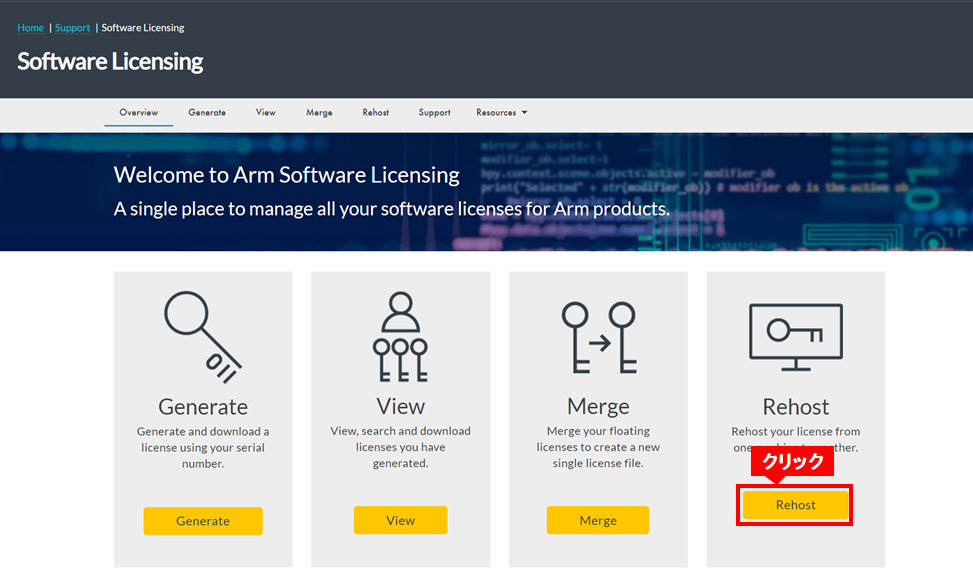
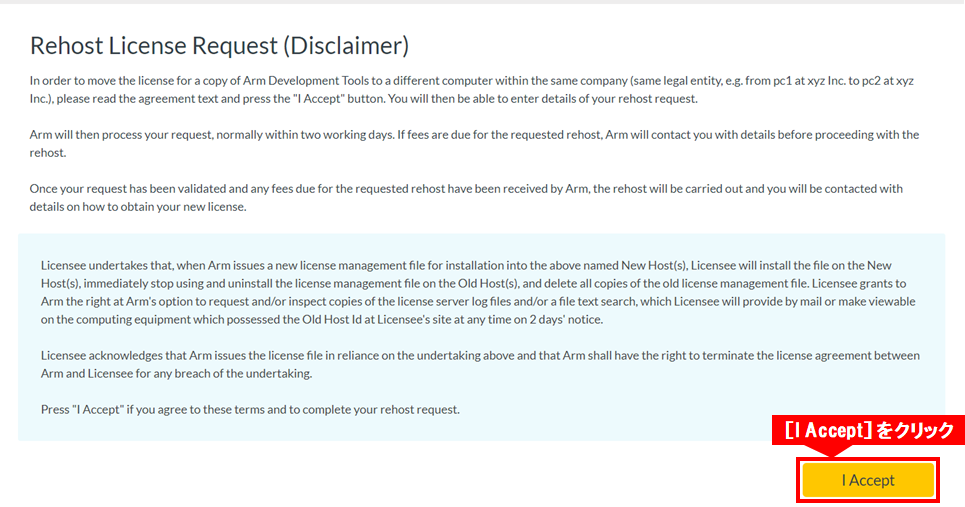
(2) A license reissuance request disclaimer will be displayed. If you agree, click [I Accept].
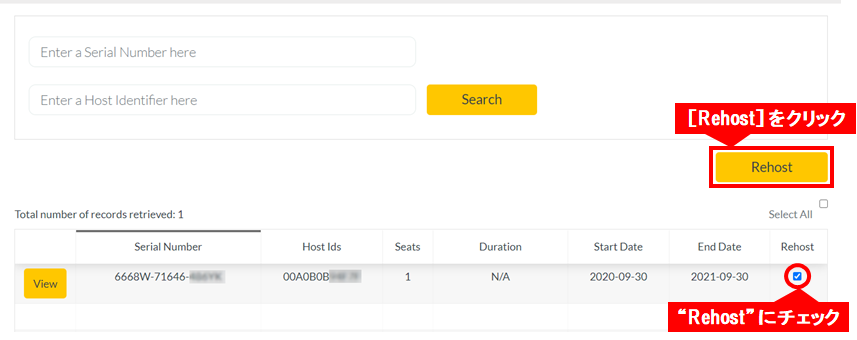
③ Check the serial number and host ID you want to rehost, check “Rehost” and click [Rehost].
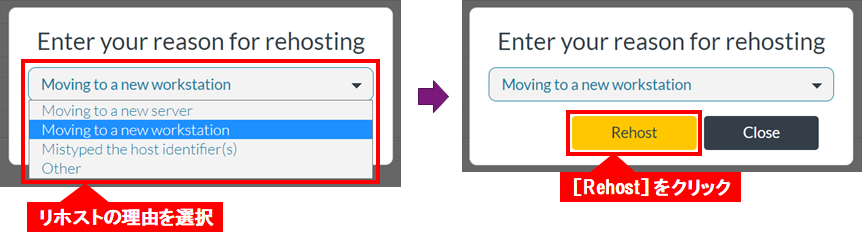
(4) You will be prompted to enter the reason for rehosting. Select from the pull-down menu (Moving to a new workstation in this example) and click [Rehost].
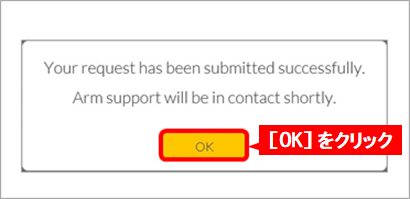
⑤ Your request has been sent successfully, and you will be notified that Arm Support will contact you later. Click OK.
⑥ As a result of requesting rehosting, a support case will be issued from Arm, and an Arm License Rehost Request e-mail will be sent.
⑦ After that, proceed with the correspondence according to the e-mail (instructions posted to the support case).
Click here for recommended articles/materials
Articles and materials related to DS-5 utilization
SoC FPGA related articles and documents
Altera® FPGA Development Flow / FPGA Top Page