- Semiconductor BusinessHOME
- Products and Services of Macnica,Inc.
-
technical information

-
Events and Seminars
- Handling Manufacturer
- Support
- Inquiry
- Click here to purchase products
- Semiconductor business e-mail magazine registration


 Narrow down by specifying conditions
現在2253件がヒットしています。check

The Altera® MAX® 10 FPGA has built-in flash memory, which is provided in the form of CFM/UFM, as described below. When storing the Nios® II software in flash memory, it will be implemented in the UFM, but the size of the flash memory is defined by the total size including the CFM.
Therefore, when using Nios® II, an error will not be reported even if the program size exceeds the size of the UFM area of the On-Chip Flash.
Therefore, when storing user programs in the MAX® 10 UFM, users must always pay attention to the size.
This article explains the precautions and solutions for using Nios® II on-chip flash with MAX® 10.
- On-Chip Flash in MAX® 10 Devices
- Notes on On-Chip Flash when using Nios® II with MAX® 10
- Workaround
1. On-Chip Flash in MAX® 10 Devices
MAX® 10 is a low-cost, single-chip, small-form-factor non-volatile programmable logic device. It integrates features such as an analog-to-digital converter (ADC) and dual-configuration flash memory capable of storing and dynamically switching between two images, all on a single chip.
Furthermore, it features a full suite of FPGA capabilities, including support for the Nios® II soft-core embedded processor, a digital signal processing (DSP) block, and a soft DDR3 memory controller.
For more information about Altera® MAX® 10 FPGAs, please refer to the following page.
Altera® MAX® 10 FPGA
The MAX® 10 features an on-chip flash memory that is divided into two parts.
● Configuration Flash Memory(CFM)
Stores the hardware configuration data for MAX®10.
●UserFlash Memory(UFM)
Stores user data or software applications.
For more information about UFM in MAX® 10, please refer to the following document.
MAX 10 User Flash Memory User Guide
2. Notes on On-Chip Flash when using Nios® II with MAX® 10
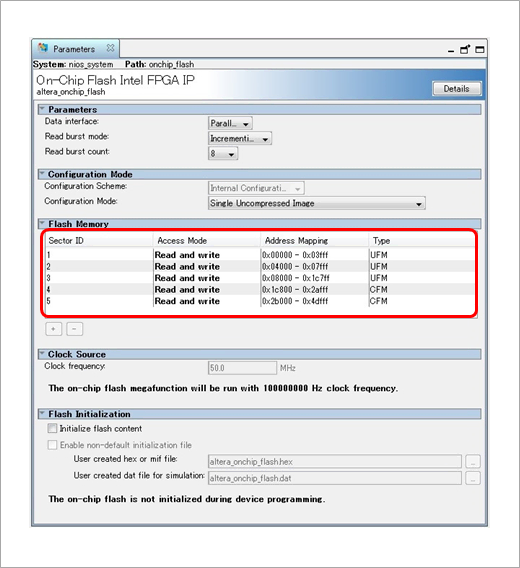
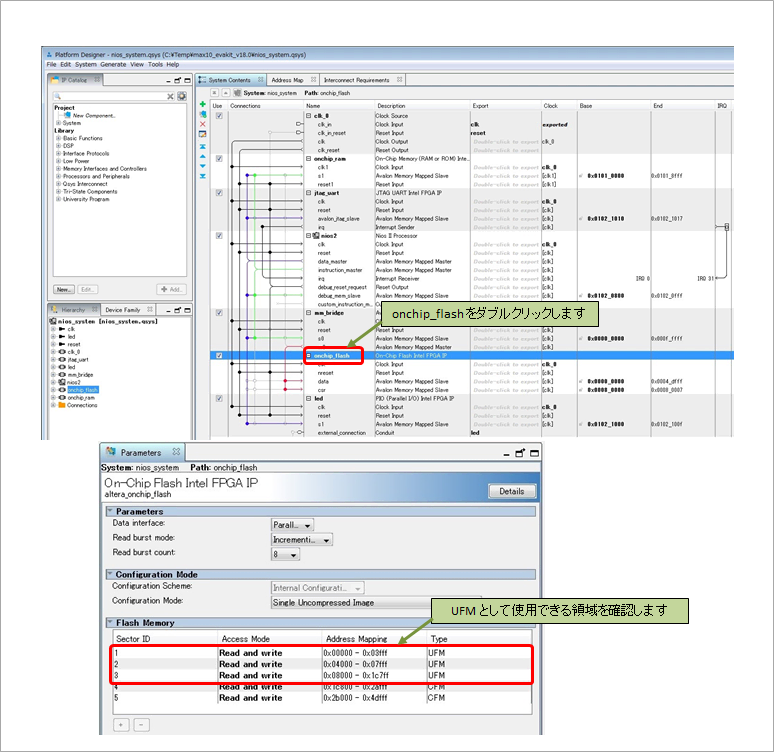
When the On-Chip Flash IP (Altera On-Chip Flash IP) is configured in Platform Designer (formerly Qsys) as shown in the diagram below, the Nios® II SBT displays not only the UFM area but also the CFM area as On-Chip Flash (this document uses the MAX® 10 10M08 device as an example).
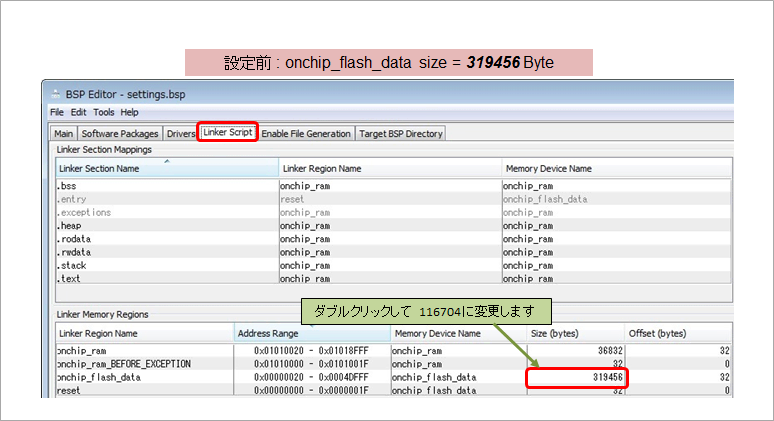
Even from the Nios® II SBT BSP Editor, there is no distinction between UFM and CFM, and the On-ChipFlash area is seen as the size including CFM (319456 Bytes).
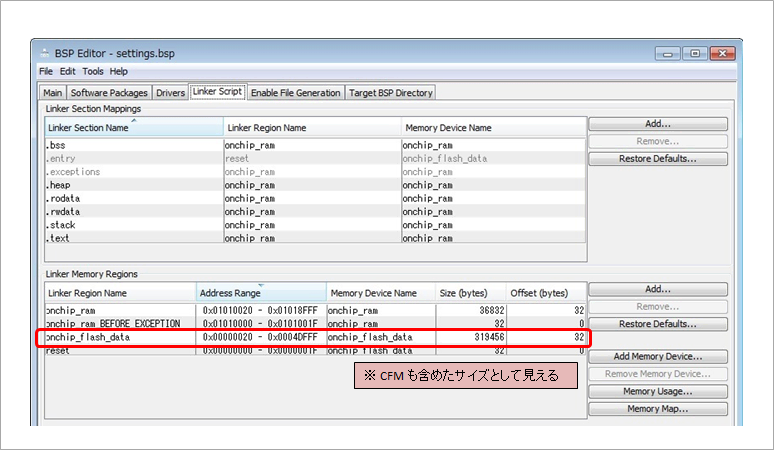
Note 1. Even if the size of the program is larger than the UFM, the build will pass without an error.
From the above, when .text is placed in On-Chip Flash, it is not determined at build time whether the program (.elf file) fits in the UFM, but only whether it can be placed in On-Chip Flash.
In other words, even if the size of the program is larger than the UFM, the build will pass without displaying an Error.
Therefore, it is necessary to create a program considering the size of UFM.
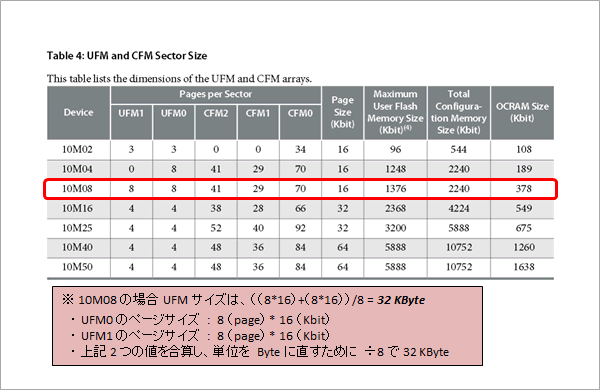

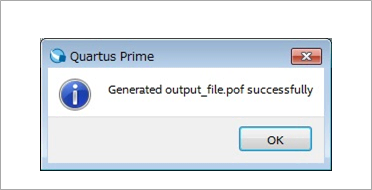
Note 2. An oversized elf file will not cause an error even if HEX conversion or POF generation is performed.
The .elf file is then
● Convert to HEX
● Generate POF
● Program
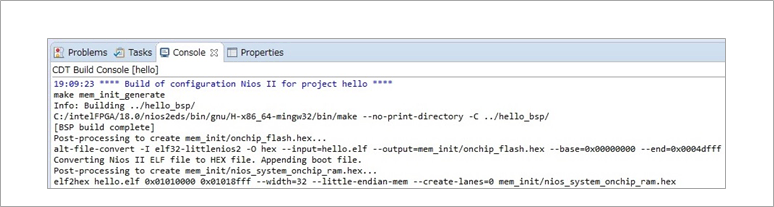
etc., but an oversized elf file will not raise an Error in any of these processes.
【reference】
See the following pages for information on how to convert a program to a HEX file with the NiosR II SBT and how to generate a POF file from a SOF file and a HEX file for UFM with QuartusR Prime.
Let's boot Nios® II with MAX® 10 UFM [Part 1]
Let's boot Nios® II with MAX® 10 UFM [Part 2]
3. What to do
Change the section size so that it can be placed in advance on the BSP Editor of the Nios® II SBT.
By changing the section size, it will be output as an Error when building.
① Check the area that can be used as UFM in Platform Designer's On-Chip Flash IP (Altera On-Chip Flash IP).
Example: In this example, values from 0x0 to 0x1c7ff are usable (※ 0x1c800 → 116736 bytes).
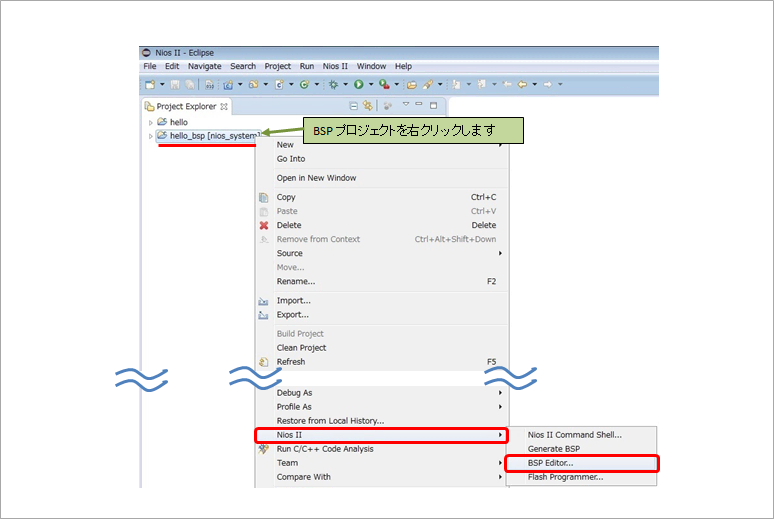
(2) Right-click the Nios® II SBT BSP project and open "Nios II" ⇒ "BSP Editor".
(3) In the LinkerScript tab of BSP Editor, set the area of onchip_flash_data to the size confirmed in Platform Designer. At this time, set the value after subtracting the first 32 bytes (reset vector area).
Example) For 10M08, 116736 -32 = 116704 Byte
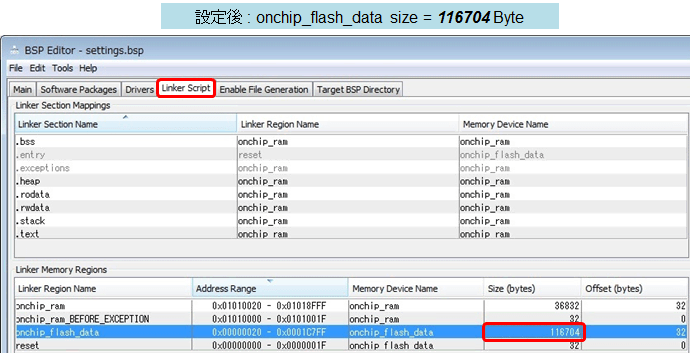
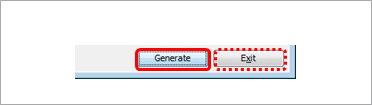
④ Click the [Generate] button, and then click the [Exit] button.
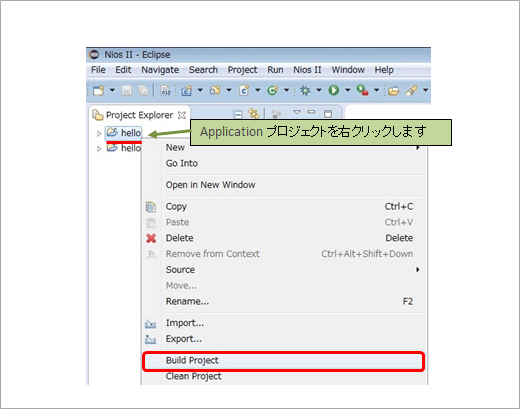
⑤ Right-click the Nios® II SBT Application project and execute "Build Project".
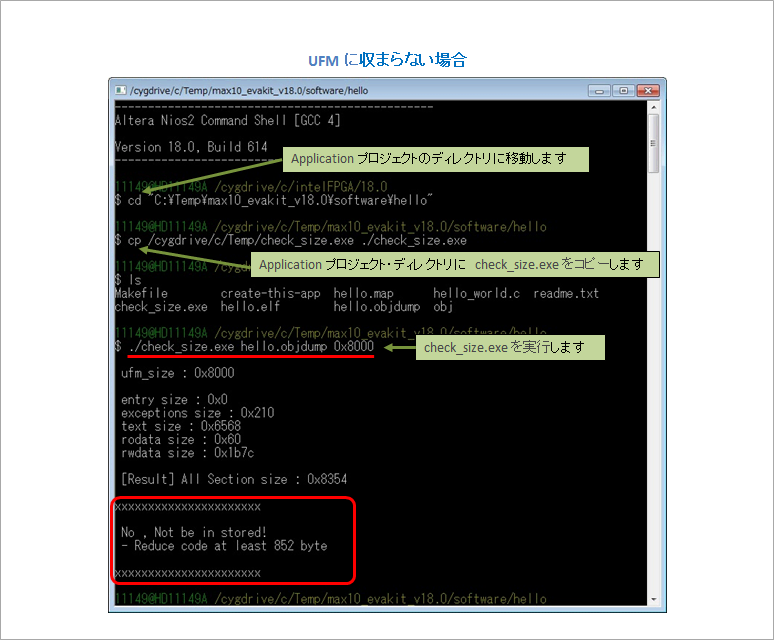
To address this issue, we have prepared software check_size.exe (check_size.c) that simply checks whether the software fits within the UFM of MAX® 10 (please download separately).
*Please note that the software check_size.exe (check_size.c) is provided as a reference only, and we are not responsible for any consequences of using it.
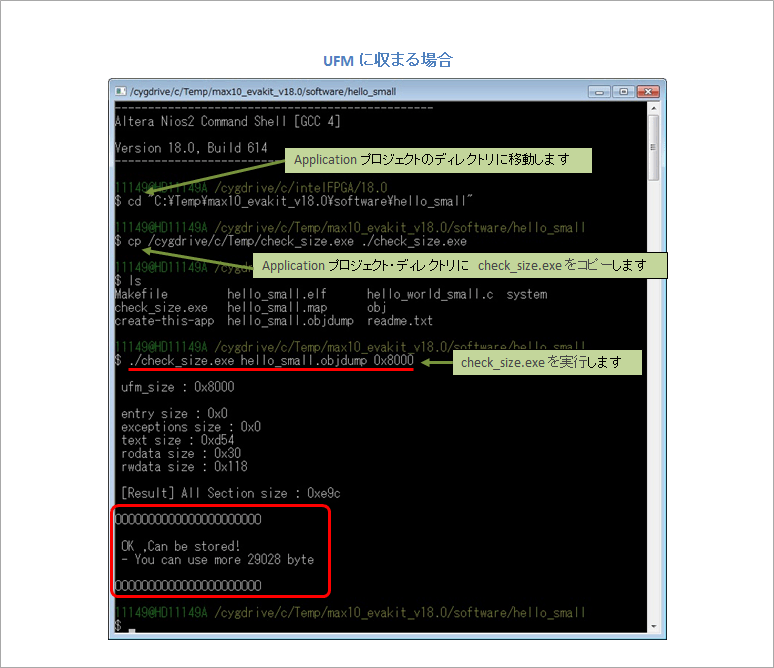
This software extracts the size of the target section from the description in the .objdump file created at the time of building in the Nios® II SBT Application project, adds them together, and outputs the final required size. .
⑥ After building with Nios® II SBT, enter the following command from Nios® II Command Shell and execute check_size.exe to check whether the created software fits in the specified UFM.

* Before running check_size.exe, copy check_size.exe to the Application project directory.
Software size check program (C source code)
Software size check program (executable file)
max10_ocflash_check_size_r1__1.pdf
PDF version (The content is the same as this article.) / Rev.1