- Semiconductor BusinessHOME
- Products and Services of Macnica,Inc.
-
technical information

-
Events and Seminars
- Handling Manufacturer
- Support
- Inquiry
- Click here to purchase products
- Semiconductor business e-mail magazine registration


 Narrow down by specifying conditions
現在2236件がヒットしています。check
We held a webinar explaining the content of this article. Please register using the form below to receive a URL to access the on-demand video.
If you missed it or if you were a participant and would like to watch it again, please register now!
Building RAG applications using VAST InsightEngine
In the previous episode, we introduced VAST InsightEngine. Using VAST InsightEngine makes it easier to create a RAG infrastructure.
In this episode, we will actually build a RAG application using VAST InsightEngine.
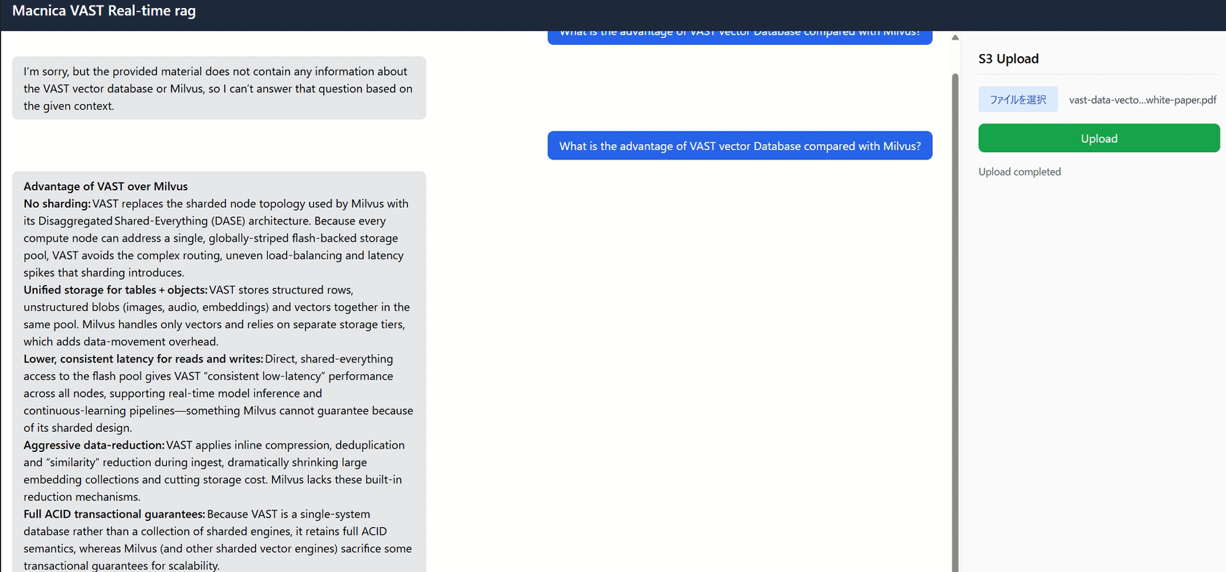
RAG application
Basic RAG configuration using VAST InsightEngine
In this article, we will create a text RAG based on the content of the previous article.
The RAG application we will create will combine VAST InsightEngine's Kafka functionality with a vector database. When a user asks a question, the LLM will search the VAST internal vector database based on the question text, return relevant sentences and data, and generate a response.
Additionally, when you upload PDF data, the Kafka functionality within VAST performs preprocessing, and the VAST vector database is automatically updated.
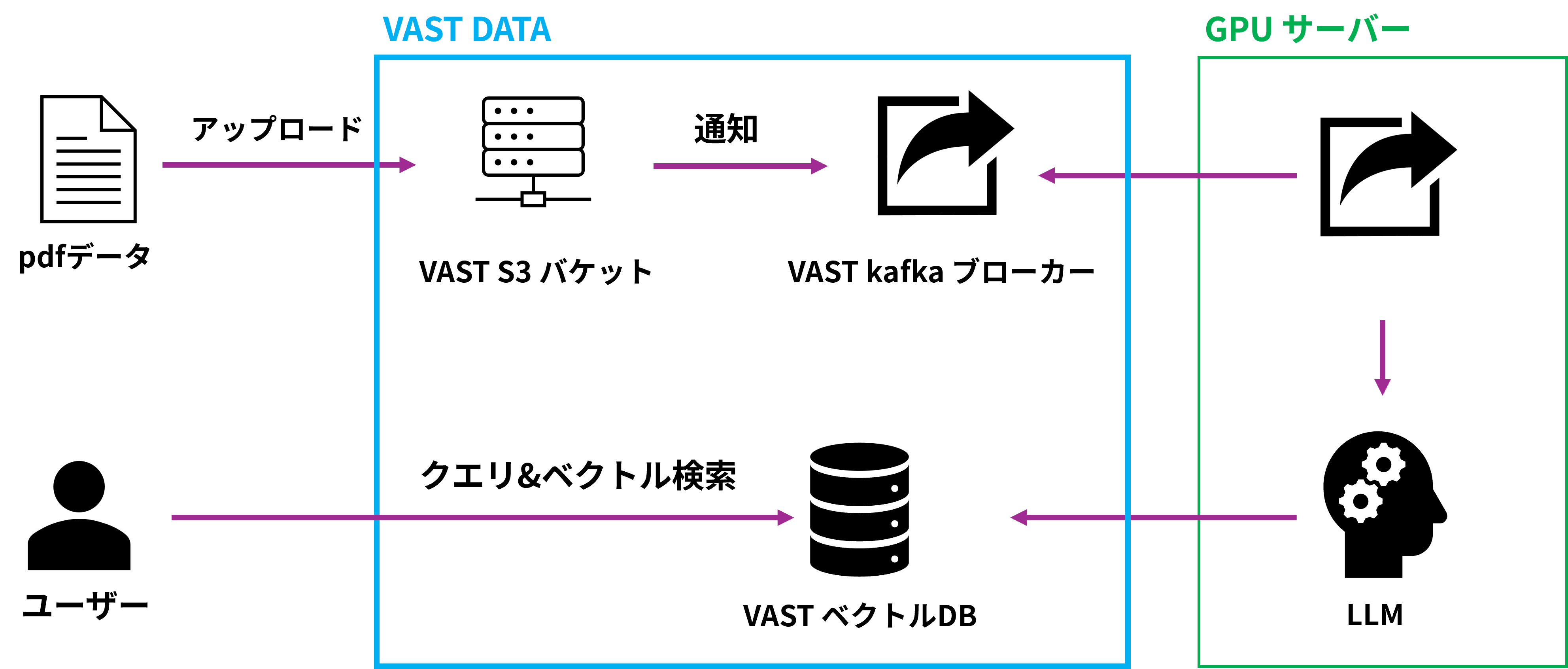
The actual construction process is as follows:
1. Create a Kafka broker and Kafka topic for RAG within VAST Data.
2. Create an S3 bucket
3. Create a vector database for RAG within VAST Data.
4. Connect each element to create a pipeline.
We will create a RAG while explaining each element.
1. Create a Kafka broker and Kafka topic for RAG within VAST DATA.
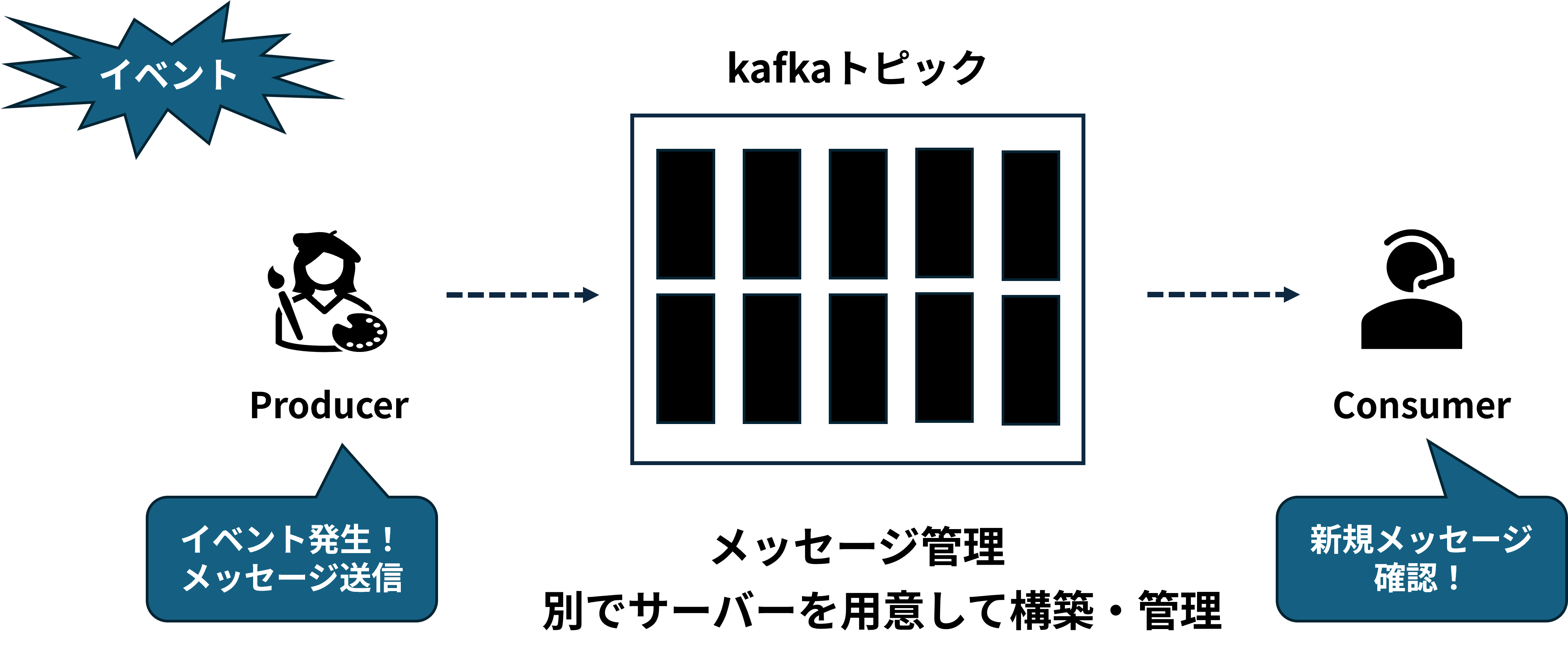
Kafka has a Producer that sends messages and a Broker that manages them, and VAST InsightEngine natively supports both the Kafka broker and producer components.
Now, let's actually create a Kafka broker within VASTData. You can create a Kafka broker from the VAST Data management screen (hereinafter referred to as VMS).
Creation procedure
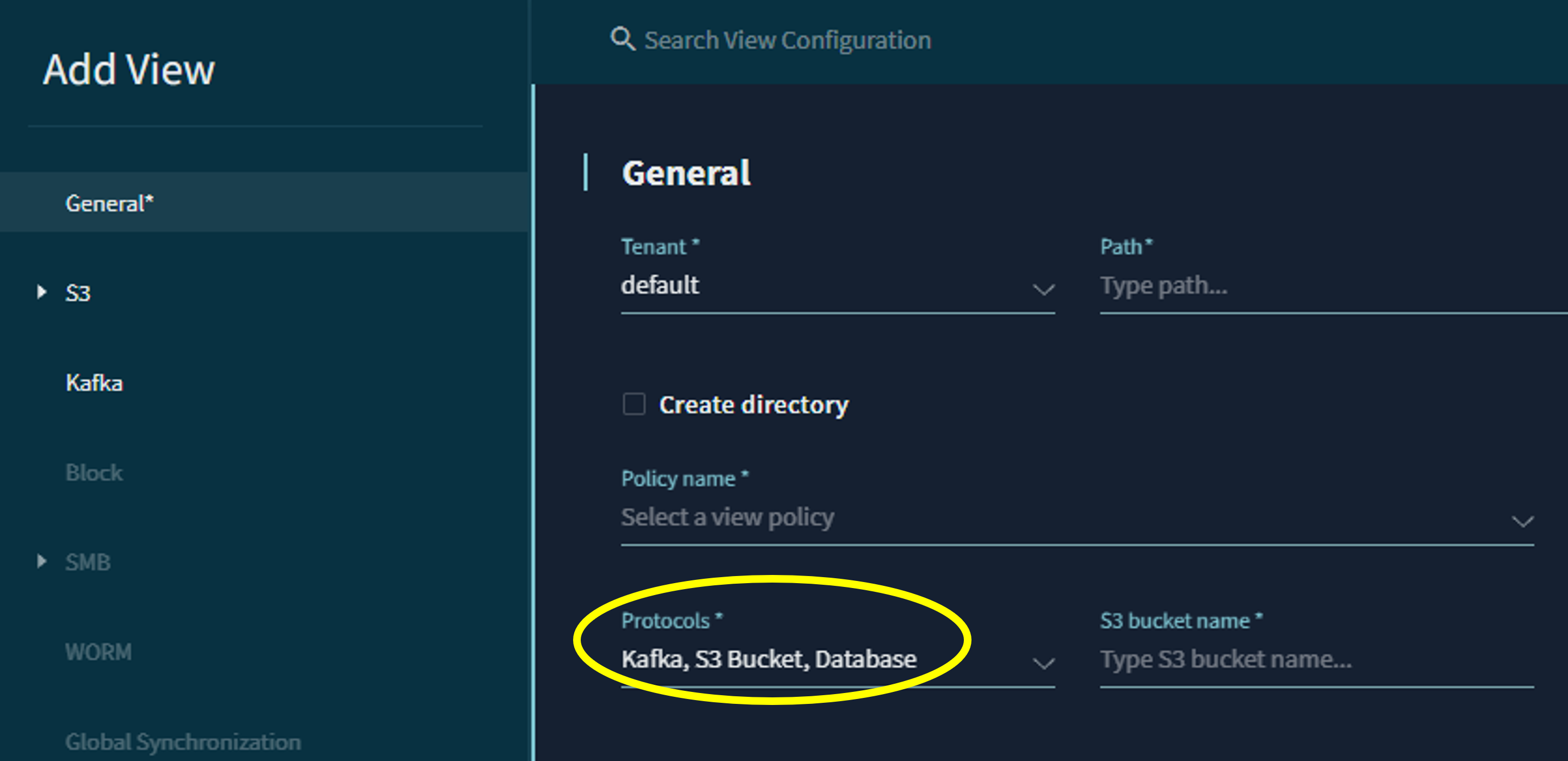
First, select a Kafka view under "Protocols." (In VAST Data, "view" is used in a similar sense to a shared volume.) This view will function as a Kafka broker.
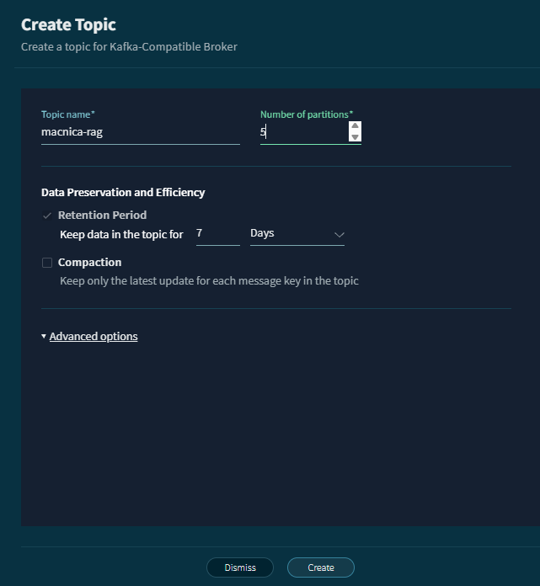
Next, create a topic of your choice using this broker. At this stage, you can select the partition and data retention period.
This time, we will create a Kafka topic called macnica-rag.
2. Create an S3 bucket
Next, we will create an S3 bucket to store the raw data. This will also be created via VMS.
In VAST Data, you need to create a bucket owner to create an S3 bucket. Each owner is assigned an Access Key and a Secret Key. These keys are used to perform operations on the bucket.
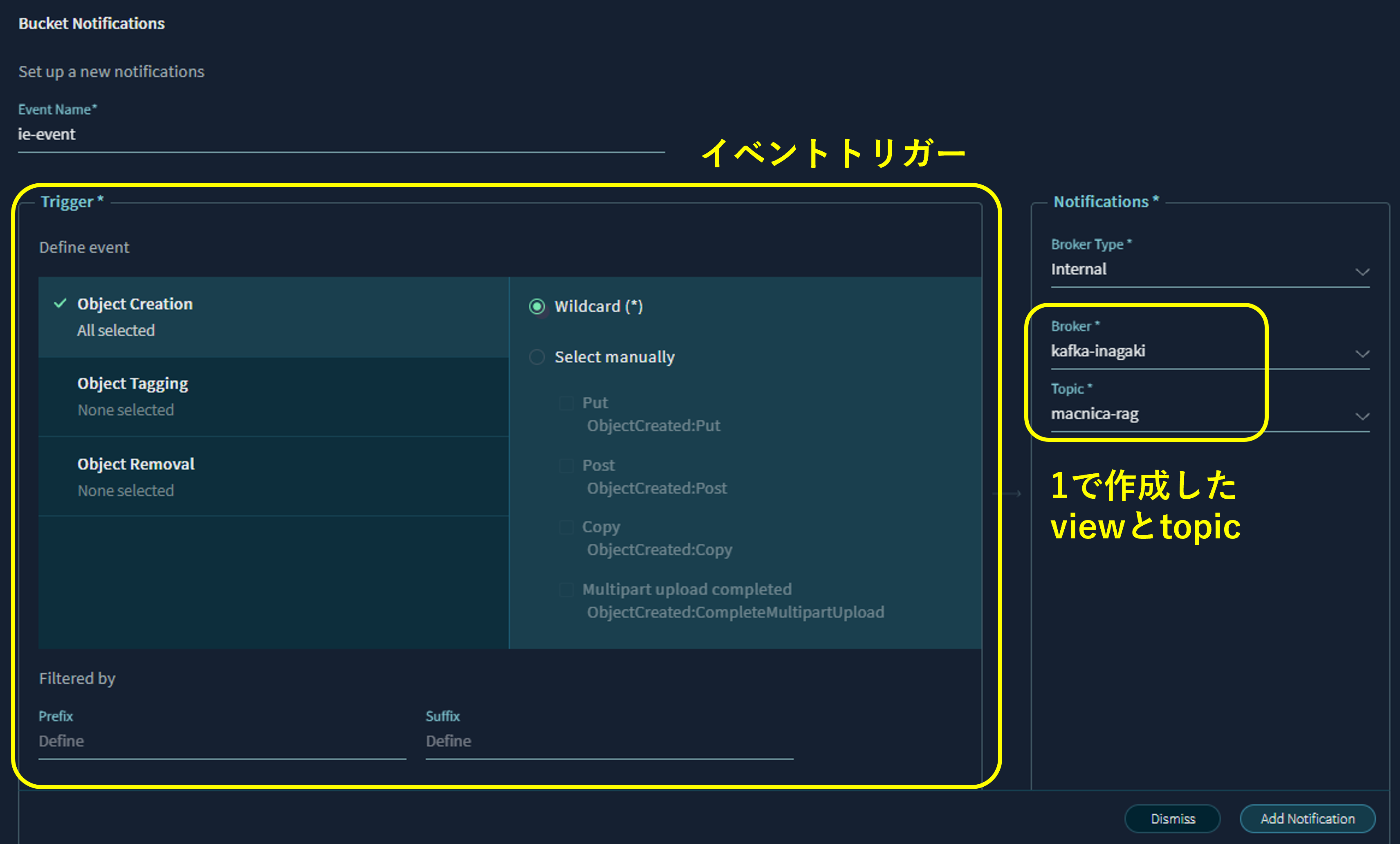
The S3 bucket you created can be configured with event notification functionality. You can receive notifications for operations such as object creation and deletion. You can select the Kafka topic you created earlier as the medium for these event notifications. Set the notification to the kafka-topic you created earlier. The trigger for event notifications should be set to when an object is created.
Additionally, it is possible to configure an existing Kafka broker located on an external server as the S3 notification broker.
3. Create a vector database for RAG within VAST Data.
To create a vector database within VAST Data, the "Protocols" will create a view of the Database.
You can insert vector columns into a VAST Data database. Just like with the S3 bucket mentioned earlier, you need to configure users for the database. Therefore, database operations are performed using an Access Key and Secret Key, similar to how you would with an S3 bucket.
This time, we will create a database table called "demo," insert a vector, and perform a search.
First, we will perform operations related to the VAST Database. We will use the pyarrow and vastdb libraries for these operations.
VAST Database stores vector data as floating-point numbers.
import pyarrow as pa import vastdb DB_ENDPOINT = "http://10.0.50.70" DB_ACCESS_KEY = "バケットのアクセスキー" DB_SECRET_KEY= "バケットのシークレットキー" DB_BUCKET_NAME = "DBのバケット名" SCHEMA_NAME = "SCHEMA名" TABLE_NAME ="TABLE名" ##DBと接続を取る session = vastdb.connect ( endpoint=DB_ENDPOINT, access=DB_ACCESS_KEY, secret=DB_SECRET_KEY ) #insertするデータの形式を規定 #2048次元ベクトルとその文章を入れるデータ形式 ##ベクトルデータをvecとして、文章データをsentenceとして保存 dimension = 2048 columns = pa.schema([ ("vec", pa.list_(pa.field(name="item", type=pa.float32(), nullable=False), dimension)), ('sentence', pa.string()) ]) #インサートするデータを作成 #ベクトルデータ二つのダミーデータ vector = [[0.1]*2048,[0.2]*2048] #文章二つのダミーデータ sentence = ["Hello VAST!","Hello, InsightEnigne!"] #DBに挿入するデータを作成 data = [vector,sentence] datas = pa.table(schema=columns,data=data) #実際に繋いでベクトルを挿入 with session.transaction() as tx: bucket = tx.bucket(BUCKET_NAME) ##新規schema作成 schema = bucket.create_schema(SCHEMA_NAME) ##新規table table = schema.create_table(TABLE_NAME,columns) table.insert(datas)Next, we will perform a vector search.
For searching, we will use the adbc_driver_manager provided by VAST Data.
The driver package can be downloaded from VAST Data's GitHub repository.
https://github.com/vast-data/vastdb-adbc-driver
The search is basically performed using SQL-based syntax.
import adbc_driver_manager from adbc_driver_manager import dbapi ##ドライバーのパス DRIVER_PATH = "PATH TO “vastdb-adbc-driver-v0.0.13-linux-amd64/libadbc_driver_vastdb.so" DB_ENDPOINT = "http://10.0.50.70" DB_ACCESS_KEY = "バケットのアクセスキー" DB_SECRET_KEY= "バケットのシークレットキー" DB_BUCKET_NAME = "DBのバケット名" SCHEMA_NAME = "SCHEMA名" TABLE_NAME ="TABLE名" ##ベクトル検索 vector = [0.0]*2048 sql_vector = f"{vector}::FLOAT[2048]" ##VAST ベクトルDBに接続するためにコネクターを規定 with adbc_driver_manager.dbapi.connect( driver=DRIVER_PATH, db_kwargs= { "vast.db.endpoint": DB_ENDPOINT, "vast.db.access_key": DB_ACCESS_KEY, "vast.db.secret_key": DB_SECRET_KEY, }, ) as conn: #コネクターで検索を実施 with conn.cursor() as cursor: full_table_name =f'"{DB_BUCKET_NAME}/{SCHEMA_NAME}"."{TABLE_NAME}"' query = ( f"SELECT * FROM {full_table_name} " ##vec列で距離が近いデータを上位5個検索 f"ORDER BY array_distance(vec, {sql_vector}) LIMIT 5;" ) #検索実行 cursor.execute(query) #pandas形式で出力 output_as_pandas_dataframe = cursor.fetch_arrow_table().to_pandas()4. Connect each element to create a pipeline
Here, we connect each element to create a single pipeline. The flow is as follows:
1. Perform preprocessing and vectorization simultaneously with upload (VAST InsightEngine kafka)
↓
2. Save the vectorized data to VAST VectorDB (VAST InsightEngine vector)
I put all of these together to create a simple rag application.
The ingest and rag functions use Fastapi, and the UI uses HTML.
The following is a video of the rag application. Uploading the VAST Data PDF document (https://www.vastdata.com/resources/white-papers/vast-data-vector-database) to the VAST S3 bucket will automatically update the vector database.
In the next episode, we will build an access-restricted RAG using VAST InsightEngine, which is the most challenging aspect of RAG applications.
Since VAST Data includes a vector database, you can grant permissions to the vector database based on the storage permission settings.
Click here for inquiries