- Semiconductor BusinessHOME
- Products and Services of Macnica,Inc.
-
technical information

-
Events and Seminars
- Handling Manufacturer
- Support
- Inquiry
- Click here to purchase products
- Semiconductor business e-mail magazine registration


 Narrow down by specifying conditions
現在2236件がヒットしています。check

Introduction
This article is intended for the following people:
・I'm interested in edge AI but don't know where to start
・I want to learn general development methods for edge AI
・I want to learn how to use Texas Instruments' (TI) edge AI development tools.
We will explain the above content through the features and actual operation of "EDGE-AI-STUDIO" provided by TI. Specifically, we will develop applications such as image classification using custom data as shown in the figure below.
I hope this helps you understand the above content a little better.
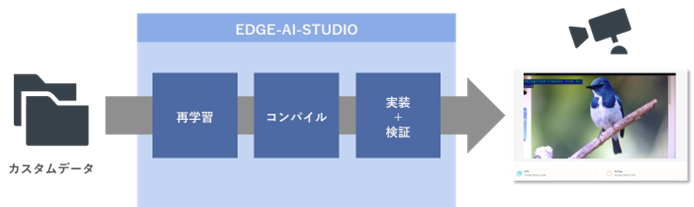
Product Overview (About EDGE-AI-STUDIO)
"EDGE-AI-STUDIO" is an edge AI development tool provided by TI. Since it is a cloud-based app, you can use it for free (with a certain time limit) using your local PC. EDGE-AI-STUDIO" is an edge AI development tool provided by TI. Since it is a cloud-based app, you can use it for free (with a certain time limit) using your local PC.
It is GUI-based and visually easy to understand, so even those with no prior knowledge can gain experience in everything from edge AI model development to actual device verification.
The diagram below shows a typical flow for developing an edge AI app, and EDGE-AI-STUDIO's Model Composer supports everything from data preparation to deployment.
Figure: Overview of general development steps:
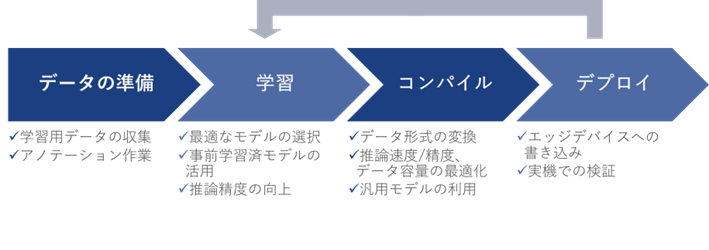
The details of the functions will be explained along with each flow, but as a prerequisite, the final application, such as the type of inference to be performed, has been solidified. However, "EDGE-AI-STUDIO" currently offers three types of functions: Classification (image classification), Detection (object detection), and Segmentation (area extraction).
Prepare your data
Learning requires the preparation of data tailored to the purpose and the annotation (or labeling) process, but these tasks take a huge amount of time.
"Model Composer" provides pre-annotated sample datasets, and by importing pre-annotated datasets, you can save time and effort in preparation. You can also prepare various patterns of data by taking local files on your PC or photos of the scene with a USB camera. However, please note that when importing data, users must label it themselves.
The format of the importable dataset is similar to the COCO dataset, but please refer to here for the specific configuration.
study
If you want to improve the inference accuracy of a prepared model, or if you want to make it compatible with a new detection target for the desired inference, you will need to retrain or transfer learn the model. At this time, you will basically select a model according to the accuracy of the inference results required by the final application, FPS (the number of frames that can be inferred here), the latency until the results are output, and the image size (resolution) that can be input.
Model Composer allows you to easily perform training with just one click. However, please note that when you actually perform training with Model Composer, you can only select certain models provided by TI.
Converting (compiling) code for edge devices
In order to run a trained model on an edge device, a compilation process is required to convert the data into a specific data format. Depending on the compilation settings and tools, it is possible to optimize accuracy/speed and data capacity. Generally, tools (compilers) provided by the edge device manufacturer or open source tools are used.
Model Composer allows you to compile with one click and simultaneously adjust accuracy and inference speed.
Implementation (Deployment) on edge devices
There are various methods for implementing on edge devices, but generally, tools provided by the edge device manufacturer are used. After that, the performance in actual operation is verified, and if it differs from the expected operation, it is necessary to repeat the learning and compiling work.
Model Composer allows you to connect to an evaluation board and immediately evaluate performance. Check the inference results based on the information input to the USB camera, and if you are not satisfied with the results, you can go back to the previous flow and make readjustments.
Like this, Model Composer supports the entire flow from data preparation to implementation in one app. In the following sections, we will explain how to use Model Composer by following the actual flow.
How to use Model Composer
The following procedures use TI's materials and actual screens. For details, be sure to refer to the latest TI documentation. Also, please refer to the end of the article for information on the equipment used.
[Home screen]
Once you access “EDGE-AI-STUDIO”, press the “Launch” button for “Model Composer”.
*Note: You will be asked to log in to your myTI account at this time, so please create an account.
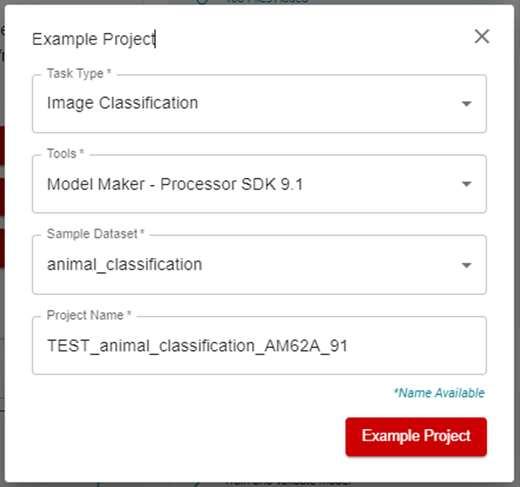
Once you open “Model Composer”, select “Example Project” and set it up as shown below.
If you click on “Example Project” in the image below, the project will launch.
This time we will look at a demo of "Classification (image classification)", but it can also perform "Detection (object detection)" and "Segmentation (area extraction)".
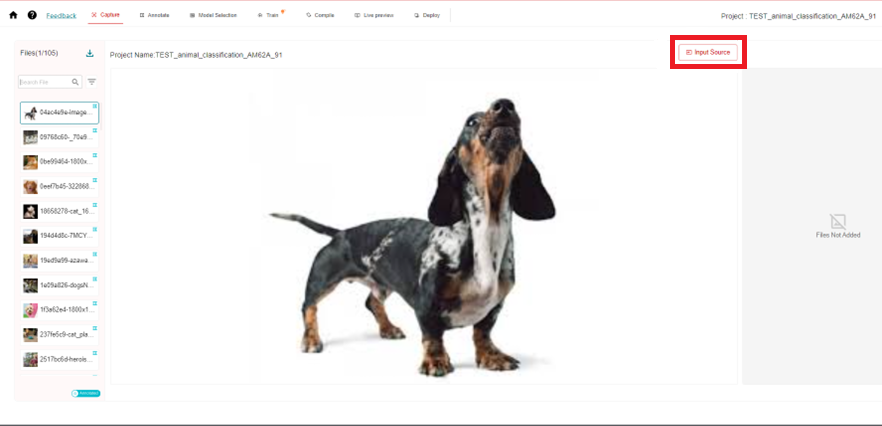
[Capture screen]
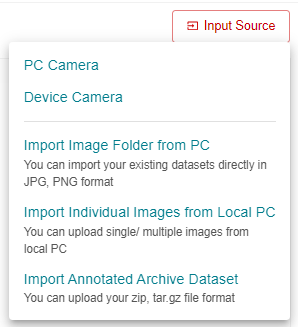
On this screen, you can prepare the image data to be used for training. You can use the sample dataset provided when creating a project, or you can use your own data.
If you want to add data, select "Input Source" in the upper right corner of the GUI and select from a single image, a folder, or the PC camera /EVM USB camera.
This time, we will add bird images based on the sample dataset “animal_classification”.
[Annotate screen]
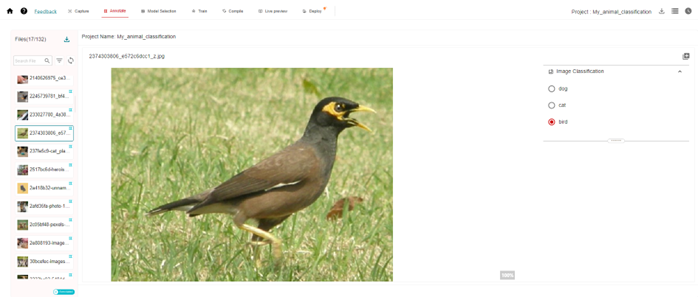
On this screen, you can label the data to be trained.
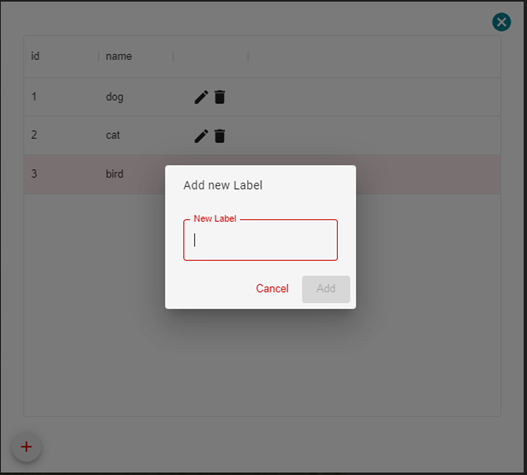
Before adding labels, the only options are “dog” and “cat”, but the image below shows an example of a bird image being labeled as “bird”.
To add more label types, select the red framed button in the upper right corner of the GUI and add it to "New Label".
[Model Selection screen]
This screen allows you to select the device and model you want to use.
The device is selected using the pull-down menu to indicate the model number of the TI chip.
Only models available in the GUI can be used, so select them using the pull-down menu.
This time I set it up as shown in the figure below, but the specs of the chip (EVM) and model to be used are displayed, so please select according to your purpose.

[Train screen]
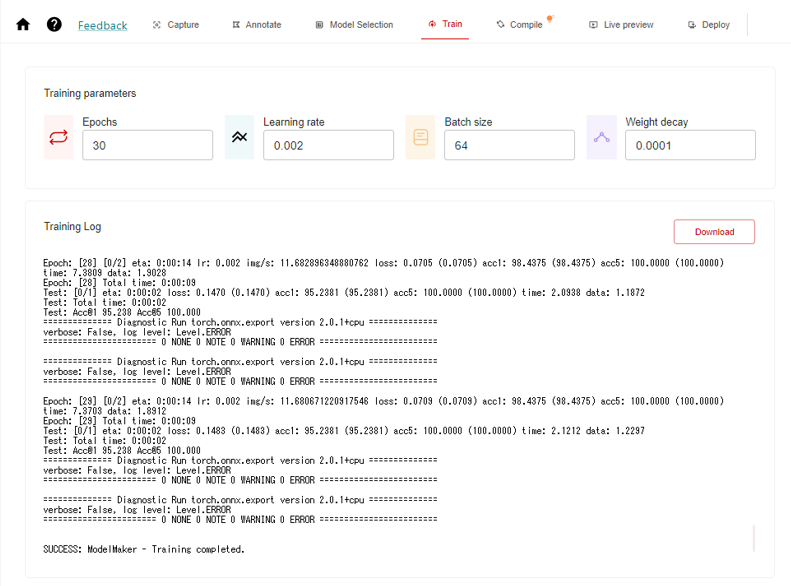
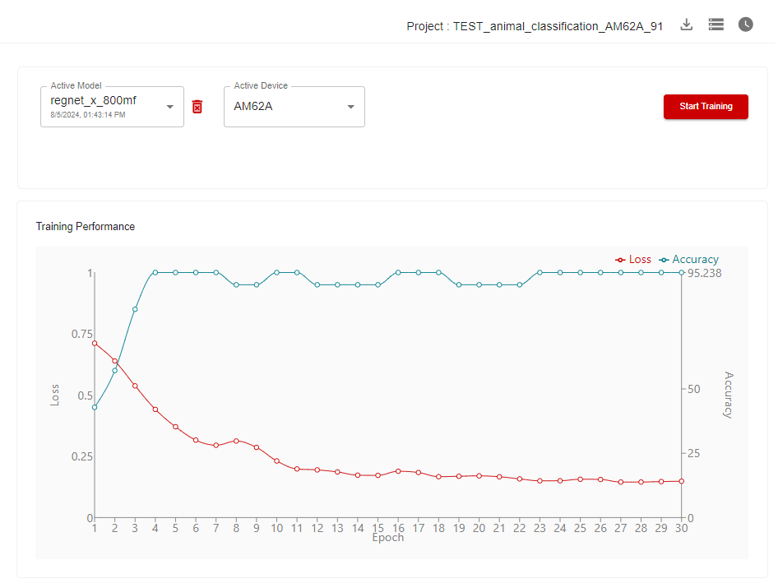
On this screen, you can train the model using the images you have prepared.
When learning, the accuracy of the inference results and the learning speed can be adjusted by adjusting various parameters to optimal values.
First of all, I would like to confirm the difference in accuracy when increasing "Epochs" and "Batch size", but please note that the time required for training will also increase. Other parameters will be fine-tuned according to the results.
This time, I set it up as shown in the figure below and started learning by clicking "Start Training".
(The screen is split into two for easier viewing.)
[Compile screen]
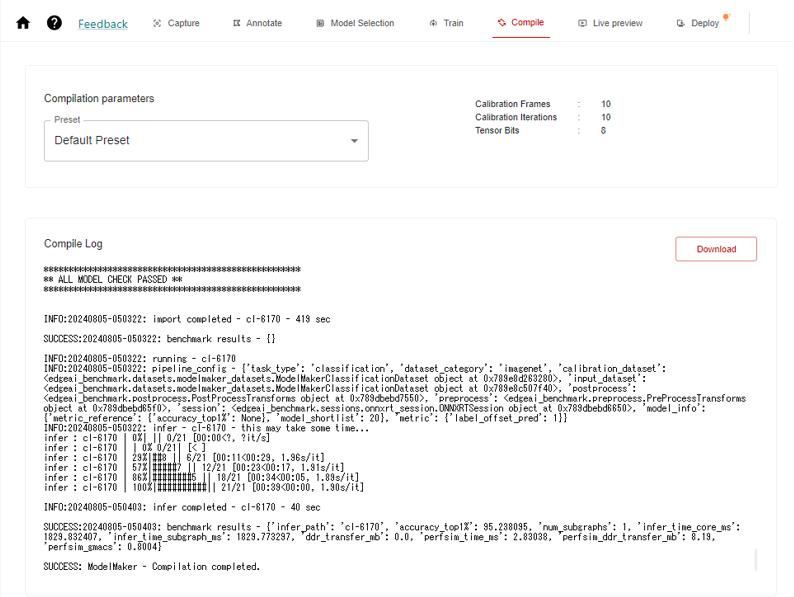
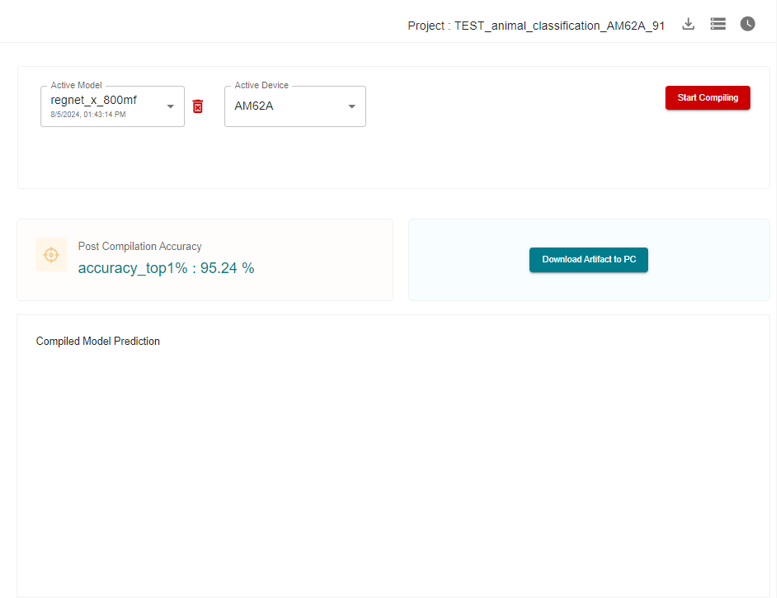
On this screen, you can convert (compile) the trained model into a data format for running on the EVM. After conversion, artifacts are generated and used for inference on the EVM.
By adjusting the “Compilation parameters”, you can adjust the accuracy of the inference results and the speed at which they are output.
This time, we used the Default Preset and started compiling by clicking “Start Compiling”.
(The screen is split into two for easier viewing.)
Performance Evaluation Methodology
First, you need to prepare the EVM. This time, we will use the "SK-AM62A-LP". For details on the product, please refer to this article. You will need to write the dedicated software (SDK) to the SD card, but we will not go into the details of how to do this in this article, so please refer to this URL.
You can use a USB camera that supports HD (720p) or Full HD (1080p), but this time we will use the "Logitech C270 HD WEBCAM".
Connect the pre-programmed SD card, USB camera, and Ethernet cable, then start the EVM.
From “Option” -> “Serial Port Settings...” in the upper right corner of the GUI, select the COM port and set Baud Rate to 115200.
You can connect to the EVM by pressing the red frame button at the bottom left of the GUI. (Note: The EVM and PC must be on the same network.)

[Live preview screen]
On this screen, you can write a trained model to the EVM and check the inference results on the actual device.
By pressing the “Device Setup” button in the upper left of the GUI, you can output video from the camera connected to the EVM.
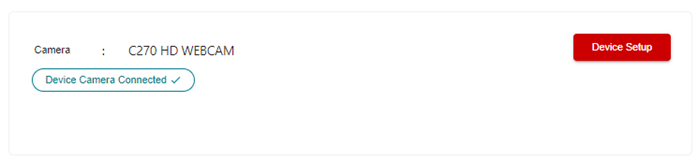
Then, by pressing the “Start Live Viewing” button in the upper left of the GUI, the model will begin being written to the EVM, and inference can be performed on the information input to the camera.
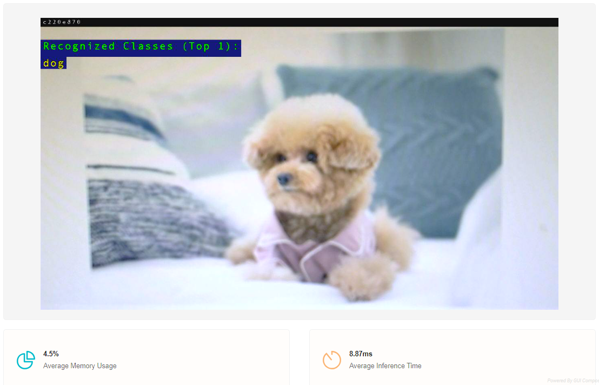
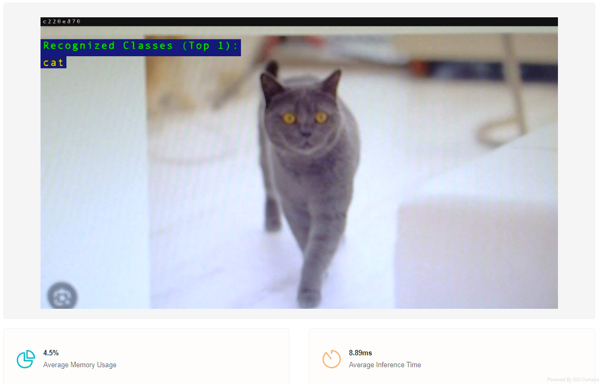
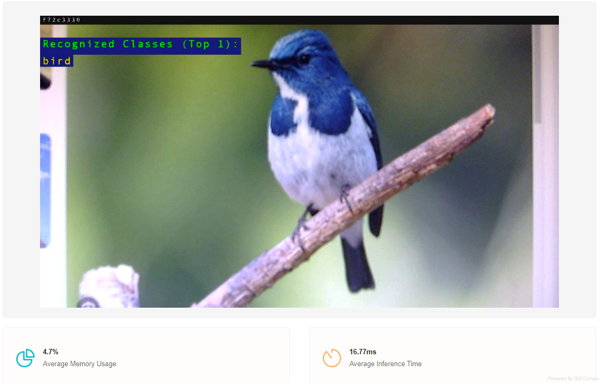
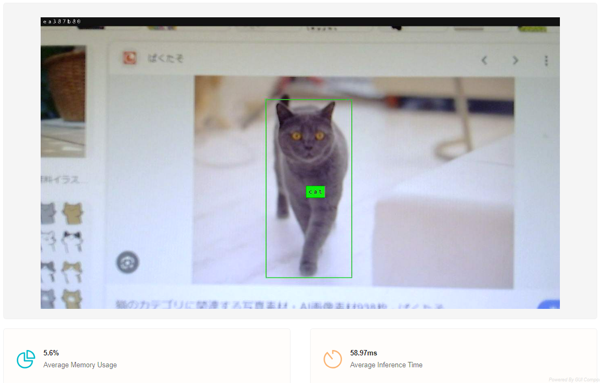
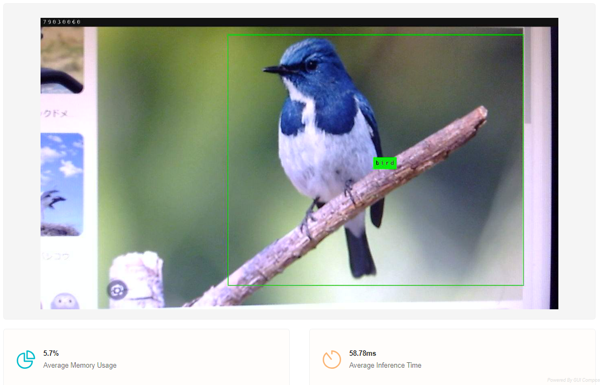
This time, we're looking at "Classification,"so by inputting images of a dog, cat, and bird into the camera, the results for "dog," "cat," and "bird" will be displayed.
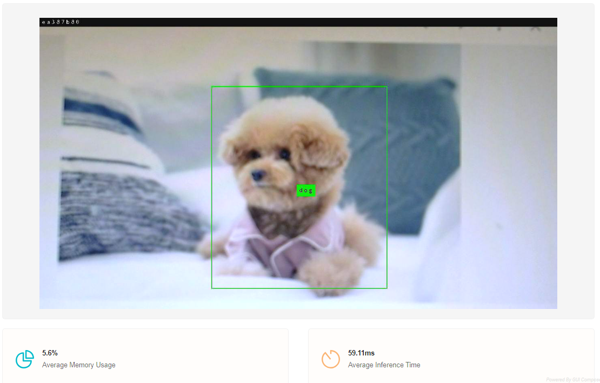
By the way, if you perform "Detection", it will look like this.
[Deploy screen]
On this screen, you can save the trained model and compiled model artifacts to a local folder on your PC or write them to the EVM. You can also use the downloaded files to share and evaluate on another PC.
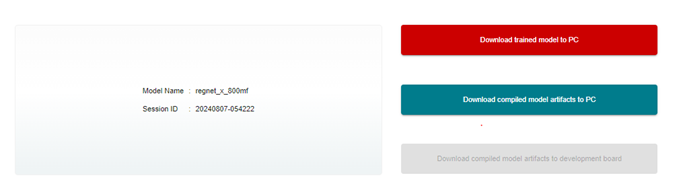
You can also use the red button in the upper right corner of the GUI to export the current project itself and reuse it on another PC.

At the end
I believe you will be able to gain a deeper understanding of the contents of this article, especially the development procedures and parameter adjustments, by experiencing it for yourself.
Please refer to the equipment used below.
・USB cable micro-B (for communication with PC)
- USB cable Type-C (for EVM power supply)
-SD card (16GB or more)
- HDMI display (HDMI cable)
・Ethernet cable
In addition, the following three other functions are integrated into "EDGE-AI-STUDIO", so we hope you will use them according to your purposes.
- Model Analyzer: Even if you don't have an edge device at hand, you can perform performance tests using TI's evaluation board.
- Model Selection Tool: You can immediately check the benchmarks of pre-trained models, which can be used as reference information to determine the model that best suits your purpose.
- Model Maker: Allows you to train and compile models that are not supported by Model Composer.
Contact Us
If you are interested in purchasing the EVM introduced in this article, please contact us here.