- Semiconductor BusinessHOME
- Products and Services of Macnica,Inc.
-
technical information

-
Events and Seminars
- Handling Manufacturer
- Support
- Inquiry
- Click here to purchase products
- Semiconductor business e-mail magazine registration


 Narrow down by specifying conditions
現在2249件がヒットしています。check

Implementing AI models on edge devices using Qualcomm AI Hub
Qualcomm AI Hub is a platform that helps optimize, validate and deploy AI models for vision, audio and voice applications on edge devices.
We provide a library of pre-optimized AI models and various tools to streamline the AI development process.
Click here for an overview of the Qualcomm AI Hub platform.
This article explains the workflow from obtaining the image classification model "Inception-v3" using Qualcomm AI Hub to running an on-device inference application on the NPU of the RB3 Gen2 Development Kit.
Implementation Steps
Verification environment
■Exporting AI Models
• PC: Windows 11 WSL2
Python 3.10.12
■Equipment for inference applications
RB3 Gen2 Development Kit
HDMI display
USB Type-C cable
Prepare the model in AI Hub
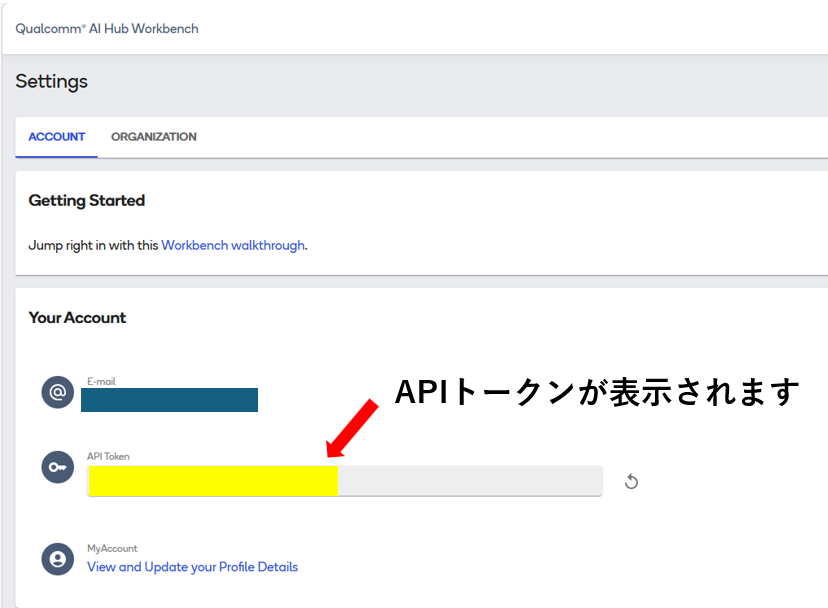
Sign in to Qualcomm AI Hub and set up your API token.
On your AI Hub account settings page, get your API token, which you will use in a later step.
*If you do not have a Qualcomm ID (same as the website),This pagePlease create it from.
Start the virtual environment
We will start a virtual environment named qai_hub.
$ python3 -m venv ~/qai_hub_venv
$ source ~/qai_hub_venv/bin/activate
Install the AI Hub Python package
(qai_hub_venv) macni@macnica:~$ pip3 install qai-hubFrom the terminal where you launched the virtual environment, set the AI Hub API token.
(qai_hub_venv) macni@macnica:~$ qai-hub configure --api_token <自身のAPIトークン>After setting up the API token, you can use the following command to view a list of devices compatible with AI Hub.
(qai_hub_venv) macni@macnica:~$ qai-hub list-devicesThis completes the initial setup of AI Hub.
Install the library for the Inception-v3 model.
By executing this command, the Python packages required for subsequent processing of the configured model will be automatically installed.
(qai_hub_venv) macni@macnica:~$ pip install qai-hub-modelsExport the model
In this example,
Quantization w8a8
- Target runtime is TensorFlow Lite
- The device is a Dragonwing RB3 Gen 2 Vision Kit
Then, execute the model export module provided by Qualcomm AI Hub with the following command.
(qai_hub_venv) macni@macnica:~$ python -m qai_hub_models.models.inception_v3.export \
  --quantize w8a8 \
  --target-runtime=tflite \
  --device "Dragonwing RB3 Gen 2 Vision Kit" \
  --output-dir /home/macni/aihub/
If the export module is executed successfully, the model, labels, and model information in TensorFlow Lite format (.tflite) will be generated in the following directory.
(qai_hub_venv) macni@macnica:~$ ls aihub/inception_v3-tflite-w8a8/
inception_v3.tflite  labels.txt  metadata.json
A brief description of each file is provided below.
inception_v3.tflite: The main model optimized and quantized for the RB3 Gen2 NPU. Load this file into the inference engine and run it.
labels.txt: This file maps the model's output (indices from 0 to 999) to the actual class names ("tabby", "Yorkshire terrier", etc.).
metadata.json: A file containing the input and output specifications of the model. It includes input size (224x224x3), data type (uint8), quantization parameters (scale, zero point), etc.
Running the inception_v3 image classification app on an edge device
Qualcomm SoCs have a mechanism to execute tflite models using the runtime of Qualcomm's proprietary DSP core.
Therefore, you can transfer the tflite model exported from AI Hub to the actual device and run it directly.
In this example, we will use the RB3 Gen2 development kit with a Qualcomm Dragonwing QCS6490 SoC to run the inception_v3-classification image classification application on an edge device.
Preparing Model Labels
Transfer the inception_v3.tflite and labels.txt files that you exported via AI Hub in the previous step to the RB3 Gen2.
(PC) $ adb push [任意のパス]/inception_v3.tflite /etc/models (PC) $ adb push [任意のパス]/label.txt /etc/modelsImage preparation
This demo will use an image file provided by our company as the input source.
The input image is resized before use during inference execution.
The demo is now ready.
Run the sample app
We will compare the inference results on both the NPU and CPU using the Inception-v3 model obtained from Qualcomm AI Hub.
This time, we are using a sample application prepared by our company.
Verification details
- Model used: Inception-v3 (w8a8 / TFLite)
- Image used: Sample image provided by our company (dog)
- Comparison items: Inference results (Top-5 class, probability) / Inference time
Inference result

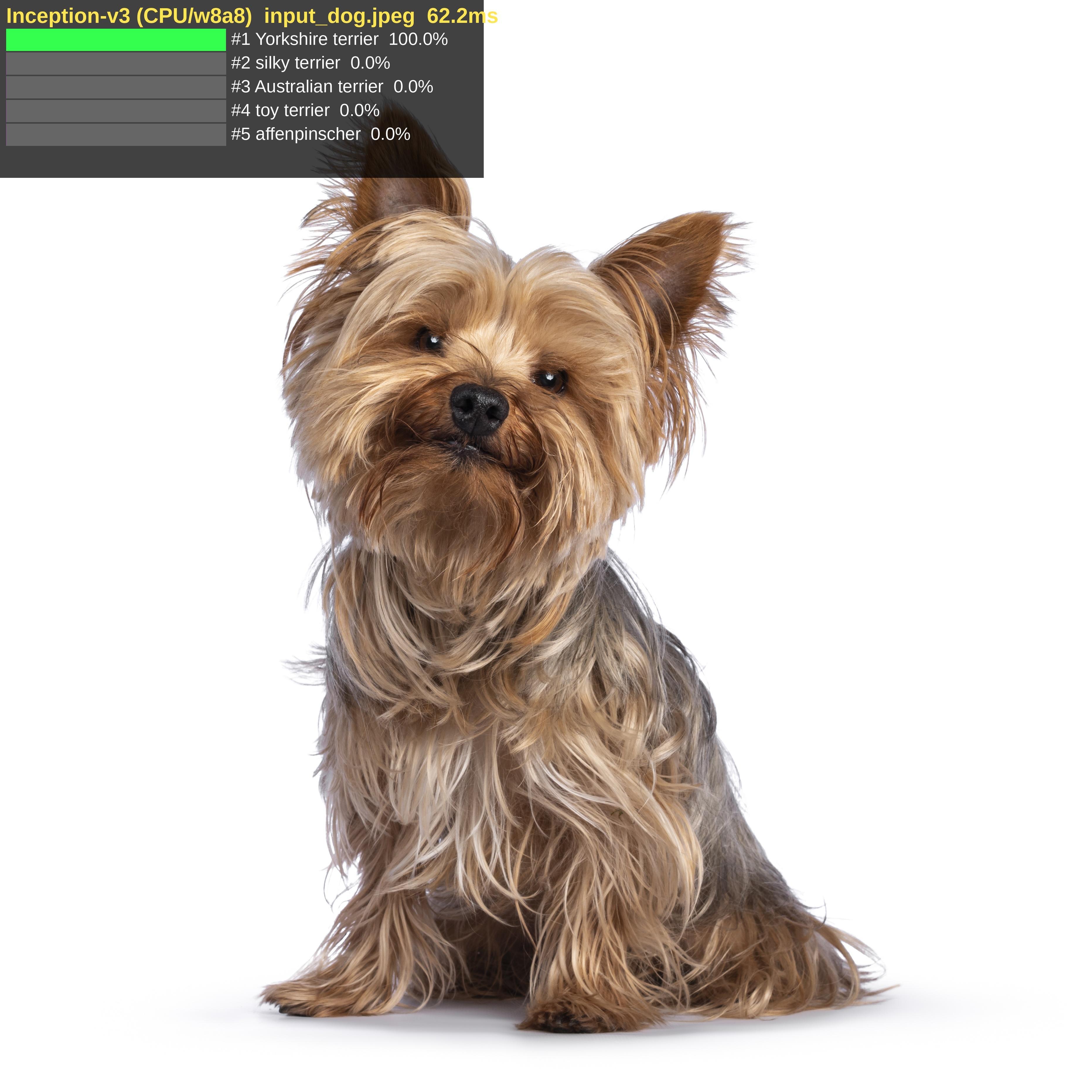
Comparison of NPU/CPU inference times
NPU: Average inference time 3.3 ms/sheet
CPU: Average inference time 62.2 ms / page
We confirmed that the inference time was significantly reduced when using the NPU compared to when using the CPU.
in conclusion
This article explains the steps to run Inception-v3 (w8a8 / TFLite), obtained from Qualcomm AI Hub, on the NPU of an actual RB3 Gen2 device.
When we actually performed inference on both the NPU and the CPU, we obtained an average time of 3.7 ms on the NPU and an average time of 62.2 ms on the CPU.
By utilizing AI Hub, you can skip complex processes such as model quantization and optimization, and run downloaded models directly on actual devices.
For a tool that smoothly connects initial algorithm development to product implementation, we encourage you to try Qualcomm AI Hub.
Inquiry
If you have any questions about the content of this page or would like more detailed product information, please contact us here.