- Semiconductor BusinessHOME
- Products and Services of Macnica,Inc.
-
technical information

-
Events and Seminars
- Handling Manufacturer
- Support
- Inquiry
- Click here to purchase products
- Semiconductor business e-mail magazine registration


 Narrow down by specifying conditions
現在2189件がヒットしています。check

Implementing AI models on edge devices using Qualcomm AI Hub
Qualcomm AI Hub is a platform that helps optimize, validate and deploy AI models for vision, audio and voice applications on edge devices.
We provide a library of pre-optimized AI models and various tools to streamline the AI development process.
For an overview of the Qualcomm AI Hub platform, click here
In this article, we will explain the entire process of using AI Hub to optimize the YOLO model, a well-known object detection model, for Qualcomm devices and finally run the application on-device.
Implementation Steps
Verification environment (list of equipment used)
■ Exporting AI models
・PC: Ubuntu 22.04 (WSL2 also available)
■ Inference application execution
・RB3 Gen2 Development Kit
HDMI display
・USB Type-C cable
Prepare the model in AI Hub
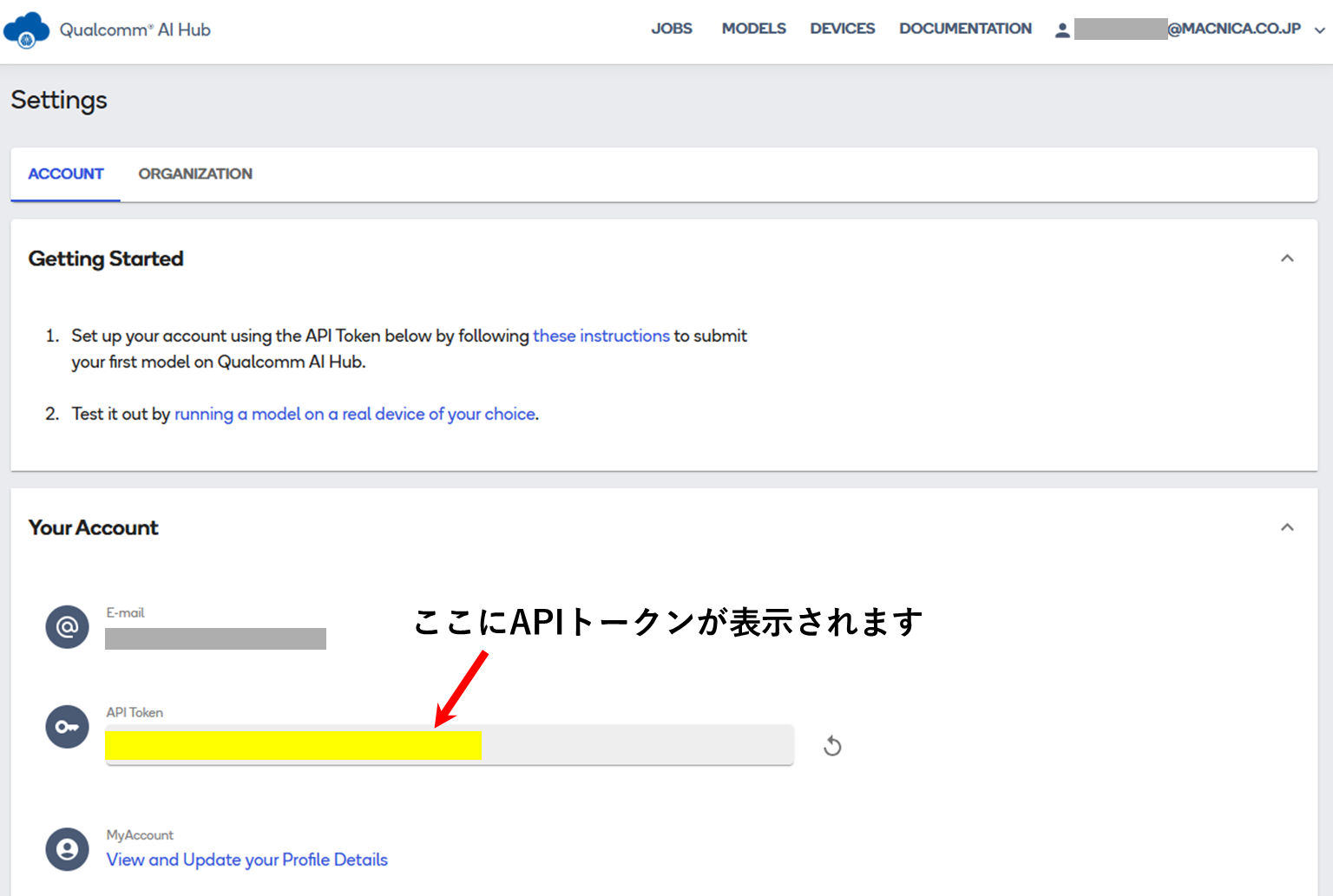
Sign in to Qualcomm AI Hub and set your API token
On your AI Hub account settings page, get your API token, which you will use in a later step.
*If you do not have a Qualcomm ID (same as the website),This pagePlease create it from.
Start the virtual environment
In this example,we will start a virtual environment named qai_hub usingminiconda.
$ mkdir -p ~/miniconda3
$ wget https://repo.anaconda.com/miniconda/Miniconda3-latest-Linux-x86_64.sh -O ~/miniconda3/miniconda.sh
$ bash ~/miniconda3/miniconda.sh -b -u -p ~/miniconda3
$ rm ~/miniconda3/miniconda.sh
$ source ~/miniconda3/bin/activate
(base) test@SDTEST:~$ conda create python=3.10 -n qai_hub
(base) test@SDTEST:~$ conda activate qai_hub
(qai_hub) test@SDTEST:~$
Install the AI Hub Python package
(qai_hub) test@SDTEST:~$ pip3 install qai-hubSet the AI Hub API token from the terminal where you started theqai_hubminicondaenvironment.
(qai_hub) test@SDTEST:~$ qai-hub configure --api_token <自身のAPIトークン>Once you have finished setting the API token, start Python and run the module to get a list of devices corresponding to AI Hub as shown below, and confirm that the device list is displayed as output.
(qai_hub) test@SDTEST:~$ python Python 3.10.18 (main, Jun 5 2025, 13:14:17) [GCC 11.2.0] on linux Type "help", "copyright", "credits" or "license" for more information. >>> import qai_hub as hub >>> hub.get_devices() # デバイス一覧が表示されますThis completes the AI Hub pre-configuration.
Install the library for the YOLOv8-Detection model
By executing this command, the Python packages required for subsequent processing of the configured model will be automatically installed.
(qai_hub) test@SDTEST:~$ pip install "qai-hub-models[yolov8-det]"Export the model
In this example,
Quantization to w8a8
・Target runtime is TensorFlow Lite
・Device RB3 Gen2 (Proxy)
Then,run the model export module provided byQualcomm AI Hub with the following command.
(qai_hub) test@SDTEST:~$ python -m qai_hub_models.models.yolov8_det.export \
  --quantize w8a8 \
  --target-runtime=tflite \
  --device "RB3 Gen 2 (Proxy)" \
  --output-dir /home/test/aihub/
If the exportmodule is executed successfully, a model in TensorFlow Liteformat(.tflite)will be generated in the specified directory.
The model will be output asyolov8_det.tflite, but to simplify later steps, change the file name toyolov8_det_quantized.tflite.
(qai_hub) test@SDTEST:~/aihub$ ls
yolov8_det.tflite
(qai_hub) test@SDTEST:~/aihub$ mv yolov8_det.tflite yolov8_det_quantized.tflite
(qai_hub) test@SDTEST:~/aihub$ ls
yolov8_det_quantized.tflite
Explanation of the export module
The export module consists of the following seven steps. Before moving on to the next step, we will explain in detail what each step does.
1. Converting a PyTorch Model to TorchScript
First, we trace the YOLOv8-Detection model defined in PyTorch into TorchScript format.
This process produces an intermediate representation that is isolated from Python runtime dependencies, making subsequent exports and optimizations more stable.
2. Convert to ONNX format and perform quantization
Next, convert the TorchScript model you created earlier into ONNX format.
After that, quantization is performed at the specified bit width (in this case w8a8).
For quantization, calibration data is automatically generated according to the input/output characteristics of the model, and this data is used to compress the weights and activations.
3. Compiling for the target runtime
Build your quantized (or as-is) model for TensorFlow Lite.
At this stage, optimization parameters are automatically incorporated for the target runtime, including channel layout optimizations and compute unit specific acceleration options.
4. Profiling on the host device
The compiled model is run on an actual device and the latency and throughput are measured.
By using warm-ups and multiple repetitions, you can reduce variability in results and obtain consistent performance metrics.
5. Sample inference on a real device
Next, the sample input data is inferred on the device and the output results are obtained.
The same input set is also run on the host side (Python/PyTorch) to compare and verify the consistency of the outputs and the accuracy difference (IoU, etc.).
6. Download model assets locally
Once you have successfully built and verified that it works, download the TensorFlow Lite binary and all the associated metadata files to your local environment.
This allows the artifacts to be passed directly to subsequent deployment processes.
7. Summary display of profile and inference results
Finally, the comparison data between the obtained profile indicators and the inference results is output to the terminal.
In addition, it automatically generates one-liner ADB commands that make it easy to run demos on a real device, smoothing the transition to the next step.
Run YOLOv8 object detection application on edge devices
Qualcomm SoC has a mechanism to executetflite format models at runtime on Qualcomm's proprietary DSP core.
Therefore, the tflite model exported from AI Hub can be transferred to the actual device and executed as is.
In this example, we use the RB3 Gen2 development kit equipped with the Qualcomm QCS6490 SoC to run the YOLOv8-Detection object detection app on an edge device.
The RB3 Gen2 development kit comes with an SDK that includes a sample app.
All you need is an export model, a label file, and a configuration JSON to get the demo application up and running.
Preparing the model
TransfertheYOLOv8tflitefile (yolov8_det_quantized.tflite)exported viaAI Hubin the previous step to RB3 Gen2.
(PC) $ adb push [任意のパス]/yolov8_det_quantized.tflite /etc/modelsPreparing the labels
We will use the label fileprovided byQualcomm.
Connectthe RB3 Gen2 to the network and use the curlcommand to obtain and execute the download script for the necessary files.
(You can also download the necessary files to a PC connected to the Internet and then transfer them to the RB3 Gen2.)
(PC) $ adb shell
(RB3Gen2) # cd tmp
(RB3Gen2) # curl -L -O https://raw.githubusercontent.com/quic/sample-apps-for-qualcomm-linux/refs/heads/main/download_artifacts.sh
(RB3Gen2) # chmod +x download_artifacts.sh
(RB3Gen2) # ./download_artifacts.sh -v GA1.4-rel -c QCS6490
A set of label files has been downloaded to the/etc/labels directory as shown below. For this demonstration we will useyolov8.labels.
(RB3Gen2) # ls /etc/labels/
cityscapes_labels.txt        imagenet_labels.txt
classification.labels        monodepth.labels
coco_labels.txt              posenet_mobilenet_v1.labels
deeplabv3_resnet50.labels    voc_labels.txt
face_detection.labels        yamnet.labels
face_landmark.labels         yolonas.labels
face_recognition.labels      yolov8.labels
hrnet_pose.labels            yolox.labels
hrnetpose.labels
Preparing the video file
This demo uses a video file as the input source.Place any mp4file in /etc/mediaonthe RB3 Gen2.
This time we are using a video file prepared by our company, but youcan also use the sample video file in/etc/mediaofRB3 Gen2.
Please modifythe file-pathin the following config_detection.jsonto match the path of the video file you are using.
Preparing the JSON file
The JSONfilefor configurationis/etc/configs/config_detection.json, which is included by default inRB3 Gen2.
As mentioned above,file-pathcan be any path. ThisJSONfile also specifies the paths to the model and label files.
Example config_detection.json file
{
  "file-path": "/etc/media/video.mp4",
  "ml-framework": "tflite",
  "yolo-model-type": "yolov8",
  "model": "/etc/models/yolov8_det_quantized.tflite",
  "labels": "/etc/labels/yolov8.labels",
  "constants": "YOLOv8,q-offsets=<21.0, 0.0, 0.0>,q-scales=<3.0546178817749023, 0.003793874057009816, 1.0>;",
  "threshold": 40,
  "runtime": "dsp"
}
The demo is now ready.
Run the sample app
Connect the RB3Gen2 to a display with an HDMIcable and make sure it is displaying a grey floral background screen.
Run the sample app (gst-ai-object-detection)with the command below.
Command execution example
(RB3Gen2) # gst-ai-object-detection --config-file=/etc/configs/config_detection.json
The input videois displayed on the display with a bounding Box drawn around the object to be detected byYOLOv8.
As shown above, we were able toeasily run an object detection application using the YOLO model on an edge device.
The source code forthe gst-ai-object-detection application used in this articleis available asopen source software, so you can customize it to suit your needs.
in conclusion
This article introduced the process from optimizing a model using AI Hub to running it on an actual device.
AI Hub has many other useful features. Please try it out and use it to incorporate into your Qualcomm SoC products.
Inquiry
If you have any questions about the contents of this page or would like more detailed product information, please contact us here.