- Semiconductor BusinessHOME
- Products and Services of Macnica,Inc.
-
technical information

-
Events and Seminars
- Handling Manufacturer
- Support
- Inquiry
- Click here to purchase products
- Semiconductor business e-mail magazine registration


 Narrow down by specifying conditions
現在2240件がヒットしています。check
In logistics warehouses, factories, and for autonomous driving and advanced driver-assistance systems (ADAS), accurately understanding the position and movement of people, vehicles, and robots is crucial. However, conventional 2D image recognition struggles to accurately determine the position and spatial relationships of objects, necessitating more advanced environmental awareness. Sparse4D is an AI model designed to address these challenges. Sparse4D detects and tracks objects such as vehicles and people in three-dimensional space from multiple RGB camera images, enabling an overhead view using Bird's Eye View (BEV). It is also used in NVIDIA Blueprints and is utilized as an environmental awareness technology supporting Physical AI in logistics warehouses, factories, and other settings.
This article provides an overview of Sparse4D, including its applications, operating environment, quick start guide, and how to verify actual inference results. It introduces the basic features and usage methods for those who want to evaluate and test Sparse4D.
What is Sparse4D?
Sparse4D is a 3D object detection and tracking AI model for multi-camera systems provided by NVIDIA. It uses multiple RGB camera images and calibration information from each camera as input to recognize and track objects such as people, vehicles, and forklifts in three-dimensional space. With typical 2D object detection, while the position on an image can be determined, accurately recognizing the spatial relationships between objects, such as distance and depth, is not easy. In contrast, Sparse4D integrates images from multiple viewpoints to recognize three-dimensional space, enabling not only the position and orientation of objects but also continuous tracking using Tracking IDs. This allows for the time-series tracking of the movement of people and transport equipment.
Furthermore, a major advantage is that it can achieve 3D recognition using existing RGB cameras, allowing for system construction that leverages existing camera equipment without the need to add new sensors.
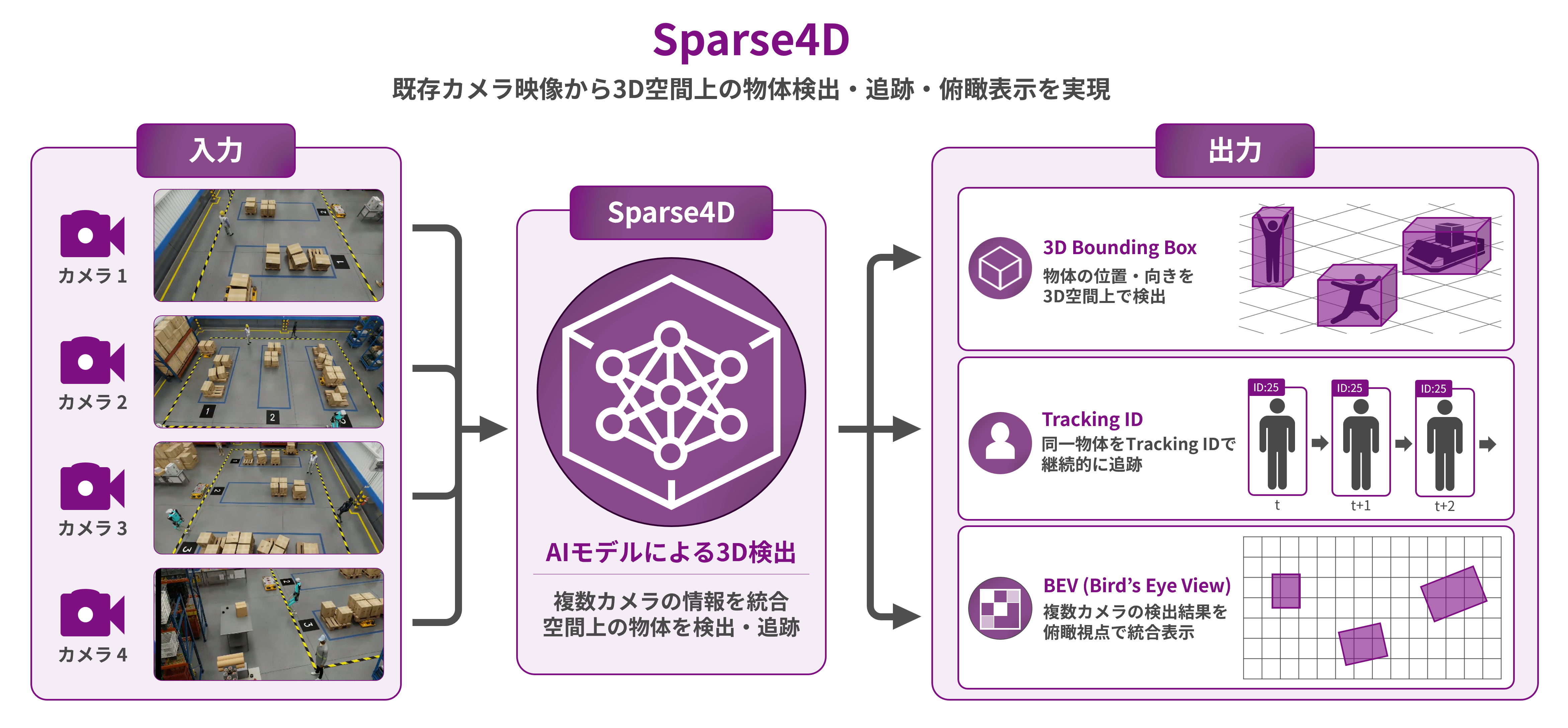
The image above shows the processing image of Sparse4D, which integrates images acquired from multiple RGB cameras to detect and track objects in 3D space. By combining the video from each camera with calibration information, it is possible to recognize depth and positional relationships that are difficult to grasp with a single camera.
What you can do with Sparse4D
Sparse4D integrates images from multiple cameras to recognize the surrounding environment as a three-dimensional space, enabling it to capture spatial information and object movements that were difficult to grasp with conventional 2D image recognition. Here, we introduce some of the representative functions that Sparse4D provides.
① 3D object detection using multiple cameras
By integrating images from multiple cameras, the system detects objects such as people, vehicles, and forklifts in three-dimensional space. The detection results are output as a 3D bounding box that includes not only position but also height, width, depth, and orientation, allowing for an understanding of the spatial relationships between objects.
② Continuous tracking of objects (Multi-Object Tracking)
Each detected object is assigned a Tracking ID. By maintaining the same ID for the same object across frames, it is possible to continuously track the movement paths and dwell times of people and transport equipment.
③ Visualization of space using Bird's Eye View (BEV)
Sparse4D integrates recognition results from multiple cameras into a common coordinate system, allowing for an overhead view as a BEV (Beam Elevation Scale). This makes it possible to intuitively check the positional relationships and movement of objects, which are difficult to grasp from the viewpoint of each individual camera, as a single space.
④ 3D recognition utilizing existing camera equipment
Sparse4D achieves 3D recognition using multiple RGB cameras rather than dedicated sensors such as LiDAR. Therefore, a major advantage is that it allows for the construction of a surrounding environment recognition system while utilizing existing camera equipment.
⑤ Adaptation to the environment through fine tuning
Sparse4D is compatible with the NVIDIA TAO Toolkit, allowing for fine-tuning using data collected or simulated by your company. This enables you to adapt the model to the target object and installation environment, creating an AI model that is more suitable for practical use.
Assumed use case
Sparse4D can continuously recognize the position and movement of objects in three-dimensional space, making it useful for a variety of applications that require understanding the surrounding environment, such as safety management, equipment monitoring, and work analysis. Here are some typical use cases.
① Safety management and work analysis in logistics warehouses
In logistics warehouses, workers, forklifts, and transport robots operate in the same space. By using Sparse4D, the position and movement of each can be understood in three dimensions, which can be used to visualize contact risks, detect intrusion into hazardous areas, and analyze work flow. In addition, BEV allows for an overview of the entire site, providing information useful for operational improvements such as reviewing transport routes and analyzing bottlenecks.
② Equipment monitoring in factories
In factories, it is common to monitor the areas around production and conveying equipment with multiple cameras. By using Sparse4D, the relative positions of workers and conveying equipment around the equipment can be understood in three dimensions, allowing for more accurate monitoring of approaches to hazardous areas and congestion around the equipment. The acquired location information and movement history can also be used to verify compliance with safety standards, improve equipment layouts, and review operational rules.
③ Integration with autonomous transport systems including AGVs and AMRs
In environments where AGVs (Automated Guided Vehicles) and AMRs (Autonomous Mobile Robots) are in operation, it is crucial to understand the positional relationship between the system and surrounding people and transport equipment. Sparse4D can recognize the surrounding environment in three dimensions based on information acquired from multiple cameras, and when combined with operation management systems and monitoring systems, it can support safe operation.
For example, visualizing the proximity of vehicles to people and other transport equipment, and analyzing congested areas and times, can be expected to lead to the optimization of operational plans and improvements in safety.
Operating environment
Sparse4D is provided as part of the NVIDIA Metropolis Blueprint for Video Search and Summarization (VSS) Warehouse Blueprint. Therefore, to try Sparse4D, you need to have an environment where the Warehouse Blueprint is running.
This article verifies the operation of Sparse4D using the Warehouse Blueprint 4-stream sample environment.
Here, we will introduce NVIDIA's officially recommended system requirements and the testing environment used in this article.
Recommended environment and testing environment
|
classification |
item |
Recommended environment |
The testing environment for this article |
|
Hardware Requirements |
GPUs | NVIDIA RTX PRO™ 6000 Blackwell NVIDIA H100 GPU NVIDIA L40S GPU, etc. |
NVIDIA L40S-48Q |
| GPU memory | 48GB or more | 48GB | |
|
Software Requirements |
OS(x86) | Ubuntu 24.04 LTS | Ubuntu 24.04 LTS |
| NVIDIA Driver | 580.105.08 and later | 580.65.06 | |
| NVIDIA Container Toolkit | 1.17.8 and later | 1.19.0 | |
| Docker | 28.3.3 and later | 28.5.2 |
In this verification, we used a Warehouse Blueprint 4-stream sample dataset on a GPU server equipped with an NVIDIA L40S-48Q (48GB VRAM) to confirm 3D object detection and tracking using Sparse4D. Note that the actual GPU performance required will vary depending on the number of input cameras, video resolution, frame rate, and combination with other AI models. The environment described in this article should be used as an example for evaluating and verifying Sparse4D.
quick start
We've covered an overview of Sparse4D and some examples of its use. In this chapter, we'll outline the general steps involved in actually trying out Sparse4D using Warehouse Blueprint.
Sparse4D is included in the Warehouse Blueprint, so you don't need to set up the model separately. By deploying the Blueprint, you can build a VSS environment, including Sparse4D, all at once.
This article focuses on the workflow. For detailed setup instructions and various settings, please refer to the official NVIDIA documentation.
① Obtaining the Warehouse Blueprint
First, obtain the Warehouse Blueprint repository from GitHub.
git clone https://github.com/NVIDIA-AI-Blueprints/video-search-and-summarization.git
cd video-search-and-summarization
git checkout tags/v3.2.0
git lfs install
git lfs pull
cd deploy/docker
Note: The repository uses Git LFS (Large File Storage), so you need to install Git LFS beforehand.
② Setting the NGC API Key
Warehouse Blueprint requires an NGC API Key to retrieve container images and sample data from NVIDIA NGC™. Set it as an environment variable as follows:
For information on how to obtain an NGC API Key, please refer to the NGC User Guide.
export NGC_CLI_API_KEY=<NGC_CLI_API_KEY>
export NGC_CLI_ORG='nvidia'
③ Download sample data
Warehouse Blueprint includes sample video data that allows you to immediately check its functionality.
ngc \
   registry \
   resource \
   download-version \
   nvidia/vss-warehouse/vss-warehouse-app-data:3.2.0
cd vss-warehouse-app-data_v3.2.0
tar -xvf vss-warehouse-app-data.tar.gz
sudo chmod -R 777 /path/to/vss-warehouse-app-data
The necessary data has now been downloaded.
④ Deploy Warehouse Blueprint
Editing the configuration file
First, edit deploy/docker/industry-profiles/warehouse-operations/.env.
The following is an example of the settings used in the testing environment for this article.
MODE=3d # Sparse4Dを使用する場合は'3d'を選択 BP_PROFILE=bp_wh_kafka # 'MODE=3d'の場合は'bp_wh_kafka'を選択 SAMPLE_VIDEO_DATASET="warehouse-4cams-20mx20m-synthetic" # Sparse4D用のデータセットを選択 HARDWARE_PROFILE=L40S # 使用しているHWを選択 VSS_APPS_DIR="/path/to/deploy/docker" # Blueprintのダウンロードパスを選択 VSS_DATA_DIR="/path/to/vss-warehouse-app-data" # サンプルデータのダウンロードパスを選択 HOST_IP='localhost' # Host IPを入力 NGC_CLI_API_KEY='YOUR_KEY' # NGC CLI API Keyを入力 NVIDIA_API_KEY='YOUR_KEY' # NVIDIA API Keyを入力Launching Warehouse Blueprint
Once you have finished editing the configuration file, execute the command to start Warehouse Blueprint.
Please adjust the execution path and other settings to match your actual environment.
source /path/to/deploy/docker/industry-profiles/warehouse-operations/.env
cd /path/to/deploy/docker
docker login \
    --username '$oauthtoken' \
    --password "${NGC_CLI_API_KEY}" \
    nvcr.io
docker compose \
    --env-file industry-profiles/warehouse-operations/.env \
    up \
    --detach \
    --pull always \
    --force-recreate \
    --build
This completes the startup of the Warehouse Blueprint.
Note: The first time you run it, downloading and initializing the container image may take some time.
Execution result
Once Warehouse Blueprint has finished starting up, access Video Storage Toolkit (VST) from your browser to register sample videos and display the Video Wall.
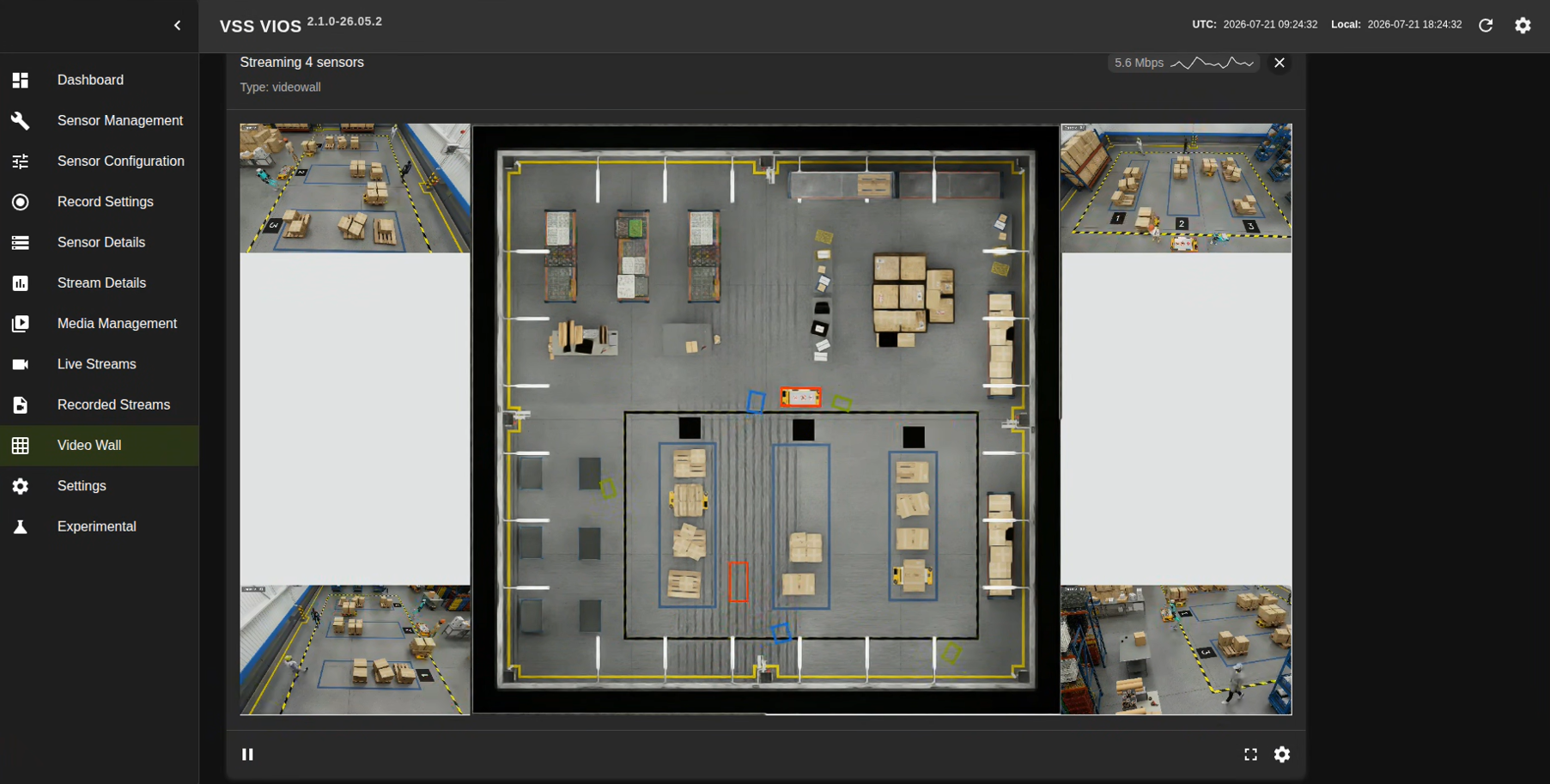
Video Wall allows you to view Sparse4D inference results for each camera feed in real time.
This chapter will explain the process of checking the inference results using Video Wall.
① Access VST
Access http://<HOST_IP>:30888/vst from your web browser.
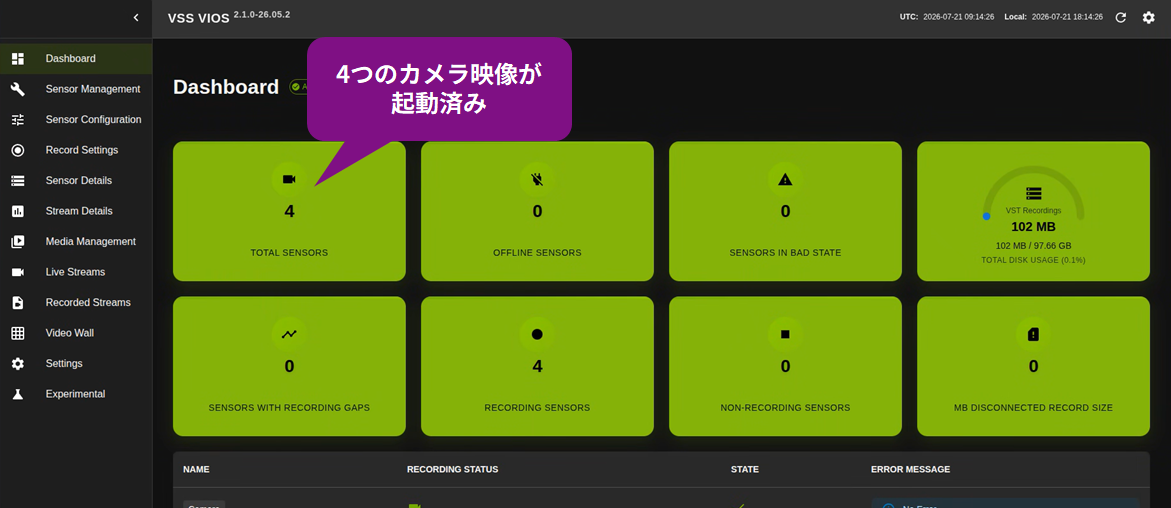
The image above shows an example of what the VST (Video Storage Toolkit) main screen looks like when accessed through a browser. You can view the Sparse4D inference results by selecting "Video Wall" from the menu on the left.
② Display inference results in Video Wall
Opening Video Wall from the left-hand menu will run Sparse4D on sample footage from Warehouse Blueprint, allowing you to view the recognition results from multiple cameras in real time.
In Video Wall, objects such as people and vehicles are displayed as 3D bounding boxes for each camera feed. Furthermore, detected objects are assigned a Tracking ID, allowing you to confirm that the same object is being continuously tracked across frames.
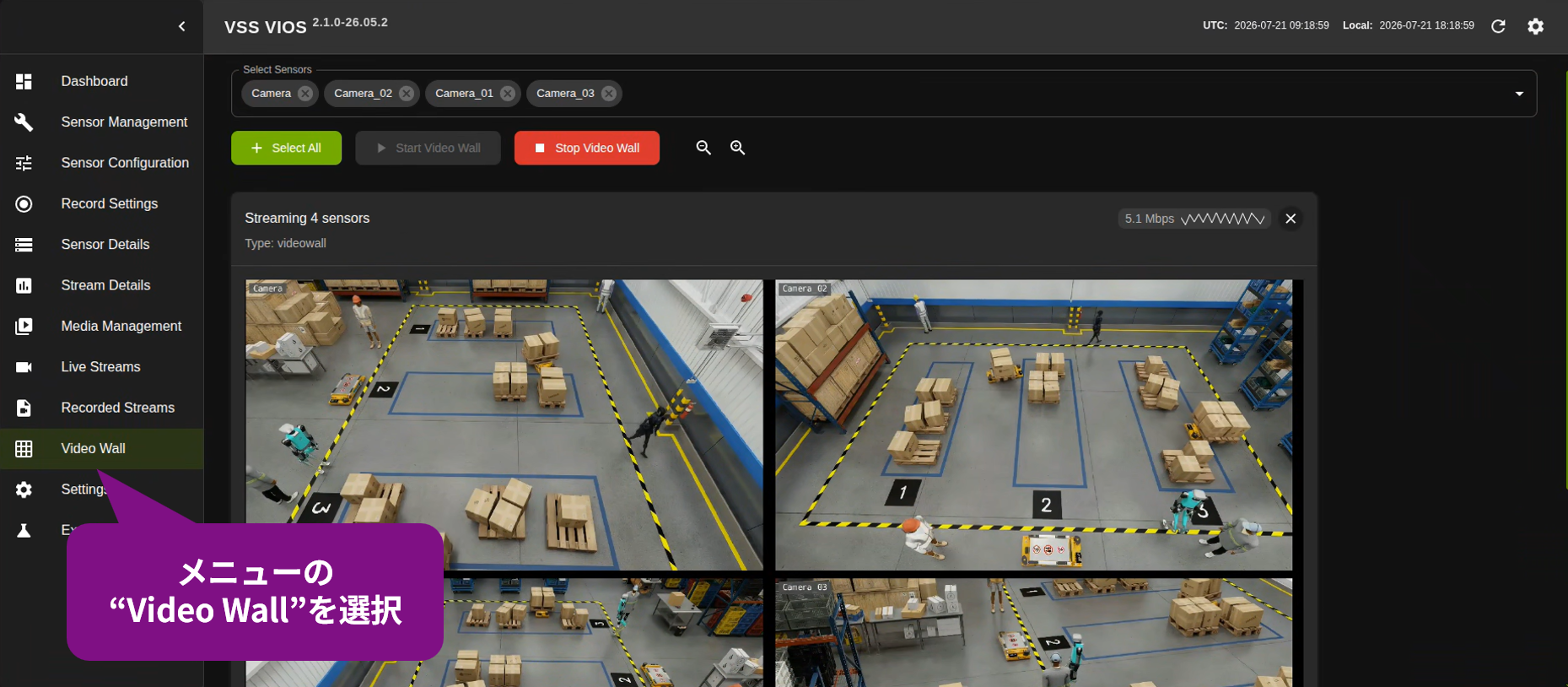
The image above shows an example of displaying video feeds from four cameras simultaneously using Video Wall.
③ Check the BEV display.
By displaying BEV from the Video Wall settings, you can view the recognition results acquired from each camera from an overhead perspective. A key feature is that it allows you to intuitively understand the positional relationships and movement of objects as a single space, which can be difficult to grasp with multiple cameras.
Information you can check on Video Wall
In Video Wall, you can primarily check the following information as a result of recognition by Sparse4D:
|
What can be confirmed |
explanation |
| Object detection | Recognizes objects such as people and forklifts. |
| Bounding Box | Display the object's position on the video. |
| Class Information | Display the type of object detected. |
| Tracking ID | An ID that continuously identifies the same object. |
| Real-time inference | The inference results are displayed live and overlaid. |
Summary
This article provided an overview of NVIDIA Sparse4D, including its features, application examples, operating environment using Warehouse Blueprint, a quick start guide, and how to verify actual inference results.
Sparse4D is an AI model that can detect and track objects in three-dimensional space from multiple RGB camera images. Because it can achieve 3D recognition while utilizing existing camera equipment, it is expected to be used in a variety of applications that require understanding the surrounding environment, such as safety management, equipment monitoring, and work analysis in logistics warehouses and factories.
Furthermore, the ability to use Warehouse Blueprint to relatively easily build an environment that includes Sparse4D makes it very appealing as a first step in proof-of-concept (PoC) and technical verification.
We hope this article will help you understand the mechanism and potential applications of 3D spatial recognition using Sparse4D, and serve as a starting point for you to begin actual evaluation and verification.
Inquiry
As an NVIDIA Certified Partner, Macnica provides technical support tailored to our customers' needs, including assistance with building AI systems using NVIDIA Blueprints, PoC (Proof of Concept), environment setup, and customized development. If you are considering implementing Sparse4D or Warehouse Blueprint, or would like to discuss its application in a real-world environment, please feel free to contact us.