- Semiconductor BusinessHOME
- Products and Services of Macnica,Inc.
-
technical information

-
Events and Seminars
- Handling Manufacturer
- Support
- Inquiry
- Click here to purchase products
- Semiconductor business e-mail magazine registration


 Narrow down by specifying conditions
現在2240件がヒットしています。check

Development environment
First of all, uClinux-dist, which I adopted this time, has multiple directories and files with the same name, but only with different uppercase/lowercase letters for unknown reasons. Therefore, it is necessary to prepare a Linux environment because it cannot be deployed correctly in a Windows + Cygwin environment.
Second, don't use the Nios II EDS tools except for utilities. For example, the compiler used for building must be launched from source packages such as “gcc” and “binutils”. These tasks require a wide range of knowledge, including the operating OS (Linux in this case), and in addition, there are cases where it cannot be built normally depending on the combination of OS and source file versions, and you may have unexpected difficulties in setting up the development environment. I have.
Fortunately, the Nios Community Wiki (http://nioswiki.jot.com/WikiHome) provides a binary tool, so I'll use it. Table 2 shows the μClinux development environment.
Table 2 μClinux development environment
|
host computer |
TargetBoard |
|
| Hardware design | Quartus II SOPC_Builder |
- |
| hardware logic download |
nios2-configure-sof (Nios II EDS) or nios2-flash-programmer (Nios II EDS) |
- |
| Building μClinux | nios2-linux-uclibc-gcc | - |
| Build application for μClinux | nios2-linux-uclibc-gcc | - |
| program downloader | nios2-download (Nios II EDS) or nios2-flash-programmer (Nios II EDS) |
JTAG-Debug module |
| terminal software | nios2-terminal (Nios II EDS) | JTAG-UART |
| kernel debug | nios2-elf-insight (Nios II EDS) | nios2-gdb-server |
| Application debug for μClinux | nios2-elf-insight (Nios II EDS) | µClinux + gdbserver |
Building μClinux kernel
Now, I will introduce uClinux-dist build, execution and debugging methods for the Nios II development kit Cyclone II edition that is actually on sale now. I will only give an overview here, but for details, please refer to http://nioswiki.jot.com/WikiHome or "FPGA Utilization Tutorial 2008/2009 Edition: Embedded OS Utilization" published by CQ Publishing.
For hardware design methods, refer to documents such as the Quartus II Software Handbook issued by Altera.
Build and run μClinux
Figure 2 shows the μClinux build procedure. Start the console on LinuxPC and execute the following steps in the directory where uClinux-dist is expanded.
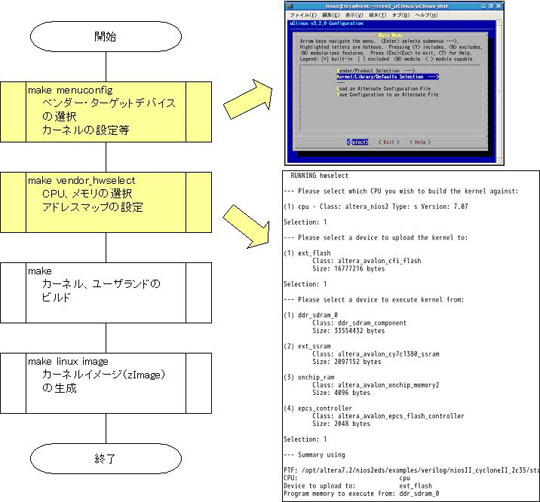
Figure 2 μClinux build procedure
Run make menuconfig
Here you can set the device vendor, CPU architecture, kernel, device driver, etc. to be used. Here, set as follows.
・”Vendor” ⇒ “Altera”
・”target” ⇒ “Nios2nommu”
・“kernel Version” ⇒ “linux-2.6.x”
・“Libc Version” ⇒ “None”
Finally, check "Default all settings (lose changes)" and save the changes. Automatically generate a “.Config” file.
If you want to change the kernel and userland settings, check "Customize Kernel Settings" and "Customize Vendor/User Settings" after completing the first build.
Run make vendor_hwselect
Here, the PTF file output from SOPC_builder is used to automatically set the CPU and memory to be used and generate the address map. Here, set as follows.
・“--- Please select which CPU yor wish to build the kernel against:” ⇒ “altera_nios2”
・“--- Please select a device to upload the kernel to:” ⇒ “ext_flash”
・“--- Please select a device to execute kernel from:” ⇒ “ddr_sdram_0”
Run make, make linux image
Build the μClinux kernel and root file system with the “make” command. and then generate an executable binary file (zImage) with the “make linux image” command. If there are no errors, a “zImage” file will be created. Download this file to your target board.
Download and run kernel
Launch the Nios II EDS “Command Shell” and execute “nios2-download” to download the “zImage” file to DDR_SDRAM on the target board. Then execute "nios2-terminal" to start μClinux console (JTAG_UART). Figure 3 shows the image up to execution.
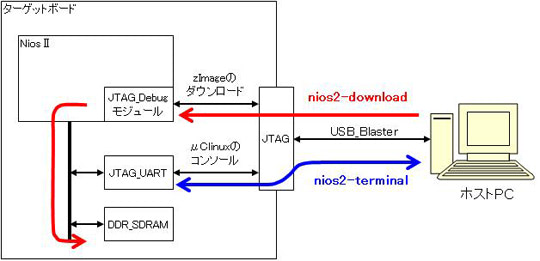
Figure 3 μClinux execution image
If a boot message and prompt are displayed on the console, µClinux boot is complete. Figure 4 shows the startup screen.
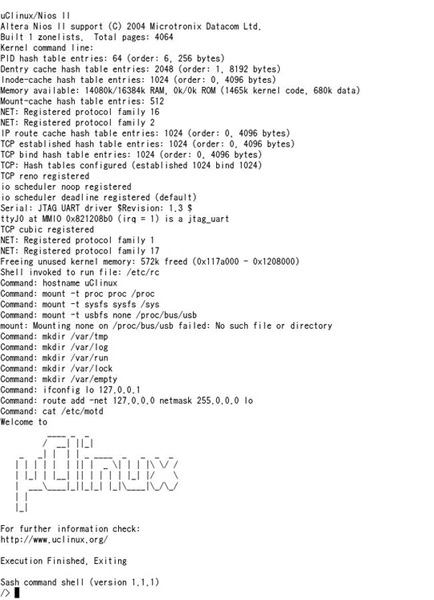
Figure 4 Start μClinux
In addition to commands that can be used in Linux, network applications such as ``telnet'', ``ftp'', and ``httpd'' are also prepared to some extent, so we recommend you to try them once. Figure 5 shows the screen when connecting to the target Web server with a browser from the host PC.
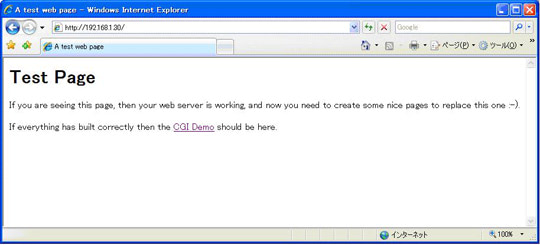
Figure 5 Connection from host browser to web server
kernel debugging
If you only use the functions provided by uClinux-dist, you do not need to debug the kernel, but if you develop device drivers or port to a custom board, you will need to debug the kernel as well. . I myself have created device drivers for the LCD included in the development kit and the external RTC, but debugging using the old printk statement is not efficient.
Nios II does not have “KGDB” as a kernel debugging method on Linux, so instead, we will introduce a kernel debugging method using “nios2-gdb-server” introduced last time.
Figure 6 shows the kernel debug environment.
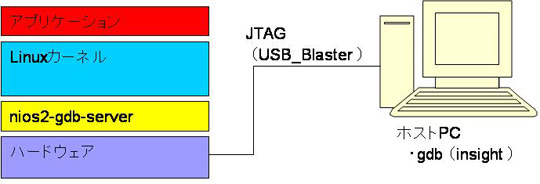
Figure 6 Kernel debug environment
Start the command shell of Nios II EDS, execute "nios2-gdb-server", and make the target board wait for connection. Start the Insight Debugger with the ``nios2-elf-insight'' command and open the ``linux'' file generated in the ``uClinux-dist/linux-2.6.x'' directory. Start the “Target Selection” screen from “File ⇒ Target Setting” and set as follows.
・target: “Remote/TCP”
・Hostname: “localhost”
・Port: <Port number specified in nios2-gdb-server>
Click the Run button to download the kernel binary and stop at the beginning of the kernel. After that, source-level debugging becomes possible in the same way as a general debugger.
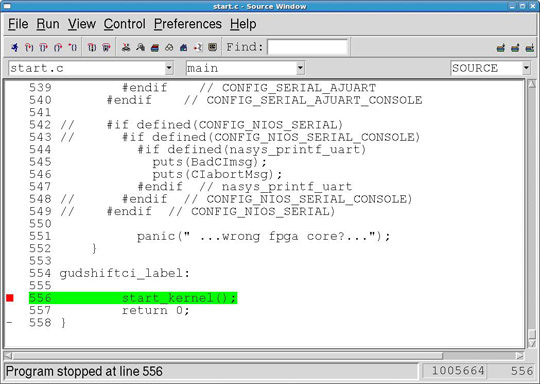
Figure 7 Kernel debug screen