- Semiconductor BusinessHOME
- Products and Services of Macnica,Inc.
-
technical information

-
Events and Seminars
- Handling Manufacturer
- Support
- Inquiry
- Click here to purchase products
- Semiconductor business e-mail magazine registration


 Narrow down by specifying conditions
現在2233件がヒットしています。check

Introduction
We implemented CLIP, which is also used as part of generative AI, on Hailo and ran it.
If you are interested in CLIP, which has many potential uses, please take a look.
About CLIP
CLIP is a multimodal language and image model released by OpenAI.
Ordinary object detection AI requires training using a labeled dataset to detect predefined objects (people, cars, etc.). CLIP trains on images and related text, encoding the input text and checking the similarity with the image. (There are many articles explaining CLIP, so please refer to them for details.)
Simply put, it is a more versatile model that may be able to detect even non-fixed keywords without re-learning. For example, if you want to find a "person in red clothing," you can infer whether or not the person in the image is a "person in red clothing" without learning "person in red clothing." Since learning each time you want to do something is a high hurdle in actual operation, this type of versatile model is a promising technology.
How to implement it in Hailo
The CLIP environment for Hailo is available on Github, so we will install it following these instructions.
https://github.com/hailo-ai/hailo-CLIP
For the system environment, we will use the Hailo AI software Suite environment set up in the article linked below.
①Hardware and installation requirements for AI Software Suite
CPU:Core™ i9
Memory:32GB
OS:Ubuntu 22.04
Hailo AI software Suite:2024-04
First, enter the Hailo AI Software Suite Docker and install the necessary packages.
$ sudo apt-get -y install libblas-dev nlohmann-json3-dev
Next, in an appropriate folder, obtain the address for git clone as shown in the left image below, and execute git clone.
$ git clone https://github.com/hailo-ai/hailo-CLIP.git


A folder called "hailo-CLIP" should be created, so navigate into it.
$ cd hailo-CLIP
And then run the following:
$ source setup_env.sh
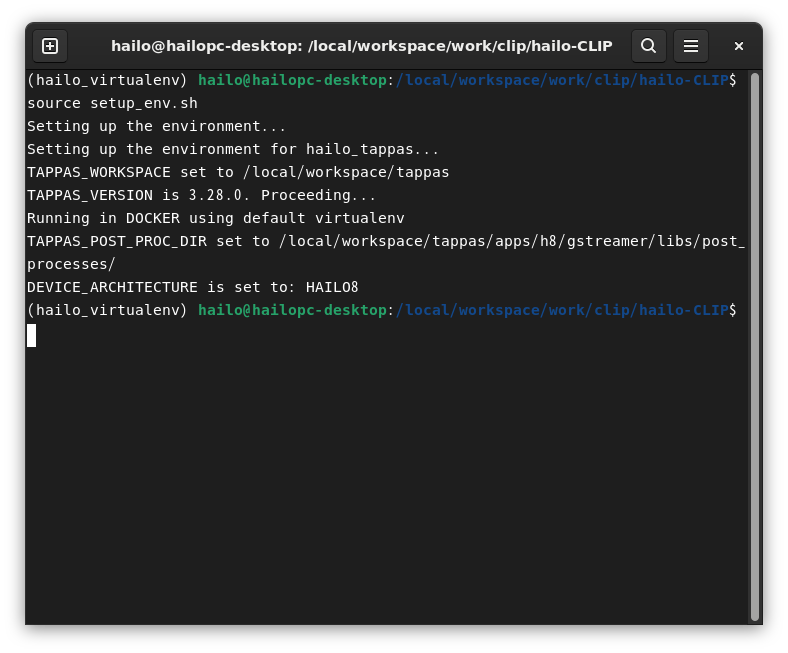
Finally, run the installation:
$ python3 -m pip install -v -e .
(We found the following dependency errors, but they didn't seem to affect the operation so we continued with them.)
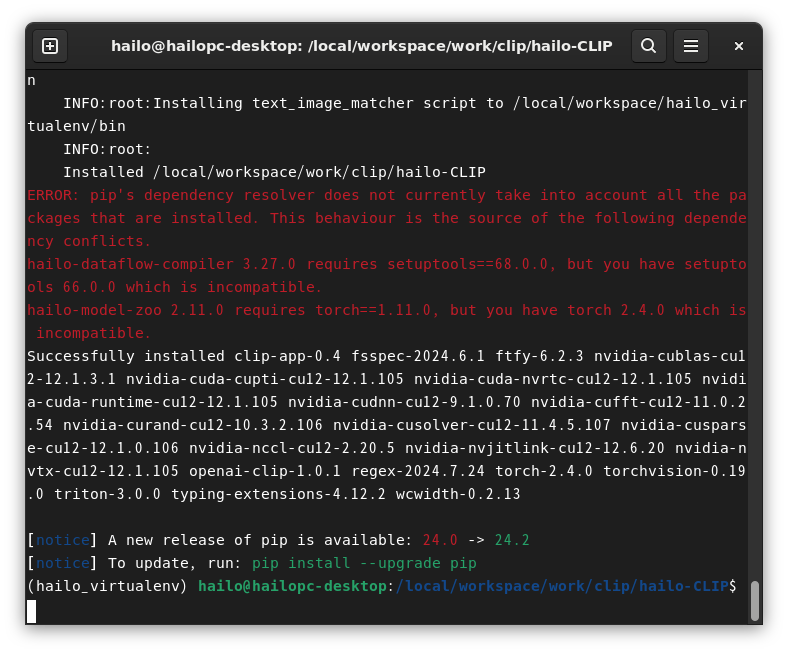
The installation is now complete.
Let's move the CLIP!
First, there is a demo available, so let's try running it.
$ clip_app --input demo
As you can see below, it is able to identify unusual keywords such as Raspberry Pi and Xenomorph (which upon research appears to be an extraterrestrial life form that appears in the "Alien" movie series).


Next, I want to try moving it freely.
There seem to be various settings available, so check the help.
$ clip_app --help
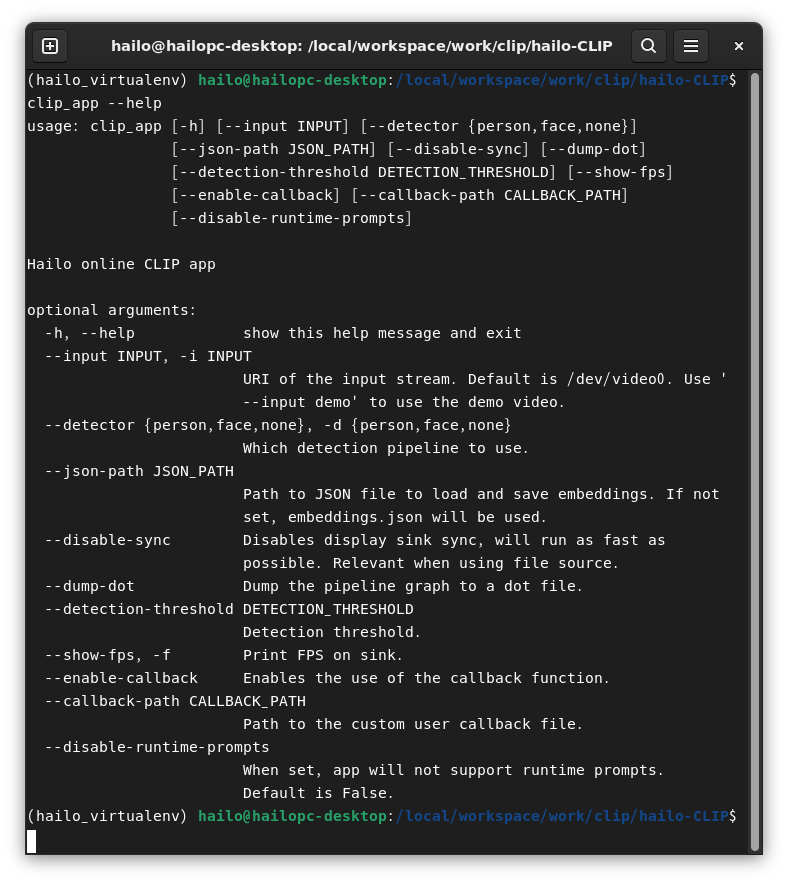
Let me add a few clarifications.
--detector person
This mode detects people and then CLIPs only on them. Yolov5s is used for human detection.
This mode is used when you want to detect people's attributes, behavior, etc.
--disable-runtime-prompts
In this implementation, CLIP's image encoding is performed on Hailo, but text encoding is performed on the host CPU. Changing keywords in real time while processing increases the CPU load, so adding this option identifies them using pre-encoded text information. It is probably appropriate to run this mode in an actual application.
--json-path
You can specify information (json file) that has been previously encoded as text.
A tool called text_image_matcher is provided to perform text encoding in advance.
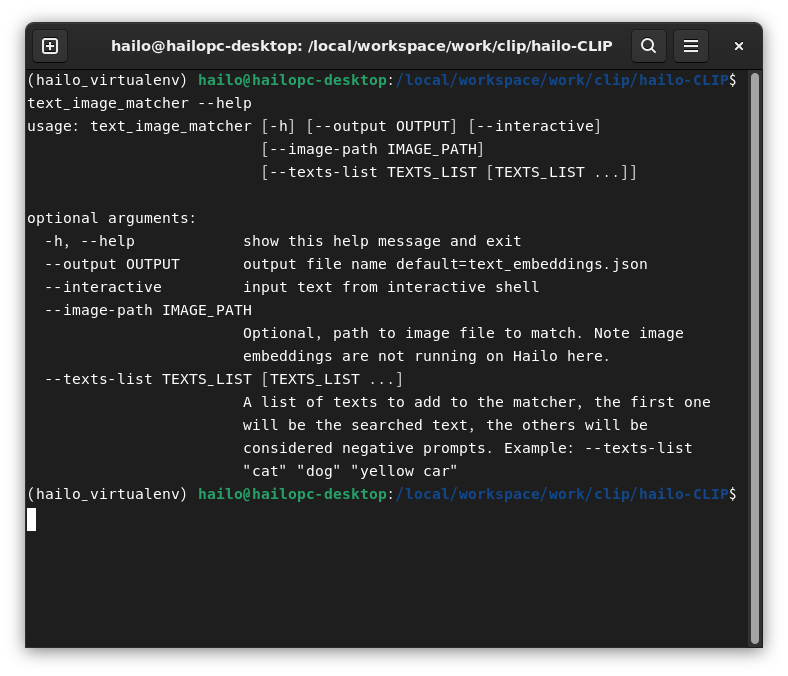
You can specify the name and path of the json file with "--output" and specify keywords with "--texts-list".
The first keyword is the one you actually want to search for, and the rest are negative keywords. These negative keywords are important for using CLIP effectively, and it seems that the accuracy will increase if you add something that is the opposite of what you want to search for. For example, if you want to find "people in red clothes," add "people in blue clothes" and "people in black clothes" to your negative keywords.
Now let's actually get it moving.
This time, I would like to look for the "child in red clothes."
First, create a text encoded json file.
$ text_image_matcher --output red_clothes_child.json --texts-list "red clothes child" "adult" "white clothes" "black clothes" "blue clothes“
The keyword you want to search for is "red clothes child."
Next are negative keywords, and this time I included "adult", "white clothes", "black clothes", and "blue clothes".
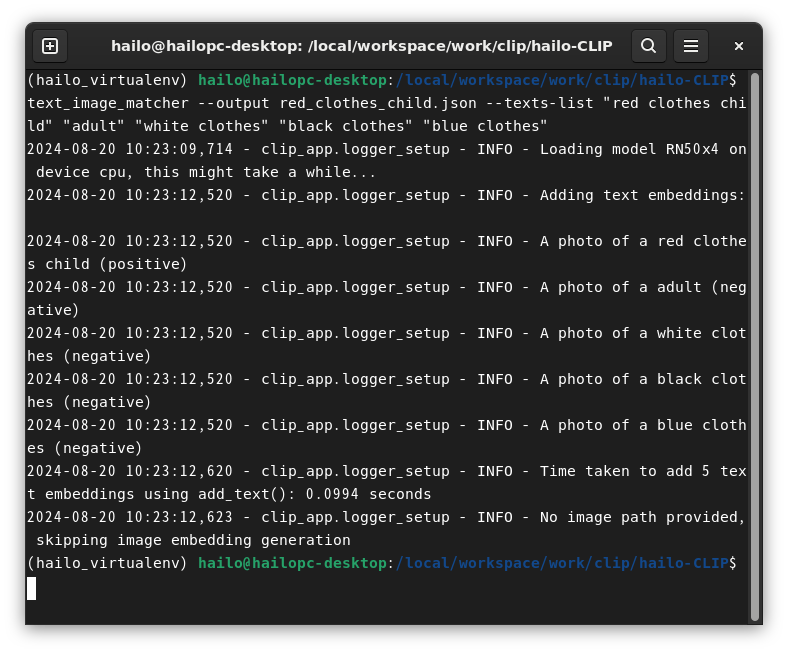
Let's actually run CLIP using the json file created above.
$ clip_app --input ./sample_redclothes.mp4 --detector person --json-path ./red_clothes_child.json --disable-runtime-prompts
Please check the video below to see it in action.
At the end of the video you watched, you can see the "child in red" appearing and achieving a high score.
(However, it seems that the scores are not consistently high, so you may need to think about your keywords and negative keywords.)
Next, I would like to try detecting "fallen people."
・Text encoding
$ text_image_matcher --output ./falling_down.json --texts-list "falling down" "standing" "running" "walking“
・CLIP execution
$ clip_app --input ./sample_fallingdown.mp4 --detector person --json-path ./falling_down.json --disable-runtime-prompts
I couldn't find a good example video, so I used a soccer goalkeeper catching the ball instead, but the scene where he dives to catch the ball is recognizable as a "person who has fallen."
Finally, we detect "buses" from the road video.
・Text encoding
$ text_image_matcher --output bus.json --texts-list "bus" "car" "automobile" "sedan" "saloon" "SUV“
・CLIP execution
$ clip_app --input ./sample_bus.mp4 --json-path ./bus.json --disable-runtime-prompts
(This time, the target object is not a person, so the --detector person option is turned off.)
We can see that the scores are higher when the bus is passing by.
Summary
I tried out CLIP and found it interesting that it can detect objects using any keyword, and I felt that it could be used in a variety of different applications.
For example, with the labor shortage becoming an issue, there are many possible uses for this technology, such as "having a security robot search for a person by providing them with a person's characteristics" or "extracting only the necessary parts from security camera footage." Another great point is that this can be achieved on an edge device using Hailo.
If you are interested, please give it a try.
Inquiry
If you have any questions about this article, please contact us using the form below.
Hailo manufacturer information Top
If you would like to return to the Hailo manufacturer information top page, please click below.