- Semiconductor BusinessHOME
- Products and Services of Macnica,Inc.
-
technical information

-
Events and Seminars
- Handling Manufacturer
- Support
- Inquiry
- Click here to purchase products
- Semiconductor business e-mail magazine registration


 Narrow down by specifying conditions
現在2183件がヒットしています。check


Agilex™ 5 FPGA & SoC FPGA E-Series (hereafter referred to as Agilex™ 5 (E-Series)) is developed using Quartus® Prime Pro Edition.
To use Quartus® Prime Pro Edition for Agilex™ 5 (E-Series) development, one of the following licenses is required:
・ SW-ONE-QUARTUS...... Quartus® Prime paid license
・ SW-AGILEX-5E...... Free license exclusively for Agilex™ 5 (E-series)
This article describes how to obtain a free Quartus® Prime Pro Edition license file for Agilex™ 5 (E-series) only.
* Users with an SW-ONE-QUARTUS license do not need to obtain a separate free Quartus® Prime Pro Edition license for Agilex™ 5 (E-series).
License overview
Below is a summary of the free Quartus® Prime Pro Edition license file for Agilex™ 5 (E-series) development.
| License application and acquisition | free |
| maintenance period |
1 year *You can use any version of Quartus® Prime Pro Edition released before your license's Maintenance Expiration date. |
| License expiration date |
1 year * You will not be able to use Quartus® Prime Pro Edition after your License Expiration has passed. |
There are two ways to obtain this license file:
|
• The license file is automatically retrieved and configured when Quartus® Prime is launched for the first time.* - The NIC ID used for acquisition will be the automatically detected MAC address. • The only license type available is FIXED. |
- Users must obtain the license file via SSLC in advance. - A license can be obtained using any NIC ID. - You can specify either a fixed or float license type. |
* Either method requires an internet connection when obtaining a license.
[A] Automatically obtain with Quartus® Prime
There are two workflows for obtaining a license file using this method:
| A1. LaunchQuartus® Prime Pro Edition. |
| A2. Select an option from License Setup Required. |
Below are the details of each flow.
A1. Launch Quartus® Prime Pro Edition
For Windows OS, click Start ➤ Altera <version_build> Pro Edition ➤ Quartus (Quartus Prime <version>), or double-click the Quartus® Prime Pro Edition shortcut icon you created on your desktop.
For Linux OS, run the quartus command in the terminal to launch the GUI.
A2. Select the option from License Setup Required
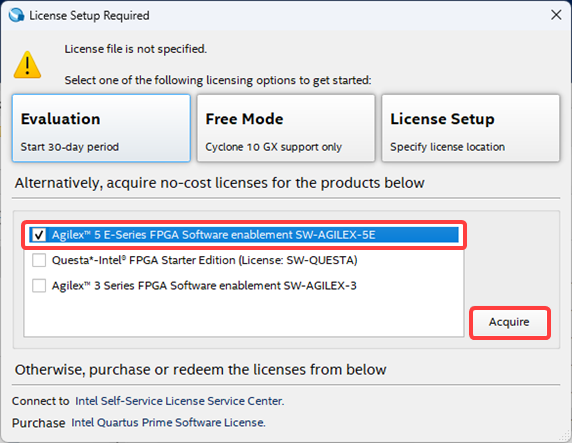
Since the paid license SW-ONE-QUARTUS has not been set, the License Setup Required window will be displayed.
Select "Agilex™ 5-E Series FPGA Software enablement SW-AGILEX-5E" from the options at the bottom of the window and click the [Acquire] button.
The process of automatically obtaining the license file will begin. (The license file will be automatically obtained via the internet, so please wait a while.)
A message will pop up indicating that you have obtained the SW-AGILEX-5E license.
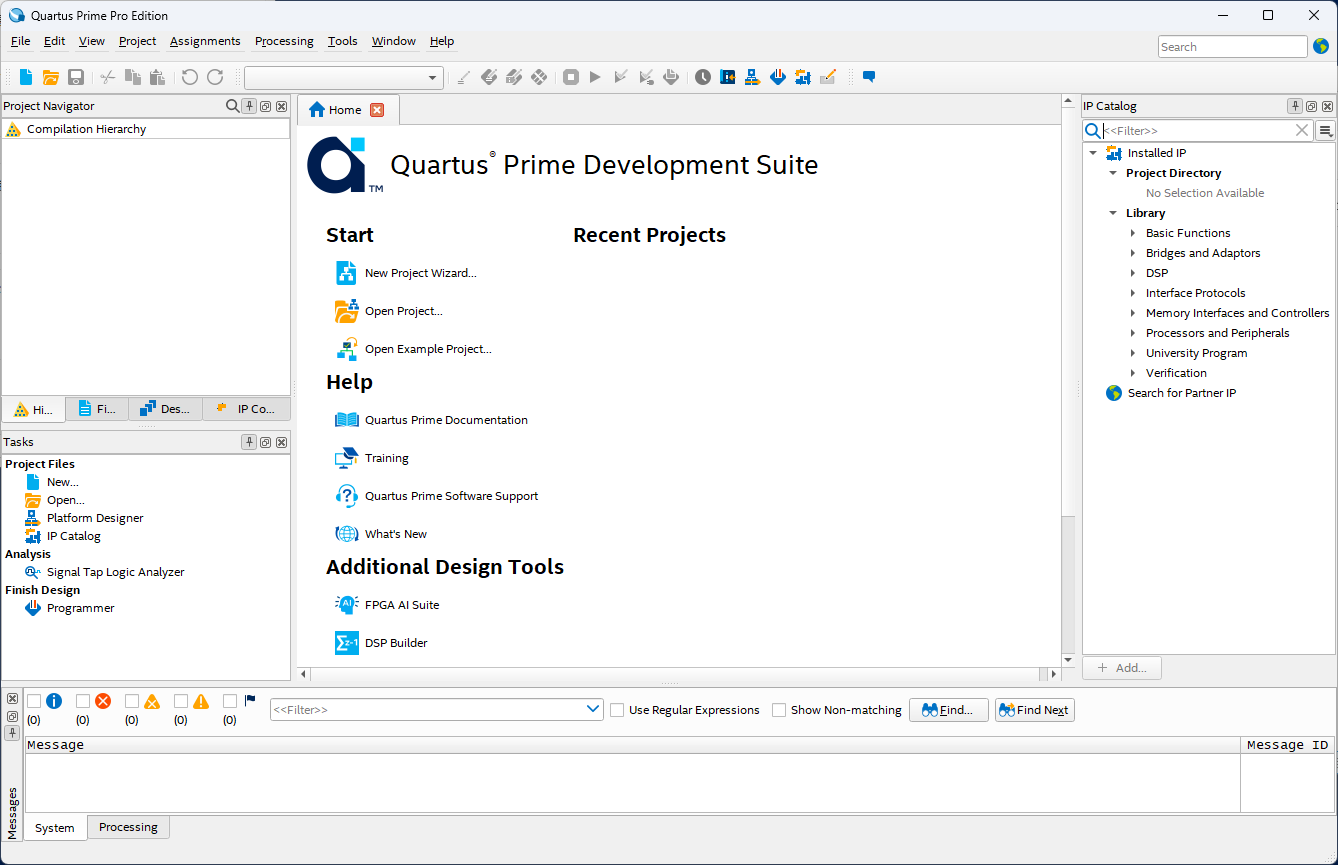
If the Quartus® Prime Pro Edition GUI launches after clicking the [OK] button, the license file acquisition and setup are complete.
[Notes]
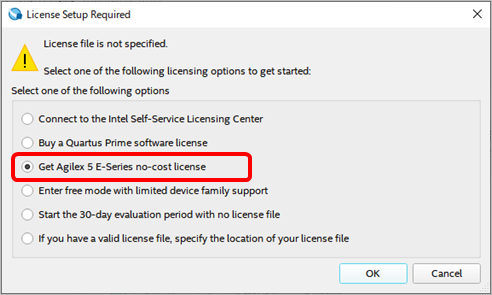
The items displayed in the dialog Box will vary depending on the version of Quartus® Prime Pro Edition you have installed.
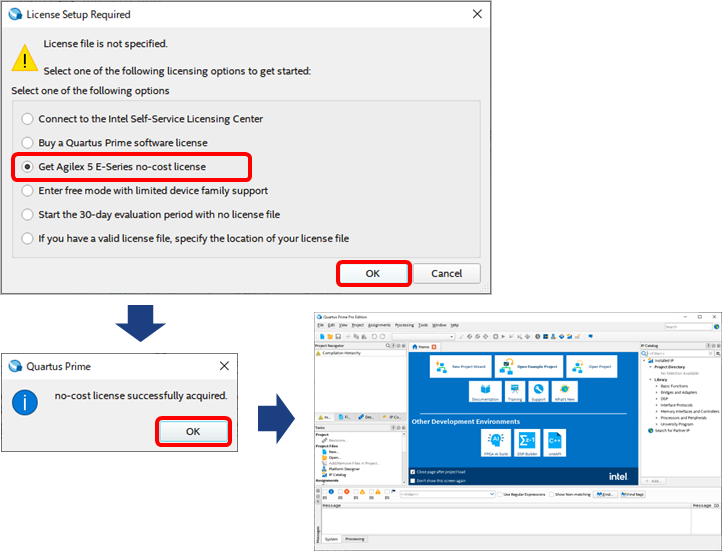
If "License Setup Required" is displayed as shown in the image below, select "Get-Agilex 5-E Series no-cost license" and click the OK button.
If the message window on the bottom left (no-cost license successfully acquired.) appears, license file acquisition and setup is complete.
Click the [OK] button to launch Quartus® Prime Pro Edition. Please continue using it.
This completes the process of obtaining and setting up the free Quartus® Prime Pro Edition license file for Agilex™ 5 (E-series) only.
From the second time onwards, you can use it just by launching Quartus® Prime Pro Editionwithout specifying a license.
[B] How to obtain through the Self-Service License Center (SSLC)
There are three workflows for obtaining a license file using this method:
| B1. Sign in to the Self Service Licensing Center (SSLC) |
| B2. Register a new computer |
| B3. Assigning an Agilex™ 5 (E-series) license to a PC (License Issuance) |
| B4. Set up the license file. |
Below are the details of each flow.
B1. Sign in to the Self Service Licensing Center (SSLC)
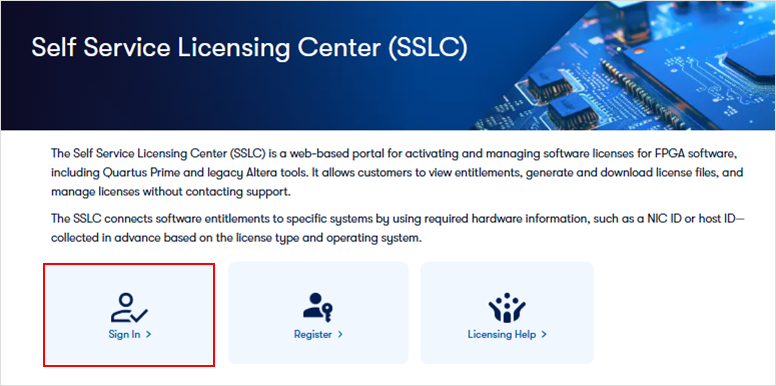
Click the link below to go to the License Center sign-in page.
Self Service Licensing Center (SSLC)
A sign-in page for the License Center appears.
Click [Sign In] located on the left side of the screen to sign in.
[Notes]
To use the Licensing Center, you need an Altera account and registration for the Self Service Licensing Center.
If you don't have an account yet, please see how to sign up for an Altera account.
• Customers signing in to the License Center for the first time must register an Altera account and then register to use the Self Service Licensing Center.
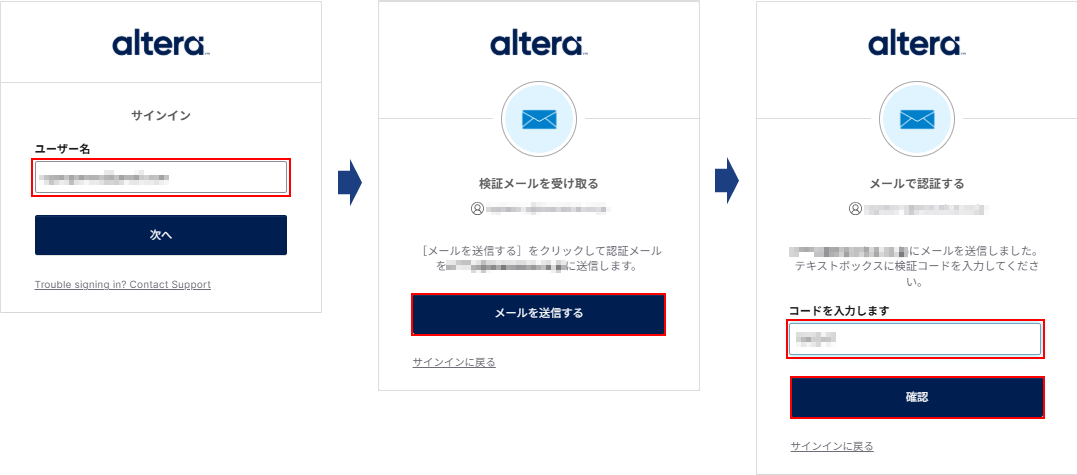
After entering your username, a verification code will be sent to your registered email address. Please enter the code in the form and click the [Verify] button.
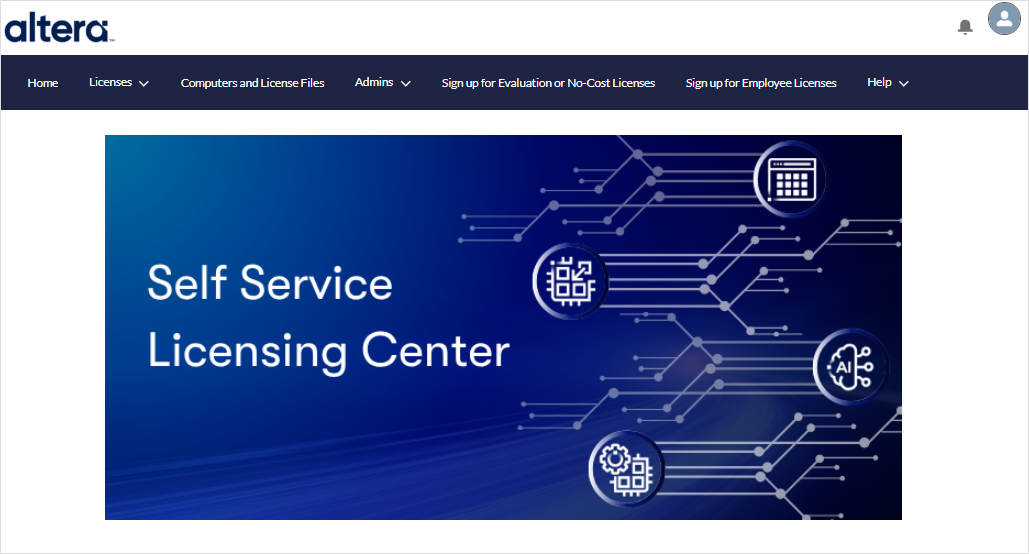
Access is completed when the top page of the license center is displayed.
B2. Register a new computer
This will register the information of the computer to which the SW-AGILEX-5E license will be issued.
If you are assigning an SW-AGILEX-5E license to a registered PC, skip this step and proceed to B3. Assigning an Agilex™ 5 (E-series) license to a PC.
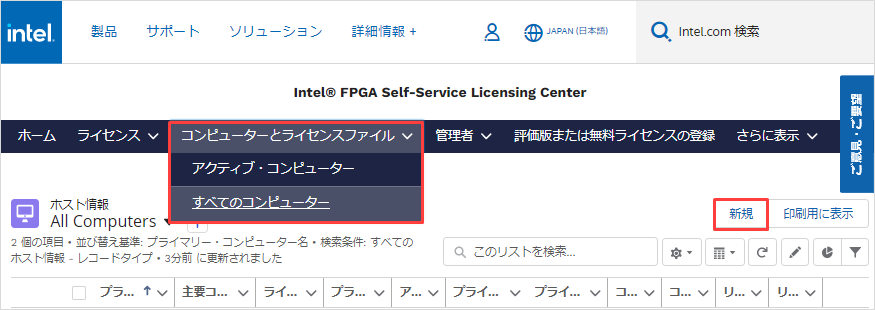
1. Clicking the [Computers and License Files] menu will display the [All Computers] view. (This will show information about your registered computers.)
2. Click [New] in the upper right corner of the screen.
*Caution! Because there is no "Delete Computer" function, you cannot delete information about a computer once it has been registered.
3. Enter the information of the computer to be registered.
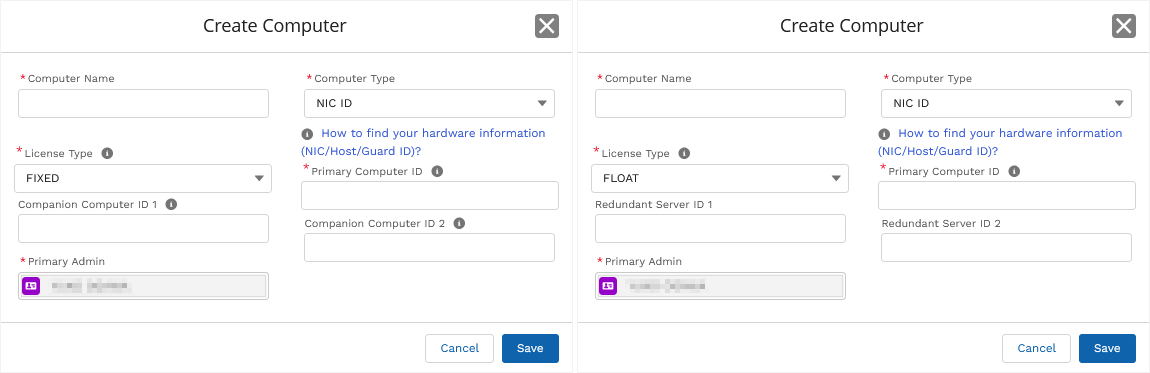
| item | explanation |
|
Computer Name
|
Enter the name that identifies the computer you want to register on the license center. (It does not have to be the computer's host name.) The Computer Name can be changed after registration. |
|
Computer Type
|
Select a NIC ID.
|
| License Type |
Specifies the type of license to use. Choose from FIXED or FLOAT. |
| Primary Computer ID |
If you are using FIXED, enter the NIC ID of the computer on whichyou will use (compile) Quartus® Prime Pro Edition. When using FLOAT, enter the NIC ID or HOST ID of the computer used for the license server. |
|
Companion Computer ID 1 / 2 or Redundant Server ID 1 / 2 |
Input is optional. For companion licenses, see How to Get a Companion License. A redundant license is registered when operating three FLOAT license servers. [Notes] - You can change the NIC ID after registration, but you cannot leave it blank. If you register or change these NIC IDs after assigning a license, the number of IDs that can be changed during the maintenance contract period (maximum of 3 times) will be reduced. |
4. Click the [Save] button. A message is displayed indicating that registration is complete.
5. Once you confirm that the registered computer information is displayed in the [Computers and License Files] menu, registration is complete.
B3. Assigning an Agilex™ 5 (E-series) license to a PC (License Issuance)
Link the SW-AGILEX-5E license to a registered computer.
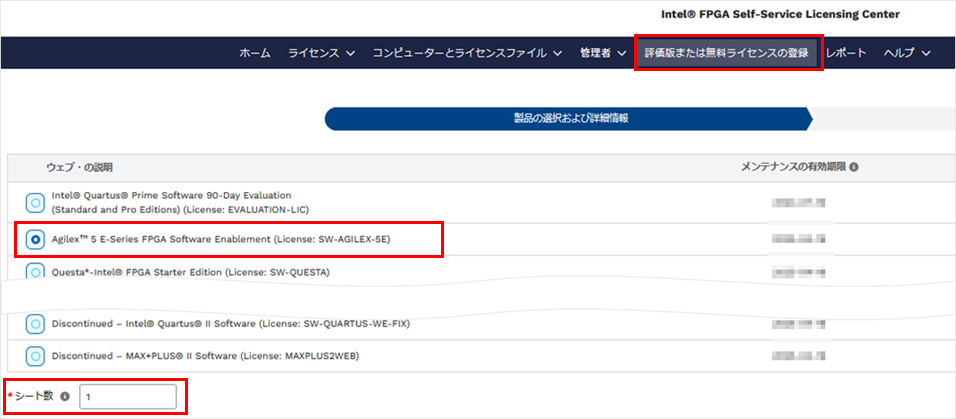
1. Click the [Sign up for Evaluation or No-Cost Licenses] menu.
2. Select the following license item from the product list.
・Agilex™ 5 E-Series FPGA Software Enablement (License: SW-AGILEX-5E)
[Notes]Depending on when you use the License Center, the order in which products are listed may vary.
3. Enter the number of licenses for the NIC ID you are applying for in the number of seats field located at the bottom left.
Enter 1 for FIXED and the number to be operated for FLOAT.
4. Click the [Next] button located in the lower right corner.
5. From the "Choose an Existing Computer" list, select the registered computer information to which you want to assign the SW-AGILEX-5 license.
6. Check the content regarding usage consent and feedback listed at the bottom, and mark ✔ if you agree.
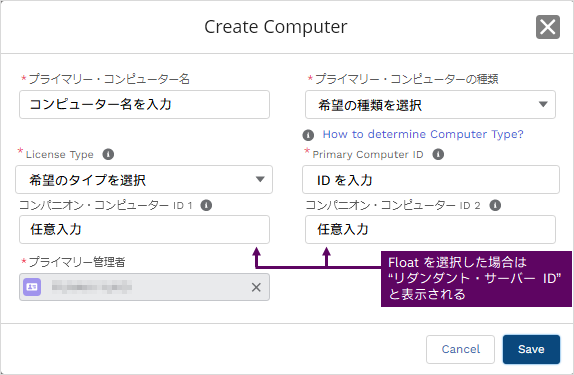
7. Click the Generate button.
A license file will be sent to your registered e-mail address.
Existing license files can be reissued through the Self Service Licensing Center. For instructions on how to obtain a replacement, please see here.
B4. Set up the license file
Please save the attached license file according to the license type (FIXED or FLOAT) by referring to the following.
• FIXED ⇒ Saved to a computer using Quartus® Prime Pro Edition (for Agilex™ 5 E-Series).
・ FLOAT ⇒ Save on the license server computer
It is recommended to save the file with the extension.dat.
Also, when renaming and saving a file, please do not use full-width characters or spaces in the folder path where you save the file.
Set the obtained license file according to the license type.
For the setting method, refer to the following.
This completes the process of obtaining and setting up the free Quartus® Prime Pro Edition license file for Agilex™ 5 (E-series).
Related article
How to obtain a free Agilex™ 3 (C-Series) Limited Quartus® Prime Pro Edition license file
How to create a new Altera account
How to register for the Self Service Licensing Center
How to setup FIXED license for Quartus® Prime, IP and Questa* - Altera® FPGA Edition
How to setup FLOAT licensing for Quartus® Prime, IP and Questa* - Altera® FPGA Edition