- Semiconductor BusinessHOME
- Products and Services of Macnica,Inc.
-
technical information

-
Events and Seminars
- Handling Manufacturer
- Support
- Inquiry
- Click here to purchase products
- Semiconductor business e-mail magazine registration


 Narrow down by specifying conditions
現在2237件がヒットしています。check

On some manufacturer websites, you may be asked to sign in to access certain pages, and you may need an Intel account to sign in. For example, this applies to the FPGA Self-Service Licensing Center.
This sectiondescribes how to set the SMS or phone authentication method in the authentication process settings of Microsoft Azure AD. I will guide you.
[Notes]
Please refer tothis contentfor how to register a new Intel account and the previous step of setting up the Microsoft Azure AD authentication process.
Setting method
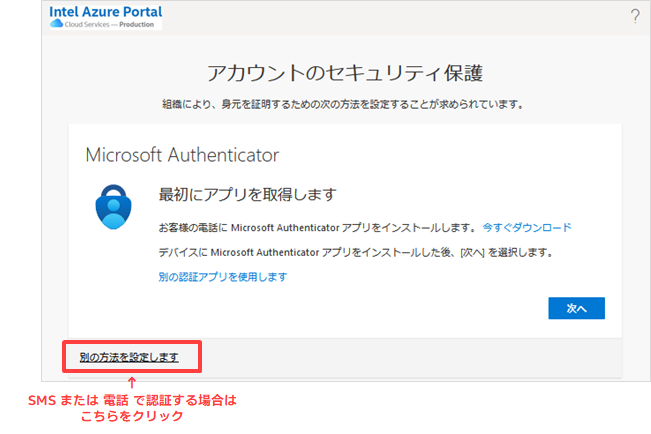
1. Under "Securing your account", select "Set up a different method".
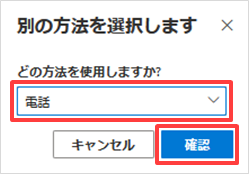
2. Select Phone from the pull-down list on the screen and click Confirm.
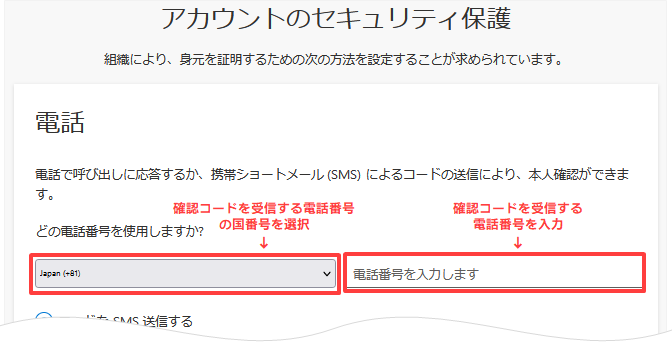
3. Under "Which phone number do you want to use?", enter the "Country code of the phone to receive the verification code" and "Phone number".
[Notes] When entering a Japanese phone number, select "Japan(+81)" on the left.
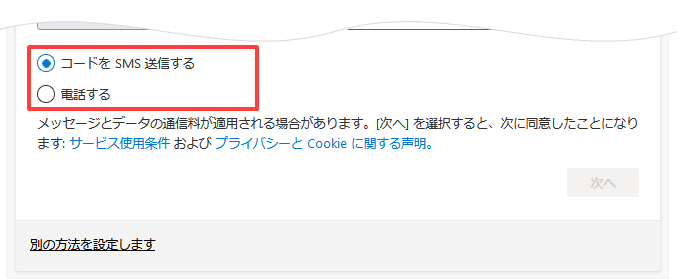
4. On the same screen, specify where to send the verification code.
You can specify "send to mobile short message (SMS)" or "call by phone".
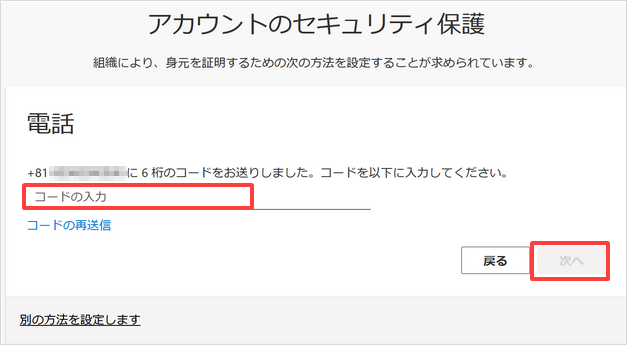
5. Enter the verification code you received via SMS or phone on the screen displayed on your computer and click Next.
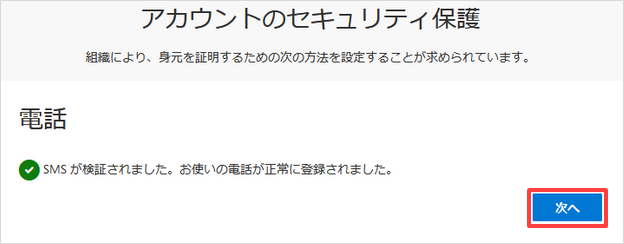
6. You will see that verification with the specified phone number is complete. Click Next.
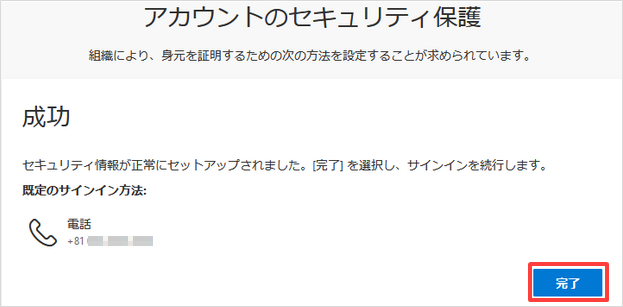
7. You will see that the setup was successful. Click Done.
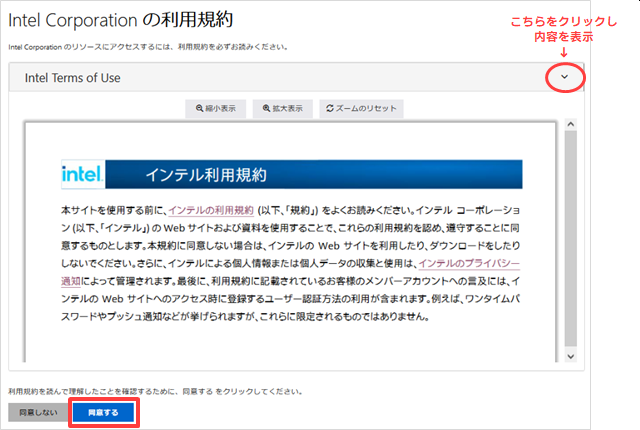
The "Intel Terms of Service" will appear. Read the contents and click [Agree].
This completes the configuration of the Microsoft Azure AD authentication process.
When you sign in to Intel websites in the future, use the email address you registered with and the MFA authentication process you set up.