- Semiconductor BusinessHOME
- Products and Services of Macnica,Inc.
-
technical information

-
Events and Seminars
- Handling Manufacturer
- Support
- Inquiry
- Click here to purchase products
- Semiconductor business e-mail magazine registration


 Narrow down by specifying conditions
Currently, 2240 results are found.

Introduction
NVIDIA 's next-generation edge AI platform, NVIDIA® Jetson Thor™, has been officially released. This article provides a brief overview of the performance of the NVIDIA® Jetson AGX Thor™ Developer Kit, and systematically explains how to set up Docker, CUDA®,andthe NVIDIAJetPack SDK, including USB installation (Jetson ISO) that does not require a host PC, important points to note during setup, and how to verify AI inference operation using CUDA in a Docker container.
Goals and scope of this article
goal
Get an overview of Jetson Thor (Jetson AGX Thor Developer Kit), understand the setup procedure, complete the initial setup via USB installation, and try out AI inference in the set-up environment.
subject
Developer/PoC person working with Thor for the first time NVIDIAJetsonOrin™Those considering transitioning from the previous generation
Scope of this article
- Jetson AGX Thor Developer Kit Overview
- Overall setup
- USB installation procedure
- Installing Docker, CUDA, and JetPack SDK
- Checking AI inference operation
Chapter 1. What is Jetson Thor? (Performance Overview and Positioning)
Jetson Thor is an edge AI platform designed for physical AI/ robotics.
The Jetson AGX Thor Developer Kit is the ultimate platform for humanoid robotics, offering outstanding performance and scalability. Its cutting-edge computing performance, extensive I/O options, and full software stack enable you to develop the next generation of apps.
Jetson AGX Thor Developer Kit Key Specifications
- AI computing performance: up to 2070 TFLOPS (theoretical value under FP4-Sparas conditions; actual application performance may differ)
- GPU: NVIDIA Blackwell architecture (5th generation Tensor Core)
- CPU: 14-core Arm® Neoverse® -V3AE
- Memory: 128GB LPDDR5X (273GB/s)
- Network: 1x 5GBe RJ45 connector, 1x QSFP28 (4x 25 GbE)
- 7.5x AI performance and 3.5x power efficiency compared to the previous AGX Orin generation
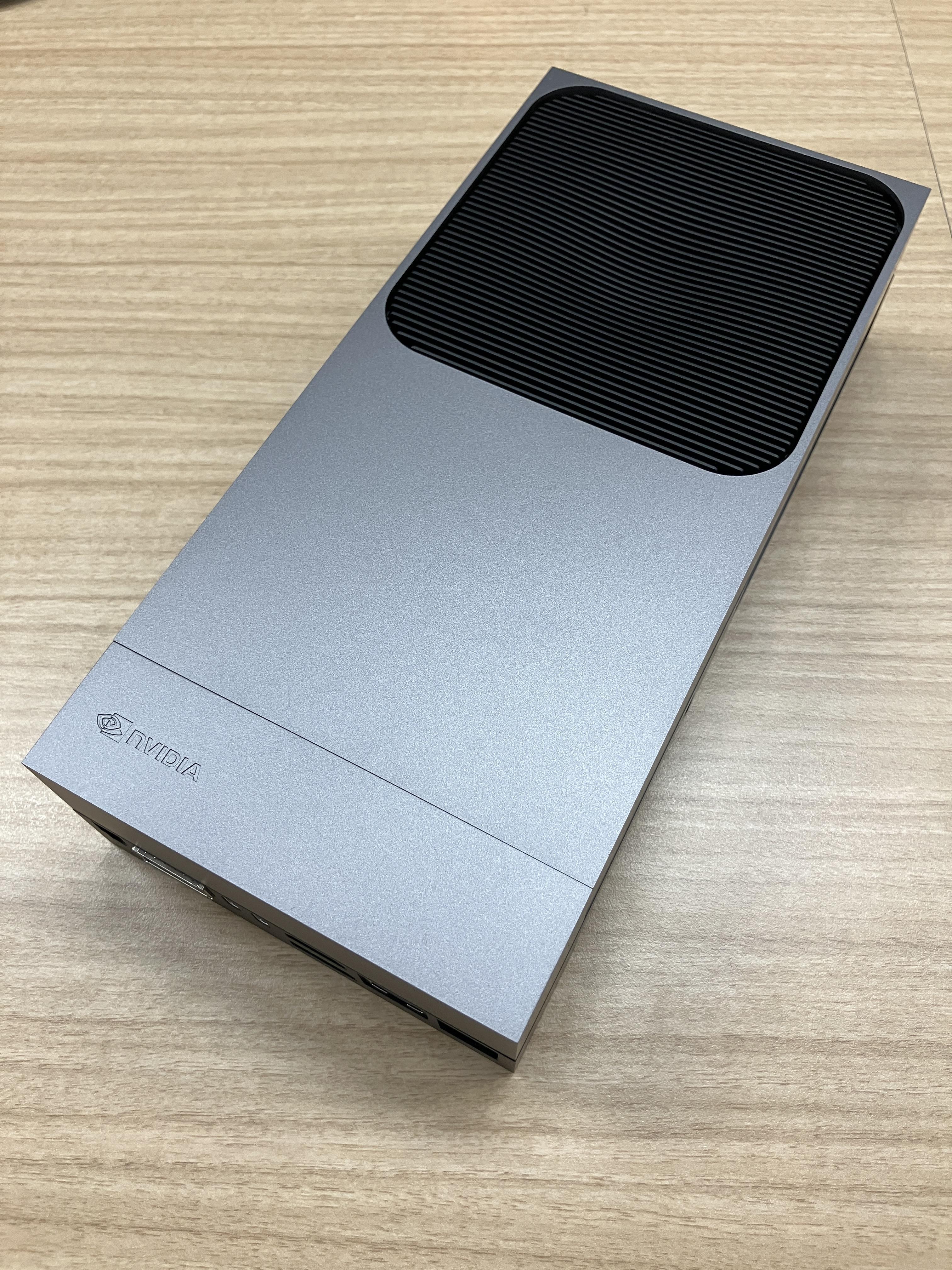
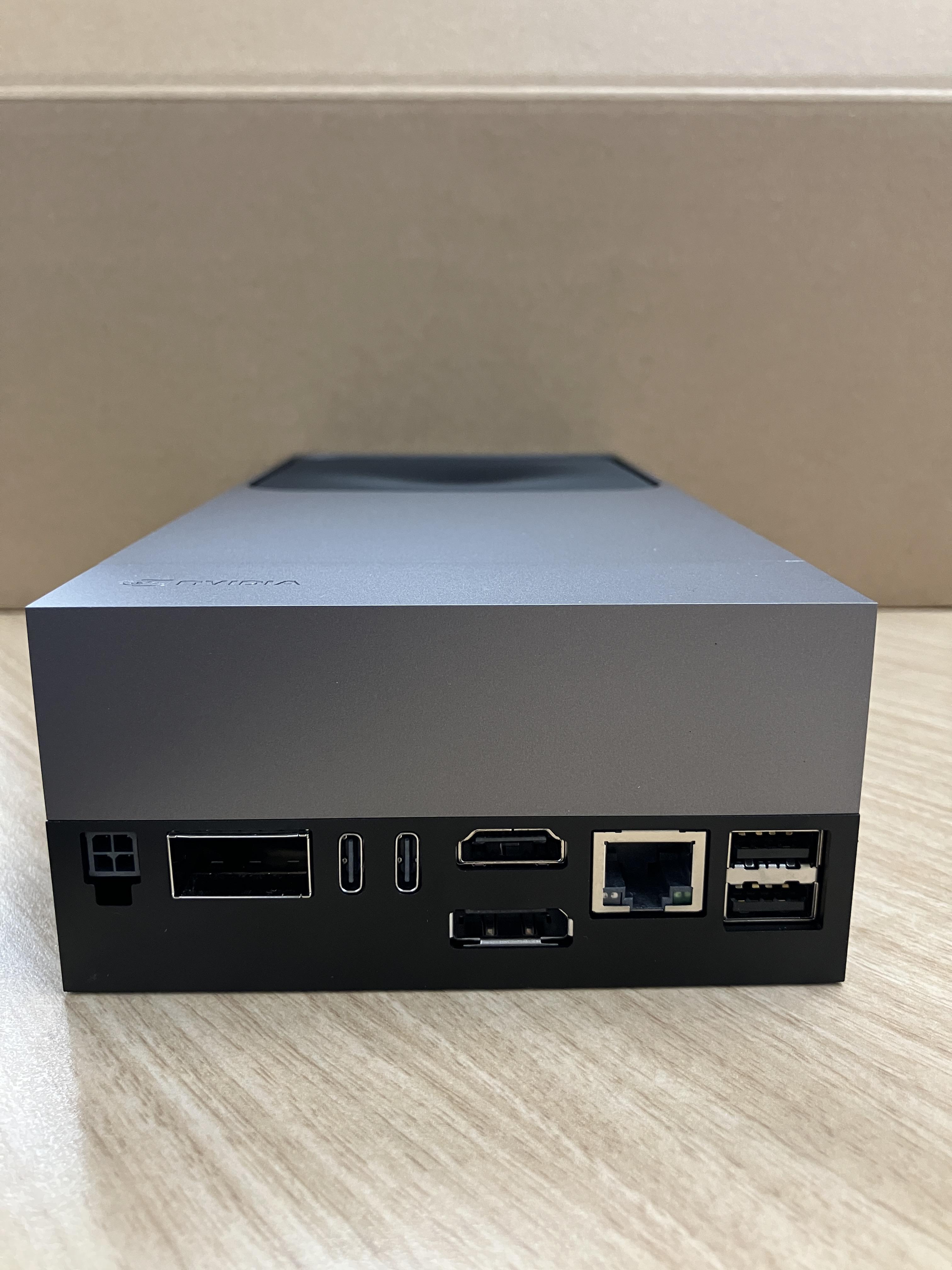
Chapter 2. Setup Overview
There are three official methods for setting up the Jetson AGX Thor Developer Kit. We will first provide an overview, then go into detail about the Jetson ISO (USB installation), which is the main focus of this article.
*For installation procedures using the SDK Manager and flash script, see Chapter 7, "Appendix."
|
type |
Overview |
More details link |
|
Jetson ISO (USB installation) |
Start the installer from the USB memory and install it. Recommended for everyone, including beginners. |
Quick Start Guide — Jetson AGX Thor Developer Kit - User Guide |
| SDK Manager |
Flash using the GUI from the SDK Manager on the host Ubuntu PC. For Ubuntu PC users. |
Install Jetson Software with SDK Manager — SDK Manager |
| Flash Script | Flash with CLI scripts. For product developers. | Quick Start — NVIDIA Jetson Linux Developer Guide |
[Table 1] Setup procedures, overview, and detailed links
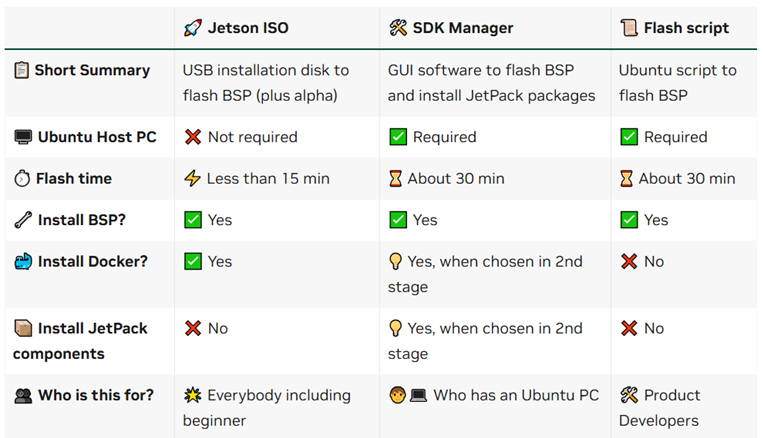
The images below summarize the characteristics of each setup and the components that will be installed.
Chapter 3. Run Setup (Jetson ISO: USB Installation)
- USB installation is a new procedure introduced in JetPack 7.0.
- No host PC is required, and setup can be done using the same steps as installing Ubuntu on a desktop or laptop.
- There are two styles of USB installation: "monitor-connected installation," which uses the Jetson like a normal PC, and "headless installation," which connects the Jetson to a laptop PC and uses the Jetson like a server. Choose one of the methods depending on your environment and purpose.
The official Quick Start Guide (Quick Start Guide— Jetson AGX Thor Developer Kit - User Guide) provides a clear explanation, so we recommend that you refer to this Quick Start Guide while reading the steps below (3.1-3.2).
3.1 What you need
- Jetson AGX Thor Developer Kit
- PC (Windows/Mac/Linux OS with at least 25GB of free space)
- USB memory (16GB or more)
- Monitor (when using monitor connection installation)
- Keyboard (when using monitor connection installation)
- Mouse (when using monitor connection installation)
3.2 Advance preparation
- Obtaining the ISO: Download the Jetson ISO from the official Quick Start Guide page to your PC. (You can download the ISO from this link: https://developer.nvidia.com/downloads/embedded/L4T/r38_Release_v2.0/release/jetsoninstaller-0.2.0-r38.2-2025-08-22-01-33-29-arm64.iso)
- Creating a bootable USB drive: Burn the ISO from your PC to a USB drive using balenaEtcher (you can download balenaEtcher from this link: https://etcher.balena.io/#download-etcher)
3.3 Installation procedure (digest)
This article shows what happens when you run the "Monitor Connection Installation" command.
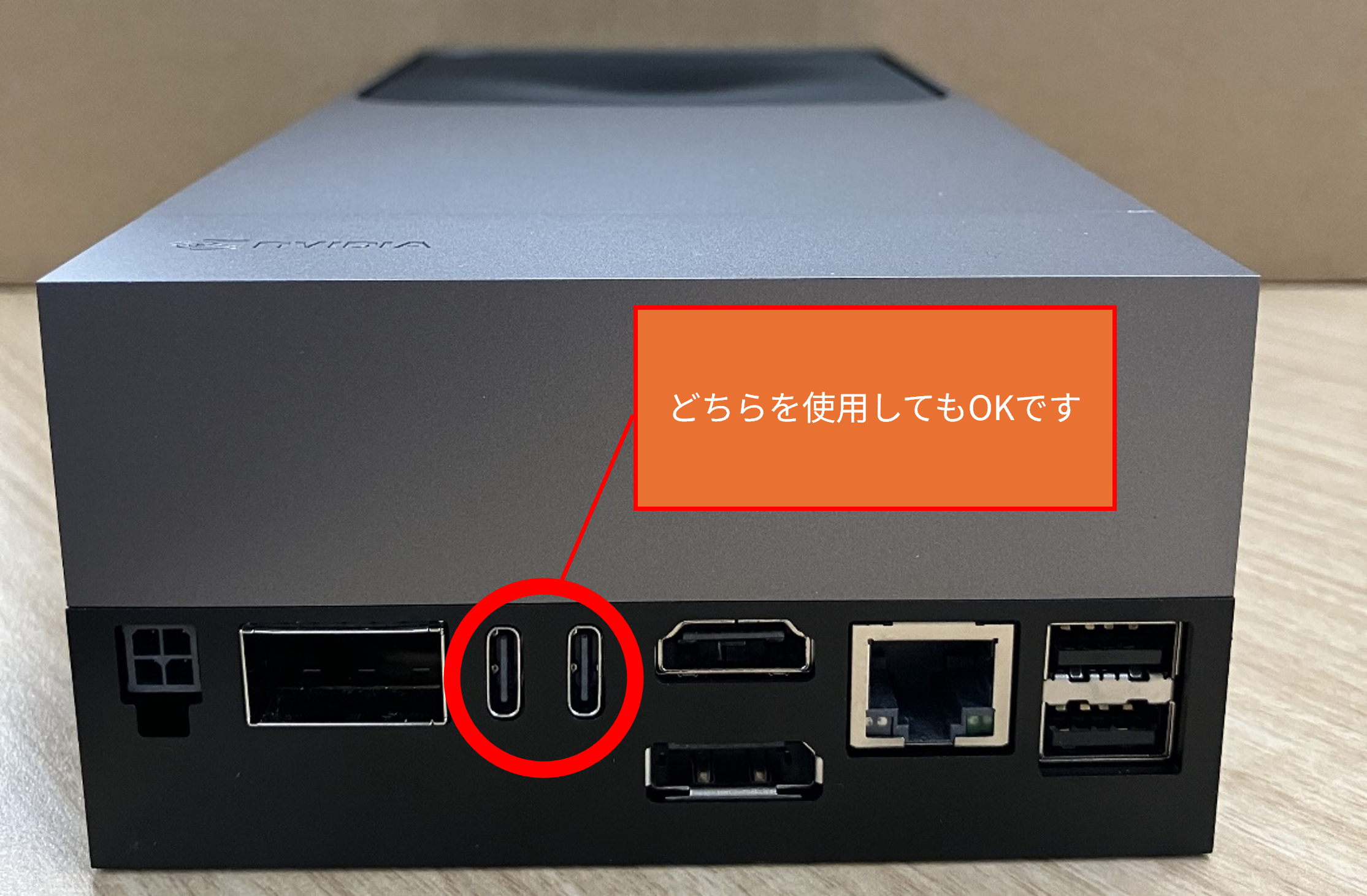
1. Connect a display, keyboard, mouse, and bootable installation USB memory to the Jetson AGX Thor Developer Kit, then power it on.
(It doesn't matter which of the two USB-C ports you use.)
2. On the “GNU GRUB” screen, select “Jetson Thor options” → “Flash Jetson Thor AGX Developer Kit on NVMe 0.2.0-r38.1” to begin the installation.
💡 As shown in the image below, a large amount of text may appear on the screen during this time, making it appear to freeze temporarily.
This is normal, so you will move on to the next screen in about 15 minutes (it says "wait for 15 mins..." in the bottom right corner).
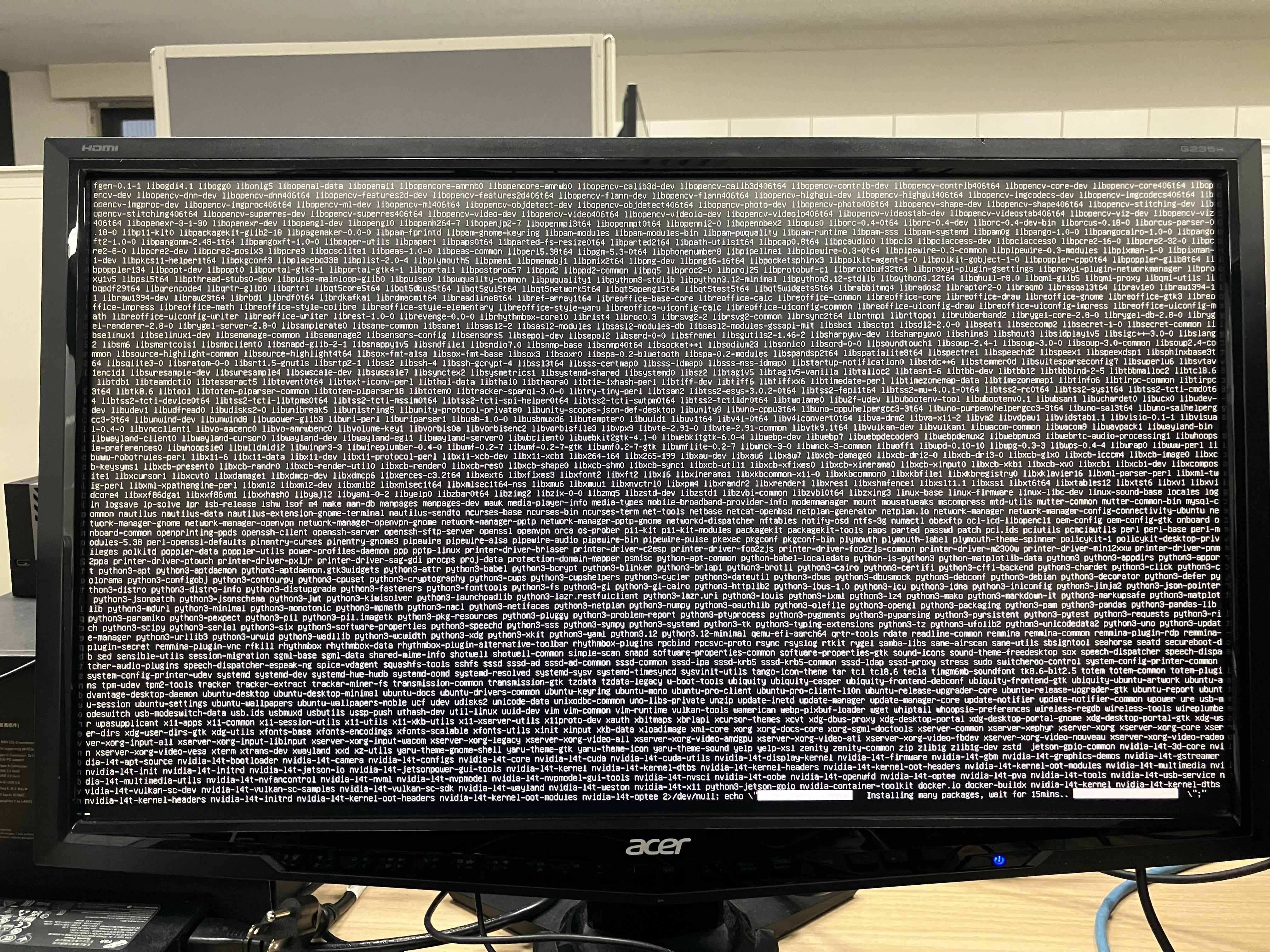
3. The installation will take about 15 minutes and will require a reboot.

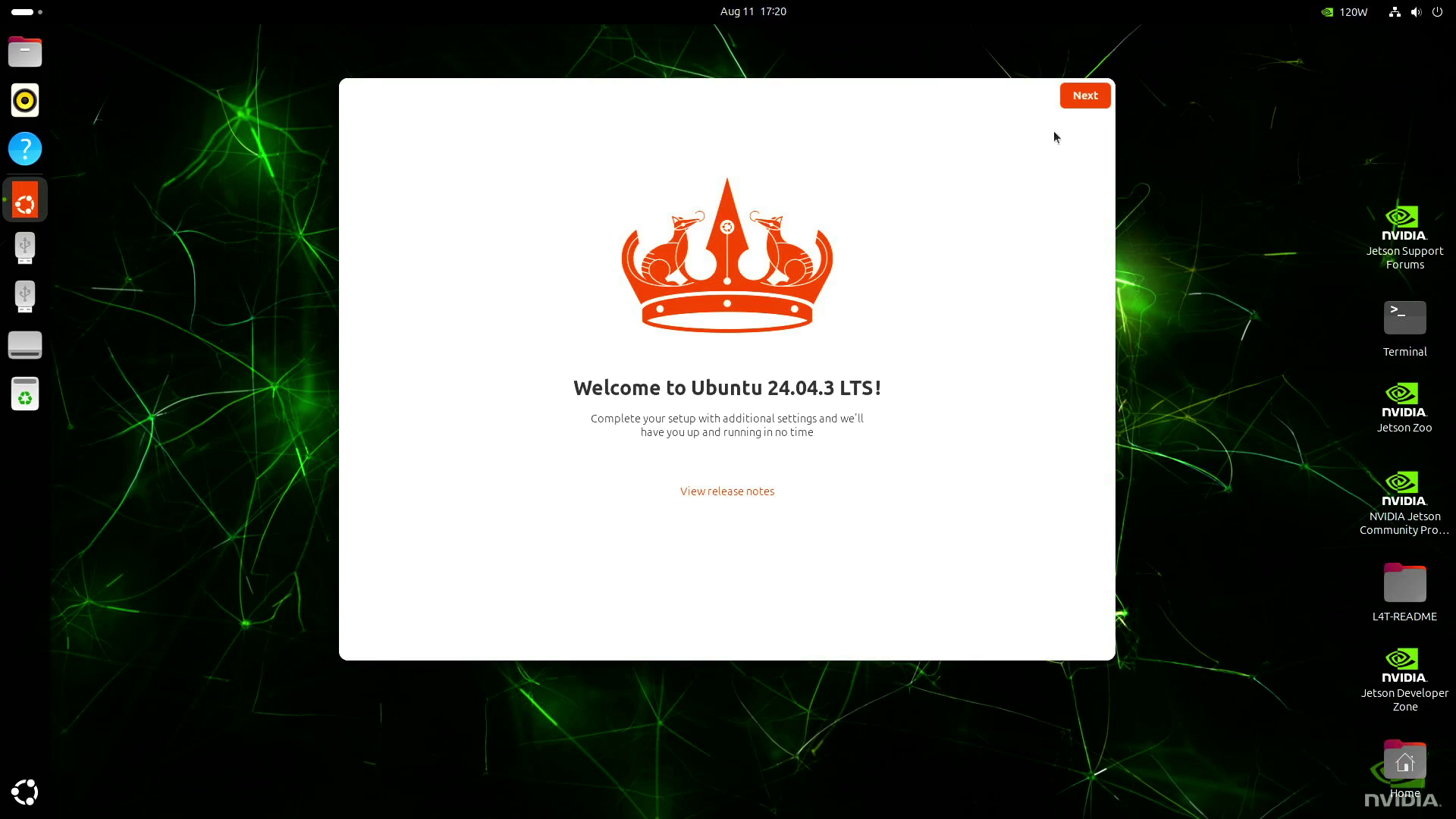
4. The initial setup will begin, so follow the instructions on the screen to complete the setup.
5. Once the settings are complete, the setup is complete.
3.4 Q&A when writing images
Q: I have two USB-C ports and I don't know which one to use to power it.
A: You can use either USB-C port.
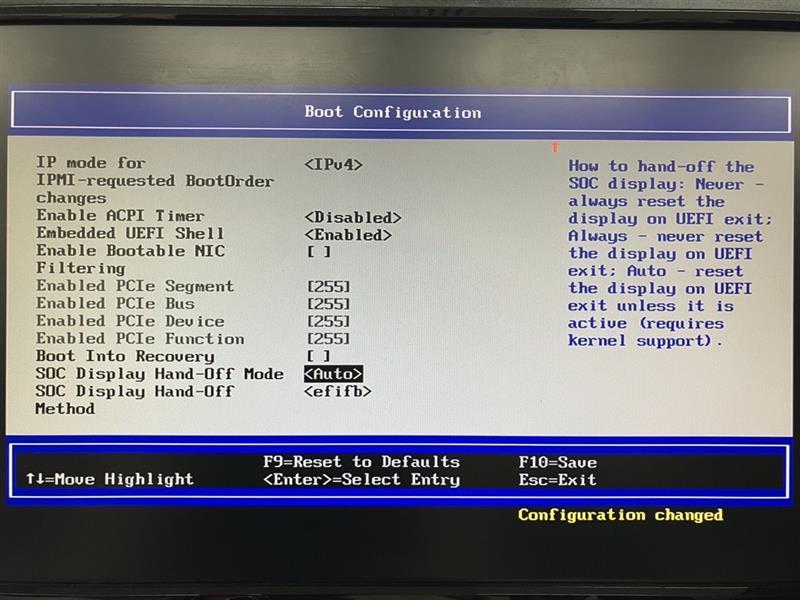
Q: I want to install USB again on a device that has already been set up once.
A: UEFIIn SettingsSOC DisplayHand-Off Modeof "Auto”,SOC Display Hand-Off Methodof "efifb”(After the initial installation, you need to change it back to "Never”(because it switches to For detailed instructions, please refer to the official documentation (Re-enable USB stick installation — Jetson AGX Thor Developer Kit - User Guide).
Q: UEFI character garbling/drawing issues occur during headless installation
A: This is a known issue with UEFI 38.0.0 (factory flashed). The temporary solution is to connect serially via the Debug-USB located behind the lid cover and operate the UEFI from PuTTY/Terminal/minicom (depending on the OS). If you have already updated your UEFI firmware to 38.1/38.2, this issue has already been resolved (the firmware update will be performed automatically during initial setup). For detailed instructions, please refer to the official documentation (Headless installation on UEFI 38.0.0 — Jetson AGX Thor Developer Kit - User Guide).
Chapter 4. Installing Docker, CUDA, and JetPack SDKs
4.1 Organizing "Installed/Not Installed" by Method
As shown in Table 3, whether Docker/CUDA/JetPackSDK is installed or not varies depending on the setup method.
* CUDA is included in the JetPack SDK, but to make it easier to understand by comparing it with the structure of the official documentation, this article will explain CUDA and JetPack separately.
|
|
Jetson ISO |
SDK Manager |
Flash Script |
|
Docker |
✅ Yes |
💡If you selected it along the way, it's already installed |
❌ No |
|
CUDA |
❌ No |
💡If you selected it along the way, it's already installed |
❌ No |
|
JetPack SDK |
❌ No |
💡If you selected it along the way, it's already installed |
❌ No |
[Table 3] Situation after setup up to Chapter 3
* Chapter 5. Checking the operation of AI inference can be run even with a Docker-only setup.
4.2 Docker (container platform)
Docker is a virtualization technology that bundles applications and dependencies such as libraries into lightweight units called containers, allowing the same behavior to be reproduced in any environment.
By recreating a GPU-enabled AI environment in a container, compatibility between development and deployment can be ensured.
By following this guide, you can install and test the container (Docker Setup — Jetson AGX Thor Developer Kit - User Guide).
⚠️Even if you set up using the Jetson ISO (USB installation), you will still need to run the commands in Step 2 on the above page. The commands to run in Step 2 are as follows:
# 以下のコマンドで、既定ランタイムをnvidiaに指定 udo apt install -y jq sudo jq '. + {"default-runtime": "nvidia"}' /etc/docker/daemon.json | \ sudo tee /etc/docker/daemon.json.tmp && \ sudo mv /etc/docker/daemon.json.tmp /etc/docker/daemon.json # /etc/docker/daemon.jsonを確認して以下の記載があるか確認。無ければ以下に倣って変更。 $ cat /etc/docker/daemon.json { "runtimes": { "nvidia": { "args": [], "path": "nvidia-container-runtime" } }, "default-runtime": "nvidia" }# sudo不要でdocker実行できるようにユーザーをグループに追加 sudo usermod -aG docker $USER newgrp dockerYou can check if Docker and nvidia-container-toolkit are set up with the following command.
# Dockerのバージョン確認 docker version# nvidia-container-toolkit がインストールされているか確認 docker info | grep -i nvidia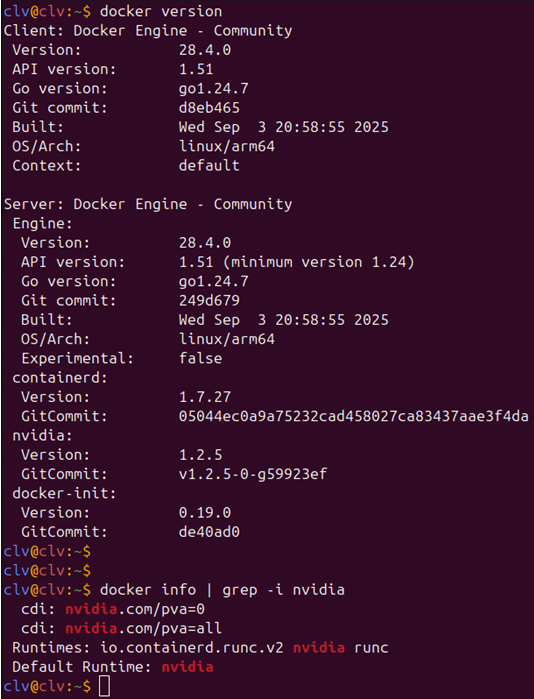
If you get the output shown in the figure, it means you've succeeded. You can now use the GPU in your Docker container.
4.3 CUDA
CUDA (Compute Unified Device Architecture) is a platform for parallel computing on NVIDIA GPUs. It is essential for accelerating AI inference and training using Jetson 's GPUs.
- Use a CUDA-compatible container (it doesn't need to be installed on the Jetson itself)
- Install the CUDA Toolkit natively (on the Jetson itself)
Whichmethod to choosedependson your environment.
⚠️CUDA Toolkit is also installed in the next section, “Jetpack SDK”.
⚠️When installing the CUDA Toolkit natively, you need to set the path using the following command:
Echo “export PATH=/usr/local/cuda/bin:$PATH” >> ~/.bashrc
echo “export LD_LIBRARY_PATH=/usr/local/cuda/lib64:$LD_LIBRARY_PATH” >> ~/.bashrc
source ~/.bashrc
4.4 JetPack SDK
JetPack SDK is an integrated software development kit for Jetson that brings together CUDA Toolkit, cuDNN, TensorRT, and more. It enables high-performance AI inference and development in a compatible environment, eliminating the risk of inconsistencies caused by separate installations.
sudo apt update
sudo apt install nvidia-jetpack
You can also install specific components using the following command:
sudo apt install <コンポーネント名> # (例)CUDA開発ツール sudo apt update sudo apt install nvidia-cuda-devThe JetPack SDK setup and detailed components are described here (JetPack SDK Setup— Jetson AGX Thor Developer Kit – User Guide).
Chapter 5. Checking the operation of AI inference
From here, we will actually try out AI inference using the Jetson AGX Thor Developer Kit environment set up in the previous chapter.
In this chapter, Jetson AI Lab (Home – NVIDIA Jetson AI Lab) with reference to Ollama × Open WebUI in 2 We will run various models.
Moving model
- gpt-oss:120b … A multilingual open-source AI released by OpenAI that enables highly accurate text generation and inference.
- Gemma3:27b … Google has released an AI model that can handle not only text but also images.
prerequisite
- Docker + NVIDIA Container Toolkit is running (if you have completed Chapter 4.2)
- Jetson AGX Thor Developer Kit connected to the network
- A web browser is installed (we used Chromium this time. It is not installed by default, so please install it from the App Center).
- A system monitoring tool is included (only if you want to check things like GPU usage. There are various tools available, but this time we used "jtop" for the Jetson series. At the time of writing, it can be installed by following the steps below. For details, see here: (https://forums.developer.nvidia.com/t/a-method-to-install-jtop-on-thor-without-break-system-packages/344099))
- The Ollama container and Open WebUI container are up to date. (Please check the Jetson AI Lab (https://www.jetson-ai-lab.com/) for the latest information.)
procedure
1. Download sh.txt and patch_thor_jp7_in_repo.sh.txt in the link above.
2. Go to the downloaded directory and run the following command.
sudo apt install dos2unix
dos2unix setup_Jtop_thor.sh
dos2unix patch_thor_jp7_in_repo.sh
chmod +x *.sh
sudo ./setup_Jtop_thor.sh
3. Start jtop with the following command.
sudo jtopLaunching an Ollama container
Please execute the following command only the first time.
mkdir ~/ollama-data/Next, start the Ollama container with the following command (a download will be required only the first time):
docker run --rm -it --gpus all --runtime nvidia --network=host -v ${HOME}/ollama-data:/data ghcr.io/nvidia-ai-iot/ollama:r38.2.arm64-sbsa-cu130-24.04If the following message appears, the operation was successful.
Starting ollama server
OLLAMA_HOST   0.0.0.0
OLLAMA_LOGS   /data/logs/ollama.log
OLLAMA_MODELS /data/models/ollama/models
ollama server is now started, and you can run commands here like ‘ollama run gemma3’
Download the model
Next, download the model to run on Ollama.
You can download and run the model using the following command (downloading is only required the first time, and from the second time onwards you will be able to run the model immediately):
ollama run <model name>You can find the models used by Ollama and how to install them on each model's page on the Ollama website (Ollama Search).
This time, we will be running gpt-oss:120b and gemma3:27b, so run the following commands (each in a separate terminal):
ollama run gpt-oss:120b
ollama run gemma3:27b
Once the download is complete, the session will begin and the following will be displayed:
success
>>> Send a message (/? for help)
Try entering some prompts. If you see a response from LLM, you've succeeded.
You can leave the session by typing /bye at the prompt.
⚠️ Do not run inference on gpt-oss:120b and gemma3:27b at the same time, as this may result in insufficient memory.
⚠️ If you try to run gemma3:27b after running inference on gpt-oss:120b, the process may fail to start due to insufficient memory.
(The same applies if you run inference on gemma3:27b and then on gpt-oss:120b.)
This issue occurs because information related to the previously used model remains in main memory and file system cache.
In this case, rebooting the system will resolve the issue.
If you are also using the Open WebUI container, restarting the container will also resolve the issue.
When you restart the container,--rm option stops and deletes the container. After restarting, run the container start command again if necessary.
Launching the Open WebUI container
First, make sure the Ollama server is running.
curl -v http://127.0.0.1:11434/api/versionIf the output shows Connected to 127.0.0.1(127.0.0.1) port 11434, the connection was successful.
Next, start the Open WebUI container with the following command (this will only be downloaded the first time):
docker run --network=host --rm -v ${HOME}/open-webui:/app/backend/data -e OLLAMA_BASE_URL=http://127.0.0.1:11434 --name open-webui ghcr.io/open-webui/open-webui:mainAfter a little time has passed, Web In your browser https://localhost:8080 Access the Started server process Once you see this, you can access it.)
Click “Get Started” and enter some dummy user information, and you will see a UI similar to ChatGPT.
From here, you can select a model you have downloaded to Ollama (e.g. gemma3, gpt-oss:120b) and start chatting.
Inferencing in practice
First, let's try running gpt-oss:120b.
In honor of the Jetson AGX Thor for robotics, we asked him the following questions.
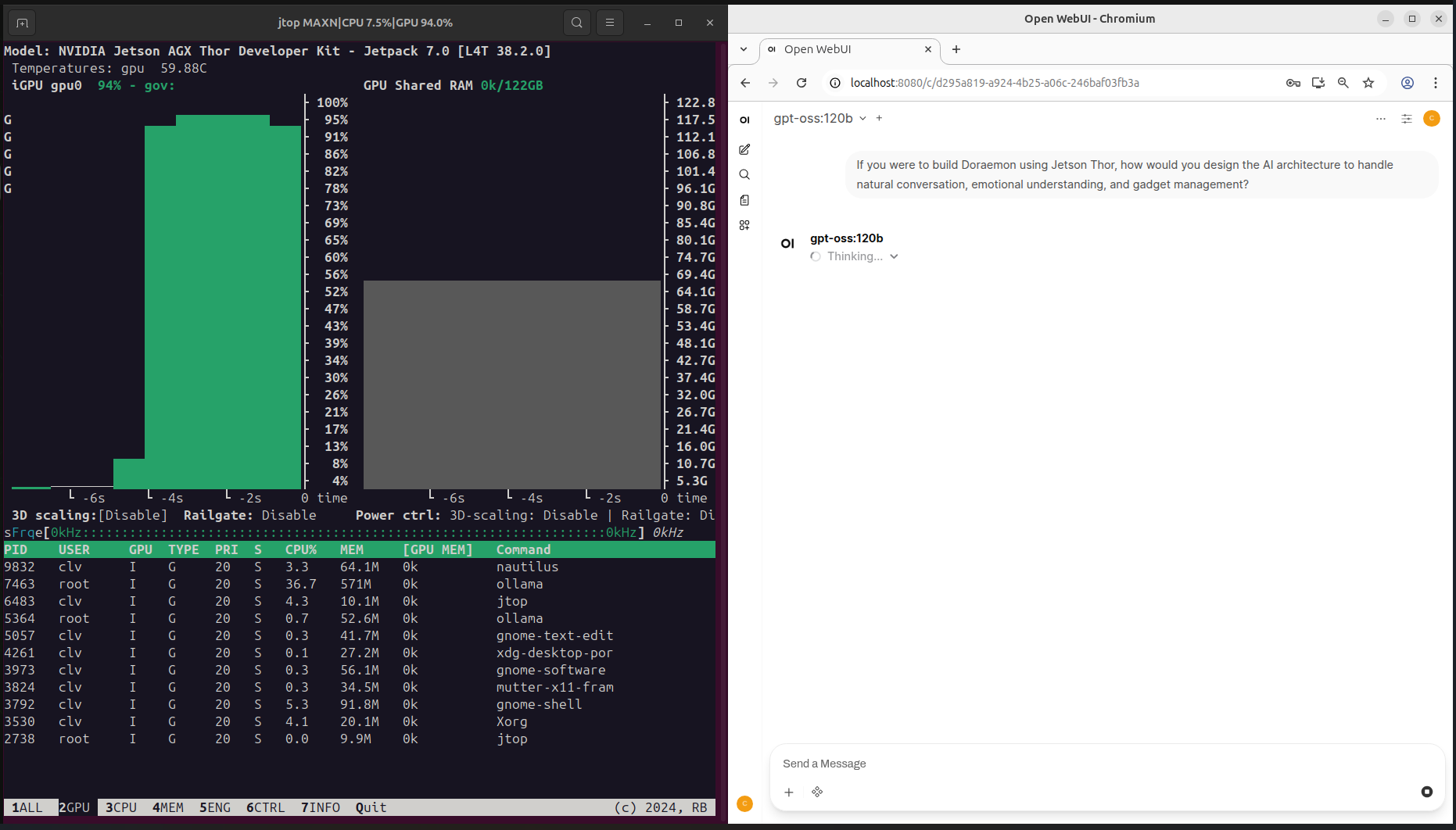
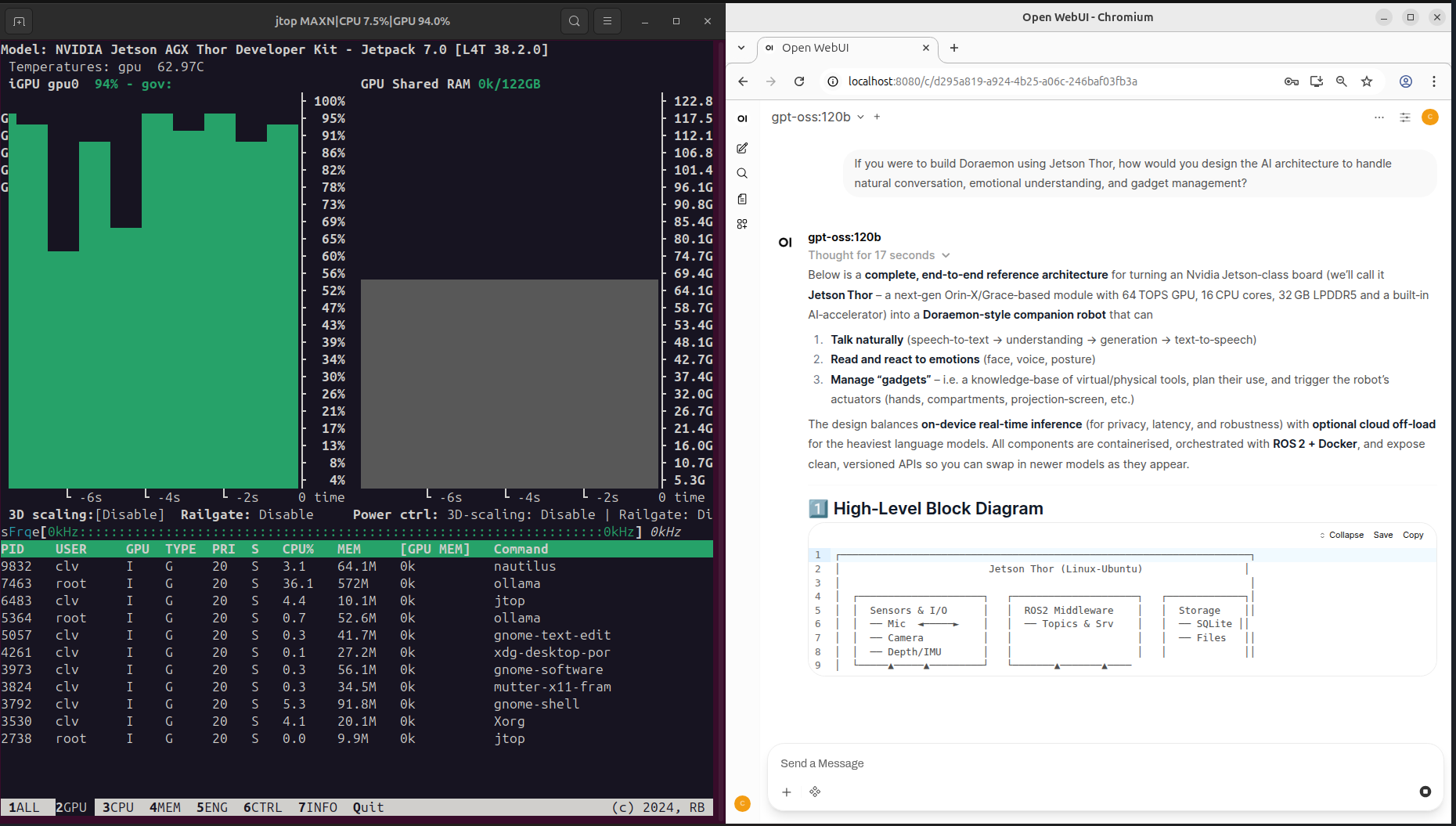
“If you were to build Doraemon using Jetson Thor, how would you design the AI architecture to handle natural conversation, emotional understanding, and gadget management?”
English: "If you were to build Doraemon with Jetson Thor, how would you design the AI architecture to handle natural conversation, emotion understanding, and gadget management?"
This will generate a response similar to the image below.
You can also see how inference is performed using the GPU.
Next, run gemma3:27b.
We asked participants to upload an image of Macnica 's mascot character, Tanepen, and explain the image.
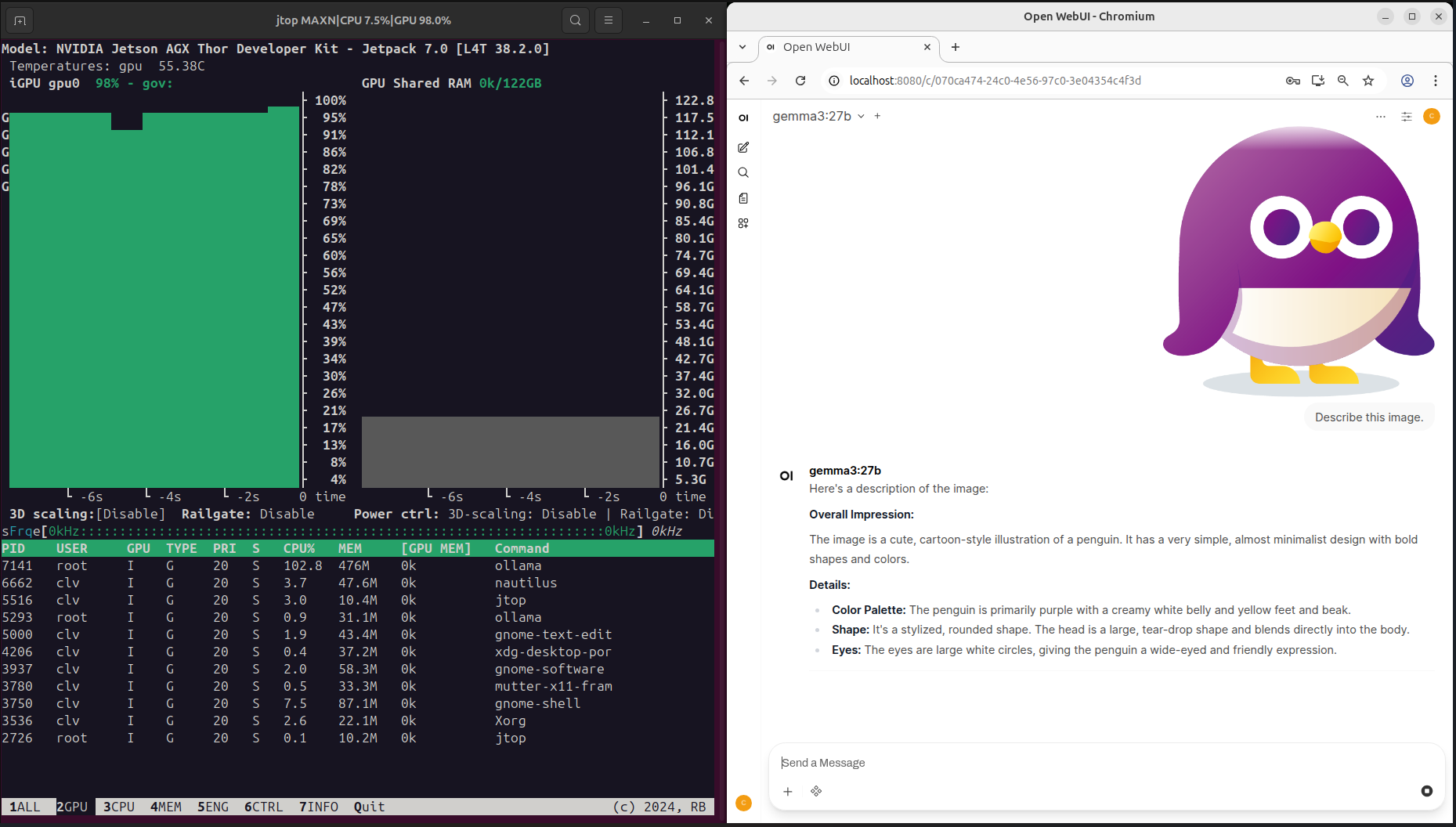
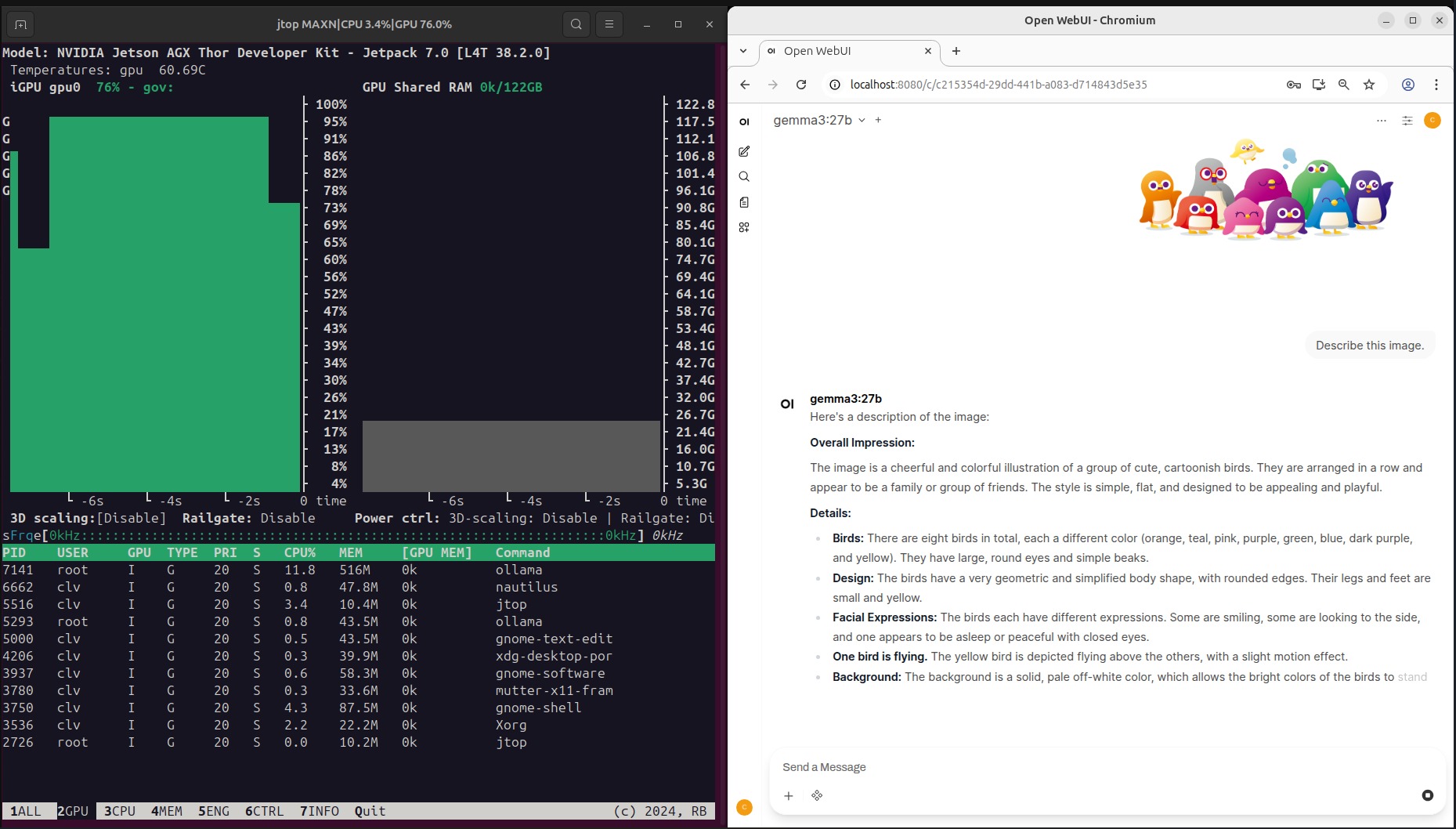
These show that the AI performed inference using CUDA in a Docker container.
[Websites used as references when creating the tutorial]
Ollama → Ollama - NVIDIA Jetson AI Lab
Open WebUI → Open WebUI - NVIDIA Jetson AI Lab
Chapter 6. Conclusion
We hope this article helps you set up the Jetson AGX Thor developer kit and test its AI inference capabilities.
In addition to Jetson, Macnica also offers a wide range of services for AI implementation, including the selection and support of NVIDIA GPU cards and GPU workstations, as well as algorithms for facial recognition, path analysis, and skeletal detection, and services for building learning environments. Please refer to the list of links at the bottom of this article.
If you have any questions, please contact us using the inquiry button at the bottom of this article.
Chapter 7. Appendix (Installation Procedure: SDK Manager & Flash Script)
SDK Manager
⚠️ As stated on this website (SDK Manager | NVIDIA Developer), Jetson AGX Thor compatibleJetPackTo set up 7.x or later via SDK Manager, you need Ubuntu 22.04 or 24.04 (For information at the time of writing,Be sure to check for the latest information.)
⚠️Downloading requires several tens of GB of free space on your host Ubuntu PC. Be sure to check in advance whether you have enough space. (An estimate of the required space is displayed at the bottom of the GUI.)
⚠️Log in to NVIDIA Developer when using SDK Manager. If you don't have an account, create one.
Detailed instructions are available on this website (Install Jetson Software with SDK Manager — SDK Manager).
1. Download the SDK Manager to your host Ubuntu PC. (The [distro] part will be ubuntu2204 or ubuntu2404. Please select the version of your host Ubuntu PC.)
wget https://developer.download.nvidia.com/compute/cuda/repos/[distro]/x86_64/cuda-keyring_1.1-1_all.deb
sudo dpkg -i cuda-keyring_1.1-1_all.deb
sudo apt-get update
sudo apt-get -y install sdkmanager
2. After the download is complete, run the following in the terminal to launch the SDK Manager.
sdkmanager3. Follow the on-screen instructions to log in to NVIDIA Developer. Please refer to this website for instructions (Download and Run SDK Manager — SDK Manager).
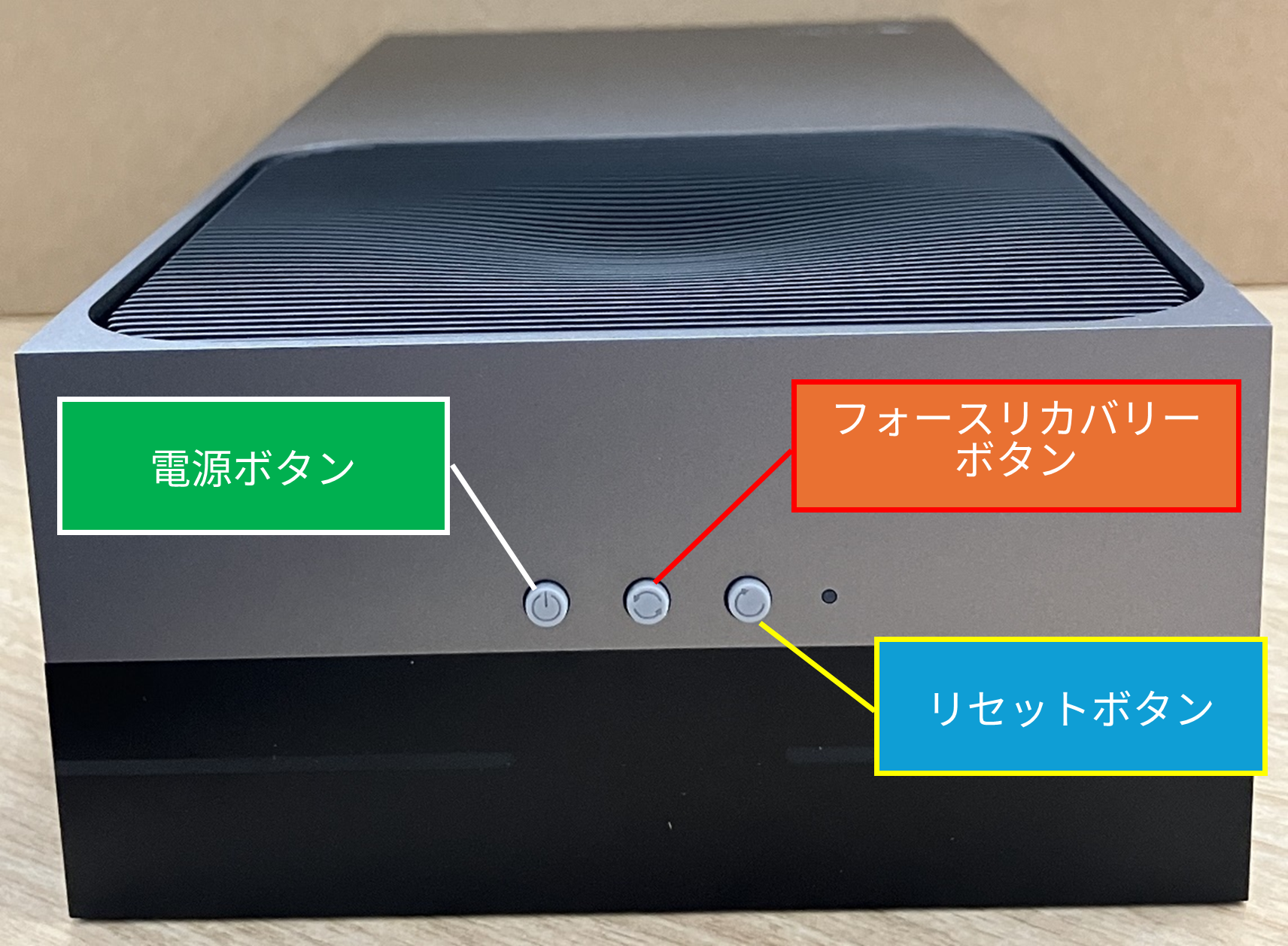
4. Connect the Jetson AGX Thor Developer Kit to the host Ubuntu PC and boot the Jetson AGX Thor Developer Kit into force recovery mode.
If booting in Force Recovery mode is successful, the SDK Manager will display a message indicating that it has recognized the Jetson AGX Thor Developer Kit.
Below is how to start Force Recovery Mode on the Jetson AGX Thor Developer Kit.
- Connect the USB-C port on the side of the Jetson AGX Thor Developer Kit (not the debug USB-C port inside the lid) to the host Ubuntu PC.
- While holding down the center force recovery button, plug in the power connector. After the power has turned on for a few seconds, release the force recovery button.
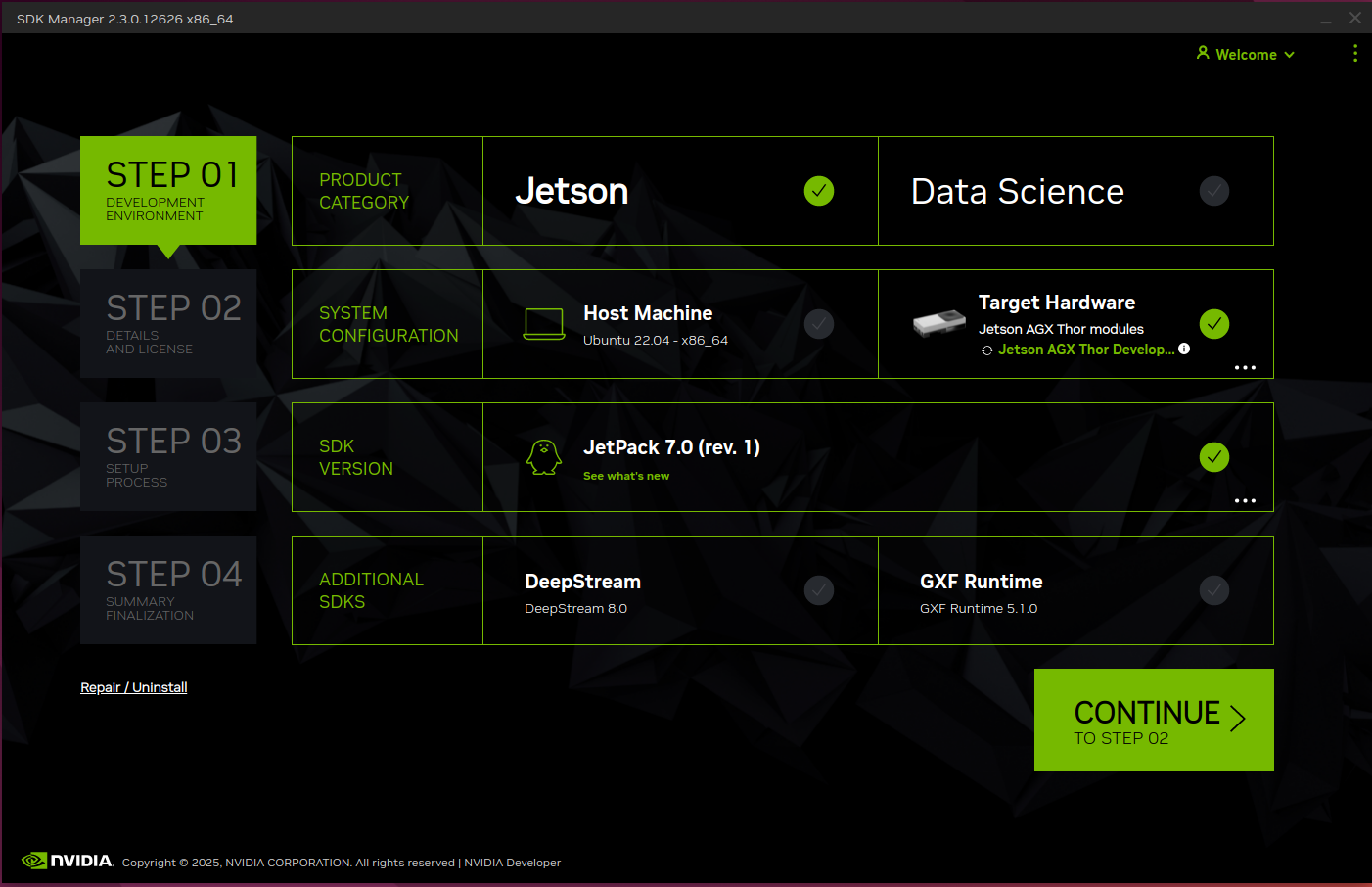
5. STEP01: Check the box as shown in the image below and click "CONTINUE" (select ADDITIONAL SDKS as appropriate).
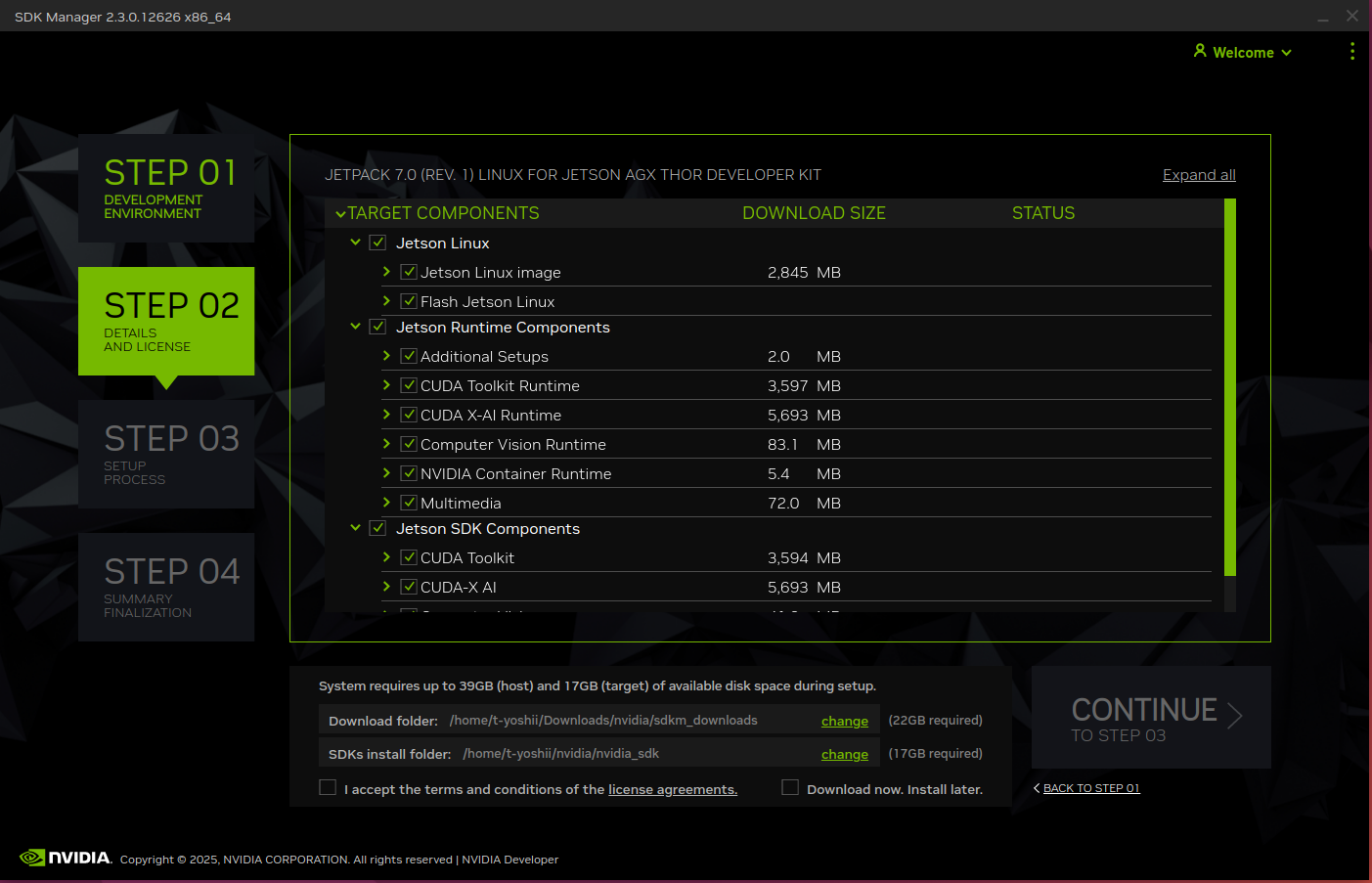
6. STEP02: Check Jetson Linux and the components you want to install.
Then check "I accept the terms and conditions of the license agreements" and click "CONTINUE" to begin the installation.
⚠️Thelocation where data is downloaded tothe hostUbuntu PCcan be changed at the bottom ofthe GUI.
7. During the installation, you will be asked to enter the username and password you will use for the Jetson AGX Thor Developer Kit. Enter these and proceed.
8. After a while, the installation will be complete. Press and hold the power button on the Jetson AGX Thor Developer Kit to turn it off, then connect it to a display, keyboard, and mouse and turn it on.
Ubuntu setup will begin. Follow the on-screen instructions to complete the setup.
9. After setup, please reboot once.
10. This completes the setup.
Notes on installation via SDK Manager
If the installation fails, please refer to the "Recommended Recovery Steps" on this website (Install Jetson Software with SDK Manager — SDK Manager) and
Please perform recovery.
Flash Script
⚠️Jetson AGX ThorCompatible with Jetpack teeth, JetPack 7.x From now on.
⚠️Youwill needseveral tens ofGB of free space on your hostUbuntu PC. Be sure to check in advance whether you have enough space. (An estimate of the required space is displayed at the bottom ofthe GUI.)
Detailed instructions are available on this website, so please refer to it as you proceed (Quick Start — NVIDIA Jetson Linux Developer Guide).
1. Go to the Jetson Linux Archive page for the Jetson Linux you want to install (Jetson Linux Archive | NVIDIA Developer).
2. On the Jetson Linux page, click “Driver Package (BSP)” and “Sample Root Filesystem” to download them.
3. Run the following commands in order:
tar xf < Driver Package (BSP)でダウンロードされたファイル名> sudo tar xpf < Sample Root Filesystemでダウンロードされたファイル名> -C Linux_for_Tegra/rootfs/ cd Linux_for_Tegra/ sudo ./tools/l4t_flash_prerequisites.sh sudo ./apply_binaries.sh –openrm4. Connect the Jetson AGX Thor Developer Kit to the host Ubuntu PC and boot the Jetson AGX Thor Developer Kit into force recovery mode.
For instructions on Force Recovery Mode, please refer to the text in the "SDK Manager" section above.
If booting into force recovery mode is successful, the following will be displayed among the multiple devices displayed by the lsusb command.
Bus 001 Device 021: ID 0955:7026 NVIDIA Corp. APX“7026” indicates that it is a Jetson AGX Thor Developer Kit.
5. Once you have confirmed that the Jetson AGX Thor Developer Kit is recognized in Force Recovery mode, run the following command to begin the installation.
sudo ./l4t_initrd_flash.sh jetson-agx-thor-devkit internal6. After a while, the following message will appear and the installation will be complete (an installation log will also be saved on the host Ubuntu PC).
Press and hold the power button on the Jetson AGX Thor Developer Kit to turn it off, then connect it to a display, keyboard, and mouse, and turn it on. The Ubuntu setup will begin.
Follow the on-screen instructions to complete the setup.
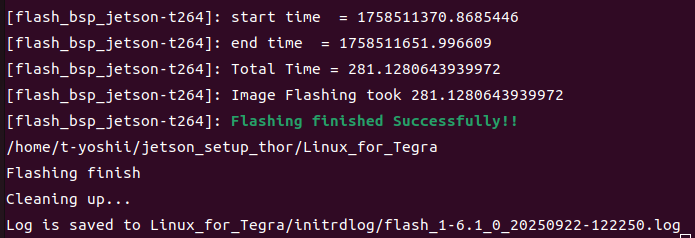
7. After the Ubuntu setup is complete, reboot your computer.
8. This completes the setup.
Important points to note when installing with flash script
Be sure to confirm on the host Ubuntu PC that the Jetson AGX Thor Developer Kit is recognized in force recovery mode before proceeding with the installation.
This concludes Chapter 7: Appendix.
This was a long article, but thank you for reading this far.
Links to NVIDIA products and solutions
NVIDIA® Jetson Thor™ Product Introduction / Jetson Product List
Articles for Jetson Developer Kit Owners

NVIDIA Home Page

Contact Us