- Semiconductor BusinessHOME
- Products and Services of Macnica,Inc.
-
technical information

-
Events and Seminars
- Handling Manufacturer
- Support
- Inquiry
- Click here to purchase products
- Semiconductor business e-mail magazine registration


 Narrow down by specifying conditions
現在2213件がヒットしています。check

Introduction
We combined NXP's i.MX8M Plus-based SMARC LEC-IMX8MP with Hailo's AI accelerator Hailo-8 to build a small Edge-AI system with Yocto. Hailo's Yocto layer allows users to integrate Hailo's software into their existing Yocto environment. We have summarized the steps, so please give it a try.
Main products used this time
NXP i.MX8M Plus SOM
LEC-IMX8MP-QN-4G-32G-ER (NXP i.MX 8MPlus equipped SMARC short size module, 4G RAM, built-in NPU, wide temperature range (-40℃ to 85℃))
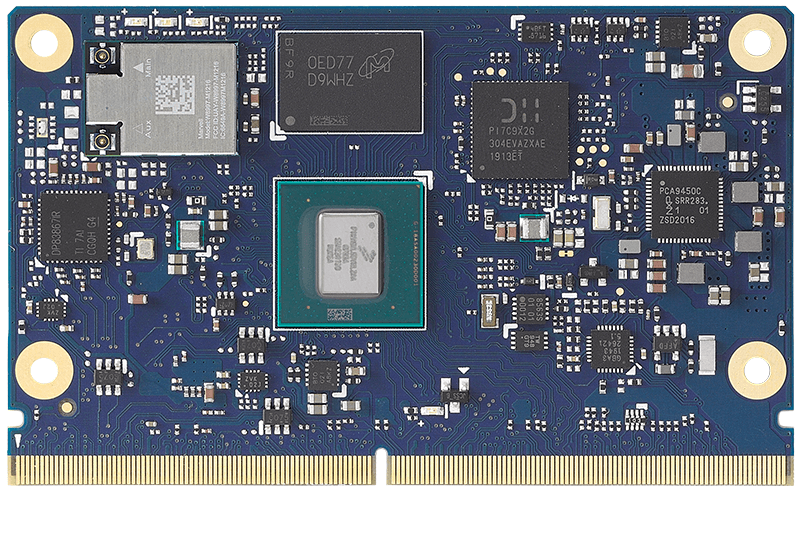
This SMARC module is based on the NXP i.MX8M Plus processor with an NPU that operates at up to 2.3TOPS.
Carrier Board
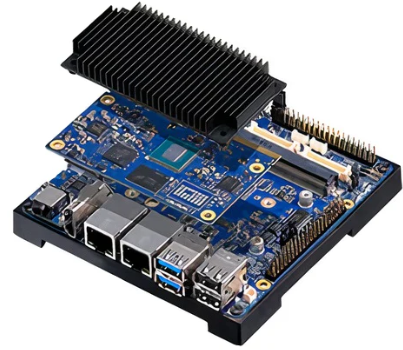
This is the Starter Kit for the SMARC module above, including a carrier board.
(The Starter Kit includes a 2G RAM SMARC module, but this time we replaced it with the above 4G RAM SMARC module.)
Hailo-8 M.2 Module
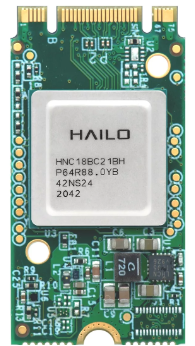
This is an M.2 module equipped with Hailo's AI accelerator.
Other items prepared this time
- Host machine for building the Yocto Project environment
- HDMI cable/monitor
- USB Mouse/Keyboard
- LAN cable
- Windows 10 PC (used to write OS image to MicroSD)
- MicroSD card (16GB or more recommended)
- webcam
Reference sites
Setting up the host machine environment for Yocto builds
Recommended hardware for host machine for Yocto build
The recommended host machine for Yocto builds is as follows:
It may be possible for it to operate in a lower environment, but please check on the actual device.
OS: Ubuntu 20.04 LTS 64-bit version
CPU: Intel Core-i7 processor (4 cores or more)
RAM: 8GB or more
Storage: 500GB or more
High-speed network connection
Installing required host packages
$ sudo apt-get install gawk wget git-core diffstat unzip texinfo gcc-multilib build-essential chrpath socat cpio python3 python3-pip python3-pexpect xz-utils debianutils iputils-ping python3-git python3-jinja2 libegl1-mesa libsdl1.2-dev pylint xterm zstd liblz4-tool curl git python-is-python3Installing the "Google Repository" package on your host
$ mkdir ~/bin
$ curl https://storage.googleapis.com/git-repo-downloads/repo > ~/bin/repo
$ chmod a+x ~/bin/repo
$ export PATH=${PATH}:~/bin
$ export LC_ALL="en_US.UTF-8"
Checking git settings
Before building the sources, make sure that git is configured correctly by running the following command:
$ git config --global user.name "Your Name"
$ git config --global user.email "Your Email"
$ git config --list
Fetching sources from git
Creating a working directory
In the example below, we are creating “imx8mp-yocto-bsp”.
$ mkdir imx8mp-yocto-bsp
$ cd imx8mp-yocto-bsp
Download the required meta layers
We recommend that you use the latest branch and manifest file to build your Yocto image. You can find the available branches and manifest files here.
Examples of kirkstone branch
$ repo init -u https://github.com/ADLINK/adlink-manifest -b lec-imx-yocto-kirkstone -m adlink-lec-imx8mp-yocto-kirkstone_1v0.xml
$ repo sync
$ MACHINE=lec-imx8mp DISTRO=fsl-imx-xwayland source adlink-imx-setup-release.sh -b <build_dir>

Required settings in conf/local.conf
Since we are using a 4GB RAM product, add the following settings to the local.conf file.
# sets the LPDDR4 DRAM size, available options are: LPDDR4_2GB, LPDDR4_2GK, LPDDR4_4GB, LPDDR4_8GB
UBOOT_EXTRA_CONFIGS = "LPDDR4_4GB"
Add Hailo recipes and more
Add the Hailo recipe to conf/local.conf .
IMAGE_INSTALL:append = "hailo-firmware hailortcli hailo-pci libgsthailo libgsthailotools tappas-apps hailo-post-processes tappas-tracers"Since IMAGE_INSTALL:append has already been written, the above will be explained later.

Add the following to conf/bblayers.conf.
BBLAYERS += " ${BSPDIR}/sources/meta-hailo/meta-hailo-accelerator \
${BSPDIR}/sources/meta-hailo/meta-hailo-libhailort"
BBLAYERS += " ${BSPDIR}/sources/meta-hailo/meta-hailo-tappas"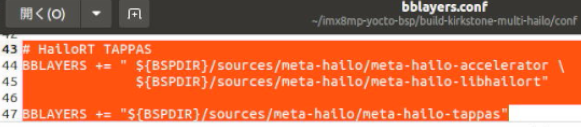
Git clone of Meta-Hailo Kirkstone 4.0 (kernel 5.15) branch
Meta-Hailo Kirkstone 4.0 (kernel 5.15) branch
Use the cd command to move to the /imx8mp-yocto-bsp/sources/ directory and run git clone.
$ cd ..
$ cd sources
$ git clone --branch kirkstone https://github.com/hailo-ai/meta-hailo.git

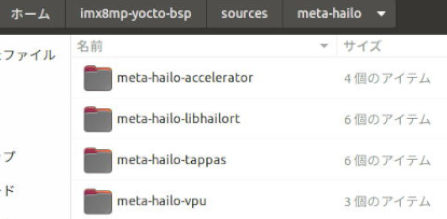
Cloned to /imx8mp-yocto-bsp/sources/.

The contents of the meta-hailo directory.
Build the image
This time we will use imx-image-multimedia.
See here for the contents of the image.
$ bitbake imx-image-multimedia
When the message below is displayed, the build is complete.
(When I tried it with a Core-i3-8100T, 32GB, it took about 12 hours. It is likely to finish faster on a PC with higher specs.)

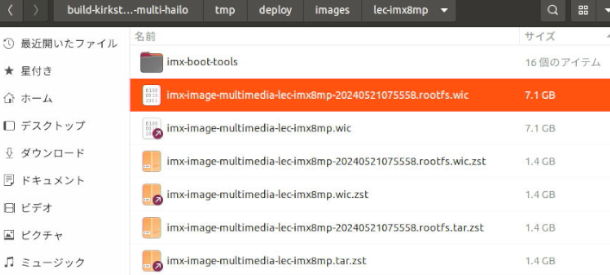
The image imx-image-multimedia-lec-imx8mp-xxx.wic is generated in the <build_dir>/tmp/deploy/image/lec-imx8mp/ directory.
Write the Yocto image to the MicroSD card
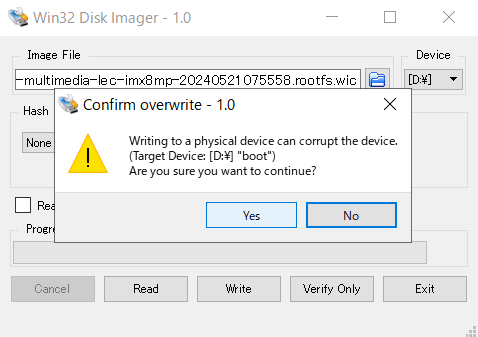
This time, we will use a tool called Win32 Disk Imager on a Windows 10 PC to write to the MicroSD card.
Start Win32 Disk Imager.
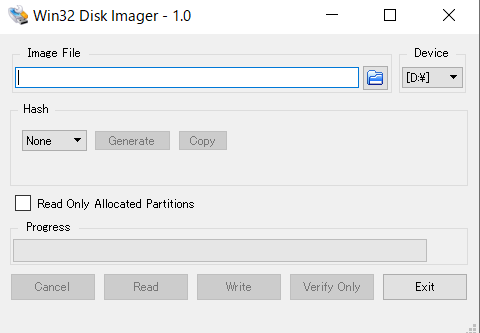
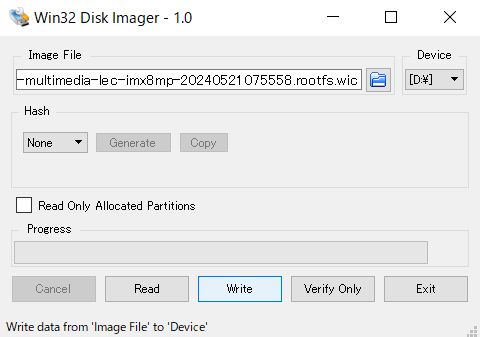
In "Image File" specify the imx-image-full-lec-imx8mp-xxx.wic generated in the previous step.
(In the example below, imx-image-multimedia-lec-imx8mp-20240521075558.rootfs.wic is specified.)
Specify the MicroSD card in "Device".
Click the "Write" button.
The following pop-up will appear, but click "Yes".
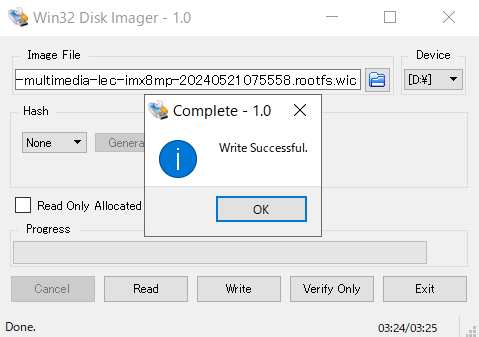
The writing was completed successfully.
Booting the LEC-IMX8MP from a MicroSD card
Assemble the THS-siMX8MP (heat sink), LEC-IMX8MP (SMARC module) and I-Pi SMARC Plus (SMARC carrier board) as shown in the photo.
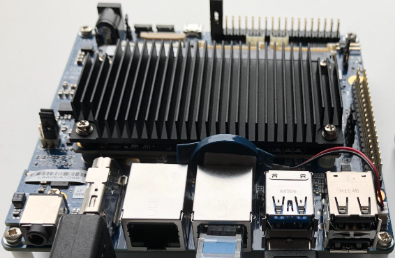
The top is a heat sink, the bottom is a carrier board, and the SMARC module is sandwiched between them.
The Hailo-8 M.2 module is inserted at the back.
Perform the following settings/connections
・Insert the microSD card with the image written into the slot
・Set boot device to microSD card
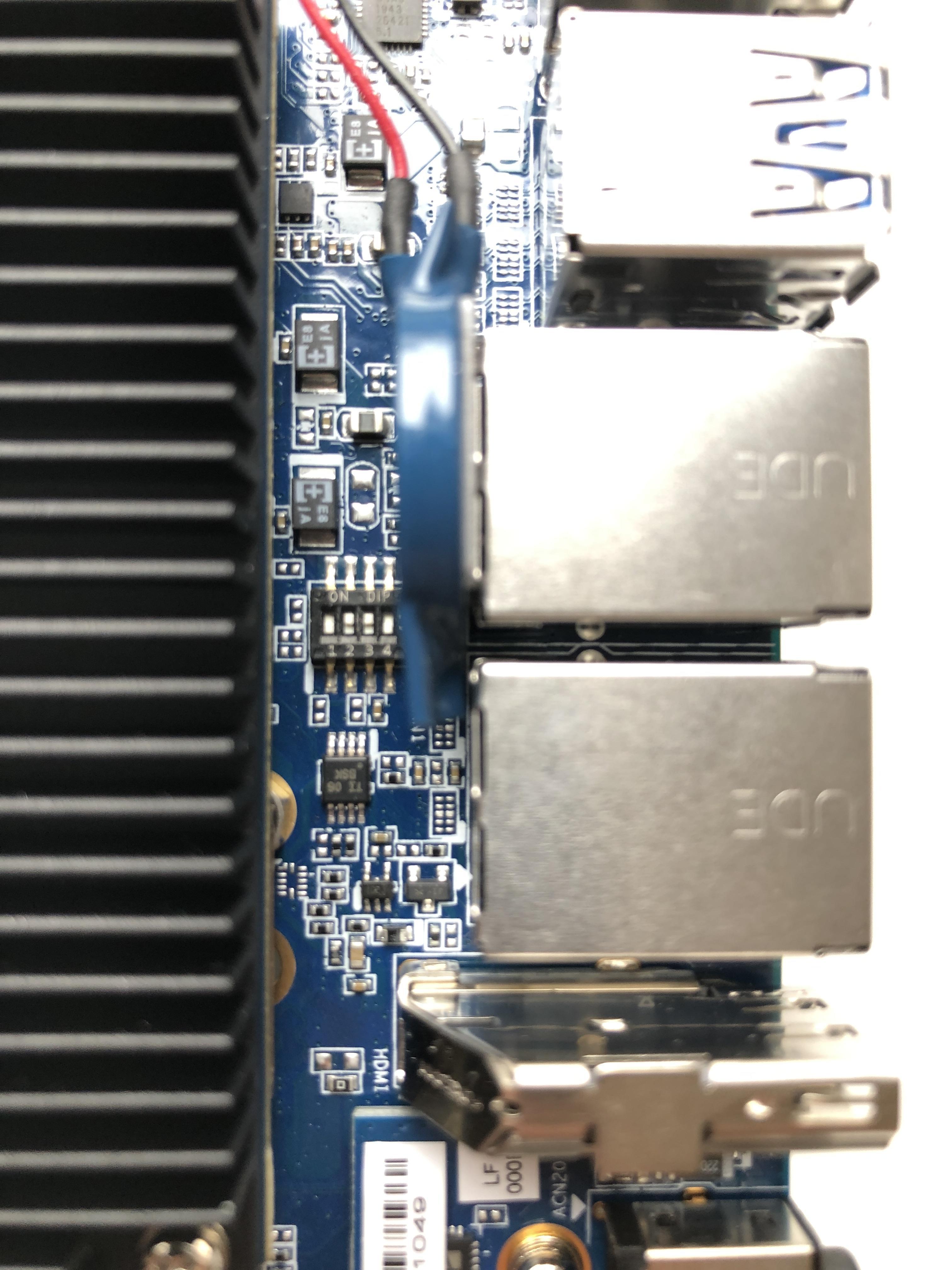
Set the DIP SW to "0110" as shown in the left picture below.
・Connect to a monitor with an HDMI cable
・Inserting a LAN cable
・Connecting a USB mouse/keyboard/webcam
*The SMARC module used this time only has one USB port.
Please connect a USB Hub to the connector on the bottom left as shown in the photo on the right below.
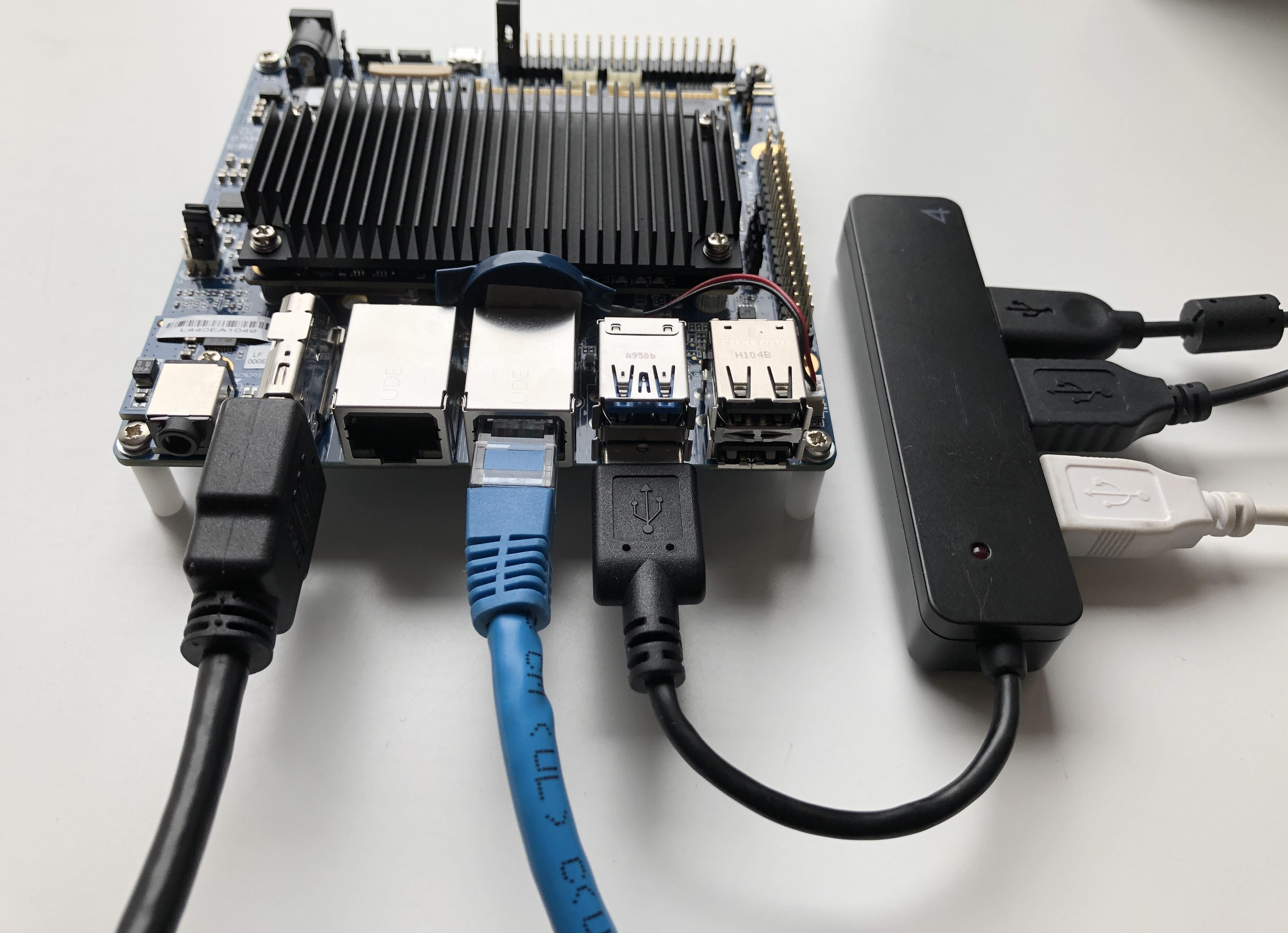
Finally connect the power adapter and boot.
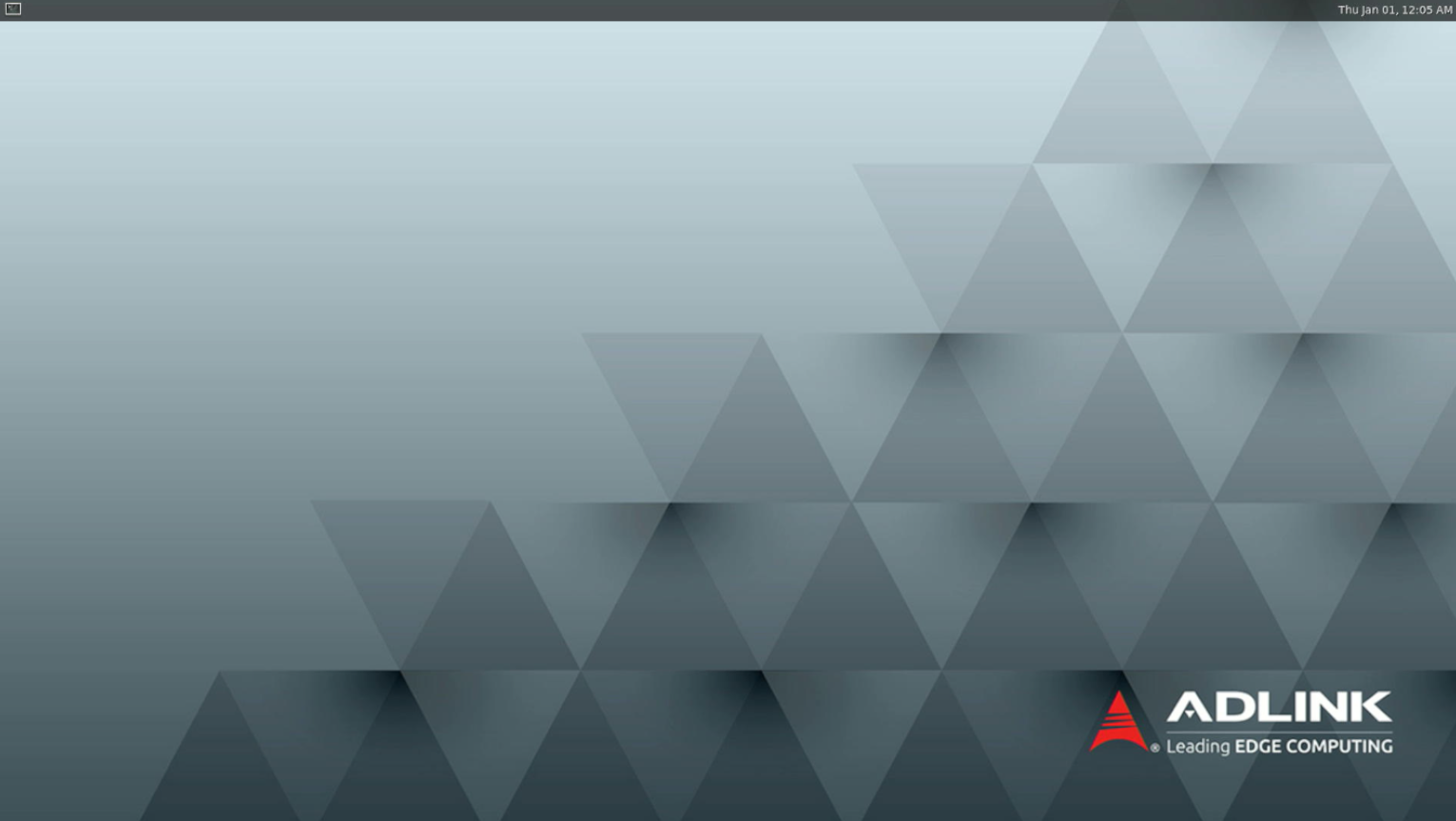
If the preparations have been completed successfully, the yocto screen with the ADLINK logo will be displayed on the HDMI monitor as shown below.
Note
For example, the result of running the weston-info command is
HDMI-A-1
DPI-1
If you have two display outputs and want to only have one HDMI output, try modifying the /etc/xdg/weston/weston.ini file as shown below.
[output]
name=HDMI-A-1
[output]
name=DPI-1
mode=off
Running the Hailo TAPPAS sample program
The sample program is included below.
~/apps/detection/detection.sh
~/apps/license_plate_recognition/license_plate_recognition.sh
Let's move the license plate sample.
Yolov5 detects vehicles from pre-prepared videos, and then Yolov4 recognizes license plates.
# cd apps/license_plate_recognition
# ./license_plate_recognition.sh --show-fps
The following message will be displayed. You can see that the FPS is over 25.
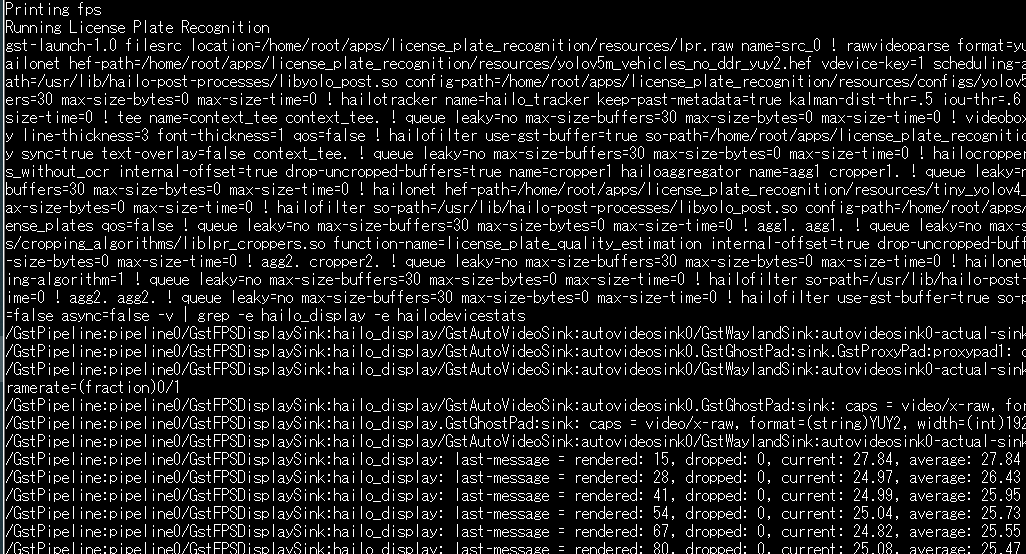
Vehicle detection and license plate recognition are possible in real time from video.

Summary
I added the Hailo tool to the Yocto environment of the NXP i.MX8M Plus, built it, and checked its operation. If you follow each manual, you should be able to carry it out without any trouble.
We hope that this will help realize small, low-power Edge-AI devices.
Inquiry
If you have any questions about this article, please contact us using the form below.
Hailo manufacturer information Top
If you would like to return to the Hailo manufacturer information top page, please click below.