- Semiconductor BusinessHOME
- Products and Services of Macnica,Inc.
-
technical information

-
Events and Seminars
- Handling Manufacturer
- Support
- Inquiry
- Click here to purchase products
- Semiconductor business e-mail magazine registration


 Narrow down by specifying conditions
現在2247件がヒットしています。check


hello.
My name is Hanako Altera and I provide technical support for Altera® FPGAs at Macnica.
This time, "LED Blink with Altera ® FPGA"
Introducing the Nios® Vprocessor!
[Related information] Nios ® V processor (Altera) / Nios ® V summary page (Macnica)
The LED lights only when the push button on the board is pressed, and turns off when the push button is released.
This operation is controlled by the Nios ® V soft-core processor (hereinafter referred to as Nios ® V).
★ Check out the video of the L flash that will be held this time

* Please see this content for how to make the LED blink only with the logic circuit of the HDL language.
what to prepare
This development environment uses these.
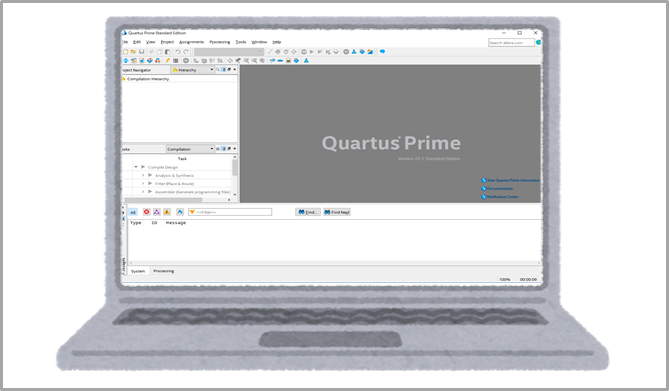
Quartus® Prime Standard Edition
or Lite Edition (free)
&
Risk Free IDE for Altera
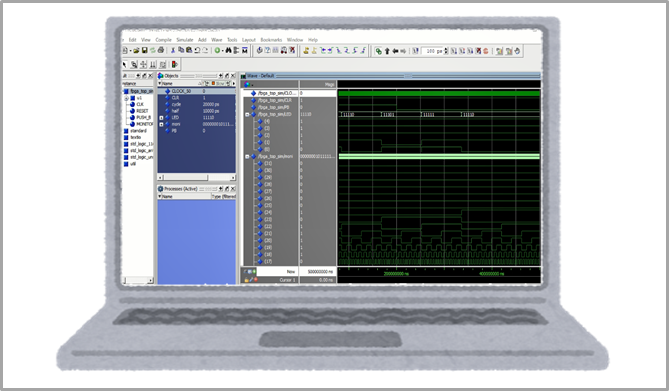
Questa* - Altera® FPGA Edition
or
Questa - Altera® FPGA Starter Edition (free)

Please contact us for inquiries or purchases.
(Also available at Macnica Mouser.)
Nios® V Development Flow

When you press the push button, the LED lights up, and when you release the push button, the LED goes out.
There are two major steps to getting this control on Nios ® V.
✔ Embed Nios® V in FPGA …… Hardware development
✔ Create a program (C language) to be executed on Nios® V …… Software development
This LED blinking control can be easily written in HDL language,
This time, let's use Nios® V in a simple design to learn the embedded development workflow.
(This is your first step towards developing a system using Nios® V!)
Obtaining a Nios® V License File
To use the Nios® V processor IP in Altera® FPGA development, there is no license fee, but you must obtain a dedicated license file.
Please refer to the following content to obtain the license file.
<Notes> Nios® V includes Nios® V/c, Nios® V/m, and Nios® V/g. If you need a license for each, please obtain them separately.
Work steps
In this sample, we will do the following:
1. Designing Nios® V and peripherals with Platform Designer
5. Compile
(Please see Part 2: Software Development for more details.)
7. Generate the BSP project
8. Generate the application project
9. Import into RiscFree IDE
10. Building and debugging your application
11.Install the Nios® V Boot program in the FPGA on-chip memory
<Notes> For detailed operations of Quartus® Prime, please refer to Altera® FPGA development flow.
1. Designing Nios® V and peripherals with Platform Designer
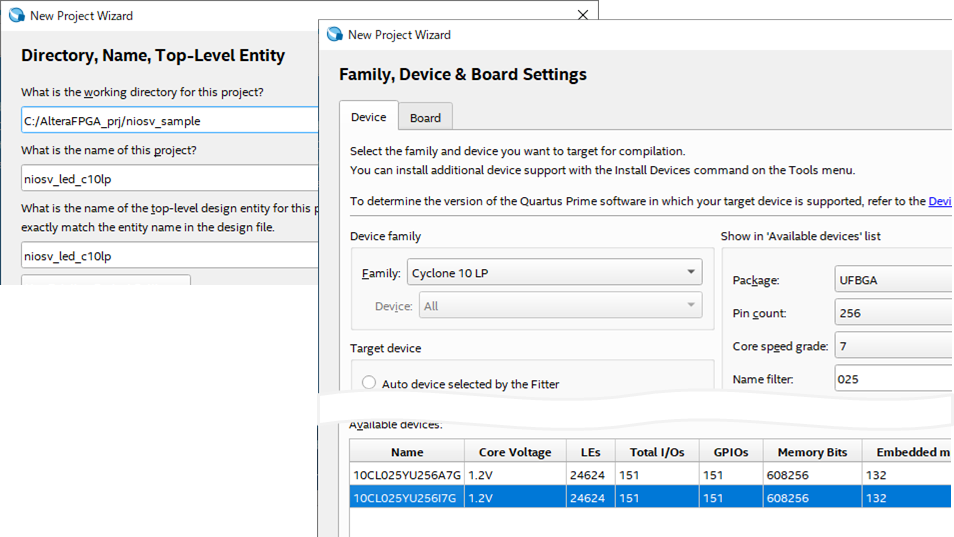
1-1. Create a Quartus® Prime project
Select the following menu in Quartus® Prime and create a project.
File menu➤New Project Wizard
In this example, set the project name and top-level entity name to niosv_led_c10lp.
The target device is Cyclone ® 10 LP Evaluation Kit 10CL025YU256I7G Select
<Related> How to create a Quartus Prime project
1-2. Create a Nios® V system
Launch Platform Designer from the menu below in Quartus® Prime and create a Nios® V processor and peripheral circuits.
Toolsmenu➤ Platform Designer
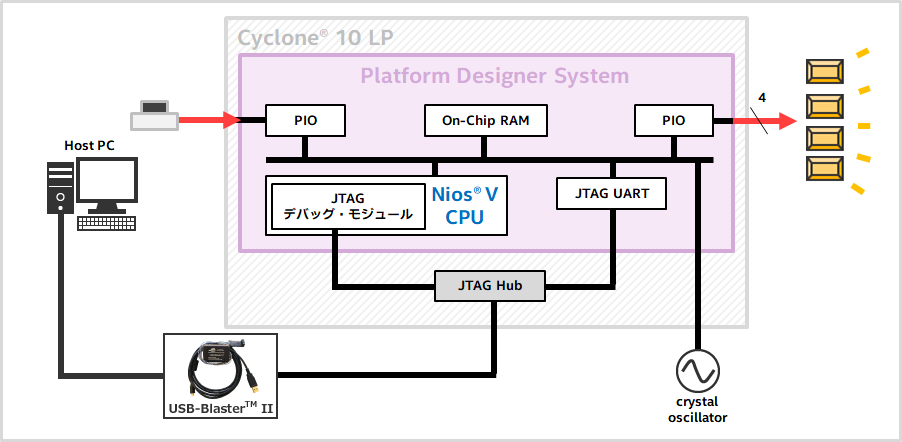
The Nios ® V system configuration created in this sample is shown below.
In this example, the Nios® V boot memory and execution memory are on-chip RAM.
1-2-1. Add Nios® V Processor
Add the Nios V/m Microcontroller from the IP Catalog located in the upper left corner of Platform Designer.
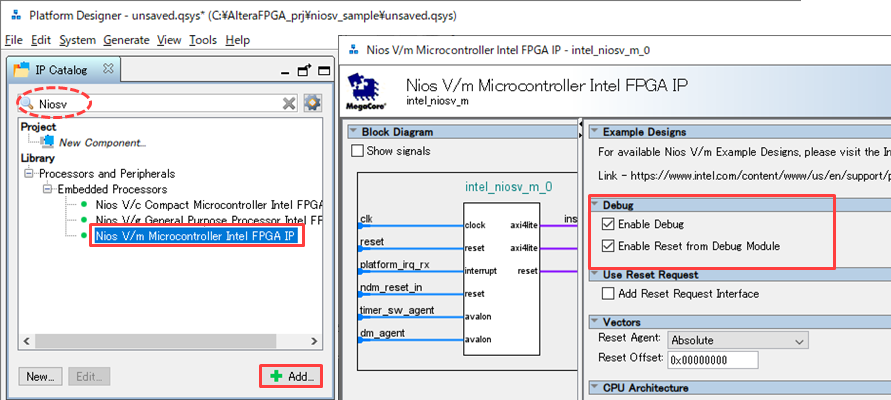
The following options apply:
・ Enable Debug = On
・ Enable Reset from Debug Module = On
・Other options = default
Click the [Finish] button.
You'll see an error in the Messages tab, but let's continue for now.
1-2-2. Add On-Chip Memory
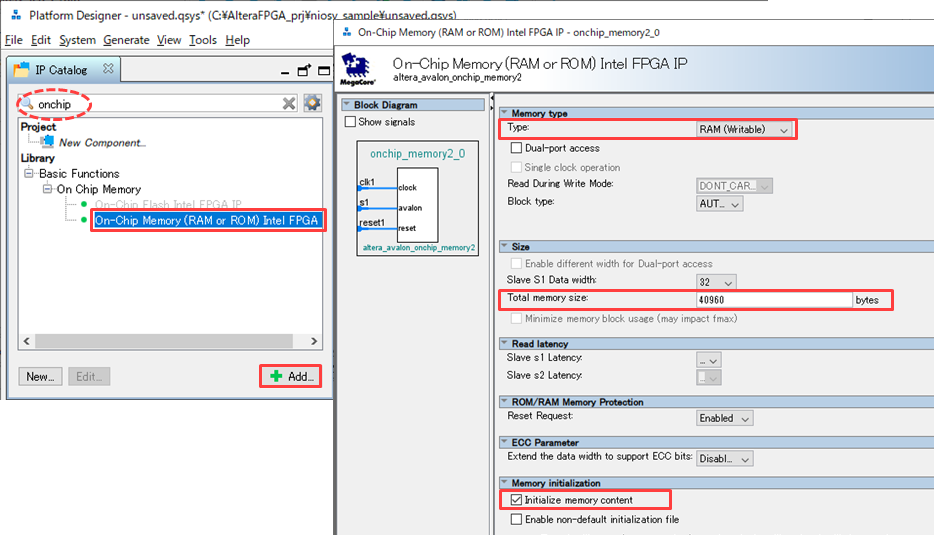
As with Nios® V, add On-Chip Memory (RAM or ROM) from the IP Catalog and apply the options below.
・ Type: RAM (Writable)
・ Total memory size: 40960 bytes
・ Initialize memory content = On
・Other options = default
Click the [Finish] button.
1-2-3. Add PIO
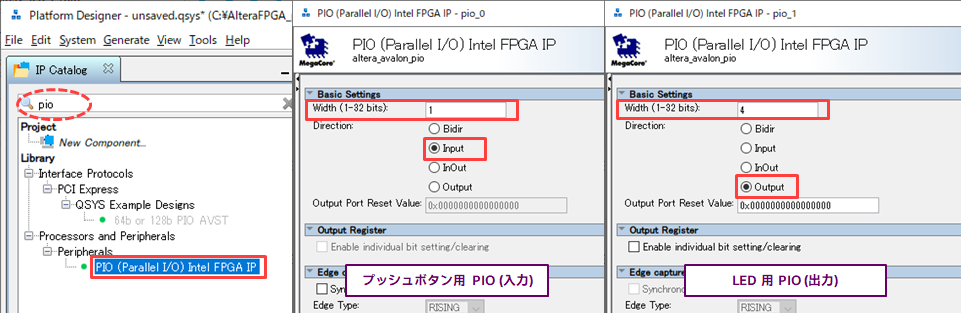
PIO (Parallel I/O) from the IP Catalog and specify the bus width and input/output attributes.
Refer to the diagram below to create a PIO for the push button and a PIO for the LED, then click the [Finish] button for each.
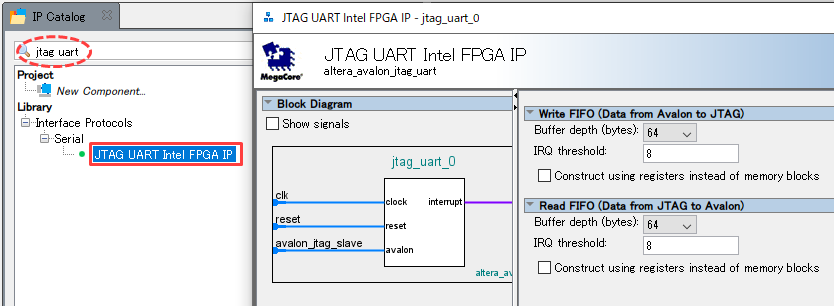
1-2-4. Add JTAG UART
JTAG UART: UART communication with a PC via JTAG interface (via USB-Blaster™ II) for printf debugging. Create.
Leave the parameters at their default settings and click the [Finish] button.
1-2-5. Change the name of each component
Right-click on the Name field on the System Contents tab and select [Rename].
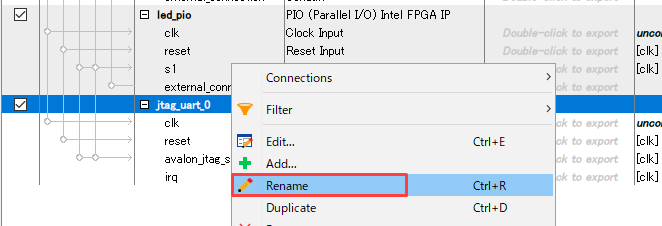
The sample design follows the table below.
| Name before change | Name after change |
| intel_niosv_m_0 | niosv_cpu |
| onchip_memory2_0 | onchip_memory |
| pio_0 | pb_pio |
| pio_1 | led_pio |
| jtag_uart_0 | jtag_uart |
1-2-6. Connect each component
Click on the white circle (〇) in the Connections column and change it to a black circle (●) to connect the components.
In the sample project, connect as shown below.
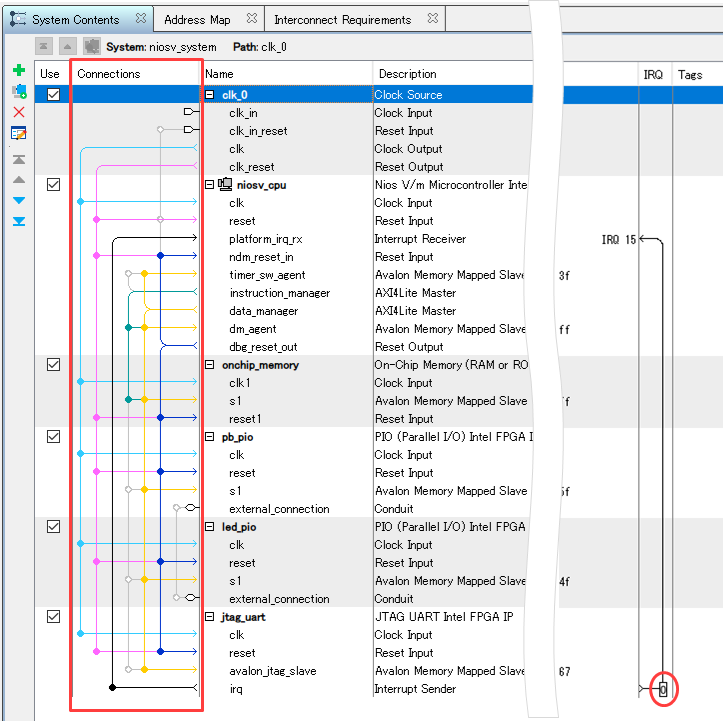
1-2-7. Connect the interrupt port
To connect the interrupt from JTAG_UART to Nios® V, click the white circle (◯) for Interrupt Sender of jtag_uart in the IRQ column and connect as shown above.
The value indicates the priority, but in this case we only have one interrupt, so leave it at 0.
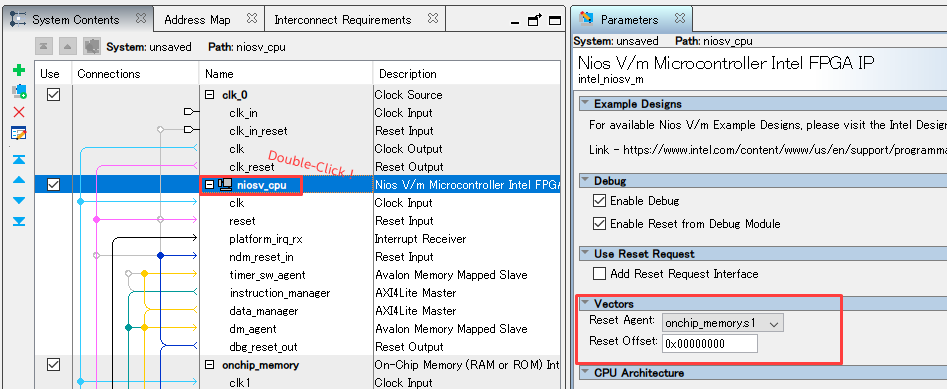
1-2-8. Setting the Reset Vector for Nios® V
Double-click the Name section of niosv_cpu to display the parameters screen again.
In the sample project, the Nios® V Boot memory and execution memory are set to On-Chip RAM (onchip_memory), so set it as shown below and in the figure below.
・ Reset Agent: onchip_memory.s1
・ Reset Offset: 0x00000000
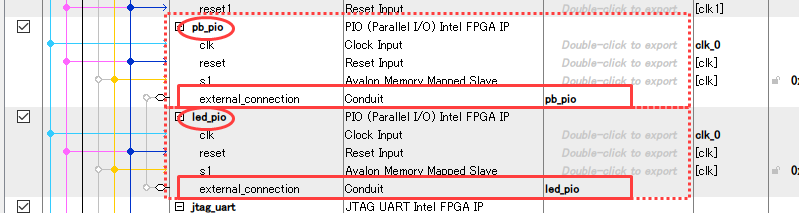
1-2-9. Exporting PIOs to the outside of the Nios® V system
Double-click the Export column of the external_connection for pb_pio and led_pio respectively to create the ports.
1-2-10. Set the base address
Set the base address so that it is unique.
Execute the menu below to automatically set the base address to the appropriate value.
Platform DesignerSystemmenu➤ Assign Base Address
1-2-11. Save Nios® V system
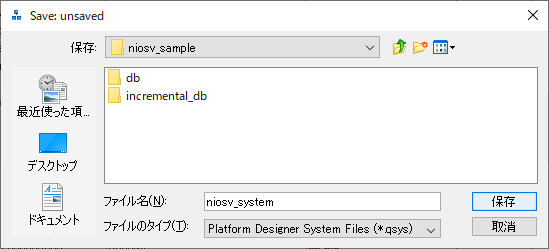
To save this Platform Designer configuration, select Filemenu➤ Save, name the file, and save the qsys file to your Quartus Prime project folder.
For this example, save it as niosv_system.qsys.
1-2-12. Generate a module for the Nios® V system
Select Generate menu➤ Generate HDL, and specify the Synthesis / Simulation / Output Directory in the Generation screen that appears.
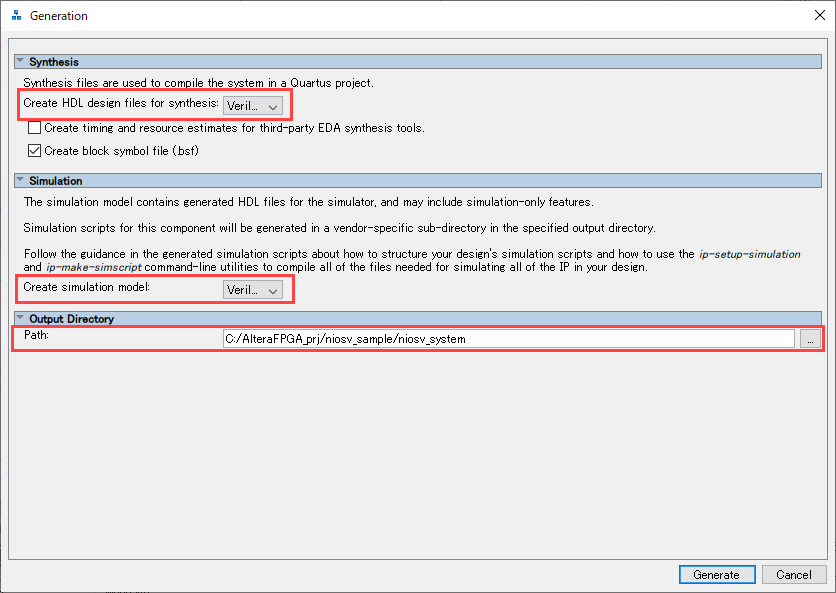
|
[Synthesis] Create HDL design files for synthesis: |
Specifies the HDL language for logic synthesis to use during Quartus® Prime compilation. |
|
[Simulation] Create simulation model: |
Specifies the HDL language of the model for simulation. (In the example, select Verilog.) <Notes> In certain versions of Windows, when you select a model for simulation and run Generate, an error occurs. Please contact our technical support for more information. |
|
[Output Directory] Path: |
Specifies the folder in which to generate the files. (In the example, leave it as default.) |
Click the Generate button in the lower right corner of the Platform Designer screen to generate various files.
Once file generation is complete, close the Generate Completed window with the [Close] button, then click the [Finish] button in the lower right of Platform Designer.
Close Platform Designer.
2. Complete FPGA design
2-1. Implementing a Nios® V system in your design
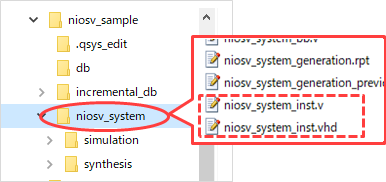
Incorporate the system module created in Platform Designer into the top-level HDL design.
To make it easier to incorporate into your design, there are instance auxiliary files (*_inst.vhd / *_inst.v) in the folder where the Nios® V system created with Platform Designer is saved. Copy and paste the contents of these files, and then edit the code to complete the connection.
For example, it looks like this.
 VHDL top design sample description Verilog HDL Top Design Sample Description
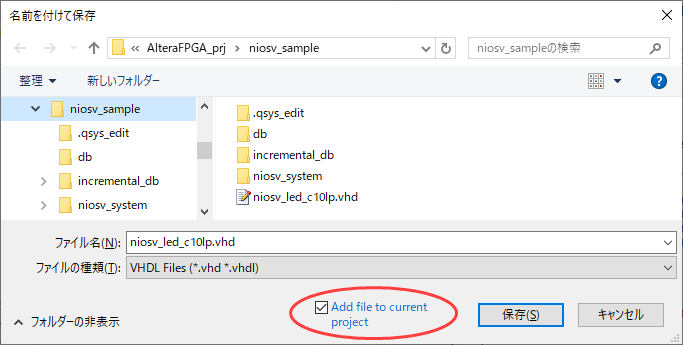
For this example, save the file as niosv_led_c10lp.vhd / niosv_led_c10lp.v.
Save the top-level HDL design using the Filemenu➤ Save As…, giving it a filename.
2-2. Register design
Register your HDL design and Nios ® V system in a Quartus ® Prime project.
Projectmenu➤ Add/Remove Files in Project
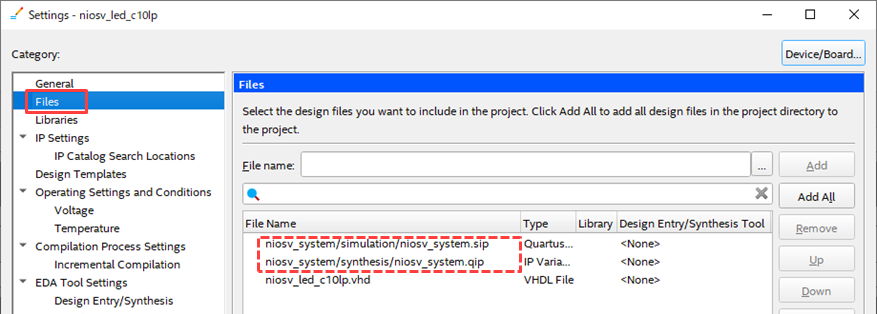
Register the top-level HDL design you created (niosv_led_c10lp.vhd or niosv_led_c10lp.v) and the Nios ® V system .qip file (niosv_system.qip).
Similarly, register the Nios ® V system .sip file for later RTL simulation with NativeLink.
note that
The .qip is generated in the /synthesis folder for the module you created in Platform Designer.
The .sip is generated in the /simulation folder for the module you created in Platform Designer.
<Related FAQ> What kind of file is a .sip file?
▲ Return to the list of work steps
2-3. Elaboration execution
Go to Processingmenu➤Start➤Start Analysis & Elaboration.
3. RTL Simulation
This example demonstrates the RTL simulation flow for an entire Quartus Prime project including Nios® V software operation.
3-1. Create a software project
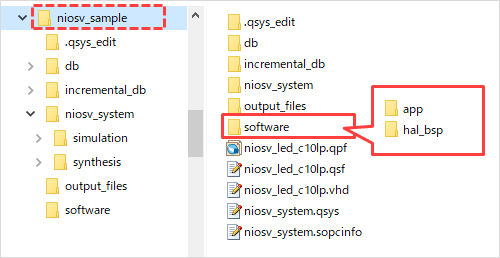
Manually create a workspace (folder) for software development in advance within the Quartus® Prime project folder.
For this example, create a software folder.
Additionally, create a folder for your application project (app) and a folder for your BSP (hal_bsp) in the software folder.
3-1-1. Generating BSP (Board Support Package)
In Windows, open the Start ➤ Altera <version.build_number> <Standard or Lite> Edition folder and click Nios V Command Shell (Quartus Prime <version>) to launch the Nios V command shell.
Enter the following command in the Nios V command shell and specify the Quartus® Prime project folder as the current directory.
cd C:\AlteraFPGA_prj\niosv_sample
Enter the following command in the Nios V command shell to launch the BSP Editor.
niosv-bsp-editor
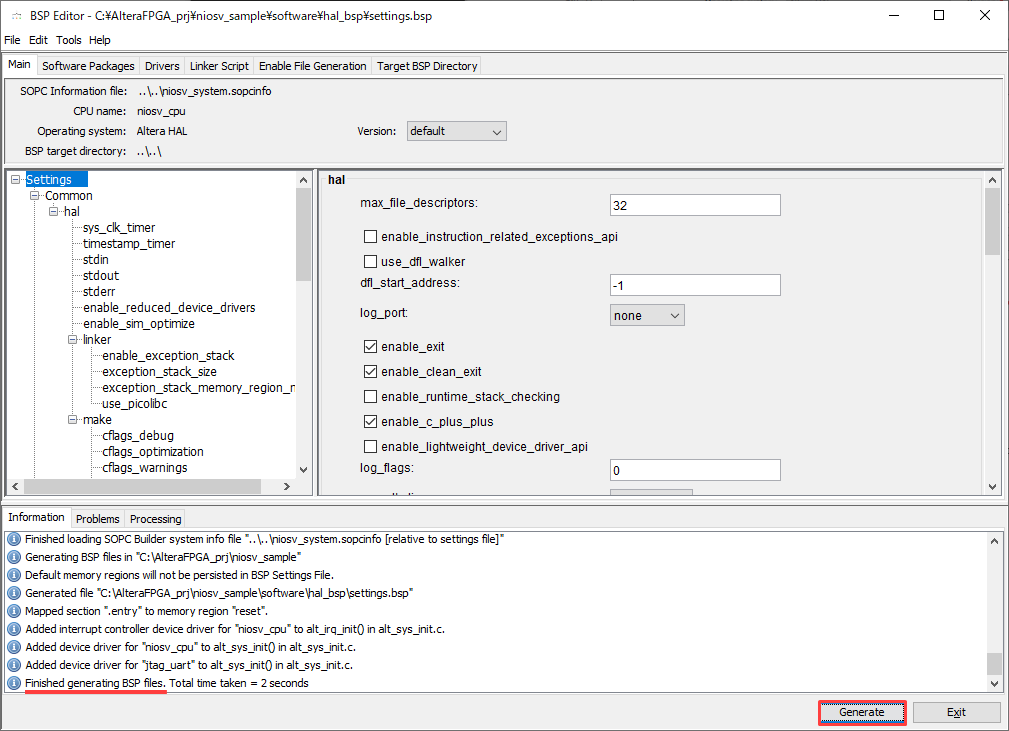
In the BSP Editor, select File menu ➤ New BSP…, then click the button next to the SOPC Information File Name field and specify the hardware information (.sopcinfo file) to be used in the BSP Editor.
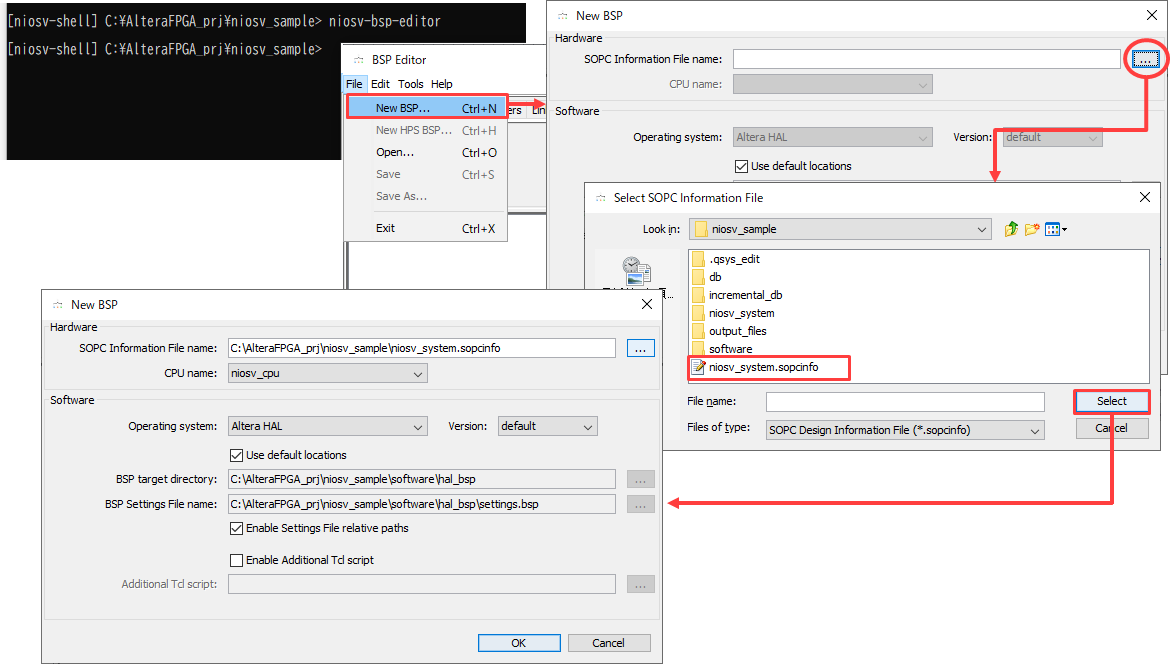
The BSP Editor GUI will be displayed. In this example, no editing will be performed, so click [Generate] in the bottom right of the GUI.
After confirming that "Finished generating BSP files." is displayed in the Information tab, click [Exit].
3-1-2. Creating an application project
Move the Nios® V Boot program (C source file) that you created in advance to the software/app folder you just created.
For this example, save the file as presspb_led_niosv.c.
Next, enter the following command into the Nios V Command Shell:
# Generate the application project files
niosv-app --bsp-dir=software/hal_bsp --app-dir=software/app --srcs=software/app/presspb_led_niosv.c --elf-name=presspb_led_niosv.elf
# Building the application project
cmake -G "Unix Makefiles" -DCMAKE_BUILD_TYPE=Debug -B software/app/build/Debug -S software/app
make -C software/app/build/Debug
The Nios® V Boot program is generated as an .elf file.
3-2. Creating a Hex File
In this example, Nios® V executes a program stored in the FPGA's internal memory (Nios® V system on-chip memory) at boot time.
To reflect this Boot program in the RTL simulation, enter the following command in the Nios V Command Shell to convert the elf file to a hex file.
elf2hex app/build/<user_applicatio>.elf -o <hex_output_file>.hex -w <On-Chip RAM data width> -b <On-Chip RAM base address> -e <On-Chip RAM end address>
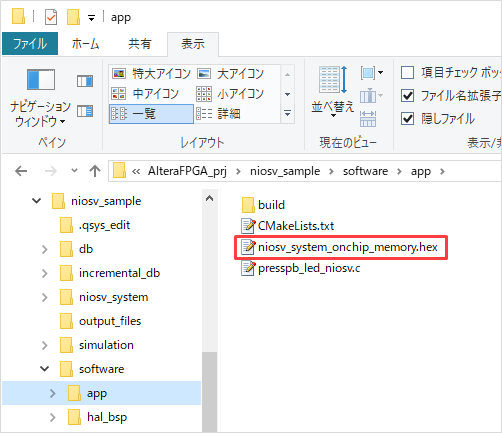
example)
elf2hex software/app/build/Debug/presspb_led_niosv.elf -o software/app/niosv_system_onchip_memory.hex -w 32 -b 0x00010000 -e 0x00019FFF
<Notes>
The initial value setting of the On-chip Memory created with Platform Designer is
In the default case (Initialize memory content = On),
The hex file name should be niosv_system_onchip_memory .hex.
If you enable non-default initialization file,
If so, use -o in the elf2hex command with the desired file name and
Please specify the path.
Example) elf2hex software/app/build/Debug/presspb_led_niosv.elf -o ocram_init/niosv_boot.hex -w 32 -b 0x00010000 -e 0x00019FFF

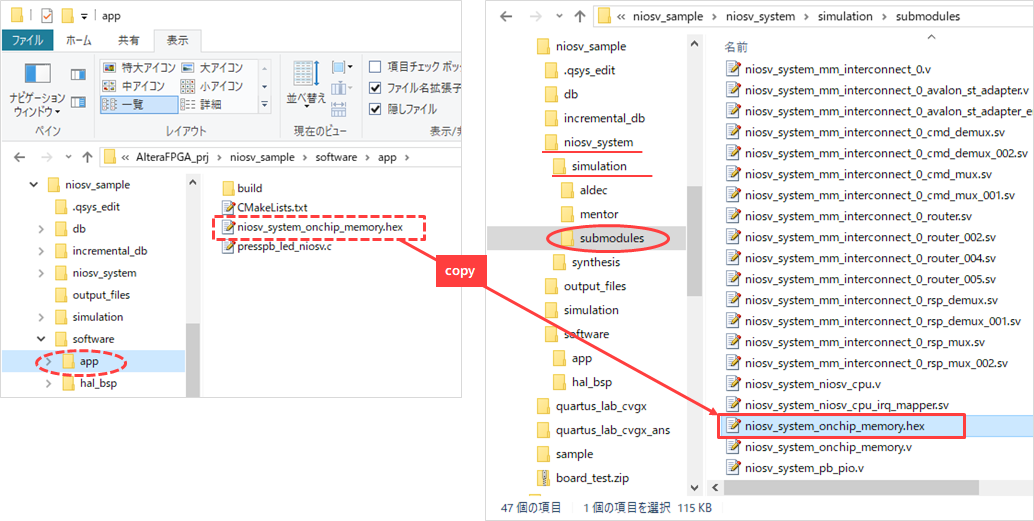
Next, copy the niosv_system_onchip_memory.hex file you just generated to the simulation model save folder below.
<Quartus Prime project>/<Platform Designer folder>/simulation/submodules
In this example, copy it to the following folder:
C:\AlteraFPGA_prj\niosv_sample\niosv_system\simulation\submodules
3-3. NativeLink Simulation Settings
Set up the environment for running NativeLink on Quartus® Prime. (Please refer to "Set up the environment" in this content.)
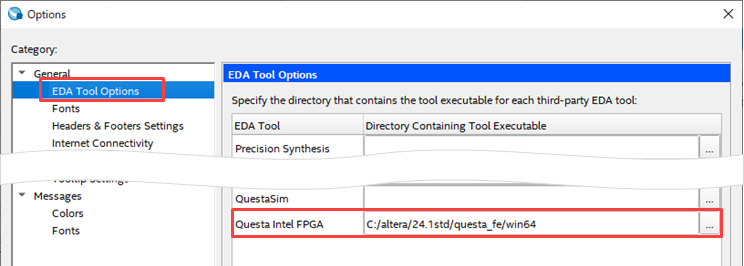
Next, set up the NativeLink simulation in the following menu in Quartus® Prime.
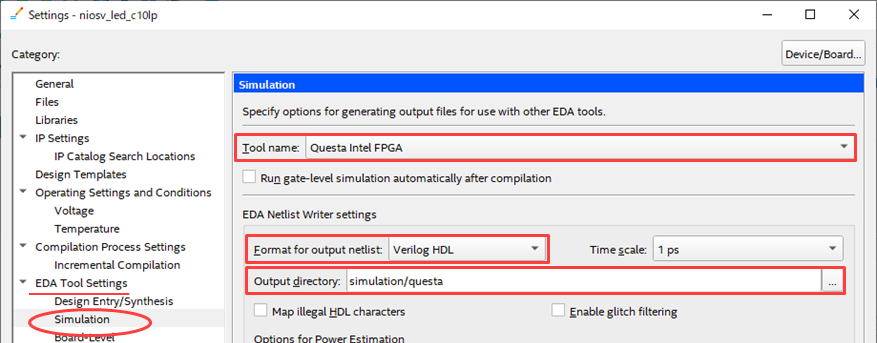
Assignmentsmenu➤Settings➤EDA Tool Settings➤Simulation
|
item name |
Settings |
| Tool name |
EDA tools used for simulation (In this example, we use Questa-Altera FPGA Edition) |
| Format for output netlist |
Select Verilog HDL (Specify Verilog here, even if it is a VHDL design.) |
| Output directory | Default (simulation/<tool_name>) |
|
EDA Tool Settings Top (in Simulation) |
|
| Compile test bench |
Set up your test bench
Please refer to the work flow “3. Register the testbench in NativeLink settings”. ) |
|
EDA Tool Settings bottom (in Simulation) |
|
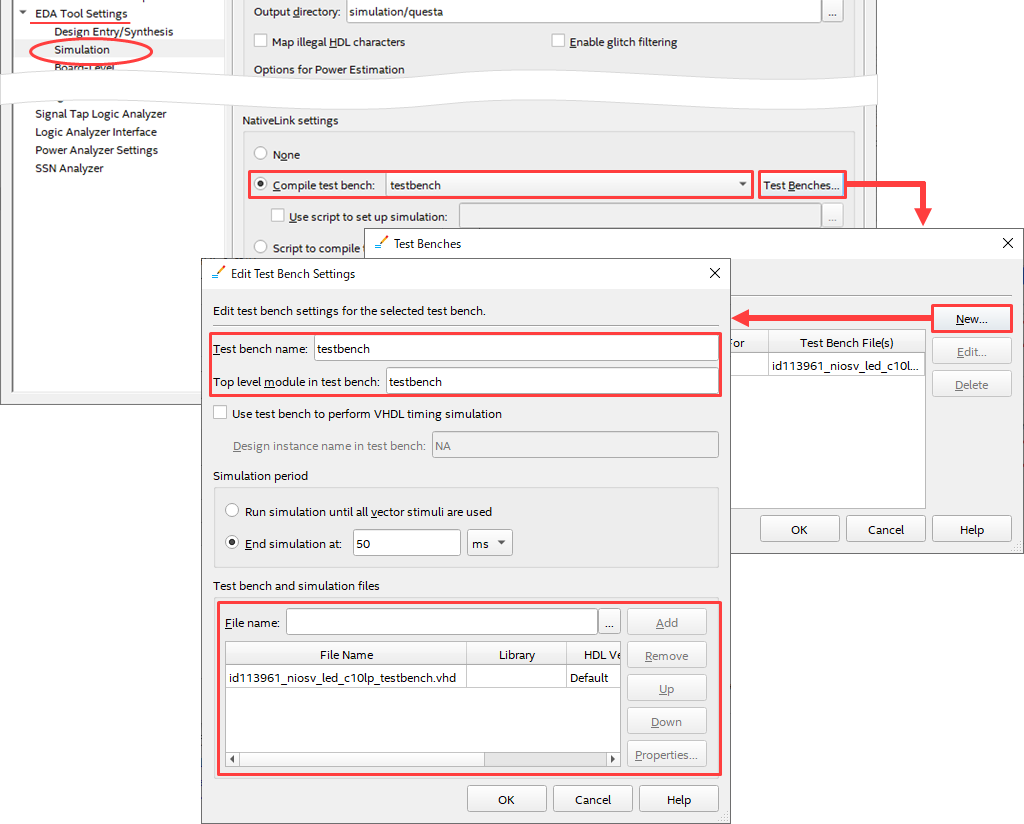
Close each window with OK.
3-4. Run RTL simulation with NativeLink
Click Toolsmenu➤ Run Simulation Tool➤ RTL Simulation.

* Analysis & Elaboration or Analysis & Synthesis or Fitter process must be executed in advance to execute RTL Simulation.
However, do not run Start Compilation (Processing menu). The EDA Netlist Writer was automatically run.
It may not generate scripts for successful RTL Simulation.
If you have already performed a full compilation, please run Analysis & Elaboration or Analysis & Synthesis, or Fitter again, and thenperform RTL Simulation.
Waveforms are displayed in the Wave window.
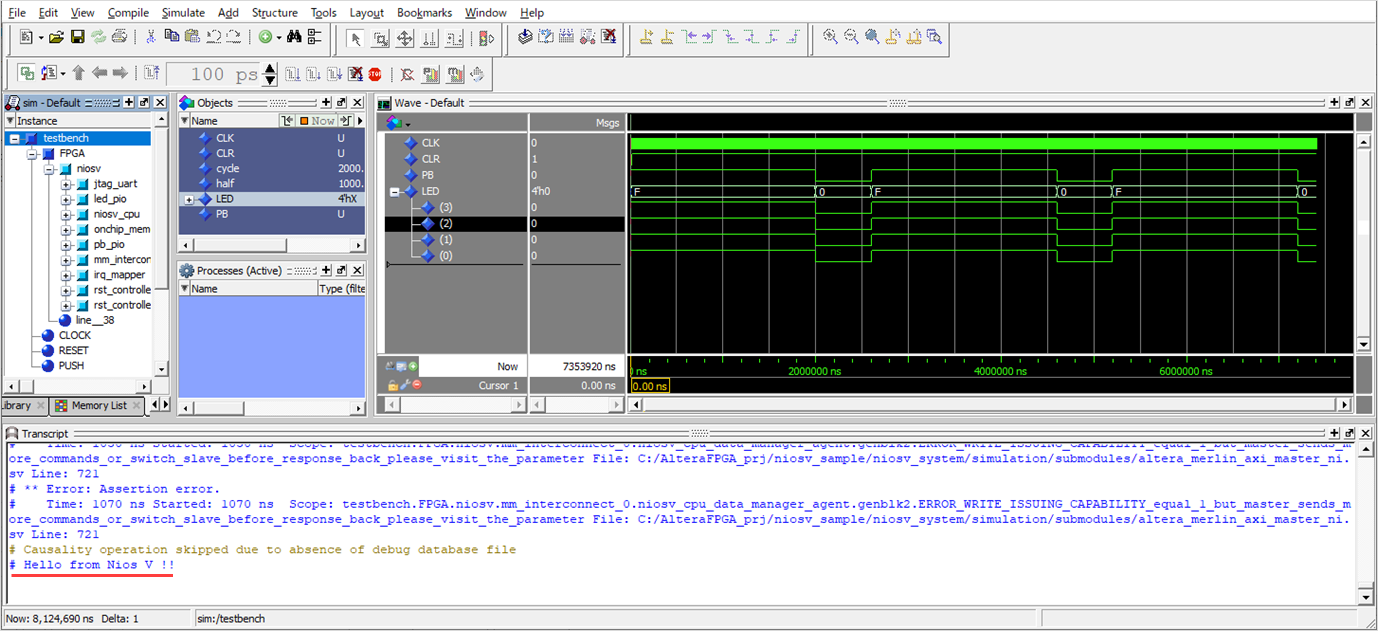
After confirming that the expected operation is achieved, terminate the simulation and Questa - Altera FPGA Edition.
<Notes>
In this example, when the push button is pressed, Nios V writes 0xF to the PIO for the LED to turn on the LED, and when the push button is released, Nios V writes 0x0 to the PIO for the LED.
The operation of turning off the LED can be confirmed by simulation.
You can also confirm that the alt_printf function "Hello from Nios V !!" specified in presspb_led_niosv.c is displayed in the Transcript window.
Questa - Altera FPGA Edition Simulate menu ➤ End Simulation, File menu ➤ Quit
Then change the Tool name back to <none> in the Quartus Prime Assignments menu ➤ Settings ➤ EDA Tool Settings ➤ Simulation.
[reference]
If you are running simulation on Questa (including Altera FPGA Edition) without using NativeLink,
Customize the simulation script file msim_setup.tcl in the Platform Designer generated folder.
/<Nios V system folder>/simulation/mentor/msim_setup.tcl
Please refer to the following contents for editing and work flow of msim_setup.tcl.
4. Set constraints
4-1. Setting pin assignment
Quartus® Prime Assignments menu ➤ Launches the Pin Planner and assigns pins in the user design to FPGA pins.
For the Cyclone ® 10 LP Evaluation Kit, please set the pins as follows:
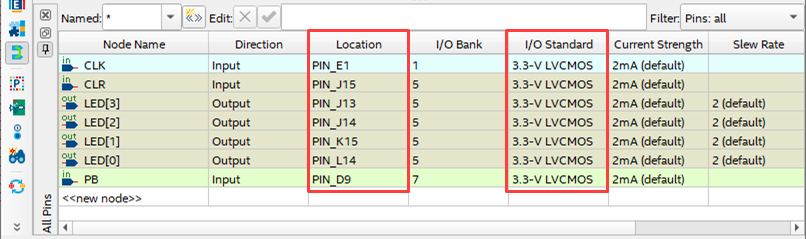
4-2. Setting timing constraints
The SDC for the Nios® V system is automatically generated when you generate a qip file (Operation 1-2-12. Generate a Nios® V system module), and is registered together with the qip file.
Applied to the Timing Analyzer (Assignments menu ➤ Settings).
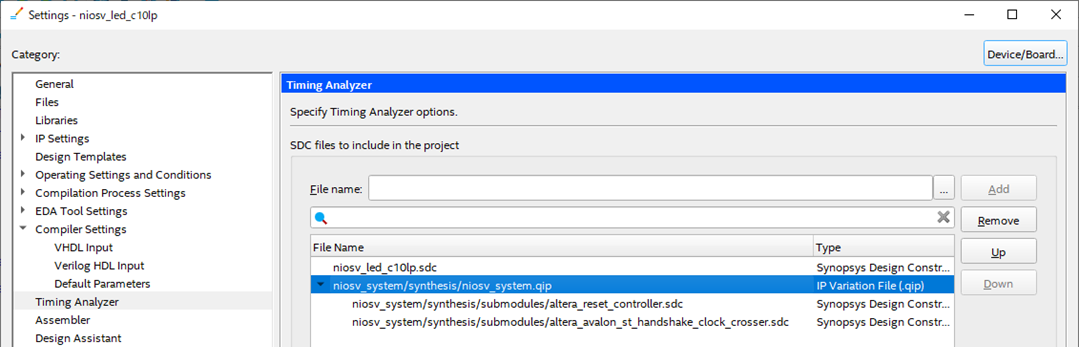
In addition, create timing constraints for the user design and register them in the project in the same way.
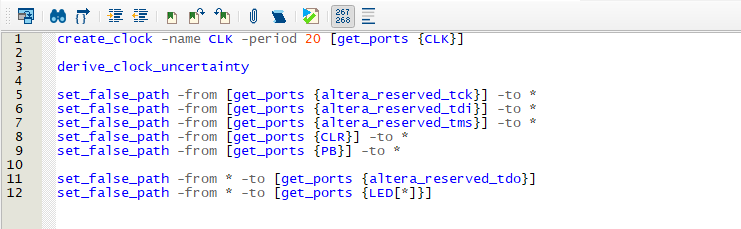
Since this sample is designed to operate with a 50MHz clock, create an SDC containing clock definition commands and add it to the project.
 niosv_led_c10lp.sdc Sample description
For this example, save the file as niosv_led_c10lp.sdc.
<Notes>
This sample also requires I/O constraints in the SDC file for the user design, but the input signal (a person pressing and releasing the push button) and the output signal (the LED turning on and off) are very slow, so
I/O timing constraints are omitted here.
5. Compile
Execute compilation using the following menu.
Processing menu ➤ Start Compilation
Logic synthesis and placement/routing are performed, and the bitstream data (.sof) to be written into the FPGA is also generated.
After compilation is complete, examine the compilation report that was generated.
6. Validate timing
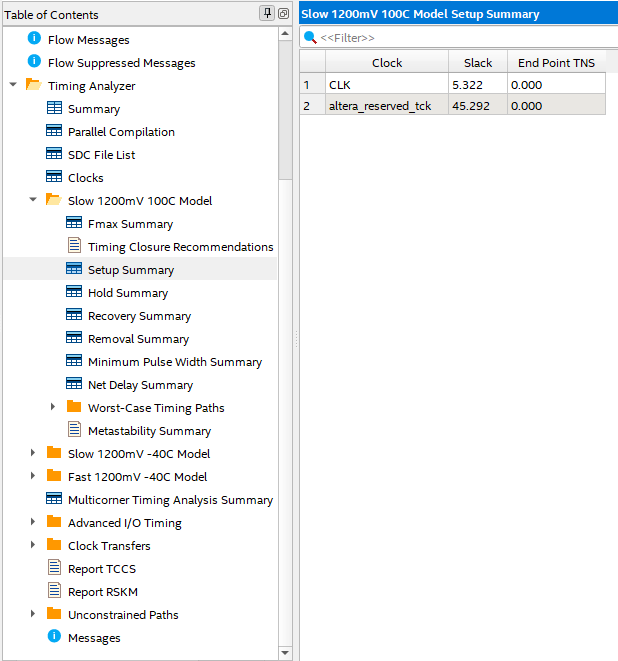
Expand the Timing Analyzer folder in the compilation report to run timing analysis.
You can see that each timing model passes the clock frequency constraints.
▲ Return to the list of work steps
This completes the hardware design.
Even if you transfer the sof file generated by compiling Quartus Prime to the FPGA, the internal Nios® V does not yet have a program to execute.
Even if you press the push button [PB3] on the evaluation board, the LED remains off.
Now let's move on to Nios®V software development.

Click here for recommended articles/materials
Getting started with Altera® FPGA
First time blinking LED with Altera® FPGA!
Boot Nios® II with FPGA's on-chip memory
Boot Nios® II with UFM in MAX® 10
Recommended online seminars and workshops
Running Nios® V on an Agilex™ 3 FPGA (see "I want to take an online seminar")
Nios® V Processor Introduction Course (see "Training Information")